
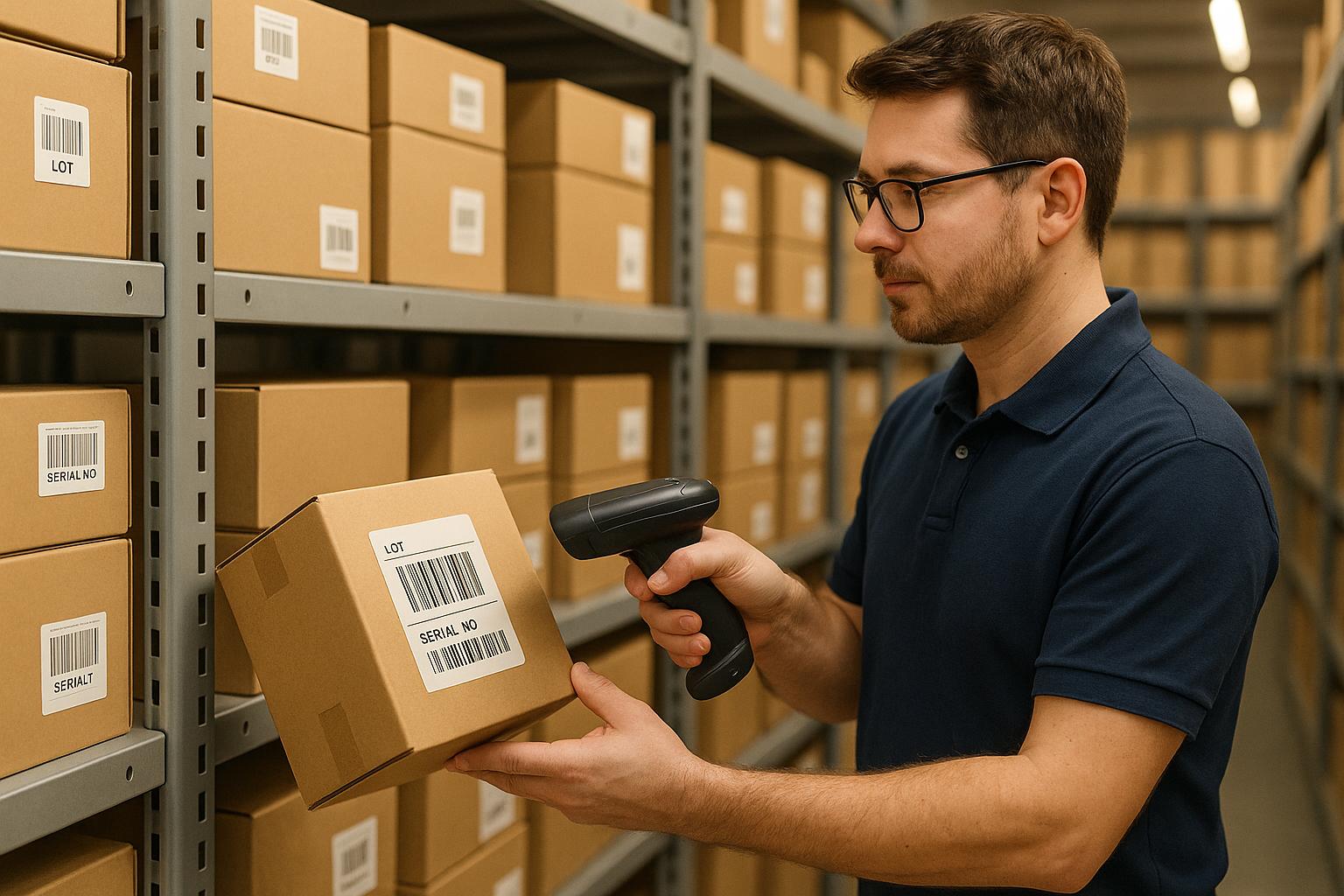
Tracking lot and serial numbers is essential for businesses in industries like food, pharmaceuticals, and electronics to maintain compliance, manage recalls efficiently, and ensure product quality. Here's the quick takeaway:
- Lot Numbers: Identify batches of products made under the same conditions (e.g., production date, facility). Useful for recalls and quality control.
- Serial Numbers: Assign unique IDs to individual items for warranty claims, maintenance, and precise tracking.
- Why It Matters: Poor tracking leads to operational delays, compliance fines, and costly recalls. Accurate systems save time, reduce waste, and build customer trust.
- How to Track in QuickBooks Desktop: Enable the feature, configure items for tracking, and use barcode scanning to minimize errors and speed up processes.
- Best Practices: Use consistent naming conventions, conduct regular audits, and train staff to ensure accuracy.
This guide explains how to set up and optimize lot and serial number tracking systems, including leveraging tools like QuickBooks Desktop and barcode scanning for better efficiency and compliance.
QuickBooks Enterprise: How to Setup and Use Lot Numbers for Advanced Inventory Tracking Like a Pro!
What Lot Numbers and Serial Numbers Are
Grasping the difference between lot numbers and serial numbers is key to creating an efficient tracking system. While both serve as identifiers, they operate on different levels and fulfill distinct purposes.
What Are Lot Numbers?
Lot numbers are used to group products that were made under the same conditions during a specific production run. Think of them as batch identifiers that tie together items sharing similar traits - like being produced on the same day, with the same materials, at the same facility, or under consistent quality controls.
For instance, in the food industry, lot numbers allow manufacturers to isolate and recall only the affected products from a specific batch rather than pulling everything off the shelves.
In the pharmaceutical world, lot tracking is critical for ensuring product integrity. A single lot of medication might include thousands of bottles made from the same batch of active ingredients and packaged at the same time. If a storage issue arises or testing reveals a problem with potency, the lot number pinpoints the affected inventory, keeping the rest of the supply chain intact.
Lot numbers simplify record-keeping by grouping similar items, making it easier to identify and resolve issues tied to a particular batch. These numbers often include details like production dates, shift codes, or even specific production lines, giving warehouse teams quick insight into where and how the products were made without digging through extra paperwork.
What Are Serial Numbers?
Serial numbers take tracking a step further by assigning a unique identifier to each individual item. Unlike lot numbers, which apply to groups, serial numbers distinguish one unit from another, even within the same batch. This level of detail is essential for high-value products, items with warranties, or equipment requiring individual maintenance records.
With serial numbers, verifying warranties, managing service records, or addressing safety recalls becomes straightforward - especially for high-value or critical-use products.
Take medical devices, for example. Manufacturers use serial numbers to track individual items like pacemakers, surgical tools, or diagnostic machines. Regulatory bodies require this level of tracking to quickly address potential safety concerns. The serial number creates a traceable record from production to use, ensuring swift action if issues arise.
For warranty claims and maintenance, serial numbers are indispensable. Imagine a construction firm managing 200 power tools across multiple job sites. They need to know which specific drill is where, who’s using it, and when it was last serviced. Serial numbers make this possible.
Though formats vary by industry, serial numbers are always unique. A manufacturer might use something like "SN-2025-A-000001" for the first item produced in 2025 at facility A, incrementing the number for subsequent units. Some companies also embed details like product type or location into alphanumeric codes.
Understanding the distinctions between lot and serial numbers lays the groundwork for appreciating why accurate tracking is so critical.
Why Accurate Tracking Matters
The stakes for poor lot and serial number tracking go far beyond administrative hassles. Businesses can face significant financial losses, regulatory fines, and damage to their reputation if they fail to maintain accurate traceability.
For starters, regulatory compliance demands precise tracking. Agencies like the FDA require pharmaceutical and medical device companies to keep detailed records showing which lots were shipped to which customers, when they arrived, and how they were stored. Failing to provide this information during an audit can result in warning letters, production halts, or hefty fines.
Product recalls are another area where accurate tracking makes a huge difference. If a food manufacturer discovers contamination but can’t pinpoint the affected lots, they may need to recall entire product lines. This not only leads to wasted inventory but also disrupts retailers, incurs additional costs, and erodes consumer trust. On the other hand, targeted recalls made possible by detailed lot tracking help minimize financial losses and demonstrate responsible quality management.
Inaccurate tracking also causes inventory headaches, leading to stockouts or overstocking, both of which cost time and money. Plus, it undermines customer confidence when orders can’t be fulfilled as promised.
Quality control heavily relies on traceability. When defects pop up in finished products, manufacturers need to quickly trace the issue back to its source. Was it faulty raw materials? A machine malfunction during a specific shift? Lot tracking helps identify and address these problems, preventing them from recurring. Without this, the same issues can persist, driving up waste and warranty costs while dragging down overall efficiency.
How to Set Up Lot and Serial Number Tracking in QuickBooks Desktop

If you're looking to manage your inventory with precision, setting up lot and serial number tracking in QuickBooks Desktop is a must. This feature helps you maintain accurate records, especially for items requiring strict traceability. Here's how to get started.
Enabling Lot and Serial Number Tracking
Lot and serial number tracking in QuickBooks Desktop isn't activated by default, so you'll need to turn it on manually. Here's how:
- Open QuickBooks Desktop and navigate to Edit > Preferences > Items & Inventory > Company Preferences.
- In the preferences menu, check the box labeled Inventory and purchase orders are active. This step is essential to unlock the tracking features.
- Next, click on Advanced Inventory Settings (the exact label may vary depending on your version). Look for the option to enable lot and serial number tracking, check the box, and click OK to save your settings.
Important: Once activated, this feature cannot be turned off without impacting historical data, so make sure you're ready before enabling it.
Configuring Inventory Items
After activating the tracking features, you'll need to configure your inventory items. This step ensures that only specific items - like those with expiration dates, regulatory requirements, or high value - are tracked.
- Go to the Lists menu and select Item List.
- Locate the item you want to configure and double-click it to open its details.
- Look for fields or dropdowns labeled Lot Number or Serial Number. Choose the appropriate tracking method:
- Lot Number Tracking: Ideal for batches of similar products, such as food or pharmaceuticals.
- Serial Number Tracking: Best for high-value items requiring unique identifiers, like electronics or machinery.
If you're tracking lot numbers, consider whether you also need to monitor expiration dates. QuickBooks Desktop allows you to capture this information during receiving and sales transactions, helping you stay on top of expiring products.
For serial numbers, think about how detailed your tracking needs to be. Some businesses only track serial numbers at the point of sale for warranty purposes, while others monitor them throughout the supply chain. Keep in mind that more detailed tracking requires more data entry, so balance your needs with your team's capacity.
Once you've made your selections, save the changes. As you configure more items, you'll get a better sense of which products require lot or serial tracking, making the process quicker over time.
Setting Up Tracking Protocols
With the system configured, it's time to establish clear protocols to ensure consistency. Without a standardized approach, errors can creep in, undermining the benefits of tracking.
- Create Naming Conventions: Develop a consistent format for lot and serial numbers (e.g., "LOT-MMDDYY-001" for lots or "SN-PROD123-2025-00001" for serials). This makes it easier to identify and track items.
- Assign Numbers at the Right Time: Decide when to assign lot or serial numbers - typically upon receiving inventory from suppliers or when finished goods are produced. Determine whether you'll use the manufacturer's identifiers or assign your own.
- Record Information in QuickBooks: Train your team to enter lot and serial numbers during key transactions, such as purchase orders, item receipts, invoices, and sales receipts. This ensures the data is captured accurately and in real time.
- Maintain Backup Documentation: Use receiving logs and checkout sheets to document lot and serial numbers as an additional layer of record-keeping.
To ensure accuracy, schedule regular audits. Randomly select a few items, locate them in your warehouse, and verify that their physical lot or serial numbers match the records in QuickBooks Desktop.
Finally, consider creating a reference guide for your team. Include screenshots showing where to enter lot and serial numbers, examples of correctly formatted identifiers, and solutions to common issues. Keep this guide easily accessible, whether as a printed manual or a shared digital file.
Assigning a point person for lot and serial number tracking can also be helpful. This individual can address unusual situations, such as damaged labels or mismatched serial numbers during customer returns. Having a dedicated resource ensures smooth operations and consistent practices across your team.
Using Barcode Scanning to Improve Efficiency
Building on the established practices of tracking lot and serial numbers, barcode scanning takes efficiency to another level. Manual data entry is prone to errors, which can lead to compliance headaches, shipping mistakes, and delays in inventory management. Scanning a barcode, however, captures the data instantly - no more typing long strings of numbers or letters. For businesses managing lot and serial numbers, barcode scanning transforms a time-consuming, error-prone task into a smooth, efficient process.
Assigning Barcodes to SKUs
Assigning barcodes to your products is the first step. For retail, use UPC barcodes, while Code 128 works well for internal operations. Generate labels that include both the SKU and the lot or serial numbers, and print them on durable materials suited to your working environment.
Barcode generation tools, whether online or software-based, make this process easy. Many allow you to design labels that combine both the SKU and the lot or serial number on a single label. This is especially helpful during receiving since you can scan both pieces of information together instead of entering them separately.
If your business operates in challenging conditions like cold storage or areas with high humidity, invest in labels built for those environments. Poor-quality or damaged barcodes can lead to scanning errors, which defeats the purpose of using barcodes in the first place.
Consistency is key when applying labels. Place them in the same spot on every product or package to save time during scanning. For items that already come with manufacturer barcodes, you might add a secondary label to include your internal lot or serial number data.
Once your barcodes are assigned and printed, integrate them with your scanning system for real-time updates and seamless operations.
Connecting Barcode Scanners with QuickBooks Desktop
Integrating barcode scanners with QuickBooks Desktop requires additional software to bridge the gap between your hardware and the accounting system. QuickBooks Desktop doesn’t natively support barcode scanning for lot and serial numbers, so an integration tool is essential.
Rapid Inventory offers a two-way sync feature that connects mobile barcode scanning directly with QuickBooks Desktop. This integration ensures seamless updates - when you scan a lot or serial number in Rapid Inventory, the data automatically flows into QuickBooks Desktop. This eliminates the need for manual input, keeping inventory levels accurate and tracking item movements effortlessly.
Most businesses opt for handheld scanners or mobile devices with built-in cameras. Rapid Inventory’s mobile scanning works on smartphones and tablets, allowing your team to use devices they’re already familiar with. This reduces the learning curve and avoids the need for extra hardware purchases.
When setting up your system, map barcode formats to the correct fields in both Rapid Inventory and QuickBooks Desktop. For example, if your lot numbers follow a specific format like "LOT-120425-001", ensure the system recognizes this as a lot number and not just a general product code.
Before rolling it out to the entire team, thoroughly test the integration. Scan multiple items to confirm that lot and serial numbers appear correctly in both systems. Verify that inventory levels update as expected, and run test transactions - receiving, transferring, and selling inventory - to ensure everything flows smoothly. A strong hardware-software setup is the foundation for efficient workflows and fewer errors.
Training Staff for Barcode Scanning
Even the most advanced scanning system is only as effective as the people using it. Proper training ensures your team knows when to scan, what to scan, and how to handle exceptions.
Start by teaching staff the basics, such as how to handle the scanning devices and follow the correct scanning sequence for tasks like receiving and picking. Provide quick reference guides and hold follow-up sessions to address common issues like damaged or unreadable barcodes.
Tailor the training to your specific workflows. For instance, during receiving, staff should scan the manufacturer’s barcode to identify the product, then scan or enter the lot number, and finally confirm the quantity. For picking, they should scan the serial number to ensure they’re selecting the right unit. Clear instructions eliminate guesswork and reduce errors.
Quick reference guides can be a lifesaver. A laminated card showing the scanning steps for tasks like receiving, picking, or cycle counting can reinforce training and provide on-the-spot support. Include screenshots from Rapid Inventory to show where scanned data appears and what confirmations to check for.
Follow up after the initial training. After a week or two, observe your team’s scanning practices and address any questions or challenges. You may find that some workflows need fine-tuning or that certain team members require additional support. Everyone learns at their own pace, so be ready to offer one-on-one help where needed.
Stress the importance of accuracy over speed, especially in the beginning. It’s better for someone to take a few extra seconds to verify they’ve scanned the correct lot or serial number than to rush and create errors that require time-consuming corrections later. Over time, as your team becomes more comfortable with the process, their speed will naturally improve without sacrificing precision.
sbb-itb-19ed50f
Creating Reports and Analyzing Tracking Data
Once your tracking system is up and running, the next step is turning that raw data into practical insights. Reports play a critical role here, helping you stay compliant, maintain quality control, and make smarter inventory decisions. QuickBooks Desktop Enterprise with Advanced Inventory offers a range of specialized reports designed specifically for lot and serial number tracking. These reports connect the dots between your tracking data and operational improvements.
Types of Reports Available
QuickBooks Desktop Enterprise includes a variety of reports tailored for analyzing lot and serial number data. You can find these under Reports > Inventory.
- Transaction List by Lot Number Report: This report provides a detailed record of every transaction linked to a specific lot number. It shows where the lot originated, who purchased it, and its current location.
- Lot Numbers in Stock by Site Report: This report gives you a clear view of your current inventory levels, broken down by lot number and location. For businesses managing multiple warehouses, it’s an invaluable tool for avoiding stock imbalances - like one site running out while another has excess.
- Inventory Stock Status by Lot Number Report: This report goes beyond quantities, offering details like expiration dates. It helps you prioritize inventory movement by ensuring older stock is sold before it expires.
- Inventory Expiration Status Report: Perfect for time-sensitive goods, this report identifies expired items or those nearing their expiration date. It allows you to act quickly to clear or manage aging inventory.
- Serial Number Tracking Report: This report is essential for tracking individual items with unique serial numbers, such as electronics or medical equipment. It shows the item's current status, location, and transaction history.
Each of these reports isn’t just about presenting data - it’s about giving you the tools to make informed decisions that improve compliance, quality, and efficiency.
Using Reports for Compliance and Quality Control
These reports are more than just numbers - they’re essential for meeting regulatory requirements and maintaining quality standards.
For compliance, accurate tracking records are often mandatory. If an inspector requests proof of where a specific lot came from and where it went, the Transaction List by Lot Number Report can provide that information instantly.
When it comes to quality control, swift action is crucial. For example, if a customer reports a defective product, you’ll need to determine if it’s an isolated issue or part of a broader lot problem. Reviewing the Transaction List by Lot Number Report can help you trace the affected batch and address the issue quickly, minimizing further risk.
The Inventory Expiration Status Report is especially useful for businesses handling perishable goods. Regularly reviewing this report allows you to identify items close to expiration, giving you time to discount, donate, or dispose of them responsibly. This not only reduces waste but also protects your reputation by preventing expired goods from reaching customers.
Proper documentation is another critical aspect of compliance. Many industries require you to demonstrate effective tracking and management of lot and serial numbers. Scheduling regular report generation and keeping these records organized can show auditors that your processes are thorough and reliable.
Analyzing Trends and Improving Inventory
Reports don’t just help with compliance - they also offer valuable insights to fine-tune your inventory strategy.
For example, the Inventory Stock Status by Lot Number Report can reveal which lots are selling quickly and which are stagnating. If you notice a pattern of certain lots expiring before they sell, it may be time to adjust your ordering quantities or rethink your product placement.
The Inventory Expiration Status Report can also guide smarter purchasing decisions. If you frequently see items nearing expiration, it’s a sign that you may be over-ordering. Adjust your reorder points and quantities to better align with actual sales trends. On the flip side, if certain items are consistently out of stock, it may be time to increase your order frequency or quantities.
Location data from the Lot Numbers in Stock by Site Report can help improve warehouse efficiency. If fast-moving items are stored in hard-to-reach locations while slower items occupy prime spots, you’re likely wasting time and effort. Use the report to reorganize your layout, prioritizing accessibility for high-demand products.
The key to getting the most out of these reports is consistency. Regularly reviewing them - not just when issues arise - allows you to spot patterns early and make proactive adjustments. This ongoing analysis leads to better inventory management and more effective decision-making.
Best Practices for Lot and Serial Number Tracking
Once you've set up an effective system and incorporated barcode scanning, maintaining long-term success in lot and serial number tracking requires consistent and accurate practices. These best practices help ensure your data remains reliable and actionable.
Using Standard Documentation and Naming Conventions
Consistency is the backbone of efficient tracking. If team members use different abbreviations or formats for lot and serial numbers, it can create confusion and make data analysis a nightmare.
Begin by establishing clear naming conventions for lot numbers. For example, a standardized format might include the production date, facility code, and batch sequence. A lot number like "2025-12-04-WH1-001" can instantly communicate when and where the batch was produced, as well as its sequence in that batch. This eliminates guesswork and ensures quick, accurate identification.
Serial numbers should follow a similar logic. For instance, if you're tracking electronics, you might use a structure like "MOD-A-2025-00123", which includes the model code, year, and a unique identifier. This format allows anyone reviewing the number to quickly understand the product type and its manufacturing details.
Document these procedures clearly. Specify required fields in your inventory system, outline what information needs to be captured during receiving, and detail how to handle special situations like returns or damaged goods. Keep these guidelines readily available - whether in a shared digital folder or printed in your warehouse - so that all team members, including new hires or temporary staff, can easily access them. Using consistent terminology, such as "lot number" across all teams, further reduces miscommunication.
These standardized practices not only simplify daily operations but also provide a solid foundation for conducting audits and training staff effectively.
Conducting Regular Audits
Even with a well-designed system, mistakes can happen. Regular audits are your safety net, helping to catch and correct errors before they escalate into larger problems.
Start with periodic physical counts. For high-value items, monthly counts may be necessary, while quarterly counts might work for standard inventory. During these audits, compare the lot and serial numbers in your system to the physical inventory on your shelves. Pay close attention to items with expiration dates to ensure your records reflect their current status.
Cycle counting is another useful strategy. This method involves auditing a portion of your inventory on a rotating schedule, allowing you to maintain accuracy without the disruption of a full physical count every time.
During audits, verify that quantities, serial numbers, and lot formats are correctly recorded. Even small errors - like a missing expiration date or an incorrect facility code - can lead to serious issues during recalls or formal inspections.
If discrepancies arise, investigate them immediately. A mismatched serial number could point to anything from a simple data entry error to a scanning issue or even theft. Document your findings, update your records, and look for patterns that might indicate the need for process improvements or additional training.
Leverage system audit tools to cross-check physical counts with digital records and log all audit details. This documentation not only helps during regulatory inspections but also allows you to track the effectiveness of your processes over time.
Regular audits work hand-in-hand with standardized documentation, helping to catch and prevent errors before they disrupt operations.
Training and Supporting Staff
Even the best tracking system is only as good as the people using it. Without proper training, your system's reliability can quickly fall apart. Ensuring your team is well-trained is essential to maintaining accurate and consistent tracking.
"Even the best system is useless without proper training. Make sure everyone, from warehouse staff to customer service, understands how to assign, track, and reference lot numbers."
Tailor training sessions to the specific roles within your team. Production teams should focus on assigning numbers and updating manufacturing records. Warehouse staff need hands-on practice with scanning equipment and data entry. Sales teams should know how to verify inventory status, while service technicians must learn to access maintenance histories and warranty details. Customer service staff, in particular, should be able to retrieve serial histories quickly for warranty verification and service calls.
Training should also address exception handling. Teach staff how to deal with scenarios like missing, duplicated, or illegible serial numbers, as well as how to process returns with damaged barcodes. When making changes to your tracking processes, schedule training sessions in advance to ensure a smooth transition.
Provide accessible resources - such as quick-reference guides, video tutorials, or step-by-step checklists - to reinforce what your team learns. Regularly check in with staff to address challenges and gather feedback, ensuring they feel supported long after the initial training.
How Rapid Inventory Improves Lot and Serial Number Tracking

The right software can transform your inventory tracking, making it more efficient and reliable. Rapid Inventory takes QuickBooks Desktop to the next level by adding advanced inventory management tools, simplifying workflows, and addressing the challenges of traditional tracking systems.
Key Features for Lot and Serial Number Tracking
Rapid Inventory integrates seamlessly with QuickBooks Desktop Enterprise, Pro, and Premier, offering robust tools for lot and serial number tracking. It’s designed to tackle the common hurdles businesses face when managing inventory with QuickBooks alone.
At the core of this system is mobile barcode scanning. Whether you’re receiving shipments, picking items for orders, counting stock, or transferring inventory, warehouse staff can verify locations, quantities, and shipments in real time using mobile devices. This eliminates the errors often caused by manual entry or paper-based systems.
For businesses managing inventory across multiple locations, the software provides multi-location and multi-warehouse tracking. You can easily track which lot numbers or serial numbers are stored in each facility, all from one centralized system.
Another standout feature is expiration tracking, which is particularly useful for managing perishable items. By monitoring expiration dates alongside lot numbers, the system ensures you stay ahead of spoilage. Additionally, both paper and mobile pick lists improve picking efficiency, ensuring the correct items - with the right lot or serial numbers - are selected for each order.
Since Rapid Inventory is web-based, you can access your data from anywhere - whether you’re on-site at the warehouse, at your desk, or working remotely.
Solutions for Growing Businesses
As a business grows, manual tracking methods can quickly become a bottleneck. Rapid Inventory is designed to scale with your needs, offering tools that enhance operational efficiency and reduce growing pains.
For instance, the software uses FIFO (First In, First Out) and FEFO (First Expired, First Out) strategies to guide pickers, which is especially helpful for businesses handling perishable or time-sensitive goods.
Real-time inventory reports provide instant visibility into critical metrics like on-hand stock, order statuses, inventory value, and reorder points. This level of insight is incredibly useful when addressing customer inquiries about specific serial numbers or determining which lots are still available.
Additional features such as inventory assemblies, cycle counting, backorder tracking, partial shipping and receiving, and label printing streamline even the most complex inventory operations, making it easier to manage growing demands.
Integration with QuickBooks Desktop
Rapid Inventory builds on QuickBooks Desktop’s capabilities with a two-way synchronization that keeps your financial and inventory data perfectly aligned. When you scan inventory in Rapid Inventory, it automatically updates QuickBooks Desktop for both received and shipped items. This seamless sync eliminates the need for manual updates, ensuring your records are always accurate.
This integration is especially valuable during audits, recalls, or warranty claims, where data accuracy is critical. To make onboarding smooth, the platform offers technical setup assistance, including web connector configuration, user setup, warehouse and location configuration, and data migration.
Additionally, free training and support are included to help your team get up to speed quickly. By extending QuickBooks Desktop’s functionality, Rapid Inventory enhances your inventory management without disrupting the workflows you’re already familiar with.
Conclusion
Keeping accurate track of lot and serial numbers is crucial for meeting regulations, maintaining product quality, and ensuring smooth operations. Whether you're managing perishable goods that need expiration date monitoring or high-value items requiring unique identification, having a solid tracking system shields your business from expensive recalls, regulatory fines, and unhappy customers.
To achieve this, a mix of reliable software and standardized practices is key. Consistent naming conventions, routine audits, and thorough staff training are just as important as the technology itself. When your team understands the importance of accurate tracking and knows how to use the tools effectively, you'll experience fewer errors and more efficient workflows in areas like receiving, picking, shipping, and reporting.
For businesses relying on QuickBooks Desktop, tools like Rapid Inventory can significantly enhance tracking capabilities. By addressing the limitations of QuickBooks Desktop, Rapid Inventory simplifies lot and serial number management with features like mobile barcode scanning, multi-location tracking, FIFO/FEFO strategies, and expiration date monitoring. Its two-way synchronization ensures your inventory and financial data stay aligned, reducing errors and improving accuracy.
A proper tracking system doesn’t just prevent mistakes - it also helps reduce waste, speed up order fulfillment, ensure compliance, and build customer trust. As your business grows, scalable tools and well-documented processes will help you manage increasing complexity without losing control of your inventory. Take a close look at your current tracking methods, address any inefficiencies, and invest in the right technology and training to keep your operations running smoothly and your business compliant.
FAQs
How does barcode scanning improve tracking of lot and serial numbers in QuickBooks Desktop?
Barcode scanning makes tracking lot and serial numbers much easier by simplifying the inventory management process. It enables fast and accurate recording of products as they enter or leave inventory. This reduces the chances of mistakes from manual data entry and helps maintain precise stock levels.
It also improves efficiency and traceability, allowing businesses to quickly find specific items, keep tabs on expiration dates, and meet regulatory standards. When paired with QuickBooks Desktop, barcode scanning automates data entry, saves time, and provides better oversight of inventory operations.
What risks could arise from not using a reliable system to track lot and serial numbers?
Without an effective way to track lot and serial numbers, businesses can run into serious problems. For starters, product recalls become a logistical nightmare, causing delays and confusion that can erode customer confidence and hit your bottom line. It also weakens quality control processes, making it tougher to pinpoint and resolve issues with defective products.
Another big concern is failing to meet regulatory requirements, which can lead to hefty fines, legal troubles, or even forced shutdowns. By adopting a reliable tracking system, companies can avoid these pitfalls, streamline operations, and maintain strong customer relationships.
How does Rapid Inventory work with QuickBooks Desktop to simplify complex inventory tracking?
Rapid Inventory works hand-in-hand with QuickBooks Desktop through an automatic two-way sync. This means your items, orders, and inventory updates move smoothly between the two systems, cutting out the hassle of manual data entry.
With real-time syncing, Rapid Inventory keeps your records accurate, boosts efficiency, and minimizes mistakes. It's a smart choice for businesses that need a reliable way to handle complex inventory tracking.



