
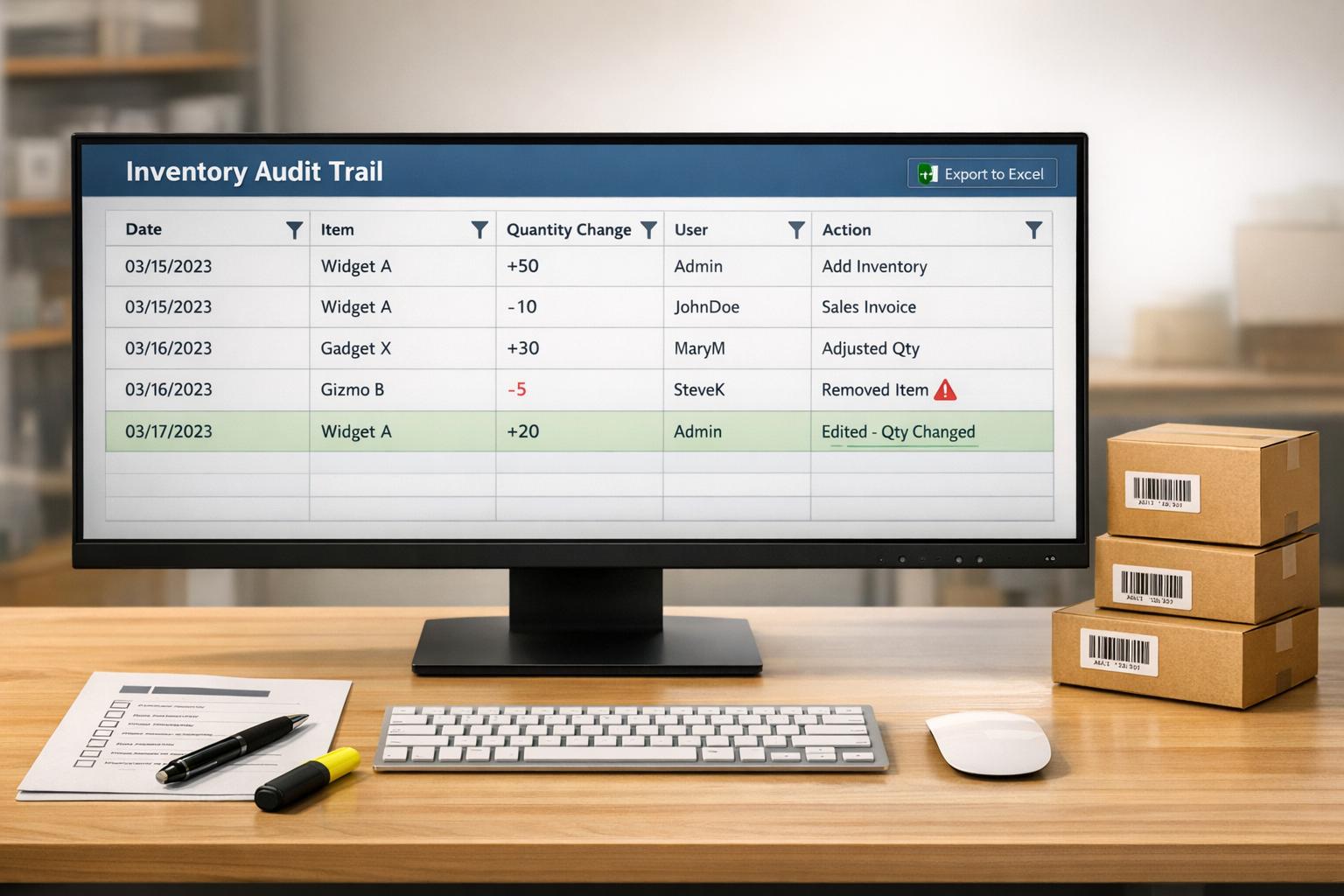
In QuickBooks Desktop, the Audit Trail report is your go-to tool for tracking inventory changes with inventory management software for QuickBooks Desktop. It records every addition, deletion, and modification made to transactions, showing who made the change, when it happened, and what was altered. This ensures transparency and helps identify discrepancies in inventory.
Key Takeaways:
- Accessing the Audit Trail: Navigate to Reports > Accountant & Taxes > Audit Trail.
- Filtering for Inventory: Use the Customize Report feature to focus on inventory-specific transactions, such as adjustments or receipts.
- Analyzing Data: Columns like "Last Modified By" and "Date Entered/Last Modified" help pinpoint errors or edits.
- Fixing Issues: Compare the Audit Trail with the Inventory Valuation Detail report to resolve discrepancies.
- Exporting Data: Export the Audit Trail to Excel for deeper analysis and long-term recordkeeping.
By regularly reviewing and customizing the Audit Trail, you can maintain accurate inventory records and address errors effectively.
How to use Audit Trail in QuickBooks
sbb-itb-19ed50f
How to Access the Audit Log in QuickBooks Desktop


How to Access and Filter QuickBooks Audit Trail for Inventory Tracking
Accessing the Audit Trail is straightforward across all versions of QuickBooks Desktop.
Opening the Audit Trail Report
To review changes in your company file, start by opening the Audit Trail report. Click the Reports menu at the top of the QuickBooks Desktop window. From the dropdown, choose Accountant & Taxes, then select Audit Trail. This will bring up a report showing all recorded transaction changes within your company file.
If you don't see the Accountant & Taxes option, check your permissions or reach out to your QuickBooks administrator for assistance.
Filtering the Report
The Audit Trail report initially shows every change made across your company file, which can be overwhelming. To focus on inventory-specific transactions, use the Customize Report option at the top of the report window. This feature allows you to apply filters to narrow down the data.
In the Filter tab, select Transaction Type and choose inventory-related actions like Inventory Adjustment, Item Receipt, Build Assembly, or Sales Order. You can also filter by Account to focus on changes in specific Inventory Asset or Cost of Goods Sold (COGS) accounts. Customizing the report like this makes it easier to pinpoint inventory-related discrepancies.
Additionally, you can use two date filters to track changes:
- Date Entered/Last Modified: This filter shows when a change was made, regardless of the original transaction date. It's handy if you know, for instance, that an edit occurred last Tuesday but aren't sure which transaction was affected.
- Date: Found in the customization menu, this filter focuses on the actual transaction date. It's useful when you're looking into the history of a specific transaction.
Once you've applied your filters, click OK and then Refresh to update the report with the narrowed-down data.
| Filter Type | What It Does | When to Use It |
|---|---|---|
| Transaction Type | Shows actions like Inventory Adjustments or Receipts | To track specific inventory activities |
| Account | Focuses on changes to Inventory Asset or COGS accounts | To investigate discrepancies in certain accounts |
| Date Entered/Last Modified | Finds edits made during a specific timeframe | When you know the timing of a change |
| Date | Displays transactions from a specific date | To review the history of a particular transaction |
Analyzing Inventory Transactions in the Audit Log
Once you've filtered the Audit Trail to focus on inventory-related data, the next step is understanding the details and using them to identify and address potential issues.
Reading the Audit Trail Columns
The Audit Trail includes several columns that provide a comprehensive view of each inventory transaction. Here's a breakdown of the key columns:
- Date: Reflects the transaction date entered by the user.
- Entered/Last Modified: Shows when the system actually recorded the transaction, which is essential for spotting backdated entries.
- Last Modified By: Identifies the QuickBooks user responsible for creating or editing the transaction, ensuring accountability.
- Name: Displays the customer, vendor, or employee linked to the transaction.
- Account: Indicates the ledger account impacted by the transaction.
- Amount: Shows the financial value, which directly affects inventory valuation.
Pay close attention to the Date and Entered/Last Modified columns. For example, if a transaction is dated March 10, 2026, but the system entry shows March 25, 2026, this delay could lead to inventory misalignment. Use the audit log to catch and correct such discrepancies.
If you notice a transaction listed multiple times, it means edits were made. QuickBooks Desktop tracks the original entry and all subsequent changes. This feature allows you to examine what was modified - whether it’s a quantity adjustment or a cost update.
By analyzing these columns, you can uncover discrepancies and identify errors, which we’ll explore further in the next section.
Finding and Fixing Inventory Discrepancies
Deleted transactions in the Audit Trail can reveal missing inventory entries. To fix this, re-enter the transaction using the original date, account, and amount.
"QuickBooks records indirect edits when someone changes a transaction that was already on your books, for instance, if someone edits a completed reconciliation." - QuickBooks Help
Keep in mind that changes to one transaction can sometimes affect related transactions. For example, updates made by "System Administration" or "Online Banking Administration" often point to automated adjustments rather than manual ones.
To resolve discrepancies, compare your Audit Trail findings with the Inventory Valuation Detail report. This report provides a detailed breakdown of quantity and value changes over time for specific items. If you identify an incorrect adjustment, use the Audit Trail to locate the original values and revert the transaction to its correct state. This ensures consistency between the audit log and your inventory records.
Exporting and Reviewing Audit Log Data
Exporting your Audit Trail to Excel allows for more detailed analysis and easier cross-referencing. This approach is especially useful for long-term storage and leveraging Excel's tools to resolve discrepancies.
Exporting the Audit Trail to Excel

To start, access the Audit Trail report by navigating to Reports > Accountant & Taxes > Audit Trail. Before exporting, click Customize Report and use the Filter tab to refine the data. Narrowing it down by inventory accounts or specific date ranges can help avoid exceeding detail line limits, especially in older software versions.
For Windows, use the Excel dropdown, select Create New Worksheet, and then click Export. For Mac, click Export, and once the file opens in Excel or Apple Numbers, save it by choosing File > Save As. If changes are made in QuickBooks after exporting, refresh the report in Excel by reopening it and selecting Update Report from the QuickBooks tab.
If you encounter a security warning, choose Enable Content to ensure the report functions correctly. To maintain previous formatting and analysis, consider updating an existing worksheet instead of creating a new one each time.
Once exported, compare the data with the Inventory Valuation Detail report to confirm transaction consistency.
Comparing Audit Data with Inventory Reports
After exporting, cross-check the Audit Trail data against your Inventory Valuation Detail report. Match transaction IDs or document numbers to identify discrepancies. Excel's VLOOKUP or XLOOKUP functions can help pinpoint the user or action responsible for any inconsistencies. Pay close attention to transactions marked as deleted, as these won't appear in standard inventory reports but are often a source of discrepancies.
Review the "Original" transaction values alongside the "Latest" or "Modified" versions to determine if changes in quantities or costs have impacted inventory totals. If missing or inconsistent entries are found, use the Verify Data and Rebuild Data tools under File > Utilities to address any issues in your company file. To stay ahead of potential problems, consider scheduling a monthly review of your audit logs to catch unauthorized edits or errors before closing the month.
Fixing Common Audit Log Problems
Keeping your inventory tracking accurate means addressing Audit Trail issues as soon as they pop up. Even with a solid setup, problems can occur, often tied to user permissions or data integrity.
Resolving Permission Issues
The Audit Trail report is highly sensitive, and QuickBooks Desktop limits access based on user roles. Only users with Administrator rights can view the full audit history for the company file. Standard or restricted users only see partial entries.
"Only Admin users typically have full audit log visibility. Standard users will see limited entries." - upgradequickbookssupport, QuickBooks Support Guide
To fix this, the primary admin should go to Company > Set Up Users and Roles in QuickBooks Desktop. From there, they can assign the Admin role to the user needing access or create a custom role with permissions for Accountant & Taxes reports. It's also important to avoid shared login credentials - assigning unique usernames and passwords to each user ensures a clear and accountable audit trail.
If updating permissions doesn’t solve the issue, the problem might lie with data integrity. In that case, move on to rebuilding data.
Rebuilding Data
When permissions are correct but the Audit Trail is blank or missing records, it’s often due to data corruption in the company file.
Start by running the Verify Data utility. Navigate to File > Utilities > Verify Data. If QuickBooks reports, "Your data has lost integrity", you’ll need to rebuild the file. Before starting, QuickBooks will prompt you to back up your data - make sure to create a new backup and avoid overwriting any existing ones.
| Utility | Purpose | When to Use |
|---|---|---|
| Verify Data | Scans for errors or data damage | When reports show discrepancies or unusual behavior |
| Rebuild Data | Repairs damaged data and restores integrity | After Verify Data reports integrity issues |
| File Doctor | Fixes damaged files or network problems | When Verify/Rebuild fails to resolve errors |
After backing up, go to File > Utilities > Rebuild Data. If you see a "Not Responding" message, don’t panic - wait for the process to complete as long as the cursor remains active. Once finished, run the Verify Data utility again to ensure all issues are resolved. Sometimes, you may need to repeat the rebuild process two or three times if errors persist.
"In Desktop, inaccurate or missing audit trail data can indicate data integrity issues... run Rebuild Data. This process corrects damaged company file records so audit data displays properly." - upgradequickbookssupport, QuickBooks Support Guide
If problems continue, check the qbwin.log file by pressing F2 for error codes. Look up these codes on the QuickBooks support site for manual troubleshooting steps. To prevent future issues, avoid using the "Condense Data" utility, as it removes older Audit Trail entries to shrink file size.
Following these steps helps restore your audit log functionality, ensuring that inventory changes are tracked accurately and reliably.
Conclusion
QuickBooks Desktop's Audit Trail plays a critical role in safeguarding inventory data by recording every change - capturing the who, what, and when of each adjustment. This built-in accountability helps deter unauthorized changes and ensures that every inventory update is traceable to a specific user.
"The QuickBooks Audit Trail in QuickBooks Desktop is an essential tool for maintaining accurate and reliable financial records." - Debits.com
To stay on top of potential issues, it's a good idea to regularly review the Audit Trail. By comparing original and modified transactions, you can quickly spot inventory discrepancies. The log provides detailed information on key fields such as Item name, Quantity, Unit Price, and Amount, making it easier to identify and resolve variances.
For better results, consider scheduling weekly or monthly reviews of the Audit Trail. Customize the report to include the Entered/Last Modified column and use filters to focus on specific inventory accounts or transaction types. Exporting the data to Excel can also help with advanced sorting or comparing audit entries against physical inventory counts. Additionally, setting strict user permissions is a smart way to control who can edit or delete inventory transactions.
Since the Audit Trail operates continuously, it serves as a dependable resource for audits, regulatory compliance, and maintaining inventory accuracy.
For users looking to take their inventory management further, Rapid Inventory offers a powerful solution. Its features, like seamless QuickBooks integration, multi-location tracking, and real-time reporting, make it easier to keep inventory data accurate and accessible. This added functionality can significantly improve the efficiency of your audit process.
FAQs
Can I see what an inventory transaction looked like before it was edited?
Yes, the audit log in QuickBooks Desktop allows you to track inventory transactions before they were edited. It records all changes, including details about what was modified, when the changes occurred, and who made them. This feature is especially useful for reviewing previous versions of transactions and pinpointing any discrepancies or errors in your inventory records.
Why does the Audit Trail show a different date than the transaction date?
The Audit Trail in QuickBooks displays the date when a change or action was made, not necessarily the original transaction date. This difference occurs if edits or adjustments were made after the transaction's creation. It’s a useful tool for tracking updates and understanding when modifications happened, even if the transaction itself dates back to an earlier time.
How can I tell if an inventory change was made by a user or the system?
QuickBooks Desktop includes an audit log feature that helps you track changes made to transactions, including inventory updates. This log records details such as who made the change and when it occurred.
To narrow down your search, you can filter the audit log to focus on specific inventory modifications. This allows you to determine whether the updates were manually entered by a user or automatically generated by the system.



