
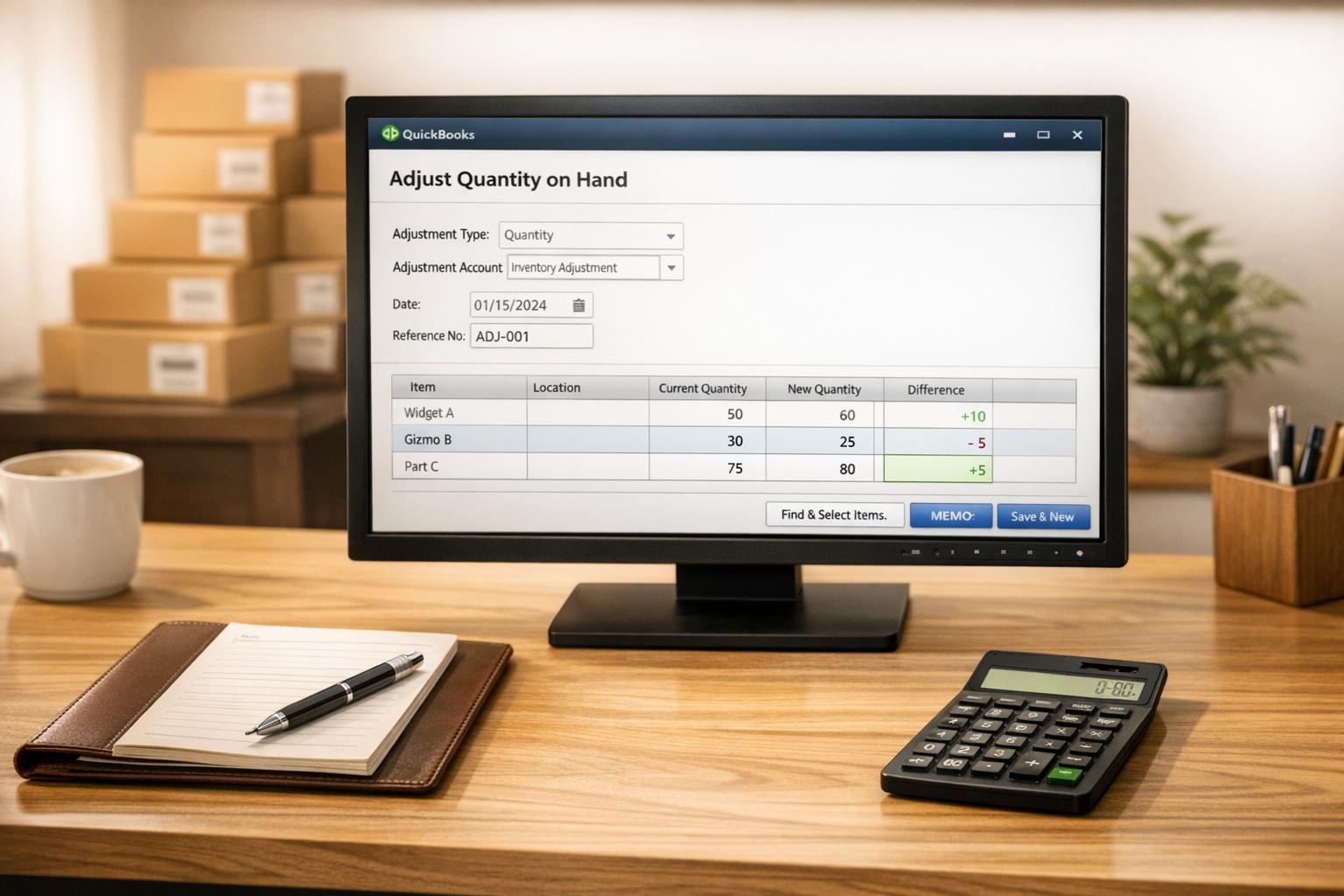
Inventory adjustments in QuickBooks Desktop are manual updates to align your digital records with actual stock. These adjustments address issues like theft, damage, spoilage, or internal use, ensuring financial accuracy and smooth operations. Here's what you need to know:
-
Types of Adjustments:
- Quantity Adjustments: Fix stock count discrepancies.
- Total Value Adjustments: Update monetary value without changing item count.
- Quantity and Value Adjustments: Adjust both count and value simultaneously.
- Why It Matters: Accurate inventory prevents overstated assets, misrepresented costs, and stock shortages.
- How to Adjust: Use the Adjust Quantity/Value on Hand feature in QuickBooks. Always select the correct adjustment account, usually under Cost of Goods Sold.
-
Common Errors:
- Entering wrong fields (e.g., mixing "New Qty" with "Qty Diff").
- Forgetting negative signs for reductions.
- Using incorrect accounts or dates.
-
Prevention Tips:
- Use a Physical Inventory Worksheet for counts.
- Review reports like "Inventory Valuation Summary" after adjustments.
- Consult an accountant for value changes.
For businesses needing advanced tools, Rapid Inventory integrates with QuickBooks for barcode scanning, syncing, and detailed tracking. It simplifies inventory tasks and helps maintain accuracy.
Accurate inventory adjustments are key to reliable financial records and efficient operations. Regular checks and proper setup minimize errors and ensure smooth workflows.
Setting Up Inventory Adjustment Accounts in QuickBooks Desktop

What Is an Inventory Adjustment Account?
To keep your books accurate, setting up an inventory adjustment account in QuickBooks is a must.
An inventory adjustment account is where QuickBooks tracks the financial effects of inventory changes that aren’t related to regular sales or purchases. Think of situations like breakage, theft, spoilage, or even items used internally. When these adjustments happen, QuickBooks uses this account to record the financial impact, ensuring your records stay balanced.
"Adjustment Account: The name of the account where you track adjustments to inventory. For shortages and losses, the account is an expense account. For inventory you didn't know you had, use an income account." - Intuit
Most businesses use a Cost of Goods Sold (COGS) account for this purpose since inventory losses are considered part of operating expenses. When inventory quantities are reduced, QuickBooks transfers the value from your Inventory Asset account to the adjustment account. This ensures the loss is reflected on your Profit & Loss statement. Setting up a dedicated "Inventory Adjustments" account also creates a clear audit trail, allowing you to track inventory issues over time and spot any patterns.
How to Create an Inventory Adjustment Account
Creating an inventory adjustment account in QuickBooks Desktop is straightforward. Here’s how:
- Go to Company and open the Chart of Accounts.
- At the bottom, click Account and select New.
- Choose Cost of Goods Sold as the account type.
- Name the account "Inventory Adjustments" and click Save and Close.
When you’re ready to make an adjustment, head to Vendors, select Inventory Activities, and then choose Adjust Quantity/Value on Hand. In the Adjustment Account field, pick the account you just created, and click OK to confirm.
If you’re adjusting the total value of inventory items, it’s a good idea to consult with an accountant first. These changes can impact the average cost of your items and your financial statements.
How to Make Inventory Adjustments in QuickBooks Desktop
Adjusting Inventory Quantity
If your physical stock count doesn’t match what QuickBooks shows, you’ll need to adjust the quantity on hand. This might happen due to issues like breakage, theft, loss, or even finding stock that wasn’t recorded earlier.
Start by running the Physical Inventory Worksheet (found under Reports > Inventory) and use it to record your actual stock levels. Once you’ve completed the count, go to Vendors > Inventory Activities > Adjust Quantity/Value on Hand. In the Adjustment Type dropdown, choose Quantity.
Next, enter the Adjustment Date and pick the correct Adjustment Account, which is usually the COGS account you previously set up. Use the Find & Select Items option to choose the products that need adjustments. In the grid, update the quantity by entering the new count or the difference. If you’re decreasing the quantity, use negative numbers (e.g., -5).
After reviewing your entries, click Save and Close. To double-check your updates, run the Inventory Stock Status by Item report to ensure the quantities reflect your changes.
Adjusting Inventory Value
Sometimes, your stock count might be accurate, but the item values need updating - perhaps due to spoilage or changes in market conditions. In such cases, you can adjust the total value of your inventory. Keep in mind that this will change the average cost of items in QuickBooks, so it’s wise to consult an accountant before making these adjustments.
In the Adjust Quantity/Value on Hand window, select Total Value as the adjustment type. The process mirrors quantity adjustments, but instead of altering the count, you’ll update the New Total Value field for each item. QuickBooks will then recalculate the average cost per unit based on the new value.
Adjusting Quantity and Value Together
If both the stock count and item values are incorrect, you can address both issues at the same time.
To do this, choose Quantity and Total Value from the Adjustment Type dropdown. In the grid, update both the New Quantity and the New Total Value for each affected item. Be sure to use the Memo field to document the reason for the adjustment. This creates a clear record for future reference.
Once you’ve saved the transaction, run the Inventory Valuation Summary and Inventory Stock Status by Item reports to confirm that all changes have been applied correctly.
How to Adjust Inventory Quantity in Quickbooks
sbb-itb-19ed50f
Common Inventory Adjustment Errors and How to Fix Them

Common QuickBooks Inventory Adjustment Errors and Solutions Guide
Most Common Inventory Adjustment Mistakes
Keeping inventory records accurate is crucial for reliable financial reporting. Even seasoned QuickBooks users can slip up when making inventory adjustments. Knowing the common mistakes can help you sidestep errors that could lead to costly issues.
One of the most frequent errors is mixing up "New Quantity" with "Quantity Difference." Many users mistakenly input the physical count into the "Qty Diff" field instead of the "New Qty" field, which leads to inflated stock numbers. Another common misstep is forgetting the minus sign when recording decreases. For reductions, always use a negative sign (e.g., -5) in the difference column.
Choosing the wrong account is another issue that can distort financial reports. Using a general expense account instead of a dedicated "Inventory Adjustments" account - classified under Cost of Goods Sold - makes it hard to track inventory losses accurately. Date-related errors also pose problems. If adjustments are recorded out of order, reports may show zero quantities paired with non-zero values, which can disrupt average cost calculations.
| Common Error | Cause | Solution |
|---|---|---|
| Inflated/Deflated Stock | Entering the total count in the "Qty Diff" column | Enter the actual count in "New Qty"; QuickBooks will calculate the difference for you. |
| Incorrect Adjustment Direction | Forgetting the minus sign for decreases | Always use a negative sign for decreases in the "Qty Diff" or "Value Diff" columns. |
| Valuation Discrepancies | Adjusting inventory with incorrect dates | Match the adjustment date to the physical count date to maintain accurate costs. |
| Uncategorized Losses | Using a general expense account instead of a dedicated one | Create a "Cost of Goods Sold" account labeled "Inventory Adjustments" for manual changes. |
| Zero Qty / Non-Zero Value | Errors in timing or incorrect starting values during migrations | Use the "Inventory Valuation Detail" report to pinpoint where the values diverged. |
By recognizing these common errors, you can take proactive steps to ensure your inventory records remain accurate.
How to Prevent Adjustment Errors
To keep your inventory adjustments error-free, follow these practical tips. Start by using the Physical Inventory Worksheet to record stock counts before making any adjustments. This worksheet, available under Reports > Inventory, provides a structured format for documenting physical counts.
After entering adjustments, review the "Inventory Valuation Summary" and "Inventory Stock Status by Item" reports to confirm that the updated totals align with your expectations. Before saving any changes, double-check the "Qty Diff" column - if you see a positive number when you intended to record a decrease, stop and add the minus sign.
"If you find a mistake in an adjustment you've made, you need to reverse the incorrect adjustment and then enter a new, correct adjustment. This ensures that your inventory records remain accurate." - Sarah Majumder, Content Writer, Method
For value adjustments, it's always a good idea to consult your accountant first. Adjusting total values impacts the average cost of items, which can trickle down to your cost of goods sold and profit margins. Lastly, use the Memo field to explain why you're making each adjustment. Notes like "damaged in warehouse" or "promotional giveaway" can serve as a helpful audit trail for future reference.
Improving Inventory Management with Rapid Inventory

What Is Rapid Inventory?
Rapid Inventory is a specialized tool designed for QuickBooks Desktop users, offering features like automatic two-way syncing, mobile barcode scanning, and advanced tracking options. It supports managing inventory across multiple locations and warehouses, down to specific bin locations. With advanced functionalities like FIFO (First In, First Out), FEFO (First Expiration, First Out), and lot/serial number tracking, it helps ensure inventory accuracy.
"Automatic 2 way sync with Quickbooks means that your items and orders are synced to Rapid Inventory and Rapid Inventory actions are synced back to Quickbooks. Say goodbye to spreadsheets and manual entry" - Rapid Inventory
These features make it easier to manage inventory adjustments directly within QuickBooks Desktop.
How Rapid Inventory Makes Adjustments Easier
Rapid Inventory simplifies inventory management by replacing manual entry with barcode scanning for real-time verification. This ensures faster cycle counts and helps catch errors early. Its dedicated workflows for cycle counting make it easier to match physical stock with digital records, enabling frequent checks and reducing discrepancies. The result? Fewer mistakes and less time spent on manual tasks.
Since Rapid Inventory is web-based, managers can access up-to-date inventory data and reports from anywhere - even if the QuickBooks company file is stored locally. This flexibility adds another layer of convenience and efficiency to inventory management.
Conclusion
Keeping your inventory accurate in QuickBooks Desktop is crucial for reliable financial records and ensuring your digital data aligns with your physical stock. Whether you're dealing with issues like breakage, spoilage, theft, or simple data entry mistakes, making the right adjustments ensures your Cost of Goods Sold and Balance Sheet stay accurate.
But it’s not just about fixing errors - it’s about staying ahead. Always record purchases before sales to avoid negative inventory, which can throw off your Profit & Loss reports. Set average costs to $0.00 when needed, and use reference numbers and detailed memos for every adjustment to create a clear audit trail. For adjustments that impact your company’s financials, consult your accountant to avoid unintended consequences. Regular physical inventory counts and frequent reviews of inventory reports can catch discrepancies early, saving you headaches and reducing the need for major fixes down the line.
If managing inventory feels overwhelming, tools like Rapid Inventory can help. Designed for businesses with multiple locations or high transaction volumes, it simplifies the process with features like barcode scanning, automated cycle counts, and real-time syncing with QuickBooks Desktop - keeping your inventory accurate and your workflow efficient.
FAQs
What is the best account to use for inventory adjustments in QuickBooks Desktop?
When adjusting inventory in QuickBooks Desktop, it's crucial to choose the right account to reflect the reason for the change. Most often, this will be an expense account like Cost of Goods Sold (COGS). A specific account, such as Inventory Adjustments, is particularly useful for monitoring shrinkage, losses, or other discrepancies.
For even better organization and reporting, you can set up multiple expense accounts to track different types of adjustments separately. This approach keeps your financial records accurate and makes it easier to pinpoint the causes behind inventory changes.
How can I avoid common mistakes when adjusting inventory in QuickBooks Desktop?
To minimize mistakes when adjusting inventory in QuickBooks Desktop, start by performing a physical inventory count. This step ensures your recorded stock levels align with what you actually have on hand. Use the Physical Inventory Worksheet to cross-check and verify the counts before making any changes. When adjusting, always select the correct type - whether it's for quantity, value, or both - to avoid calculation errors.
Set up a specific “Inventory Adjustments” account in your Chart of Accounts to keep these transactions organized and easy to review. Make sure to use accurate dates and include clear memos for each adjustment, such as “Damaged items from 01/15/2025.” To prevent negative inventory, ensure all purchases are recorded before entering sales, as negative inventory can lead to cost calculation issues.
For more precision, you might want to try Rapid Inventory, a tool that integrates directly with QuickBooks Desktop. It provides real-time inventory tracking, barcode scanning, and automated features to help identify and fix discrepancies, reducing the risk of manual errors.
How can Rapid Inventory enhance inventory management for QuickBooks Desktop users?
Rapid Inventory simplifies inventory management for QuickBooks Desktop users, offering tools that make operations more efficient and accurate. Key features include real-time inventory tracking, multi-location and warehouse management, and mobile barcode scanning, all designed to streamline day-to-day tasks. It also supports FIFO/FEFO picking methods, lot and serial number tracking, and cycle counting, ensuring businesses can maintain precise and organized inventory records.
The platform’s two-way sync with QuickBooks Desktop keeps your data aligned across systems, reducing errors and saving time. Other highlights include customizable workflows, backorder tracking, and real-time reporting, all accessible through a web-based interface. To make the transition easier, Rapid Inventory provides free training, onboarding assistance, and ongoing support, ensuring you get up and running without a hitch.



