

If your inventory record is off, backorders are only a matter of time. I’d sum it up this way: count the SKUs that cause the most trouble, fix variances fast, and post updates in QuickBooks Desktop before bad data turns into missed shipments.
Here’s the short version:
- I use cycle counts to catch inventory drift before sales orders rely on bad on-hand numbers.
- I focus first on high-backorder SKUs, not every item in the building.
- I rank items by backorder frequency, quantity, dollar impact, and lead time.
- I set ABC count schedules so fast movers get checked more often.
- I use blind counts and a short count window to cut counting bias and transaction noise.
- I set clear variance thresholds by item class, then recount or adjust based on the result.
- I review open sales orders, purchase orders, receipts, and cutoff times before posting changes in QuickBooks Desktop.
- I track results with inventory record accuracy, backorder rate, fill rate, on-time shipping, and rush freight.
A few numbers make the case. The article shows inventory record accuracy moving from roughly 80%–90% to 95%–99% with cycle counting. It also shows backorder rates dropping from about 8%–12% of order lines to 2%–5%, while emergency freight can fall by 30%–50%. In one six-month example, inventory accuracy went from ~85% to ~97%, and backorders dropped from ~18% of orders to ~4%.
One more point: I wouldn’t treat counting as just a stock fix. It’s a process check. When the same SKUs keep missing, the root cause is often receiving, put-away, picking, damage handling, or transfers that never made it into QuickBooks Desktop.
This article walks through the count plan, the rules, the QuickBooks Desktop update steps, and how mobile barcode tools like Rapid Inventory help keep warehouse counts and system numbers aligned.
Achieving Inventory Accuracy Through Cycle Counting
sbb-itb-19ed50f
How Cycle Counting Prevents Backorders
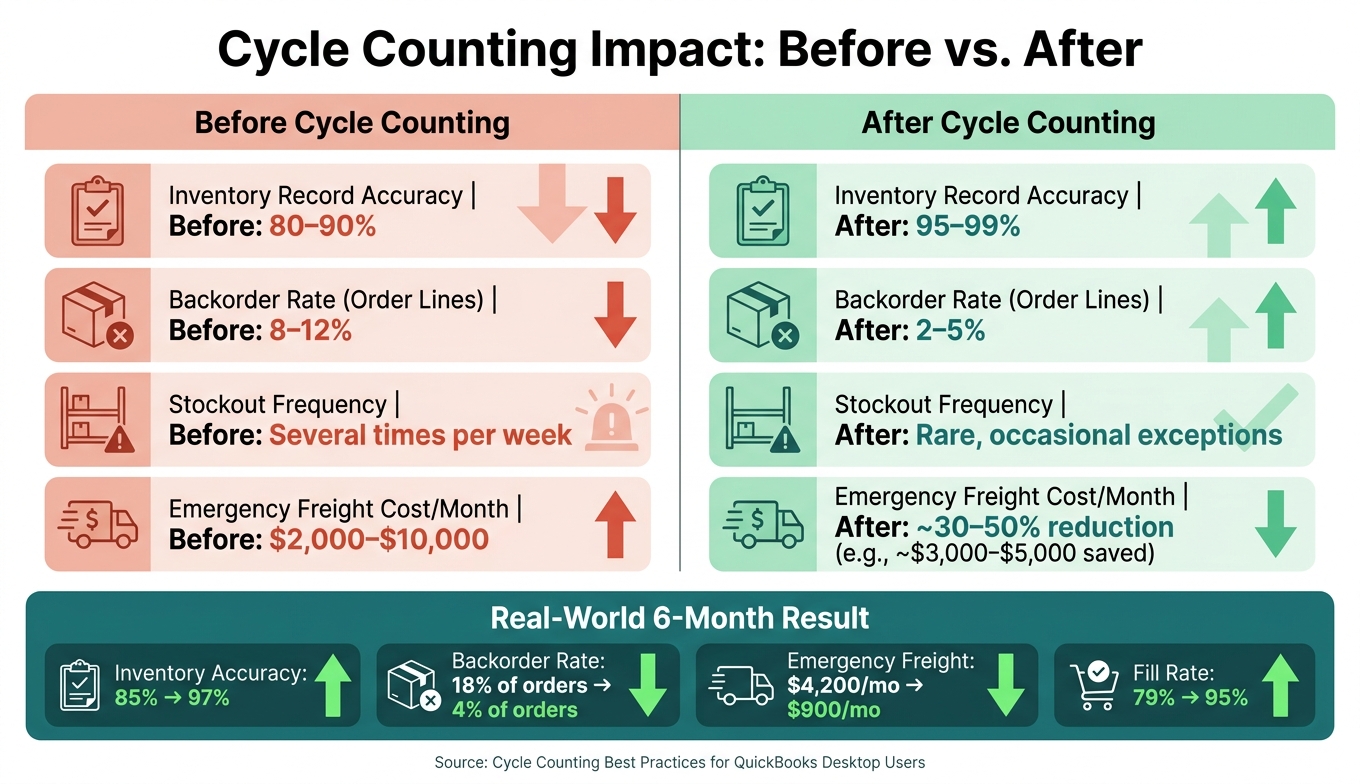
Cycle Counting Impact: Before vs. After Key Inventory Metrics
Cycle counting closes the gap between QuickBooks Desktop inventory management software and what’s actually sitting on the shelf. Instead of stopping everything for a full inventory count, you check a small portion of stock on a regular basis while shipping and receiving keep moving. That helps QuickBooks Desktop stay in sync with physical inventory, so sales orders don’t promise items that aren’t there. In practice, cycle counting works like a fast correction loop, not just a way to spot problems after the fact.
It helps prevent backorders because QuickBooks Desktop is far less likely to show stock that doesn’t exist. Regular counts bring the same issues to the surface sooner: receiving mistakes, picking mistakes, and bad adjustments. And that timing matters. You catch those errors in days instead of letting them sit there until they create fake availability in QuickBooks Desktop.
This matters most for items that move fast. The faster a product leaves the building, the less room you have for bad data. Cycle counts help catch shortages, negative on-hand balances, shrinkage, and receiving errors. Fixing those early helps stop false availability before the sales team makes a promise to the customer.
Key metrics that show whether cycle counting is working
You can tell whether cycle counting is doing its job by watching a small set of numbers: inventory record accuracy (IRA), backordered lines, fill rate, on-time shipment rate, and rush freight spend. These metrics show whether inventory accuracy is getting better and whether that improvement is showing up in customer service.
| Metric | No Cycle Counting | With Cycle Counting |
|---|---|---|
| Inventory record accuracy | 80–90% | 95–99% |
| Stockout frequency | Several times per week | Rare, occasional exceptions |
| Backorder rate (order lines) | 8–12% | 2–5% |
| Emergency freight cost/month | $2,000–$10,000 | ~30–50% reduction (e.g., ~$3,000–$5,000) |
IRA is the starting point. It shows how often the counted quantity matches the QuickBooks Desktop balance. To measure it, compare the physical count to the system count and calculate the share of items that fall inside your set tolerance, such as ±2% or ±1 unit. Many businesses target 95% to 98%+ accuracy for their highest-priority items.
Once you have the numbers, use them to decide which SKUs need the closest attention. If certain items keep showing poor IRA, more backordered lines, or stockouts, those are the ones that need a tighter count schedule.
Build a Cycle Count Plan Around High-Backorder Items
A good cycle count plan doesn't treat every SKU the same. Start with the items most likely to trigger a backorder, then work down to lower-risk SKUs.
Use ABC analysis to decide what to count first
Export 3–6 months of backorder data and open sales order or backorder data from QuickBooks Desktop. Then rank SKUs by:
- backorder frequency
- backorder quantity
- dollar impact
Start with the SKUs that show the most backordered lines and the lowest inventory record accuracy. That ranked list becomes the base of your plan. The SKUs at the top - especially ones with long supplier lead times or parts needed for assemblies - should be classified as A items and counted most often.
Traditional ABC analysis usually ranks items by annual dollar usage. For backorder prevention, that isn't enough. You also need to weigh backorder frequency and lead-time risk. The point is simple: count the SKUs most likely to cause missed shipments, not just the most expensive ones.
A low-cost part can still create a big mess. If one cheap item can hold up a high-value order, treat it as an A item. Start with the shortest list that covers the SKUs causing most of your backorders.
Use ABC to rank SKUs, then schedule counts by zone and give fast movers extra attention.
Set count schedules and variance rules
A zone-based schedule is usually the easiest way to keep counts on track. Split your warehouse, store, or production area into sections like Aisle 1, Aisle 2, raw materials, WIP, and finished goods. Assign each zone to a set day. Within each zone, count A items first, then B and C items if time allows.
Keep it simple. Give one person 20–30 minutes at a fixed time before shipping starts.
Always use blind counts. The person counting should only see the item ID, description, and bin location - not the QuickBooks on-hand quantity. That helps stop people from matching the system instead of counting what's physically there.
Pause picks and put-aways in the count area for 10–15 minutes. If a full freeze won't work, run counts during slower periods. Another option is to have someone track any transactions that happen during the count so they can be reconciled after.
Clear variance rules keep the process honest. A simple rule set like this is easy to explain and follow.
- A items: recount if the difference is more than ±2 units or ±2%, whichever is greater; adjust QuickBooks Desktop and log the reason
- B items: recount at ±5 units or ±5%; require supervisor review above $250
- C items: recount only at ±10 units or ±10%; adjust and document
Using both unit and percentage thresholds helps you avoid wasting time on tiny differences in bulk, low-cost items. At the same time, it keeps tighter control on the SKUs that drive backorders.
Use these rules when you enter counts and correct stock in QuickBooks Desktop. Next, use this plan when you run counts and update stock in QuickBooks Desktop.
Run Counts and Update Stock Using QuickBooks Desktop and Rapid Inventory

Once your count schedule is in place, follow a tight update process to keep numbers accurate and cut the inventory drift that causes backorders.
Prepare QuickBooks Desktop for accurate counting
Before you start counting, review your QuickBooks Desktop item records. Make sure every inventory item has the right item type and unit of measure. If those records don’t match, your count results can be off before the first item is scanned.
After that, move into a controlled count and update flow.
Review your open sales orders and purchase orders before you compare on-hand quantities. Open orders reduce available stock, so you need to account for committed units first. Also make sure receipts have been posted through the PO, receiving, and bill workflow before the count begins.
Set a clear transaction cutoff time and tell both your sales and warehouse teams. During the count window, pause inventory changes. If any receipts or picks were posted during that time, reconcile them before you finalize adjustments. When the count is complete, post the inventory adjustment through Vendors > Inventory Activities > Adjust Quantity/Value on Hand.
For each adjustment, record:
- item
- location
- quantity before and after
- date and time
- user
- reason code
- supporting notes
That audit trail makes it much easier to trace repeat variances. If the same items keep drifting, you’ll have the details to see what’s going wrong.
How Rapid Inventory supports cycle counting and backorder control
Rapid Inventory adds mobile barcode scanning, multi-location tracking, real-time reports, and two-way QuickBooks sync to support cycle counts. Instead of typing counts by hand, your team can scan items straight from a mobile device. That alone cuts a lot of avoidable mistakes.
When the count is finished, two-way sync sends corrected quantities back into QuickBooks automatically, which helps keep warehouse and accounting records in step. Multi-location tracking also lets you count and correct inventory by site. That matters when stock looks available on paper but is sitting in the wrong location.
Backorder tracking and real-time reports help your team spot shortages early, so you can respond before orders start slipping.
Conclusion: Monitor Results and Make Backorders the Exception
Inventory mistakes are one of the biggest reasons backorders happen. Cycle counting helps keep QuickBooks Desktop lined up with what’s actually on the shelf, so backorders become the exception instead of the norm. When your team enters count results right away and does it the same way every time, QuickBooks Desktop turns into an inventory record that sales, purchasing, and operations can rely on.
Here’s what that can look like after six months of cycle counting:
| KPI | Before Cycle Counting | After 6 Months |
|---|---|---|
| Inventory accuracy | ~85% | ~97% |
| Backorder rate | ~18% of orders | ~4% of orders |
| Emergency freight spend | ~$4,200/month | ~$900/month |
| Fill rate | ~79% | ~95% |
Those numbers come from steady counts, fixing variances right away, and updating QuickBooks Desktop before the next order cycle.
Use those gains as your baseline. Then review the variances that still show up each month.
Use monthly reviews to fix root causes
Changing quantities fixes the count on paper. Monthly variance reviews fix the process behind the variance.
Each month, pull the biggest variances by dollar value and unit count. Then trace each one through receiving, put-away, picking, and any stock transfers or location changes. Tag every issue by cause, assign one corrective action, and check the result in the next count cycle.
That’s how cycle counting becomes a real control system. Over time, repeat variances drop, reorder points line up with actual lead times, and the same SKUs stop ending up on backorder. Rapid Inventory's reports and backorder tracking help show which items and locations are still causing variance problems.
FAQs
How often should I cycle count each SKU?
Use ABC analysis to group items by value and turnover. That way, you can focus on the SKUs that matter most without throwing day-to-day operations off track.
Here’s the usual counting rhythm:
- A items: weekly or bi-weekly
- B items: monthly or bi-weekly
- C items: quarterly or annually
The big upside is simple: you keep inventory records accurate with scheduled cycle counts instead of relying on a disruptive annual physical inventory.
What should I do when a count doesn't match QuickBooks Desktop?
When a cycle count doesn’t match your QuickBooks Desktop records, don’t make an adjustment right away. Start with a second count by another employee using a barcode scanner. That helps rule out scan mistakes or simple training gaps.
If the numbers still don’t line up, dig into the likely causes. Common ones include:
- receiving mistakes
- transfers that never got recorded
- theft
Once the difference is confirmed, use Batch Actions to update quantities. In Rapid Inventory, those changes sync to QuickBooks Desktop automatically.
Which items should I count first to reduce backorders?
Start with A items in your ABC analysis - your high-value or fast-moving products. These usually have the biggest effect on revenue and the highest backorder risk, so they deserve the most frequent counts.
Weekly or bi-weekly counts help keep records accurate. Rapid Inventory supports this with cycle counting and real-time sync with QuickBooks Desktop.



