
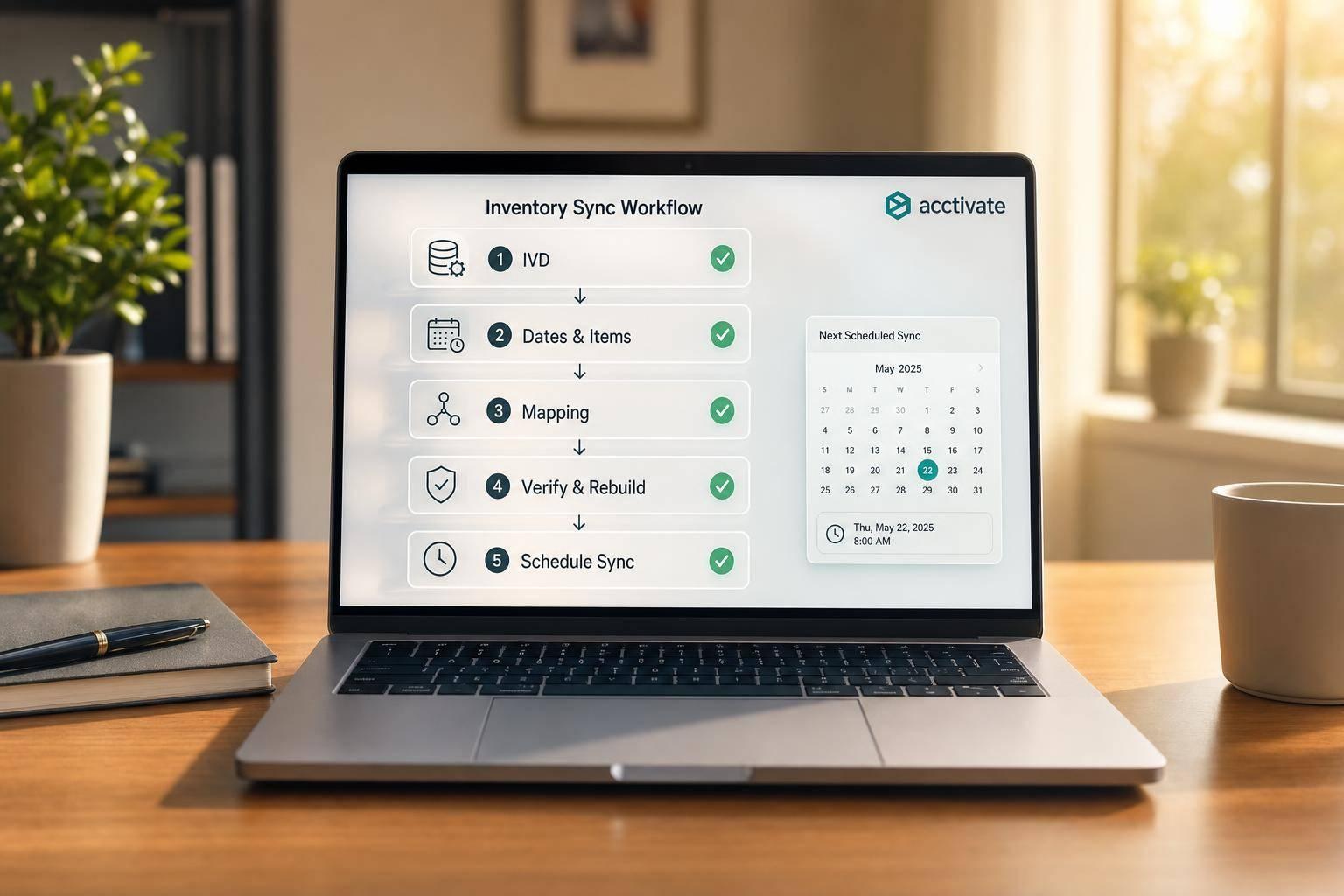
If your QuickBooks Desktop inventory sync is off, fix the order of transactions, item mapping, and file errors first. In many cases, the problem comes down to 3 things: stock was sold before it was received, items do not match across systems, or the company file has data damage.
Here’s the short version:
- Start with the Inventory Valuation Detail report to spot quantity and cost gaps.
- Check for negative inventory because it can throw off counts, COGS, and valuation.
- Fix item and vendor setup if you see errors like duplicate names, inactive records, or missing items.
- Run Verify Data and Rebuild Data if QuickBooks reports do not agree.
- Use one source of truth so two systems do not keep overwriting each other.
- Reconcile by warehouse if you track stock in more than one location.
- Set a fixed sync schedule and limit who can edit item records.
A single inventory error can spread fast. One bad transaction date, one broken SKU match, or one failed Web Connector job can lead to stockouts, backorders, and bad financial numbers. Even a small mismatch - like 50 units in QuickBooks vs. 32 in the warehouse - is enough to throw purchasing and sales off track.
If I were fixing this today, I’d follow this order:
- Back up the company file
- Run Inventory Valuation Detail
- Correct transaction dates and negative inventory
- Fix inactive, missing, or duplicate items
- Retry the sync in Single-User/Admin mode
- Run Verify Data and Rebuild Data if reports still disagree
- Add cycle counts and monthly reconciliation to stop repeat issues
Bottom line: most sync problems are not random. They usually come from setup errors, timing gaps, or file issues, and you can trace them with the right checks in the right order.
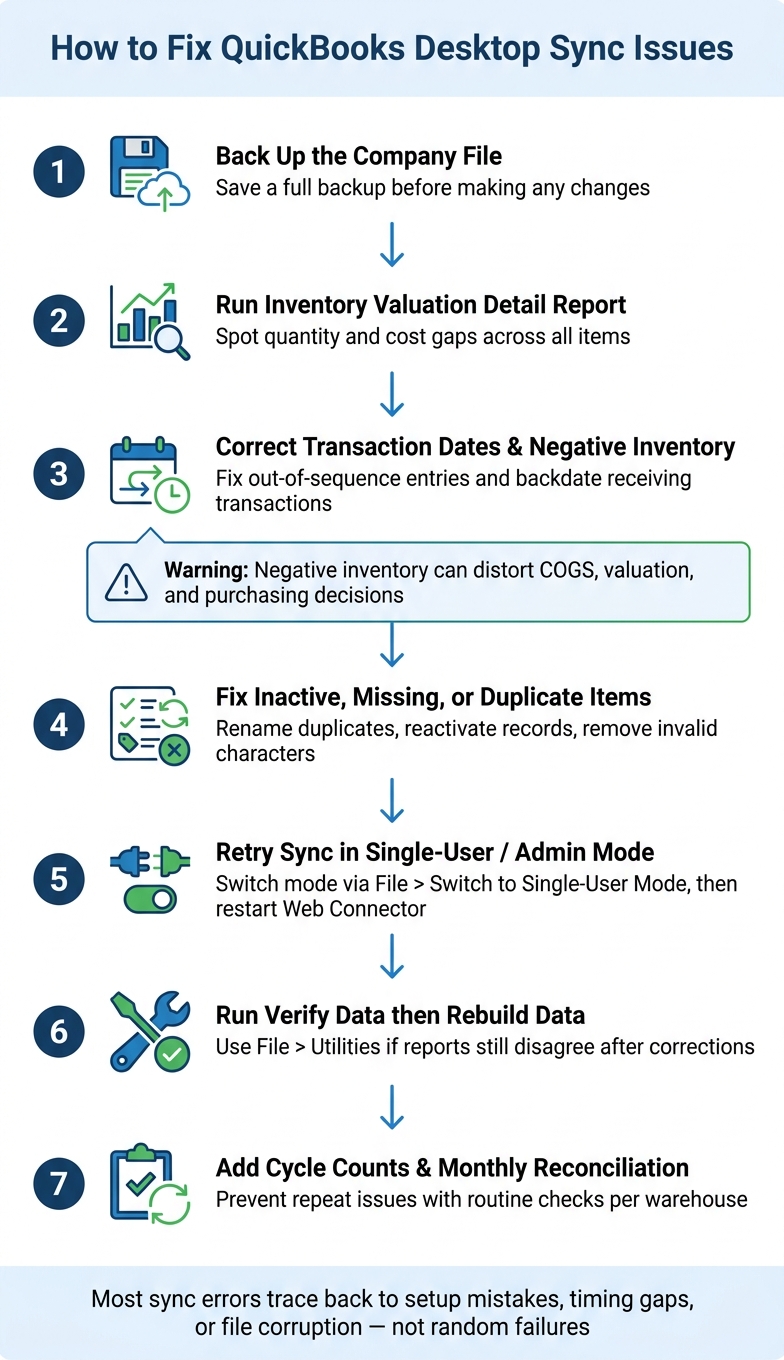
QuickBooks Desktop Sync Fix: 7-Step Troubleshooting Process
Common QuickBooks Desktop Sync Problems and Their Symptoms

Quantity Mismatches Between QuickBooks and Inventory Records
The most obvious sync issue is a quantity mismatch. QuickBooks might show 50 units, the warehouse shows 32, and your connected system shows a different number altogether. At that point, your source of truth is no longer in sync.
This problem usually shows up when the Quantity on Hand in the Item List doesn't match the Quick Report or Inventory Valuation Detail (IVD) report for the same item. It can also appear when stock goes negative after a sale, or when sales get recorded before the matching purchase transactions are received. Negative inventory is a major warning sign. The Inventory Valuation Detail report shows how far things have drifted.
You may also see backorders even when QuickBooks says stock is available. Once that gap shows up, the next step is reconciliation using inventory management software for QuickBooks Desktop.
Web Connector, Item Mapping, and Transaction Sync Failures
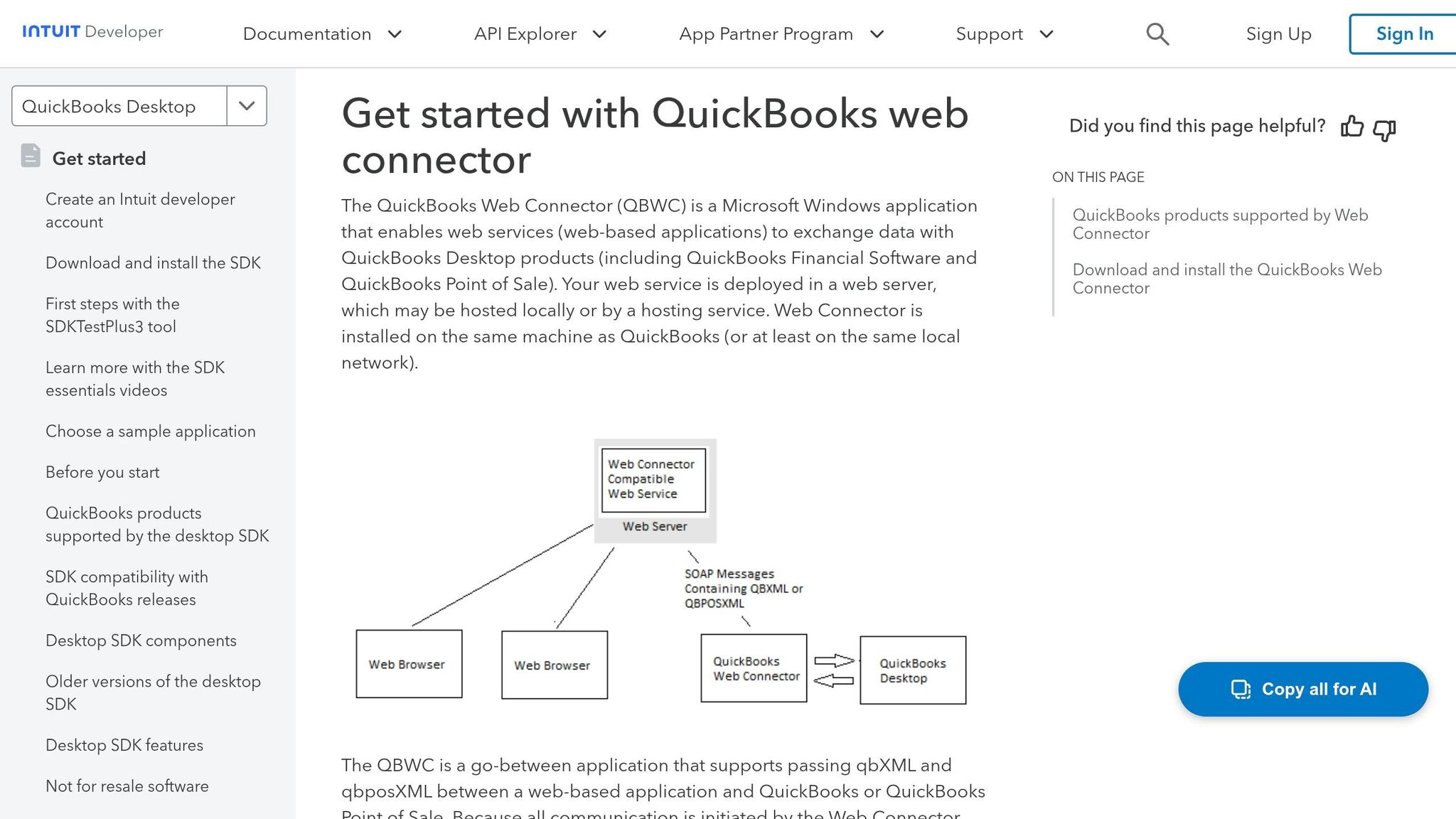
Failed sync jobs and repeated alerts usually mean the sync process is off track. If you use the Web Connector to connect QuickBooks Desktop with a third-party system, that's often where the trouble first shows up. Common causes include QuickBooks not running in Single-user/Admin mode, sync jobs colliding with a manual refresh, or item and account mappings that don't line up.
Here are the error messages that tend to show up most often:
| Error Message | What It Means |
|---|---|
| "Duplicate name exists" | An item or SKU with the same name already exists in QuickBooks. |
| "Inactive item/customer" | The transaction references a record that has been marked inactive. |
| "Invalid character in name" | An item name contains unsupported characters like colons or slashes. |
| "Document number in use" | An invoice or purchase order number is already assigned to another transaction. |
| "Item not found" | The product in the external system does not exist in the QuickBooks Item List. |
Another clear sign is missing invoices, sales receipts, or purchase orders that were processed in an external system but never made it into QuickBooks.
Multi-Location, Lot, and Serial Tracking Conflicts
Some of the trickiest problems happen when total counts look fine, but each location tells a different story. You might see transfers that fail to post, or lot and serial details that don't match. For businesses handling inventory across multiple warehouses, this can get expensive fast.
Say a transfer is recorded in a connected system but never posts in QuickBooks. One warehouse now looks overstocked, another looks short, and neither number is right. Low assembly stock can also trigger Build adjustments that distort COGS, job costing, and class reports. That makes it much harder to trace where the issue began.
Most of these symptoms point back to mapping problems, timing issues, or setup mistakes - and the next section covers how to fix them.
sbb-itb-19ed50f
QuickBooks Desktop: Inventory Issues (Part 1 of 2) Troubleshooting
Step-by-Step Fixes for Each Sync Issue
Quick reference: use the symptom to find the fastest fix.
| Sync Symptom | Likely Cause | Fix |
|---|---|---|
| Quantity mismatch | Transactions entered out of sequence | Run Inventory Valuation Detail; correct transaction dates |
| Negative inventory | Sales recorded before stock is received | Adjust quantity on hand or backdate receiving transactions |
| Item List quantity does not match Quick Report | Company file data corruption | Run Verify Data, then Rebuild Data |
| "Duplicate name exists" | Manual entry or poor SKU mapping | Rename the duplicate to match the existing item, then merge when prompted |
| "Inactive item/customer" | Transaction references an inactive record | Reactivate the record, then retry the sync |
| "Invalid character in name" | Colons, slashes, or special symbols in name | Edit item or vendor names to remove unsupported characters |
| "Document number in use" | Duplicate invoice or PO number | Use a unique document number in QuickBooks |
| Missing transactions | Items or vendors marked inactive | Reactivate the record and retry the sync |
Fix Quantity Mismatches with Reconciliation and Targeted Adjustments
Start by comparing QuickBooks with your warehouse records, then fix the system that should serve as the main source. Pull the Inventory Valuation Detail (IVD) report for the same date range used in your outside records. Then review the item’s transaction history for entries posted out of order or manual changes that threw the count off.
Before you post any correction, look for open sales orders or pending invoices that may still be affecting the balance. Then go to Vendors > Inventory Activities > Adjust Quantity/Value on Hand and update QuickBooks to match your physical count. Add a memo to each adjustment - for example, "Cycle count adjustment, Jun 2026" - so the reason is easy to trace later. If you’re dealing with high-value items, run a cycle count with the Physical Inventory Worksheet first.
If the Item List quantity and the Quick Report still don’t match after the adjustment, run File > Utilities > Verify Data. If QuickBooks finds errors, back up the company file, switch to Single-User Mode, and run Rebuild Data.
Resolve Web Connector and Connection Errors
Most sync failures come from blocked access, inactive records, or fields that don’t line up. Work through these steps in order:
- Update QuickBooks Desktop and Windows.
- Open the correct company file and sign in as a QuickBooks Administrator.
- Switch to Single-User Mode using File > Switch to Single-User Mode.
- Close any open QuickBooks prompts, since they can block Web Connector sync.
- Restart the Web Connector and run a manual sync. If it still fails, remove the application entry and add it again with the original
.qwcfile.
Once the connection is working again, move on to item mapping and transaction setup.
Fix Item, Transaction, and Multi-Location Setup Problems
Handle duplicate items with care. Rename the duplicate so it matches the existing item, then merge the records when QuickBooks prompts you.
If bills, purchase orders, or invoices fail to sync, check whether the transaction is missing a required field or points to an inactive item or vendor. Open the failed transaction, review each field, and reactivate any related records before you try the sync again.
Sometimes the totals look fine, but the warehouse balances are still wrong. In that case, reconcile by warehouse instead of looking only at the grand total. Standardize location codes across every system, then reconcile each warehouse on its own.
After the location codes match, reconcile each warehouse separately.
How to Prevent Future QuickBooks Desktop Sync Problems
The fastest way to stop repeat sync errors is to fix the process before data hits QuickBooks. If the same error keeps showing up, the issue usually isn't random. It's a setup problem.
Standardize Item Data and Sync Schedules
After you clean up the file, tighten item setup so the same sync issue doesn't come back. That means setting clear rules for item data, user access, and who owns the sync process.
Use one SKU format and stop random item edits. Put the rule in a short SOP. Spell out the naming format, note which characters are not allowed - such as colons, slashes, and @ - and show how items should map to the right inventory asset, COGS, and income accounts.
Limit who can create or edit inventory items. In Company > Users > Set Up Users, give those permissions only to trained staff. Then turn on Edit > Preferences > Items & Inventory > "Warn if not enough inventory" so QuickBooks flags negative inventory before it turns into a bigger mess.
Set a fixed sync schedule and give one person ownership. If a sync fails, that person handles follow-up before the error spills into a financial report.
Clean rules help a lot. Still, you need routine checks to catch small problems before they snowball.
Use Routine Reconciliation, Cycle Counts, and Location Checks
Run both valuation reports on the same date each month and compare them with your physical counts. If you see negative quantities or sudden cost spikes, dig in. Those issues often trace back to out-of-sequence transactions or items that were never received properly.
For fast-moving or high-dollar items, use cycle counts each week on a rolling basis. If you manage more than one warehouse, reconcile each location on its own instead of trusting the grand total. A combined number can look fine on paper while one site is off by dozens of units.
Conclusion: How to Restore Accurate Inventory Sync
When a sync issue shows up, start with the Inventory Valuation Detail report. It’s the fastest way to spot the root cause before you touch anything else.
After that, fix the problem in order. Don’t jump around. First, back up the company file. Then correct transaction sequencing, clean up duplicate or inactive items, and run Verify Data followed by Rebuild Data.
To stop the same problem from coming back, standardize item data and reconcile on a regular basis.
For multi-warehouse teams, Rapid Inventory adds two-way QuickBooks Desktop sync, multi-location tracking, lot and serial tracking, and cycle counting to help keep records aligned.
FAQs
How do I know which system should be the source of truth?
Define which system controls each type of data so the two tools don’t fight each other.
If accounting manages pricing in QuickBooks, make QuickBooks the system of record for costs and sales prices. If the warehouse team updates pricing, let Rapid Inventory control that field instead.
For inventory quantities, Rapid Inventory is often the best source of truth because it reflects live counts and barcode scans. QuickBooks Desktop usually stays in charge of customer and vendor billing details, along with tax settings.
When should I use Verify Data versus Rebuild Data?
Use Verify Data first to check your company file for structural errors or signs of data corruption without changing anything. It’s the safe first step when something feels off, especially if you’re dealing with sync issues or odd behavior.
If Verify Data shows that your file has lost integrity, move to Rebuild Data. This tool repairs internal references and indexes, but it also makes permanent changes. So before you run it, back up your company file first.
How often should I reconcile inventory in QuickBooks Desktop?
Reconcile inventory in QuickBooks Desktop every month to help keep your records accurate. Regular quantity checks can help you avoid data mismatches and keep item counts in line with your financial tracking.
It also helps to run frequent data audits and keep an eye on sync status so you can catch errors early. If you spot a discrepancy, use the Adjust Quantity/Value on Hand tool and add a clear memo for each adjustment.



