
If your book stock does not match what is on the shelf, your accuracy rate tells you how far off you are. I’d measure it by comparing physical count results to system records, then use one of four formulas: unit-based, record-level, quantity variance, or dollar-value variance.
Here’s the short version:
- Unit-based: compare counted units to recorded units
- Record-level: check whether the SKU, location, and quantity all match
- Variance-based: measure total error size without letting overages cancel shortages
- Value-based: measure the error in U.S. dollars for reporting and audit work
A few numbers matter right away:
- Many top warehouses aim for 98% to 99.9% accuracy
- In the example, 17 units of total variance across 350 recorded units led to about 95.0% accuracy
- The same count produced $195.00 in dollar variance against $3,250.00 of book value, or about 94.0% value accuracy
I’d keep the process simple:
- Set the count scope
- Pull QuickBooks Desktop book data as of 08/15/2026
- Freeze movement at a clear cutoff, such as 08/15/2026 at 5:00 PM
- Do blind physical counts
- Calculate signed and absolute variance
- Track results by item, location, and dollar impact
- Repeat with cycle counts during the year
The main point is simple: pick one formula, use the same cutoff each time, and track the trend. That shows whether your warehouse process is getting tighter or drifting.
Below, I’ll walk through the formulas, the count steps, the QuickBooks Desktop workflow, and the process fixes that help keep accuracy high.
How to Calculate Inventory Accuracy
To streamline this process, you can try Rapid Inventory for free, which is designed specifically for QuickBooks Desktop users.
sbb-itb-19ed50f
The main inventory accuracy formulas
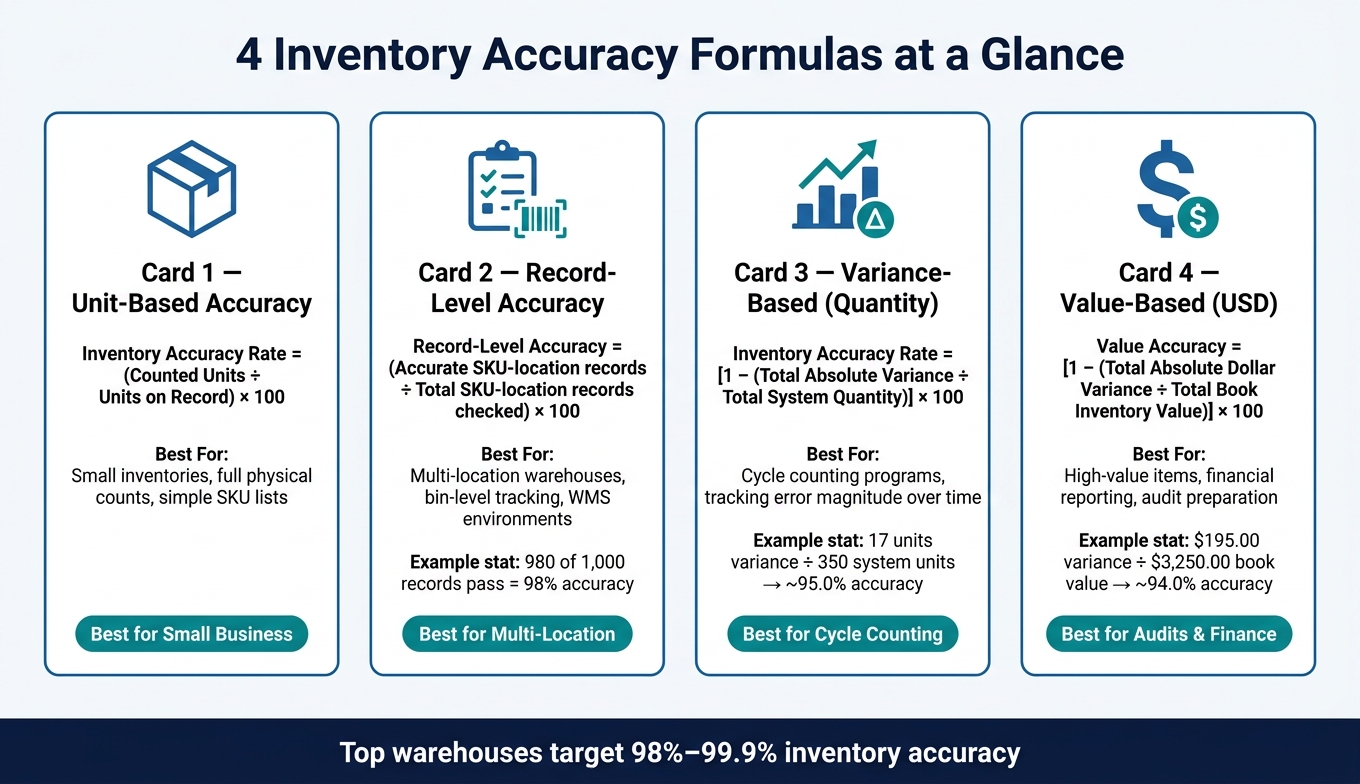
4 Inventory Accuracy Formulas: Which One Should You Use?
Pick the formula that matches how you run inventory and what you need to report. In practice, most teams lean on these four methods.
Unit-based accuracy formula
If you run a small business in one location, you may just need a fast way to compare what you counted with what your system says you should have. That’s where the unit-based formula helps:
Inventory Accuracy Rate = (Counted Units ÷ Units on Record) × 100
This works best for small, single-location counts when you’re doing a full physical count.
If your team counts by bin or by storage location, this method can miss placement issues. In that case, record-level accuracy is a better fit.
Record-level and variance-based formulas
Once you’re dealing with multiple warehouse locations and bin tracking, quantity alone doesn’t tell the whole story. You also need to know whether the right item is sitting in the right place. Record-level accuracy handles that:
Record-Level Accuracy = (Accurate SKU-location records ÷ Total SKU-location records checked) × 100
A record counts as accurate when the item, location, and quantity all match within tolerance. Say a distribution center reviews 1,000 SKU-location records and 980 pass. That gives you 98% record-level accuracy. This method spots mistakes a unit-based formula can miss, like having the right quantity in the wrong bin.
Cycle counting is a little different. Here, you don’t just want a yes-or-no answer. You want to track how big the errors are over time. That’s what the variance-based formula is for:
Inventory Accuracy Rate = [1 − (Total Absolute Variance ÷ Total System Quantity)] × 100
Use absolute variance so shortages and overages don’t offset each other and make the numbers look better than they are. This method fits cycle counting and variance tracking.
If the dollar impact matters more than the unit count, switch to a value-based method.
Value-based accuracy in USD
For high-value inventory, unit counts only get you so far. A missing $5 part and a missing $5,000 part should not carry the same weight. Value-based accuracy looks at the dollar side of the problem, using QuickBooks Desktop book inventory value as the source figure:
Value Accuracy = (Physical Inventory Value ÷ Book Inventory Value) × 100
If you want a closer look at variance in dollar terms, use the value-based variance formula:
Value Accuracy = [1 − (Total Absolute Dollar Variance ÷ Total Book Inventory Value)] × 100
This is the right choice for high-value inventory, financial reporting, and audit prep.
Use the table below to line up each formula with the way you work:
| Formula | Best For |
|---|---|
| Unit-based | Small inventories, full physical counts, simple SKU lists |
| Record-level | Multi-location warehouses, bin-level tracking, WMS environments |
| Variance-based (quantity) | Cycle counting programs, tracking error magnitude over time |
| Value-based (USD) | High-value items, financial reporting, audit preparation |
Use the formula you choose in the step-by-step calculation below.
How to calculate inventory accuracy rate, step by step
Set the count scope and pull book inventory data
Start by turning one physical count into a clean variance file with the formula you picked earlier. First, define the scope. That could be one warehouse, one product line, or your entire inventory. Write that scope down so each count is measured the same way.
Next, spell out which SKUs are included. Count all active stocked items. Leave out service items, non-stock items, and anything discontinued. If you use inventory sites, list each site by name. Also, make sure each item's unit of measure matches QuickBooks Desktop. That helps you avoid case-to-each conversion mistakes.
After that, pull your book inventory data from QuickBooks Desktop. Run the Inventory Valuation Summary as of 08/15/2026 and export it to Excel. That report gives you the system quantity on hand, average cost, and total value for each SKU. The exported file becomes the baseline for all variance math.
Use a strict cutoff too: snapshot inventory as of 08/15/2026 at 5:00 PM. During the count window, pause receiving, shipping, and transfers. If stock keeps moving while you're counting, the numbers can go sideways fast.
Count physical stock and calculate variances
Use blind counts. Give counters a sheet with item descriptions and locations, but not system quantities. That keeps people from drifting toward the book number.
A simple setup works well: two-person teams, with one person counting and the other verifying. Barcode scanning can cut down on manual entry mistakes. It also helps to record when each area was counted so you can line it up with the cutoff time.
When the counts are done, enter them into the same Excel file as your QuickBooks Desktop export. For each line, calculate these two figures:
- Signed variance = Counted Qty − System Qty
- Absolute variance = ABS(Counted Qty − System Qty)
Use absolute variance so shortages and overages don't cancel each other out.
If you also want a dollar view, multiply the absolute unit variance by the item's cost from the Inventory Valuation Summary. For example, a shortage of 8 units on an item that costs $12.50 each creates an absolute value variance of $100.00.
Example
Here’s a three-SKU example from a small warehouse counted on 08/15/2026 at 5:00 PM. The book data comes from QuickBooks Desktop’s Inventory Valuation Summary:
| SKU | System Qty | Counted Qty | Signed Variance | Absolute Unit Variance | Cost | Absolute Value Variance |
|---|---|---|---|---|---|---|
| Widget A | 100 | 98 | −2 | 2 | $10.00 | $20.00 |
| Widget B | 50 | 55 | +5 | 5 | $25.00 | $125.00 |
| Widget C | 200 | 190 | −10 | 10 | $5.00 | $50.00 |
| Totals | 350 | 343 | - | 17 | - | $195.00 |
With those totals, the math is pretty simple:
Unit-based accuracy = (1 − 17 ÷ 343) × 100 ≈ 95.0%
Value-based accuracy = (1 − $195.00 ÷ $3,250.00) × 100 ≈ 94.0%
The value-based rate comes in lower because Widget B has the biggest dollar variance. And that happens because Widget B has the highest unit cost in the group.
You can use this same table format to compare warehouse counts against QuickBooks Desktop records and spot patterns from one count to the next.
How to track accuracy using QuickBooks Desktop and warehouse workflows

Match warehouse counts to QuickBooks Desktop records
Start with a simple rule: each physical item should match one QuickBooks Desktop SKU. Keep item names, units of measure, and costs the same across your warehouse and QuickBooks Desktop records. The SKU should be the main identifier, so avoid renaming items between counts.
It also helps to line up your system with how the warehouse actually works. If your warehouse uses sites and bins, set up QuickBooks Desktop inventory sites to match that layout. Then count each site and bin the same way every time. When item records and location records line up, cycle counts do a much better job of keeping accuracy from slipping over the course of the year.
One detail people often miss is blocking backdated transactions after the count window closes. Here's why that matters: if someone enters a receipt, shipment, transfer, or adjustment dated before the count after physical quantities have already been recorded, QuickBooks can change the book quantity for that date. That can throw off your accuracy rate fast. Use QuickBooks Desktop closing dates and user permissions to block or flag entries posted into the counted period.
Use cycle counting to monitor accuracy throughout the year
Cycle counting turns inventory accuracy into a steady control instead of a once-a-year event. If you wait for one annual physical inventory, small errors can sit there for months and keep stacking up. ABC cycle counting spreads work across the year based on item risk.
A common setup looks like this:
- Count A items weekly or monthly
- Count B items monthly or quarterly
- Count C items semi-annually or annually
Reclassify A, B, and C items at least quarterly or after major seasonal shifts.
Say A-item accuracy drops from 99% to 95% between counts. That's a signal to check receiving or picking steps for those SKUs first, before the issue spreads into other items. Warehouses that hold 99%–99.5%+ accuracy usually get there through disciplined cycle counting and tight process control, not by leaning on one annual count.
How Rapid Inventory supports the process

Tools that sync warehouse activity back to QuickBooks Desktop cut down on cleanup after each count. Rapid Inventory syncs receipts, transfers, and adjustments to QuickBooks Desktop, tracks stock by site and bin, supports barcode scanning, and makes cycle counting easier so book quantities and physical counts stay in sync.
How to improve your inventory accuracy rate
If you want a better inventory accuracy rate, don't just look at the final variance. Look at the pattern behind it. The goal is simple: use what your counts show you to fix the step that caused the problem in the first place.
Tighten receiving, put-away, and picking procedures
A lot of inventory issues begin at receiving. If the wrong quantity gets posted at the door, everything after that is off. A simple receiving checklist helps keep things straight: match the PO, count the shipment, and record any discrepancies before posting.
After that, storage becomes the next trouble spot. Give each SKU one primary bin and move receipts there right away. Don't let items sit in staging areas longer than needed. That kind of in-between storage often leads to missing stock, double-handling, or stock getting booked in one place and left in another.
For perishable or date-sensitive items, label bins clearly and follow FIFO/FEFO on the floor. That keeps stock moving in the right order and helps avoid preventable write-offs.
Picking needs the same level of discipline. Use standard pick paths and make bin labels easy to read. Photos on labels can help, and color-coding similar SKUs can cut down on mis-picks. Small fixes like these can lower the mismatches that drag down your accuracy rate.
Cut count and data entry errors
Manual entry is where a lot of small mistakes sneak in. Numbers get flipped, quantities get entered wrong, and SKUs get mixed up. Barcode scanning helps reduce those entry mistakes.
Blind counts help too. When counters can't see the expected quantity, they're more likely to count what's actually there instead of leaning toward the system number. It also helps to set a recount threshold so any large variance gets a second, independent count before you make an adjustment.
Adjustment codes matter more than they seem. Code every adjustment by cause, such as:
- Damage
- Cycle count variance
- Return
- Shipping mistakes
Those codes make it easier to spot repeat issues by SKU or location. Over time, the pattern starts to speak for itself. If shipping mistakes keep showing up in the same zone, that's probably a process problem, not a random miss.
None of these controls help much if people follow them one week and skip them the next. Consistency across every count cycle is what makes the difference.
Conclusion: Pick a formula, count on a schedule, and track trends over time
Inventory accuracy gets better when counts happen on a steady schedule and daily workflows stay disciplined. Define your count scope, use the formula that fits your operation - unit-based, record-level, or value-based in USD - and compare physical counts to QuickBooks Desktop book quantities at the same cutoff time.
When receiving, put-away, picking, and counting improve, the variances behind your inventory accuracy rate start to shrink. Track the metric monthly or quarterly by location and product class, and look into any downward trend before it spreads.
FAQs
Which inventory accuracy formula should I use?
Use the Inventory Record Accuracy (IRA) formula. Take the number of items that match your system records, divide it by the total number of items counted, and multiply by 100 to get a percentage.
Most high-performing operations aim for 97% or higher. If you use QuickBooks Desktop, Rapid Inventory can make this process easier with mobile barcode scanning, two-way sync, and cycle counting workflows.
Why use absolute variance instead of signed variance?
Absolute variance shows the actual size of inventory gaps, whether items are over or short.
Signed variance can let positive and negative errors cancel each other out. That masks how inaccurate the inventory count is. Absolute variance gives you a clearer picture of overall accuracy and makes it easier to spot repeat problems, like training gaps or poor storage setups.
How often should I measure inventory accuracy?
Measure inventory accuracy on a regular cycle counting schedule instead of leaning only on annual audits. A steady counting rhythm helps you spot problems early, before they turn into bigger stock issues.
Use ABC analysis to decide how often each item should be counted:
- A items: monthly or quarterly
- B items: twice a year
- C items: annually
If you use QuickBooks Desktop, you can also run weekly checks by comparing system reports against actual on-hand quantities. Those daily, weekly, or monthly counts make a big difference. They help catch discrepancies early and support inventory accuracy rates of 97% or higher.



