
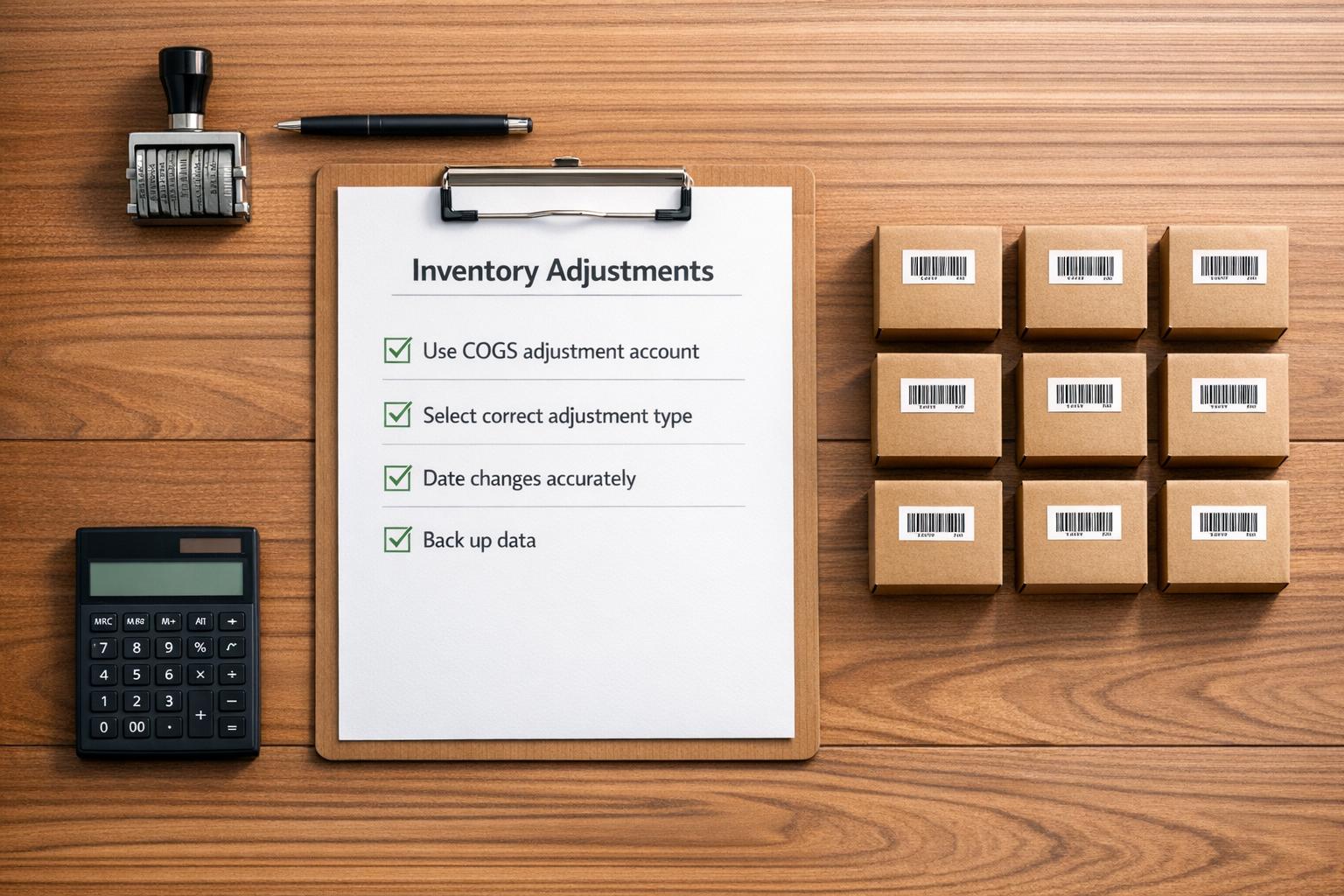
When managing inventory in QuickBooks Desktop, errors in adjustments can cause financial discrepancies, inaccurate reports, and tax issues. The most frequent mistakes include:
- Using the wrong offset account: Posting adjustments directly to the Inventory Asset account leads to circular entries and mismatched reports.
- Choosing incorrect adjustment types: Misusing quantity vs. value adjustments creates inconsistencies in financial data.
- Incorrect adjustment dates: Dates affect Cost of Goods Sold (COGS) and inventory valuation, leading to errors if not set properly.
- Skipping backups: Adjustments without backups can permanently alter records, making errors hard to fix.
- Overusing adjustments: Frequent manual corrections may mask deeper operational issues like theft or data entry errors.
Key Takeaways:
- Always use a dedicated "Inventory Adjustments" account under COGS.
- Match adjustment types (quantity vs. value) to the situation.
- Verify and correct adjustment dates for accurate reporting.
- Back up your data before making changes.
- Address root causes of discrepancies to reduce manual adjustments.
By following these practices, you can maintain accurate inventory records and reliable financial reports.
QuickBooks Desktop: Inventory Issues (Part 2 of 2) Adjustments

sbb-itb-19ed50f
Mistake 1: Using the Inventory Asset Account as the Offset Account

QuickBooks Inventory Adjustment Methods: Manual Journal Entry vs Inventory Adjustment Tool Comparison
One common error in QuickBooks inventory management is posting adjustments directly to the Inventory Asset account. This creates a circular entry, leading to distorted financial records and unreliable reports.
Why the Inventory Asset Account Causes Issues
QuickBooks' adjustment tool is designed to automatically update your Inventory Asset account. However, when you also select the Inventory Asset account as the offset, QuickBooks ends up debiting and crediting the same account. This results in no net change to your general ledger but alters your inventory sub-ledger. The outcome? Your Balance Sheet and Inventory Valuation Summary no longer match up.
"If journal entries or deposits... have been posted directly to the inventory account, the Inventory Valuation Summary will not agree with the Inventory Asset balance on your Balance Sheet. Unfortunately, there is no warning to stop or at least slow down someone entering transactions directly to the inventory account." - Esther Friedberg Karp, Founder, EFK CompuBooks Inc.
Manually posting journal entries directly to the Inventory Asset account creates further complications. While these entries update your general ledger, they don’t adjust item quantities or average costs. This discrepancy leads to conflicting and inaccurate financial reports.
| Feature | Manual Journal Entry | Inventory Adjustment Tool |
|---|---|---|
| Updates General Ledger | Yes | Yes |
| Updates Item Quantity | No | Yes |
| Updates Average Cost | No | Yes |
| Report Accuracy | Causes mismatches | Keeps reports aligned |
To prevent these mismatches, you need to use a dedicated account for inventory adjustments.
Setting Up an Inventory Adjustments Account
The fix is simple: create a separate account specifically for inventory adjustments. This account should be categorized under Cost of Goods Sold (COGS) and named something like "Inventory Adjustments" or "Inventory Shrinkage".
Here’s how to create it in QuickBooks Desktop:
- Go to the Company menu and open the Chart of Accounts.
- Click the Account dropdown and select New.
- Choose Other Account Types and then Cost of Goods Sold.
- Name the account "Inventory Adjustments" and click Save and Close.
When making adjustments, always choose this new account in the Adjustment Account dropdown. Avoid selecting the Inventory Asset account. This ensures your adjustments are properly categorized under COGS, keeping your financial statements accurate.
To identify past mistakes, run a QuickReport on your Inventory Asset account and filter for "Transaction Type: Journal Entry." Any entries found should be deleted and replaced with proper inventory adjustments.
Mistake 2: Choosing the Wrong Adjustment Type
QuickBooks provides various adjustment types to handle different inventory scenarios, but picking the wrong one can lead to persistent issues. For instance, using a quantity adjustment when a value adjustment is required - or vice versa - can throw your records off balance.
Here’s the difference: quantity adjustments fix physical inventory discrepancies, while value adjustments deal with changes in financial worth. Let’s break it down with an example. Imagine your inventory count shows 10 units instead of 12 because of theft, damage, or a counting error. In this case, a quantity adjustment is the right choice. On the other hand, if you still have 12 units but their value has dropped due to obsolescence or damage, a value adjustment is needed. Missteps here can create ripple effects in your accounting.
Why Choosing the Right Type Matters
The consequences of selecting the wrong adjustment type can be far-reaching. For example, a Journal Entry value adjustment updates your general ledger totals but doesn’t adjust individual unit costs. This mismatch can cause your inventory sub-ledger to fall out of sync with the Balance Sheet. In QuickBooks Online, which uses FIFO (First In, First Out), an incorrect value adjustment can create an inaccurate inventory "layer." When that layer sells, you might see unexpected spikes in your Cost of Goods Sold.
When to Use Quantity Adjustments
Quantity adjustments come into play when your physical inventory count doesn’t match what’s recorded in QuickBooks. This often happens due to theft, breakage, loss, or errors discovered during a physical inventory count.
Before making a quantity adjustment, check whether the discrepancy stems from a data entry error on a Purchase Order or Bill. If that’s the case, it’s better to edit the original transaction. Doing so keeps your Cost of Goods Sold accurate and maintains a clear audit trail. Be sure to add a brief memo explaining the reason for the adjustment.
Once the adjustment is complete, run the Inventory Stock Status by Item report to confirm that the quantities align with your physical count.
When to Use Value Adjustments
After ensuring your item counts are accurate, consider whether the financial value of your inventory has changed. Value adjustments are necessary when the quantity is correct, but the worth of your inventory has shifted. This can occur due to spoilage, seasonal demand changes, or obsolescence.
"Your product's total value is its average cost multiplied by its quantity in stock. Things like seasonal demand or spoilage can affect this value."
– QuickBooks Help
In QuickBooks Desktop, you can adjust the "Total Value" directly from the adjustment menu. However, QuickBooks Online doesn’t offer this feature because it uses FIFO valuation. A workaround is to zero out the item quantity with an adjustment, then re-enter the stock using an Expense transaction at the correct cost.
Since value adjustments directly impact your Balance Sheet and Profit & Loss reports, it’s a good idea to consult an accountant before proceeding. After making changes, verify them using the Inventory Valuation Summary report.
Mistake 3: Incorrect or Missing Adjustment Dates
The adjustment date determines when QuickBooks processes inventory changes. If you set a future date for an adjustment (e.g., entering a December 2025 count), QuickBooks won’t apply the change until that date arrives. This delay can lead to temporarily inaccurate reports and confusion.
Why Accurate Adjustment Dates Matter
QuickBooks processes inventory transactions in chronological order based on the dates you provide. This sequence directly affects Cost of Goods Sold (COGS) and inventory valuation. For example, if you record a sale before its corresponding purchase - or date it earlier - QuickBooks calculates an average cost using the data available at that time.
"Selling inventory that you do not have has driven your Quantity On Hand (QOH) negative and can cause incorrect Cost of Goods Sold (COGS) on your P&L report."
– Intuit Help
The "As of date" (your inventory start date) is especially important. QuickBooks Online won’t let you record a purchase or sale before this date. If you need to backdate a transaction, you’ll have to adjust the item’s starting date first.
In QuickBooks Online, which uses the FIFO (First In, First Out) method, an incorrectly dated adjustment can create a cost "layer" that doesn’t align with actual inventory costs. This discrepancy might remain hidden for months or years, only surfacing when the stock sells and causes unexpected spikes in COGS. QuickBooks Desktop users encounter similar issues with Average Cost calculations, where incorrect dates can throw the Inventory Valuation Detail report out of sync with the Trial Balance.
How to Check and Fix Adjustment Dates
Accurate adjustment dates are essential for maintaining reliable records. To identify and fix date discrepancies, follow these steps:
- Run the Inventory Valuation Detail report to spot negative QOH or unusual cost layers. Negative quantities often indicate adjustments dated after the sale of items.
- Use the Audit Trail to trace any changes and pinpoint errors.
To correct an adjustment date in QuickBooks Online:
- Click the Search icon.
- Choose Advanced Search, filter by Inventory Quantity Adjustment, and locate the transaction.
- Update the Adjustment date to the correct count date.
- Select Save and close.
For QuickBooks Desktop:
- Locate the adjustment in the Inventory Center or an inventory report.
- Open the transaction, update the Adjustment Date, and click Save & Close.
If you need to fix an "As of date" error for a new item in QuickBooks Online:
- Go to Products & Services.
- Select Edit for the item, click the Starting value link, and adjust the As of date to a date before the first sales transaction.
- If the system blocks the change due to existing transactions, temporarily delete the conflicting invoice, update the date, and re-enter the invoice.
"The AS OF DATE must always be on or before the date of the first transaction associated with the inventory item."
– jamesjdt, Moderator
Before adjusting dates from prior periods, consult an accountant to avoid unintended consequences. After making corrections, compare the Inventory Valuation Detail report with the Trial Balance to confirm the subledgers are aligned.
Mistake 4: Changing Inventory Counts Without Backup
Adjusting inventory without creating a backup can lead to major disruptions in both your operations and financial reports. A single mistake in inventory adjustments can ripple through your accounting system, throwing off critical figures like your Cost of Goods Sold (COGS) and Balance Sheet. In extreme cases, this could even force you to start a new company data file to fix the damage.
Why Backups and Audit Trails Are Crucial
QuickBooks processes inventory adjustments in real time, meaning that any changes are instantly reflected in your accounting data. As a result, errors in these adjustments can significantly affect your financial accuracy. Without a backup, you’ll have no way to reverse bulk adjustments if mistakes are discovered later. This can lead to issues like inaccurate cash basis balance sheets, flawed vendor reports, and errors in job costing or class reports. Each adjustment directly impacts your Inventory Asset and COGS accounts, so precision is critical.
Maintaining an audit trail is another essential step. It ensures accountability and makes it easier to trace and resolve discrepancies. Use QuickBooks features like the "Memo" field in QuickBooks Online or the "Reference No" field in QuickBooks Desktop to document the reason behind each adjustment - whether it’s due to spoilage, theft, or data entry errors. Additionally, the Transaction Journal report can help you understand the debits and credits associated with each adjustment, offering a clear view of the accounting impact.
Tools to Help Manage Inventory Adjustments
To safeguard your data, always create a backup before making any inventory changes. Store these backups securely to ensure you have a recovery point in case something goes wrong.
Once your backup is secured, run an Inventory Valuation Detail report to review your current inventory and pinpoint items that need correction.
For businesses with multiple locations, tools like Rapid Inventory can simplify the process. This software integrates with QuickBooks Desktop, offering automated audit trails and real-time reporting. Its cycle counting workflows allow for systematic physical counts, reducing the need for risky bulk adjustments. Before making any major changes, it’s wise to consult with an accounting professional to avoid potential tax or compliance issues.
Mistake 5: Using Adjustments Too Often
Frequent inventory adjustments can signal deeper problems within your operations. While adjustments are sometimes necessary - for issues like damaged goods or discrepancies in physical counts - relying on them too often can distort your financial records and hide operational challenges that demand immediate attention.
Impact of Too Many Adjustments
Every adjustment affects your Inventory Asset and COGS (Cost of Goods Sold) accounts. Over time, this can distort your financial reports, making it difficult to gauge actual profitability. If adjustments become routine, your Balance Sheet and Profit and Loss statements may no longer reflect accurate figures, leaving you with unreliable data to guide decisions.
Frequent adjustments also disrupt average cost calculations. Since QuickBooks uses a weighted average costing method for inventory, constant manual overrides - especially when dealing with negative inventory - can make these calculations unreliable. This leads to incorrect profit margins and poor pricing decisions. As Esther Friedberg Karp, Founder of EFK CompuBooks Inc., explains:
"Warning messages about negative inventory should never be ignored".
Moreover, repeated adjustments can act as a Band-Aid, covering up serious problems like theft, shoplifting, vendor fraud, or employee miscounts. Instead of addressing these root causes, businesses may simply adjust the numbers and move forward. This approach allows problems to persist, undermining the integrity of your inventory records. To avoid these pitfalls, it's essential to focus on accurate and automated entries.
Better Ways to Manage Inventory Changes
Rather than relying on constant corrections, implementing preventive measures is key. QuickBooks automatically updates inventory, so manual adjustments should be rare. Start by establishing a strict data entry process where all transactions are recorded in real time. As Esther Friedberg Karp highlights:
"Inventory, like payroll, is consistently one of the most problematic areas for clients. A rigid set of procedures, with everyone inputting data consistently and in a timely manner is crucial".
To prevent negative inventory, record Item Receipts as soon as goods arrive. Make sure these receipts are linked to corresponding Purchase Orders and Bills. Failing to do so can inflate both your Inventory and Accounts Payable balances.
Before making any adjustments, review the Inventory Valuation Detail report. This can help identify discrepancies, such as selling items before their purchase has been recorded. By addressing these inconsistencies directly, you can resolve the underlying issues instead of simply adjusting the numbers.
Other Common Issues
Beyond the five major mistakes already discussed, several other errors can also disrupt your inventory data. Let’s break them down.
Negative inventory is a frequent problem. This happens when sales transactions - like invoices or sales receipts - are recorded before the related purchase transactions, such as bills or item receipts, are entered. QuickBooks only registers inventory after a bill is created, and neglecting to convert Purchase Orders into bills is a common culprit. As QuickBooks Help puts it:
"Negative Inventory is caused by entering sales transactions before entering the corresponding purchase transactions, i.e., you sell inventory items that you do not have in stock".
Inactive items with balances can also lead to discrepancies. When you mark an inventory item as inactive in QuickBooks, its quantity or value isn’t automatically cleared out. This lingering balance can create mismatches between your Balance Sheet and inventory reports. ChristieAnn from the QuickBooks Team explains:
"When inactivating an inventory item with a quantity value, this won't be automatically zeroed out and deleted in QuickBooks Desktop. This is maybe why those inactive items don't show up in the past reports".
To resolve this, you’ll need to reactivate the item, adjust its inventory to zero, and then mark it as inactive again.
Average cost errors are another common issue, often caused when inventory goes negative or when transactions are recorded using the "Expenses" tab instead of the "Items" tab. This can lead to discrepancies between the Inventory Valuation Summary report and the Balance Sheet. Esther Friedberg Karp highlights:
"The total asset value on this report [Inventory Valuation Summary] should match with the Balance Sheet value for Inventory".
Incorrect item type setups can create ongoing problems. For example, using the "Inventory Part" type for items that should be "Non-inventory Part" - items you don’t stock - results in unnecessary tracking and potential errors. Unfortunately, once an item is set up as an inventory type, it can’t be changed to non-inventory. This makes proper planning during the initial setup phase critical.
Addressing these issues is key to maintaining accurate and reliable inventory data. Up next, we’ll dive into best practices to ensure your inventory management stays on track.
Best Practices for Accurate Inventory Management
Building on the common mistakes we’ve covered, these tips provide practical ways to improve inventory accuracy and avoid costly errors.
Key Tips for Preventing Errors
Consistency is key when managing inventory. Start by setting up a dedicated "Inventory Adjustments" account under Cost of Goods Sold (COGS). This aligns with the process outlined in Mistake 1 and helps avoid discrepancies that can disrupt your financial reports.
Verify adjustments immediately. After making changes, run reports like the Inventory Valuation Summary to confirm product values and the Inventory Stock Status by Item to ensure quantities match your physical counts. This step helps catch mistakes early. Also, when recording quantity changes, double-check the "Quantity Difference" field - negative numbers should reflect decreases, and positive numbers should reflect increases.
Keep detailed records for every change. Use audit trails with reference numbers and assign customers, jobs, or classes to each adjustment. This makes it easier to trace changes back to their source. QuickBooks Help advises:
"It's best to reach out to your accountant for advice before you adjust inventory value".
This is especially critical for value adjustments, as they directly influence average cost calculations and financial reports.
Stick to proper inventory entry methods. QuickBooks Community Member Rick7 explains:
"Inventory can only be added through a purchase order, and that inventory can only be subtracted through sales, COGS, or loss".
Avoid using the adjustment tool for initial inventory entries or routine stock additions - it can create reporting errors that are tough to fix later.
These practices form a solid framework for managing inventory effectively, especially when paired with specialized tools.
How Rapid Inventory Can Help

For QuickBooks Desktop users, Rapid Inventory offers tools designed to tackle common adjustment issues head-on. One standout feature is mobile barcode scanning, which eliminates manual data entry errors. Instead of typing quantities, you can scan items directly, reducing mistakes during stock counts and receiving.
The platform’s two-way sync with QuickBooks Desktop ensures your records stay updated across both systems in real time. Whether you’re performing a cycle count or receiving inventory, changes made in Rapid Inventory automatically sync with QuickBooks, eliminating the need for manual re-entry and preventing discrepancies.
Real-time inventory reports provide instant visibility into stock levels across multiple locations. This helps you identify potential issues - like negative inventory or mismatched counts - before they escalate into major problems. Additionally, the cycle counting workflows allow you to check inventory accuracy on an ongoing basis, avoiding the headaches of large annual physical counts.
With plans starting at $90 per user per month for the Pro plan and $900 per month for unlimited users, Rapid Inventory includes free training, onboarding, and support to help you seamlessly implement these best practices.
Conclusion
The mistakes we've covered - from misconfigured accounts to frequent adjustments - don't just cause minor inconveniences; they can seriously compromise financial accuracy and lead to significant headaches. Errors in inventory adjustments within QuickBooks can ripple through your entire financial system, creating issues far beyond simple data entry mishaps. For example, one case highlighted how a misconfigured adjustment account resulted in a negative expense of $17,101.67 on a company’s Profit & Loss report, even though the Balance Sheet appeared accurate. Manual corrections were required to fix the issue.
Another common problem occurs when items drop into negative inventory status. QuickBooks assigns a $0.00 average cost, which completely skews profitability metrics and makes it nearly impossible to track actual expenses.
Avoiding these pitfalls starts with consistent processes and the right tools. QuickBooks Consultant Esther Friedberg Karp underscores this point:
"A rigid set of procedures, with everyone inputting data consistently and in a timely manner is crucial".
Key practices include using dedicated adjustment accounts, verifying changes through reports immediately, and maintaining detailed audit trails for all modifications. These steps lay the groundwork for utilizing automation tools effectively.
For QuickBooks Desktop users handling complex inventory across multiple locations, tools like Rapid Inventory can provide much-needed support. Features such as mobile barcode scanning reduce manual entry errors, while two-way syncing keeps records accurate across systems. With real-time reporting and cycle counting workflows, these tools help catch discrepancies early, preventing them from snowballing into major financial issues. By ensuring precise inventory records, businesses can protect their financial accuracy and improve overall efficiency.
FAQs
How do I fix past inventory adjustments that used the Inventory Asset account?
To address past inventory adjustments in QuickBooks using the Inventory Asset account, start by reconciling key reports like the Inventory Valuation Summary. This step ensures your records align with actual stock levels. If discrepancies arise from incorrect entries, you may need to create additional adjustments or journal entries to correct them.
QuickBooks offers tools like Verify Data and Rebuild Data to help identify and resolve underlying issues. These tools can be especially helpful in pinpointing errors that might otherwise go unnoticed. For complex cases or significant discrepancies, it's wise to consult with an accountant to ensure accuracy.
To prevent these issues from happening again, make regular reconciliations part of your routine. Staying proactive with your inventory records can save you time and headaches down the road.
What reports should I run to confirm my inventory and Balance Sheet match?
To make sure your inventory records match your financial statements, start by running the Inventory Valuation Summary report. Then, compare the totals from this report with the Inventory Asset account on your Balance Sheet.
If you notice any differences between the two, it’s a good idea to check recent inventory adjustments. Look for any mistakes or missing entries that could be causing the mismatch.
How can I prevent negative inventory from messing up COGS?
Accurate inventory tracking is crucial to keeping your Cost of Goods Sold (COGS) in check. One key practice is ensuring that purchase transactions are recorded before sales transactions. This simple step can help avoid discrepancies that might throw off your numbers.
Another important habit? Regularly reconciling inventory counts. Comparing physical counts to your reports ensures everything matches up and helps catch errors early. Plus, keeping a close eye on stock levels can prevent overselling, which often leads to inventory headaches.
For an extra layer of precision, consider using inventory management tools that integrate seamlessly with QuickBooks. These tools can streamline tracking, reduce manual errors, and help you maintain accurate inventory records, keeping your COGS calculations on point.



