

QuickBooks Desktop users often face inventory errors that can disrupt financial reports, leading to inaccurate Cost of Goods Sold (COGS), inflated Profit & Loss (P&L) statements, and misaligned Balance Sheets. Common issues include mismatched reports, negative inventory quantities, and incorrect adjustments. These errors often stem from manual journal entries, sales recorded before purchases, or inactive items holding balances.
To fix these, you can:
- Use the Inventory Valuation Summary and Balance Sheet to identify discrepancies.
- Correct negative inventory by aligning purchase and sales dates.
- Avoid manual journal entries to inventory accounts; use the Adjust Quantity/Value on Hand tool instead.
- Regularly review inventory reports to catch issues early.
For businesses with complex inventory needs, tools like Rapid Inventory integrate with QuickBooks to provide real-time updates, mobile barcode scanning, and advanced tracking features, ensuring better accuracy and fewer errors.
QuickBooks Desktop: Inventory Issues (Part 1 of 2) Troubleshooting

sbb-itb-19ed50f
Common Inventory Discrepancies in QuickBooks Desktop

QuickBooks Inventory Error Signs and Causes Reference Guide
How to Identify Inventory Discrepancies
To spot inventory discrepancies in QuickBooks Desktop, start by comparing the Balance Sheet Standard and the Inventory Valuation Summary reports for "All Dates." If the totals don’t match, you’re dealing with inconsistencies in your inventory data.
"If these numbers don't match, your inventory data has internal inconsistencies." - QuickBooksUsers.com
Another step is to review the Transaction Detail report for your Inventory Asset account. Look for a "No Item" section - this indicates transactions that bypass inventory item links.
If you’re using QuickBooks Accountant or Enterprise editions, the "Troubleshoot Inventory" tool can quickly flag issues. A yellow warning triangle next to an item suggests negative inventory. Additionally, the Inventory Valuation Detail (IVD) report can pinpoint negative values in the Quantity on Hand (QOH) column, often caused by recording sales before purchases.
These checks can reveal discrepancies, which often present themselves in specific, recognizable ways.
Signs of Inventory Errors
Once you’ve identified potential issues, look for these common red flags to confirm inventory errors:
| Discrepancy Sign | What It Looks Like | Common Cause |
|---|---|---|
| Report Mismatch | Balance Sheet totals differ from Inventory Valuation Summary | Journal entries to the Asset account; inactive items with value |
| Negative QOH | Negative numbers in the Quantity on Hand column | Sales recorded before purchases |
| $0.00 Item Value | Cost of Goods Sold (COGS) shows $0.00 despite sales | Items created without cost; first transaction was a sale |
| "No Item" Section | Appears at the bottom of the Transaction Detail report | Bills or checks directly affecting the Inventory Asset account |
| Inactive Items with Balances | Items show on the Balance Sheet but not on Inventory Valuation | Items made inactive while still holding inventory value |
| Future-Dated Transactions | Current-period reports display inconsistencies | Adjustments tied to future transaction dates |
"Selling inventory that you do not have has driven your Quantity On Hand (QOH) negative and can cause incorrect Cost of Goods Sold (COGS) on your P&L report." - QuickBooks Help
What Causes QuickBooks Inventory Errors
To keep your QuickBooks inventory accurate, it's essential to understand why errors happen in the first place. Many issues arise from skipping or bypassing QuickBooks' built-in inventory tracking features or using inventory management software for QuickBooks Desktop incorrectly. These missteps can throw off your records and lead to reporting headaches. Let's break down the main culprits behind these errors and how they disrupt your inventory management.
Direct Journal Entries to Inventory Asset Accounts
One common mistake is making manual journal entries to the Inventory Asset account. While these entries update your Balance Sheet, they don't affect the Inventory Valuation Summary because journal entries don't include item-level details. This disconnect between your general ledger and item tracking leads to inaccurate reporting.
"Unfortunately, there is no warning to stop or at least slow down someone entering transactions directly to the inventory account when they should be using inventory items and quantities." - Esther Friedberg Karp, ProAdvisor and Owner, EFK CompuBooks Inc.
Another similar issue occurs when users record costs using the "Expenses" tab on bills or checks instead of the "Items" tab. This approach updates the expense or asset account but skips item tracking, leaving your inventory quantities unchanged. The result? Your financial statements might look correct, but your inventory records won’t match.
Incorrect Inventory Adjustments
Making inventory adjustments with the wrong offset account creates another layer of problems. For example, if you offset adjustments to the Inventory Asset account instead of a Cost of Goods Sold (COGS) or expense account, the adjustment won't properly reflect any loss or gain. While your asset account might show the correct balance, your Profit & Loss statement won’t capture the true cost of inventory changes.
This misstep can inflate your profitability on paper, even though the numbers don’t reflect reality. It's a subtle but impactful error that can throw off your financial statements.
Inactive Items with Remaining Balances
Inactive items can also cause trouble if they still have quantities or values associated with them. When you make an item inactive while it holds a balance, it creates "phantom" amounts. These phantom balances show up on the Balance Sheet but are excluded from Inventory Valuation reports because the item is inactive.
This can be especially problematic during audits or when reconciling your books. The value remains in your records, but there’s no active item to tie it to. To resolve this, you’d need to reactivate the item, which can be a tedious process.
Negative Inventory Quantities
Negative inventory happens when you record sales before entering the corresponding purchases. For example, selling items that aren’t yet in stock creates a negative balance, which leads to a cascade of accounting issues.
"Negative Inventory is caused by entering sales transactions before entering the corresponding purchase transactions, i.e., you sell inventory items that you do not have in stock." - Intuit
When this occurs, QuickBooks uses the cost from your Item List or the previous average cost. If the actual purchase cost differs, the system has to later adjust the Cost of Goods Sold (COGS), causing unexpected changes in vendor reports. This can also disrupt your cash basis Balance Sheet and skew average cost calculations for future transactions.
Common scenarios include invoicing customers before receiving inventory, creating new items with a cost but no quantity, or recording assembly builds after a sale. In each case, QuickBooks makes cost assumptions that rarely align with reality, leading to more adjustments down the line.
How to Fix Inventory Errors in QuickBooks Desktop
When it comes to inventory errors in QuickBooks Desktop, using the right tools is essential. Avoid shortcuts or workarounds that might create more complications. Here's how to correct common inventory issues and keep your records accurate.
Fixing Journal Entry Errors
If you’ve been making manual journal entries to the Inventory Asset account, these need to be reversed and replaced with proper inventory adjustments. First, run the Inventory Valuation Summary report and compare it to the Inventory Asset account balance on your Balance Sheet. If the numbers don’t align, there’s an issue.
To fix this, locate the incorrect journal entry in the Inventory Asset account register and reverse it. Then, create a proper adjustment account. Go to the Chart of Accounts, set up a new account, choose Cost of Goods Sold (COGS) as the account type, and name it "Inventory Adjustments."
Next, use the Adjust Quantity/Value on Hand tool. Head to the Vendors menu, select Inventory Activities, and click Adjust Quantity/Value on Hand. Choose the adjustment type (Quantity, Total Value, or both), set the adjustment date, and select your COGS adjustment account. Use Find & Select Items to choose the affected inventory items and enter the correct New Quantity or New Value. QuickBooks calculates the difference automatically. Save your changes, and then verify the fix by running the Inventory Valuation Summary and Inventory Stock Status by Item reports to ensure everything matches.
From here, you can address broader inventory discrepancies with proper adjustment methods.
Making Proper Inventory Adjustments
For all inventory corrections, rely on the Adjust Quantity/Value on Hand tool. Always offset these adjustments to a COGS or expense account - never directly to the Inventory Asset account.
- For shrinkage, damage, or theft, use the Inventory Adjustments COGS account.
- For returns or other corrections, choose the appropriate expense account.
Each adjustment should flow through your Profit & Loss statement to reflect the cost impact. This ensures your Balance Sheet and inventory reports stay consistent while accurately accounting for any gains or losses.
If negative quantities are part of the problem, follow the next steps to realign your inventory data.
Fixing Negative Inventory and Unit Errors
Correcting negative inventory starts with aligning purchase dates to match corresponding sales. Run the Inventory Valuation Detail report and set the date range to "All." This report reveals every instance where the "On Hand" column falls below zero.
"The IVD is the ONLY report that you can use to evaluate the extent of your negative inventory." - Intuit
Once you’ve identified the negative quantities, adjust the purchase transaction dates (Bills, Checks, or Credit Card Charges) to occur before the related sales. Record purchases using the Items tab on bills to correctly increase inventory quantities. If items were sold before their purchase price was set, use the Adjust Quantity/Value on Hand tool to establish an initial average cost.
To avoid negative inventory in the future:
- Use Sales Orders instead of Invoices for items not yet in stock. Sales Orders are non-posting transactions, so they won’t reduce inventory quantities.
- Alternatively, mark invoices as Pending (Edit > Mark Invoice as Pending) until the items arrive, then update them to "Final" once the stock is available.
Using QuickBooks Tool Hub for Data Corruption
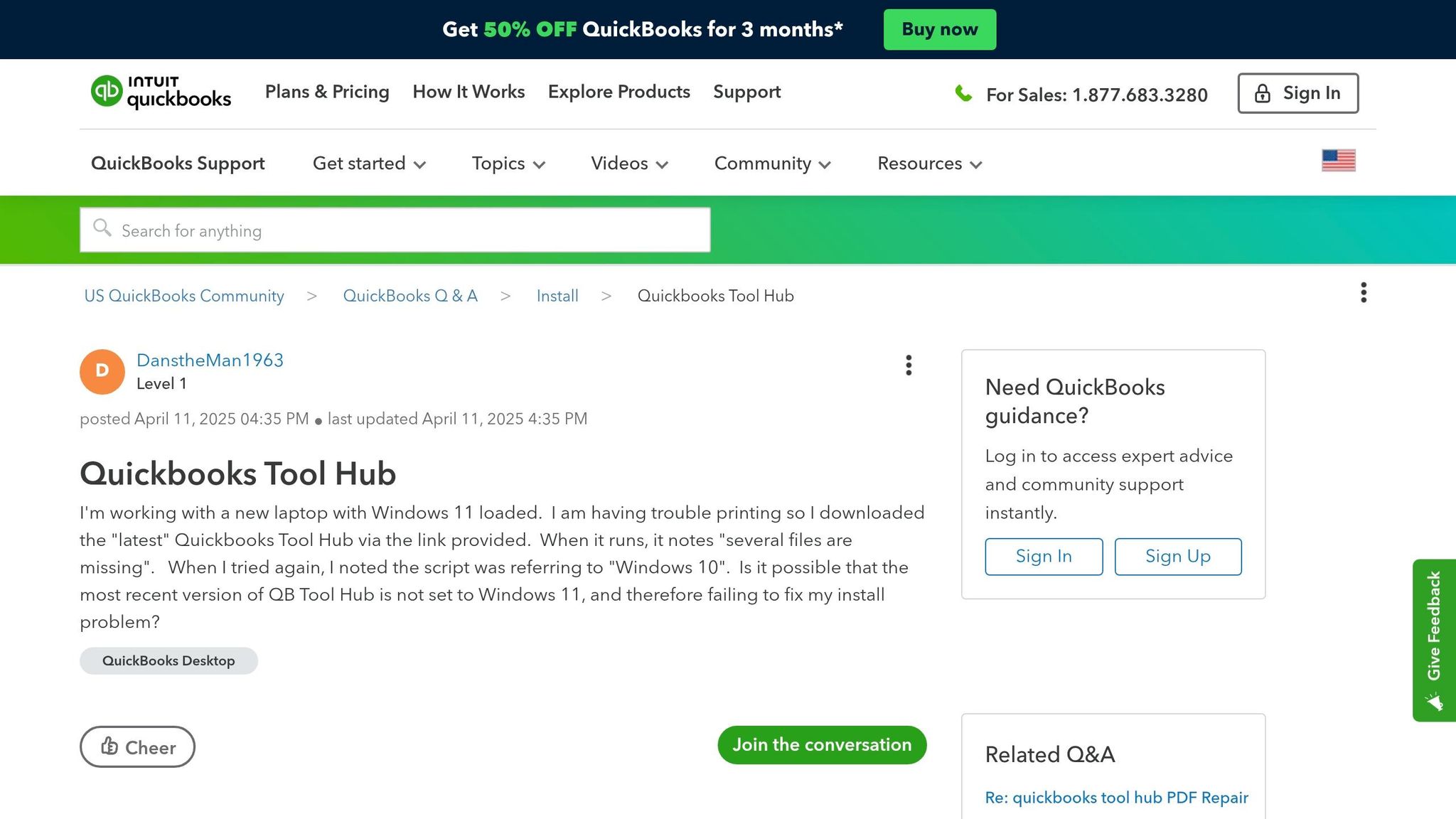
If inventory adjustments don’t resolve discrepancies, you might be dealing with data corruption. Start by using QuickBooks utilities. Go to File > Utilities, run Verify Data to identify issues, and then use Rebuild Data to fix them. Repeat the rebuild process until error messages change.
For persistent problems, close QuickBooks Desktop and download the QuickBooks Tool Hub. Open it from your Windows desktop, and navigate to the Company File Issues tab. Start with Quick Fix my File to address general errors. If the problem persists, use QuickBooks File Doctor for more extensive repairs. Always back up your company file before running any repair tools.
| Tool Hub Tab | Specific Tool | Purpose for Inventory Errors |
|---|---|---|
| Company File Issues | Quick Fix my File | Fixes minor data issues and releases file locks |
| Company File Issues | QuickBooks File Doctor | Repairs major data damage in the company file |
| Program Problems | Quick Fix my Program | Resolves issues when the app is unresponsive or acting irregularly |
Better Inventory Management with Rapid Inventory

QuickBooks Desktop is great for basic inventory tracking, but it’s not designed to handle the demands of complex warehouse operations. If you’re juggling multiple locations, lot tracking, or high transaction volumes, relying on manual processes can easily lead to mistakes. That’s where Rapid Inventory steps in. It simplifies warehouse management and integrates seamlessly with QuickBooks Desktop to tackle these challenges head-on.
Key Features of Rapid Inventory
Rapid Inventory uses the QuickBooks Web Connector to create a two-way sync between your warehouse operations and accounting records. This eliminates the need for manual data entry or clunky spreadsheets, saving you time and reducing errors. With mobile barcode scanning, you can verify item locations, quantities, and details in real time during receiving, picking, counting, and transferring. This ensures your physical stock aligns perfectly with your digital records.
The system also supports advanced capabilities like:
- Multi-location and multi-warehouse tracking with bin-level precision.
- Lot and serial number tracking for better compliance and traceability.
- FIFO/FEFO picking strategies to manage expiration dates and cut down on waste.
Another standout feature is the cycle counting workflow, which replaces disruptive annual physical counts with ongoing, mobile-scanned audits. This approach helps catch discrepancies early and maintains an impressive 97% inventory accuracy. Directed picking further optimizes warehouse routes, guiding staff to the exact item locations and delivering 100% picking accuracy. These tools combine to boost both efficiency and accuracy across your warehouse operations.
How Rapid Inventory Tackles Inventory Errors
One of the biggest advantages of Rapid Inventory is its real-time sync with QuickBooks, which prevents negative inventory issues. For example, when stock is received, the mobile scanner immediately updates QuickBooks. This ensures purchase transactions are logged before sales can reduce quantities, eliminating errors like "assumed cost" when items are sold before being officially recorded.
Here’s what users have to say:
"Rapid Inventory helps us run our warehouse operations. Easy to use and reliable... we especially love the barcode scanning and mobile picking and we've implemented it for all our warehouse operations" - Fernanda C, Director of Operations
Over its 17+ years in business, Rapid Inventory has supported more than 400 customers. By addressing the root causes of QuickBooks inventory errors, it provides a reliable, real-time solution for managing stock accurately.
Pricing and Implementation
Rapid Inventory offers cost-effective plans tailored to different business needs. The Pro plan starts at $90 per user/month, designed for teams of 1–9 users. It includes unlimited warehouses, lot/serial tracking, and a $600 white-glove onboarding service. For larger teams, the Unlimited plan costs $900 per month and supports unlimited users, custom reports, and a dedicated account manager.
Getting started is quick, with most implementations completed in just 6–7 days from discovery to go-live. This makes it a practical investment for businesses looking to streamline their operations without disrupting workflows.
Conclusion
Managing inventory errors in QuickBooks Desktop is critical to maintaining accurate financial records. When sales occur before corresponding purchases are recorded, it can create a ripple effect - throwing off your Cost of Goods Sold (COGS) on Profit & Loss reports, misaligning your Balance Sheet, and leading to vendor and job costing errors. Intuit highlights the risks of this issue:
"Selling inventory that you do not have has driven your Quantity On Hand (QOH) negative and can cause incorrect Cost of Goods Sold (COGS) on your P&L report".
To address this, start by ensuring the average cost is properly established. This means recording purchases or making Adjust Qty/Value on Hand entries before selling new items. Regularly reviewing the Inventory Valuation Detail report can help you catch and correct negative QOH before it escalates. If items are sold before they’re officially received, consider marking invoices as "Pending" or using Sales Orders to keep your records in check.
For businesses with more intricate inventory needs, tools like Rapid Inventory offer valuable solutions. With real-time QuickBooks synchronization and mobile barcode scanning, it ensures purchases are logged before sales reduce stock levels, helping to prevent negative inventory and inaccurate cost assumptions. These strategies, combined with earlier recommendations, can help keep your inventory and financial data in sync.
FAQs
Will fixing inventory errors change my past financial reports?
Fixing inventory errors in QuickBooks typically involves updating the current records. However, keep in mind that past financial reports won’t automatically update unless the errors are corrected within the original reporting period. If you make adjustments for that specific period, the revised financial statements can reflect those changes accurately.
How do I find the first transaction that caused negative inventory?
To find the first transaction that caused negative inventory in QuickBooks Desktop, use the Inventory Valuation Detail (IVD) report. This report lists all transactions impacting inventory levels, making it easier to locate the initial problem.
You should also compare your physical inventory counts with the records in QuickBooks. Negative inventory often happens when sales are recorded before purchases or when there are mistakes in inventory tracking.
When should I use Rapid Inventory instead of QuickBooks alone?
If your business requires advanced inventory management capabilities, consider using Rapid Inventory alongside QuickBooks. This combination offers features like real-time synchronization, multi-location tracking, barcode scanning, and support for FIFO (First-In, First-Out) or FEFO (First-Expired, First-Out) strategies. It's a great solution for businesses with more intricate workflows, helping minimize errors, simplify operations, and keep QuickBooks updated with accurate, real-time inventory data. This ensures better inventory control while seamlessly integrating with your financial records.



