
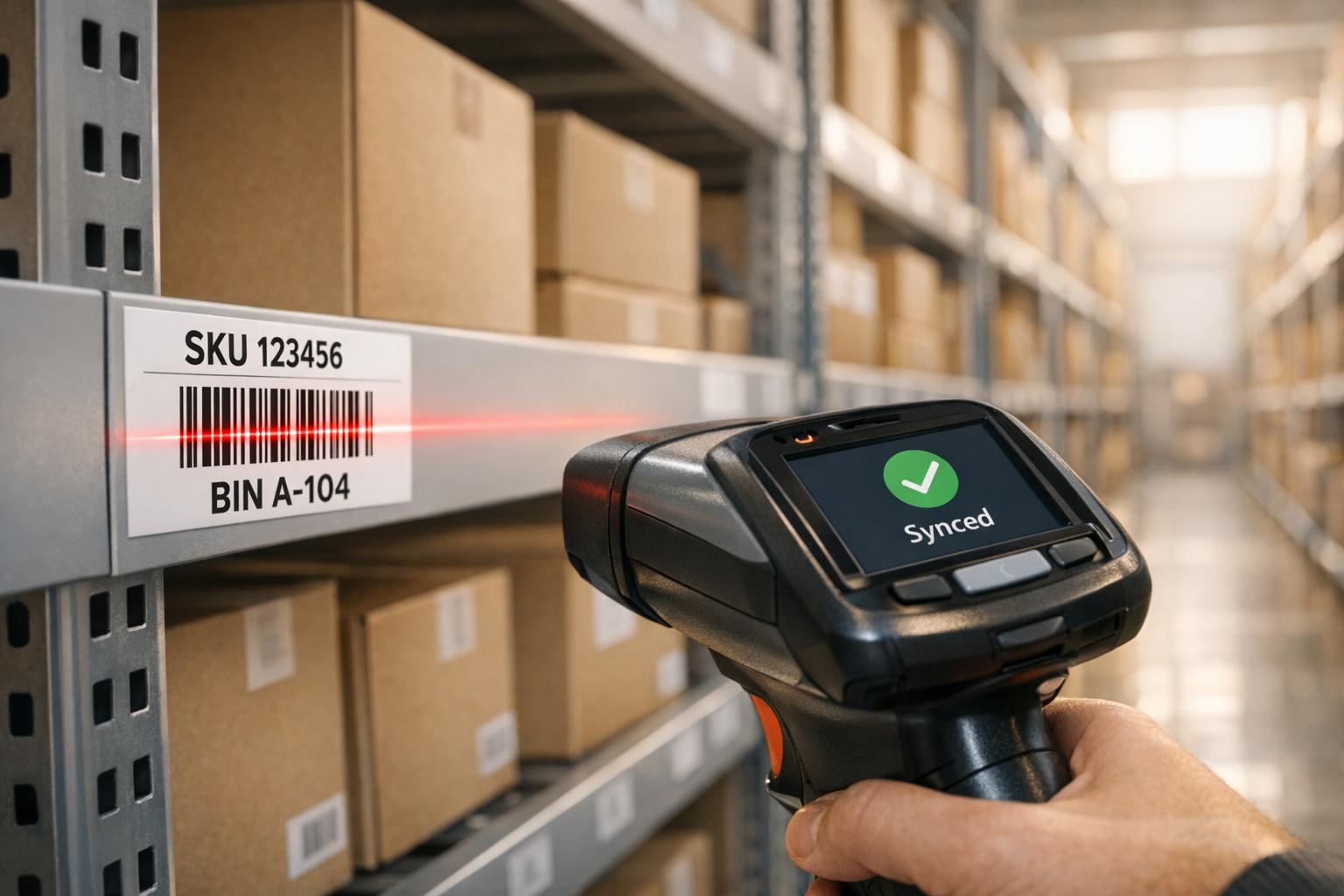
Barcode scanning transforms inventory management by reducing errors, speeding up processes, and ensuring accurate data. Traditional manual cycle counting often leads to mistakes, delays, and disruptions. With barcode scanning, businesses can achieve over 98% accuracy, streamline workflows, and update systems in real time. Here's why it works:
- Accuracy: Manual counting has an error rate of 8–12%, while barcode systems reduce it to nearly zero.
- Efficiency: Scanning cuts counting time by half or more, minimizing warehouse disruptions.
- Real-Time Updates: Tools like Rapid Inventory sync data directly with QuickBooks, ensuring up-to-date records.
- Error Prevention: Scanners eliminate typos, skipped items, and confirmation bias.

Manual vs. Barcode Cycle Counting: Accuracy & Efficiency Compared
Common Problems With Manual Cycle Counting
Errors From Manual Data Entry
Manual cycle counting relies heavily on workers accurately recording numbers every single time. This process involves jotting down item numbers, quantities, and locations by hand before entering the data into a system. At every step, there's a real risk of mistakes - like typos, transposing digits (e.g., writing "154" instead of "145"), or even skipping items altogether. In fact, studies show that manual inventory processes often come with an error rate of 8–12%.
Another challenge is confirmation bias. When workers see the expected quantity in the system before counting, they might simply confirm that number instead of conducting a proper count. This means the data isn't genuinely verified. These types of errors don't just compromise the accuracy of inventory records - they also slow down operations, creating additional disruptions.
Time and Disruption in the Warehouse
Manual counting doesn't just introduce errors; it also eats up a lot of time and disrupts regular warehouse operations. A manual count can take as long as 8 hours, while barcode scanning can cut that time down to 4–5 hours. To perform these counts, warehouses often pause key activities like picking, receiving, and shipping to prevent inventory movement during the process.
"Inventory counting has a way of revealing what is really happening behind the scenes. It reveals rushed processes [and] highlights unclear responsibilities." - Invoqat
When discrepancies are found - and they frequently are - employees have to stop their regular tasks to investigate and recount. This diverts resources from essential operations, adding to the overall disruption.
Delayed and Inconsistent System Updates
One of the most critical issues with manual counting is the time lag between the physical count and updating the system. Workers typically count items on the warehouse floor, record the numbers manually, and then input them into inventory management software for QuickBooks Desktop hours later - sometimes not until the end of their shift.
"Manual notes and delayed data entry create gaps between the physical count and the system record. During that gap, inventory may move, picks may occur, or replenishment may happen." - Tera Digital
This delay leaves room for discrepancies as inventory continues to move while the system remains outdated. It highlights why tools like barcode scanning are so effective - they tackle both timing and accuracy issues head-on.
sbb-itb-19ed50f
How Barcode Scanning Improves Cycle Count Accuracy
Reducing Data Entry Errors
Manual data entry is naturally prone to mistakes, even when done carefully. In fact, manual entry averages about one error for every 300 characters. On the other hand, barcode scanning brings that error rate down to almost zero. By incorporating blind counting - where scanners hide the expected quantities - confirmation bias is eliminated, especially for high-value items.
Counting Faster With Less Disruption
Barcode scanning doesn’t just improve accuracy; it also speeds up the process significantly. For example, batch scanning can cut the time for counting 500 items from two hours to just 12 minutes. Additionally, this method allows counting to be restricted to specific zones, meaning that other operations like picking and shipping can continue without interruptions.
Another key advantage is how discrepancies are flagged in real time, right at the bin. This immediate feedback allows workers to correct errors on the spot instead of dealing with them later. These time-saving benefits also integrate seamlessly into broader data systems.
"Batch scanning allows you to scan multiple barcodes simultaneously with one button press... For inventory counting, batch scanning can be 10–20x faster." - Scandit
Syncing Data With QuickBooks Desktop in Real Time

Real-time data capture is a game-changer for minimizing discrepancies and maintaining accurate inventory records. With tools like the "Send to QuickBooks" function, workers can scan items and instantly push the data to QuickBooks Desktop. The system then compares the counts, flags any discrepancies by marking them as "Pending Review", and allows teams to address issues immediately. Once verified, the status is updated to "Complete", and both the quantity and value on hand are adjusted automatically.
For those using platforms like Rapid Inventory, the two-way sync with QuickBooks ensures smooth cycle counting workflows. This eliminates the need for manual imports or reconciling spreadsheets, keeping records accurate across multiple locations with minimal effort.
How to Set Up Barcode-Enabled Cycle Counting
Labeling Items and Locations for Scanning
To begin, assign a unique SKU (e.g., TS-WHITE-S) to every product variation. This creates a logical system that directly links to your barcode identifiers, ensuring smooth tracking.
When choosing barcodes, consider your needs: 1D barcodes work well for basic identification, while 2D barcodes (like QR codes) can store extra details like lot numbers or expiration dates. Once you've printed the labels, placement is critical. They should be durable enough to handle receiving, storage, and shipping without peeling or fading. Place them in accessible spots for easy scanning - such as on bin faces, shelf edges, or product packaging.
If you're using QuickBooks Desktop, you can map each barcode to a specific item field (like Item Name or Part Number) through the Barcode Wizard. To find it, go to Edit > Preferences > Items & Inventory > Advanced Inventory Settings. For items stored in multiple bins, QuickBooks will automatically generate separate counting tasks for each location.
With labeling sorted out, the next step is creating workflows that simplify the scanning process.
Setting Up Workflows and User Roles
A well-defined workflow is key to avoiding confusion during inventory counts. In QuickBooks Enterprise, you can add warehouse staff through the Vendor Center by setting their Vendor Type to "Warehouse User." This allows them to perform counts on mobile devices without using up a standard user license.
Managers can initiate counts from the Inventory menu, filtering items by category, location, or discrepancies. These tasks are then assigned to workers' mobile devices. The workflow follows this sequence: Open → Pending Review → Complete → Closed. This structure ensures accountability and makes it easy to monitor progress.
| Workflow Stage | Responsible Role | Primary Tool |
|---|---|---|
| Activation & Setup | Admin/Manager | QuickBooks Preferences / Barcode Wizard |
| User Configuration | Admin/Manager | Vendor Center (Warehouse User Type) |
| Count Creation | Manager | Cycle Count Dashboard |
| Physical Counting | Warehouse User | Mobile Scanner / QuickBooks Desktop App |
| Review & Adjustment | Manager/Accountant | Cycle Count Dashboard (Batch Actions) |
Once roles and workflows are in place, the final step is to connect your barcode system to QuickBooks Desktop for seamless data updates.
Connecting Your Barcode System to QuickBooks Desktop
For QuickBooks Enterprise users, mobile devices can connect through the QuickBooks Desktop App (available for Android). A 6-digit pairing code, generated in the Site Operations tab, links the device to your company file. Supported hardware includes Zebra TC21 and TC26 scanners. Be sure your USB scanner supports EAN-13, Code-128, and produces a single carriage return.
After connecting, managers can send counting tasks to devices, where staff will scan items. Results are pushed back to the dashboard with a simple "Send to QuickBooks" action. If discrepancies arise, they automatically move to "Pending Review", allowing managers to resolve multiple issues at once using Batch Actions. This streamlined process helps maintain accurate inventory records and minimizes delays.
For operations spanning multiple locations or requiring advanced picking, tools like Rapid Inventory offer automated two-way syncing with QuickBooks Desktop via Web Connector. This keeps inventory counts and order records continuously updated.
"Rapid Inventory helps us run our warehouse operations... we especially love the barcode scanning and mobile picking and we've implemented it for all our warehouse operations." - Fernanda C, Director of Operations
Best Practices for Accurate Barcode-Based Cycle Counting
Documenting Procedures and Training Staff
Once your barcode system is up and running, the biggest challenge often lies in ensuring it’s used consistently. Clear Standard Operating Procedures (SOPs) are key to avoiding errors. These should outline the essentials: how to label locations, which unit of measure (UOM) applies to each item, and what steps staff should take if a barcode is damaged or an item ends up in the wrong bin. For high-value A-class items, it’s a good idea to hide the system quantity during counting to maintain accuracy. On the other hand, showing the system quantity for lower-risk C-class items can speed things up. Companies with well-established cycle counting programs often achieve inventory record accuracy (IRA) rates above 95%, compared to less than 85% for businesses that rely solely on annual physical counts.
Training is equally important. Teach staff to follow a specific sequence: scan the location label first, then the item barcode, and finally enter the count. This method helps to minimize common errors. Additionally, exception reports should be used to quickly identify and fix discrepancies.
Using Exception Reports to Catch Discrepancies
Exception reports are a powerful tool for identifying variances early, allowing you to address small issues before they turn into major inventory problems.
A tiered variance threshold system can help ensure that discrepancies are handled appropriately:
| Variance Level | Required Action |
|---|---|
| Unit variance < 1 | Auto-adjust; no investigation needed |
| Unit variance 2–5 | Immediate recount by a second staff |
| Unit variance > 5 | Root cause investigation before any adjustment |
| Dollar variance > $100 | Formal management review and documentation |
Source:
When a discrepancy arises, investigate it immediately - while the details are still fresh. It’s far easier to trace a variance back to a recent mispick or receiving error than to try and reconstruct events days later. To improve tracking, require staff to enter a reason code (e.g., "Damaged", "Mis-slot", or "UOM Error") for every adjustment. Over time, these codes can reveal recurring issues, giving you a roadmap for improving processes. This kind of disciplined follow-up can boost sales by 4% to 8%.
Before rolling out the process on a larger scale, start with a pilot program to ensure everything runs smoothly.
Pilot First, Then Scale
Rolling out barcode-enabled cycle counting across an entire warehouse all at once can lead to unnecessary chaos. Instead, begin with a smaller, controlled pilot. For example, focus on one warehouse zone or a specific product category and run the process for 2 to 4 weeks. This trial phase helps you identify potential integration issues, fine-tune your SOPs, and give staff time to get comfortable with the new system in a low-pressure environment.
During the pilot, track a control group of 20 to 30 SKUs with daily counts. This allows managers to quickly identify workflow gaps and make adjustments as needed. Once the pilot produces consistent results and acceptable variances, expand the process to the rest of the operation.
"ERP-integrated cycle counting isn't just a control mechanism - it's an operational habit that keeps your digital system honest about the physical world." - Ashley Taylor, Product Manager, Cleverence
QuickBooks Enterprise Mobile Barcode Device for Cycle Counts

Conclusion: What Barcode Scanning Does for Cycle Counting
Manual counting methods come with inherent limitations. Barcode scanning, on the other hand, captures data instantly during the count, automatically verifies locations, and updates your inventory system in real time - eliminating delays caused by manual transcription.
This method significantly reduces inventory error rates from 8–12% to 1–3%, achieving unit accuracy above 98% and dollar accuracy exceeding 99.5%. Such precision transforms inventory counts from a basic operational task into a tool for smarter, more strategic decision-making.
With barcode scanning, counts are done in manageable batches during normal business hours. Staff follow a straightforward scanning process, and any discrepancies are flagged immediately - no more waiting days to uncover issues. These improvements seamlessly integrate into your existing workflow, strengthening the reliability of your inventory system.
For QuickBooks Desktop users, Rapid Inventory offers a two-way sync that ensures your counted data is instantly reflected in your records. This real-time accuracy supports better decisions around pricing, purchasing, and fulfillment.
"Inventory is no longer only an operational metric. It is strategic." - Sara Adam, Author, Invoqat
Accurate cycle counts aren't just about reducing shrinkage - they're about providing actionable numbers you can rely on. When paired with the right system, barcode scanning ensures you have the data needed to make informed decisions across your business.
FAQs
What scanners and barcodes do I need to start?
To begin barcode scanning, you'll need a USB-connected scanner that supports formats like EAN-13 and Code-128. These formats work seamlessly with basic QuickBooks Desktop integrations.
For mobile workflows, such as those used with Rapid Inventory, smartphones or tablets are excellent tools for scanning directly on the warehouse floor. They offer flexibility and convenience for inventory management on the go.
Before diving in, make sure your inventory data is well-organized. This means setting up unique SKUs, maintaining consistent naming conventions, and defining clear units of measure for all items. A clean and structured inventory ensures smoother operations and fewer errors during scanning.
How do I avoid bad labels and scan failures in the warehouse?
To avoid scan failures during inventory counts, it’s crucial to keep bin and product labels in good condition. Here’s how you can ensure smoother scanning:
- Inspect and replace labels regularly: Unreadable or damaged labels should be replaced before starting your count. Standardize label placement and keep them clean to avoid issues.
- Invest in reliable scanners: Use industrial-grade scanners equipped with advanced imaging technology. These are particularly helpful for dealing with poor lighting or damaged labels.
- Test for challenging conditions: Make sure your scanners can handle wrinkled or low-contrast labels by testing them in advance.
- Follow structured workflows: Implement processes like scanning locations before products to maintain accurate and consistent data capture.
Taking these steps can make a big difference in preventing errors and ensuring your inventory process runs smoothly.
What’s the best way to pilot barcode cycle counting before scaling?
To run barcode cycle counting effectively, start by clearly defining your scope. Focus on high-value items using ABC classification or target specific sections of your warehouse. Leverage inventory software, like Rapid Inventory for QuickBooks Desktop, to generate count lists and assign them to your team. Begin with a small-scale test to refine your workflows. Equip staff with mobile scanners for real-time data capture - this reduces errors and helps you quickly spot any discrepancies.



