
If you use QuickBooks Desktop, cloud inventory is usually the better pick when your team needs remote access, mobile scanning, and more than one stock location. Local inventory still makes sense if you work from one site, want data kept on-site, and have IT staff to handle servers, backups, and updates.
Here’s the short version:
- Cloud runs in a browser and syncs with QuickBooks Desktop.
- Local runs on your own server or office PC.
- Cloud usually has lower upfront cost and a monthly fee, such as $90 per user/month or $900/month unlimited.
- Local usually has higher setup cost because you pay for hardware, licenses, and IT work.
- Cloud is better for remote teams, multi-location stock, barcode scanning, lot/serial tracking, cycle counts, and live reports.
- Local is better when you need LAN access during internet outages and want your system kept inside your building.
- Cloud setup can often be done in 6 to 7 days. Local setups can take weeks or months, based on your network and hardware.
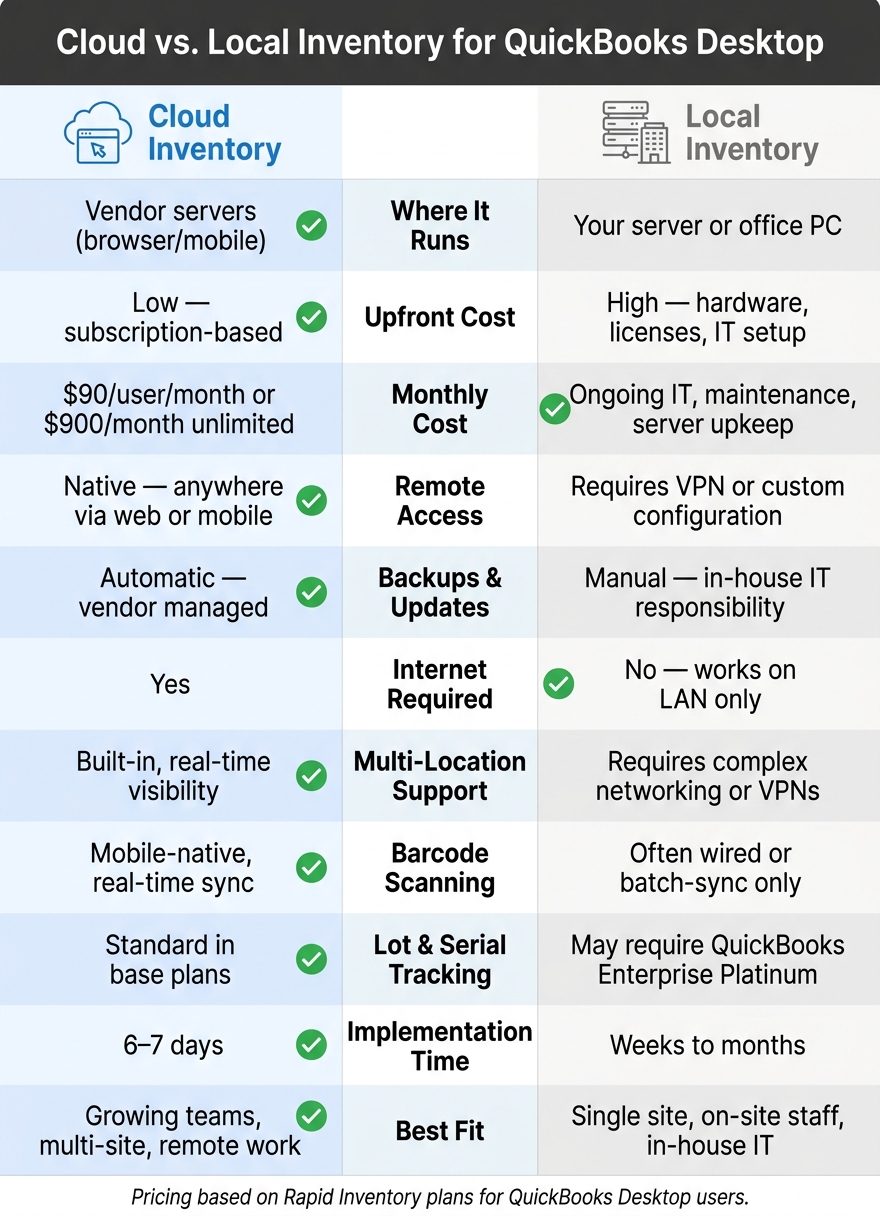
Cloud vs. Local Inventory for QuickBooks Desktop: Side-by-Side Comparison
Why Everyone Is Switching to QuickBooks Enterprise Hosting

sbb-itb-19ed50f
Quick Comparison
| Area | Cloud Inventory | Local Inventory |
|---|---|---|
| Where it runs | Vendor servers | Your server or host PC |
| Access | Browser, mobile, tablet | On-site PCs, VPN for remote use |
| Upfront cost | Lower | Higher |
| Monthly cost | Subscription | IT, support, and server upkeep |
| Backups and updates | Vendor handles them | Your team handles them |
| Internet need | Yes | No, if using LAN only |
| Multi-location stock | Built for it | More setup needed |
| Barcode scanning | Mobile-first | Often tied to on-site devices |
| Growth | Add users/sites with less setup | More licenses, hardware, and IT work |
| Best fit | Growing teams, more than one site, remote work | One site, on-site staff, in-house IT |
My take: if you want to keep QuickBooks Desktop but fix day-to-day inventory headaches, cloud tools give you more access and fewer manual steps. If your work stays in one building and your team is set up to run servers, local may still fit.
This comparison helps you pick based on deployment, cost, access, scale, and day-to-day work.
How Cloud-Based Inventory Works With QuickBooks Desktop

Cloud inventory adds a browser-based layer on top of QuickBooks Desktop, while QuickBooks stays the main accounting system. A web connector syncs items, orders, and inventory activity both ways, which cuts down on manual entry. In plain English: your team spends less time retyping data and more time keeping inventory moving.
That shift changes day-to-day work in a big way. Teams can get to the same inventory data, stay in sync across roles, and handle routine tasks without waiting on one desktop file.
Remote Access, Shared Data, and Mobile Workflows
Because the system runs in a browser, office staff, warehouse teams, and remote workers can all use the same live inventory data. Everyone sees the same numbers at the same time, which helps avoid the usual back-and-forth of “Which file is current?”
Warehouse staff can also use mobile barcode scanning to check locations, items, and quantities during receiving, picking, and transfers. That makes floor work much smoother. Instead of juggling paper sheets or walking back to a workstation, staff can confirm what’s in front of them right from a mobile device.
Inventory Features for Growing Operations
Shared access also makes warehouse workflows easier to run as operations get more complex. QuickBooks Desktop Pro and Premier don’t include multi-location tracking or mobile barcode scanning. Rapid Inventory, built for QuickBooks Desktop users, fills those gaps with features such as:
- Multi-location tracking
- Lot and serial number tracking
- FIFO and FEFO picking
- Real-time inventory reports
- Cycle counting
- Backorder tracking
Fast onboarding matters when teams need to get up and running without a long delay. Rapid Inventory also includes onboarding, training, and support, with implementation often completed in 6 to 7 days.
How Local Inventory Systems Work for QuickBooks Desktop
If cloud inventory spreads access across different locations, local inventory keeps everything on one on-site network.
In a local setup, QuickBooks Desktop and the company file live on an on-site server or a host PC. Staff connect through the office network, which usually means access stays limited to that one location. That setup gives teams more direct control and keeps things fairly simple. The downside? Access is tighter, and the business takes on more of the IT work.
Common Local Setup for Office and Warehouse Teams
Most local setups rely on a central server, with QuickBooks Desktop installed on each workstation. For smaller teams, one host PC may be enough to share the company file.
Multi-User Mode and Database Server Manager help keep shared access working across the network. And this part matters more than people sometimes think: the network has to be stable. If the connection is slow, syncing can lag and errors can start to creep in.
Local Strengths and Limitations
Local systems give businesses direct control over their setup. But that control comes with extra work. The business has to handle backups, security, maintenance, and hardware upgrades on its own.
If hardware fails, needed records can be at risk. That’s the tradeoff. You get more control, but less flexibility for remote work and a tougher path as the operation gets bigger. As the business grows, scaling can feel slower, and the IT load usually gets heavier.
Those tradeoffs stand out most when you look at access, upkeep, and growth capacity side by side.
Cloud vs. Local: Side-by-Side Comparison for U.S. Businesses
The gap between cloud and local systems stands out fastest when you line up deployment, cost, access, and scale side by side.
Deployment, Data Management, and IT Responsibility
Cloud systems put infrastructure and maintenance on the vendor. Local systems keep that work inside your company.
Here’s where that shows up in day-to-day operations:
| Factor | Cloud-Based Inventory | Local Inventory |
|---|---|---|
| Installation Type | Runs on vendor servers; browser access | Installed on company servers or office PCs |
| Data Location | Vendor-managed data centers | On-site company hardware |
| Backups | Automatic; managed by vendor | Manual; managed by in-house IT |
| Updates | Automatic; deployed by vendor | Manual; requires IT intervention |
| IT Ownership | Vendor handles infrastructure | In-house IT handles all hardware and software |
| Internet Dependence | Required for access and syncing | Works on a local network (LAN) without internet |
For many teams, that makes internet connectivity the biggest day-to-day difference. If your connection drops, cloud access can slow or stop. A local setup can keep running on the LAN even without internet.
Cost, Accessibility, and Remote Work
Local systems tend to cost more at the start because you need hardware, software licenses, and IT labor. Cloud systems move most of that into a monthly subscription.
Rapid Inventory is a clear example. Its Pro plan costs $90 per user/month for 1–9 users, and its Unlimited plan costs $900 per month for unlimited users.
| Factor | Cloud-Based Inventory | Local Inventory |
|---|---|---|
| Upfront Cost | Low - subscription-based | High - hardware, licenses, and setup costs |
| Monthly Cost | $90/user or $900/month unlimited | Ongoing maintenance and IT labor |
| Support | Included in subscription | Often requires separate paid contracts |
| Remote Access | Native; access anywhere via web | Requires VPN or custom configuration |
| Device Flexibility | Mobile, tablet, and browser-ready | Limited to on-site terminals |
| Downtime Risk | Internet outages | Server failure or hardware malfunction |
This is where cloud often feels simpler. Your team can log in from a warehouse across town, a home office, or a job site without much extra setup. Local systems can do remote access too, but they usually need a VPN or remote desktop setup, which adds more moving parts.
Once cost and access are on the table, scale usually becomes the next big factor.
Scalability and Advanced Inventory Operations
As a company grows, local systems can get harder to expand. Adding users may mean buying more licenses and, in some cases, upgrading server hardware. Opening a second location can also mean synced servers or a VPN.
Cloud systems work in a different way. With Rapid Inventory, adding a new warehouse or user doesn’t mean buying new hardware. Mobile barcode scanning, lot and serial number tracking, and real-time reporting come with the base plans. That matters for QuickBooks Desktop Pro and Premier users who want deeper inventory features without moving to Enterprise Platinum.
| Factor | Cloud-Based Inventory | Local Inventory |
|---|---|---|
| User Growth | Instant; add users to subscription | Limited by server capacity and licenses |
| Multi-location Support | Real-time visibility across all sites | Requires complex networking or VPNs |
| Barcode Scanning | Mobile-native; real-time sync | Often requires wired or batch-sync units |
| Lot & Serial Tracking | Standard in cloud plans | May require QuickBooks Enterprise Platinum |
| Reporting Speed | Real-time reporting | Depends on local server speed |
| Implementation | Days to weeks | Months |
In plain terms, cloud is often easier to grow with. Local can still work well, but each step up usually asks for more planning, more setup, and more IT time.
Which Setup Is Right for Your Business
Best Fit by Business Situation
After looking at deployment, cost, access, and scale, the choice mostly comes down to one thing: how your team actually works day to day.
The best setup depends on a few practical factors, like how many locations you run, whether your team needs remote access, how complex your inventory is, and whether you have in-house IT help.
Local inventory tends to work best for single-site businesses with on-site warehouse staff, dedicated IT support, and strict internal security rules. It can also make more sense in places where internet service is unreliable.
Cloud inventory is often the better match when access and speed matter more than on-site control. It fits growing businesses, teams spread across multiple locations, and mobile staff who need real-time data when they’re away from a desk. For QuickBooks Desktop users, Rapid Inventory adds web access, mobile barcode scanning, and multi-location tracking while keeping QuickBooks Desktop as the accounting system.
Key Points to Remember Before Choosing
A few final checks can help narrow the choice:
- Total cost goes beyond the starting price. Local systems often come with hardware and maintenance costs. Cloud subscriptions usually include support, updates, and backups.
- IT capacity can swing the decision. If you don’t have dedicated IT support, cloud software puts maintenance on the vendor. Rapid Inventory includes onboarding, training, and support, with setup often completed in 7 days.
- QuickBooks Desktop users don’t have to replace their accounting system to get cloud inventory. With two-way sync, they can keep QuickBooks Desktop and add cloud inventory at the same time, which cuts down on manual entry and spreadsheet workarounds.
FAQs
Will cloud inventory work with my current QuickBooks Desktop file?
Yes. Cloud-based inventory management can work with your existing QuickBooks Desktop file.
For example, Rapid Inventory uses the QuickBooks Web Connector for automatic, two-way sync. That means items, orders, and inventory adjustments stay in line without forcing you to change your current accounting setup.
If your system meets the technical requirements, your QuickBooks Desktop data stays at the center of your day-to-day work.
How do I know if local inventory is still the better fit for my business?
Local inventory may still be the better fit if you want full control over your data and security on your own hardware.
It also makes sense if your business needs to keep running when internet access is spotty or unavailable.
Another case is when you depend on heavily customized inventory workflows. The same goes for businesses that already have strong, locally installed QuickBooks Desktop processes and want to keep that setup in place.
What happens if your internet goes down with a cloud system?
If your internet connection drops, syncing with QuickBooks Desktop may pause for a bit. Any changes made during the outage are usually queued, then synced on their own once the connection comes back.
A stable connection matters if you want up-to-date info and smooth remote access. If your PC restarts, you may need to reopen your sync tools or reconnect before syncing picks up again.



