

Mobile apps make inventory tracking faster, more accurate, and easier to manage. By replacing manual processes like spreadsheets and paper logs, these tools allow businesses to scan barcodes, update stock levels in real-time, and sync data across locations. Key benefits include:
- Barcode Scanning: Reduces errors and speeds up tasks like receiving, picking, and counting.
- Real-Time Updates: Ensures everyone has access to the latest inventory data instantly.
- Multi-Location Tracking: Keeps stock levels accurate across warehouses or storage sites.
- Reports & Alerts: Dashboards highlight trends, while low-stock alerts prevent shortages.
To get started, organize your item data (e.g., SKUs, barcodes) and set up clear storage locations with scannable labels. Mobile apps like Rapid Inventory integrate with tools like QuickBooks Desktop, providing seamless syncing and advanced features for growing businesses. Whether you're managing a single warehouse or multiple locations, mobile tools streamline operations and improve accuracy.
What Mobile Inventory Apps Do
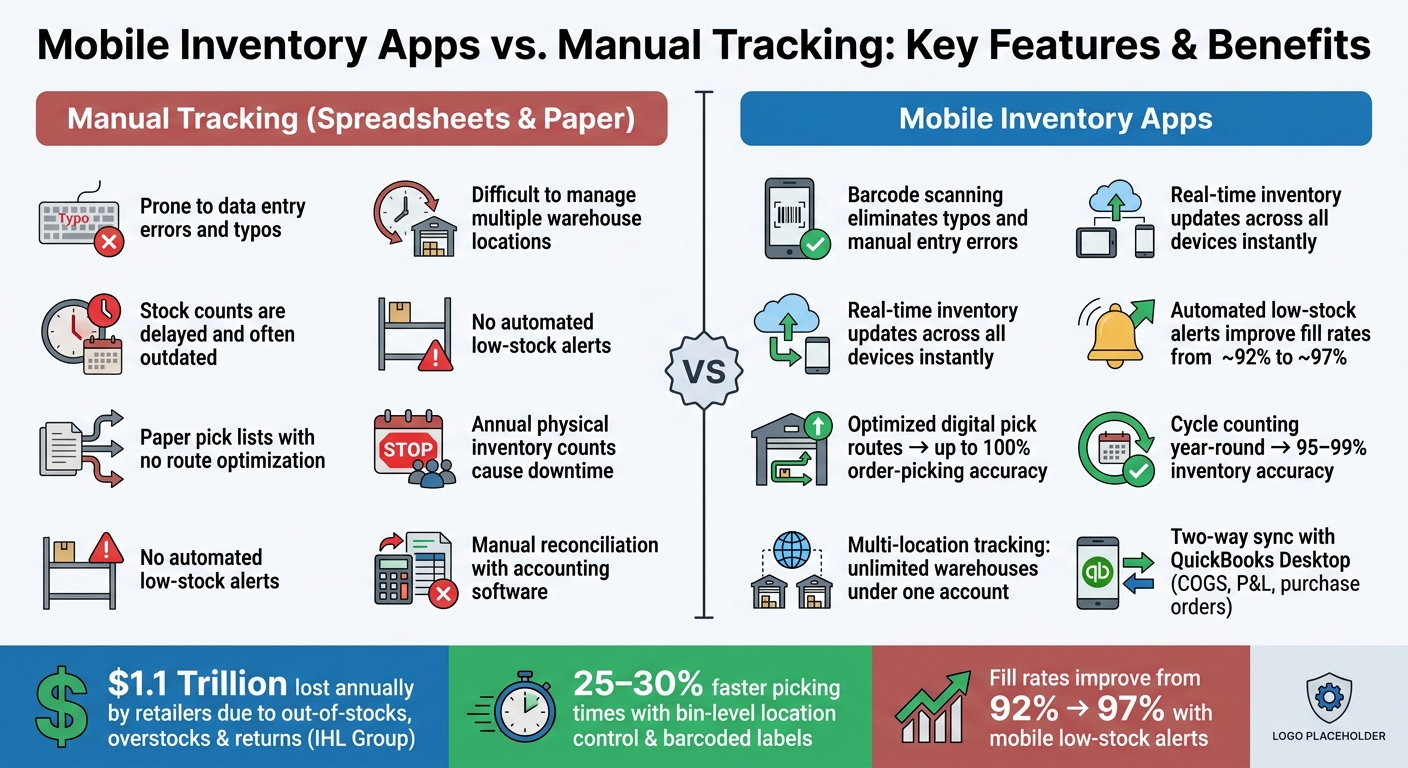
Mobile Inventory Apps vs. Manual Tracking: Key Features & Benefits
Mobile inventory apps turn your smartphone or tablet into a powerful inventory management tool, replacing outdated manual methods with a streamlined, digital system. Every scan, adjustment, and transfer is instantly logged, ensuring the entire system stays up-to-date in real time.
Core Functions of Mobile Inventory Apps
These apps are designed to make inventory tasks faster and easier. For example, barcode scanning replaces manual checks, allowing users to verify item locations, shipments, and counts with just a quick scan. No need for tedious counting or checking - just scan and move on.
But the benefits don’t stop there. Mobile inventory apps also automate data management with two-way syncing. This means every action taken in the warehouse - whether it’s receiving, picking, or transferring stock - is updated across the system in real time.
"Automatic 2 way sync with Quickbooks means that your items and orders are synced to Rapid Inventory and Rapid Inventory actions are synced back to Quickbooks. Say goodbye to spreadsheets and manual entry." - Rapid Inventory
How Mobile Tools Improve Inventory Processes
One of the biggest advantages of mobile tools is how they transform picking and receiving processes. Instead of relying on paper pick lists and memory, mobile apps provide digital pick lists showing the exact location of each item. These lists even generate optimized routes through the warehouse, saving time and boosting accuracy. Some businesses using this method have reported hitting 100% order-picking accuracy.
Mobile apps also make it easier to address issues instantly. For example, if a shipment arrives with errors or damaged goods, staff can flag the problem, add notes, and escalate the issue directly from the app - without interrupting the workflow.
"Using it since 2015, we especially love the barcode scanning and mobile picking and we've implemented it for all our warehouse operations." - Fernanda C., Director of Operations
Here’s a quick breakdown of how mobile apps enhance common warehouse tasks:
| Workflow Task | Action | Benefit |
|---|---|---|
| Receiving | Scan items on arrival to update stock instantly | Eliminates manual data entry and paperwork |
| Picking | Follow optimized digital routes with barcode verification | Reduces mispicks and cuts travel time |
| Inventory Counts | Run cycle counts on-the-go with a mobile scanner | Increases count frequency without downtime |
| Stock Transfers | Scan items as they move between bins or locations | Keeps multi-location data current at all times |
Next, we’ll dive into how to set up item details and locations to make the most of these mobile tools.
sbb-itb-19ed50f
Getting Started: Setting Up Item Data and Locations
Before you start scanning, make sure your data is organized. Missing or incomplete item records can delay implementation. The IHL Group reports that retailers lose over $1.1 trillion annually due to out-of-stocks, overstocks, and returns - issues often linked to inaccurate inventory data. A clean setup can help avoid these costly mistakes.
Organizing Item Details for Accurate Tracking
Every item should have a unique SKU or ID. Use a consistent naming format like "Brand – Product Type – Size – Color" (e.g., "Nike – Running Shoe – Size 10 – Black") to make items easy to find and scan on mobile devices. Each record should include key details like a barcode, unit of measure, cost, selling price (in USD), and category. For perishable or regulated items, enable lot or serial number tracking before receiving stock.
If you're transitioning from QuickBooks Desktop or spreadsheets, start by exporting your current item list. Clean it up by removing duplicates, retiring outdated items, and standardizing data formats - for example, use "$12.50" instead of "12" or "12 USD." QuickBooks Desktop users can save time by using tools like Rapid Inventory to sync item lists, costs, and pricing directly into a mobile-ready system, eliminating the need to rebuild your catalog manually.
Defining Stock Locations
Once your item details are standardized, set up a clear storage system. Use a simple hierarchy like Warehouse → Zone → Aisle → Rack → Shelf → Bin to assign every product a specific, scannable location. For instance, a location code such as WH1-A03-R02-S01 provides clear instructions for staff, reducing confusion. Warehouses that implement bin-level location control and use barcoded labels often see 25–30% faster picking times and fewer errors compared to those without structured systems.
Create high-contrast labels with readable text and barcode/QR codes for all designated spots - aisles, racks, and bins. Place these labels at eye level, ensuring they can be scanned from 2–6 feet away. Load these location codes into your mobile app to maintain accuracy. Train your team to always follow this process: scan the location first, then the item.
"Scan barcodes to verify locations, items, quantities, shipments during receiving, picking, counting, moving and transferring." - Rapid Inventory
Before rolling out the system fully, conduct a pilot cycle count in one section. This test ensures that all items and location codes in that area scan correctly and update records in real time. By addressing any mismatches on a smaller scale, you can ensure a smoother transition when implementing the system across your entire operation.
Key Features That Make Inventory Tracking Easier
Once your items and locations are properly set up, the right mobile app features can significantly streamline your inventory management. Three standout capabilities - barcode scanning, real-time updates, and multi-location tracking - play a critical role in improving daily operations. Let’s dive into how each of these features can simplify your workflow.
Barcode Scanning and QR Code Support
Barcode scanning is a game-changer for mobile inventory management. Instead of relying on manual data entry, employees can simply scan a label with their phone, instantly capturing the information. This not only saves time but also eliminates the common errors that come with typing data manually.
"Barcode scanning eliminates the risk of typos and data entry errors." - Marshall Hargrave, Financial Writer, QuickBooks
Standard barcodes (like UPC codes and SKUs) handle basic product identification, while QR codes and other 2D barcodes can store more detailed information, such as batch numbers, lot numbers, and expiration dates. This added layer of data is especially useful for managing perishable goods or items that require lot tracking.
Barcode scanning integrates smoothly into key warehouse activities like receiving shipments, picking orders, cycle counting, and transferring stock. By using this feature consistently, your team can reduce errors and establish efficient workflows.
Real-Time Inventory Updates
Quick data capture is just the beginning - real-time updates take inventory accuracy to the next level. When a team member logs a shipment or picks an order, the inventory count is updated instantly. This ensures that everyone, whether on-site or remote, has access to the same up-to-date numbers.
This synchronization becomes even more crucial when multiple employees are working with the same inventory. For businesses using QuickBooks Desktop, a two-way sync ensures that any changes made in the field are immediately reflected in accounting records. This keeps your financial data in perfect alignment with your physical stock.
Multi-Location and Warehouse Tracking
Managing inventory across multiple storage locations is another critical aspect of effective inventory management. Mobile apps provide a centralized view of all warehouses, making it easier to oversee operations across different sites.
With barcode verification, staff can transfer stock between locations while keeping digital records accurate. For businesses expanding their operations, tools like Rapid Inventory allow for unlimited warehouses and storage points under a single account. They also support FIFO (First In, First Out) and FEFO (First Expired, First Out) picking strategies, which are essential for managing perishable or time-sensitive inventory. And since these platforms are accessible from any internet-connected device, your team can stay on top of inventory from virtually anywhere.
Monitoring Inventory With Reports and Alerts
Once you've got a handle on tracking inventory across locations, the next step is staying ahead of potential issues. Real-time syncing and mobile data capture are the foundation, but reports and alerts take things to the next level. Mobile inventory apps transform scanned data into actionable insights with dashboards and automated alerts, keeping your operations running smoothly.
Using Real-Time Reporting Dashboards
A reporting dashboard gives you an instant snapshot of essential metrics like on-hand quantities, inventory value, reorder status, and open sales or purchase orders. The best part? Everyone - from the warehouse team to the purchasing manager and finance department - is working off the same data, eliminating the need for manual spreadsheet updates.
Dashboards also make it easier to spot trends. By reviewing stock movements over days, weeks, or months, you can identify seasonal demand spikes, slow-moving items that tie up your cash, and products that frequently run low. For planning purposes, having 12 months of historical data is ideal, but even 3–6 months can help newer businesses make better reorder decisions. If your business operates across multiple locations, dashboards with location-specific views let you quickly address stock imbalances between warehouses.
Low-Stock Alerts and Notifications
Reports are great for analysis, but alerts ensure you can act immediately. Automated low-stock alerts are particularly useful for avoiding critical shortages. With mobile inventory apps, you can set reorder points for each item. When stock falls below that threshold, the app sends an alert. For businesses managing multiple warehouses, site-specific alerts are invaluable. They allow you to set unique thresholds for each location, so excess stock in one warehouse doesn’t obscure a shortage in another.
Here’s a reliable formula for determining your reorder point:
(Average Daily Usage × Supplier Lead Time) + Safety Stock
This calculation keeps you covered for regular demand during the restocking period without tying up too much capital in excess inventory. Retailers who’ve implemented mobile low-stock alerts for their top-selling items have reported improved fill rates - from about 92% to 97%. That means fewer "out of stock" situations and more satisfied customers.
For businesses using Rapid Inventory, the platform offers built-in real-time inventory reports and reorder tracking. Plus, it syncs seamlessly with QuickBooks Desktop, ensuring your alerts are grounded in the same data your accounting team trusts.
Using Web-Based Platforms for More Advanced Inventory Needs
Mobile apps are great for handling day-to-day warehouse tasks, but as your business grows, they might not be enough. When you're managing more SKUs, juggling multiple warehouses, or dealing with stricter accounting requirements, a web-based inventory platform becomes essential. These platforms work alongside mobile apps, giving managers the ability to configure workflows, review dashboards, and approve changes from any browser. Let’s dive into how this approach integrates with QuickBooks Desktop and offers advanced features to support scalable inventory management.
Two-Way QuickBooks Desktop Integration

For U.S. businesses using QuickBooks Desktop, mobile-only solutions often fall short when it comes to seamless integration. Without a web-based platform, stock changes recorded on mobile devices don’t automatically update item quantities, cost of goods sold (COGS), or purchase orders in QuickBooks. A web-based system bridges this gap with two-way synchronization, ensuring that inventory data and QuickBooks stay aligned. This means QuickBooks profit-and-loss statements reflect warehouse activity almost in real time, cutting down on manual data entry - especially during month-end when accurate COGS figures are critical for gross margin reporting.
Rapid Inventory is designed specifically for this purpose. It integrates with QuickBooks Desktop Pro, Premier, and Enterprise through a Web Connector, and businesses can get up and running in as little as 7 days. Nicholas G., a long-time user, shared his experience:
"Rapid Inventory with QuickBooks Desktop is exactly what we need to run our company. We've been using it for 6 years and love it. Simple and straightforward, very easy to learn and easy to work with. Onboarding was very smooth."
Advanced Features for Growing Businesses
Web-based platforms don’t just sync with accounting systems - they also offer tools that help growing businesses maintain control and precision. Here are three standout features that make scaling operations easier:
- Multi-location tracking: This feature allows each warehouse or store to have its own on-hand, committed, and on-order inventory counts. Managers can see a unified view of stock across all locations, making it easier to plan transfers and avoid stockouts or overstocking.
- FIFO and FEFO picking strategies: For businesses dealing with perishables, pharmaceuticals, or regulated products, these picking methods are essential. The system guides pickers to follow FIFO (First In, First Out) or FEFO (First Expired, First Out) strategies for proper stock rotation. If a picker scans the wrong lot, the platform can issue a warning or block the action.
- Cycle counting: Instead of shutting down operations for an annual physical inventory, cycle counting spreads the process throughout the year with smaller, scheduled counts. The web interface assigns tasks by zone or item class, while mobile devices guide counters through specific locations. This method helps catch variances early, and businesses that adopt structured cycle counting often achieve 95–99% inventory accuracy.
Rapid Inventory’s Pro plan starts at $90 per user/month, offering features like unlimited warehouses, lot and serial tracking, and white-glove onboarding. For larger teams (10+ users), the Unlimited plan costs $900/month and includes custom inventory reports and a dedicated account manager.
Conclusion: Start Simplifying Inventory Tracking With Mobile Apps
Relying on paper logs and spreadsheets to manage inventory often leads to mistakes, mismatched stock counts, and wasted time. Mobile apps solve these problems by offering features like barcode scanning, real-time updates, and location-aware tracking. The benefits are immediate - imagine a team member scanning an incoming shipment, instantly updating the inventory count so everyone has access to the same accurate information.
To get started, focus on the areas in your workflow that need the most attention. Barcode scanning and real-time updates often provide the quickest improvements, so consider piloting a mobile scanning system in areas like receiving, picking, or physical counts - where errors or delays are most common. Standardize your bin labels, set up low-stock alerts for your best-selling items, and let these early wins pave the way for a larger rollout.
As your business grows, basic mobile tools may no longer meet your needs. When managing multiple warehouses, tracking lot numbers, or syncing inventory directly with your accounting software, a web-based platform integrated with QuickBooks Desktop becomes invaluable. For example, Rapid Inventory offers a solution tailored for QuickBooks Desktop users, with the ability to get your team operational in as little as seven days. Jacob, a CEO who adopted this system, shares:
"My team was up and running in a few days. Very straightforward and easy to use."
These tools aren’t reserved for large corporations - they’re built for everyday businesses in the U.S., making them both accessible and cost-effective. Starting small with mobile inventory tracking today can help you reduce stock problems and streamline operations, preparing your business for growth without the need for a disruptive overhaul down the line.
FAQs
Do I need special barcode scanner hardware, or will a phone work?
You don't need special hardware to manage your inventory. Rapid Inventory works seamlessly on smartphones, tablets, and rugged Android devices. This means you can scan barcodes and update inventory from virtually anywhere as long as you have internet access.
While the system does support USB-connected barcode scanners for certain workflows, using a mobile device makes everyday tasks - like receiving, picking, and tracking stock - much easier. No need for expensive, dedicated equipment!
How do I set up bin locations and labels for fast, accurate scanning?
To get started with bin locations, you’ll first need to enable Bin Tracking in QuickBooks Desktop. Here’s how: navigate to Edit > Preferences > Items and Inventory > Company Preferences. Once activated, align your physical storage setup to match these digital settings.
Next, use Rapid Inventory to create and print barcode labels for your bins. These labels are essential for smooth operations. When you scan them during inventory tasks, they help ensure items are placed correctly and update your records in real time. This process keeps your inventory tracking efficient and hassle-free.
How does two-way QuickBooks Desktop sync prevent inventory and COGS mismatches?
Two-way sync with QuickBooks Desktop helps keep inventory and Cost of Goods Sold (COGS) accurate by automatically logging every inventory transaction - whether it's receiving, picking, or stock adjustments - in real time. With Rapid Inventory, mobile barcode scanning captures data instantly and syncs it directly into QuickBooks. This keeps financial records and stock levels in sync, eliminating delays, data silos, and errors in COGS calculations.



