
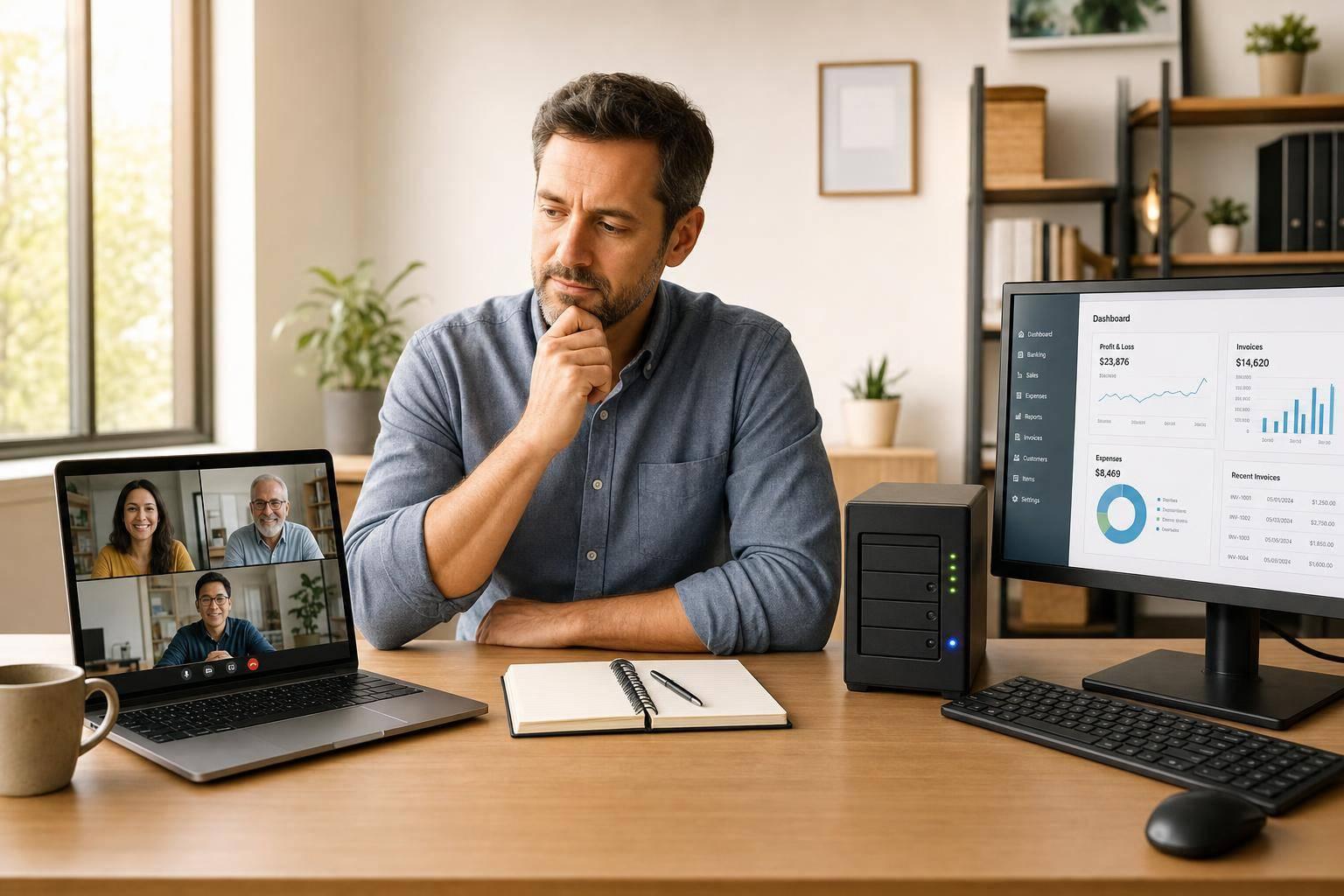
If your team needs remote access, mobile scanning, or multi-location inventory management, cloud is usually the better fit. If you run one site, have in-house IT, and want to keep data on your own servers, on-premise can still make sense.
Here’s the short version:
- Cloud gives you browser access, vendor-handled backups, and lower upfront cost
- On-premise gives you local control, but your team handles servers, updates, and backups
- Cloud often costs $600 to $3,600 per year
- On-premise often starts around $3,000 to $10,000 for setup and hardware
- Cloud works well for teams spread across locations
- On-premise fits single-site teams with steady local access
- QuickBooks Desktop cloud tools often sync through a connector
- On-premise tools often sync through the SDK or QuickBooks Web Connector
- Large QuickBooks files, such as over 1.5 GB, can slow sync and system response
- VPN-based access can add lag and interrupt live multi-user work
My take: choose cloud if you want less IT work and easier access. Choose on-premise if you already own the hardware, trust your local network, and want to keep more of the setup in-house.
The rest of the article breaks down cost, access, syncing, backups, security, and where each model fits best.
On‑Prem vs Cloud Infrastructure: Which one is better?
sbb-itb-19ed50f
Quick Comparison
| Factor | Cloud | On-Premise |
|---|---|---|
| Access | Browser from almost anywhere | Mostly local network |
| Remote work | Simple | Usually needs VPN or Remote Desktop |
| QuickBooks Desktop sync | Connector-based | Local SDK or QBWC |
| Updates and backups | Vendor handles them | Your team handles them |
| Upfront cost | Lower | Higher |
| Monthly cost | Subscription | IT, hardware, power, support |
| Multi-location use | Strong fit | More setup needed |
| Internet dependence | High | Lower on-site |
| Local control | Lower | Higher |
| Best fit | Remote, mobile, multi-site teams | Single-site teams with IT support |
If you use QuickBooks Desktop every day, this choice affects how your warehouse and accounting team work minute to minute.
Cloud-Based Inventory Software for QuickBooks Desktop

How cloud integration with QuickBooks Desktop works
Cloud inventory software connects to QuickBooks Desktop through a sync connector that runs on a Windows machine or server. That connector sends data both ways: items, quantities, sales orders, purchase orders, and inventory adjustments.
Here’s what that looks like in day-to-day work. If your team logs an incoming shipment in the browser-based inventory system, that update moves into the QuickBooks Desktop company file without anyone typing it in again. If someone creates a sales order in QuickBooks, it shows up in the inventory system so the warehouse team can jump on it right away.
That two-way sync keeps both systems in step. For teams that want browser access without a lot of IT work, that setup makes a lot of sense.
Advantages and tradeoffs of the cloud model
The biggest draw is simple: access from anywhere with a browser. If you have staff in different warehouses or people working off-site, they can all look at the same inventory data in real time.
Cloud systems also take a chunk of IT work off your plate. Updates, security patches, and backups are handled by the vendor, so your team doesn’t have to babysit them. Pricing is often monthly, and adding a user or another warehouse usually means changing your subscription, not setting up new hardware.
That said, there are tradeoffs. Internet reliability matters. If a warehouse loses its connection, real-time updates pause until service comes back. And if your business has a very large QuickBooks company file - over 1.5 GB - it’s smart to watch sync speed closely. Heavy transaction volume can slow data exchange between the cloud app and QuickBooks Desktop.
On-premise software keeps that control in-house instead.
Where Rapid Inventory fits the cloud model
Rapid Inventory is one example of cloud inventory software built for QuickBooks Desktop users, including Pro, Premier, and Enterprise. Its automatic two-way sync keeps items and orders current in both systems without manual entry.
From the warehouse side, teams can manage stock across locations in a browser, run cycle counts, and handle receiving and picking with mobile barcode scanning. In plain English, workers can do the job where the work happens instead of walking back to a desk every few minutes.
On-Premise Inventory Software for QuickBooks Desktop
How on-premise setups connect to QuickBooks Desktop
If browser access and vendor-run infrastructure aren't a big deal for you, on-premise is the other path to look at.
With on-premise software, QuickBooks Desktop stays on your local network. That gives you more say over how things run. But it also means sync speed, uptime, and remote access depend on your hardware and your IT team.
Most setups connect in one of two ways: the QuickBooks Desktop SDK or the QuickBooks Web Connector (QBWC). Because QuickBooks Desktop is built around local Windows files, these integrations usually sync on a schedule instead of in real time. In most cases, that means every 5 to 60 minutes.
For QuickBooks Desktop users, that's the core tradeoff: more control, more upkeep.
Advantages and tradeoffs of the on-premise model
The biggest upside is full control. Your data stays on your own hardware, your team handles backups on its own schedule, and you can shape workflows more deeply around the way your business operates. If you work in a regulated industry and data sovereignty is a concern, that can matter a lot.
Strong hardware can also help with local performance. That said, large company files can slow QuickBooks Desktop down and make stability issues more likely.
The downside is pretty direct. When you choose on-premise, your team owns the day-to-day work. Updates, security patches, backup testing, and hardware replacement all land on internal IT. Remote access usually means using a VPN or remote desktop tools, and those can turn into single points of failure if they aren't managed with care.
| Factor | On-Premise Reality for QuickBooks Desktop Users |
|---|---|
| Data control | Full ownership; stored locally on your server or PC |
| Remote access | Requires VPN or remote desktop setup |
| Maintenance | In-house IT handles patches, backups, and hardware |
| Performance | Tied to local hardware; slows down with large company files |
| Cost structure | High upfront cost; lower ongoing cost if IT is already in place |
| Scalability | Limited by current hardware; upgrades require physical investment |
Cloud vs On-Premise: Side-by-Side Comparison for QuickBooks Desktop Users
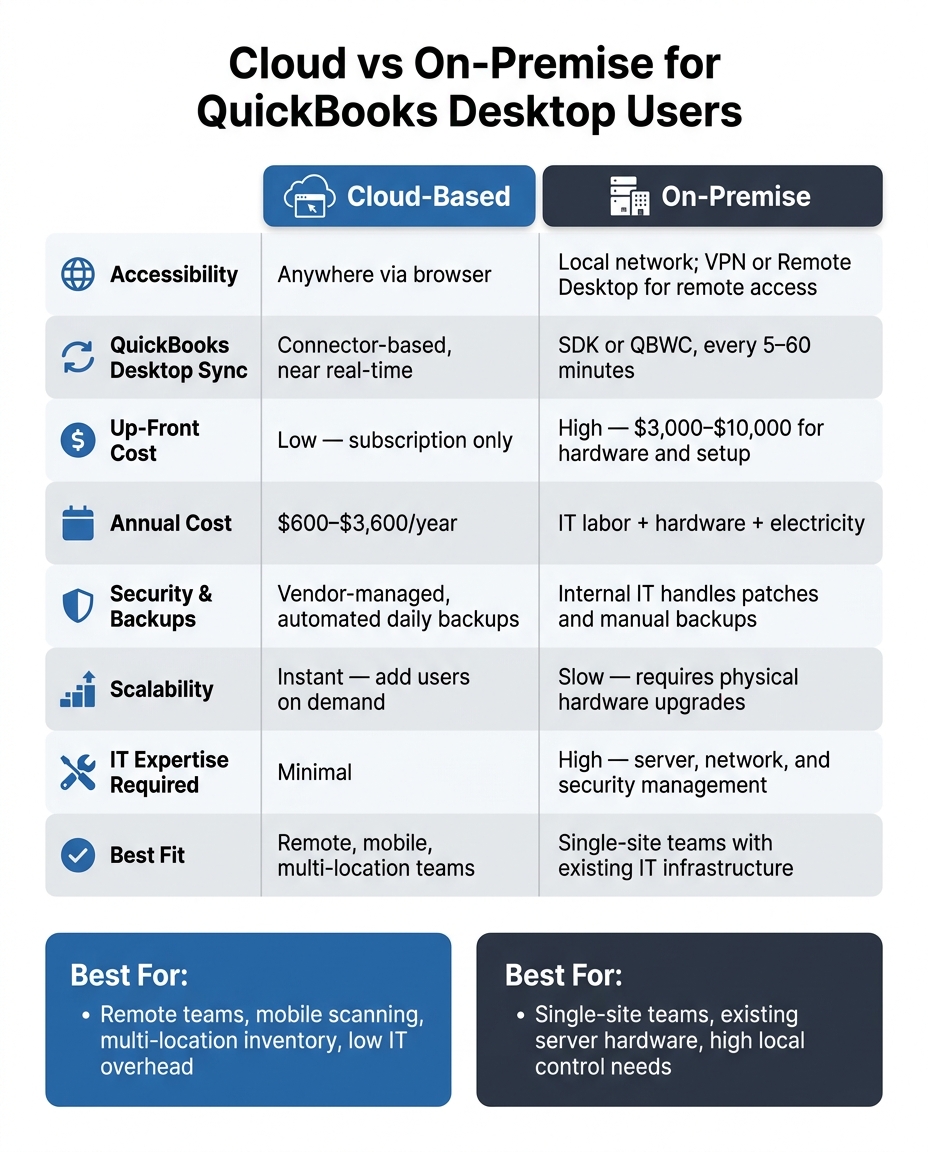
Cloud vs On-Premise for QuickBooks Desktop: Side-by-Side Comparison
Here’s the plain-English version: the right setup depends on how your team uses QuickBooks Desktop day to day.
The clearest gap shows up when people work from different places. With a cloud setup, users can log in anywhere with an internet connection. That makes it much easier for distributed teams to work from the same inventory record instead of dealing with version mix-ups or delays.
On-premise works differently. Access stays tied to your local network, so remote staff usually need a VPN or Remote Desktop to get in. That can slow things down and create extra points where live QuickBooks work can fail.
You’ll also see a clear split in how each model handles connection, security, and upkeep.
Cloud tools usually sync through a connector. On-premise tools connect straight to the local QuickBooks file. So performance comes down to different things: cloud setups lean on internet quality, while on-premise setups depend more on local hardware and the size of the QuickBooks file.
Security follows the same pattern. Cloud providers usually take care of encryption, MFA, and compliance controls. With on-premise, your internal setup does the heavy lifting.
The same goes for maintenance. In the cloud, patching, backups, and server monitoring are usually handled by the vendor. On-premise keeps all of that in-house.
Cost is another big divider. Cloud usually comes out lower in years 1–3. On-premise may come out lower by years 4–5, but only if hardware and IT costs stay low.
For U.S. small and mid-sized teams, the table below narrows the choice down to the day-to-day tradeoffs that matter most.
| Factor | Cloud-Based | On-Premise |
|---|---|---|
| Accessibility | Anywhere via browser | Local network; VPN or Remote Desktop for remote access |
| QuickBooks Desktop integration | Syncs via connector | Direct local connection; risky over VPN |
| Security responsibility | Hosting provider | Internal IT |
| Disaster recovery & backups | Automated daily backups; built-in redundancy | Manual backups; recovery depends on local strategy |
| Up-front costs | Low - subscription only | High - $3,000–$10,000 for hardware and setup |
| Ongoing costs | Predictable monthly per-user fee | IT labor, hardware maintenance, electricity |
| Scalability | Instant - add users on demand | Slow - requires physical hardware upgrades |
| IT expertise required | Minimal - provider handles infrastructure | High - server, network, and security management |
Which Model Fits Your QuickBooks Desktop Workflow?
So which setup fits the way your team actually works?
When cloud is usually the better fit
Cloud is often the better pick when your team works from different locations or depends on mobile scanning. Everyone works from the same data set, which cuts down on delays. It also reduces the need for VPNs, and that alone can remove a lot of day-to-day friction.
Cloud also works well for teams without much in-house IT help. The vendor handles updates, backups, and the underlying system, so your team has less to manage. And for U.S. small and mid-sized businesses keeping a close eye on cash flow, the lower upfront spend can matter a lot. Cloud subscriptions usually cost $600–$3,600 per year, while an on-premise setup often lands around $3,000–$10,000.
If those priorities don't line up with your setup, on-premise is still the control-first route.
When on-premise may make more sense
On-premise can be the better fit if you already have a dedicated server, in-house IT, and a single-site team working on a stable local network. In that kind of setup, adding an on-premise inventory tool can make financial sense, especially if you already own the hardware and want to avoid monthly or annual subscription costs.
It can also be a better match for businesses with spotty internet or highly custom workflows that cloud tools can't handle well.
Final takeaway for QuickBooks Desktop inventory teams
The decision comes down to four things:
- How your team accesses QuickBooks
- How much IT control you want
- Whether your team needs to work across locations
- What the total cost looks like over three to five years
Neither model wins in every case.
Choose cloud if you want multi-location access, fast deployment, and less IT work hanging over your team. Choose on-premise if you already have server infrastructure in place, rely on stable local access, and want tighter internal control.
At the simplest level, this is about access, IT workload, and how much downtime your team can live with. For most QuickBooks Desktop teams that need remote access, mobile scanning, and multi-location tracking without a heavy IT lift, a cloud-based add-on is often the faster way to get up and running.
Rapid Inventory fits that use case with browser access, two-way QuickBooks Desktop sync, and multi-location tracking. Plans start at $90 per user/month for teams of 1–9, and the Unlimited plan costs $900/month for 10+ users.
FAQs
How do I choose the right model?
Choose the right model based on your team structure, inventory complexity, and day-to-day needs.
Go with a cloud-based setup if your team works from different places, wants easier access, and needs people to work in the same system at the same time. It also cuts down on IT upkeep.
Stick with on-premises if you need tighter control over data, deal with unreliable internet, or depend on software that has to run on local machines.
A lot of businesses land somewhere in the middle and use a hybrid model.
It also helps to look at the basics before you decide:
- Your inventory volume
- Your number of users
- Whether you need multi-location tracking
- Whether mobile scanning matters for your workflow
Will my QuickBooks file size affect sync?
Yes. Larger QuickBooks company files usually slow sync because there’s more transaction and inventory history to process.
With bigger files, jobs like recalculating inventory data can take hours. In some cases, QuickBooks may need single-user mode, which can limit access for other users for a while.
For better performance, use a workstation with at least 16 GB of RAM and an SSD for the data files.
What happens if internet or VPN access fails?
For cloud-based or hosted QuickBooks setups, a stable internet connection is a must. If your internet goes down, so do key parts of your workflow. That can mean losing real-time inventory updates, remote access to your data, and syncing between systems.
For on-premises setups that rely on VPNs or remote desktop connections, network trouble can be just as painful. Dropped sessions, slow performance, or a full stop in work can happen fast, especially when everything depends on a single local server.



