
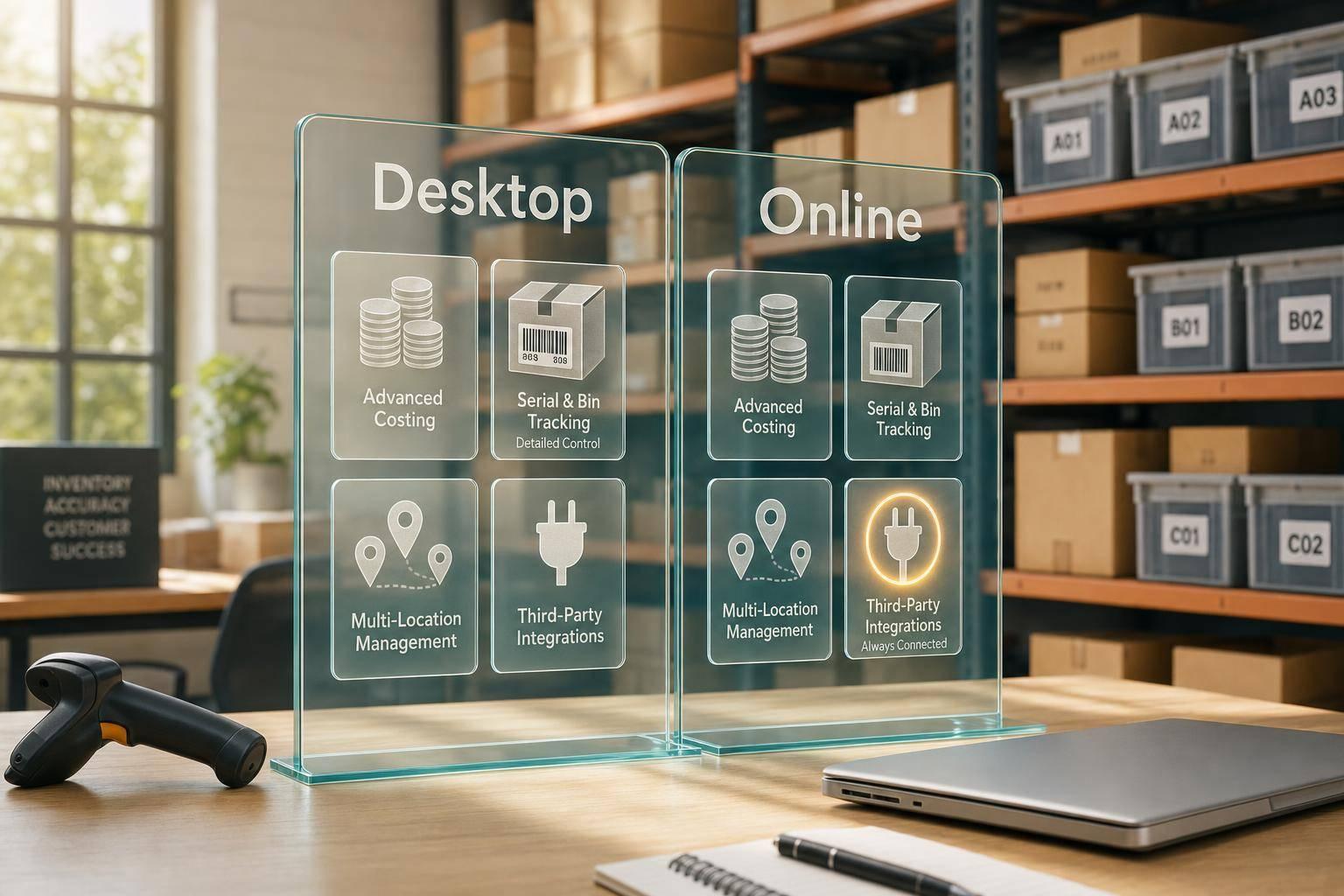
If you need warehouse control, QuickBooks Desktop is the better fit. If you only need basic stock tracking, QuickBooks Online is usually enough.
I’d boil the whole comparison down like this:
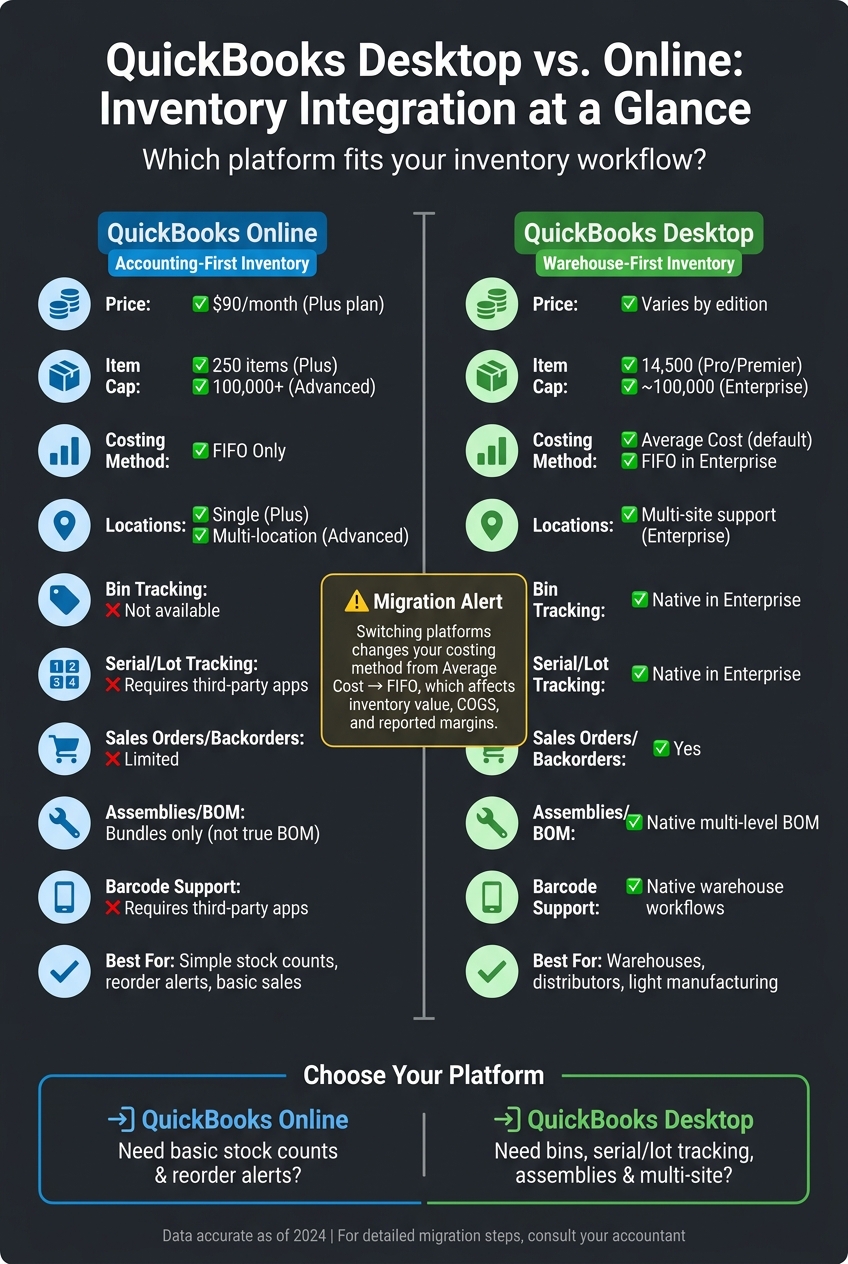
- QuickBooks Online works for simple inventory: item counts, reorder alerts, FIFO costing, and basic sales/purchase flows.
- QuickBooks Desktop goes further: bins, serial and lot tracking, sales orders, backorders, assemblies, and multi-site transfers.
- The biggest migration issue is inventory costing: Desktop uses average cost by default, while Online uses FIFO only. That can change inventory value, COGS, and margins.
- Item limits differ a lot too: 250 items in QBO Plus, 100,000+ in QBO Advanced, 14,500 in Desktop Pro/Premier, and about 100,000 in Enterprise.
- If your team uses barcodes, pick/pack steps, or detailed receiving, QuickBooks Online will need outside inventory apps much sooner.
For me, the choice is simple: Online is accounting-first inventory; Desktop is warehouse-first inventory. That one difference affects setup, syncing, reporting, and how much manual work your team deals with every day.
Quick facts:
- QBO Plus price: $90/month
- QBO costing: FIFO only
- Desktop default costing: Average cost
- QBO Plus item cap: 250
- Desktop Enterprise: supports multi-location, bin tracking, serial/lot, and assemblies
QuickBooks Desktop vs. Online: Inventory Integration Comparison
Pros and Cons of QuickBooks Online vs QuickBooks Desktop for Inventory
sbb-itb-19ed50f
Quick Comparison
| Area | QuickBooks Online | QuickBooks Desktop |
|---|---|---|
| Inventory depth | Basic stock tracking | Deeper warehouse tracking |
| Costing | FIFO only | Average cost by default; FIFO in some Enterprise setups |
| Locations | Single location in Plus; multi-location in Advanced | Multi-site support in Enterprise |
| Bin tracking | No native bin tracking | Yes, in Enterprise |
| Serial/lot tracking | Needs third-party apps | Native in Enterprise |
| Sales orders/backorders | Limited | Yes |
| Assemblies/BOM | Bundles only | Native assemblies and BOM |
| Best fit | Simple inventory needs | Warehouses, distributors, light manufacturing |
If I were choosing based on inventory alone, I’d ask one question: Do you just need stock counts, or do you need to control how stock moves through the warehouse? That answer usually points to the right platform fast.
QuickBooks Online inventory setup and where integration typically falls short
How to set up inventory tracking in QuickBooks Online
QuickBooks Online inventory tracking is available only in Plus and Advanced. That’s a big detail, because setup is easy, but the day-to-day process stays pretty basic.
To turn it on, go to Settings > Account and Settings > Sales, then add items in Products and Services. For each item, enter the Initial quantity on hand, an As of date, and the Cost. The As of date should be after your last closed period so you don’t reopen earlier transactions. That simple setup says a lot about how QuickBooks Online works: it starts from the accounting side first.
After items are live, QuickBooks Online can handle SKU tracking, reorder alerts, automatic COGS calculations, and basic inventory reports. Plus supports only a single location, while Advanced adds multi-location tracking. For simple inventory, that may be enough. But once you need tighter control at the warehouse level, the cracks start to show.
Where QuickBooks Online inventory integration hits its limits
The limits show up fast when inventory work goes beyond basic stock counts. In day-to-day fulfillment, QuickBooks Online stays focused on accounting, not warehouse operations. Out of the box, there are no native pick lists, packing slips, or warehouse management tools.
It also lacks native barcode support, serial or lot tracking, and bin-level tracking. And without sales orders, QuickBooks Online can’t reserve stock or track backorders before invoicing. That’s the point where many integrations run into a wall. Third-party apps have to step in and handle traceability, stock commitments, and fulfillment tasks that QuickBooks Online doesn’t manage on its own.
For multi-channel sellers, stock updates often have to be done manually, which increases the risk of overselling. Bundles have another issue: they don’t reduce component stock, so they don’t work like a true BOM. That’s often where Desktop integrations start to look a lot more useful.
Those limits stand out even more when you put QuickBooks Online next to Desktop’s deeper inventory workflows.
QuickBooks Desktop inventory depth and why its integrations go further
QuickBooks Online covers basic stock tracking. QuickBooks Desktop goes much deeper, and that changes what integrations can do.
The big difference is the data model. QuickBooks Desktop gives integrations direct access to warehouse data, not just top-level item counts. That means connected tools can work with the same details warehouse teams use day to day.
Desktop inventory features that affect how integrations work
It starts with the built-in fields. QuickBooks Desktop Enterprise includes native fields for bin locations, serial numbers, and lot numbers. Integrations can read and write that data directly, which gives them far more to work with than a simple quantity sync.
A few Desktop features shape how these integrations need to behave:
- Inventory Assemblies and BOM: Available in Premier and Enterprise, these support multi-level BOM workflows that turn components into finished goods. Integrations need to track component usage and then update finished-goods quantities to match.
- Advanced Inventory: This module adds FIFO costing, bin-level tracking down to rack/row/bin, and serial and lot number tracking. It is Desktop's deepest native inventory layer: FIFO, multi-location, bin, serial, and lot tracking.
- Multi-location and site transfers: Enterprise supports multiple warehouses and inter-site transfer vouchers. Those vouchers create a clear paper trail when stock moves from one location to another.
- Separate receiving workflow: Desktop lets teams receive stock through an Item Receipt before the vendor invoice is entered as a Bill. So the warehouse can receive goods before the bill is posted.
Put simply, these features push integrations to sync item data, location data, and traceability data, not just on-hand counts. That's why QuickBooks Desktop integrations usually mirror warehouse workflows instead of acting like a basic stock total connector.
How Rapid Inventory extends QuickBooks Desktop workflows

Rapid Inventory builds on that deeper Desktop setup. It adds a web layer for QuickBooks Desktop users with two-way sync, barcode scanning, FIFO/FEFO picking, lot and serial tracking, multi-location workflows, cycle counts, backorder tracking, and real-time reporting.
How inventory software connects to Desktop vs. Online
The platform you use shapes what inventory data syncs and how closely the setup fits the way your team works day to day.
How Desktop integrations handle warehouse workflows
Desktop integrations are made for companies that need inventory to stay in line across receiving, picking, shipping, and cycle counts.
For that setup, a two-way sync is usually the baseline. If the warehouse team receives goods against a purchase order, that Item Receipt needs to post in QuickBooks. If a picker finishes an order, quantities at the bin level need to change. If an assembly build is completed, component counts go down and finished-goods counts go up. The key point is simple: it can't stop at the top-line quantity.
Desktop integrations usually sync:
- Items
- Locations
- Bins
- Serial and lot numbers
- Assembly builds
- Sales orders
- Item Receipts
- Quantity adjustments
That deeper sync matters because Desktop integrations are built to support warehouse work, not just basic stock counts.
How Online integrations handle simpler stock workflows
QuickBooks Online integrations make sense when inventory is more straightforward: basic quantity tracking, reorder points, and simple sales and purchase transactions. QBO does not natively handle bin-level tracking, serial or lot numbers, or multi-level bills of materials.
In most cases, QBO syncs item lists, quantities on hand, reorder points, and basic sales and purchase transactions. That's a better match for businesses that don't need detailed warehouse control.
Those workflow gaps also create different migration risks, which the next section covers.
Comparison table: integration depth, data sync, and workflow fit
Here's how that difference looks in practice:
| Feature | QuickBooks Desktop Integration | QuickBooks Online Integration |
|---|---|---|
| Sync depth | Deep two-way sync; bins, lots, assemblies, and receipts | Basic sync; quantity updates and basic sales/purchase transactions |
| Inventory records synced | Items, locations, bins, serial/lot numbers, Bills of Materials (BOM), sales orders | Items, quantities, reorder points, basic locations |
| Costing method | Average Cost (default); FIFO available in Enterprise Platinum | FIFO only |
| Assembly support | Full multi-level BOM; component and finished-goods tracking | Bundles only; components tracked individually, not as a finished inventory item |
| Units of measure | Multiple units of measure supported (e.g., buy by pallet, sell by case) | Not natively supported |
| Fulfillment workflows | Advanced picking, packing, backorder tracking | Invoices and sales receipts |
One mismatch is worth calling out. Desktop uses Average Cost by default, while QBO uses FIFO only. So if you're moving data between the two platforms, or migrating from one to the other, inventory valuation and reported margins can change. That affects both inventory value and margin reporting.
Migration considerations and choosing the right platform for your inventory needs
What changes to inventory data when moving from Desktop to Online
When inventory data moves from QuickBooks Desktop to QuickBooks Online, the biggest shift is how inventory value gets calculated.
QuickBooks Desktop uses weighted average cost. QuickBooks Online uses FIFO only. Intuit puts it plainly:
"QuickBooks Online recalculates your inventory based on First-In, First-Out method."
That one change can affect both inventory value and Cost of Goods Sold, which then flows into margins and tax reporting. So this isn't just a software switch. It can change the numbers you rely on.
And that's not the only thing to watch. Some inventory fields and day-to-day workflows don't move over cleanly, which means valuation and transaction history should be checked before conversion.
Before you convert, review QuickBooks Desktop's Inventory Valuation Summary and Balance Sheet, then compare those numbers against the post-conversion totals. It's also smart to fix negative quantities in Desktop first, since they can trigger conversion errors.
That’s why this choice usually comes down to inventory structure, not just which accounting system you like more.
Which platform fits basic stock tracking vs. complex warehouse work
The best fit depends on how far your inventory process goes. If you just need to know what’s in stock and when to reorder, one setup works fine. If you're dealing with bins, multiple sites, barcodes, or assembled items, that's a different story.
| Business Need | Better Fit |
|---|---|
| Simple stock counts, reorder points, basic sales | QuickBooks Online Plus ($90/month) |
| Cloud access with basic inventory needs | QuickBooks Online |
| Multi-location, bin-level tracking | QuickBooks Desktop Enterprise |
| Serial or lot number tracking | QuickBooks Desktop Enterprise |
| Finished-goods assembly tracking | QuickBooks Desktop |
| Barcode-driven warehouse workflows | QuickBooks Desktop |
If you're on Desktop and need more warehouse control, you don't always have to swap out the accounting side. A connected layer can add those warehouse workflows on top of your current setup.
For Desktop users who need deeper warehouse control, Rapid Inventory adds two-way sync, multi-location tracking, lot and serial tracking, barcode scanning, cycle counts, and backorder workflows.
Conclusion: The main inventory integration differences to keep in mind
The split is pretty clear: basic stock tracking lines up with QuickBooks Online, while warehouse-driven inventory lines up with QuickBooks Desktop. The right pick depends on how much control your workflow needs.
FAQs
Which QuickBooks version is better for my inventory needs?
It comes down to how complex your inventory setup is.
QuickBooks Online works well for small businesses with simple to mid-level inventory needs. You get cloud access, basic quantity tracking, reorder alerts, and FIFO costing.
QuickBooks Desktop - especially Enterprise - is a better fit for more involved warehouse work. It includes serial and lot tracking, barcode scanning, bin locations, custom reports, and advanced assembly builds.
What changes when moving inventory from Desktop to Online?
Moving inventory from QuickBooks Desktop to QuickBooks Online means changing how inventory is valued. QuickBooks Online uses FIFO only, while many QuickBooks Desktop versions use average cost.
That switch matters for tax and accounting. It’s an accounting method change, so the IRS requires Form 3115.
You’ll also need to choose an inventory start date. After that date, transactions use FIFO. And any transactions dated earlier than that can’t be edited.
There’s some setup work too. Inventory has to be mapped to the products and services list. You also need a journal entry to offset the default inventory asset accounts created during conversion.
When do I need an inventory app with QuickBooks Online?
You need an inventory app with QuickBooks Online once your business outgrows its built-in inventory features.
QuickBooks Online can handle the basics, like quantity on hand and reorder points. But it stops short when you need serial and lot tracking, multi-location inventory, barcode scanning, or bill of materials.
And that gap matters. If your team is juggling sales orders, more advanced assembly builds, or deeper reporting, QuickBooks Online on its own won’t cut it. At that point, you’ll need an external inventory solution.



