

Partial receiving in QuickBooks Desktop often leads to frustrating problems like disappearing purchase orders, mismatched invoices, and incorrect inventory records. These issues can disrupt workflows and create accounting errors. Here's a quick rundown of the most common challenges and how to address them:
- Purchase Orders Disappear: POs may vanish from the open list after partial receipt due to incorrect status updates or file corruption.
- Mismatch Between Item Receipts and Vendor Invoices: QuickBooks doesn’t allow partial conversion of receipts into bills, leading to discrepancies.
- Incorrect PO Status: POs may be marked as "Received in Full" even when items are still pending.
- Partial POs Marked as Closed: Automatically closed POs make tracking backorders difficult.
- Errors Creating Partial Receipts: Data corruption or outdated software can prevent partial receipts from being created.
Quick Fixes:
- Use the Verify and Rebuild Data tool to repair file errors.
- Update QuickBooks to the latest version to fix software bugs.
- Adjust PO statuses manually to refresh their visibility.
- Split item receipts to match vendor invoices for better accuracy.
- Consider tools like Rapid Inventory for advanced partial receiving and inventory management features.
These steps can help you maintain accurate inventory records and streamline your receiving process.
QuickBooks Desktop: Partial Purchase Order Item Receipts. Separate Bills from Item Receipts

Issue 1: Cannot Create Partial Item Receipts from Purchase Orders
QuickBooks Desktop can sometimes prevent you from creating a partial item receipt from an open purchase order. You might notice that the purchase order doesn’t show up in the list, or you could encounter an error. This can bring your receiving workflow to a standstill.
What Causes This Problem
Several factors could be behind this issue. One common culprit is data corruption. If your company file has internal errors, it could hide open purchase orders. Another possibility is that you’re using an outdated version of QuickBooks, which may have bugs affecting backorder tracking and the visibility of purchase orders.
Incorrect configuration settings can also play a role. For instance, in QuickBooks Premier, certain backorder tracking features depend on using the correct industry-specific edition, such as Retail or Wholesale/Manufacturing. Additionally, users have reported a bug in QuickBooks Enterprise 24 that affects the modify function for item receipts, leading to incorrect quantities being marked as received.
How to Fix This Problem
You can tackle this issue with a few focused troubleshooting steps:
- Run the Verify and Rebuild Data utility: This tool scans your company file for damage and attempts to repair it. Go to File > Utilities > Verify Data to check for errors. If errors are found, use File > Utilities > Rebuild Data to fix the file. As ShyMae from the QuickBooks Team advises, “Let’s use the verify and rebuild data tool. It helps identify and resolve common issues in your company file that prevent the transaction from appearing on the Open Purchase Order list.”
- Update QuickBooks: Ensure you're running the latest version. Go to Help > Update QuickBooks Desktop or visit the Downloads & Updates page to install the newest patches.
- Check the industry-specific edition: If you’re using QuickBooks Premier, confirm that you’ve selected the correct edition for your business. Navigate to File > Toggle to Another Edition to verify.
- Reset the purchase order status: If the purchase order still doesn’t appear, open it in the Vendor Center. Mark it as Closed, save it, then mark it as Open and save again. This simple action can refresh the PO status and resolve the issue.
Issue 2: Item Receipts Don't Match Partial Vendor Invoices
Dealing with partial shipments and invoices can get tricky in QuickBooks. Imagine this: you receive a shipment, record an item receipt in QuickBooks, and later, your vendor sends multiple invoices for that same shipment. When this happens, your accounts payable and inventory records can quickly fall out of sync.
Why These Mismatches Happen
The core issue lies in the way QuickBooks Desktop handles item receipts and bills. Here's the catch: QuickBooks Desktop doesn’t let you convert just part of an item receipt into a bill. As MadelynC from the QuickBooks Team puts it:
"The option to convert a portion of an item receipt into a bill is unavailable".
This means you’re stuck converting the entire receipt at once, which clashes with vendors who bill in installments.
On top of that, manual entry errors can amplify the problem. For instance, when creating a bill from a purchase order, QuickBooks automatically includes all line items. If you don’t manually remove or zero out items not included in the current invoice, your records get cluttered with unnecessary entries. Another headache? If you’ve already sold inventory before entering the vendor bill, QuickBooks might hit you with a "negative inventory" error when you try to adjust the item receipt to match the partial invoice.
How to Prevent and Fix Mismatches
The best way to avoid these mismatches? Split your item receipts upfront to match how your vendor invoices you. Here’s how:
- Adjust the original item receipt to include only the items listed on the first invoice.
- Create separate item receipts for the remaining items, using the same date as the original receipt.
This method ensures that each receipt can be tied to its corresponding bill without any confusion.
Additionally, always use the "Enter Bill for Received Items" feature. This links the bill directly to the inventory receipt, keeping your quantities and records in sync. If you run into a negative inventory error, you can temporarily disable the "Don't allow negative quantities" setting to make the adjustment. Just don’t forget to turn it back on afterward for added safety.
Issue 3: Purchase Orders Disappear After Partial Receipt
Sometimes, after recording a partial receipt, the purchase order (PO) may no longer appear on the receiving screen, even though there are still items on backorder.
Why This Happens
This issue occurs because QuickBooks might mistakenly mark the PO as "Received in Full", even when some items are still outstanding. RenjolynC from the QuickBooks Team explains:
"When you receive all the items on the purchase order, QuickBooks marks the purchase order as Received in Full. This is why you're unable to see the other open items in the Item Receipt window." - RenjolynC, QuickBooks Team
The problem can stem from a known bug or file corruption issues, which may cause QuickBooks to incorrectly close the PO. These errors often arise after software updates or when changes are made to an item receipt, particularly in versions like QuickBooks Enterprise 24.
How to Fix Missing Purchase Orders
If your purchase orders disappear, use these steps to resolve the issue:
-
Open the PO, mark it as "Closed", and then immediately change it back to "Open." Save the changes. A QuickBooks Community member, WarWolf, describes this method:
"I marked the PO as closed and then closed the PO window. Then I marked the PO as open and exited the PO window. After that I was then able to receive against it again." - WarWolf, QuickBooks Community Member
- If the above doesn't work, try making a minor adjustment to the PO, like adding a punctuation mark. This forces QuickBooks to refresh the PO.
- Run the Verify and Rebuild Data tool to detect and fix any file corruption. You can access this by navigating to File > Utilities > Verify Data.
Additionally, when recording receipts, double-check the quantities entered. If you leave the quantity at the full amount, QuickBooks might close the PO entirely, even if there are still items pending.
sbb-itb-19ed50f
Issue 4: Purchase Orders Show as Fully Received When They're Not
Sometimes, a purchase order (PO) might incorrectly display as "Received in Full", even when only part of the shipment has arrived. This can throw off inventory counts and make tracking orders unnecessarily complicated.
What Causes Incorrect PO Status
The most frequent cause is an accidental full entry. When creating an item receipt or bill from a PO, QuickBooks automatically fills the QTY field with the total quantity listed on the order. If you save without adjusting this number to reflect what was actually delivered, QuickBooks assumes the entire order has been received and marks the PO as complete.
Another potential reason is data corruption, which can incorrectly update PO statuses and close orders prematurely. Additionally, certain software versions - like QuickBooks Desktop 2021 and Enterprise 24 - have bugs that cause issues when modifying item receipts. For example, changing the quantity on an existing receipt can result in incorrect received quantities being displayed on the original PO.
Ted, a Full Stack Developer, highlighted this issue in his documentation:
"When creating a new item receipt with a partially received quantity... the system correctly reflects the received quantity. However, when modifying that item receipt to a different quantity, the received quantity in the corresponding purchase order displays a seemingly random number".
How to Correct PO Status
Start by checking the "CLSD" column in the Purchase Order window. If there's a checkmark but the "Received" column doesn't match the original ordered quantity, the PO was likely closed prematurely. You can also run the Open Purchase Orders Report to identify POs that still have outstanding items.
To fix this, manually toggle the PO status by marking it as Closed, then reopening it. This forces QuickBooks to refresh and recognize any remaining items. If the issue persists, use the Verify Data and Rebuild Data tools found under File > Utilities to repair any file corruption that might be affecting the PO status.
For future transactions, always adjust the quantity field to match the items actually received. As KimberlyS from QuickBooks advises:
"To receive a partial purchase order, ensure to change the quantity on the bill or receipt instead of the amount. This can avoid closing the purchase order to receive the remaining items accordingly".
Issue 5: Partially Received POs Don't Show as Open
Sometimes, QuickBooks mistakenly marks a purchase order (PO) as closed, even when only part of the order has been received. This can make it tricky to track what’s still outstanding and prevent you from processing the remaining items. Whether you're using QuickBooks Desktop or Online, this issue can arise when partial receipts are involved.
Why POs Appear Closed
QuickBooks has an automatic process that closes a PO as soon as it’s linked to a bill or expense - even if the order hasn’t been fully received. CharleneMaeF from the QuickBooks Team explains:
"QBO automatically closes a purchase order once linked to a bill or expense".
Other factors can also trigger this problem:
- If the quantity or amount fields are left blank, or if the PO value is $0.00, QuickBooks may close it automatically.
- Data corruption or file damage can sometimes cause POs to vanish from open lists or be incorrectly marked as complete.
- In QuickBooks Online, using the "Category details" section instead of "Item details" for zero-dollar POs can also lead to premature closure.
Thankfully, there are steps you can take to prevent this from happening and ensure your POs remain open for any unreceived items.
How to Keep POs Open for Remaining Items
To avoid these automatic closures and maintain accurate PO tracking, here’s what you can do:
-
Refresh the PO status. In QuickBooks Desktop, go to the Vendor Center, find the PO, mark it as Closed, and then mark it as Open again. This refreshes the status. As ShyMae from the QuickBooks Team suggests:
"If a partially received PO is not showing in the Open Purchase Order list... manually change the status to close and then re-open it again. This process will ensure that the PO will show in the area where it should be appearing".
- Reset the status in QuickBooks Online. Navigate to the Expenses tab, locate the PO, and set its status back to Open. If the PO was closed because of a linked bill, you’ll need to adjust or delete the linked transaction first, since the "Mark as Open" option won’t appear otherwise.
- Enter item quantities. Always input at least one quantity value for item lines in QuickBooks Online. This helps prevent the system from closing the PO automatically.
How Rapid Inventory Solves Partial Receiving Problems
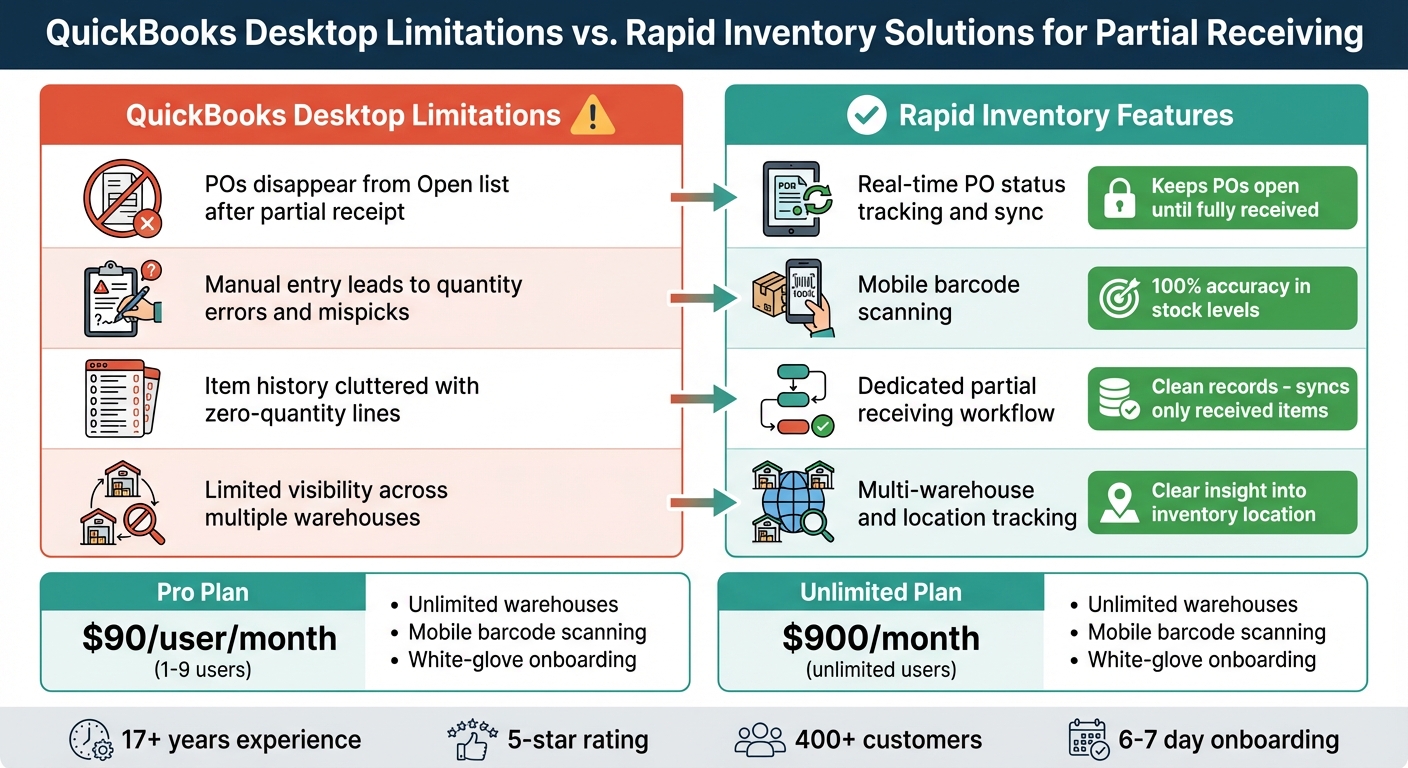
QuickBooks Desktop vs Rapid Inventory: Partial Receiving Features Comparison
If you've been grappling with partial receiving issues in QuickBooks, Rapid Inventory is designed specifically to address these challenges for QuickBooks Desktop users (Enterprise, Pro, and Premier). This solution has proven to be a reliable fix for the pain points associated with QuickBooks' partial receiving limitations.
The standout feature of Rapid Inventory is its automatic two-way sync with QuickBooks Desktop. This eliminates the need for tedious manual data entry and the frustrating "Verify and Rebuild" process often required when purchase orders mysteriously vanish from the open list. With this sync, partial shipment data flows seamlessly into QuickBooks, making the receiving process smoother and more accurate.
Another game-changer is the mobile barcode scanning feature. Instead of manually entering data, warehouse staff can scan items directly against the original purchase order. This method ensures 100% accuracy, reducing the risk of mispicks that could result in mismatched invoices or receipts.
Rapid Inventory also introduces specialized workflows for partial receiving and backorder tracking - features that QuickBooks Desktop lacks. These workflows keep purchase orders open until all items are scanned and received, avoiding cluttered bills filled with zero-quantity lines. Real-time reporting further enhances visibility, showing exactly what’s been received and what’s still pending across all warehouse locations.
Rapid Inventory Features for Partial Receiving
Rapid Inventory goes beyond the basics, offering features that QuickBooks Desktop simply doesn’t have. Its web-based platform allows you to receive shipments directly at the point of delivery - whether on the warehouse floor or elsewhere - freeing you from the constraints of a desktop workstation. The system also provides multi-location tracking, showing precisely where partially received inventory is stored, down to specific bin locations.
For advanced inventory needs, Rapid Inventory supports FIFO (First In, First Out) and FEFO (First Expired, First Out) picking strategies, along with detailed lot and serial number tracking. These capabilities are especially useful for managing partial shipments that arrive weeks apart and require proper rotation.
Onboarding is quick, typically taking just 6 to 7 days. This includes data migration and team training at no additional cost with the Pro plan (a $2,100 combined value). As one manager noted:
"Your technical support staff are very helpful. I was very pleased with their assistance." – Frank, Manager
These features eliminate the manual adjustments previously needed in QuickBooks, ensuring your inventory records are always accurate.
QuickBooks Limitations vs. Rapid Inventory Features
Here’s a side-by-side comparison of QuickBooks Desktop’s limitations and how Rapid Inventory addresses them:
| QuickBooks Desktop Limitation | Rapid Inventory Feature | Benefit |
|---|---|---|
| POs disappear from the Open list after partial receipt. | Real-time PO status tracking and sync. | Keeps POs open until every item is scanned and received. |
| Manual entry often leads to quantity errors or "mispicks" during receiving. | Mobile barcode scanning. | Ensures 100% accuracy in stock levels by verifying items and quantities instantly. |
| Item history becomes cluttered with zero-quantity lines on bills for unreceived items. | Dedicated partial receiving workflow. | Syncs only received items back to QuickBooks, keeping records clean. |
| Limited visibility into stock across multiple warehouses. | Multi-warehouse and location tracking. | Provides clear insight into where partially received inventory is stored. |
The Pro plan starts at $90 per user per month for 1–9 users, while the Unlimited plan costs $900 per month for unlimited users. Both plans include unlimited warehouses, mobile barcode scanning, and white-glove onboarding. The Unlimited plan also offers extras like custom reports and a dedicated account manager.
Conclusion
Partial receiving in QuickBooks Desktop introduces several challenges, including disappearing purchase orders, incorrect PO statuses, mismatched receipts and invoices, and the need for time-consuming manual workarounds. These issues disrupt inventory accuracy and operational workflows, requiring users to spend extra time verifying data, toggling PO statuses, or recreating receipts to address system glitches. This manual intervention not only wastes valuable time but also increases the risk of errors in both inventory and accounting.
A solution like Rapid Inventory offers a smarter way to handle partial receiving. With its two-way QuickBooks sync and mobile barcode scanning, it eliminates the need for manual adjustments and ensures accurate, real-time tracking. Its dedicated partial receiving workflows keep purchase orders open until all items are fully processed, effectively solving the "disappearing purchase order" problem. The web-based platform also enables warehouse staff to receive shipments directly at the dock, freeing them from the constraints of desktop workstations. This approach transforms partial receiving into a seamless and reliable process.
With a track record spanning over 17 years and a 5-star rating from more than 400 customers, Rapid Inventory has demonstrated its ability to manage complex partial receiving scenarios. Their white-glove onboarding process, typically completed in just 6–7 days, ensures your team can quickly move past manual workarounds and start operating more efficiently.
FAQs
Why do my purchase orders disappear after recording a partial receipt in QuickBooks, and how can I fix it?
In QuickBooks, purchase orders (POs) can sometimes vanish after a partial receipt. This typically happens when they are mistakenly marked as fully received or closed too early. The system may interpret the PO as completed if remaining items are either missing or not properly linked.
To prevent this issue, it’s important to record partial receipts accurately. Use the Receive Inventory feature to document what has been received without prematurely closing the PO. Another helpful step is enabling the option for item receipts. This allows you to track the items you’ve received while keeping the PO open for any quantities that are still outstanding.
By managing this process carefully, you can ensure your POs stay active and visible in reports until all items have been received and the PO is officially closed.
What should I do if item receipts and vendor invoices don’t match in QuickBooks?
If your item receipts in QuickBooks don’t align with the vendor invoices, the first step is to carefully review the purchase order and compare it to the receipt details. If discrepancies are found, consider deleting the receipt and recreating it directly from the purchase order. This ensures all items and quantities match correctly. Be sure to clear any open items during this process to prevent additional mismatches.
Should the problem continue, take advantage of QuickBooks' Verify Data and Rebuild Data tools. These features are designed to detect and fix data issues, helping to resolve common errors and maintain accurate records.
How can Rapid Inventory simplify partial receiving in QuickBooks?
Rapid Inventory makes handling partial receiving in QuickBooks much easier by offering real-time two-way synchronization. This ensures that any partial receipts are automatically updated in both systems, cutting down on manual data entry and reducing the risk of errors. The result? Your inventory records stay consistent and dependable.
Key features like multi-location tracking let you assign partial shipments to specific warehouses or locations with ease. Plus, tools such as cycle counting and backorder tracking simplify workflows, helping you manage partial deliveries while keeping stock levels accurate. These tools work together to boost efficiency and keep your operations organized when dealing with partial receiving in QuickBooks.



