
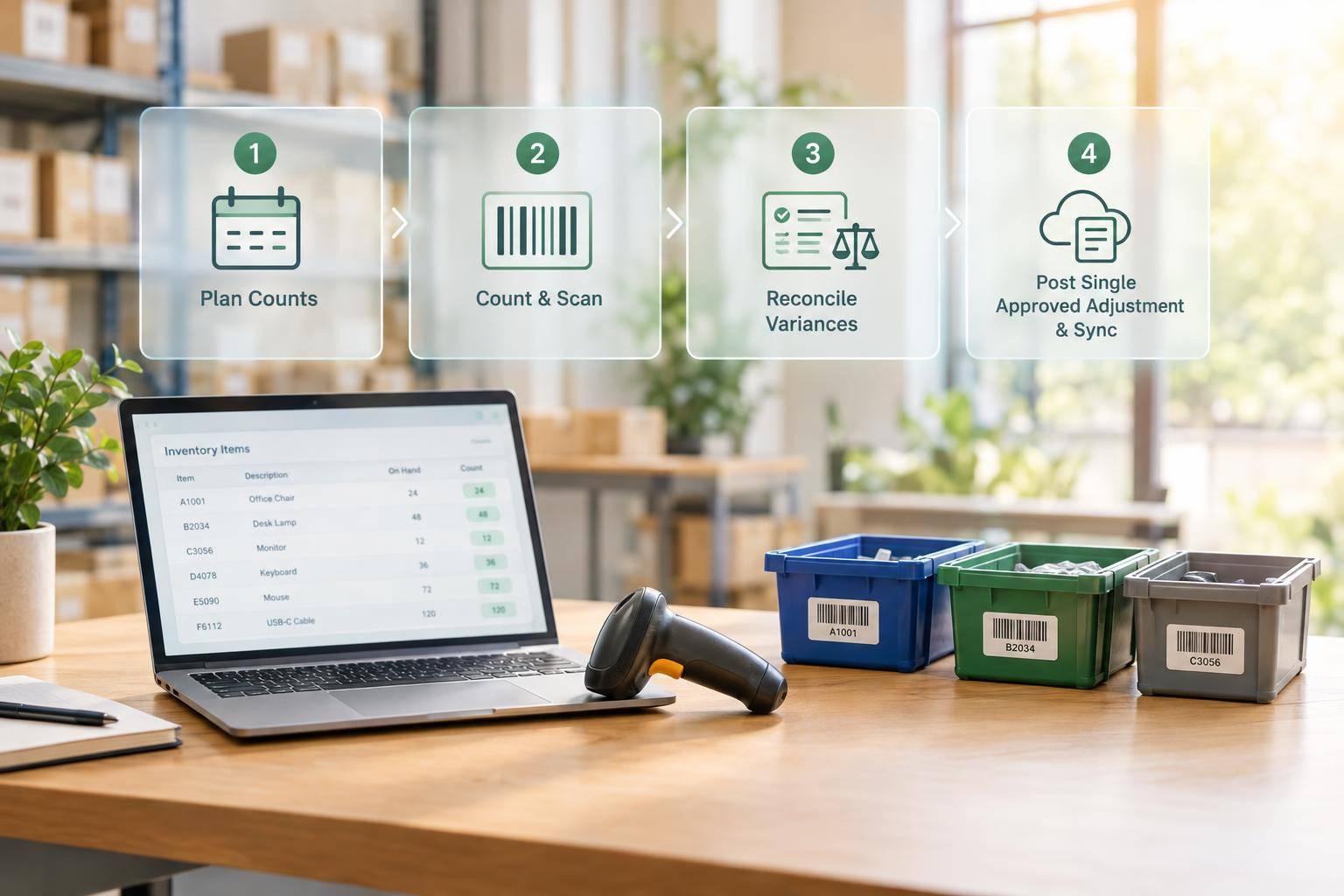
I use cycle counts to check selected stock, review differences, and record approved adjustments in QuickBooks Desktop - without counting everything at once. If I count 48 units but QuickBooks shows 50, the difference is −2 units. I check for missing transactions before posting that correction.
My process has three parts:
- Plan and count: Choose items and a schedule, set a transaction cutoff, and record physical quantities on a worksheet without showing expected counts.
- Review and adjust: Recount mismatches, correct missed transactions, approve the adjustment, and check inventory quantity and value reports.
- Sync when needed: If I use Rapid Inventory for barcode counts, I confirm tracking settings, review approvals, and use <u>one correction workflow</u> to avoid duplicate adjustments.
The goal is more than matching numbers: I keep count records and fix recurring receiving, picking, and transfer errors before the next cycle.

QuickBooks Desktop Cycle Count Workflow
Step 1: Plan and Prepare the Count
Choose Items and Counting Frequency
Check each selected item’s QuickBooks name or SKU, description, quantity on hand, counting unit, and location. Fix duplicate names or SKUs and check overflow storage before the count.
Start with ABC analysis to prioritize items by value. Then factor in turnover, theft or damage risk, and past discrepancies. A practical schedule is to count A items monthly, B items quarterly, and C items semiannually. Count high-volume or error-prone items more often, and track the schedule in a calendar or spreadsheet.
Assign Counters and Set a Transaction Cutoff
Assign each counter a specific area or item list. Confirm shelf labels, case packs, and counting units. Decide who handles recounts and approvals before counting begins. Use an independent recount for high-value or higher-risk stock, and hide expected quantities so counters record what they find.
Schedule the count before receiving starts or after shipping closes. Post all receipts, shipments, returns, transfers, and assembly builds through the cutoff, then freeze movement of the selected stock. If work must continue, log each movement separately with its quantity and time so you can reconcile the count to the cutoff.
Print the Worksheet and Count Stock
After the cutoff, open Reports > Inventory > Physical Inventory Worksheet. Filter for the selected items or locations as needed, then print the worksheet and arrange the count in shelf order. Record the count date, print time, location, and counter initials. Enter actual quantities in the Physical Count column. The worksheet does not update QuickBooks.
Recount large variances before accepting them. Check labels, counting units, nearby bins, and overflow areas. Separate damaged, expired, or quarantined stock, and decide whether it belongs in available inventory.
Keep the dated worksheet, movement log, recount notes, and damaged-stock decisions for the adjustment review. Use the worksheet, movement log, and recount notes to prepare the approved adjustment in Step 2.
sbb-itb-19ed50f
QuickBooks Enterprise Cycle Count Tutorial: A Step-by-Step Guide to Efficient Inventory Management
Step 2: Reconcile Counts and Record Adjustments
Once the worksheet and recount notes are complete, enter the net difference in QuickBooks. Use your cutoff log to compare physical counts with QuickBooks quantities at that date and time. Calculate the variance as physical quantity minus system quantity.
Before recording shrinkage, repost any missed receipts, sales, returns, transfers, or builds through the normal workflows. This keeps you from correcting the same units twice.
Set Up the Quantity Adjustment
Go to Vendors > Inventory Activities > Adjust Quantity/Value on Hand and select Quantity. Enter the adjustment date, reference number, items, and adjustment account. Confirm the account choice with your bookkeeper, along with any entry in a closed period.
Enter Quantities and Check Accounting Effects
Use New Qty, if that’s the label in your version, to enter the intended ending quantity. Use Qty Diff to enter the change. Shortages are negative differences; overages are positive.
Post any activity after the cutoff before entering the ending quantity. That way, the earlier count won’t overwrite later activity.
Before saving, check the item, location, date, quantity, account, and reference number. A quantity-only adjustment can still change inventory asset value and the offsetting account. Use Total Value or Quantity and Total Value only for a separately approved valuation correction.
Verify Reports and Investigate Discrepancies
After saving, check that QuickBooks shows the updated quantities and value. Run Reports > Inventory > Inventory Stock Status by Item to confirm quantities, then review Inventory Valuation Summary to check inventory value. Account for legitimate activity posted after the cutoff.
Record the count date, item, location, physical and system quantities, variance, reason, reviewer, and adjustment reference in your log. If the results still don’t match, investigate the underlying transaction before posting another adjustment. Use the variance log to flag repeated receiving, picking, damage, and transfer errors for the next count.
Step 3: Coordinate Counts With Rapid Inventory
For mobile counting and location-level tracking, Rapid Inventory can send approved results to QuickBooks Desktop. It supports barcode-based counts and syncs cycle-count records. Sync transfers the count; approval determines whether to post the adjustment. The physical count and approval still drive the correction.
Identify Stock With Barcodes and Location Records
Barcode scanning helps speed up the physical count and link each result to the right location. Verify the item and location, count the stock, and check the unit of measure. Confirm that any lot or serial numbers match the stock you're counting.
Before the first count, make sure item, location, unit, lot, and serial tracking match between Rapid Inventory and QuickBooks Desktop.
Assign Adjustment Approval and Sync Tasks
After recording counts, use role-based approval to control what reaches QuickBooks Desktop. Assign counters, reviewers, and approvers in Rapid Inventory. Where possible, keep counting and approval separate: the counter records the physical quantity, a supervisor or inventory control employee reviews the variance, and an authorized accounting user approves or rejects the correction.
Keep the task ID, location, count, approval, timestamp, and sync status in one record. Post the adjustment once, then sync it.
After syncing, check the approved count and inventory value in QuickBooks Desktop. Resolve failed or partial syncs before recounting the same items.
Conclusion: Repeat the Count and Adjustment Process
Set the next count date at the end of each cycle. Use the latest variance review to prioritize high-value items, fast-moving items, and those with recurring errors. Then address items with the largest dollar or percentage variances. Recheck priority items until discrepancies stabilize.
Repeat the count, reconciliation, and approval process each cycle before posting corrections. Afterward, verify the inventory stock and valuation reports or try Rapid Inventory for automated management. For synced counts, use one approved correction workflow rather than entering separate adjustments in both systems.
Keep the worksheet, approval record, and adjustment reference number. Track accuracy over time and fix the cause - not just the posted quantity. When the same item repeatedly needs correction, review receiving, picking, returns, and unit-of-measure issues. Use these records to plan the next count and check whether the fixes improved accuracy.
FAQs
Can cycle counts replace my annual physical inventory?
Yes, an effective cycle counting program can replace an annual physical inventory. Regular counts help keep inventory accurate year-round without shutting down the warehouse. An annual count, by contrast, provides only a snapshot.
With ABC classification, businesses count high-value and fast-moving items more often. This approach can help them reach 95% to 99% inventory accuracy - often higher than annual counts alone.
How do I reconcile counts when stock keeps moving?
Before counting, finish or pause picking, receiving, and transfers for items in the count zone. Keep activity paused throughout the count so inventory movement doesn’t cause discrepancies and the count reflects a single point in time.
Rapid Inventory helps manage synchronization timing and flag variances for review. Before posting adjustments to QuickBooks Desktop, check discrepancies against pending documentation, such as unrecorded receipts or picks.
How can I prevent duplicate adjustments when syncing Rapid Inventory?
Keep each count limited to one site, zone, or item group. Assign one person or device per task to avoid overlap.
After counting, send the results to QuickBooks Desktop through the two-way sync. Review discrepancies on the dashboard, then post only approved adjustments.
After reconciliation, manually mark the count as Closed to lock further edits and prevent duplicate or accidental adjustments.



