

Managing partial shipments in QuickBooks Desktop is straightforward with the right setup. When only part of a customer’s or vendor’s order is fulfilled, QuickBooks helps you track shipped and backordered quantities. Here's what you need to know:
- Sales Orders: Use these to track partial shipments. QuickBooks keeps orders open for backordered items, ensuring accurate records.
- Invoices: Generate partial invoices by selecting only the shipped items, leaving the rest marked as pending.
- Inventory Updates: Record received or shipped quantities to maintain accurate stock levels.
- Backorder Management: Sales Orders and reports like the Inventory Stock Status help monitor pending items.
- Advanced Tools: QuickBooks Enterprise offers features like the Sales Order Fulfillment Worksheet and mobile barcode scanning for efficient tracking.
For those handling complex inventory needs, tools like Rapid Inventory integrate with QuickBooks to automate workflows, track inventory in real-time, and simplify multi-location management.
QuickBooks simplifies partial shipment management by keeping your inventory, invoices, and orders aligned, ensuring smooth operations for both sales and purchasing.
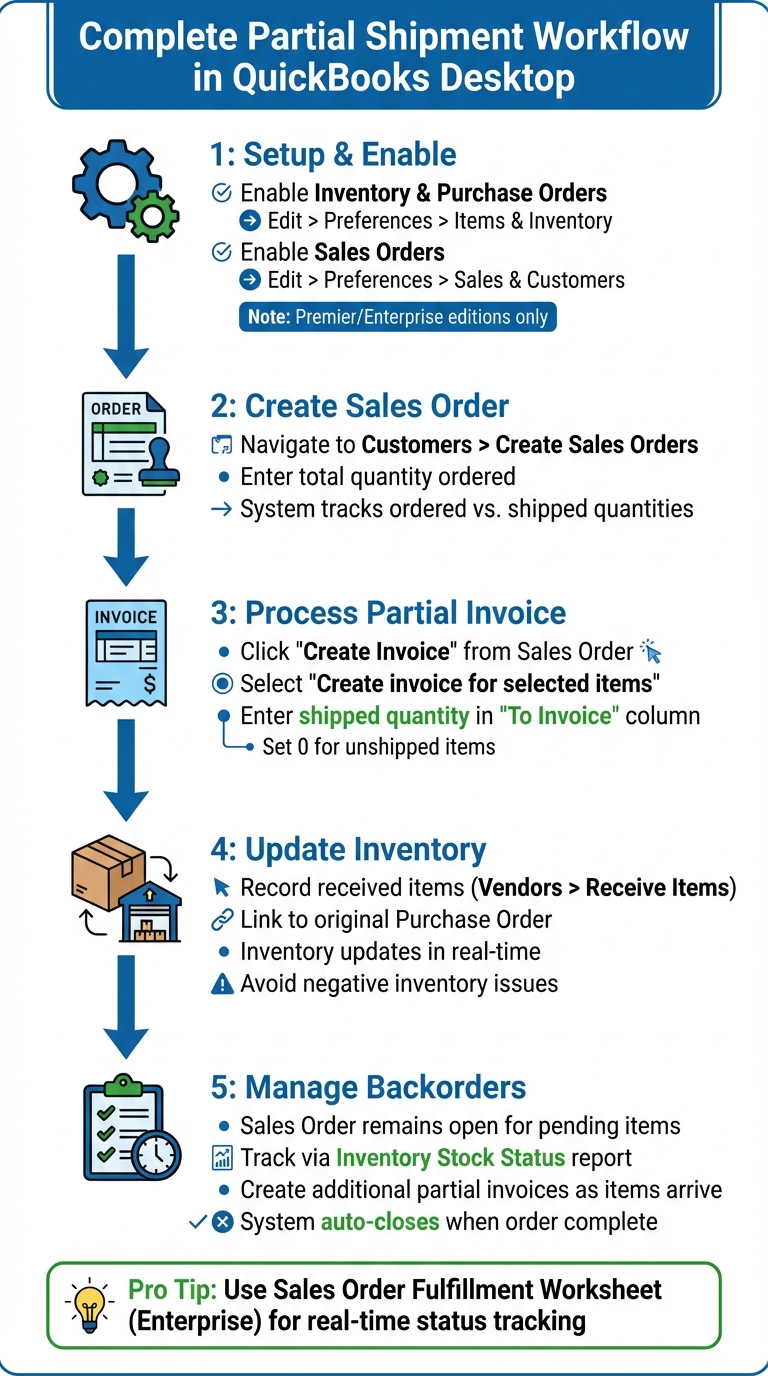
QuickBooks Desktop Partial Shipment Workflow: 5-Step Process
QuickBooks Desktop: Partial Purchase Order Item Receipts. Separate Bills from Item Receipts

Setting Up QuickBooks Desktop for Partial Shipments
To handle partial shipments effectively in QuickBooks Desktop, you need to enable certain inventory and purchase order preferences. These settings help you track quantities on hand, manage purchase orders, and process sales orders efficiently.
Enable Inventory and Purchase Order Preferences
Start by switching to Single-user Mode. Navigate to File > Switch to Single-user Mode. Once in this mode, go to Edit > Preferences > Items & Inventory > Company Preferences, check the box for Inventory and Purchase Orders are Active, and then click OK.
If you're using QuickBooks Desktop Enterprise, you can access additional features by clicking the Advanced Inventory Settings button. These features include options like Multiple Inventory Locations, FIFO costing, and Serial/Lot tracking. If this button is grayed out, you may need to refresh your license via Help > Manage My License > Sync License Data Online.
Verify Inventory Settings
To confirm your inventory setup, run the Inventory Stock Status by Item report. You can find it under Reports > Inventory. This report provides details on current stock levels, as well as items tied to purchase and sales orders.
For businesses dealing with shipments across multiple warehouses, enable Multiple Inventory Sites within the Advanced Inventory Settings. Additionally, use Item Receipts to record vendor shipments, which will immediately update your Quantity on Hand.
These steps ensure that your inventory and order management processes are ready for handling partial shipments smoothly.
Creating and Managing Sales Orders for Partial Shipments
In QuickBooks Desktop, sales orders are a handy way to track partial shipments. To activate this feature, head to Edit > Preferences > Sales & Customers > Company Preferences and check the "Enable Sales Order" box. Keep in mind that this option is only available in the Premier and Enterprise editions of QuickBooks. Here’s how you can create and update sales orders for partial shipments.
Create a Sales Order
Start by navigating to Customers > Create Sales Orders and input the total quantity ordered. This step is crucial because it ensures QuickBooks can accurately calculate backorders and keeps you informed about the remaining items that still need to be shipped.
"The inclusion of the SO number allows for easy identification of the specific Sales Orders that are to be invoiced, especially when dealing with multiple open sales orders." - Aldren18, QuickBooks Team
Adjust Sales Orders for Partial Shipments
If you’re shipping part of an order, click Create Invoice and choose the option to "Create invoice for selected items". This will open a window labeled Specify Items and Quantities for Invoice, where you’ll see columns like Ordered, Prev. Invoiced, To Invoice, and On Hand. Simply enter the quantity you’re shipping in the "To Invoice" column, and QuickBooks will automatically mark the rest as backordered.
For QuickBooks Enterprise users, there’s an additional tool: the Sales Order Fulfillment Worksheet. This feature allows you to update order statuses to "Partially picked". You can manually adjust quantities or use a mobile barcode scanner for real-time updates [16, 18]. Once you’ve made the necessary changes, click Update Sales Order to save the updated status.
"When you create an invoice for a sales order, you need to enter the partially picked quantity... in the To Invoice (Or Invoiced) column to match what you shipped... so your Fulfillment Worksheet's back order information gets updated." - Rea_M, Moderator, QuickBooks Community
Processing Partial Invoices and Updating Inventory
Generate Partial Invoices
To create a partial invoice, start from the sales order screen. Click Create Invoice, then choose "Create invoice for selected items". In the "To Invoice" column, input the quantity shipped and set 0 for any items that haven’t been shipped. This will open the Specify Items and Quantities for Invoice window, where you can review columns for Ordered, Prev. Invoiced, To Invoice, and On Hand.
"When you create an invoice for a sales order, you need to enter the partially picked quantity... in the To Invoice (Or Invoiced) column to match what you shipped."
- Rea_M, Moderator, QuickBooks Community
Key Reminder: If you're using QuickBooks Enterprise with the Sales Order Fulfillment Worksheet, the system might default to the full order quantity instead of the picked quantity. Always verify the "To Invoice" column against your shipping records before finalizing the invoice.
Once the invoice is created, ensure your inventory records reflect the shipments processed.
Update Inventory for Shipped Items
After generating partial invoices, it’s crucial to update your inventory to match the shipped items. This keeps your records accurate and avoids discrepancies.
If you’ve received partial shipments from vendors for customer orders, record these items by navigating to Vendors > Receive Items. Link the receipt to the original Purchase Order and enter only the quantities received.
For situations where a vendor bill hasn’t been issued yet, select the "Receive Inventory without a bill" option to update your stock immediately. QuickBooks will adjust your inventory in real time as soon as the item receipt is saved.
sbb-itb-19ed50f
Managing Backorders in QuickBooks Desktop
Track Remaining Backordered Quantities
Once you've set up your sales orders, you can use them to keep an eye on pending backorders. Sales Orders in QuickBooks show you the quantities ordered, invoiced, and still pending. If you create a partial invoice, the Sales Order stays open, listing the unshipped quantities that are still outstanding.
To check the status of backordered items, simply open the original Sales Order. If you're using QuickBooks Enterprise, you can take advantage of the Sales Order Fulfillment Worksheet, which offers a centralized view of statuses like "Partially Picked" or "Partially Packed".
Another helpful tool is the Inventory Valuation Detail report. This report can alert you to negative inventory levels, which might signal unrecorded backorders or shipments processed before the inventory was received. Negative inventory can mess with your Cost of Goods Sold (COGS) and Balance Sheet, so it's important to resolve these issues before processing further shipments.
Once your inventory is restocked, you can move forward with invoicing the backordered items using the steps outlined below.
Create Additional Partial Invoices
When your backordered items come in, re-open the Sales Order and click Create Invoice. Choose Create invoice for selected items, and input the shipped quantity in the To Invoice column. You’ll repeat this process for each shipment until all items are invoiced. QuickBooks will automatically close the Sales Order once the invoiced quantity equals the ordered quantity. If a customer decides to cancel the remaining backorder, you can update the Sales Order by either checking the Closed box for that line item or removing it entirely.
To avoid issues with negative inventory, always record the receipt of backordered items first. Do this by navigating to Vendors > Receive Items before creating the invoice. This step ensures the correct average cost is applied and keeps your financial reports accurate.
Using Rapid Inventory for Partial Shipments
Rapid Inventory takes the basic partial shipment capabilities of QuickBooks Desktop and expands them with advanced workflows, making order fulfillment faster and more precise.
Benefits of Rapid Inventory for Partial Shipping
While QuickBooks Desktop can handle partial shipments, Rapid Inventory steps it up with specialized workflows and an automatic two-way sync that keeps invoices and inventory updated in real time. This eliminates the common issue in QuickBooks Desktop Enterprise, where the system might invoice the entire sales order instead of just the delivered items. Rapid Inventory's dedicated partial shipping workflow ensures this doesn’t happen.
Another standout feature is mobile barcode scanning, which confirms items, locations, and quantities during picking and shipping. This is especially useful for businesses with inventory spread across multiple locations, as the system tracks stock down to the bin level, making split order fulfillment much simpler.
"Automatic 2 way sync with Quickbooks means that your items and orders are synced to Rapid Inventory and Rapid Inventory actions are synced back to Quickbooks. Say goodbye to spreadsheets and manual entry." – Rapid Inventory
These tools not only simplify processes but also provide better visibility into operations, supported by real-time reporting.
Real-Time Inventory Updates and Reporting
Rapid Inventory gives you up-to-the-minute insights into inventory levels and order statuses. Reports like "Quantity on Sales Orders", "Sales Order Status", and "On Hand Inventory" make it easy to see what’s shipped and what’s still pending. The system also supports FIFO (First In, First Out) and FEFO (First Expiration, First Out) picking strategies, which are crucial for managing perishable or time-sensitive inventory.
Rapid Inventory Plans and Pricing
Rapid Inventory offers pricing options tailored to different team sizes.
- Pro Plan: Priced at $90 per user per month (billed monthly), this plan is ideal for teams with 1–9 users. It includes unlimited warehouses and locations, lot and serial number tracking, barcode scanning, real-time reporting, and white-glove onboarding and training.
- Unlimited Plan: For larger teams (10+ users), this plan costs $900 per month. It includes all Pro features plus unlimited users, custom inventory reports, a dedicated account manager, and priority support.
With over 17 years in business, Rapid Inventory has served more than 400 customers and boasts a 5-star rating. Implementation is quick, typically taking just 6 to 7 days, and the platform works seamlessly with all hosted QuickBooks Desktop solutions.
"My team was up and running in a few days. Very straightforward and easy to use." – Jacob, CEO
Wrapping It Up
QuickBooks Desktop manages partial shipments effectively, but it does require some manual effort. By setting up inventory preferences correctly and carefully adjusting the "To Invoice" column during sales orders, you can ensure customers are billed only for what they receive, while keeping backorders properly documented.
For those looking to reduce manual steps, Rapid Inventory offers a smoother alternative. It automates partial shipment workflows with features like real-time updates and mobile barcode scanning. With its dedicated partial shipping process and automatic syncing with QuickBooks, it eliminates the need for tedious manual adjustments. Plus, its FIFO/FEFO picking strategies make managing inventory across multiple warehouses more efficient.
FAQs
How can I set up inventory and purchase order preferences for handling partial shipments in QuickBooks Desktop?
To handle partial shipments in QuickBooks Desktop, you’ll need to tweak a few inventory and purchase order settings. Here’s a quick guide to get you started:
- Open the Edit menu and click on Preferences. Under Items & Inventory, head to the Company Preferences tab. Make sure you check the boxes for Inventory and purchase orders are active and Advanced Inventory Settings.
- Next, activate the Purchase Order Management Worksheet. Go to the Inventory menu and select it. Within the worksheet settings, ensure the Enable Purchase Order Management Worksheet option is checked under Advanced Inventory Settings.
- Finally, verify that Advanced Inventory is turned on. To do this, go to Help > Manage My License > Sync License Data Online. This step ensures QuickBooks recognizes the feature properly.
Once these steps are complete, you’ll be all set to manage partial shipments with ease.
How can I create an invoice for a partial shipment in QuickBooks Desktop?
To handle partial shipments in QuickBooks Desktop, here’s a step-by-step guide:
- Navigate to the Customers menu or the Home screen, then select Create Invoices.
- Choose the customer or job from the Customer: Job dropdown. If the customer isn’t listed, click Add New to add their details.
- Enter the necessary information, such as Date, Invoice #, and Terms.
- In the item details section, select the product or service being invoiced. Adjust the Quantity field to match the portion being shipped. If the item is already in your inventory, the description and amount will update automatically.
- Save the invoice to finalize and record the partial shipment.
This process helps you maintain accurate records for both accounts receivable and inventory when dealing with partial orders. For businesses managing more intricate inventory needs, tools like Rapid Inventory can be a game-changer. It integrates seamlessly with QuickBooks Desktop, offering features like real-time tracking and mobile barcode scanning to streamline your workflow.
How can I manage backordered items during partial shipments in QuickBooks Desktop?
QuickBooks Desktop simplifies handling backordered items during partial shipments. With the Sales Order Fulfillment Worksheet, you can generate partial invoices for items ready to ship while keeping an eye on items still on backorder.
This tool gives you a clear snapshot of open sales orders, their statuses, and any unfulfilled items. It’s a practical way to maintain accurate inventory records and keep your fulfillment process running smoothly, even when orders are shipped in stages.



