

QuickBooks Desktop and Rapid Inventory work together to keep your inventory accurate and updated across systems instantly. This real-time sync ensures that stock changes - like shipments, orders, and adjustments - are reflected in both platforms without manual updates. Here’s why this matters:
- Avoid Stockouts and Overstocking: Prevent losing sales due to stockouts or tying up money in unsold inventory.
- Accurate Financials: Inventory values and Cost of Goods Sold (COGS) stay up-to-date for reliable reports.
- Streamlined Operations: Features like mobile barcode scanning, multi-location tracking, and automated reorder alerts improve efficiency.
Setting up the sync involves enabling inventory tracking in QuickBooks, configuring Rapid Inventory with the Web Connector, and completing a guided onboarding process. Once live, the two-way sync automates inventory updates, reduces errors, and supports advanced features like lot tracking and cycle counting. With plans starting at $90 per user/month, Rapid Inventory simplifies inventory management for QuickBooks users.
Prerequisites for Setting Up Real-Time Inventory Sync
Before connecting QuickBooks Desktop to Rapid Inventory, it's essential to prepare both systems to avoid sync errors. These steps ensure a smooth setup process, which will be detailed later. Start by configuring QuickBooks and Rapid Inventory as described below.
Enabling Inventory Tracking in QuickBooks Desktop

Inventory data won't sync in QuickBooks Desktop unless inventory tracking is turned on. First, switch to Single-user Mode by navigating to File > Switch to Single-user Mode. This mode is required for making certain changes.
Once in Single-user Mode, go to Edit > Preferences, and select Items & Inventory. Under the Company Preferences tab, check the box labeled Inventory and purchase orders are active. This step activates QuickBooks' core inventory management features.
If you're using Advanced Inventory features, such as multi-location tracking or lot/serial tracking, click on Advanced Inventory Settings. If this option is grayed out, refresh your license data by going to Help > Manage My License > Sync License Data Online, then restart QuickBooks. In the Advanced Inventory Settings, ensure Multiple Inventory Sites is enabled, and select your primary inventory site from the dropdown menu.
Once QuickBooks is configured, the next step is to prepare Rapid Inventory for integration.
Preparing Rapid Inventory for Integration
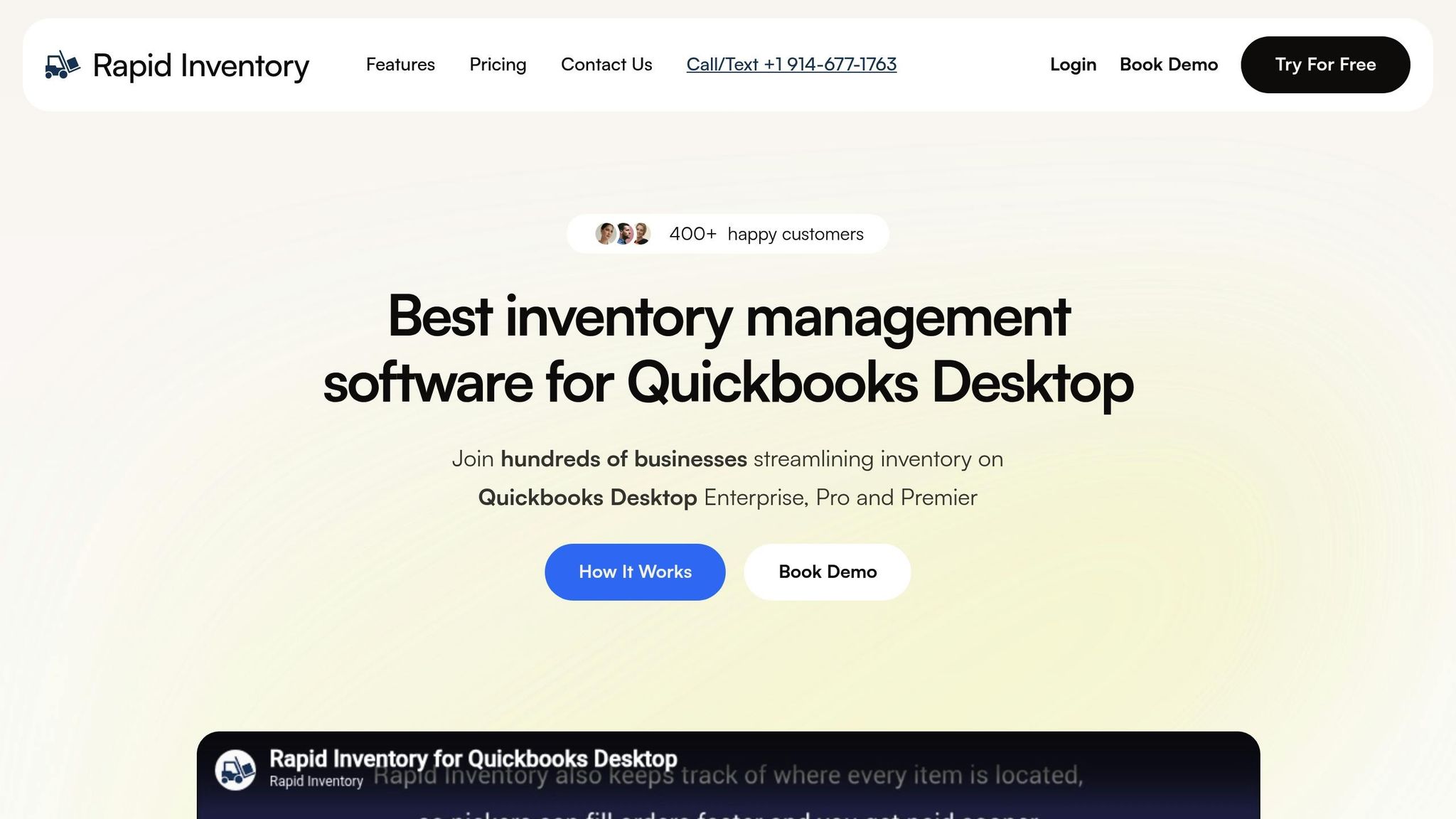
The connection between QuickBooks and Rapid Inventory depends on the QuickBooks Web Connector, which must be installed on the same computer where your QuickBooks company file is stored. You'll need Windows Administrator rights to install the Web Connector, and you must log in to QuickBooks as the Admin while setting up the initial connection.
To link the Web Connector to Rapid Inventory, use the provided .qwc file. During the onboarding process, which typically takes about seven days, the Rapid Inventory team assists in configuring this connection. This usually happens during the "Staging" phase, where users, warehouses, and locations are set up to reflect your physical inventory layout. Rapid Inventory works with QuickBooks Desktop Enterprise, Pro, and Premier editions, as well as hosted QuickBooks solutions like Rightworks (formerly Right Networks), Swizznet, Visory, and Whizz.
Before going live with the sync, ensure that each product appears only once in your QuickBooks item list. This step avoids data duplication during the initial migration. Additionally, set reorder points for each warehouse through the Inventory Site List.
sbb-itb-19ed50f
Step-by-Step Guide to Syncing Inventory in Real Time

7-Day QuickBooks and Rapid Inventory Integration Timeline
Installing and Configuring Rapid Inventory
To get started, you'll follow a 7-day onboarding process to connect QuickBooks Desktop with Rapid Inventory. Here's how it breaks down:
- Days 1–3: The process kicks off with a discovery session. During this phase, the Rapid Inventory team evaluates your QuickBooks data and customizes a migration plan tailored to your needs.
- Days 4–5: Known as the staging phase, this step involves setting up users, warehouses, and locations to match your existing inventory structure. The team also helps prepare the QuickBooks Web Connector, which is configured using a
.qwcfile provided to you.
Before diving in, make sure to back up your QuickBooks company file. The onboarding service, which carries a value of $1,500, is included at no extra cost. Once the installation is complete, you're ready to move on to syncing and verification.
Enabling and Testing Real-Time Sync
With Rapid Inventory installed, the next step is activating and testing the real-time synchronization. This happens during Days 6–7, also known as the Go Live phase. At this point, the QuickBooks Web Connector establishes a two-way sync between QuickBooks and Rapid Inventory. The Rapid Inventory team finalizes the data migration and provides training for your team to ensure a smooth connection.
Once the systems are connected, QuickBooks automatically syncs items and sales orders to Rapid Inventory. Meanwhile, inventory updates - like receiving, picking, or adjustments - flow back into QuickBooks. To confirm everything is functioning as it should, perform a test transaction. For example, use a mobile barcode scanner to receive a partial shipment or pick an order in Rapid Inventory, then check QuickBooks Desktop to ensure the transaction reflects instantly. You can also run the On Hand Inventory report in Rapid Inventory and compare it to QuickBooks to double-check accuracy. Keep an eye on Rapid Inventory's activity logs for any potential sync errors, so you can address them quickly.
"My team was up and running in a few days. Very straightforward and easy to use." - Jacob, CEO
This two-way synchronization eliminates the need for manual data entry, ensuring inventory updates are reflected in real time across both platforms.
Advanced Features for Better Inventory Management
Once you've set up real-time synchronization between QuickBooks and Rapid Inventory, you can tap into advanced tools that make managing your inventory even more efficient.
Multi-Location and Warehouse Tracking
With Rapid Inventory, you can track inventory across multiple warehouses and specific locations within them - like rows, shelves, or bins. These details sync seamlessly with QuickBooks Desktop's Inventory Sites, ensuring every action in the warehouse is reflected in your accounting software without any manual updates. Mobile scanning adds another layer of accuracy, confirming item locations during receiving and transfers, which helps cut down on errors.
Another handy feature? You can set reorder points specific to each site. Instead of global alerts, QuickBooks notifies you when stock runs low at a particular warehouse. Real-time reports give you a clear picture of your inventory, including on-hand quantities, pending purchase and sales orders, and overall inventory value.
"Advanced Inventory keeps us organized. We can print [order lists] according to where they are, so our employees in the warehouse don't have to zigzag to fill orders... That's been a big time saver and [helpful] for accuracy as well." - Zack P., Kink BMX
To enable multi-location tracking, go to QuickBooks Enterprise and turn on the "Multiple Inventory Sites" option under Preferences > Items & Inventory > Company Preferences. From there, use the "Transfer Inventory" feature to move opening quantities from a temporary site into your actual physical locations, ensuring a clean and accurate initial sync.
Beyond tracking locations, Rapid Inventory also supports batch and serial number tracking for even more precise management.
Lot and Serial Number Tracking
If your business uses lot, batch, or serial numbers, Rapid Inventory has you covered. It supports both FIFO (First In, First Out) and FEFO (First Expiration, First Out) strategies, making it a great fit for businesses managing perishable goods or items with expiration dates. During onboarding, their technical team will help you configure these settings. Once set up, any lot or serial number you assign to a transaction in Rapid Inventory automatically updates in QuickBooks Desktop through the two-way sync. Mobile scanning captures these numbers during transactions, reducing the risk of manual entry mistakes. For businesses using FEFO, the system ensures older or soon-to-expire items are shipped first.
This precise tracking lays the groundwork for automating critical inventory processes.
Automating Backorder and Cycle Counting Workflows
Rapid Inventory streamlines essential workflows like cycle counting and backorder management, keeping QuickBooks in sync at all times. Cycle counting lets you check portions of your inventory without stopping operations, while backorder tracking helps you stay on top of out-of-stock items throughout the fulfillment process. The platform also supports partial shipping and receiving, making it easier to handle incomplete orders.
Mobile barcode scanning plays a big role here, verifying every movement - whether you're transferring, receiving, or picking items - so records stay accurate. Plus, the automated pick list feature optimizes warehouse routes for your staff, speeding up order picking and boosting accuracy.
These advanced features not only save time but also help ensure your inventory processes run smoothly from start to finish.
Best Practices for Monitoring and Troubleshooting Sync Issues
Once you've set up advanced inventory features, keeping an eye on your system is essential to maintain accurate data. Routine monitoring can help you catch and address problems before they become larger issues.
Reviewing Real-Time Reports and Logs
Compare Rapid Inventory's real-time reports with your QuickBooks Desktop summaries to spot any mismatches. Pay close attention to key areas like on-hand inventory, quantities on purchase orders, and inventory value. The platform's activity logs are especially helpful for tracking each sync event, allowing you to pinpoint exactly when and where data transfer issues occurred.
Additionally, site-specific reorder point reports can provide another layer of verification. QuickBooks will alert you when stock levels drop at specific warehouses, and discrepancies in these alerts compared to your physical counts can indicate sync problems. Before diving into troubleshooting, double-check that your QuickBooks settings align with the guidelines provided in the prerequisites section.
Managing Sync Errors and Overrides
When sync errors arise, Rapid Inventory offers queue views and manual override tools to help you address the issue. If advanced inventory features are unavailable (grayed out), try refreshing the connection by selecting Help > Manage My License > Sync License Data Online in QuickBooks. Alternatively, use the "Quick Fix my Program" utility in the QuickBooks Tool Hub (version 1.6.0.8) to resolve background process issues.
For discrepancies between systems, QuickBooks' "Adjust Quantity/Value On Hand" feature allows you to align your physical inventory counts with your digital records before re-syncing. If the issue feels too complex, Rapid Inventory's white-glove onboarding and technical support team is available to assist.
| Issue Type | Troubleshooting Tool |
|---|---|
| Sync Status | Rapid Inventory Activity Logs |
| Data Discrepancies | Real-time Inventory Reports |
| Software Errors | QuickBooks Tool Hub (Quick Fix my Program) |
| Connection Issues | QuickBooks "Sync License Data Online" |
| Stock Accuracy | Site-specific Reorder Point Reports |
Conclusion
Benefits of Real-Time Inventory Synchronization
When QuickBooks Desktop and Rapid Inventory work together through real-time synchronization, the advantages are hard to ignore. By automating the sync between your accounting software and warehouse management system, you eliminate the need for tedious manual data entry and reduce the likelihood of costly errors. Add mobile barcode scanning into the mix, and you’re set up to ensure order accuracy every time.
The system’s multi-location tracking provides a bird’s-eye view of your inventory across warehouses, down to specific rows, shelves, or bins. This level of precision means you always know exactly where your stock is. Plus, advanced tracking methods like FIFO and FEFO help you manage inventory costs effectively while cutting down on waste from expired products. These features not only reduce errors but also create a more efficient workflow, keeping your inventory management seamlessly aligned with your QuickBooks data.
Real-time reporting is another standout benefit. It gives you instant access to key metrics like current stock levels, purchase order updates, and reorder points. This helps you avoid stockouts while also steering clear of overstocking. And because the platform is web-based, you can check in on your inventory data from anywhere, giving you control even when you’re not in the office.
With these features in place, Rapid Inventory becomes a game-changer for businesses looking to simplify and enhance their inventory management.
Next Steps for Implementing Rapid Inventory
Getting started with Rapid Inventory is designed to be simple and stress-free. The platform offers white-glove onboarding and migration services at no extra cost, ensuring all your data transfers smoothly and your team gets up to speed quickly. Most businesses are fully operational within just seven days.
Pricing is straightforward: the Pro plan costs $90 per user/month for teams of 1–9 users, while the Unlimited plan is $900 per month, offering unlimited users and dedicated account management. Both options include free training and ongoing support.
"My team was up and running in a few days. Very straightforward and easy to use." - Jacob, CEO
FAQs
How does real-time inventory syncing help manage stock levels effectively?
Real-time inventory syncing keeps your stock levels updated instantly by accounting for sales, returns, or incoming shipments as they happen. This precision helps you steer clear of stockouts that can frustrate customers and overstocking that wastes storage space and ties up your funds.
With accurate inventory data synced across all locations and systems, you can make smarter decisions, simplify your operations, and run a more efficient inventory management process.
How do I set up inventory tracking in QuickBooks Desktop?
To get started with inventory tracking in QuickBooks Desktop, here’s what you need to do:
- Open QuickBooks, then navigate to Edit > Preferences.
- From the menu on the left, choose Items & Inventory, and click the Company Preferences tab.
- Enable basic inventory tracking by checking the box for Inventory and purchase orders are active.
- If you need advanced options like FIFO costing or barcode tracking, make sure you're using QuickBooks Desktop Enterprise. Then, activate the Advanced Inventory Settings within your preferences.
- For tracking inventory across multiple locations, head to Lists > Inventory Site List and add new sites as necessary.
Once these settings are in place, you’ll be ready to manage stock levels, add inventory items, and access detailed reports. This setup ensures your inventory processes are streamlined and tailored to fit your business operations.
How does Rapid Inventory track lot and serial numbers?
Rapid Inventory simplifies the process of managing lot and serial numbers by letting users assign and track these details for specific inventory items. This functionality is particularly useful for handling product recalls, keeping an eye on expiration dates, and maintaining tight control over inventory.
Thanks to its smooth integration with QuickBooks Desktop, all lot and serial number information updates in real time, ensuring your records stay accurate and current.



