
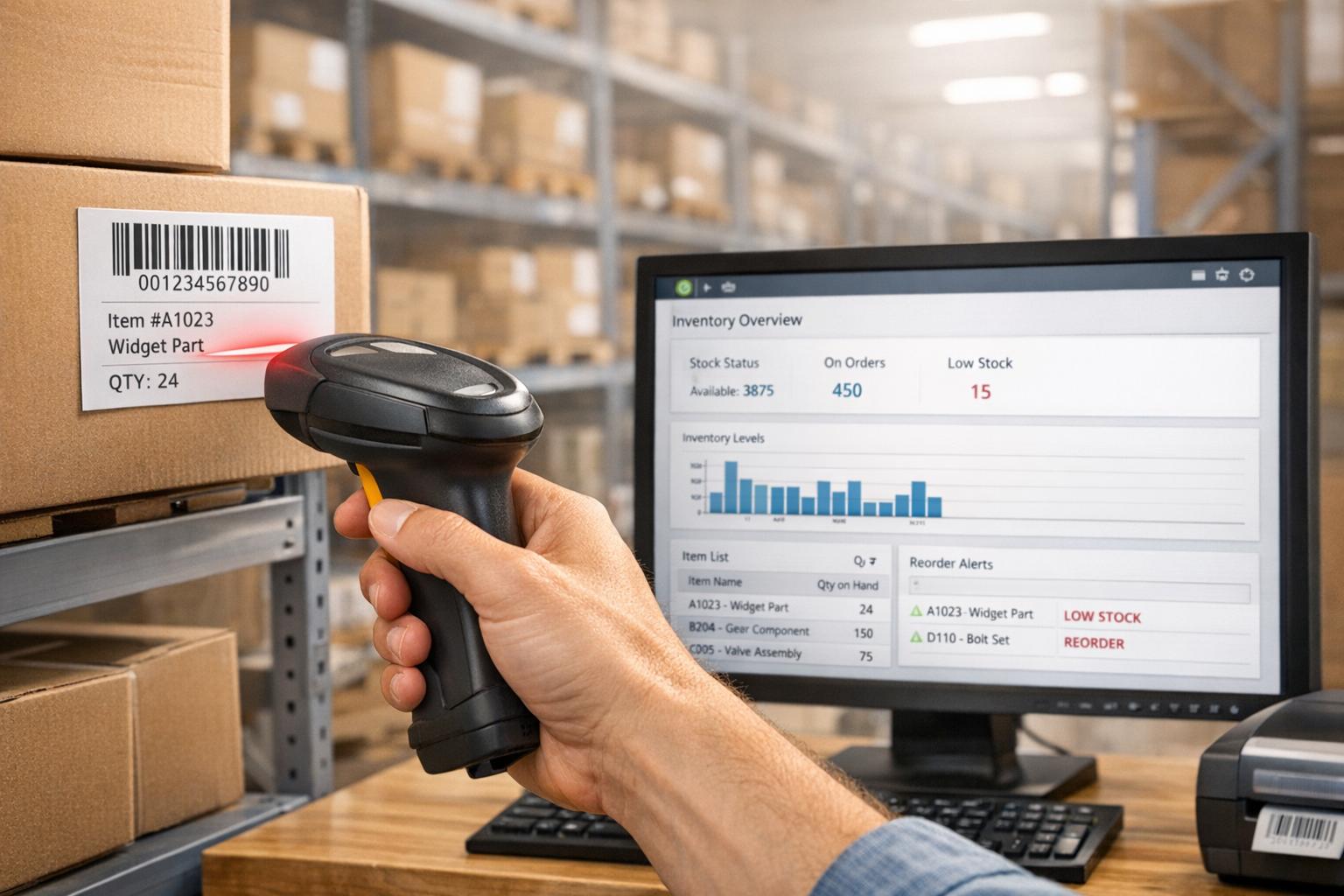
Barcode scanning in QuickBooks Desktop simplifies inventory management by automating data entry, reducing errors, and updating stock levels instantly. It’s available through the Advanced Inventory module in the Platinum and Diamond editions of QuickBooks Desktop Enterprise. Here’s what you need to know:
- Key Benefits: Faster data entry, fewer mistakes, and real-time inventory updates.
- Compatible Hardware: USB and Bluetooth barcode scanners in "wedge" mode (keyboard emulation) that support EAN-13 and Code-128 formats.
- Setup Steps: Enable barcode scanning in QuickBooks, assign barcodes to items, and configure your scanner for seamless use.
- Applications: Use for receiving inventory, shipping, and stock adjustments. It supports transactions like Purchase Orders, Invoices, and Transfers.
- Advanced Features: Integrates with the QuickBooks Warehouse Manager App for mobile scanning and Enhanced Pick, Pack, and Ship workflows.
Businesses can also enhance capabilities with third-party tools like Rapid Inventory for features like mobile scanning, lot tracking, and optimized picking strategies. Whether you’re managing a small stockroom or a large warehouse, barcode scanning can save time and improve accuracy.
QuickBooks Enterprise Barcode Scanning Tutorial
Setting Up Barcode Scanning in QuickBooks Desktop


How to Set Up Barcode Scanning in QuickBooks Desktop: 4-Step Process
To make shipping and receiving more efficient, setting up barcode scanning in QuickBooks Desktop is a must. This involves ensuring you have the right hardware and configuring the software properly.
Hardware Requirements for Barcode Scanning
Your barcode scanner should support EAN-13 and Code-128 formats and must append a single carriage return after each scan. Most USB plug-and-play scanners work seamlessly, especially those in "Wedge" mode (keyboard emulation). Bluetooth scanners can also work, provided they meet these criteria.
Before proceeding, test your scanner in a text editor to confirm it adds a carriage return after each scan. Keep in mind that serial port (RS232) scanners are not compatible with QuickBooks Enterprise's built-in barcode functionality.
Here are some compatible scanner models:
| Scanner Type | Examples |
|---|---|
| Handheld Linear Imagers | Datalogic QuickScan 2130, Honeywell HHP 3820 (Cordless), Honeywell 1300G Hyperion |
| High-Density Laser Scanners | Honeywell Voyager 1202G, Symbol LS2208, Metrologic Voyager MS9540 |
| 2D Area Imagers | Zebra DS2208, Zebra DS2278 |
| Omni-directional Scanners | Motorola LI4278 |
For mobile scanning using the QuickBooks Warehouse Manager App, you'll need mobile devices like the Zebra TC22.
Once you’ve confirmed your hardware meets these standards, you’re ready to enable barcode scanning in QuickBooks Desktop.
How to Enable Barcode Scanning in QuickBooks Desktop
To activate barcode scanning, follow these steps:
- Go to Edit > Preferences > Items and Inventory.
- Click the Company Preferences tab.
- Select Advanced Inventory Settings, then navigate to the Barcodes tab.
- Check Enable Barcode, and then click Open Barcode Wizard.
The Barcode Wizard will guide you through the process of either creating new barcodes or using existing ones. Keep in mind that barcode scanning must be enabled in single-user mode. Once set up, you can use barcodes in various transactions like Estimates, Sales Orders, Invoices, Purchase Orders, Item Receipts, Bills, and Inventory Transfers.
After enabling the feature, the next step is to assign barcodes to your inventory items.
How to Assign Barcodes to Inventory Items
Here’s how you can assign barcodes to your inventory:
- Manual Entry or Scanning: Open the Edit Item window by right-clicking an item in the Item List and selecting Edit Item. Enter a barcode manually into the Barcode Number field or scan a physical barcode directly. You can also use the Generate Barcode option to create one based on the item’s name or part number.
- Bulk Generation Using the Barcode Wizard: Use the wizard to generate barcodes in bulk. Be sure to select a unique field, like the Part Number, to avoid duplicates.
- Import from Excel: If you have a large inventory, you can import barcodes from an Excel file. QuickBooks allows up to 12 custom fields, but if all are already in use, you’ll need to replace one to proceed. Always back up your file before making changes.
One limitation to note: QuickBooks Desktop doesn’t support multiple barcodes for different units of measure (e.g., "each" versus "case") on the same item. To work around this, create separate inventory items for each unit and assign unique barcodes.
Properly assigning barcodes ensures smoother processes for receiving, shipping, and managing stock adjustments.
Using Barcode Scanning for Inventory Operations
Once your system is set up, barcode scanning can be a game-changer for inventory operations, streamlining both receiving and shipping processes. By integrating barcode scanning into your warehouse workflows, you can automate data entry and significantly reduce the typical 1–3% error rate associated with manual input tasks.
Scanning Items During Receiving
When new inventory arrives at your warehouse, barcode scanning simplifies the receiving process by automatically pulling item details into Purchase Orders, Item Receipts, or Bills. Here's how it works: open the receiving transaction, place your cursor in the Item column, and scan the barcode. QuickBooks will instantly populate the item details, leaving you to simply enter the quantity.
For businesses using Advanced Inventory, you can also scan lot or serial numbers, ensuring precise tracking for items that require it. Real-time inventory updates occur as items are scanned, giving you immediate insight into stock levels. This eliminates the delays and inaccuracies that often come with periodic manual inventory checks.
Using Barcode Scanning for Shipping and Fulfillment
When it comes to shipping, barcode scanning offers two primary methods: direct USB scanning and mobile fulfillment through the QuickBooks Desktop Inventory App. In smaller setups, such as counters or office environments, USB scanners allow you to quickly add items to Sales Orders, Invoices, or Sales Receipts.
For larger warehouse operations, the Enhanced Pick, Pack, and Ship workflow is ideal. Here, orders are assigned through a fulfillment worksheet, and mobile scanners are used to confirm each step of the process. This ensures accuracy at every stage, avoiding count errors or mismatches, while providing real-time updates to your inventory system.
Take VF Corporation, for example. They swapped out their old systems for mobile barcode scanning and achieved an impressive 100% inventory accuracy. Andrea Comi, Global Director of Digital and Technology DTC at VF Corporation, noted:
"The accurate inventory levels we get with Scandit Smart Data Capture have ultimately boosted our omnichannel revenue".
sbb-itb-19ed50f
Troubleshooting Common Barcode Scanning Issues
Even with a proper setup, barcode scanning can sometimes run into problems that disrupt your workflow. The upside? Most issues are tied to a few common causes, and they’re often simple to resolve.
Scanner Configuration and Compatibility
If QuickBooks Desktop doesn’t recognize your scanner, start by confirming that it supports EAN-13 and Code-128 barcode formats and sends a single carriage return after each scan. You can test this in Notepad - when you scan a barcode, the number should appear followed by a line break. USB and Bluetooth scanners that mimic keyboard input are generally compatible. However, serial port scanners won’t work with the Enterprise Barcode feature.
If scanned data ends up in the wrong fields, the scanner’s transmission speed might be too fast, causing misalignment. Check your scanner manual for instructions on adding a post-amble delay to slow down the data transfer. Additionally, make sure Advanced Inventory is turned on. You can enable it by navigating to Edit > Preferences > Items & Inventory > Company Preferences, then selecting Advanced Inventory Settings and ensuring "Enable Barcode" is checked.
Once your scanner is configured correctly, double-check that each inventory item has the correct barcode assigned.
Fixing Barcode Assignment Errors
Barcode issues often arise from incorrect or missing assignments. Make sure the Barcode Number field doesn’t contain any extra spaces or characters. QuickBooks Team member JorgetteG offers this advice:
"Double-check that the barcode numbers in QuickBooks match the barcodes you are scanning. Check for any spaces or extra characters".
If you need to fix or generate barcodes, the Barcode Wizard can help. Go to Edit > Preferences > Items & Inventory > Company Preferences > Advanced Inventory Settings > Barcodes, and select Open Barcode Wizard. For bulk corrections, export your item list to Excel, make the necessary changes in a custom field (like "Barcode 2"), and re-import the data. Use the Replace existing data with import data, ignoring blank fields option to update your records efficiently.
Improving Barcode Scanning with Rapid Inventory

QuickBooks Desktop offers basic barcode scanning, but when it comes to more advanced needs like mobile scanning, optimizing pick paths, or tracking partial shipments, it falls short. That’s where Rapid Inventory steps in, enhancing your operations without the need to replace your existing system. Here’s how Rapid Inventory takes barcode scanning to the next level.
Key Features of Rapid Inventory
With over 17 years of experience and trusted by more than 400 QuickBooks Desktop users, Rapid Inventory integrates seamlessly through an automatic two-way sync. This means items and orders stay updated without the hassle of manual data entry.
For companies managing lot numbers, serial numbers, or expiration dates, Rapid Inventory incorporates these details directly into your barcode workflows. It also supports advanced picking strategies like FIFO (First In First Out) and FEFO (First Expiration First Out), making inventory management more efficient. Plus, it includes built-in label printing, eliminating the need for third-party solutions.
Benefits of Using Rapid Inventory with QuickBooks Desktop
Rapid Inventory simplifies warehouse operations by streamlining data synchronization and adding smart picking strategies. It improves accuracy in receiving and shipping by enabling partial receiving, verifying items against purchase orders, and generating mobile pick lists that optimize warehouse navigation. Mobile scanning ensures instant verification of locations, items, quantities, and shipments, reducing errors and saving time.
Jacob, a CEO who implemented Rapid Inventory, shared his experience:
"My team was operational in days - straightforward and intuitive".
The platform offers flexible pricing plans to meet different business needs. The Pro plan starts at $90 per user per month and includes premium onboarding (valued at $600) and migration services (valued at $1,500). For larger operations, the Unlimited plan is available for $900 per month, offering custom inventory reports and a dedicated account manager.
As a web-based solution, Rapid Inventory provides real-time access to essential inventory data from anywhere. Managers can view on-hand quantities, order statuses, inventory values, and reorder points at a glance. Additional features like cycle counting and backorder tracking help maintain accurate inventory records and ensure smooth operations.
Conclusion
Key Takeaways
Barcode scanning has become a game-changer for inventory management in QuickBooks Desktop, especially for U.S.-based businesses. By automating data entry, minimizing errors, and keeping stock levels updated in real time, it streamlines essential workflows like receiving shipments, fulfilling orders, and transferring inventory between locations. The result? Faster processes and more accurate inventory data.
QuickBooks Desktop Enterprise with Advanced Inventory goes a step further by offering a solid framework for barcode scanning. Features like the Barcode Wizard make it easy to assign barcodes using existing item names or part numbers, while the ability to import barcode data from Excel via custom fields adds flexibility. To ensure smooth performance, it's critical to use scanners that meet the required standards.
For businesses seeking more advanced capabilities, Rapid Inventory offers mobile scanning, lot and serial number tracking, and optimized picking routes. Its two-way sync ensures seamless updates, while mobile barcode verification and FIFO/FEFO strategies help warehouses achieve near-perfect picking accuracy. Plus, the platform’s quick setup - getting teams up and running in just days - makes it an excellent choice for businesses looking to scale efficiently.
With these tools, businesses can start with the right hardware and configurations, then tap into advanced features that keep up with their growth. It’s a straightforward yet powerful approach to staying ahead in inventory management.
FAQs
What are the benefits of using barcode scanning with QuickBooks Desktop?
Using barcode scanning with QuickBooks Desktop brings a host of benefits to inventory management and daily operations. By cutting down on manual data entry, it not only saves time but also reduces the chance of errors. With barcode scanning, you get instant inventory updates, so your stock levels stay accurate, helping you avoid surprises. Plus, it simplifies critical tasks like receiving shipments, stocking shelves, and processing orders, making your workflow smoother and more dependable.
How can I check if my barcode scanner works with QuickBooks Desktop?
To make sure your barcode scanner works with QuickBooks Desktop, first check that it connects via USB and supports EAN-13 and Code-128 barcode standards. Then, configure the scanner to send a single carriage return (Enter) after scanning, without adding any extra characters.
Before connecting the scanner to QuickBooks, test it with a plain-text editor like Notepad. Scan a barcode and ensure the output shows only the barcode data followed by a single return. Once you're confident it works correctly, enable barcode functionality in QuickBooks. Go to Edit → Preferences → Items & Inventory → Company Preferences, then click Advanced Inventory Settings. Under the Barcodes tab, check Enable Barcode and use the Barcode Wizard to assign barcodes to your items.
If you need more flexibility, consider mobile barcode scanning tools like Rapid Inventory. These integrate smoothly with QuickBooks Desktop and allow for inventory management on the go.
Can I use barcode scanning in QuickBooks Desktop for both shipping and receiving tasks?
Yes, barcode scanning is available in QuickBooks Desktop, making it easier to handle both receiving (purchase orders) and shipping (sales orders). This tool speeds up the process and reduces mistakes by quickly capturing item details during these tasks.
By using barcode scanning, you can simplify inventory management, minimize manual entry errors, and keep your records updated in real-time. To begin, you'll need to set up your barcode scanner and configure the item barcodes directly in QuickBooks Desktop.



