
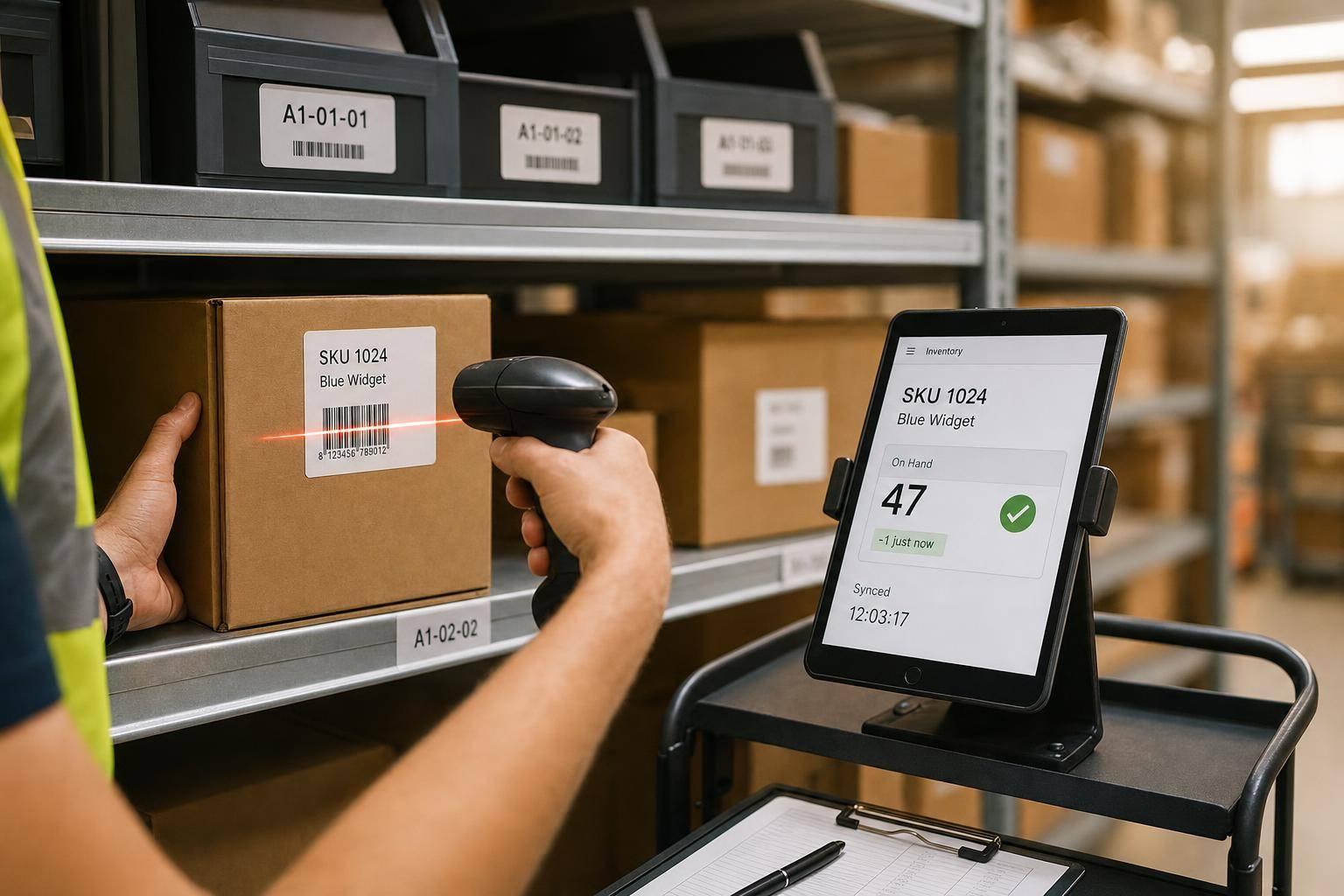
A short delay in stock updates can turn into lost sales, bad counts, and extra costs. I’d sum it up like this: when inventory moves are posted right away in QuickBooks Desktop, stock records stay closer to what’s on the shelf, and that cuts errors across receiving, picking, transfers, counts, and backorders.
Here’s the article in plain English:
- Delayed entry causes most inventory mistakes.
- Real-time posting helps stop overselling, duplicate adjustments, and false stockouts.
- The biggest sync points are receipts, shipments, transfers, cycle counts, and backorders.
- Barcode scanning, lot/serial tracking, and FIFO or FEFO picking help stop floor-level mistakes before they hit the system.
- The cost of bad inventory data is high: each 1% of inventory inaccuracy can cut gross margin by 1% to 3%. For a $100 million business, that can mean $1 million to $3 million per year. Mispicks alone cost many distribution centers about $390,000 per year.
What I like about this piece is that it ties one simple idea to the whole workflow: post every inventory move when it happens. That means no waiting until 4:30 PM to enter a 9:00 AM receipt, no guessing from spreadsheets, and no selling stock that is already gone.
A fast overview:
| Area | What goes wrong without live updates | What fixes it |
|---|---|---|
| Receiving | Items are in the building but not in QuickBooks Desktop | Post receipts right at the dock |
| Sales and shipping | Orders get accepted against stale counts | Update picked and shipped quantities at once |
| Transfers | One location shows too much, another too little | Post both sides of the transfer together |
| Cycle counts | Variances sit unposted | Enter count changes the same day |
| Backorders | The same stock gets promised twice | Keep backordered quantities current |
So if you want the short answer: real-time updates reduce inventory errors by removing the gap between warehouse activity and QuickBooks Desktop records. The rest of the article shows how that gap causes trouble, which errors show up most often, and which warehouse habits help keep counts in line.
Automate more of your inventory and order management process | QuickBooks Enterprise

sbb-itb-19ed50f
Common Inventory Errors That Real-Time Updates Help Prevent
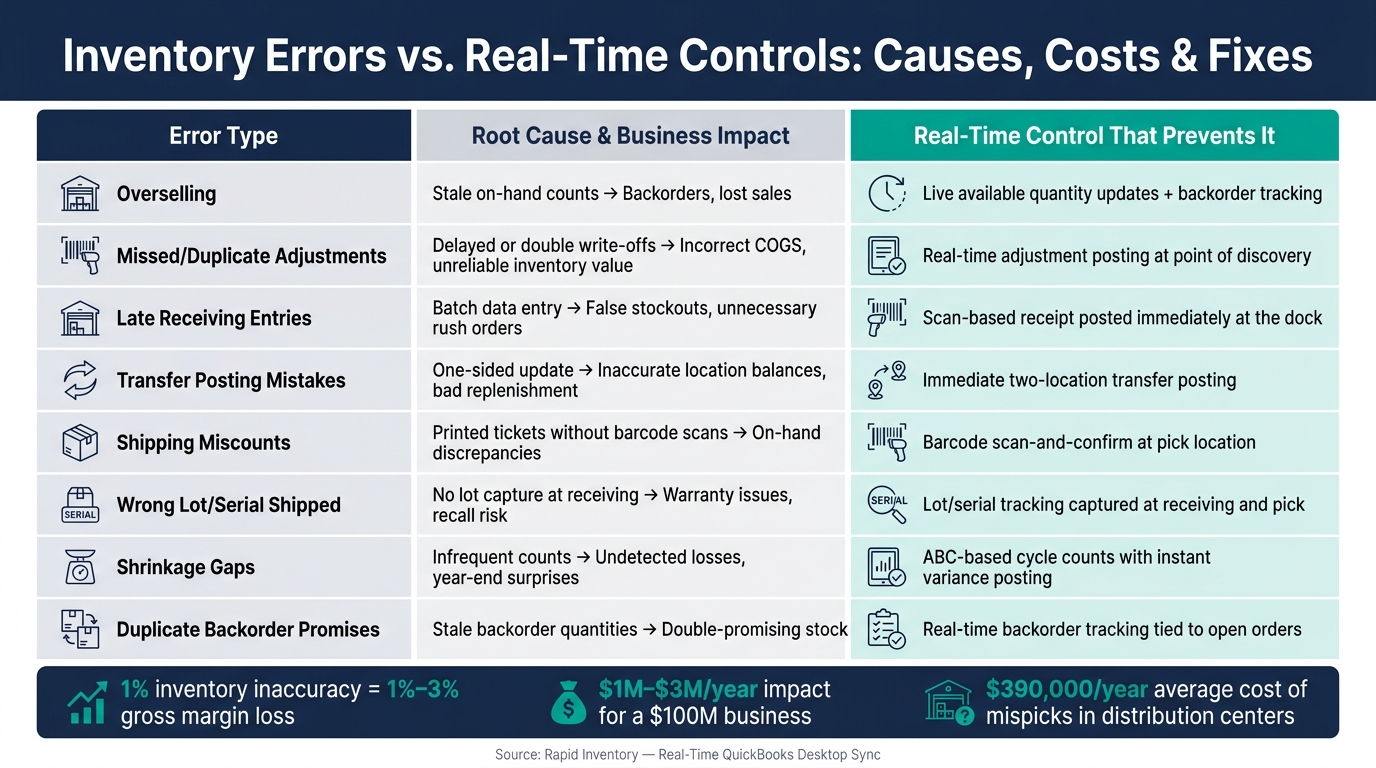
Inventory Errors vs. Real-Time Controls: Causes, Costs & Fixes
Delayed updates tend to cause the same inventory problems again and again. The pattern is pretty simple: the warehouse changes first, and QuickBooks Desktop gets updated later. That time gap is where things go wrong.
Overselling, Missed Adjustments, and Late Receiving Errors
Overselling happens when an order is accepted for stock that's already been committed or shipped.
Missed adjustments show up when a damaged item is found but the write-off doesn't get entered right away. QuickBooks Desktop still shows inventory that can't be sold. And if someone enters the same adjustment twice, inventory value gets pushed up or down twice too. That throws off COGS and makes inventory value reports hard to trust.
Late receiving entries can create a stockout in QuickBooks Desktop that doesn't match what's sitting in the warehouse. Purchasing sees the shortage and places a rush order. Customer service sets up a backorder. Both moves were avoidable.
The same timing issue pops up in other areas too, including transfers, shipping, and shrinkage.
Transfer Mistakes, Shipping Miscounts, and Shrinkage Gaps
Delayed transfer posting can leave one location overstated and another understated. If your team makes decisions from those numbers, you can end up with unnecessary replenishment orders and inaccurate profitability reporting by location.
Shipping miscounts often happen when pickers work from printed tickets instead of barcode scans. The wrong quantity gets packed, the shipment leaves, and QuickBooks Desktop gets updated based on what was picked, not what actually shipped. That mismatch creates on-hand discrepancies that build up over time.
Shrinkage - losses from damage, theft, or misplacement - often stays hidden until a count brings it to light. Real-time visibility helps spot shrinkage sooner, before the gap gets tough to trace.
The table below links each error to its cause and business impact.
| Error Type | Root Cause | Business Impact |
|---|---|---|
| Overselling | Stale on-hand counts | Backorders, lost sales |
| Missed/duplicate adjustments | Delayed or double write-offs | Incorrect COGS, unreliable inventory value |
| Late receiving entries | Batch data entry | False stockouts, unnecessary rush orders |
| Transfer posting mistakes | Updates recorded at only one location | Inaccurate location balances, bad replenishment decisions |
| Shipping miscounts | Printed tickets without barcode scans | On-hand discrepancies, over- or under-shipments |
| Shrinkage gaps | Infrequent counts | Undetected losses, year-end surprises |
How Real-Time Updates Keep QuickBooks Desktop Inventory Current

The fix is simple: post each inventory event the moment it happens. Everything else in the workflow depends on updating that event at the source.
Key Sync Points: Sales, Receipts, Transfers, Counts, and Backorders
Five moments matter most for real-time updates.
Order picking and shipping: Quantities need to be reserved at pick time. When on-hand and committed quantities update right then, available stock stays accurate throughout the day.
Receiving: When items arrive at the dock, quantities should be confirmed and posted at once, including partial receipts. That makes stock available for sale as soon as it's on the shelf.
Warehouse transfers need to update both the source and destination locations at the same time. If a transfer is recorded on only one side, inventory ends up showing in the wrong place.
Cycle counts should post variance adjustments as soon as counting is done. If a discrepancy sits unrecorded, even for a short time, any sales or transfers that happen next are working from bad numbers.
Backorders: When a partial shipment goes out, the remaining backordered quantity needs to update right away so those units don't get promised to another customer by mistake.
For QuickBooks Desktop users, live sync is what keeps these updates moving without manual re-entry.
Using Rapid Inventory to Support Two-Way QuickBooks Desktop Updates

Rapid Inventory supports this workflow with two-way QuickBooks sync. Warehouse activity, including receipts, picks, transfers, cycle counts, and backorder updates, pushes into QuickBooks. At the same time, QuickBooks data like items, open orders, customers, and vendors stays current in Rapid Inventory. No spreadsheet. No re-entry step.
A few parts of the setup do the heavy lifting:
- Mobile barcode scanning lets warehouse staff scan items at the dock, pick location, or transfer point. That helps cut the shipping miscounts that come from printed tickets, and the update posts at once.
- Multi-location tracking makes sure a scanned transfer between two warehouses lowers one location's count and increases the other's at the same time. That removes the transfer posting errors that throw off location balances.
- Cycle counting workflows post adjustments on the spot, closing the shrinkage gaps that build up between full counts.
- Real-time inventory reports and backorder tracking give managers an up-to-the-minute view of on-hand, committed, and backordered quantities across all locations.
That keeps on-hand, committed, and backordered quantities aligned across locations.
Warehouse Practices That Support Real-Time Inventory Accuracy
Real-time updates only work if the warehouse records every move right when it happens. If an item is received, moved, picked, transferred, or counted without being recorded at the source, QuickBooks Desktop drifts away from what’s actually on the shelf.
That’s where warehouse discipline matters. The practices below deal with the same day-to-day problems - overselling, mispicks, transfer gaps, and shrinkage - but from the floor, not just the system side.
Barcode Scanning, Lot and Serial Tracking, and FIFO or FEFO Picking
The simplest way to protect real-time accuracy is to stop bad data before it gets into the system.
Manual entry is a common cause of inventory mistakes. Barcode scans at receiving, put-away, picking, transfers, and counts cut those errors at the source. They help stop wrong quantities, wrong SKUs, and wrong storage locations from slipping through.
Lot and serial tracking add a layer of traceability that scanning by itself can’t cover. Lot tracking helps with recalls and expiration control. Serial tracking keeps unit-level warranty and service history tied to the right item. The best time to capture both is at receiving, so each item stays traceable as it moves through the warehouse.
Picking rules finish the job. FIFO (first in, first out) moves older stock before newer stock, which helps reduce age-related write-offs. FEFO (first expired, first out) puts the earliest-expiring units first, no matter when they arrived. With real-time stock data in place, FIFO and FEFO picks stay in the right sequence.
Cycle Counts, Partial Receiving, and Backorder Tracking
Even with clean scanning, inventory will drift if counts, receipts, and shipments aren’t posted right away.
Use cycle counts across the year, and post each variance as soon as it’s found. That way, the corrected balance is there for the next pick, transfer, or order instead of sitting in limbo.
The same rule applies at the dock. Post partial receipts when they arrive, and keep the remaining balance open on the purchase order. Post partial shipments when they leave, then keep the rest of the demand on backorder so it doesn’t get promised twice.
Inventory Error Types and the Real-Time Controls That Prevent Them
The table below shows how common warehouse errors connect to the control that helps stop each one.
| Inventory Error | Real-Time Control That Prevents It |
|---|---|
| Overselling out-of-stock items | Live available quantity updates and backorder tracking |
| Picking the wrong SKU | Barcode scan-and-confirm at the pick location |
| Shipping the wrong lot or serial number | Lot/serial capture at receiving and pick |
| Shipping expired or obsolete stock | FEFO picking enforced by real-time stock data |
| Transfer posting mistakes | Immediate two-location transfer posting |
| Shrinkage gaps between full physicals | ABC-based cycle counts with instant variance posting |
| Receiving mismatch on partial deliveries | Scan-based partial receipt posted at the dock |
| Duplicate customer promises on backordered stock | Real-time backorder tracking tied to open orders |
Conclusion: The Business Impact of Fewer Inventory Errors
Real-time sync and warehouse controls push QuickBooks Desktop toward one goal: records that match what’s actually on the shelf. When those two stay in step, the payoff isn’t vague or theoretical. It hits the business in dollars.
Each 1% of inventory inaccuracy can reduce gross margin by 1% to 3% - about $1 million to $3 million per year for a $100 million business. Mispicks alone cost distribution centers an average of $390,000 per year in returns, re-picks, reshipping, and customer service. So this isn’t just about cleaner reports. It’s about stopping avoidable costs before they stack up.
You see that impact in the books as well. When receipts, shipments, transfers, and adjustments post as they happen, QuickBooks Desktop balances, COGS, and month-end close stay up to date. That leads to fewer unexplained variances, cleaner audit trails, and less overtime spent chasing down discrepancies at month-end.
It also helps each team do its job with more confidence:
- Purchasing teams can act on actual reorder points.
- Sales teams can quote accurate delivery dates.
- Warehouse managers can spot high-risk locations before a small issue turns into a bigger one.
Rapid Inventory supports this with web-based, real-time reports across locations.
Over time, the gains build on each other. Fewer errors mean less rework, fewer emergency orders, and stronger customer trust, which supports repeat business and higher fill rates. Real-time inventory accuracy is a financial and competitive advantage.
FAQs
What counts as a real-time inventory update?
A real-time inventory update means your stock count changes the moment something happens.
So instead of waiting for a batch sync or someone to enter data by hand later, actions like receiving shipments, picking orders, making a sale, or moving stock from one location to another get recorded right away.
The big upside is simple: QuickBooks Desktop and your other systems stay in sync with current inventory counts.
Which inventory transactions should be posted first?
Post inventory transactions in the exact order they happen. In plain terms, record receipts, picks, and stock transfers when they occur so QuickBooks Desktop stays accurate.
Real-time updates - including updates from Rapid Inventory - help cut manual entry mistakes and keep physical stock in sync with your records. If something looks off, use the Audit Trail to check transaction dates and the order they were posted.
How can barcode scanning improve QuickBooks Desktop accuracy?
Barcode scanning helps QuickBooks Desktop stay accurate because it cuts out a lot of manual data entry. Instead of typing item details by hand, staff can scan items during receiving, picking, or counting, and the system records the item, quantity, and location in real time.
That matters more than it might seem at first. A quick scan can help stop wrong SKUs, incorrect quantities, and wrong lot numbers from slipping into the record.
It also keeps QuickBooks up to date automatically, so stock levels stay accurate and teams deal with fewer mismatches caused by paper logs or hand-entered data.



