
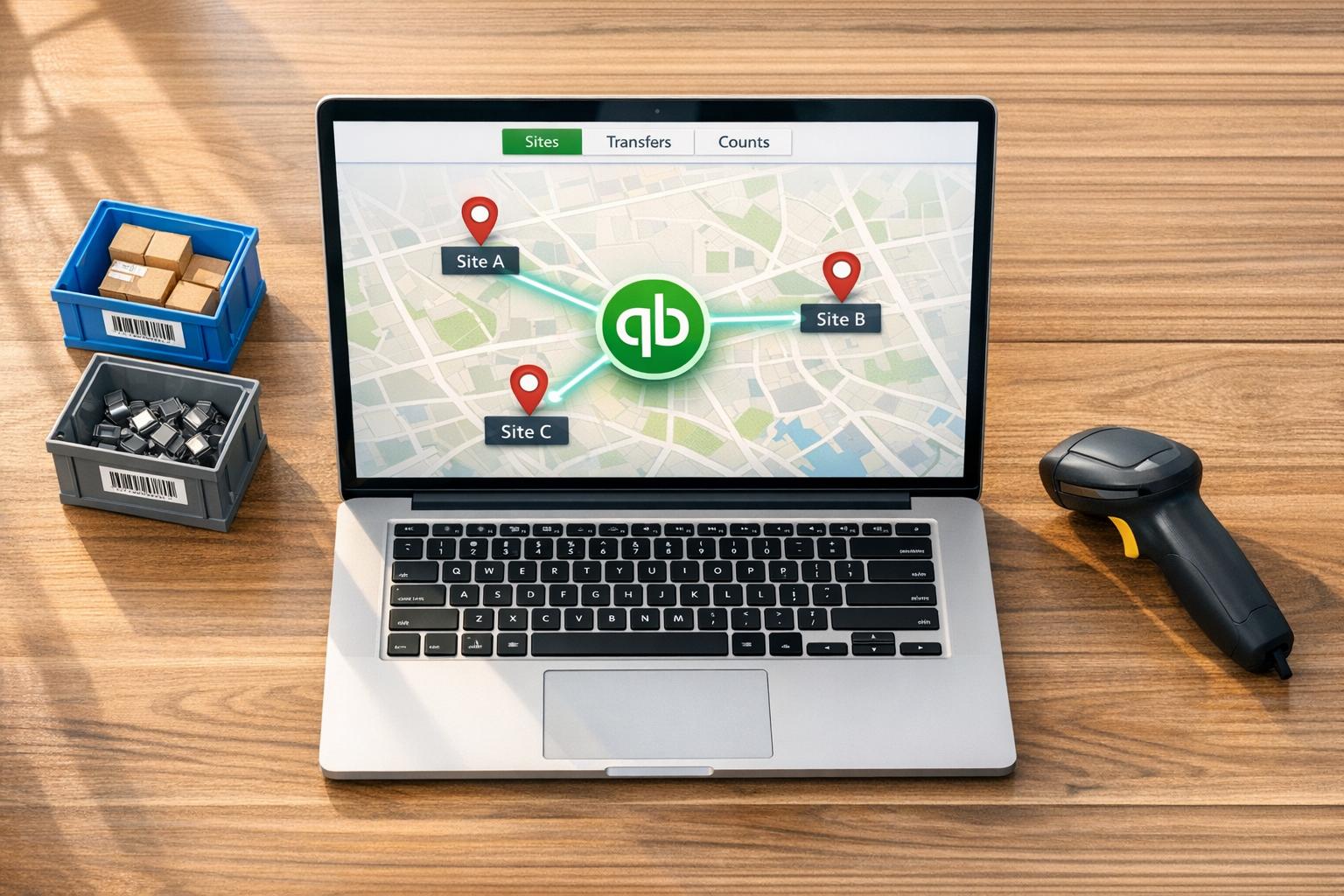
Managing inventory across multiple locations can be challenging without proper tools. QuickBooks Desktop, when paired with its Advanced Inventory feature, simplifies this process by enabling real-time syncing of inventory data across sites. Here's what you need to know:
- QuickBooks Enterprise Required: Multi-location tracking is only available with QuickBooks Enterprise's Platinum or Diamond subscription.
- Advanced Inventory Setup: Activate features like multiple inventory sites and bin tracking to organize stock by location and shelf.
- Accurate Transfers: Use QuickBooks' Transfer Inventory tool for stock movements to ensure precise tracking.
- Reports for Visibility: Generate detailed reports like Quantity on Hand by Site to monitor inventory at each location.
- Third-Party Tools: Tools like Rapid Inventory enhance functionality with features like barcode scanning and two-way syncing.
QuickBooks Demo 2025: Multi-Location Inventory | QuickBooks Enterprise Advanced Inventory | Platinum

sbb-itb-19ed50f
QuickBooks Desktop Requirements for Multi-Location Inventory Sync


How to Set Up Multi-Location Inventory Sync in QuickBooks Desktop
To avoid potential issues down the road, it's important to set up QuickBooks Desktop properly before syncing your multi-location inventory.
Check Your QuickBooks Desktop Edition and Advanced Inventory Features
Multi-location tracking in QuickBooks is only available through the Enterprise Edition with a Platinum or Diamond subscription, as it includes the Advanced Inventory feature.
"Multiple Inventory with Bin Locations is only available with a QuickBooks Enterprise Platinum Edition Subscription. If you currently own Gold or Silver you would need to upgrade to the QuickBooks Platinum or Diamond Edition." - Raeann Salter, QuickBooks Advanced ProAdvisor, Minding My Books
To verify your edition, go to Edit > Preferences > Items & Inventory > Company Preferences. Look for the Advanced Inventory Settings button. If the button is grayed out but you’ve purchased the feature, try refreshing your license data by selecting Help > Manage My License > Sync License Data Online.
For users of QuickBooks Pro or Premier, native support for multi-location tracking isn’t available. However, third-party tools like Rapid Inventory can help sync multi-location data with these editions.
Once you’ve confirmed your edition, you can move on to configuring QuickBooks for multi-location syncing.
Initial Configuration Steps Before Syncing
Proper setup is critical to ensure smooth inventory tracking across locations. Before making any changes, switch QuickBooks to Single-user Mode by navigating to File > Switch to Single-user Mode.
Next, follow these steps:
- Go to Edit > Preferences > Items & Inventory > Company Preferences.
- Confirm that Inventory and purchase orders are active is checked.
- Click on Advanced Inventory Settings and enable Multiple Inventory Sites.
- Head to Lists > Inventory Site List, select Inventory Site > New, and enter details for each location, such as warehouses, stores, trucks, or staging areas.
After enabling the feature, all inventory will temporarily move to a single starting site. Use the Transfer Inventory tool (found under the Inventory menu) to allocate stock to the appropriate locations.
How Multi-Location Settings Affect Inventory Data
Once enabled, multi-location settings change how inventory data is displayed and managed in QuickBooks. A "Site" column is added to forms like sales orders, invoices, purchase orders, and bills, allowing you to tag transactions to specific locations. If bin tracking is also activated, a "Location" column will appear for even finer control.
These updates are key to maintaining accurate inventory records across all sites. Associating transactions with the correct location also unlocks detailed reports such as Quantity on Hand by Site and Inventory Valuation Summary by Site.
| Setting | QuickBooks Form Enhancements |
|---|---|
| Multiple Inventory Sites | Adds a "Site" column to Purchase Orders, Bills, Invoices, and Sales Orders |
| Bin Tracking | Adds a "Location" column for shelf/bin-level details |
| Assembly Builds | Adds "Assembly Inventory Site" and "Assembly Location" fields |
| Transfer Inventory | Adds "Transfer from/to" fields for moving stock between sites or bins |
These features ensure that your inventory sync reflects the physical stock across all locations, providing both clarity and control.
How to Map Inventory Locations for QuickBooks Sync
Getting your inventory locations mapped correctly is a must for smooth multi-location reconciliation in QuickBooks. If you're using QuickBooks Desktop with Advanced Inventory enabled, the first step is to make sure your physical locations are properly set up before syncing any data. Then, configure these locations in QuickBooks to ensure everything syncs without a hitch.
Set Up Operational Sites and Storage Areas in QuickBooks
In QuickBooks Desktop, location records are managed through the Inventory Site List, which you can find under Lists > Inventory Site List. To add a new location, click Inventory Site > New and enter the details for each operational site. For more detailed tracking, like monitoring stock at the shelf or bin level, activate Bin Location Tracking in the Advanced Inventory Settings. This feature adds a "Location" column to purchase orders, bills, and sales forms, helping you pinpoint where each item is stored.
QuickBooks ProAdvisor Beverly Lang explains:
"When you select Bin Location Tracking, QuickBooks will move all items to unassigned until bins are created. You will need to transfer to the correct bins, using the Transfer Inventory form."
To keep things organized, tag your initial transfers with reference numbers like "setup1" so they’re easy to identify in reports.
Keep Location Mapping Consistent Across Systems
Once your locations are set up, it’s crucial to maintain consistent naming across all systems. One of the most common reasons for sync errors is mismatched location names. For example, if QuickBooks lists a site as "Warehouse A" but your external inventory system calls it "WH-A", the sync won’t recognize them as the same location, leading to inaccurate inventory counts.
Before syncing, review your item records. If you've been naming items with location-specific identifiers like "Widget-Warehouse A", consolidate them into a single record, such as "Widget", and use the site field to track locations instead. With Advanced Inventory enabled, the "Site" column on transactions eliminates the need for location-specific item names, simplifying your records and reducing errors.
For added efficiency, tools like Rapid Inventory can help with two-way syncing and multi-location tracking. Just make sure your site names and item records are aligned in both systems from the start to avoid issues down the line.
Syncing Items, Transfers, and On-Hand Quantities
Understanding how inventory data moves between systems and spotting sync issues is key. Let’s break down how this process works and the steps for verifying accuracy.
How Inventory Records Flow Between Systems
Once your locations are mapped and configured, QuickBooks Desktop becomes the master source for item records. This means product names, SKUs, and pricing originate in QuickBooks and flow to your inventory system. In return, warehouse activities - like receiving, picking, and stock movements - sync back into QuickBooks, updating on-hand quantities and inventory values simultaneously.
Here’s a breakdown of how data flows during the sync:
| Sync Component | QuickBooks Desktop Role | Inventory System Role |
|---|---|---|
| Item Records | Provides master data for names/SKUs | Receives item details for operational use |
| Inventory Transfers | Tracks "Transfer from" and "to" locations | Confirms transfers via mobile barcode scanning |
| On-Hand Quantities | Updates quantities and inventory values | Updates bin/location-level availability |
| Sales/Purchase Orders | Initiates financial transactions | Triggers picking or receiving workflows |
When handling transfers, always use QuickBooks' Transfer Inventory transaction. Avoid manual adjustments, as they can lead to mismatched quantities.
"Automatic 2 way sync with QuickBooks means that your items and orders are synced to Rapid Inventory and Rapid Inventory actions are synced back to QuickBooks." - Rapid Inventory
Using mobile barcode scanning during transfers ensures the correct items are moved to the right locations, reducing manual entry errors and minimizing sync issues over time.
How to Verify Inventory Transactions After a Sync
Once the sync is complete, verifying transactions is vital to ensure everything aligns. Start by running a filtered Audit Trail report in QuickBooks (Reports > Accountant & Taxes > Audit Trail) to focus on key transactions like Invoices, Sales Receipts, Credit Memos, Bills, Inventory Adjustments, Item Receipts, Transfers, and Build Assemblies. Add columns for "Entered/Last Modified" and "Last Modified By" to detect any changes made directly in QuickBooks instead of through your inventory system.
After syncing, check the reconciliation history in your inventory system. Any discrepancies will either be auto-adjusted or logged for review. If you spot a transaction entered directly into QuickBooks, either delete it there or post a matching adjustment in your inventory system to keep both systems aligned.
"If you identify a transaction that was made outside of Rapid Inventory, either delete the transaction in QB or make the proper Inventory Adjustment in Rapid Inventory in order to reflect the new quantity." - Rapid Inventory
To streamline future checks, save your customized Audit Trail settings as a memorized report in QuickBooks. Naming it something like "Inventory Sync Verification" can save you time by eliminating the need to rebuild filters for each review.
How to Reconcile Location-Level Inventory in QuickBooks
Match System Quantities with Physical Counts
Keeping your inventory in sync across multiple locations in QuickBooks requires precise reconciliation, often made easier with inventory management software for QuickBooks Desktop. Once the sync is complete, compare the inventory counts in QuickBooks with your physical inventory for each location.
To start, go to Reports > Inventory > Quantity on Hand by Site. This report gives you an overview of current system counts for all locations, which you can then cross-check against your physical inventory sheets. If discrepancies arise, open the Adjust Quantity/Value On Hand window from the Inventory menu.
Make sure to select the correct Inventory Site from the dropdown menu before making changes. This ensures the adjustment is applied only to the specific location you're working on - skipping this step could lead to inventory errors across all locations. Enter the physical count in the New Quantity field or note the Qty Difference, assign an adjustment account (like an inventory shrinkage expense account), and click Save & Close.
If the initial setup isn't complete, you can use the Transfer Inventory tool to assign quantities to the right locations.
After completing adjustments, run QuickBooks reports to confirm that your reconciliation is accurate and all discrepancies have been resolved.
Use QuickBooks Reports to Support Reconciliation
Once physical and system counts are aligned, QuickBooks provides several reports to help identify and address any remaining issues. These reports are particularly useful for managing inventory at a location-specific level:
| Report Name | Purpose |
|---|---|
| Quantity on Hand by Site | Cross-check system counts with physical inventory for each location |
| Inventory Valuation Summary by Site | Reconcile inventory dollar values with the general ledger by location |
| Items by Bin Location | Dive into sub-location details if bin tracking is enabled |
| Inventory Site Listing | Verify that all active locations are included before performing a full audit |
| Pending Builds by Site | Identify if discrepancies are due to components reserved for assembly builds |
For discrepancies without a clear cause, the Audit Trail report can be invaluable. Filter the report by a specific item and transaction type - such as Invoices, Bills, Transfers, or Adjustments - and set the date range to start from your last confirmed accurate count. This helps pinpoint the exact transaction that caused the issue and whether it was outside your usual workflow. If items were mistakenly recorded at the wrong location rather than being lost or miscounted, use the Transfer Inventory form to move them. This approach maintains a clean and traceable movement history.
How to Keep Multi-Location Inventory Data Accurate Over Time
Set Up Controls to Prevent Sync Drift
Keeping inventory data aligned across multiple locations is essential for precise financial reporting. Once transactions are reconciled, reinforce accuracy by implementing strong controls.
When inventory transactions occur outside the integrated system, data discrepancies can creep in. To avoid this, ensure all inventory-related activities are processed through a single system, allowing automatic synchronization to manage updates effectively.
For transfers, always use the Transfer Inventory form to maintain a clear and traceable record. Regularly run Audit Trail reports to identify and address any out-of-process entries before they cause larger issues. Additionally, make sure the Site column is filled out on every transaction.
Another helpful strategy is cycle counting - a method that reconciles inventory continuously without disrupting daily operations.
By combining these measures with automation, you can maintain long-term accuracy and consistency.
Use Tools That Support Ongoing Accuracy
Automation tools play a key role in reducing manual errors and ensuring inventory data stays accurate over time. Once your system is configured correctly and reconciliations are in place, these tools take it a step further.
Rapid Inventory is a solution tailored for QuickBooks Desktop users, tackling the complexities of multi-location inventory with its automatic two-way sync feature.
"Automatic 2 way sync with QuickBooks means that your items and orders are synced to Rapid Inventory and Rapid Inventory actions are synced back to QuickBooks. Say goodbye to spreadsheets and manual entry." - Rapid Inventory
This integration ensures that every warehouse action - whether it’s receiving, picking, or transferring - automatically updates QuickBooks, eliminating the need for duplicate entries. The addition of mobile barcode scanning boosts accuracy further by verifying the item, location, and quantity at the point of movement, minimizing manual errors that could lead to mismatches.
Fernanda C., a Director of Operations at one of Rapid Inventory’s client companies, shares her experience:
"Rapid Inventory helps us run our warehouse operations. Easy to use and reliable... we especially love the barcode scanning and mobile picking and we've implemented it for all our warehouse operations."
The tool also supports cycle counting workflows and allows for site-specific reorder points, ensuring that each location operates with its own stock thresholds instead of relying on a global standard. For larger teams (10+ users), the Unlimited plan ($900/month) offers advanced features like custom inventory reports and a dedicated account manager, making it a great fit for businesses needing tighter multi-location oversight.
Conclusion: Keep Multi-Location Inventory in Sync with QuickBooks
Maintaining accurate multi-location inventory in QuickBooks Desktop requires careful setup, disciplined workflows, and ongoing oversight. Begin by enabling Advanced Inventory in QuickBooks Enterprise, setting up your sites in the Inventory Site List, and ensuring every transaction - whether it's a purchase order, bill, or sales order - is tied to a specific site.
Once your system is configured, sticking to consistent daily practices is key. Use established workflows for stock transfers, maintain a single item record per product, and set site-specific reorder points to address shortages before they disrupt operations.
Regular reporting is another critical step. It helps verify stock levels across all locations, allowing you to spot and resolve discrepancies early. This coordinated approach ensures your multi-location inventory in QuickBooks Desktop stays accurate and aligned.
For businesses handling high transaction volumes across multiple sites, manual tracking can quickly become overwhelming. Tools like Rapid Inventory can make a big difference by syncing warehouse activity with QuickBooks in real time. Features like cycle counting and mobile barcode scanning streamline operations and reduce errors. With over 400 customers and 17 years of experience in the QuickBooks Desktop ecosystem, Rapid Inventory is a trusted solution for businesses needing greater control.
Accurate multi-location inventory hinges on strong systems, consistent processes, and the right tools. By focusing on these elements, you can prevent small discrepancies from escalating into larger issues.
FAQs
What happens to my on-hand quantities when I enable Multiple Inventory Sites?
When you turn on Multiple Inventory Sites in QuickBooks Desktop, all your on-hand inventory is initially placed in a temporary starting site. To align this setup with your real-world operations, you’ll need to adjust the inventory and move quantities from this temporary site to your actual physical locations. Once this process is complete, QuickBooks allows you to track on-hand quantities by site. You can also access helpful reports, like the Quantity on Hand by Site, to keep tabs on your inventory across locations.
How do I fix sync issues caused by mismatched site or bin names?
Sync problems caused by mismatched site or bin names usually stem from inconsistent naming or records that don’t align properly. To fix this, make sure every warehouse, store, and bin is uniquely configured in QuickBooks Desktop’s Advanced Inventory. Keep names consistent between QuickBooks and Rapid Inventory, merge any duplicates, or mark them as inactive. Once this is done, test the sync with a small batch of items to verify that everything maps correctly.
What’s the best way to confirm transfers synced correctly into QuickBooks?
To make sure inventory transfers have synced properly into QuickBooks, take advantage of the software's audit trail, which records all inventory activity. Start by generating an Inventory Valuation Summary report in QuickBooks Desktop for the specific sync date. Then, compare this report with an inventory snapshot from Rapid Inventory. Thanks to Rapid Inventory's two-way sync, mobile transactions are updated instantly, ensuring that item quantities and adjustments remain aligned in both systems.



