
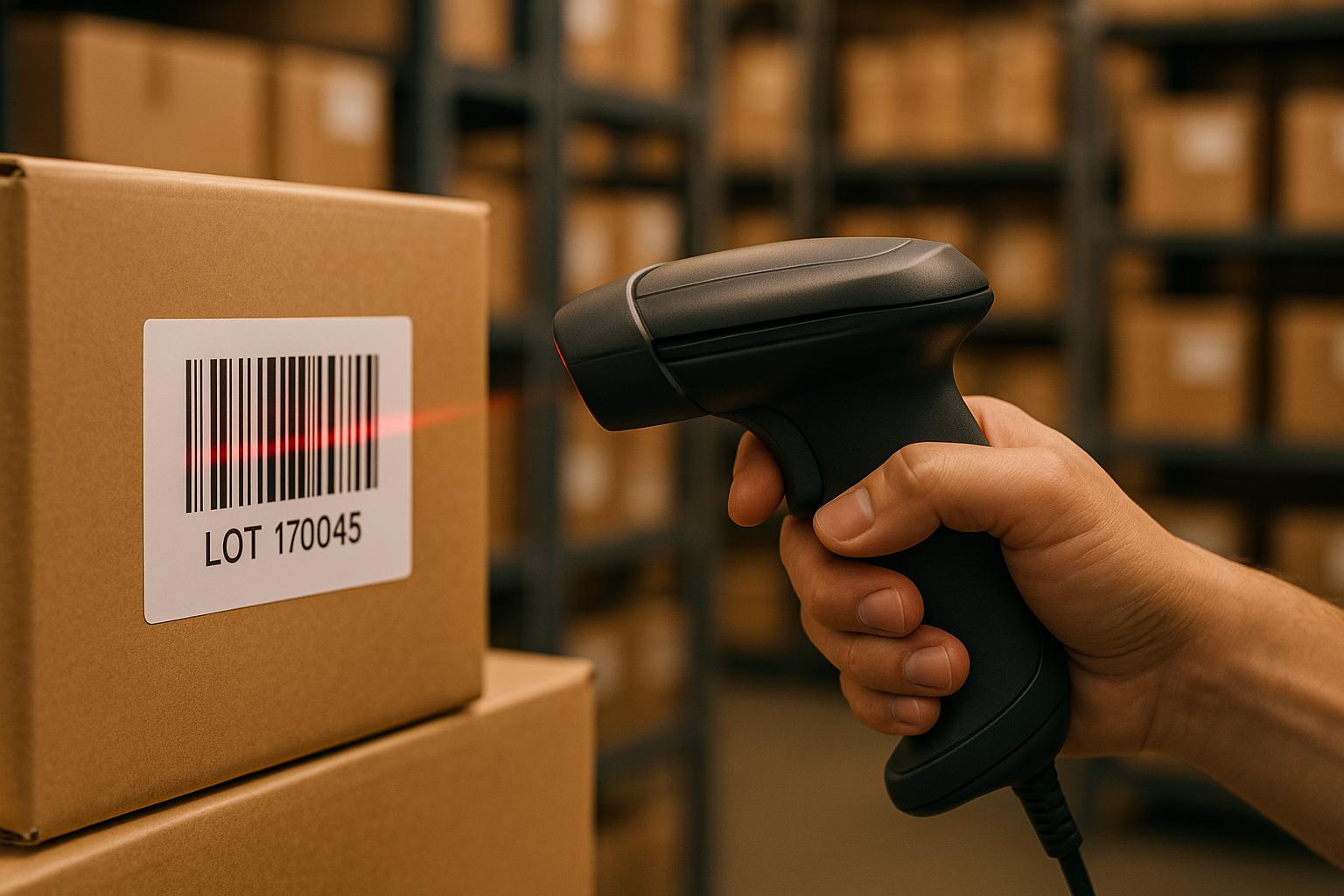
Managing inventory by lot numbers just got easier with QuickBooks Desktop Enterprise and barcode scanning. Lot tracking ensures traceability for industries like food, pharmaceuticals, and manufacturing, aiding in compliance, recalls, and quality control. Barcode scanning reduces manual errors by up to 90%, speeds up processes, and integrates seamlessly with QuickBooks for real-time inventory updates. Here's how it works:
- Lot Tracking: Assign unique codes to batches for better traceability and compliance.
- Barcode Scanning: Minimizes data entry errors, improves speed, and supports FIFO/FEFO strategies.
- QuickBooks Integration: Use the Advanced Inventory add-on for lot tracking, barcode scanning, and syncing with mobile solutions like Rapid Inventory.
With the right setup, you can streamline receiving, picking, and counting processes while maintaining accurate lot records. This guide covers everything from enabling features in QuickBooks to using mobile scanning for real-time updates.
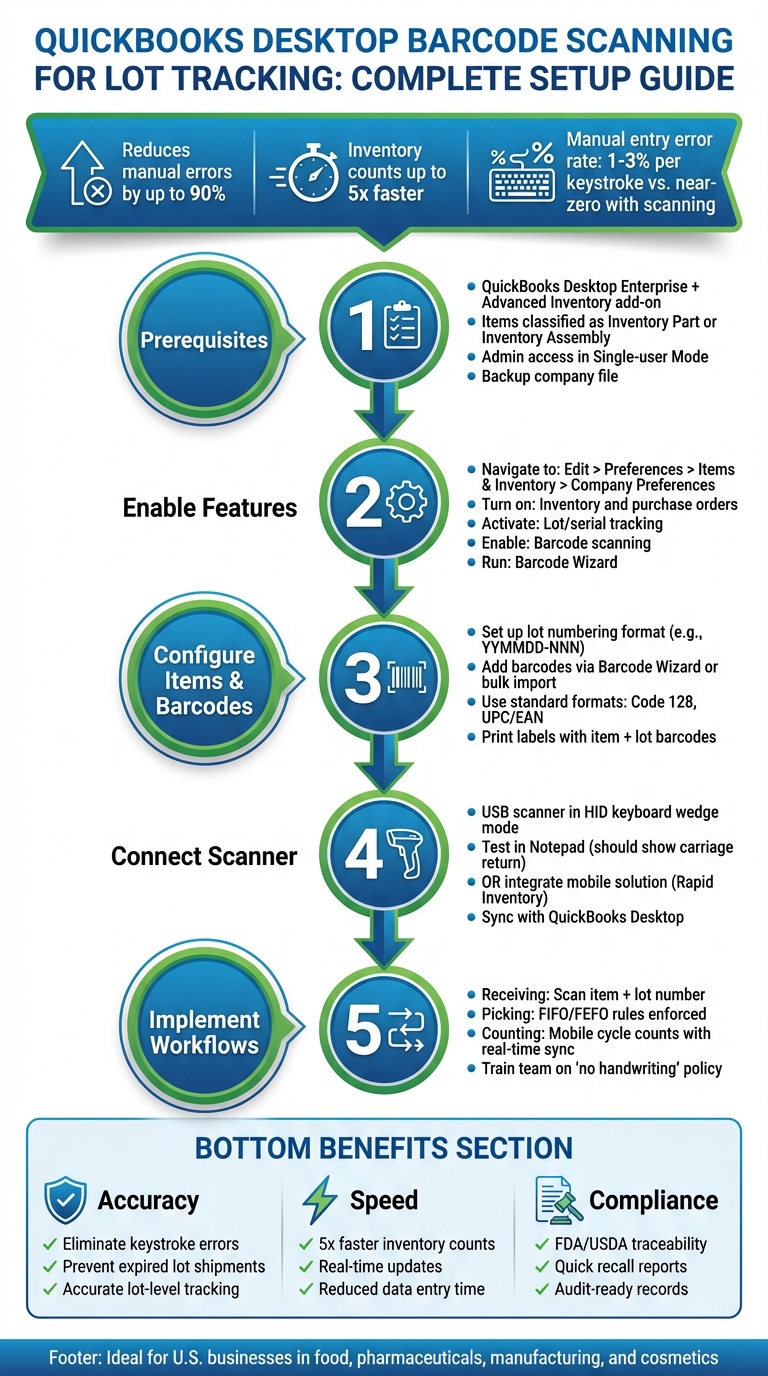
QuickBooks Desktop Barcode Scanning Setup: 5-Step Implementation Guide
Setting Up QuickBooks Desktop for Barcode Scanning and Lot Tracking

What You Need Before Starting
To use barcode scanning and lot tracking together, you’ll need QuickBooks Desktop Enterprise with the Advanced Inventory add-on. These features are not available in the Pro or Premier editions. To confirm you have the correct version, go to Help > About QuickBooks and check if "Enterprise" is listed in the version name. Next, navigate to Edit > Preferences > Items & Inventory > Company Preferences and look for the Advanced Inventory Settings button. If you don’t see this button, you’ll need to either upgrade to the Enterprise edition or subscribe to the Advanced Inventory add-on before proceeding.
Make sure to log in as the Admin in Single-user Mode and back up your company file before making any changes. Check your item list to ensure that all items requiring lot tracking are classified as Inventory Part or Inventory Assembly items - not as non-inventory or service items. Additionally, confirm that the units of measure (such as each, case, or pound) align with how you plan to scan quantities. If you’re planning to use mobile scanning, Rapid Inventory offers seamless integration with QuickBooks Desktop.
Once these prerequisites are in place, you can enable advanced inventory settings to activate barcode scanning and lot tracking.
Turning On Advanced Inventory Features
After confirming your setup, you’ll need to configure QuickBooks Desktop to enable advanced inventory features. Go to Edit > Preferences > Items & Inventory > Company Preferences and ensure that Inventory and purchase orders are turned on. Then, open Advanced Inventory Settings and activate lot/serial tracking under the Serial/Lot Numbers tab.
Next, go to the Barcodes tab and check the option for Enable barcode (or Enable barcode scanning) to activate barcode functionality. Select Open Barcode Wizard to decide whether to generate new barcodes or use existing data, such as Item Name, Manufacturer's Part Number, Purchase Information, or a custom field. This process will populate the dedicated Barcode Number field, which is used during scanning.
Connecting Your Barcode Scanner
QuickBooks Desktop is compatible with USB barcode scanners operating in HID keyboard wedge mode, which ensures a carriage return is sent after each scan. Look for scanners that support EAN-13 and Code-128 formats, as these are commonly used in U.S. retail and warehouse operations.
Before connecting your scanner to QuickBooks, test it in a basic text editor like Notepad. If the barcode appears correctly followed by a line break, your scanner is ready to use. Some scanners may require a configuration scan to switch to HID mode. For mobile scanning needs, Rapid Inventory supports real-time synchronization with QuickBooks Desktop, making it a practical option for warehouse operations.
Configuring Items, Barcodes, and Lots in QuickBooks Desktop
Setting Up Items for Lot Tracking
To get started with lot tracking, open the Item List in QuickBooks Desktop by navigating to Lists > Item List. Locate the inventory item you want to configure and double-click it. Ensure the item type is set to either Inventory Part or Inventory Assembly, as these are the only types that support lot tracking. Within the item details, confirm that the Income, COGS, and Asset accounts are correctly assigned, and double-check that the Cost and Sales Price fields are accurate. If items are sold in various packaging formats, use the Unit of Measure Set to establish unit conversions and avoid quantity discrepancies.
Not every item needs lot tracking - focus on products where it truly matters, like food, pharmaceuticals, or cosmetics, where factors such as expiration dates, recalls, or compliance are critical. Before starting, create a standardized lot number format. Many U.S. businesses use a format like YYMMDD-NNN (e.g., 251210-001 for a batch made on December 10, 2025). This format makes it easier to sort and review lots in reports.
Adding Barcodes to Your Items
If your items already have manufacturer barcodes or internal SKU codes, save time by importing them in bulk instead of entering each one manually. To do this, create a custom field (e.g., "Barcode2"), export your Item List, and populate the new field with barcode data. Then, re-import the updated list, mapping "Barcode2" to the Barcode Number field. This method ensures consistency and reduces manual errors before enabling mobile scanning.
Alternatively, you can use the Barcode Wizard to auto-generate barcodes based on your existing item data. Once barcodes are assigned, print labels using a thermal printer for shelving, bins, or products. For lot-tracked items, include both the item barcode and the lot number on the label. You can either print them as two separate linear barcodes or combine them into a single 2D code if your mobile app supports it. For instance, a food manufacturer might label cases with a Code 128 item barcode, a printed description, the quantity (e.g., 12 EA), the lot number, and the expiration date in MM/DD/YYYY format. This setup allows pickers to visually confirm the expiration date while scanning.
Once barcodes are finalized, sync them with your mobile scanning solution to ensure smooth operations.
Syncing Barcodes and Lots with Rapid Inventory

After configuring items and barcodes in QuickBooks Desktop, you can integrate Rapid Inventory for mobile scanning and real-time updates. Rapid Inventory syncs directly with QuickBooks Desktop, pulling in your item list, barcodes, lot numbers, and advanced inventory details like multiple sites and warehouses. This integration ensures that mobile users can scan items and lot numbers during key activities such as receiving, picking, or counting. You can also configure specific inventory sites, bins, and locations for seamless synchronization between the systems.
When scanning lot-tracked items with Rapid Inventory, the system updates quantities, lot details, and locations in real time. These changes are then synced back to QuickBooks, keeping both platforms aligned. It’s a good idea to use QuickBooks Desktop as the central hub for creating items and barcodes. This ensures that Rapid Inventory pulls the most up-to-date information, maintaining consistency across both systems.
For lot-tracked items, many businesses capture lot numbers during the receiving process using Rapid Inventory's mobile interface. This information is then synced to QuickBooks, ensuring that lot details are recorded in both systems from the start. Rapid Inventory also handles the technical setup, including the QuickBooks web connector integration, as part of its onboarding process. This approach eliminates the need for manual configuration, making the integration process smooth and efficient.
How to Use Barcode Scanning in QuickBooks Enterprise?
sbb-itb-19ed50f
Using Mobile Barcode Scanning for Lot Tracking: Step-by-Step
With QuickBooks Desktop and Rapid Inventory set up, here's how to use mobile scanning for efficient lot tracking.
Receiving Inventory with Lot Numbers
When new inventory arrives, open the Rapid Inventory app on your mobile device and go to the receiving module. Scan the barcode on each case or pallet to automatically pull up item details. The system will prompt you to either enter or scan the lot number - this could be something like LOT-20251210-001 or another format you’ve established. Once the lot number is captured, input the received quantity, confirm the storage location, and finalize the transaction. Rapid Inventory will sync this data with QuickBooks Desktop, instantly updating inventory levels and lot details.
If you’re handling multiple lots of the same item, scan and process each lot individually. For instance, if you’re receiving 500 units spread across three different lots, each lot should be recorded separately with its unique lot number and quantity. This ensures that QuickBooks Desktop maintains accurate, separate records for each lot - critical for traceability and regulatory compliance. The mobile interface also verifies details like item location, quantity, and shipment accuracy during receiving, minimizing errors caused by manual entry.
Once receiving is complete, you can move on to the picking process to maintain accurate lot tracking.
Picking and Shipping Items by Lot
Start by accessing the pick list in Rapid Inventory. This list shows sales order details and guides you to the exact storage location for each item in your warehouse. The system applies FIFO (First In, First Out) or FEFO (First Expired, First Out) rules based on your configured strategy, ensuring you pick the correct lot. To confirm, scan the item barcode first, followed by the lot barcode. The system immediately deducts the quantity from that specific lot in real time.
For example, if you’re shipping 100 units of Item SKU-12345, the system will direct you to pick from LOT-20250901-003 (the oldest lot) rather than LOT-20251201-008 when using FIFO. This prevents newer inventory from being shipped while older stock remains unused. Once the pick is completed, the transaction is automatically synced with QuickBooks Desktop, updating inventory levels and lot records without requiring manual entry. This seamless integration ensures accurate tracking and compliance with lot management requirements.
Counting Lot-Tracked Inventory
To perform a cycle count, select a warehouse or item group in the mobile app, then scan the barcode for each item and its lot. Enter the counted quantity directly into the app, which temporarily stores the data until it’s synced. This eliminates the need for paper-based count sheets and the manual data entry errors that often come with them.
After finishing the count, sync the data back to QuickBooks Desktop. Rapid Inventory compares your physical counts with the system’s recorded quantities for each lot. If there are discrepancies, they’re flagged immediately, allowing you to investigate and adjust records as needed. This instant synchronization keeps your inventory records accurate across both systems, ensuring that lot-tracked inventory is always up-to-date in QuickBooks Desktop and Rapid Inventory.
Tips and Troubleshooting for Barcode Scanning with Lots
Checking Data Accuracy
To keep your inventory data accurate, it's essential to regularly compare reports from QuickBooks Desktop and Rapid Inventory. A good practice is to run weekly checks to ensure on-hand quantities match for each item and lot. Start by exporting the Item List from QuickBooks, filter for items with populated Barcode fields, and test-scan a sample of labels into a test transaction. This helps confirm that each scan correctly pulls up the intended item. For high-turnover SKUs, conduct spot counts on 5–10 lot-tracked items. Physically count these items by lot in the warehouse, sync Rapid Inventory, and compare the mobile count to QuickBooks immediately after syncing. Pay attention to any discrepancies exceeding ±2 units or ±1%, as these could signal errors like duplicate codes, incorrect lot selection, or missed syncs.
After handling major receiving or shipping batches with mobile scanning, double-check that synchronized transactions - such as item receipts, inventory adjustments, or invoices - are properly recorded in QuickBooks. Ensure the item, quantity, and lot assignments are accurate. At the end of each month, reconcile lot-level on-hand quantities between the two systems using exported reports. Verify that lots with no physical stock are also zeroed out in QuickBooks to avoid lingering "ghost" lots. To maintain accuracy, establish clear time-of-day cutoffs for sync operations, like setting a final sync at 5:00 PM and locking inventory transactions afterward. This ensures that physical counts and system records align at specific points in time, preserving data integrity.
Fixing Common Problems
If your scanner isn't filling fields in QuickBooks, test it in Notepad to check if it outputs characters with a carriage return after each scan. Also, confirm that Windows recognizes the scanner as a keyboard input device. In QuickBooks Desktop, navigate to Edit > Preferences > Items & Inventory > Company Preferences > Advanced Inventory Settings and make sure Enable barcode is selected and the Barcode Wizard has been completed. If scanned barcodes don’t match any items, verify that the barcode value in QuickBooks' Barcode Number field matches exactly - watch out for issues like leading zeros, trailing spaces, or formatting errors. Additionally, confirm that each barcode is unique to prevent mismatches.
For issues with incorrect lot assignments, ensure your mobile workflow requires scanning and validating lot numbers at the point of scan, rather than allowing manual input. Train staff to always scan the lot label (not just the item barcode) if the system supports lot-level scanning. Configure your system to block expired or restricted lots automatically. Use exception reports in Rapid Inventory to identify and address process breakdowns, and reconcile these reports with QuickBooks. If sync errors occur, ensure QuickBooks is running in Single-User Mode for setup tasks. Review integration logs for error codes like missing items, inactive items, undefined lots, or closed periods. Address the specific data issues and re-run the sync. These steps will help you maintain smooth operations and compliance.
Tips for U.S. Businesses
For businesses operating in the U.S., there are additional strategies to improve barcode scanning workflows. Stick to standard barcode formats like Code 128 and UPC/EAN, as these work seamlessly with QuickBooks-compatible scanners and label printers. If you handle regulated or perishable goods, set up workflows in Rapid Inventory to enforce lot-level picking rules and integrate these rules into your warehouse's standard operating procedures. Use durable labels with both human-readable information (item name, lot number, expiration date, quantity) and barcodes. This ensures labels remain scannable and readable even in challenging warehouse conditions, such as fluctuating temperatures, humidity, or dust.
Schedule cycle counts based on ABC classification: count high-value or fast-moving items (A-class) weekly, while less critical items (B and C) can be counted less frequently. Use mobile scanners during these counts and reconcile any variances in both Rapid Inventory and QuickBooks to maintain accurate lot records. If you're working with imperial units like pounds, ounces, or gallons, make sure your barcode and item setups correctly link units of measure to lot quantities. This avoids conversion errors that could lead to discrepancies. Lastly, align your lot and barcode practices with U.S. regulations, such as FDA traceability requirements for food and drugs. Retain detailed records of when and where each lot was received, stored, and shipped. Your barcode system should also be capable of generating quick lot recall reports when needed. These steps will help ensure compliance and efficiency in your operations.
Conclusion
Why Barcode Scanning for Lots Matters
Mobile barcode scanning has transformed lot tracking in QuickBooks Desktop Advanced Inventory by slashing errors and speeding up processes. While manual entry comes with an error rate of 1–3% per keystroke, barcode scanning nearly eliminates these mistakes. This boost in accuracy helps prevent costly errors like shipping expired lots, mixing up batches during order fulfillment, or losing track of items during recalls. On top of that, barcode-based lot tracking can make inventory counts up to five times faster than manual methods, allowing warehouse teams to shift their focus from tedious data entry to more productive tasks.
For U.S. businesses dealing with perishable goods, supplements, cosmetics, or regulated products, barcode scanning ensures that the correct SKU and lot number stay linked at every transaction. This is especially helpful for implementing FIFO (First In, First Out) and FEFO (First Expired, First Out) picking strategies, enforcing expiration date rules, and maintaining detailed records to quickly address customer complaints, quality issues, or audits from the FDA or USDA. QuickBooks Desktop continues to serve as your central accounting and inventory system, while mobile barcode tools provide a structured way to capture data and sync updates seamlessly. This eliminates the need for spreadsheets, paper forms, and the risk of duplicate or out-of-sequence updates, paving the way for a smoother integration experience.
Getting Started with Your Integration
To take advantage of these benefits, follow these steps to set up and integrate barcode scanning with QuickBooks Desktop Enterprise's Advanced Inventory:
- Ensure QuickBooks Desktop Enterprise with Advanced Inventory is enabled.
- Activate barcode scanning in the Company Preferences settings.
- Use a USB or mobile barcode scanner compatible with Code 128 or UPC/EAN formats and equipped with a carriage return feature.
- Standardize your lot numbering and labels using U.S. formats (e.g., MM/DD/YYYY for dates, lbs for weight, fl oz for volume) with both human-readable text and scannable barcodes.
- Start with a pilot program to measure improvements, then expand the system once it's proven effective.
Train your team to rely on barcode scanning at every stage of the process, and set a "no handwriting" policy to make scanning the default practice. For more advanced mobile scanning and multi-location inventory control, you might want to explore Rapid Inventory. This platform offers two-way syncing with QuickBooks, mobile barcode scanning for receiving, picking, and counting, as well as lot and serial number tracking. Plus, it provides web-based dashboards, along with training, onboarding, and ongoing support. Designed specifically for QuickBooks Desktop users, Rapid Inventory ensures that lot movements captured on mobile devices are automatically reflected in QuickBooks, eliminating the need for manual imports.
Finally, back up your company file regularly and conduct cycle counts to keep your inventory data accurate. The results speak for themselves: fewer errors, faster warehouse operations, stronger lot traceability for U.S. customers and regulators, and reliable QuickBooks data for making financial and operational decisions.
FAQs
What are the advantages of using mobile barcode scanning for lot tracking with QuickBooks Desktop?
Using mobile barcode scanning with QuickBooks Desktop simplifies lot tracking and helps cut down on inventory mistakes. It lets you confirm locations, items, quantities, and shipments during key tasks like receiving, picking, counting, moving, and transferring stock.
This efficient approach not only saves time but also boosts inventory accuracy, making it easier to stay on top of lot tracking and maintain up-to-date records.
How do I check if my barcode scanner works with QuickBooks Desktop?
If you want your barcode scanner to work smoothly with QuickBooks Desktop, using inventory management software like Rapid Inventory is a great option. This software supports mobile barcode scanning and works with a variety of scanner brands, including Motorola, Zebra, Honeywell, and Datalogic. Plus, it’s accessible on devices with internet browsers - like iPhones, iPads, and Android devices - making integration and functionality straightforward and hassle-free.
How can I start using mobile barcode scanning for lot tracking with QuickBooks Desktop?
If you're looking to start using mobile barcode scanning for lot tracking with QuickBooks Desktop, you'll need a tool that works smoothly with your accounting software. One such option is Rapid Inventory, a platform built specifically for QuickBooks Desktop users.
This solution offers features like real-time syncing, lot and serial number tracking, and mobile barcode scanning, making it easier to manage inventory across multiple locations. Once integrated, you can simplify tasks like tracking product lots, conducting cycle counts, and creating precise inventory reports.



