Before I retry a QuickBooks estimate sync, I check whether the estimate already arrived. A timeout alone doesn’t mean the transfer failed. I save the error details, check for an exact match in the destination, and retry only once after fixing a known issue.
Here’s the order I follow:
- Check the connection: Confirm estimate sync is supported, settings are correct, and the app can access the right company file.
- Check the records: Review estimate eligibility, customer or job details, line items, and account mappings.
- Read the logs: Use the error to guide the next step; check company data only if the logs suggest damage.
- Confirm the result: Check for duplicates after the retry. If it fails again, stop and send support the logs with sensitive details removed.
For Rapid Inventory, I check Import Estimates and look in the Picking area. <u>I don’t delete, recreate, or manually convert the estimate to force a sync.</u> The goal is to fix the cause without creating another problem.
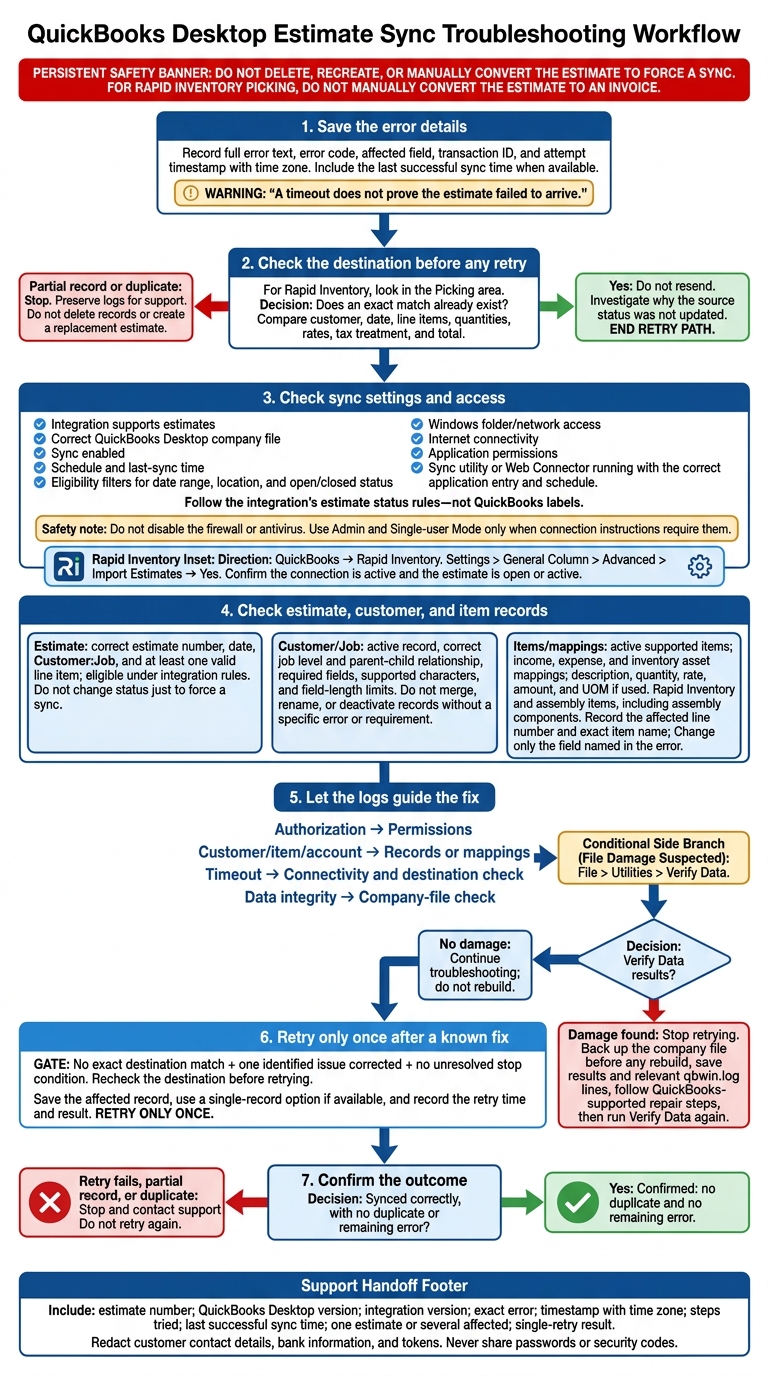
QuickBooks Estimate Sync: Safe Troubleshooting Flow
Check Sync Settings and QuickBooks Access
Once you’ve recorded the error details, check the sync path and permissions before trying again.
Confirm Estimate Sync Support and Rules
Confirm that estimate sync is enabled, the correct QuickBooks Desktop company file is selected, and the integration supports estimates. Check the sync schedule, last-sync time, and setup errors. Review eligibility filters, including date ranges, locations, and whether the estimate is open or closed. Follow the integration’s estimate status rules - not QuickBooks labels.
If the estimate is supported and eligible, check file access and app permissions next.
Check Network and Company-File Access
Check the exact company-file path, especially after a move or restore. Make sure the Windows user running the sync can access the folder or network share. Also check internet access on the sync computer. Have IT allow the required QuickBooks and sync components; don’t disable the firewall or antivirus.
For authorization errors, ask an administrator to review Edit > Preferences > Integrated Applications > Company Preferences. Confirm that the intended application has access and that automatic login is enabled if required. Use Admin and Single-user Mode only when the connection steps call for them. Intuit’s QBWC1039 guidance lists missing company-file permission as a possible cause.
If the connection uses QuickBooks Web Connector or a desktop sync utility, make sure it’s running with the correct application entry and schedule. For Web Connector, check that the .qwc file belongs to the current integration and company file. Keep QuickBooks open if required, and make sure the sync computer stays awake and connected to the network throughout the sync.
Check the Rapid Inventory Connection
If Rapid Inventory is the sync target, check its import settings after QuickBooks access checks pass. Confirm that the connection is active, then look for authentication or connection errors. Estimates import from QuickBooks to Rapid Inventory. Open Settings > General Column > Advanced > Import Estimates, set Import Estimates to Yes, and confirm that the estimate is open or active before trying again.
sbb-itb-19ed50f
Check Estimate, Customer, and Item Records
Check Estimate Details and Status
If settings and access are correct, check the estimate itself.
Open the exact estimate in QuickBooks Desktop and close any other open edit sessions. Confirm that the estimate exists and has the expected estimate number, date, Customer:Job, and at least one valid line item.
Next, check whether the estimate meets the integration’s sync rules. Fully invoiced, converted, voided, deleted, or inactive estimates may be excluded. If it’s fully invoiced, compare its QuickBooks status with the integration’s eligibility rules before making changes. Don’t change the status just to force a sync.
If the error mentions a date restriction, review the closing date or Accountant’s Copy dividing date with your bookkeeper.
For the Rapid Inventory picking workflow, don’t manually convert the estimate to an invoice.
Check Customer and Job Records
If the estimate header is correct, check the linked customer record.
Confirm that the assigned Customer:Job exists, is active, and matches the job level the sync requires, including the correct parent-child relationship. Make sure the sync user can access it.
Look for inactive records, similar names, spelling differences, and duplicate customer or job entries. Then review any fields named in the error message or integration documentation. These may include the customer name, job name, display name, address, ID, or parent-child relationship.
Check for unsupported characters, fields that exceed length limits, and blank required fields. Don’t merge, rename, or deactivate records unless the error or integration requirements call for that specific fix.
Check Items and Account Mappings
If the customer record is valid, check each line item and its mapping.
Confirm that every item exists in QuickBooks, is active, and is supported by Rapid Inventory. Rapid Inventory supports inventory items and assembly items, including assembly components. Check each item’s income, expense, and inventory asset mappings.
Review each line’s description, quantity, rate, amount, and UOM, if used. If the error points to a specific line, compare its item ID or mapping key with the destination record. Look for near-identical names or an inactive version of the item. Before editing, record the line number and exact item name. Change only the field named in the error.
Review Sync Logs Before Retrying
If the settings, records, and mappings look correct, check the logs to narrow down the cause before trying again.
Record the Error and Sync Time
Save the full error text, error code, affected field, transaction ID, and attempt timestamp, including the time zone. Confirm that the direction is Import from QuickBooks to Rapid Inventory.
Use the error type to decide what to check next. Authorization errors point to permissions. Customer, item, or account errors point to records or mappings. Timeouts point to connectivity, while data integrity errors point to the company file. A timeout does not prove the estimate failed to arrive.
Check Company Data if Errors Suggest Damage
If the log points to file damage rather than access or mapping issues, check the company data. Close open QuickBooks windows, then run File > Utilities > Verify Data. If no damage appears, continue troubleshooting. Do not rebuild yet.
If damage appears, stop retrying and back up the company file before any rebuild. Save the results and relevant qbwin.log lines, then follow QuickBooks-supported repair steps. Run Verify Data again after any rebuild.
Retry Once and Check for Duplicates
After saving the logs and completing any data check, retry only once - and only after checking for an exact match in Rapid Inventory’s Picking area. Compare the customer, date, line items, quantities, rates, tax treatment, and total against QuickBooks. If an exact match exists, do not resend the estimate. Investigate why the source status was not updated.
If no record exists, correct one identified issue, save the affected record, and retry once. Use a single-record option if available, and note the retry time and result. If a partial record or duplicate appears, or the retry fails again, stop and preserve the logs for support. Do not create a replacement estimate or delete records.
Conclusion: Confirm the Fix or Contact Support
After applying the fix, confirm that the estimate syncs without creating a duplicate or leaving an error.
If the issue persists, send support the estimate number, QuickBooks Desktop version, integration version, exact error, timestamp with time zone, steps you tried, and last successful sync time. Include whether the issue affects one estimate or several, plus the result of a single retry.
Redact sensitive information from screenshots and logs, including customer contact details, bank information, and tokens. Never share passwords or security codes. For Rapid Inventory connection, mapping, or picking issues, send support these details so they can review the workflow.
FAQs
Why does only one estimate fail to sync?
When a single estimate fails, the cause is usually a validation error or record conflict. Check for duplicate customer or item records, missing or inactive customers or items, incorrect item mappings, or a closed accounting period.
Also check for unsupported special characters, numbers longer than 21 characters, or address blocks longer than 4 lines. Review your sync logs or dashboard for error messages that pinpoint the cause.
Will editing a synced estimate update Rapid Inventory?
Yes. When you edit a synced estimate in QuickBooks Desktop, the changes update Rapid Inventory through the two-way sync process. Rapid Inventory treats estimates as picking requests, so those changes keep inventory records, forecasting, and order status in sync.
If a change doesn’t appear, check your sync logs for errors or confirm the estimate’s status in your QuickBooks audit trail.
How can I tell if a sync is delayed or stuck?
Check the app’s sync status for missing success messages, loading screens that won’t clear, or updates that haven’t appeared within the usual 5–10 minute sync window.
Review the sync logs for failed, skipped, or duplicated transactions. Look for a red status bar or repeated errors, too. If buttons are grayed out or the app isn’t responding, check for connection issues or expired authorization tokens before refreshing manually.