
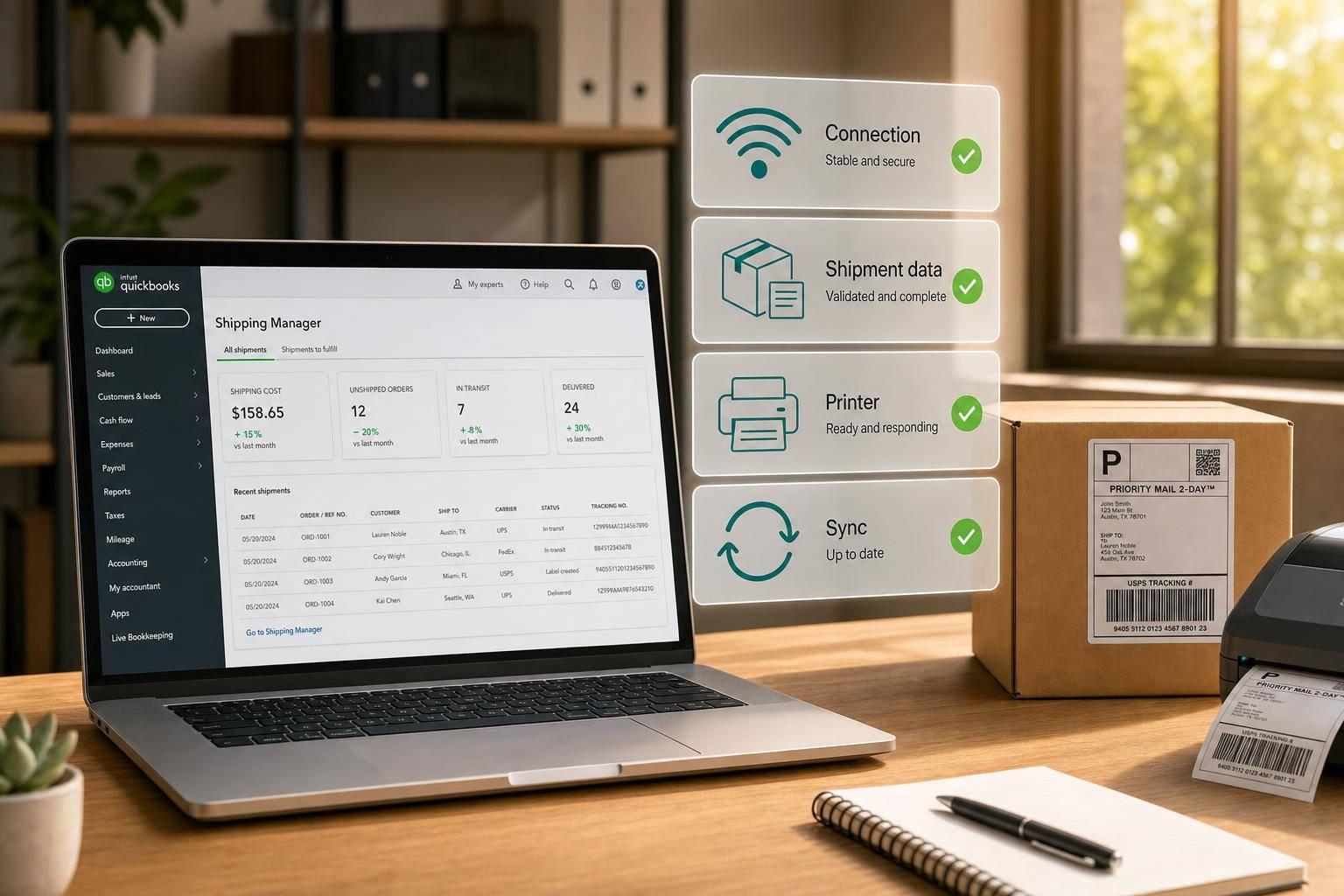
If QuickBooks Shipping Manager stops working, I check five things first: connection, carrier login, shipment data, printer setup, and tracking write-back. In many cases, one of those areas is the cause of blank rates, failed labels, or missing tracking numbers.
Here’s the short version:
- If Shipping Manager won’t open: I update QuickBooks Desktop and reconnect the carrier.
- If rates are blank: I check weight, ZIP code, package type, and service level.
- If labels fail: I test the printer in Windows first, then review label size and format.
- If addresses get rejected: I fix the customer’s Ship To record in QuickBooks, not just the current shipment.
- If tracking won’t sync back: I review user permissions, confirm the company file link, and run Verify Data plus Rebuild Data.
A lot of repeat shipping issues start with bad source data. Even a 0 lb weight, a wrong ZIP code, or a blocked app connection can stop the process. And when teams enter inventory or order data by hand with inventory management software for QuickBooks Desktop, shipping mistakes tend to show up more often.
A few checkpoints matter most:
- Carrier credentials must match the carrier account exactly
- Firewall and antivirus settings can block rates and label requests
- Thermal printers need the right 4×6 label setup
- Tracking write-back depends on file access and user rights
- Cycle counts and audit trail reviews help cut repeat errors
One fact stands out: if the printer can’t pass a Windows test page, the problem is often not QuickBooks. And if the shipment has missing or wrong data, the carrier may return no rates at all.
I’d treat this as a simple fix path:
start with connection, then check shipment details, then test printing, and last confirm tracking sync. That order saves time and cuts guesswork.
The rest of the article walks through those fixes in plain steps so you can get labels, rates, and tracking back on track.
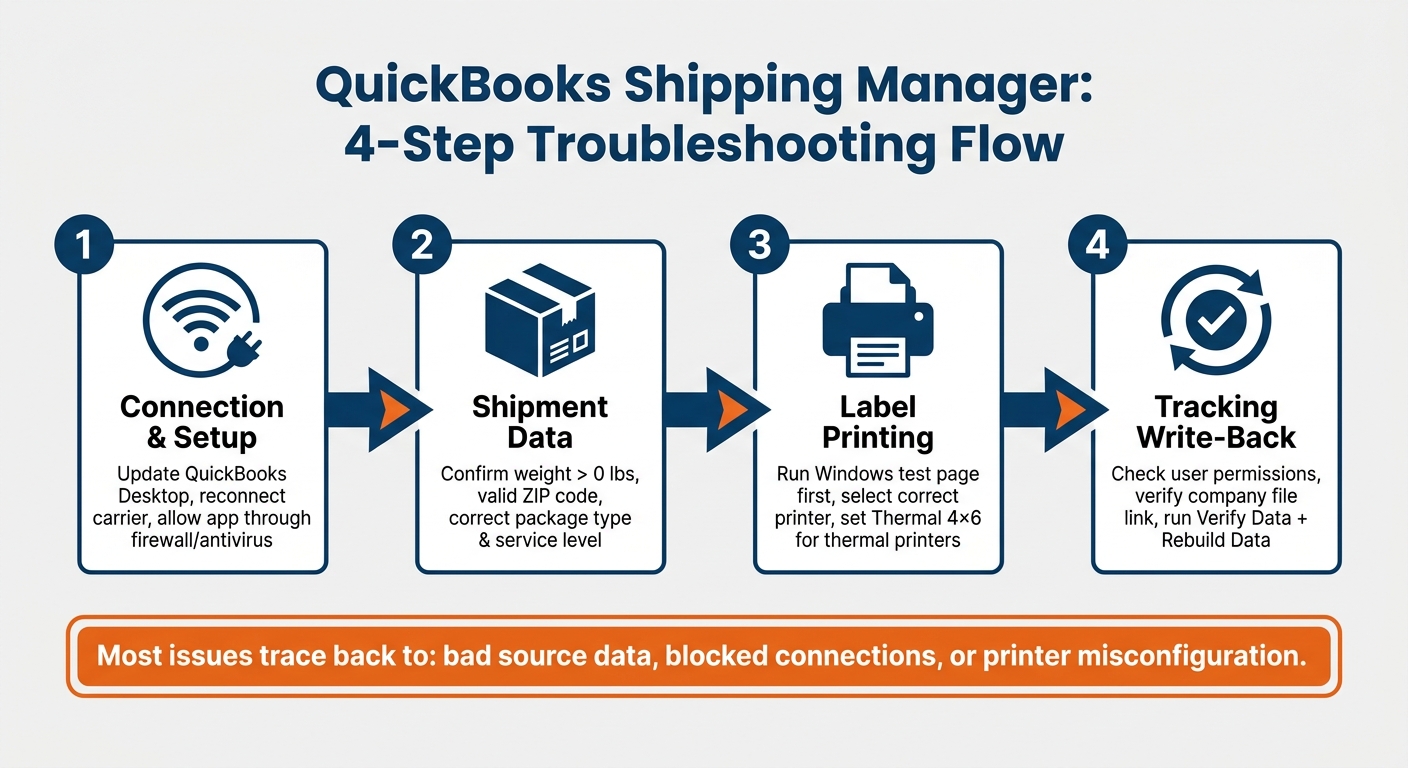
QuickBooks Shipping Manager: 4-Step Troubleshooting Flow
Setup and Connection Problems
Shipping Manager Will Not Open or Shows Database Errors
If Shipping Manager won’t open from the QuickBooks menu, first check for a version mismatch between QuickBooks Desktop and the carrier integration. Update both programs to the latest release. That step often clears known compatibility issues.
Then go to Edit > Preferences > Integrated Applications > Company Preferences and make sure the carrier is enabled. If it still won’t work, remove the carrier from Integrated Applications and reconnect it. That refreshes the connection and often fixes stubborn setup problems.
Firewall, Antivirus, or Internet Settings Block Carrier Connections
If Shipping Manager opens but can’t reach the carrier, the issue is often the firewall or antivirus. Blank rates and timeouts usually point to QuickBooks or the carrier app getting blocked. Put simply: if the app opens but nothing loads, that’s a big clue.
Allow both QuickBooks and the carrier app through your firewall and antivirus settings. If either one is blocked, you can end up with blank rates, failed lookups, or timeout errors.
Carrier Login and Account Authentication Errors
Authentication errors usually happen when the account details don’t match the carrier record. For UPS WorldShip, the account number and computer name need to match exactly in QuickBooks and the carrier app.
Once the connection starts working, the next problems usually show up in rates or label printing.
sbb-itb-19ed50f
Missing Rates and Label Printing Failures
Blank Shipping Rates or No Shipping Methods Available
When the carrier connection is already working, blank rates usually mean something is off in the shipment details. If the rate window is empty, start there.
Check the basics first: weight, ZIP code, package type, and service level. Enter package weight in pounds and dimensions in inches. Shipping Manager will not pull rates if the weight field is zero or left blank. Also make sure the ship-from ZIP code matches your actual warehouse location, and that the selected service fits the shipment type.
Labels Do Not Print or Print in the Wrong Format
If rates appear but labels don't print, look at the printer before changing anything in Shipping Manager. In most cases, the printer is offline, the wrong printer is selected, or the label settings don't match the label stock.
Start by testing the printer in Windows. Print a test page from the printer's properties in Control Panel. If the Windows test page fails, remove and re-add the printer in Control Panel before going back to Shipping Manager. After the printer works there, choose the correct printer in Shipping Manager.
For thermal printers, set Shipping Manager to Thermal for 4×6 labels. It also helps to keep the printer driver up to date and check that the paper size and orientation match the stock. A tiny mismatch here can throw the whole label off.
Quick Reference Table: Rate and Label Problems with Fixes
Use this table to connect each symptom with the fastest next step.
| Problem | Typical Symptom | Immediate Fix | Prevention Step |
|---|---|---|---|
| Blank shipping rates | "No shipping methods available" | Verify ship-to ZIP code and confirm weight is greater than 0 lbs | Set default package dimensions and weights in QuickBooks |
| Label printing failure | Printer doesn't react or prints garbled text | Run a Windows test page and select the correct printer in Shipping Manager | Keep printer drivers updated and use the Thermal setting for 4×6 labels |
| Wrong label format | Label prints too small or orientation is off | Adjust paper size and orientation in Printer Setup | Use dedicated thermal printer drivers for 4×6 label stock |
Address Errors and Tracking Sync Gaps
Invalid Ship-To Addresses Cause Rejected Rates and Labels
If setup looks fine and rate checks still fail, look at the Ship To record next.
A bad address can stop rates from loading or keep labels from printing. When the Ship To record in QuickBooks has an incomplete street address, the wrong state abbreviation, or an invalid ZIP code, carriers may not rate the shipment the right way.
The usual trouble spots are:
- Missing apartment or suite numbers
- A billing address entered in the Ship To field
- ZIP code mistakes
One bad ZIP code can change the rate or trigger a delivery exception.
Don’t just patch the label and move on. Fix the customer record in the Customer Center so the correction stays in place.
Tracking Numbers Do Not Post Back to QuickBooks Transactions
If labels print but the transaction stays blank, the issue is on the write-back side.
Start with user permissions. An account with limits may be able to print labels but not write tracking data back to the invoice or sales order. Then confirm the connection to the open company file is still active.
If tracking numbers still don’t post back, run Verify Data and then Rebuild Data.
How Clean Source Data Cuts Repeat Shipping Errors
Most repeat shipping problems start the same way: bad data gets entered at the source, then no one fixes it.
When customer Ship To fields, item weights, and sales order quantities are accurate in QuickBooks, Shipping Manager has better data to use before a label is created. That cuts down on address mistakes, rating problems, and sync issues.
Correct source records, maintain user permissions, and check company file sync so the same errors don’t keep popping up.
Prevention Steps and Inventory Workflow Controls
A Short Maintenance Checklist for Stable Shipping Operations
Once rates, labels, and tracking sync are working, the next job is keeping them that way. A simple routine helps catch small issues before they slow down fulfillment. Think of it like checking your tires before a road trip. It takes a minute, and it can save you a big headache later.
| Frequency | Task | Why It Matters |
|---|---|---|
| Daily | Test carrier logins and API connections | Prevents authentication errors at the start of the day |
| Daily | Print a test label on each workstation | Confirms printer drivers and label formats are still correct |
| Daily | Check Ship-To addresses before label creation | Helps prevent rejected rates or labels |
| Weekly | Scan the QuickBooks Audit Trail for manual entries outside the warehouse workflow | Finds entries that bypassed your inventory workflow |
| Weekly | Verify tracking number write-backs on recent invoices | Confirms shipment updates are posting back correctly |
| Monthly | Perform cycle counts | Keeps physical stock aligned with QuickBooks |
| Monthly | Update carrier rate tables and packaging rules | Keeps shipping quotes accurate as carrier rules change |
The main idea is consistency. If your team runs the same checks each day, printer issues, expired logins, and bad address data are much less likely to stop shipping.
Why Inventory Accuracy Affects Shipping Accuracy
A lot of shipping issues don’t start at the packing station. They start in the inventory data behind the order.
If on-hand counts are off or item locations are wrong, pickers grab the wrong products or run into stockouts. That slows shipments down and can also throw off package weights, dimensions, and other shipment details.
One of the biggest causes is manual data entry straight into QuickBooks. That includes invoices, inventory adjustments, or item receipts entered outside the normal workflow. Those transactions update QuickBooks, but they skip warehouse controls. The result is a gap between what the system shows and what’s actually sitting on the shelf.
A practical fix is to review the QuickBooks Audit Trail and filter by transaction type plus the Entered/Last Modified date. That makes it easier to spot manual entries made outside the warehouse workflow before they turn into shipping problems.
Cycle counting is the other big control here. Instead of waiting for one annual physical count, cycle counts check part of your inventory on a rolling basis. That means discrepancies show up sooner, and your team can fix them before customer orders get hit.
Where Rapid Inventory Fits for QuickBooks Desktop Users
For QuickBooks Desktop warehouses, Rapid Inventory supports two-way sync, barcode scanning, cycle counts, FIFO/FEFO picking, and backorder tracking.
New Shipping Manager in QuickBooks Enterprise (5 Steps)

Conclusion: Key Fixes to Restore Reliable Shipping
Most QuickBooks Shipping Manager issues come back to a short list of causes: a damaged company file, old carrier credentials, blocked network access, bad ship-to data, printer setup problems, or tracking details that don’t write back.
Start with the connection, then move to file health and carrier access. Run Verify Data and Rebuild Data, confirm that your carrier credentials in Shipping Manager are up to date, and check that your firewall or antivirus isn’t blocking connections to UPS, FedEx, or USPS. In many cases, that clears up rate and label failures.
If rates still don’t come through, look at the shipment data itself. Review your main ship-to addresses and default item weights. Small data errors can throw the whole process off.
If labels still won’t print, shift your attention to the printer. Print a test label from each workstation and make sure the barcode scans cleanly. If it doesn’t, the problem may be sitting right there at the print stage.
If labels print but QuickBooks shows nothing, check the write-back step. Make sure shipping charges and tracking numbers post back to the right QuickBooks invoice so missing tracking updates get spotted early.
Inventory accuracy sits underneath all of this. When on-hand quantities, item weights, and warehouse locations are accurate, Shipping Manager gets clean data to work with. That makes fulfillment smoother from pick to label to delivery. Rapid Inventory helps QuickBooks Desktop users keep inventory data accurate with two-way sync, barcode scanning, cycle counts, and backorder tracking.
FAQs
Why are my shipping rates still blank?
Shipping rates usually show up as blank when shipment details are missing or the carrier connection drops.
Check the shipping service, package type, weight, Ship From address, package dimensions, and recipient address. If all of that looks right, remove and reconnect your carrier account in Shipping Options to refresh the connection.
Why won’t tracking numbers post back?
Tracking numbers might not post back to QuickBooks if Paste Tracking Information wasn’t turned on when you bought the label. A partial setup or a shipping tool that isn’t set up the right way can also stop the sync.
Make sure shipping is fully turned on and configured correctly. If you use Shipping Manager, check that your carrier account is signed in and that shipment details are set to sync back to the original sales order or invoice.
How do I prevent repeat shipping errors?
Prioritize accurate data and consistent workflows. Validate recipient addresses in the Customer Center, and make sure the Ship To fields are complete before generating labels.
Also double-check package weight and dimensions, review default shipping settings on a regular basis, and use carrier service guides to confirm that your package types and weights meet carrier requirements.



