
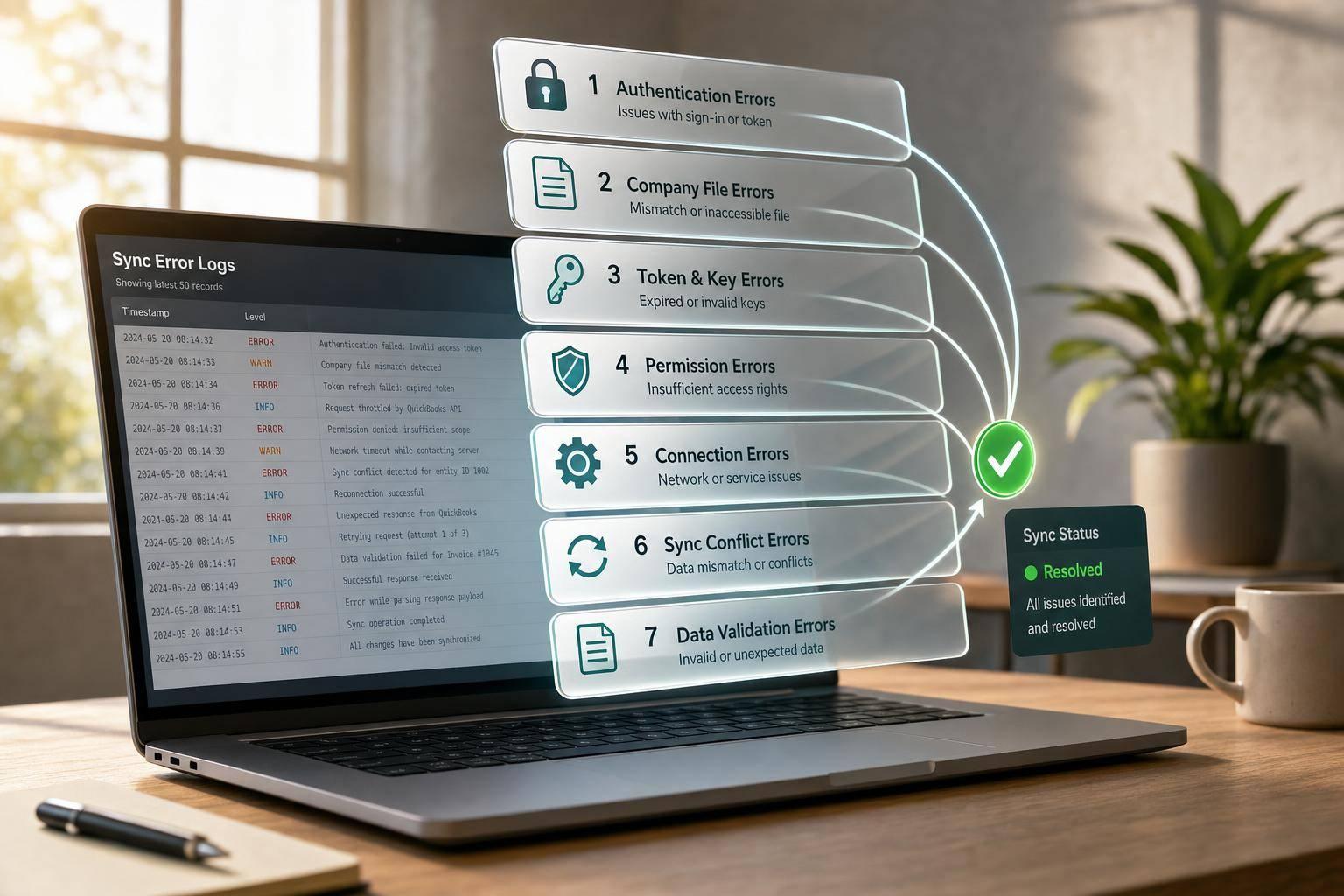
Most QuickBooks Desktop sync failures fall into one of 3 buckets: connection, access, or bad record data. If I check the logs first, I can usually sort the issue fast and avoid changing the wrong thing.
This guide covers 7 error codes: 0x80040418, 0x8004040D, 0x8004041C, 0x80040400, 3060, 3260, and 3391. The short version is simple:
- 0x80040418, 0x8004040D, 0x8004041C usually fail before QuickBooks gets to the record
- 0x80040400, 3060, 3260, 3391 usually fail after the request reaches data, permissions, or retrieval state
- In many cases, the first error line in the log tells me more than the code alone
Before I change anything, I want 4 facts:
- The exact time of the failed sync, like September 29, 2026, 2:15 PM
- The company file that was open
- The error code
- The record or batch that failed
A few fast examples:
- If I see 0x80040418, I check app access to the company file
- If I see 0x8004040D, I look for a broken or expired session ticket
- If I see 0x80040400, I inspect the XML for bad characters like
& - If I see 3260, I check the QuickBooks user’s permission level
- If I see 3391, I restart the retrieval session and request a new iterator
Quick Comparison
| Error code | Main issue | First place to look | First step |
|---|---|---|---|
0x80040418 |
App access to company file | QWCLog.txt |
Open the right file as Admin and approve access |
0x8004040D |
Bad or lost session ticket | QWCLog.txt |
Close QuickBooks and Web Connector, then reopen both |
0x8004041C |
Company file access problem | qbsdklog.txt / QuickBooks logs |
Close open dialogs and test the file |
0x80040400 |
Bad XML or malformed field | qbsdklog.txt |
Fix the field or XML output |
3060 |
Quantity sent where not allowed | Sync and SDK logs | Remove or remap the quantity |
3260 |
User lacks permission | Sync log and QuickBooks access settings | Grant the needed permission |
3391 |
Lost iterator during large retrieval | Sync log | Restart session and rerun the query |
In other words, this article is about one thing: find the failed layer, fix that one cause, and retry once.
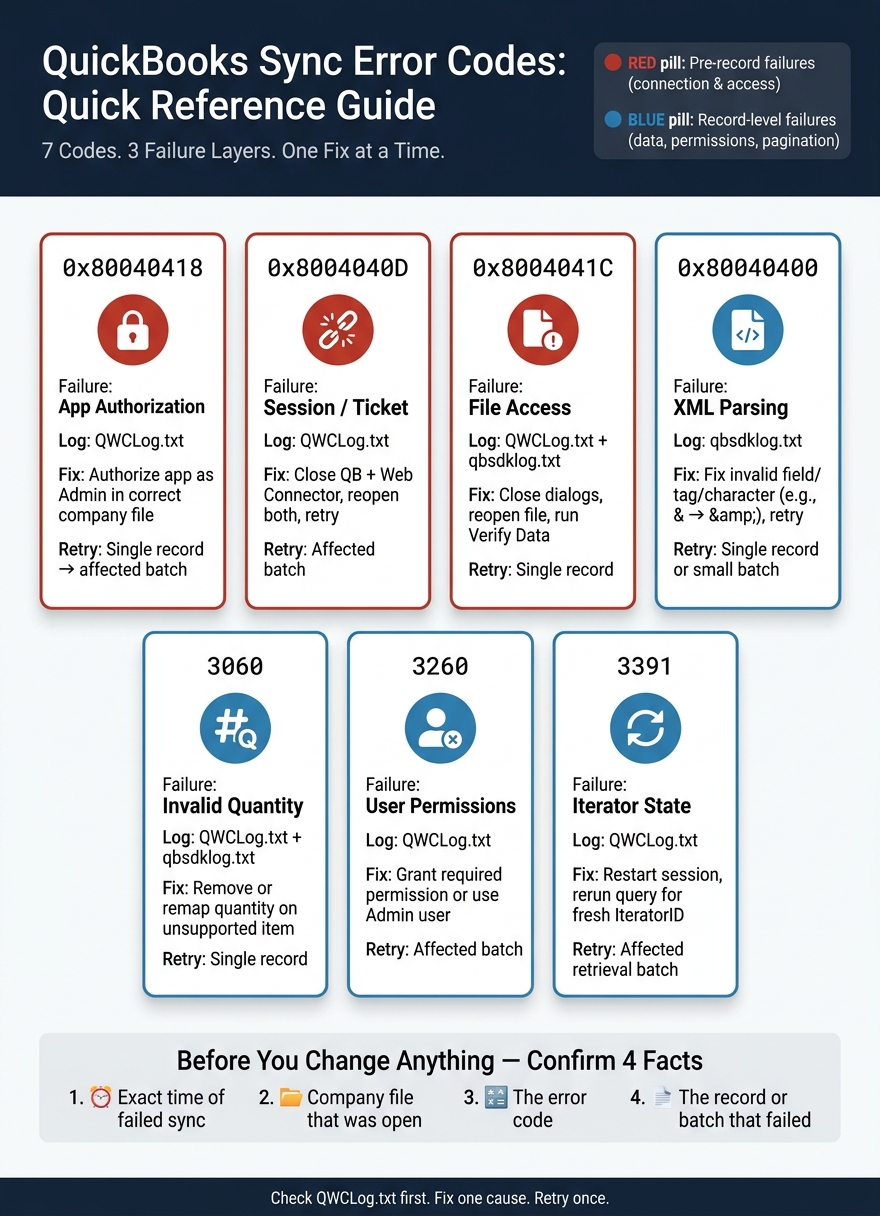
QuickBooks Sync Error Codes: Quick Reference Guide
Connection and authorization errors: 0x80040418, 0x8004040D, and 0x8004041C
These errors stop the sync before QuickBooks gets to any item, inventory quantity, customer, or transaction. Start with the first failed timestamp in the logs. That helps you rule out startup-level issues before you dig into item or stock records. If you need a more robust way to manage these records, consider inventory management software for QuickBooks Desktop.
0x80040418: Application not authorized to access the company file
This error begins at the permissions layer. It shows up when the integration was never granted access to the company file it uses, or when that access was declined or left unfinished.
In QWCLog.txt, look for 0x80040418 or wording that the application has not accessed this QuickBooks company data file before. If that line appears and no item, stock, customer, or transaction request comes after it, authorization did not finish.
To fix it, open the correct company file as the QuickBooks administrator, approve the permission prompt when QuickBooks shows it, then retry once. After that, confirm the integration appears in QuickBooks Desktop’s integrated-application settings.
If authorization works but the sync still fails, move to ticket and session errors.
0x8004040D: Invalid ticket or interrupted connection
This error begins at the session layer. QuickBooks Desktop integrations depend on a session ticket returned during BeginSession. If that ticket expires, disappears, or the connection drops, this error appears.
Look for 0x8004040D, The ticket parameter is invalid, or missing session token in QWCLog.txt. If authorization worked but the ticket is invalid or missing, the problem is session state, not permissions.
To fix it, let any active request finish. Then close QuickBooks Desktop and exit the Web Connector completely - do not click Sync again. Reopen QuickBooks Desktop first, open the correct company file, start the Web Connector, then retry once.
If the session looks fine but QuickBooks still can’t open the file cleanly, check for an internal access error.
0x8004041C: Internal QuickBooks access error
This error begins at the file access layer - while QuickBooks is opening, reading, or updating the company file.
In qbsdklog.txt or the related application log, look for 0x8004041C or internal QuickBooks error. Common triggers include an open dialog box blocking SDK access, a file path mismatch, or QuickBooks running under different privilege levels than the Web Connector.
To fix it, close all open windows and dialog boxes inside QuickBooks, reopen the company file, and make sure basic navigation still works, like opening the Item List or Customer Center. Then retry once. If the error remains, back up the company file, run File > Utilities > Verify Data, and run Rebuild Data if Verify reports damage. Let QuickBooks create the backup before rebuilding, then run Verify again to confirm the file is clean before you resume synchronization.
Here’s a quick map that ties each code to where it fails and the first thing to do:
| Error | Where it starts | Log confirmation | Safest first fix |
|---|---|---|---|
0x80040418 |
Permissions / authorization | 0x80040418 or "not accessed this company data file" |
Open correct file as admin; approve access; retry once |
0x8004040D |
Session / ticket state | 0x8004040D, ticket parameter is invalid, or missing token |
Close QB and Web Connector; reopen; retry once |
0x8004041C |
Company file access | 0x8004041C or internal QuickBooks error |
Close dialogs; reopen file; Verify Data; Rebuild if needed |
sbb-itb-19ed50f
Data and record errors: 0x80040400, 3060, 3260, and 3391
If authorization and session checks pass, the problem is often inside the payload, record mapping, user access, or pagination state. Think of these as record-level or pagination errors. Start by logging the failed record, the exact code, and the request that set it off. Then make the smallest possible change and retry only the failed record or batch.
0x80040400: XML parsing or malformed data
0x80040400 means QuickBooks could not parse the XML request. The log may show error when parsing the provided XML text stream, malformed XML, or Unable to update. One common cause is an unescaped reserved character. For example, a customer named Shelby & Co must be sent as Shelby & Co in XML.
Check the item, stock, or customer record right before the failure. Look for unescaped &, <, or >, invalid dates, empty required fields, and nonnumeric values in numeric fields. If the same error shows up across several records, the issue is probably in a shared mapping or XML-generation rule. Validate the XML, fix the source field or serializer, and then retry the single failed record.
3060 and 3260: Invalid quantity and insufficient permissions
3060 usually points to a stock or transaction line that sends a quantity where QuickBooks does not allow it. Remove the quantity or remap the line to a supported item type.
3260 means the QuickBooks user does not have permission for that action. Check whether the affected user had the needed access when the sync failed. Sign in as admin, restore the needed permission, and retry the same operation.
3391: Invalid iterator ID during large record retrieval
Unlike the other codes here, 3391 usually shows up during multi-record retrieval, not single-record updates. 3391 appears when a large query loses its iterator state. Restart the Web Connector and the integration session, rerun the query, and continue with a fresh IteratorID.
Use the code, the log clue, and the first fix below to narrow down the issue fast.
| Error | Where it starts | Log confirmation | First fix |
|---|---|---|---|
0x80040400 |
XML payload / serializer | error when parsing the provided XML text stream, malformed XML |
Validate XML; fix the source field or serializer; retry the single failed record |
3060 |
Item-to-transaction mapping | Line quantity on unsupported item | Remove or remap quantity; retry the corrected line |
3260 |
User permissions / authorization | Permission failure in Audit Trail | Grant minimum permission or reauthorize; retry the same operation |
3391 |
Pagination / iterator state | 3391, invalid iteratorID |
Restart Web Connector and session; rerun query for a fresh iterator |
How to fix errors by record type and choose the right retry
Once you've confirmed the code in the logs, tie it to the record type and fix only that part. Start there. Then make one change and retry once.
Fix sequence for item, stock, and customer errors
For item errors, open the QuickBooks Item List and search with the exact name or number from the sync log. Look for three common problems: the item is inactive, there’s a duplicate, or the item type doesn’t fit the action being attempted. Fix the active item so you keep the record history intact. Don’t make a duplicate unless the source record is actually new.
For stock errors, make sure the item is set up as an inventory part, the quantity is numeric, and the unit of measure matches one the item allows. Intuit states that the transaction-line UnitOfMeasure must reference a unit available for the referenced item.
For customer errors, use the full customer or job name, fix the parent record first, and then retry any dependent transactions.
Connection fix sequence and safe retry rules
Write down the timestamp, code, and batch ID. Then check whether the failure happened during authorization or after the record was already sent. If the log points to a connection-level failure, fix authorization or session state first and retry once.
Also confirm that QuickBooks is open to the correct company file. After that, go to Edit → Preferences → Integrated Applications → Company Preferences and verify that the application is authorized. Intuit’s guidance says you should sign in as the QuickBooks Admin user and switch to single-user mode when changing application authorization.
Use the smallest safe retry scope:
- Retry one record for a single-record failure
- Retry one batch for a shared mapping or permission issue
- Run a full sync only after a connection interruption has been fixed
Don’t auto-retry create calls unless idempotency blocks duplicates.
Quick-reference table for all 7 error codes
Use this table to match the code to the first fix and the narrowest safe retry.
| Error code | Primary failure area | Log file to check first | Distinctive log phrase | First corrective action | Retry scope |
|---|---|---|---|---|---|
0x80040418 |
Application authorization | QWCLog.txt |
"application has not accessed this QuickBooks company data file before" | Authorize the application in the correct company file as QuickBooks Admin | Single record, then affected batch |
0x8004040D |
Ticket or connection interruption | QWCLog.txt |
"invalid ticket" or interrupted connection wording | Reconnect the authorized application and confirm the correct company file | Affected batch or resumed sync |
0x8004041C |
Internal QuickBooks access | QWCLog.txt, then qbsdklog.txt |
"internal QuickBooks error occurred" | Reopen the authorized session and retry once; escalate if repeated | Single record |
0x80040400 |
XML parsing or malformed data | qbsdklog.txt |
XML parsing, malformed XML, or parser error | Correct the invalid field, tag, format, or record mapping | Single record or small batch |
3060 |
Unsupported quantity or data value | QWCLog.txt, then qbsdklog.txt |
Unsupported quantity or invalid value wording | Validate quantity, item type, and unit of measure | Single record |
3260 |
QuickBooks user permissions | QWCLog.txt |
"Insufficient permission level to perform this action" | Grant the required QuickBooks permission or use the approved admin user | Affected batch |
3391 |
Invalid iterator during large retrieval | QWCLog.txt |
"iteratorID … is not valid" | Restart the retrieval session and use smaller batches if needed | Affected retrieval batch |
QuickBooks documents QWCLog.txt under the Web Connector log directory, while SDK troubleshooting guidance points to qbsdklog.txt and verbose logging for deeper request analysis.
Conclusion: Confirm the failed record, fix the cause, then retry once
After you match the code above, confirm the failed record before changing anything. Check the latest log and identify the failed record, timestamp, and code first. For example: "Item WH-100, ListID 8000002A-…, error 0x80040400."
Use the first matching line in QWCLog.txt or qbsdklog.txt to confirm which layer failed - authorization, session, access, XML, permissions, or iterator state. Go with the earliest error line. Later lines often come from retry noise.
Fix only the confirmed cause. Then retry once and verify that the record posted without creating a duplicate. If the same code comes back after one corrected retry, stop and preserve both log files before making any more changes. Once the failed record is fixed, rerun only that record or batch.
For teams managing multi-location stock, lot and serial number tracking, or barcode scanning with QuickBooks Desktop, Rapid Inventory's two-way sync, inventory tracking, and free training and support can help keep troubleshooting focused on the failed record.
FAQs
Which log should I check first?
Start with the Rapid Inventory activity logs created after each sync. They show which transfers went through and point out the exact ones that failed.
If the sync shows an error, check the Shipment Activity Log or the integration logs for the QuickBooks API message. If the issue keeps coming back, open QBWin.log in QuickBooks Desktop by going to File > Utilities > Open QBWin.log.
How do I know if the problem is access or bad data?
Start with QuickBooks Verify Data under File > Utilities. If it reports lost integrity, you're likely dealing with bad data or company file corruption. Run Rebuild Data to fix it, and back up your company file before you start.
If you want more detail, open QBWin.log from the Product Information window and search for "Begin Verify" to check the latest integrity scan results. If errors are still there after the rebuild, try Quick Fix my File or File Doctor.
When should I retry one record instead of a full sync?
Retry a single record when the problem is limited to one entry and you’ve already fixed the cause. That usually means things like a missing field, an inactive customer or vendor, or a data mismatch tied to one item.
Once that record is fixed, sync only that entry again.
Use a full sync for broader data refreshes or when the issue keeps showing up across many records.



