
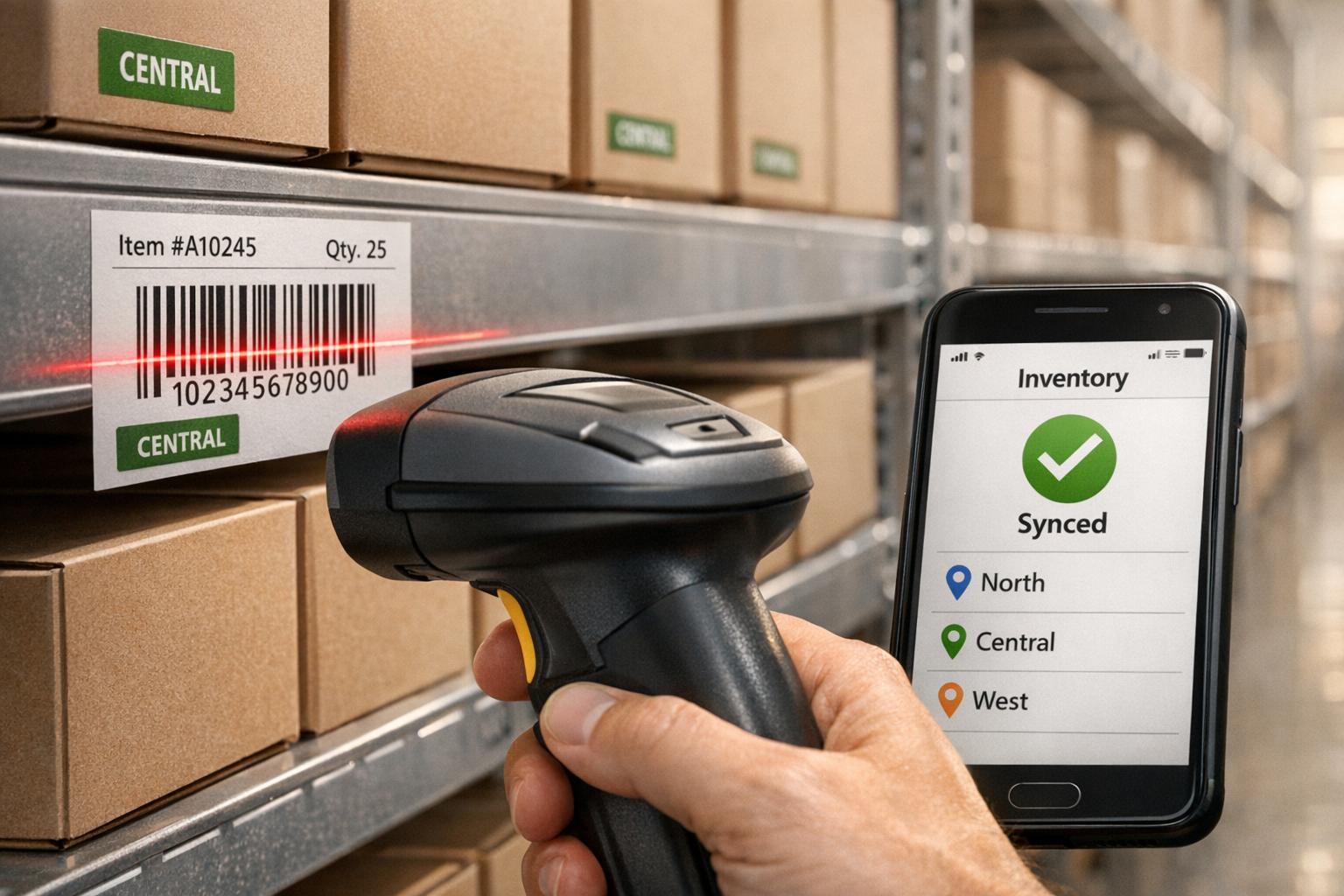
Barcode labels make managing inventory in QuickBooks Desktop faster and more accurate. Instead of manually entering item details, you can scan barcodes to instantly update transactions like sales orders, purchase orders, and inventory adjustments. This reduces errors, saves time, and ensures real-time data accuracy.
Key insights:
- QuickBooks Desktop Enterprise (Gold, Platinum, or Diamond) with Advanced Inventory is required for barcode functionality.
- Barcodes can be generated in QuickBooks or imported from existing product barcodes (e.g., UPCs).
- A compatible USB or mobile barcode scanner is necessary for integration.
- Mobile scanning allows real-time inventory updates, improving warehouse efficiency.
Incorporating barcodes simplifies tasks like receiving shipments, tracking stock across multiple locations, and ensuring accurate order fulfillment. With features like lot tracking and FIFO/FEFO strategies, barcode scanning ensures precise inventory management and better purchasing decisions.
Barcode Labels and QuickBooks Integration Explained
How Barcode Labels Work
Barcode labels are a way to encode inventory information - usually an item name or part number - so QuickBooks Desktop can instantly update transactions. When you scan a barcode, the system reads the data and automatically adds the corresponding item to your open transaction, whether it’s an invoice, purchase order, or sales receipt.
QuickBooks offers two options for working with barcodes: you can either generate barcodes for your items using the Barcode Wizard or import existing barcodes (like manufacturer UPCs) from Excel into custom fields. This flexibility allows you to set up an internal tracking system or use the barcodes already on your products.
Before diving in, make sure you understand the hardware and software requirements to integrate barcode functionality with QuickBooks Desktop.
QuickBooks Desktop Barcode Integration Requirements

To use barcodes with QuickBooks Desktop, you'll need QuickBooks Desktop Enterprise (Gold, Platinum, or Diamond editions) with the Advanced Inventory feature enabled. Additionally, a USB barcode scanner is required. The scanner must support EAN-13 and Code-128 formats and be configured to produce a single carriage return, as serial port scanners won’t work with the system. Always double-check these specifications before investing in hardware to ensure compatibility.
"With Advanced Inventory, you can use barcodes to make data entry faster and easier in QuickBooks Desktop." - Intuit
Once everything is set up, barcodes can streamline data entry across various transactions, such as estimates, sales orders, invoices, sales receipts, refunds, purchase orders, and even inventory transfers. To activate the barcode feature, go to Edit > Preferences > Items & Inventory > Company Preferences, then select Advanced Inventory Settings.
sbb-itb-19ed50f
Setting Up Barcode Labels in QuickBooks Desktop
Configuring Barcode Fields for Inventory Items
To get started with barcodes in QuickBooks Desktop, you'll need to enable Advanced Inventory and then use the Barcode Wizard (or a dedicated inventory management software for QuickBooks Desktop) to set up the tracking field. You can find the wizard by navigating to Edit > Preferences > Items & Inventory > Company Preferences. From there, select Advanced Inventory Settings and go to the Barcodes tab.
The wizard will ask you to pick a unique identifier for your items. Options include Item Name, Part Number, or a custom field. It's essential to choose a field that’s unique for every item - Part Number is a popular choice to avoid conflicts. You’ll also need to specify which item types (like Inventory Parts or Service items) should have barcodes generated during the setup process.
If your products already come with manufacturer barcodes, such as UPCs, you can import those instead of creating new ones. To do this, switch QuickBooks to single-user mode, create a custom field (e.g., "Barcode 2"), and export your item list to Excel. Add the barcode data in Excel, then use the Advanced Import utility in QuickBooks to update your records. Don’t forget to back up your company file before importing.
Printing Barcode Labels from QuickBooks
Once you've configured the barcode fields, printing labels is simple. Instead of printing from individual item screens, QuickBooks uses the Print Forms menu. To print labels, go to File > Print Forms > Labels and select Item Barcodes. From there, you can view your inventory list, choose the items that need labels, set the number of copies, and send the job to your printer.
Make sure your printer and label stock are suitable for your warehouse conditions, like being resistant to heat or moisture. If you run into issues with barcodes not scanning properly, check that the barcode numbers in QuickBooks match the physical labels exactly. Hidden spaces or extra characters can cause scanning errors.
How Barcode Scanning Improves Real-Time Inventory Tracking
Automating Inventory Updates with Barcode Scanning
Barcode scanning has completely changed how QuickBooks Desktop manages inventory by removing the need for manual data entry. When you scan a barcode during tasks like receiving shipments, processing sales orders, or transferring stock, QuickBooks instantly updates the transaction by adding the item as a new line item. This ensures that your inventory records stay up-to-date without any delays.
The automation extends to various processes, including receiving, picking, counting, moving, and transferring inventory. With two-way synchronization, any action taken in the warehouse is immediately reflected in QuickBooks, keeping your reports accurate and current. This seamless integration boosts the reliability of data across all QuickBooks Desktop operations.
"Automatic 2 way sync with Quickbooks means that your items and orders are synced to Rapid Inventory and Rapid Inventory actions are synced back to Quickbooks. Say goodbye to spreadsheets and manual entry" - Rapid Inventory
By automating these updates, businesses not only speed up their workflows but also set the stage for error-free transactions, as explained in the next section.
Reducing Manual Data Entry Errors
Barcode scanning ensures instant verification of item details, location, and quantity, significantly reducing the chances of errors caused by manual entry. Warehouse staff simply scan the barcode, and QuickBooks cross-references it with the database. If the barcode doesn’t match any existing item, the system immediately flags the issue, preventing inaccurate records from being created.
Companies using barcode scanning with QuickBooks Desktop have reported achieving 100% accuracy in order picking by combining optimized pick lists with location verification. This level of precision is nearly impossible to achieve with manual data entry, especially during busy periods when mistakes can easily pile up and disrupt inventory records.
Managing Multi-Location and Warehouse Inventory with Barcodes
Maintaining Accurate Stock Levels Across Locations
Thanks to real-time updates from barcode scanning, managing inventory across multiple locations becomes a much more seamless process. Barcode scanning simplifies tracking by instantly confirming item locations, quantities, and details across warehouses. For example, when employees scan barcodes during inventory transfers in QuickBooks Desktop, the system automatically logs the movement of items between sites. This eliminates the need for manual updates and ensures that inventory reports stay current. These reports provide a clear view of on-hand quantities, purchase orders, and sales orders for all locations, helping businesses avoid both stockouts and overstocking.
QuickBooks Desktop Advanced Inventory takes it a step further by supporting barcode scanning for transfers, which allows businesses to implement strategies like FIFO (First In, First Out) and FEFO (First Expiration, First Out). By tracking lot numbers and expiration dates across warehouses, you can keep your inventory organized and efficient. This system-wide coordination makes managing inventory across multiple locations more streamlined and accurate.
Supporting Better Purchasing Decisions
Barcode data doesn’t just help with stock tracking - it also improves purchasing strategies. With detailed barcode reports, businesses can identify demand gaps and adjust their buying decisions accordingly. For instance, reorder reports highlight items with low stock or slow movement, removing the need for guesswork. By analyzing scan data from multiple locations, you can tailor purchasing to meet the specific demand of each site. This reduces excess inventory while ensuring that critical items are always available where they’re needed most.
Improving Fulfillment and Warehouse Operations
Faster Picking and Packing Processes
Barcode scanning has transformed warehouse fulfillment by making picking and packing faster and more efficient. With mobile barcode scanners, workers can follow optimized routes through the warehouse, guided directly to the location of each item. This reduces unnecessary travel time and speeds up the process.
The standout feature of barcode scanning is its ability to verify every step of the fulfillment process. For example, during picking, scanning ensures the correct items and quantities are selected. With Rapid Inventory's mobile picking system, this approach achieves 100% order accuracy. Manual counts become a thing of the past as warehouse staff simply scan items to confirm they match the sales order. These mobile scanners automatically sync with QuickBooks Desktop, updating sales orders and inventory levels in real time.
"Rapid Inventory helps us run our warehouse operations. Easy to use and reliable... we especially love the barcode scanning and mobile picking and we've implemented it for all our warehouse operations." - Fernanda C, Director of Operations
Better Audit Trails and Traceability
Barcode scanning doesn't just speed up fulfillment - it also improves record accuracy and ensures compliance. Each scan creates a detailed record of inventory movement, including timestamps and user IDs. This detailed activity log is incredibly useful for audits, returns, and compliance checks, as it eliminates guesswork and simplifies issue tracing.
For businesses handling lot numbers, serial numbers, or expiration dates, barcode tracking is a game-changer. It provides the traceability needed to meet regulatory requirements. In cases of returns or recalls, the system can pinpoint the affected batch and locate related items. Barcode systems also support FIFO (First In, First Out) and FEFO (First Expired, First Out) picking strategies, ensuring older inventory is used first. By integrating mobile scanning with automated record-keeping, businesses can maintain accurate audit trails without the hassle of manual documentation.
Simplify inventory and fulfillment with mobile barcode scanning | QuickBooks Enterprise
Using Mobile Barcode Scanning with QuickBooks Desktop

USB vs Mobile Barcode Scanner Comparison for QuickBooks Desktop
Setting Up Mobile Barcode Scanners
To use mobile barcode scanning, you’ll need QuickBooks Desktop Enterprise with Advanced Inventory (Gold, Platinum, or Diamond editions). Start by enabling barcode scanning in QuickBooks: go to Edit > Preferences > Items & Inventory > Company Preferences, then click Advanced Inventory Settings and turn on the barcode scanning feature.
You’ll also need a compatible device. This could be a handheld scanner or an Android device running version 4.4 or higher. Download the QuickBooks Desktop Inventory App from the Google Play Store and log in with your Intuit account. Make sure your mobile device has an internet connection to allow real-time syncing. To ensure everything works smoothly, use the Barcode Wizard in QuickBooks Desktop to assign barcodes to your item list.
Once set up, your mobile scanner is ready to streamline warehouse tasks.
| Feature | USB Barcode Scanner | Mobile Barcode Scanner (App) |
|---|---|---|
| Connection | Wired/Wireless to PC | Wi-Fi or cellular |
| Primary Use | Data entry on active screens | Warehouse picking, packing, and receiving |
| Mobility | Limited to workstation | Full warehouse mobility |
| Sync Type | Immediate (acts as keyboard) | Real-time cloud sync to company file |
| Required Software | QuickBooks Desktop (any) | QB Enterprise + Advanced Inventory |
Real-Time Data Sync with Mobile Scanning
Once your mobile scanner is set up, it enables real-time inventory updates by syncing data directly into QuickBooks as tasks are completed on the warehouse floor. For instance, a manager can assign a sales order to a picker through the mobile app. The picker then confirms the items on their device, and once the order is marked as shipped, QuickBooks updates the inventory instantly and even sends reorder alerts if needed.
This two-way syncing eliminates the hassle of manual data entry or maintaining spreadsheets. It also boosts efficiency by allowing warehouse staff to manage inventory remotely, with updates reflected in QuickBooks in real time. Features like instant inventory reports, sales order statuses, and reorder tracking become accessible without waiting for end-of-day updates.
For businesses looking for enhanced tools, Rapid Inventory offers additional features like web-based access, optimized picking routes, and multi-warehouse tracking. It integrates with QuickBooks and costs $90 per user/month for teams of 1–9 users.
Rapid Inventory: An Advanced Solution for QuickBooks Users

QuickBooks Desktop provides basic inventory tracking, but for businesses with more complex needs, Rapid Inventory steps in to offer enhanced features. This tool expands QuickBooks Desktop's capabilities by introducing advanced barcode scanning, multi-location tracking, and real-time reporting. It integrates smoothly with QuickBooks Desktop Enterprise, Pro, and Premier editions through automatic two-way synchronization.
By eliminating manual data entry, Rapid Inventory ensures seamless updates. Items, orders, and warehouse activities sync in real time, with scanned barcodes instantly updating QuickBooks. Plus, as a web-based platform, it allows managers to access inventory data from anywhere, making it a powerful extension of QuickBooks' built-in tools.
Rapid Inventory also boosts warehouse operations by automating route optimization and providing precise inventory location details, ensuring 100% picking accuracy. It supports FIFO and FEFO inventory strategies, tracks lot and serial numbers, and manages multiple warehouses with ease.
With over 17 years of experience and a 5-star rating from more than 400 customers, Rapid Inventory has built a strong reputation. Implementation is quick, taking just 6–7 days, and includes white-glove onboarding and free data migration (a $2,100 value). Pricing starts at $90 per user/month for teams of 1–9 users, or $900/month for teams of 10 or more.
Conclusion
Barcode labels revolutionize inventory management in QuickBooks Desktop by replacing manual data entry with efficient scanning. This shift minimizes errors and speeds up warehouse operations. Instead of manually typing item numbers, businesses can rely on barcode scanning to reduce mistakes during receiving, picking, counting, and transferring stock. The result? Near-perfect picking accuracy and real-time inventory visibility across all locations.
Beyond improving accuracy, barcode scanning dramatically accelerates daily workflows. Tasks like processing invoices, purchase orders, item receipts, and inventory transfers become faster and more efficient. With just a scan, staff can handle orders, verify shipments using mobile devices, and maintain stock levels without the hassle of double-entry.
As companies grow, barcode integration makes it easier to track lot numbers, serial numbers, and expiration dates. This capability helps prevent stockouts, supports smarter purchasing decisions, and ensures confidence in inventory data across multiple locations.
FAQs
Do I need QuickBooks Desktop Enterprise to use barcodes?
You don’t need QuickBooks Desktop Enterprise to work with barcodes. However, if you want to use barcode scanning in QuickBooks Desktop, you'll need the Advanced Inventory module. This module is included in the Enterprise editions, such as Platinum and Diamond.
What barcode scanner types work with QuickBooks Desktop?
Barcode scanners that work with EAN-13 and Code-128 barcodes and generate a single carriage return after each scan are compatible with QuickBooks Desktop. Ensure your scanner supports these barcode types and this specific functionality to ensure smooth integration.
How do I import existing UPC barcodes into QuickBooks?
QuickBooks Desktop makes it easy to work with existing UPC barcodes, thanks to the Advanced Inventory feature. Here's how you can get started:
- Prepare Your Data: First, organize your barcode information in a file, such as an Excel spreadsheet. Make sure the data is clean and formatted correctly for a smooth import.
- Use the Barcode Wizard: QuickBooks Desktop offers a Barcode Wizard to help you import your UPC barcodes. Alternatively, you can load the data directly into your inventory setup.
- Assign Barcodes to Items: After importing, link the UPC barcodes to your inventory items. This step is crucial for enabling barcode scanning.
Once set up, barcode scanning simplifies data entry and makes inventory management quicker and more efficient. It's a smart way to streamline your workflow and reduce manual errors.



