
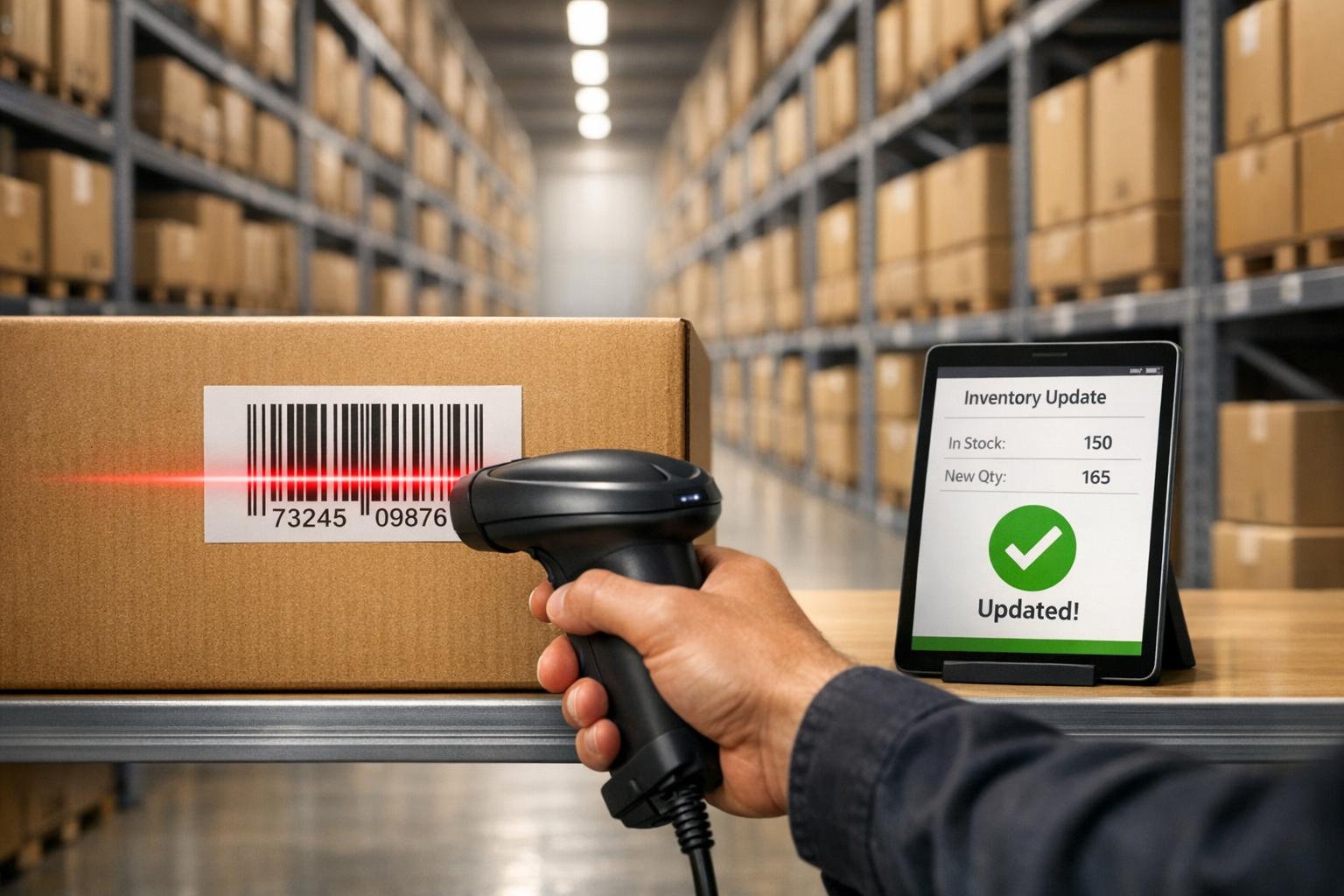
Barcode scanning in QuickBooks Desktop simplifies inventory management by replacing manual data entry with quick scans, ensuring accuracy and saving time. Available in the Enterprise editions (Platinum, Diamond, Gold) with the Advanced Inventory feature, this tool automates tasks like updating invoices, purchase orders, and sales receipts in real-time. It reduces human error rates from 1-3% to nearly zero, making inventory tracking more reliable.
Key highlights:
- Requirements: Advanced Inventory subscription and a compatible USB scanner supporting EAN-13 and Code-128.
- Setup: Enable barcode functionality in QuickBooks, configure scanners, and use the Barcode Wizard for easy integration.
- Benefits: Speeds up tasks like receiving shipments, fulfilling orders, and cycle counts, while updating inventory levels instantly.
- Advanced Options: Tools like Rapid Inventory add mobile scanning, multi-location tracking, and FIFO/FEFO handling for expanded functionality.
Barcode scanning transforms inventory workflows, offering precise tracking and efficient updates, while tools like Rapid Inventory address more complex needs.

QuickBooks Barcode Scanning Setup Guide: Requirements to Configuration
QuickBooks Desktop Requirements for Barcode Scanning

Advanced Inventory Feature
Barcode scanning functionality in QuickBooks Desktop is exclusive to QuickBooks Desktop Enterprise with an active Advanced Inventory subscription. Specifically, you'll need the Platinum, Diamond, or Gold editions to access this feature.
To activate Advanced Inventory, head to the "Items & Inventory" section in Company Preferences. If the "Advanced Inventory Settings" button is grayed out, update your subscription status by going to Help > Manage my License > Sync License Data Online.
Make sure to log in as the QuickBooks Administrator and switch to Single-user Mode before enabling barcode preferences for the first time.
Compatible Barcode Scanners
Your barcode scanner must support EAN-13 and Code-128 formats. Additionally, it should automatically produce a single carriage return (similar to pressing Enter) after each scan.
Most USB scanners operating in "Wedge" mode, which simulates keyboard input, are compatible. However, serial port scanners are not supported with QuickBooks Desktop's barcode scanning feature.
| Scanner Type | Compatible Models |
|---|---|
| Handheld Linear Imagers | Datalogic QuickScan 2130, Honeywell HHP 3820, Honeywell 1300G |
| Laser Scanners | Symbol LS2208, Honeywell Voyager 1202G, Metrologic Voyager MS9540 |
| 2D Area Imagers | Zebra DS2208, Zebra DS2278 |
Once you've confirmed your scanner meets these criteria, proceed to configure and test it.
Setting Up Barcode Scanners
After ensuring your scanner meets the hardware requirements, test its setup before integrating it with QuickBooks. Plug the scanner into a USB port, open Notepad, and scan a barcode. If the barcode number appears and the cursor moves to the next line automatically, your scanner is properly configured.
For additional confirmation, you can download the official "Barcode Scanner Tester" utility from the QuickBooks Community. This tool helps verify if QuickBooks recognizes your scanner before completing the setup process.
How to Configure Barcode Scanning in QuickBooks Desktop
Enabling Barcode Scanning
To get started, navigate to Edit > Preferences > Items & Inventory > Company Preferences > Advanced Inventory Settings > Barcodes tab, and check the option for "Enable Barcode."
Before making changes, back up your company file. Make sure you're logged in as the QuickBooks Administrator and switch to Single-user Mode by going to File > Switch to Single-user Mode. Once the barcode feature is enabled, you can use the Barcode Wizard to set up your barcode data.
Using the Barcode Wizard
The Barcode Wizard simplifies the process of configuring your barcode system, ensuring accurate tracking.
Start by selecting "Open Barcode Wizard" and pick a unique field, such as "Part Number," for tracking purposes.
QuickBooks gives you two options for barcode setup: it can either auto-generate barcodes or import existing ones from a custom field. To import barcodes, first create a custom field, then export your item list to Excel. Add your barcode data into the appropriate column, and use the Advanced Import utility to bring the updated list back into QuickBooks. After importing, run the Barcode Wizard again and select "Copy barcodes from [Custom Field]" to move the data into the official Barcode Number field.
Once configured, your barcodes will work seamlessly across various transactions, including Estimates, Sales Orders, Invoices, Sales Receipts, Purchase Orders, Item Receipts, Bills, and Inventory Transfers.
Improving Inventory Workflows with Barcode Scanning
Using Barcodes in Transactions
Barcode scanning simplifies everyday tasks in QuickBooks Desktop by making transactions faster and more accurate. Instead of manually searching for items, scanning adds them directly to transactions, cutting down on errors that could lead to mismatched inventory records.
For example, when you're handling a purchase order, scanning items not only adds them to the order but also updates inventory levels instantly - no need for tedious manual entry. Plus, barcodes can distinguish product variations, like different sizes or colors, which helps avoid mix-ups that often happen with manual data entry.
This process ensures transactions are completed quickly while keeping inventory records precise and up to date.
Real-Time Inventory Updates
Beyond smoother transactions, barcode scanning offers real-time updates for your inventory. Whether you're receiving stock, making sales, or adjusting inventory, scanning ensures stock levels are updated instantly. This gives you immediate visibility into what’s available and even triggers automatic reorder alerts when supplies run low.
For tasks like cycle counts or receiving shipments, scanning makes it easy to reconcile stock levels. It also updates related documents, such as packing slips, and ensures you’re notified when inventory hits reorder points. This keeps your inventory management efficient and accurate without extra effort.
Expanding Barcode Scanning with Rapid Inventory

Mobile Barcode Scanning
QuickBooks Desktop typically relies on USB barcode scanners, but Rapid Inventory takes it a step further by introducing mobile barcode scanning. With this feature, warehouse teams can use smartphones or tablets to scan items, providing instant verification of locations, items, quantities, and shipments. For example, during receiving, staff can scan items directly at the loading dock to compare them against purchase orders, catching any discrepancies on the spot. Mobile pick lists further streamline operations by optimizing routes, helping to speed up order fulfillment.
Advanced Inventory Features
Rapid Inventory enhances QuickBooks Desktop with features like automatic two-way syncing across Enterprise, Pro, and Premier editions. It supports multi-location and warehouse tracking, making it easier to manage inventory across different sites. For businesses handling perishable goods or batch-controlled items, it offers FIFO, FEFO, and lot or serial number tracking. Real-time reporting tools provide immediate insights into stock levels, inventory value, and order statuses, ensuring you always have the data you need to make informed decisions.
Additional Workflows and Support
With features like cycle counting, backorder tracking, inventory assemblies, and partial shipping/receiving, Rapid Inventory ensures that inventory validation happens seamlessly without disrupting daily operations. The implementation process is quick, with onboarding completed in just seven days. Plus, the service includes complimentary white-glove training to help users get started. Customers frequently give the platform 5-star ratings for its easy setup and responsive support.
sbb-itb-19ed50f
QuickBooks Enterprise Barcode Scanning Tutorial
Troubleshooting Common Barcode Scanning Issues
Barcode scanning problems can disrupt workflows, but many issues can be resolved by checking a few key areas.
Scanner Compatibility Problems
First, ensure your scanner supports EAN-13 and Code-128 barcode formats, produces a single carriage return after each scan, and connects via USB or Bluetooth. Serial port scanners won't work with this setup.
If the cursor doesn’t move after scanning, check your scanner’s manual to enable the carriage return setting. This is a common fix for static cursors.
Barcode Import Errors
To import barcodes correctly, start by creating a custom field in your system. Then, use Excel to populate this field with your data. The Barcode Wizard can help transfer this data into the official barcode field. When mapping, select the option to "Replace existing data, ignoring blanks" for a smoother process.
If imported barcodes fail to work during transactions, run the Verify Data utility by navigating to File > Utilities > Verify Data. According to ZackE from the QuickBooks Community:
"If your results show a 'Your data has lost integrity' message, this indicates there's damage in your file. You can use the Rebuild Data utility to fix it".
This tool can resolve many underlying data issues.
Configuration and Setup Issues
Make sure that Advanced Inventory is turned on, and barcode imports are done in Single-user Mode with admin privileges.
If scanned item numbers end up in the quantity field instead of creating new lines, try reducing the scanner’s transmission speed or adjusting its formatting settings. Persistent issues may require the QuickBooks Tool Hub. Use the "Quick Fix my file" or "QuickBooks File Doctor" tools to address potential company file problems.
Conclusion
Barcode scanning has become a game-changer for managing inventory in QuickBooks Desktop, eliminating manual errors and ensuring accurate, real-time updates. Take Kink BMX, for example - a company managing three warehouses, 2,000 shops, and 30 distributors. By adopting barcode scanning, their warehouse team could follow optimized routes for order fulfillment, replacing inefficient methods and achieving impressive efficiency gains.
While QuickBooks Desktop Enterprise includes built-in barcode functionality, its capabilities may fall short for businesses handling complex needs like multi-warehouse management, lot tracking, or FIFO/FEFO strategies. That’s where Rapid Inventory steps in. It enhances QuickBooks with mobile barcode scanning, two-way syncing, and advanced workflows, addressing the limitations of native features.
With over 17 years of experience and a 5-star rating from 400+ customers, Rapid Inventory offers more than just software - it provides a seamless onboarding experience that gets teams fully operational in just 6 to 7 days. This approach ensures 100% picking accuracy while eliminating double data entry, tackling the biggest challenges of manual inventory systems.
From processing invoices to receiving shipments and conducting stock counts, barcode scanning delivers the real-time visibility and error reduction that today’s inventory operations require. For businesses looking to go beyond the basics, Rapid Inventory’s mobile-first design and robust feature set offer the advanced tools needed to scale operations with ease.
FAQs
How does barcode scanning improve inventory tracking in QuickBooks Desktop?
Barcode scanning improves inventory tracking in QuickBooks Desktop by speeding up processes and increasing accuracy. It removes the need for manual data entry, which helps cut down on errors and saves time for your team.
Using barcode scanning, inventory updates occur instantly, keeping your records current. This simplifies tasks like stock checks, order fulfillment, and reordering, making it easier to manage your inventory with precision.
How can I set up a barcode scanner to work with QuickBooks Desktop?
To set up a barcode scanner with QuickBooks Desktop, here’s what you need to do:
- Ensure your scanner supports EAN-13 and Code-128 barcodes and is configured to add a single carriage return after scanning.
- Plug your USB barcode scanner into your computer.
- Open QuickBooks Desktop and navigate to Edit > Preferences. Select Items and Inventory from the menu.
- Go to the Company Preferences tab and click on Advanced Inventory Settings. From there, switch to the Barcodes tab.
- Check the box for Enable Barcode and start the Barcode Wizard.
- In the wizard, pick the item field (like Item Name or Part Number) you want to link with barcodes. Follow the on-screen steps to generate and assign barcodes to your inventory items.
Setting this up allows you to simplify inventory management in QuickBooks Desktop by reducing manual data entry and improving accuracy.
What inventory management features does Rapid Inventory provide for QuickBooks Desktop users?
Rapid Inventory provides a variety of tools to simplify inventory management for QuickBooks Desktop users. Key features include multi-location and warehouse tracking, lot and serial number tracking, and FIFO/FEFO picking strategies, all aimed at minimizing mistakes and keeping operations running smoothly.
The platform also offers real-time inventory reports, enabling businesses to make quick, data-driven decisions. Additional capabilities like cycle counting, backorder tracking, and mobile barcode scanning help boost efficiency. To top it off, Rapid Inventory includes free training, onboarding, and support to make the setup process as seamless as possible.



