
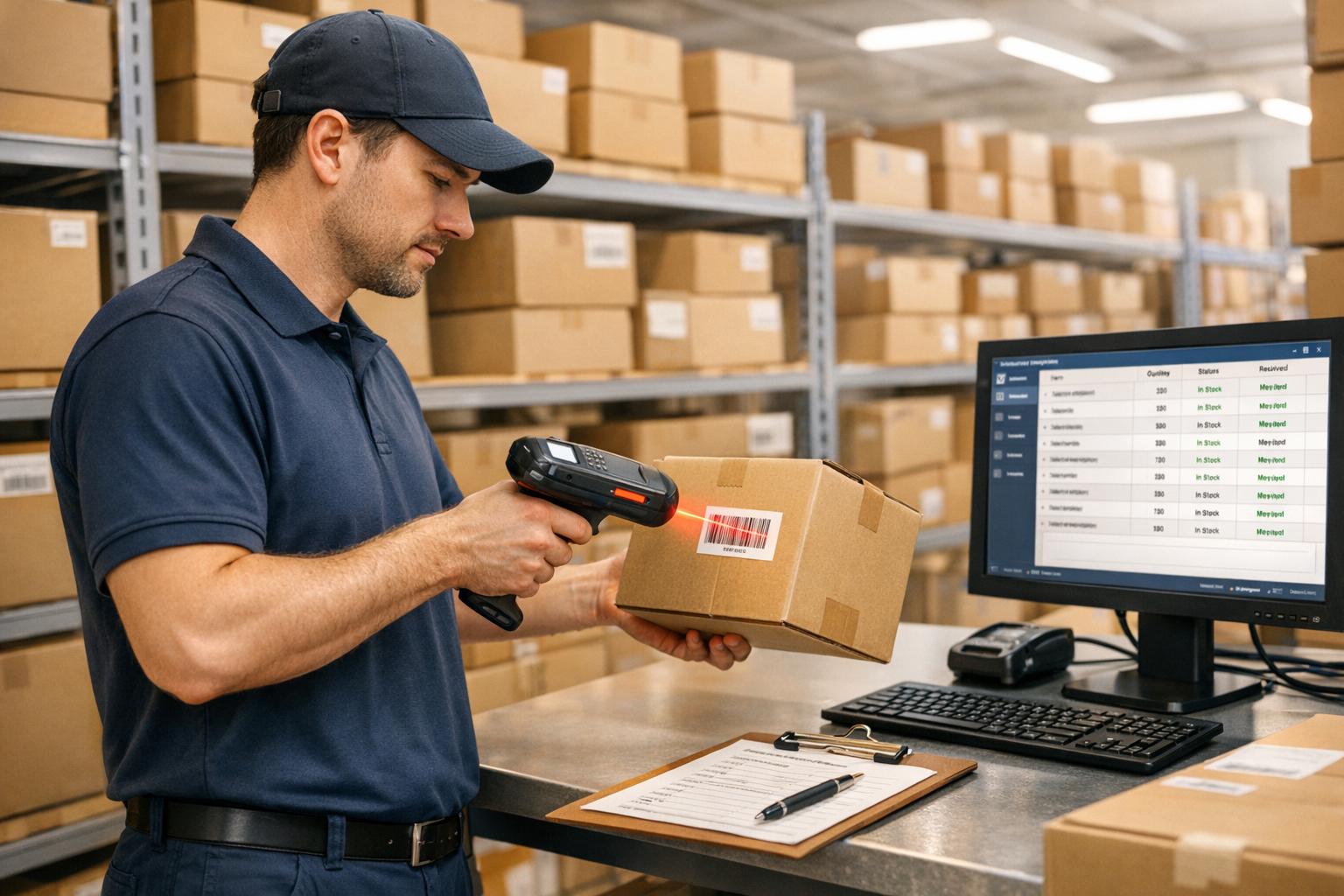
Barcode scanning transforms receiving inspections by making them faster, more accurate, and more efficient. Manual processes like typing SKUs and counting items are slow and error-prone, with a typical error rate of 1%-3%. Barcode scanning reduces errors to nearly zero and slashes inspection times from 30 minutes to just 3 minutes. It also ensures real-time inventory updates, improves data accuracy, and integrates seamlessly with systems like QuickBooks.
Key benefits include:
- Speed: Process shipments in minutes, not hours.
- Accuracy: Error rates drop to 1 in several million scans.
- Real-Time Updates: Inventory levels sync instantly with software.
- Streamlined Workflows: Supports FIFO/FEFO picking, cycle counts, and backorder tracking.
Transitioning to barcode scanning involves setting up systems like Rapid Inventory, syncing with QuickBooks, and training staff. The result? Faster operations, fewer mistakes, and better inventory management from the moment goods arrive.

Manual vs Barcode Scanning: Speed, Accuracy, and Efficiency Comparison
Benefits of Barcode Scanning in Receiving Inspections
Faster Inspections
Barcode scanning speeds up the receiving process by replacing manual data entry with quick scans. Instead of typing out item details, workers simply scan barcodes to match items with digital purchase orders. What used to take 30 minutes can now be completed in just 3 minutes with this technology.
With mobile apps, staff can process shipments directly at the dock, verifying goods as they arrive. This ensures the correct items and quantities are received without unnecessary delays. Plus, training workers to use barcode scanners is much quicker than teaching them to visually identify thousands of different parts.
For example, in October 2025, U.S.-based retailer Easy Mile Fitness transitioned from spreadsheets and paper logs to a mobile barcode scanning system. This upgrade, implemented across multiple warehouse locations, led to 60% faster stock counts and real-time inventory visibility across all branches. As a result, the company improved order fulfillment times and significantly reduced inventory discrepancies.
On top of speed, barcode scanning also enhances accuracy, a benefit explored in the next section.
Better Accuracy and Fewer Errors
Barcode scanning is incredibly precise, with an error rate of just one in several million scans. Compare that to manual data entry, which has an error rate of about 1%. As the HandiFox Team explains:
"Manual data entry has an error rate of about 1%. That sounds low, but if you ship 1,000 items a month, that is 10 wrong orders. Barcode scanning has an error rate of 1 in several million."
This technology minimizes common mistakes like typing errors (e.g., entering "100" instead of "10"), SKU mismatches, and incorrect quantity counts. Each scan is cross-checked against the purchase order, and the system provides audible alerts if something doesn’t match. For items requiring additional details such as lot numbers, serial numbers, or expiration dates, barcode scanning ensures accurate data capture - avoiding the transcription errors often seen with manual entry. Companies that use barcode systems typically achieve inventory accuracy rates of 99.9%, compared to just 63% with manual methods.
Real-Time Inventory Updates
Beyond speed and accuracy, barcode scanning offers the advantage of real-time inventory updates. Scanned data syncs instantly with QuickBooks through Rapid Inventory integration, updating stock levels, costs, and valuations while maintaining a complete digital audit trail. This trail includes user IDs and timestamps, eliminating the need for paper logs. Some systems can even update QuickBooks every five minutes, ensuring warehouse operations and financial records stay aligned.
Real-time updates also support proactive inventory management. Automated notifications alert staff when stock levels hit predefined thresholds, enabling timely reordering. Businesses that adopt barcode systems often see a 25% to 30% drop in inventory shrinkage within the first year. This is largely due to the system's ability to quickly identify unauthorized movements or detect loss patterns.
How to Implement Barcode Scanning in Receiving Inspections
Setting Up Rapid Inventory and QuickBooks Sync

To get started, you'll need to connect Rapid Inventory with QuickBooks Desktop using a two-way web connector. This integration is compatible with QuickBooks Enterprise, Pro, and Premier editions. It allows items and orders to sync automatically from QuickBooks to Rapid Inventory, while receiving actions are sent back to QuickBooks for seamless updates.
Before initiating the connection, make sure QuickBooks is in single-user mode so you can complete the necessary administrative tasks. Then, enable barcodes in QuickBooks by navigating to:
Edit > Preferences > Items and Inventory > Company Preferences > Advanced Inventory Settings > Barcodes.
From there, select "Enable Barcode" and run the Barcode Wizard. Assign barcodes to a unique field, such as the Part Number or Item Name, to avoid duplicate entries.
Once the integration is set up, the next step is to create and assign barcodes to your inventory items.
Creating and Printing Barcodes
After syncing is complete, use Rapid Inventory's label printing feature to generate physical barcode labels for your items. These labels can include details like lot numbers and serial numbers. The system supports two widely used barcode formats - EAN-13 and Code-128 - ensuring they work with standard USB scanners.
If your items already come with pre-assigned barcodes, you can streamline the process by exporting your item list to Excel. Add the barcode data to a custom field, then use QuickBooks' Advanced Import utility to update your records before syncing them. Once barcodes are in place and synced, you can use them across various transactions, including Purchase Orders, Item Receipts, Inventory Transfers, and Bills.
With your barcodes ready, you're all set to start scanning during receiving inspections.
Performing Receiving Scans
With your integration and barcodes in place, you can begin performing receiving scans. When shipments arrive, scan the barcodes at the dock to immediately verify items against the Purchase Order. As Rapid Inventory highlights:
"Scan barcodes to verify locations, items, quantities, shipments during receiving, picking, counting, moving and transferring."
The mobile app simplifies this process by capturing critical details like lot numbers, serial numbers, and expiration dates, reducing the risk of manual errors. Staff can also assign warehouse locations - such as specific rows, shelves, or bins - by scanning location barcodes. If only part of an order arrives, you can document partial shipments directly. For items without pre-existing labels, use the label printing feature to quickly generate and print barcodes on-site.
All scanned data automatically syncs back to QuickBooks via the web connector, ensuring inventory levels are updated and a complete audit trail is maintained.
Best Practices for Barcode Scanning Efficiency
Batch Scanning for High Volume
When dealing with a large number of items, batch scanning is a game-changer. Instead of scanning each item individually, batch scanning allows you to decode over 100 barcodes in a single scan. This means you can process entire pallets, even those with mixed SKUs, without unpacking every box. For perspective, manually scanning 150 items takes about 10 minutes, whereas batch scanning can handle the same volume in just 2 minutes - cutting the time by 80%. Plus, it generates an exportable CSV file, making traceability and compliance much easier to manage.
Training Staff on Barcode Scanning Systems
Even with cutting-edge scanning technology, it’s all about the people using it. Proper training ensures your team can operate scanners efficiently, verify digital records, and troubleshoot errors. Dedicate 1–2 weeks to hands-on training, starting with the top 20% of your fastest-moving products. Once your team gains confidence, expand to other items. Mobile apps with verbal prompts and guided workflows can simplify the process, especially for temporary or seasonal staff.
As the HandiFox Team puts it:
"It is much easier to teach a new employee to 'scan the beep' than to teach them to identify 500 different parts by sight."
Standardizing barcode placement can also save time. Train your team to consistently apply or locate barcodes - for instance, always in the bottom right corner of a box. This reduces the time spent searching for barcodes and speeds up the scanning process. Additionally, establish clear procedures for handling labeling issues to keep operations running smoothly.
Handling Damaged or Missing Barcodes
Damaged, smudged, or missing barcodes can throw a wrench in your workflow if not addressed promptly. Upgrading to image-based scanners can help, as they can read barcodes from various angles and handle distortions.
For situations where barcodes are completely unreadable, include human-readable text on labels so staff can manually enter the information. If issues like faded lines or smudging occur repeatedly, investigate the root causes - such as printer calibration problems, low-quality ribbons, or unsuitable label materials. Equipping receiving stations with mobile printers is another smart move. These allow for on-the-spot replacement of damaged or missing barcodes, ensuring items are accurately logged before being put away.
| Barcode Issue | Potential Cause | Recommended Action |
|---|---|---|
| Faded/Blurred Lines | Printer calibration or low ink | Check printer settings; use manual entry for immediate fixes |
| Smudging/Distortion | Inappropriate label material | Switch to thermal transfer labels for better durability |
| No Decode (Unreadable) | Missing quiet zone or print defects | Ensure blank space around the code; check for print defects |
| Missing Barcode | Supplier error or label fell off | Use a mobile printer to generate a new internal SKU label |
sbb-itb-19ed50f
Receive with Tasklet Mobile WMS (F&SC)
Integrating Barcode Scanning with Other Inventory Workflows
Barcode scanning isn’t just about speeding up receiving inspections - it’s now a cornerstone of broader inventory management. By integrating scanning into every stage of the process, from receiving to picking, cycle counts, and backorder tracking, businesses can streamline operations and make smarter, data-driven decisions. Every scan feeds into real-time dashboards, ensuring inventory workflows are not just faster but also more accurate.
Supporting FIFO/FEFO Picking Strategies
Barcode scanning plays a critical role in maintaining FIFO (First In, First Out) and FEFO (First Expired, First Out) picking strategies by capturing key data like arrival dates, lot numbers, and expiration dates.
- FIFO ensures the oldest inventory is picked first, reducing the risk of obsolescence. When a picker scans an item, the system confirms they’ve selected from the oldest batch, not just what’s most convenient.
-
FEFO goes a step further for perishable goods like food, cosmetics, or pharmaceuticals. It prioritizes items nearing their expiration date, preventing waste. As Steve Maurer from MRPeasy explains:
"Barcode systems that include expiration dates make a huge difference. Your warehouse team can scan a product and immediately see not just what it is, but how much shelf life remains".
For example, Rapid Inventory’s system uses data captured at the receiving dock to guide pickers to the correct bin, ensuring they grab the right lot. This "directed picking" prevents costly errors like shipping expired products or letting inventory turn into dead stock - a problem that affects 20–30% of inventory even in well-run operations. Companies like Mamaearth have achieved a 99.99% order fulfillment rate by leveraging this type of tracking.
To make this work, scan GS1 barcodes as soon as goods arrive. These often include batch and expiration data, which the system uses to enforce validation during picking. This means every item scanned aligns with your rotation logic - not just what’s easy to grab.
| Strategy | Primary Rotation Driver | Role of Barcode Scanning |
|---|---|---|
| FIFO | Arrival Date | Tracks "dock-to-stock" time to ensure oldest items are picked first. |
| FEFO | Expiration Date | Monitors shelf-life data to prioritize items nearing expiration. |
| Batch Tracking | Lot/Batch Number | Links products to manufacturing data for compliance and safety. |
This approach doesn’t just improve picking accuracy - it also enhances inventory assessments and order management.
Cycle Counting and Backorder Tracking
Barcode scanning transforms cycle counting into a much faster and more accurate process. Instead of manually identifying parts, workers simply scan barcodes like UPCs, EANs, or Code 128. This instantly pulls up product details and updates quantities in the system. Real-time syncing ensures digital records match physical inventory.
Manual data entry has an error rate of about 1%, but barcode scanning reduces that to just 1 in several million. For instance, a shipment of 50 mixed items might take 30 minutes to process manually, but with scanning, it can be done in 3 minutes.
For backorders, scanning incoming goods against purchase orders immediately identifies which items are needed to fulfill pending customer orders. Rapid Inventory’s centralized dashboard shows inventory availability across locations, while automated alerts notify managers when stock levels hit reorder points. By updating picklists with scanned data, you can provide real-time updates on backorder statuses, eliminating guesswork.
To see quick results, start by implementing barcode scanning for your top 20% of fastest-moving products, then expand. Label not just the products but also bins and shelves, so you can track exactly where items are stored in the warehouse.
Generating Real-Time Reports
One of the biggest advantages of barcode scanning is real-time data. Every scan updates stock levels instantly, feeding live information into purchasing and fulfillment systems. This creates an instant audit trail and ensures accounting accuracy.
With tools like Rapid Inventory, managers can access real-time inventory reports from anywhere, providing full visibility into operations without needing to be on-site. This centralized view ensures all departments work with the same data, whether integrated with QuickBooks Desktop or another ERP.
Take Grupo Cementos de Chihuahua (GCC) as an example. Eduardo Lozano, their Procurement Planning and Control Manager, led a barcode automation initiative that digitized 95% of warehouse transactions. This effort reduced their on-hand inventory by over 10%, thanks to better visibility and data control.
Barcode automation doesn’t just improve accuracy - it can boost it to 99.9% or higher while increasing productivity by 30%. Real-time visibility also allows companies to lower safety stock levels by 10% to 15%, as they no longer need to guess what’s available. Lyndal Moeller from Scandit highlights the importance of this:
"If businesses don't know their inventory, everything else falls apart. Scandit supports retailers in achieving up to 100% inventory accuracy, helping them to create a single, reliable source of truth, ensuring everyone can make confident decisions based on the same data".
Set reorder thresholds in your system to automate purchase orders when stock dips below predefined levels. Use barcode tracking to calculate precise landed costs, factoring in shipping, duties, and handling, for more accurate profitability reporting. And instead of relying on an annual inventory count, implement continuous cycle counting to maintain accuracy year-round.
Conclusion
Barcode scanning in receiving inspections drastically improves efficiency, slashing processing times from 30 minutes to just 3 minutes for mixed items. It also significantly minimizes errors, reducing rates from around 1% to an astonishing 1 in several million scans.
With real-time integration into QuickBooks, inventory levels, COGS, and order statuses are updated instantly. This creates an automatic audit trail, ensuring your warehouse stock is always accurately reflected. Rapid Inventory takes full advantage of this capability with its seamless integration.
The platform combines two-way QuickBooks syncing with mobile barcode scanning and supports essential features like FIFO/FEFO, cycle counting, and backorder tracking. As a web-based solution, it includes free training and onboarding, scaling effortlessly to fit your needs. Pricing starts at $90 per user per month for the Pro plan, with an option for unlimited users at $900 per month.
FAQs
How does barcode scanning work with QuickBooks to keep inventory updated in real time?
When you pair barcode scanning with Rapid Inventory, every scan - whether it's for a receipt, sale, or adjustment - automatically syncs with QuickBooks Desktop. This real-time, two-way connection keeps your inventory levels updated instantly, helping minimize mistakes and ensuring precise tracking.
How do I set up a barcode scanning system for receiving inspections?
To set up a barcode scanning system for receiving inspections, first, make sure your scanner supports barcode formats like EAN-13 or Code-128. It should also be configured to send a carriage return after each scan. Connect the scanner to your computer via USB or Bluetooth, and install any required drivers to ensure proper functionality.
Next, activate barcode support in your inventory management software. For instance, in QuickBooks Desktop, go to Edit → Preferences → Items and Inventory → Advanced Inventory Settings, and open the Barcodes tab. Enable the barcode feature and use the configuration wizard to assign barcodes to your items, typically linked to fields like Item Name or Part Number.
After generating barcodes, print and attach them to your incoming products. When receiving shipments, scan each item’s barcode to instantly record quantities and update your inventory. Tools like Rapid Inventory simplify this process by integrating mobile barcode scanning, making receiving inspections faster and more accurate.
How does barcode scanning help with FIFO and FEFO picking strategies?
Barcode scanning streamlines inventory management by quickly capturing lot or serial numbers as items are received. This allows the system to direct workers to pick items following FIFO (First In, First Out) or FEFO (First Expired, First Out) principles. These rules ensure that the oldest items or those nearing expiration are used first, reducing waste and optimizing stock usage.
Automating this process minimizes mistakes, boosts efficiency, and supports adherence to inventory standards. This is especially critical in industries like food, pharmaceuticals, and manufacturing, where accuracy and compliance are paramount.



