

If you use QuickBooks Desktop, the right inventory tool comes down to three things: two-way sync, warehouse features, and first-year cost. QuickBooks Desktop can track stock at a basic level, but many teams need more once order volume grows.
Here’s the short version:
- Rapid Inventory is the best inventory management software for QuickBooks Desktop for teams that want browser-based warehouse work, barcode scanning, lot/serial tracking, and support for QuickBooks Desktop Pro, Premier, and Enterprise.
- QuickBooks Desktop Enterprise Advanced Inventory makes sense if you already use Enterprise and want inventory to stay inside QuickBooks.
- Fishbowl Inventory is aimed at manufacturing and distribution teams that need BOMs, work orders, and production scheduling.
- Acctivate Inventory Software is built for teams that need lot/serial traceability, multi-site control, and module-based pricing.
- SOS Inventory is lower-priced, but it is built more for QuickBooks Online and needs a sync tool for QuickBooks Desktop.
A few numbers stand out right away:
- Base software can run from about $65 to $900+ per month
- Setup often adds $600 to $1,500, and sometimes more
- Barcode hardware can add $200 to $1,500 per device
- Barcode and quality tools can cut fulfillment time by up to 87% and reduce out-of-stocks by 10x
Before I compare the tools, I’d focus on one question: Will this system sync cleanly with your QuickBooks Desktop setup and match how your warehouse works every day?
Quick Comparison
| Software | Best Fit | QuickBooks Desktop Fit | Starting Price | Standout Points |
|---|---|---|---|---|
| Rapid Inventory | Warehouse-heavy teams | Native fit for Pro, Premier, Enterprise | $90/user/month or $900/month | Browser-based work, barcode scanning, FIFO/FEFO, lot/serial tracking |
| QBD Enterprise Advanced Inventory | Enterprise users staying inside QuickBooks | Built into Enterprise | Included with license | Bin/site tracking, barcode scanning, serial/lot tracking |
| Fishbowl Inventory | Manufacturing and distribution | Built for QuickBooks Desktop | About $229/month | BOMs, work orders, production scheduling |
| Acctivate | Traceability and multi-site needs | Built for QuickBooks Desktop | Quote-based | Lot/serial traceability, module-based setup |
| SOS Inventory | Small teams or QBO-leaning setups | Works through sync tool | About $65–$240/month | Lower sticker price, but less direct for Desktop users |
If you’re choosing now, I’d keep it simple: pick based on sync, daily warehouse use, and total cost in year one - not just the monthly fee.
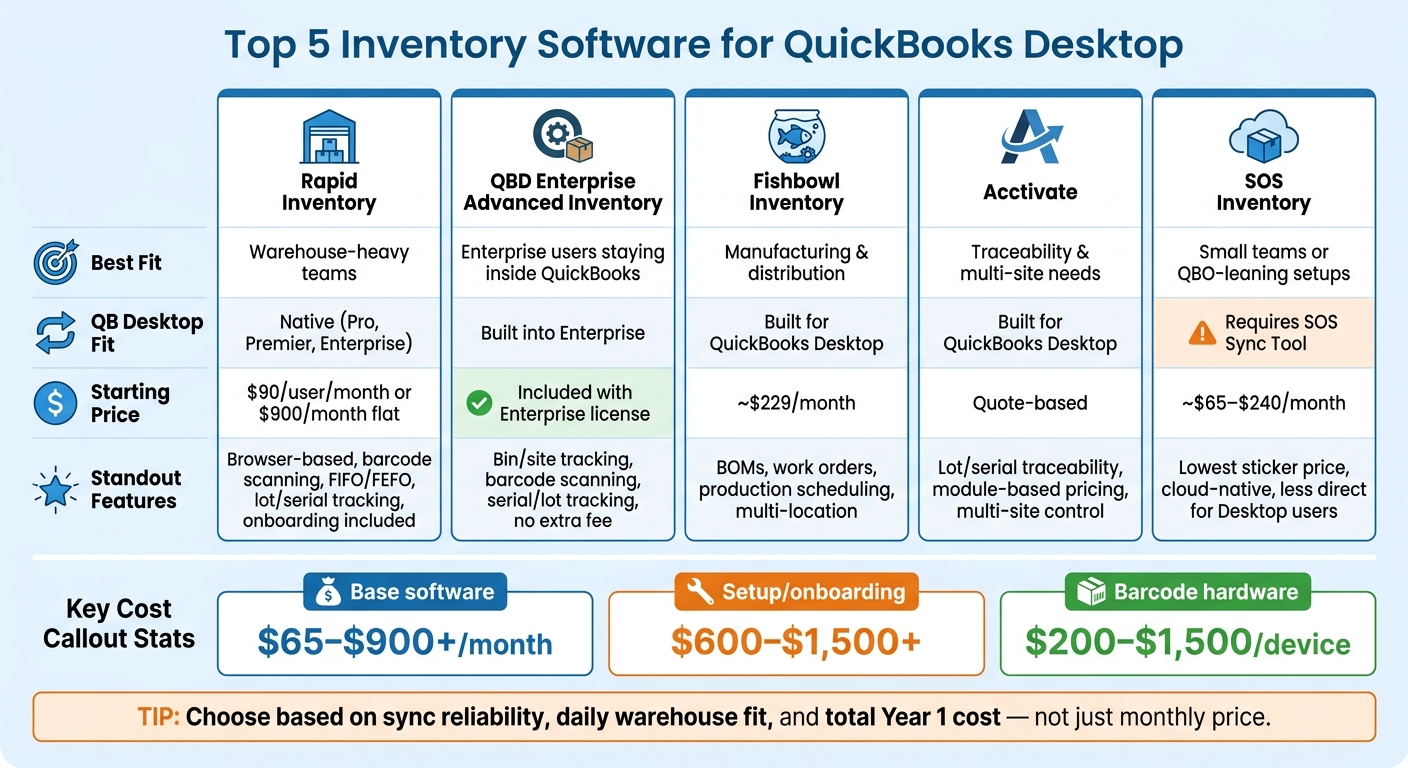
Top 5 Inventory Software for QuickBooks Desktop: Side-by-Side Comparison
How to Setup Inventory and Use the Inventory Features in QuickBooks Enterprise
sbb-itb-19ed50f
What QuickBooks Desktop Users Should Look For
Inventory tools are all over the map when it comes to QuickBooks Desktop support. So before you line up vendors side by side, start with three things: sync, feature fit, and total cost.
QuickBooks Desktop sync and edition support
Check for bi-directional sync first. Items and orders should flow into the inventory system, and warehouse changes should sync back to QuickBooks on their own. If that doesn’t happen, you’re stuck doing manual entry again.
It also helps to check support for your exact QuickBooks Desktop edition. In most cases, that means Pro, Premier, or Enterprise. And if you run QuickBooks in a hosted setup like Rightworks (formerly Right Networks), Swizznet, Visory, or Whizz, make sure the software works in that hosted environment too.
Inventory and warehouse features that matter most
The feature list can look long, but a few tools do most of the heavy lifting. Look for multi-location tracking, lot and serial tracking, barcode scanning, cycle counting, backorder handling, and FIFO/FEFO (first in, first out / first expired, first out) picking.
Those features are what separate a basic inventory add-on from software that can handle day-to-day warehouse work.
Total cost beyond the base subscription
The monthly fee is just the front door. You also need to account for onboarding, data migration, and training. Professional implementation often runs about $600 to $1,500, though some providers charge several thousand dollars for setup. Some roll these services into the package. Others bill for each piece on its own.
Hardware belongs in the budget too. Barcode scanners and label printers can cost $200 to $1,500 per unit.
Here’s a quick look at the main cost pieces to review:
| Cost Component | Typical Range | What to Ask |
|---|---|---|
| Base subscription | $30–$900+/month | Per user or flat monthly fee? |
| Onboarding/setup | $0–$2,500+ | Included or billed separately? |
| Data migration | $0–$5,000+ | Vendor-handled or DIY? |
| Training | $0–$1,000+ | Live sessions or self-serve only? |
| Barcode hardware | $200–$1,500/unit | Works with Android/iOS? |
Use these criteria to judge the five options below.
1. Rapid Inventory
Rapid Inventory is a good fit for QuickBooks Desktop teams that want browser-based warehouse control without stepping outside accounting. It’s a web-based inventory system for QuickBooks Desktop Pro, Premier, and Enterprise, including hosted setups. The two-way sync keeps items, orders, and warehouse activity lined up, so your team doesn’t have to re-enter data by hand.
That setup matters on the warehouse floor. Staff can receive, pick, and count from any browser, with no remote desktop setup. Receipts, adjustments, and fulfillments sync back to QuickBooks on their own.
On the warehouse side, Rapid Inventory includes:
- Multi-location and multi-warehouse tracking
- FIFO and FEFO picking
- Lot and serial number tracking with expiration dates
- Mobile barcode scanning
- Cycle counting
- Backorder tracking
It also supports pick lists that guide users through the warehouse in a more efficient path. That can save time when orders start piling up.
Pricing comes in two plans:
| Plan | Price | Best For | Notable Inclusions |
|---|---|---|---|
| Pro | $90/user/month | Teams of 1–9 users | Unlimited warehouses and locations, lot/serial number tracking, barcode scanning, real-time inventory reports, free onboarding, training, and support |
| Unlimited | $900/month | Teams of 10+ users | Everything in Pro, plus custom inventory reports and priority support |
The math is pretty simple here: the Unlimited plan breaks even at 10 users and costs less per user once you go above that.
Next, compare pricing across the five options.
2. QuickBooks Desktop Enterprise Advanced Inventory

Advanced Inventory is Intuit’s built-in inventory module for QuickBooks Desktop Enterprise users who need more than basic stock tracking. So if your team is already all-in on Enterprise, this is the natural place to start.
It comes with site tracking, bin management, barcode scanning, and serial and lot tracking. QuickBooks Desktop Enterprise also works in hosted setups through providers like Rightworks (formerly Right Networks), Whizz, Swizznet, and Visory.
Advanced Inventory isn’t sold on its own. There’s no separate inventory fee because it’s included in the QuickBooks Desktop Enterprise license. If your team needs more room to move or deeper warehouse workflows, the next option goes beyond QuickBooks by itself.
3. Fishbowl Inventory
For teams that have outgrown the built-in tools in QuickBooks Enterprise, Fishbowl adds deeper production planning and warehouse control. It's built for QuickBooks Desktop users that need tighter control over manufacturing and distribution.
Fishbowl supports multi-level BOMs, work orders, production scheduling, multi-location tracking, barcode scanning, lot and serial traceability, and automated reorder points. It also manages orders across e-commerce, POS, and B2B channels.
Pricing starts at about $229/month, but custom quotes climb with company size and setup needs. Larger accounts often pay more than $500/month. Setup usually takes 4 to 8 weeks, which adds to the total cost. If you ask for a quote, make sure to check what's included for training and support.
Fishbowl is a good match for manufacturers and wholesalers that need serious production planning tools alongside QuickBooks. The trade-off is a steeper learning curve and a longer setup, so it makes more sense for teams that are ready for a heavier rollout. That's also why Fishbowl usually sits above entry-level tools on both price and setup effort.
4. Acctivate Inventory Software
If your team needs deeper traceability and quote-based pricing, Acctivate is a solid option. It's built for QuickBooks Desktop, and its two-way integration manages inventory workflows while syncing data back to QuickBooks.
Acctivate works well for businesses that need:
- Full lot and serial traceability
- Multi-site control
- Manufacturing workflows
Pricing changes based on the modules you add, so your total cost depends on how your team works. It's quote-based and tied to concurrent users plus the modules you choose, such as EDI.
5. SOS Inventory
For a lower-cost reference point, SOS Inventory takes a different path than the desktop-first tools above. It's a cloud-native platform built mainly for QuickBooks Online, not QuickBooks Desktop. If you want to connect it to a QuickBooks Desktop company file, you need to install the dedicated SOS Sync Tool on the computer or server that hosts the file. Plans usually start on the low end of the range, at about $65 to $240 per month.
That setup matters. Since SOS Inventory relies on sync instead of native desktop integration, it tends to feel less direct for QuickBooks Desktop teams. It can also introduce latency and mapping complexity.
In practice, SOS Inventory makes more sense for small teams with basic needs or for companies shifting to QuickBooks Online. For long-term QuickBooks Desktop users, it's a weaker match. So even if it's not the best Desktop option, it still works as a useful budget marker.
Side-by-Side Cost Comparison
Using that same cost lens, here’s the side-by-side view.
| Product | Pricing Basis | Starting Price (USD) | Cost Notes |
|---|---|---|---|
| Rapid Inventory | Per user/month or flat monthly | $90/user/month; $900/month flat | Onboarding and migration included |
| QuickBooks Desktop Enterprise Advanced Inventory | Bundled with Enterprise | Included with Enterprise license | No separate inventory fee |
| Fishbowl Inventory | Monthly subscription; custom quotes | Starts around $229/month | Custom quotes rise with company size and setup |
| Acctivate Inventory Software | Quote-based | Not published | Pricing depends on users and selected modules |
| SOS Inventory | Monthly subscription | Starts around $65–$240/month | Requires the SOS Sync Tool for QuickBooks Desktop |
A few patterns jump out fast. Rapid Inventory starts at $90 per user per month, or $900 per month on a flat plan, with onboarding and migration included. QuickBooks Desktop Enterprise Advanced Inventory works differently because the inventory piece comes with the Enterprise license, so there’s no separate inventory charge.
Fishbowl Inventory starts at about $229 per month, but the final quote tends to climb as company size and setup needs grow. Acctivate Inventory Software doesn’t list a public starting price, which means cost depends on user count and the modules you choose. SOS Inventory comes in lower on paper, at about $65 to $240 per month, though QuickBooks Desktop users also need the SOS Sync Tool.
That price spread matters because low sticker price and total cost aren’t always the same thing. A tool may look cheaper at first glance, then add work, setup time, or add-ons once your process gets more complex. Next, match each price level to the team size and workflow it supports.
Matching Each Option to Your QuickBooks Desktop Setup
Now that the features and costs are on the table, it’s easier to see where each option fits in a typical QuickBooks Desktop setup.
Best for staying inside QuickBooks Desktop
If you already run QuickBooks Desktop Enterprise and want inventory to stay inside QuickBooks Desktop, Advanced Inventory is the cleanest fit. Everything stays in one system, which keeps day-to-day work simple. The downside is that you give up some flexibility.
Best for warehouse and barcode-heavy operations
For teams with busy warehouse workflows, Rapid Inventory is the best fit. It supports mobile barcode scanning, multi-location tracking, and two-way sync with QuickBooks Desktop Pro, Premier, or Enterprise. If your team needs mobile picking, barcode scanning, and live warehouse sync, this option lines up well.
Best for manufacturing and complex distribution workflows
Use Fishbowl if you need work orders, BOMs, and production tracking. That said, setup tends to be more involved, and implementation usually takes longer.
Best for small teams versus larger teams
Team size should shape the pricing choice just as much as feature needs.
| Team Size | Best Fit | Why |
|---|---|---|
| 1–9 users | Rapid Inventory Pro ($90/user/month) | Per-user pricing fits smaller teams |
| 10+ users | Rapid Inventory Unlimited ($900/month flat) | Flat pricing caps costs as headcount grows |
| Enterprise-only users | QuickBooks Desktop Enterprise Advanced Inventory | Built-in inventory tools keep everything in one platform |
Pricing structure matters just as much as feature set, especially when your team grows. At 10 users, Rapid Inventory Pro and Rapid Inventory Unlimited both cost $900 per month, so Unlimited helps you avoid added cost as headcount goes up.
Conclusion
After looking at features and costs across all five options, the choice comes down to fit. The best QuickBooks Desktop inventory software is the one that matches your workflow, syncs without drama, and keeps total cost in check.
Start with sync support. Then look at warehouse fit. After that, review total cost.
Don’t stop at the monthly price. Look at the first-year cost, because setup, training, and add-ons can change the picture fast. Reliable two-way sync is nonnegotiable. Your team also needs warehouse tools they’ll use every day, not features that just look good on a sales page. And the best system is one your staff can learn fast and use the same way every time.
FAQs
How do I know if an inventory tool will sync cleanly with my QuickBooks Desktop setup?
First, make sure it works with your QuickBooks Desktop edition, whether that's Pro, Premier, or Enterprise, and that it uses QuickBooks Web Connector for secure, automatic two-way sync.
Before you sync anything, clean up your data. Standardize SKUs, merge duplicates, and reconcile counts. It also helps to keep a clear item-mapping document on hand. If the provider offers onboarding or migration support, that can make setup smoother and help keep things accurate and stable.
What first-year costs should I budget for besides the monthly software fee?
None. Beyond the monthly software fee, there are no other first-year costs to plan for.
Rapid Inventory includes white-glove onboarding, data migration, and training at no extra cost - a total value of up to $2,100. There are also no contracts, hidden fees, or commitments.
Which inventory features matter most as warehouse volume grows?
As warehouse volume grows, the features that matter most are the ones that tighten accuracy, improve visibility, and keep work moving.
Multi-location tracking lets you keep an eye on inventory across multiple warehouses. Mobile barcode scanning cuts down on manual entry mistakes during receiving, picking, and cycle counts.
FIFO and FEFO picking help with stock rotation. And real-time reporting makes it easier to manage reorder points and backorder tracking while keeping QuickBooks Desktop records in sync.



