

If your stock data is late or split across tools, errors stack up fast. The fix is simple in concept: use one live inventory record, track every move as it happens, and give each warehouse its own reorder rules.
Here’s the short version:
- Keep all locations in one system so teams don’t work from different numbers
- Track transfers as in-transit so stock isn’t counted twice
- Use the same bin names and SOPs at every site
- Set reorder points by location, not one rule for every warehouse
- Scan moves on the warehouse floor for receiving, picking, shipping, and transfers
- Track lot and serial data when recall control, shelf life, or unit history matters
- Use FIFO or FEFO based on the product type
- Run transfer orders with a fixed process from ship to receipt
- Cycle count high-movement SKUs often and watch location-level KPIs
- For QuickBooks Desktop, make sure warehouse moves post with the right dates, sites, and references
One stat stands out: 62% of fulfillment issues come from human error. In most cases, that means manual entry, late updates, or weak handoff steps. I’d treat this article as a simple playbook for cutting those mistakes before they turn into stockouts, overstock, or mis-shipments.
Quick comparison:
| Area | What to do | Why it matters |
|---|---|---|
| Visibility | Keep all warehouses in one live system | Stops version drift and phantom stock |
| Transfers | Use an In Transit status | Prevents double-counting |
| Locations | Standardize bin naming | Reduces mis-picks and bad counts |
| Reordering | Set rules by site | Matches local demand and lead times |
| Transactions | Scan at the point of movement | Cuts manual entry errors |
| Traceability | Use lot/serial tracking with FIFO or FEFO | Helps with recalls, age control, and item history |
| Counting | Cycle count by SKU movement and problem areas | Finds drift before it gets worse |
| QuickBooks Desktop | Sync dates, sites, and transfer records | Keeps stock and accounting aligned |
If you run more than one warehouse, the goal isn’t more software. It’s clean stock data, clear movement rules, and one view of inventory across every location.
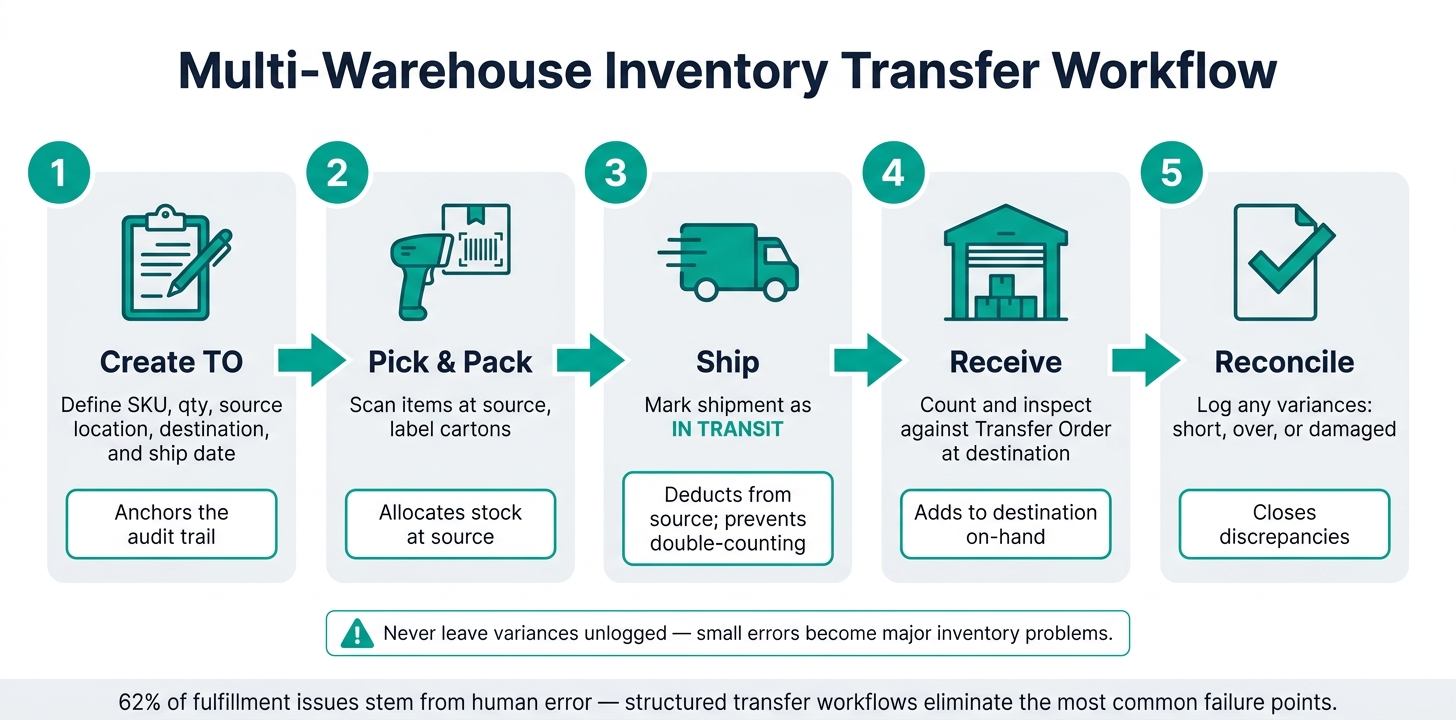
Multi-Warehouse Inventory Transfer Workflow: Step-by-Step
Why Multi-Warehouse Tracking Needs a Different Approach
Multi-warehouse tracking needs a different setup because each location has its own stock patterns, movement flow, and restocking rules. That’s why the first step is a inventory management software across every warehouse.
When locations rely on different methods - spreadsheets, local tools, or manual edits - inventory data starts to drift. That’s when phantom inventory shows up. Without one consistent record, teams log adjustments, returns, and transfers in different ways at each site.
As FreshByte Software puts it:
"Running one warehouse is execution; running many is orchestration."
In-transit inventory adds another gap. If there’s no In Transit status, stock can get counted twice or disappear from view while moving between warehouses. Once teams can see what’s in transit, they can start setting replenishment rules by location.
And that part matters. Demand, lead times, and transfer timing change from one site to the next, so each warehouse needs its own reorder point. A busy West Coast facility won’t restock the same way as a smaller Midwest site. Treating them the same is where problems start.
As the Aiinak Team notes:
"The single biggest mistake companies make with multi-location inventory is treating each site as its own island."
With that base in place, teams can build centralized visibility and standard workflows. In plain terms, every warehouse needs to follow the same workflow, use the same definitions, and apply the same transaction rules.
sbb-itb-19ed50f
1. Rapid Inventory

For teams that use QuickBooks Desktop, Rapid Inventory puts these ideas into a multi-warehouse setup you can actually use day to day. It gives QuickBooks Desktop users one web-based system to manage stock across multiple locations. Its two-way QuickBooks sync keeps item records and quantities in line across sites.
When you're running more than one warehouse, location-level accuracy is where things stop being theory and start being useful. Rapid Inventory tracks unit counts and dollar values for each location. Each location can also have its own reorder point.
Moves between warehouses run through a dedicated Transfer Inventory workflow. That process requires a Transfer from location, a Transfer to location, the items being moved, and the quantities for each item.
For traceability, Rapid Inventory supports lot and serial tracking with FIFO and FEFO picking. Every movement logs who changed what, when, and why. That kind of record matters when you're digging into shrinkage, miscounts, or stock that seems to have gone sideways.
The web-based platform also includes unlimited warehouses and locations, along with free onboarding, training, and support. Those controls set up the centralized visibility covered next.
2. Centralized Real-Time Visibility
Once warehouses follow the same rules, centralized visibility keeps those rules up to date in one live system. If each warehouse runs on its own spreadsheet or separate software, teams end up working from different numbers. Sales sees one thing, operations sees another, and finance is left trying to sort it out. A centralized setup gives everyone one source of truth.
As FreshByte Software puts it:
"Centralized inventory control does not mean removing autonomy from individual warehouses. It means everyone works from the same source of truth."
A live dashboard should clearly split inventory into available, reserved, committed, and in-transit stock. That distinction matters. If in-transit stock gets mixed in with on-hand inventory, the numbers stop making sense fast. Track in-transit stock on its own: remove it from the source location when it ships, and add it to the destination only when it is received.
From there, set different thresholds by location instead of forcing every site into the same reorder logic. Use site-specific reorder points that match local demand and lead times. A busy warehouse in one region may need more buffer stock than a slower site somewhere else.
For QuickBooks Desktop users, Rapid Inventory’s two-way sync keeps item records, quantities, and locations aligned in real time. That live sync helps each team work from the same data.
With live data in place, the next step is standardizing how each warehouse records inventory.
3. Standardized Location Structures and SOPs
Once you have one source of truth, the next step is to standardize how every site names and uses locations. If one site labels a spot one way and another site uses a different name for that same type of location, transfers break down and stock can show up in the wrong place. That’s how false stock happens: inventory shows as available in the system, but it isn’t actually there.
The fix is pretty simple on paper, but it only works if you lock it in early. Use one naming structure across every site before local teams start making their own versions. A clear hierarchy works best: Aisle-Bay-Level-Bin. For example, A-01-03-B. Then pair that structure with function-based zones like Receiving, Pick Face, Bulk, Returns Hold, and Damaged/Quarantine.
"If two locations both count the same unit as 'available,' you are not sharing inventory, you are double-selling it." - Leanafy
Naming is only half of it. SOPs matter just as much. Every receive, transfer, count, and putaway step needs to be written down so staff know exactly what to do at each touchpoint. If the process lives only in someone’s head, mistakes creep in fast.
One rule is easy to miss, and it matters a lot: never return items directly to pick faces. Returned items should go into a Returns Hold bin first, get inspected, and only then be marked Available. The same thinking applies to transfers. Every move should follow the same scan steps so it stays traceable. Those scan records create the audit trail you need to track shrink and miscounts.
When locations and SOPs are standardized, replenishment rules can run by site with clear logic instead of guesswork.
4. Demand-Based Allocation and Replenishment Rules
Once locations and SOPs are set, build replenishment rules for each site. That’s when inventory starts following actual demand instead of rough estimates.
Use this formula for each site’s reorder point:
ROP = (lead time to location × average daily demand at that site) + site-specific safety stock
Base average daily demand on the last 8–12 weeks of local unit sales. This matters because lead times change by site. A location with a 3-day lead time shouldn’t use the same reorder trigger as one with a 7–10 day lead time.
Internal transfers should come first before you buy more stock. If one site has extra units and another is short, move stock across locations before placing a new purchase order. While that transfer is in progress, record the transfer time as in-transit inventory so the sending and receiving sites don’t both count the same units as available.
QuickBooks Enterprise with Advanced Inventory supports site-level reorder points by inventory site. Those reorder points do not roll up into one global reorder point, so you need to set each one on its own. Rapid Inventory's two-way QuickBooks sync keeps location counts current, which helps reorder decisions reflect current stock by site.
Once reorder rules are tied to live demand, the next step is recording every inventory move right where it happens.
5. Barcode-Driven Mobile Transaction Capture
Once replenishment rules are in place, every inventory move needs to be recorded at the source. Reorder rules only hold up when each warehouse move is logged with care.
That means scanning at the exact moment the move happens: receiving, transfers, picking, and shipping. Each step gets a scan instead of a handwritten note or an update entered later.
A scan checks the SKU, location, and quantity, and it also creates a timestamped audit trail showing who moved what and when. If a count looks wrong later, you have a clear record to follow instead of trying to piece it together from memory.
Transfers need that same level of discipline. Scan items out of the source location and mark them as in transit right away. That keeps both sites from showing the same units as available while the stock is still moving.
Rapid Inventory's mobile barcode scanning captures transactions on the floor and keeps QuickBooks Desktop location counts current without manual reconciliation.
6. Lot and Serial Tracking with FIFO/FEFO Picking
Once scan capture is in place, lot and serial tracking takes things a step further. It gives you unit-level traceability across warehouses. Barcode scanning shows which unit moved. Lot and serial IDs show which batch or specific item it was at every location it passed through.
That matters for recalls, miscounts, and shrinkage. With a lot or serial number tied to each item, you have a traceable record across every location that item touches.
Picking rules are what turn that traceability into day-to-day warehouse discipline. The strategy you use with lot and serial tracking decides whether your oldest stock, or your soonest-to-expire stock, leaves first.
- FIFO (First In, First Out) is a good fit for non-perishables like electronics or apparel. The goal is simple: move older stock before it starts to look shelf-worn.
- FEFO (First Expiration, First Out) makes more sense for food, supplements, pharmaceuticals, cosmetics, chemicals, and other perishable goods because it pushes out the units closest to expiration, no matter when they arrived.
| Strategy | Best For | Tracking Requirement |
|---|---|---|
| FIFO | Electronics, apparel, non-perishables | Date of receipt |
| FEFO | Food, supplements, pharmaceuticals, cosmetics, chemicals, and other perishable goods | Expiration date |
The hard part isn't choosing FIFO or FEFO. It's making sure the data is there from the start. Lot numbers and expiration dates need to be captured at receiving, not added later. If that information is logged at entry, your FEFO logic has accurate data to work from.
At pick time, staff should scan the lot or serial number to confirm the right unit is leaving the right bin.
Rapid Inventory supports FIFO/FEFO picking along with lot and serial tracking. Those same identifiers should also follow each transfer between warehouses.
7. Structured Inter-Warehouse Transfer Workflows
Inter-warehouse transfers need a fixed handoff process. Otherwise, stock can look right in one warehouse and wrong in another. That’s how phantom stock shows up: units appear available in the system, but they’re not actually there.
If scans already track movement, the main control point left is the handoff between warehouses.
Here’s the flow: create a Transfer Order with the SKU, quantity, source, destination, and ship date. Then pick and scan the items at the source. Once the shipment leaves, mark it "In Transit."
That in-transit status matters. It removes units from the source count at ship time and adds them to the destination count only after receipt. No overlap. No double-counting.
When the shipment arrives, count it against the original Transfer Order. If anything is short, over, or damaged, log it right away. Don’t leave it for later, because later is where small errors turn into messy inventory problems.
Use the same sequence every time:
| Workflow Step | Action | Result |
|---|---|---|
| Create TO | Define SKU, qty, source, destination | Anchors the audit trail |
| Pick & Pack | Scan items, label cartons | Allocates stock at source |
| Ship | Mark as "In Transit" | Deducts from source; prevents double-counting |
| Receive | Count and inspect against TO | Adds to destination on-hand |
| Reconcile | Log variances (short, over, damaged) | Closes discrepancies |
Once transfers are under control, cycle counts and KPI tracking show whether the process is actually holding.
8. Cycle Counting and KPI Monitoring
Once transfers are under control, the next job is making sure your inventory numbers stay right. That’s where cycle counting helps.
With transfers managed, accuracy comes down to checking that the numbers hold up during day-to-day work. Instead of stopping the business once a year for a full physical count, cycle counting spreads the work across the year in small, targeted batches. That means no shutdowns, and it helps catch mistakes before they snowball.
Start with your top 50 SKUs by movement volume. These items tend to show problems first. In many cases, a variance ties back to a transfer, receiving, or putaway mistake earlier in the workflow. So those locations should be counted more often. The same goes for locations with repeat variances. If the same issue keeps showing up, you’re not just dealing with a bad number. You’re looking at a process problem. As Jon Schreibfeder puts it:
"Review repeat offenders monthly and fix the process, not just the number."
After you set count frequency, watch the metrics that show when inventory is starting to drift. Check two KPIs every week at each location: days of supply and stockout rate.
- Days of supply shows how long a site’s inventory will last at its current sales rate.
- Stockout rate shows how often orders can’t be filled.
If either metric moves sharply at one site, trigger a cycle count right away.
When a count finds a discrepancy, tag each adjustment with a reason code like damage, mispick, inventory found during count, or receiving error. That gives you a searchable audit trail over time. And that trail ties back to the barcode scans, transfer records, and location standards already in place across your warehouses. Rapid Inventory supports cycle counting workflows and audit trails in the same system.
Use those count results to build a stronger operating baseline before layering in more advanced workflows.
Where to Start: Building a Base Before Advanced Workflows
Before you set up FEFO picking rules, custom replenishment triggers, or KPI dashboards, get your master data right. If that data is off, advanced features will just push bad information through the system faster. Start there, then add automation on top.
Put every physical location into one system. Then verify opening stock balances before you add any advanced workflows.
Standardize SKU codes, units of measure, and bin names before go-live. If naming is inconsistent, transfers get messy and cycle counts stop matching what the system says.
Inventory records need updates the exact moment an item moves in the real world: at receiving, during picking, and during transfers. Your SOPs should spell out when the system gets updated and who does it. Training should focus on scan timing too - when each scan happens and what that scan changes in the system. That kind of discipline is the base layer for everything that comes next.
Once master data is clean and scan timing is tight, use the comparison tables below to match workflow features to your operation.
Comparison Tables
Use these tables to compare workflows and spot the controls that make the biggest difference. They also help turn the workflows above into a simple operating standard.
Decentralized Spreadsheets vs. Centralized Web-Based Tracking
| Feature | Decentralized Spreadsheets | Centralized Web-Based Tracking |
|---|---|---|
| Inventory Accuracy | High risk of phantom stock from manual entry and version drift | Real-time sync and barcode scanning keep system counts aligned with physical stock |
| Transfer Visibility | Stock disappears between locations | In-transit status keeps one live count during movement |
| Reporting Speed | Manual consolidation slows reporting | Centralized tracking updates instantly |
| Audit Readiness | No reliable log of who made changes or when | Full audit trail with timestamps and user IDs for every move |
The gap here is pretty clear. With spreadsheets, teams spend time chasing the “right” file and fixing count issues after the fact. A web-based system gives you one live record, which makes transfers, reporting, and audits much easier to manage.
SOPs, Replenishment, and Transfers
| Area | Inconsistent / Informal | Standardized / Documented |
|---|---|---|
| Warehouse SOPs | Staff rely on tribal knowledge; SKU naming varies by site | Directed putaway rules; unified SKU names and units of measure across all locations |
| Stocking Strategy | One global reorder point that overstocks slow sites and starves busy ones | Site-specific reorder points based on local demand and lead times |
| Tracking Depth | Quantity-only | Lot and serial tracking with FIFO/FEFO |
| Transfer Workflow | Informal requests; inventory lost between buildings; manual updates on arrival | Formal transfer orders from request through pick, ship, and receipt; in-transit status throughout |
This is where day-to-day discipline shows up. Informal processes may work for a while, but they tend to break once volume grows or more locations get involved. Clear SOPs, local reorder points, and a defined transfer flow help each site work from the same playbook.
Multi-Warehouse KPI Monitoring
Measure these at the location level to catch drift early.
| Metric | Formula | Review Frequency |
|---|---|---|
| Inventory Turnover | COGS ÷ Average Inventory Value | Monthly |
| Days of Supply | On-Hand Inventory ÷ Average Daily Sales | Weekly |
| Stockout Rate | (Out-of-Stock Items ÷ Total SKUs) × 100 | Weekly |
| Inventory Accuracy | (Physical Count ÷ System Count) × 100 | Per Cycle Count |
| Sell-Through Rate | (Units Sold ÷ Units Received) × 100 | Monthly |
| Backorder Rate | (Unfilled Orders ÷ Total Orders) × 100 | Weekly |
| Shrinkage | (Book Value − Physical Value) ÷ Book Value | Quarterly |
A company-wide average can hide trouble. One location may be overstocked while another is constantly short, and the rolled-up number won’t show that clearly. Track these metrics by location so you can see drift sooner and act before it turns into missed orders, bad counts, or excess stock.
Use these comparisons as the baseline for the QuickBooks Desktop integration details that follow.
QuickBooks Desktop Integration Considerations

Once warehouse workflows are standardized, QuickBooks Desktop settings decide how those moves hit the books. That makes cutoff control a big deal at day-end, month-end, and during physical counts.
Transaction dating is the first thing to get right. If inventory is moved between locations, enter the effective transfer date so the transaction posts to the right accounting period.
Map every physical area to the Inventory Site List. Your accounting file should mirror the way the warehouse is set up in practice. That includes every physical area, such as staging areas and bin locations.
For clean data across sites, use the Transfer Inventory tool. Each transfer should include:
- A reference number
- The source site
- The destination site
- Bin locations, when they apply
It also helps to assign a Class to each transfer. That makes month-end reconciliation of the inventory asset account easier.
When it's time to count, reconcile the system against the physical shelf before posting any adjustment. If you're dealing with a large warehouse reorganization, the Add/Edit Multiple list entries feature can update locations or adjustments in bulk. Rapid Inventory's two-way QuickBooks sync sends warehouse transactions back to QuickBooks without manual re-entry.
Conclusion
Multi-warehouse inventory tracking isn't one switch you flip. It's a layered system. That order is what turns separate warehouses into one controlled network, with one live inventory record across every site.
It starts with clean data: SKU naming, location structure, and units of measure. From there, you add scan-based execution, lot and serial traceability, transfer controls, and cycle counting to keep inventory accurate. When that base is steady, growth gets a lot safer.
Most failures don't happen because teams don't care. They happen when processes start bending under volume and time pressure. A phased rollout helps. Pilot the system in one or two warehouses first, find the gaps, then expand before those issues spread.
For QuickBooks Desktop users, Rapid Inventory brings those workflows into one web-based system. It connects warehouse activity to accounting through two-way sync, with multi-location tracking, FIFO/FEFO, lot and serial tracking, mobile scanning, and cycle counting.
FAQs
How do I prevent double-counting during transfers?
Use the same transfer process every time, and update inventory records as soon as stock moves. Create a transfer order that includes the SKU, quantity, source, and destination. Then mark that stock as in transit so it doesn’t show as available in both locations at once.
Update inventory in real time when items are shipped and when they’re received. At receipt, count and verify each item, then reconcile any discrepancies right away.
When should I use FIFO vs. FEFO?
FIFO (First In, First Out) works best for non-perishable goods, or for items where the receipt date sets the order of sale or use. The idea is simple: move older stock before newer stock.
FEFO (First Expiration, First Out) works best for perishable or expiration-sensitive products, such as food, pharmaceuticals, or cosmetics. Instead of looking at when the item arrived, FEFO puts the earliest expiration dates first. That helps cut waste and supports freshness and compliance.
How often should each warehouse be cycle counted?
Count items in each warehouse more often when they’re high-value or fast-moving. In most cases, a weekly cycle count makes sense for those SKUs.
For lower-priority items, a monthly or quarterly count is usually enough, based on their classification and day-to-day warehouse needs.



