
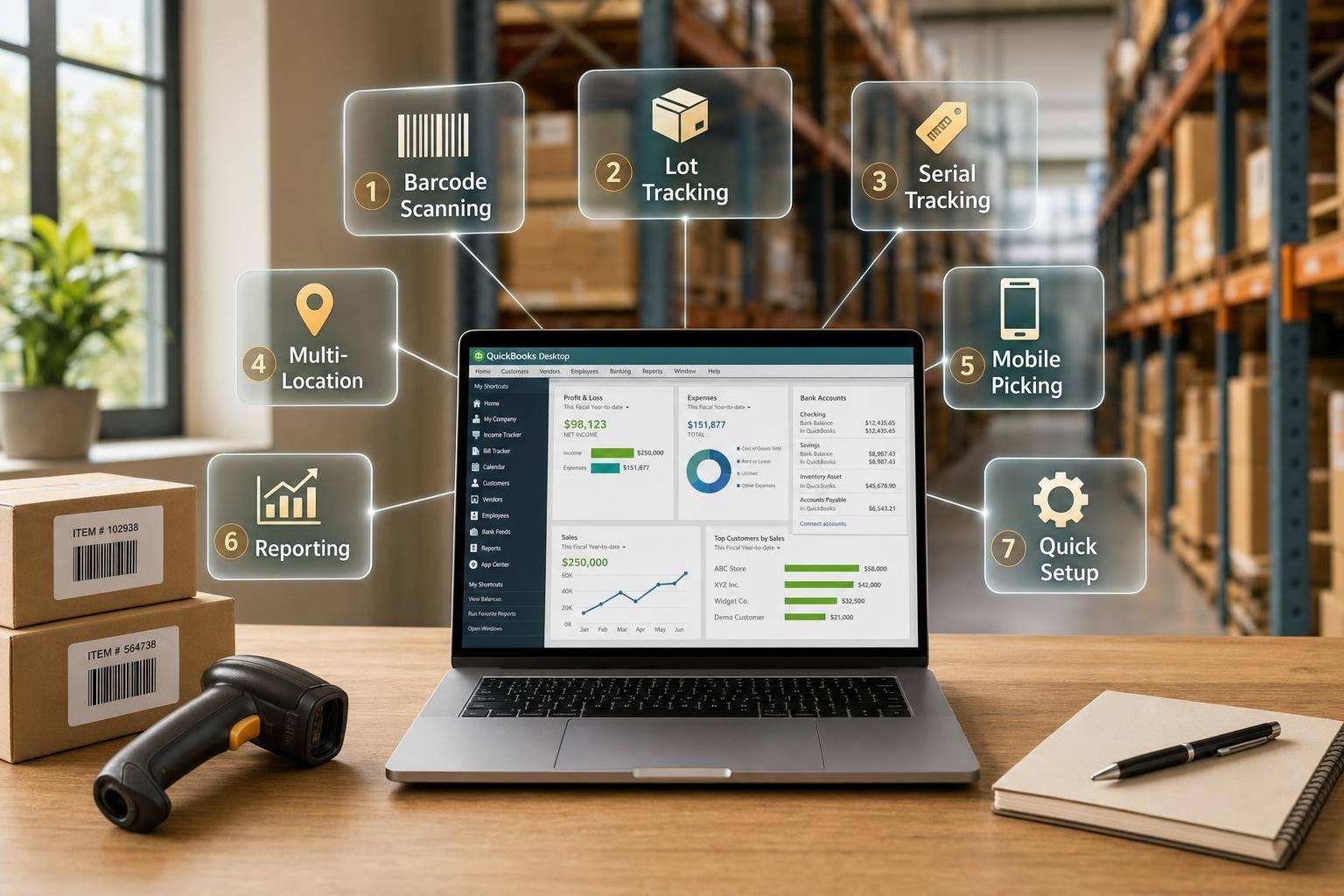
If QuickBooks Desktop handles your books but falls short in the warehouse, these 7 tools are the main options to look at.
I’d narrow the list fast like this:
- Rapid Inventory: best if you want web access, 2-way sync, mobile scanning, lot/serial tracking, and setup in about 6–7 days
- Fishbowl Inventory: best for manufacturing or warehouse teams that need deeper process control
- Acctivate: best for distributors that want tighter order and stock control
- HandiFox Online: best for small mobile teams using phones or tablets
- SalesWarp: best for browser-based order and inventory work
- ScanForce: best for scan-first warehouse workflows
- QuickBooks Enterprise with Advanced Inventory: best if you want inventory to stay inside QuickBooks Desktop Enterprise
When I compare these tools, I’d focus on the same six checks every time:
- QuickBooks Desktop sync
- Barcode scanning
- Lot/serial tracking
- Multi-location control
- Reporting
- Mobile or web access
A few things stand out right away. Some tools are browser-based, while others lean desktop-first. Some support both lot and serial details with expiration dates, while QuickBooks Enterprise uses an either/or setup per item. And setup time can vary a lot: one team may be live in under a week, while another may need paid implementation and a longer rollout.
Quick Comparison
| Tool | QB Desktop Sync | Scanning | Traceability | Multi-Location | Access |
|---|---|---|---|---|---|
| Rapid Inventory | 2-way automatic | Mobile | Lot, serial, expiration | Multi-warehouse + bins | Web |
| Fishbowl Inventory | Deep sync | Mobile | Lot + serial | Multi-warehouse | Desktop + mobile |
| Acctivate | Strong sync | Mobile | Lot + serial | Multi-location | Mobile/web |
| HandiFox Online | Syncs with Desktop | Mobile | Lot + serial | Multi-location | Mobile/web |
| SalesWarp | Syncs orders + inventory | Barcode workflows | Lot + serial | Multi-location | Web |
| ScanForce | QB Desktop sync | Mobile | Lot + serial | Multi-location | Mobile |
| QuickBooks Enterprise (Advanced Inventory) | Native | Mobile Warehouse app | Serial or lot | Sites + bins | Desktop + mobile |
Bottom line: if you need QuickBooks Desktop for accounting but want better receiving, picking, transfers, and cycle counts, this list covers the main paths. The best pick depends on how your team works each day, how many locations you track, and whether you need browser access or want to stay inside QuickBooks.
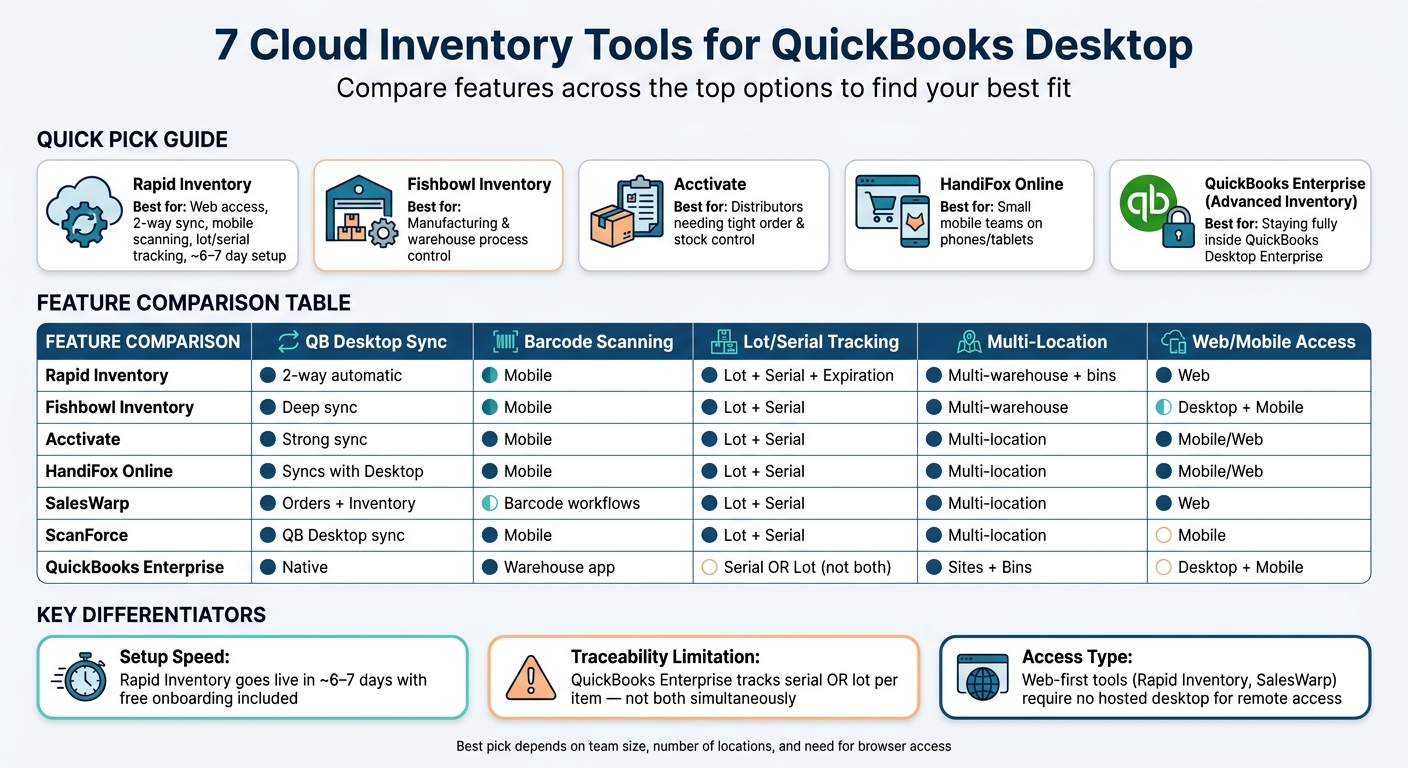
7 Cloud Inventory Tools for QuickBooks Desktop: Feature Comparison
QuickBooks + Fishbowl = Best Inventory Solution
sbb-itb-19ed50f
What to Look for in a QuickBooks Desktop Inventory Tool

Use these four checks to narrow the tools above.
Sync and accounting alignment
Start with two-way sync. It keeps items, orders, and stock changes lined up across both systems. That matters more than it may seem at first glance. If data only flows one way into QuickBooks, your team often ends up fixing mismatches by hand.
Rapid Inventory automatically syncs with QuickBooks Desktop Pro, Premier, and Enterprise, including inventory assemblies, backorder tracking, and partial shipping and receiving. That helps keep purchasing, fulfillment, and stock adjustments in step without duplicate entry.
Warehouse execution
Mobile barcode scanning helps with receiving, picking, transfers, and cycle counts. It also cuts down on mispicks and count errors.
Once scanning works well, the next step is simple: check whether the system tracks the details your operation cares about.
Traceability and location control
Lot and serial tracking help with recalls and compliance. FIFO (First In, First Out) and FEFO (First Expiration, First Out) picking methods, along with multi-location visibility, can help cut waste and stop overselling.
Reporting, remote access, and support
Real-time inventory reports give your team a live view of on-hand and allocated stock. Web-based access lets managers check inventory from anywhere. Rapid Inventory includes free training and onboarding, and most teams go live in about 6 to 7 days.
Use these criteria to judge the seven tools below.
1. Rapid Inventory
Rapid Inventory is a web-based inventory platform made for QuickBooks Desktop users. It lines up with the core needs above through direct sync, mobile warehouse work, and remote access.
QuickBooks sync
Rapid Inventory syncs automatically with QuickBooks Desktop Pro, Premier, and Enterprise. Items, sales orders, and purchase orders pull in from QuickBooks. Receiving, picking, and inventory adjustments sync back on their own.
It also supports inventory assemblies, backorder tracking, and partial shipments and receipts.
Barcode scanning
Mobile barcode scanning supports day-to-day warehouse work, including:
- Receiving
- Picking
- Cycle counting
- Transfers
At each step, scanners check locations, items, and quantities. The platform also supports label printing.
Lot/serial tracking
Rapid Inventory tracks lots, serials, batch numbers, and expiration dates. It supports FIFO and FEFO picking strategies, which helps when you’re dealing with products that have shelf-life rules.
Multi-location
It tracks stock across unlimited warehouses and QuickBooks inventory sites, down to specific locations within each warehouse.
Reports
For managers, reporting matters just as much as what happens on the warehouse floor. Rapid Inventory includes real-time reports for on-hand inventory, open purchase orders, open sales orders, reorder points, and activity logs.
Teams on the Unlimited plan also get custom inventory reports included.
Mobile/web access and support
Managers can check counts and work status without being on-site. Since the platform runs in a browser, warehouse staff don’t have to stay at a fixed workstation.
Implementation matters too. White-glove onboarding, training, and data migration are included in the subscription price at no extra charge. Onboarding usually takes 6–7 days.
2. Fishbowl Inventory
Fishbowl adds warehouse control for QuickBooks Desktop users. It's a solid choice for teams that need tighter warehouse processes but don't want to move off QuickBooks Desktop.
QuickBooks sync
Fishbowl handles day-to-day operations, while QuickBooks manages the accounting side. It syncs item receipts, assemblies, and sales transactions with QuickBooks Desktop, then sends invoices and bills to QuickBooks after orders are fulfilled. You can run the sync in real time or on a set schedule, which helps keep orders, receipts, and invoices lined up with QuickBooks.
Barcode scanning
Barcode scanning is part of Fishbowl's warehouse tools. It supports receiving, picking, packing, and shipping, so staff can move through warehouse tasks with fewer manual steps.
Lot/serial tracking
Fishbowl supports lot and serial tracking for warranty and compliance needs.
Multi-location
You can track stock across multiple warehouses and physical locations.
Reports
Fishbowl includes configurable reports and demand-planning tools that show inventory movement and help teams spot replenishment needs.
Mobile/web access
Fishbowl is more desktop-centered, so remote access isn't as browser-first as it is with cloud-native tools. That's one of the main tradeoffs if your team wants to work mainly through a web browser.
Support
Implementation often calls for consultant support and some customization to match specific workflows.
3. Acctivate
For teams that need tighter warehouse control, Acctivate goes deeper into day-to-day warehouse workflows.
QuickBooks sync
Acctivate is a warehouse-first inventory tool for QuickBooks Desktop that keeps warehouse activity and accounting aligned.
Barcode scanning
Acctivate supports barcode scanning for core warehouse work, including receiving, picking, and cycle counts.
Lot/serial tracking
It supports lot and serial tracking, which helps with traceability and control.
Multi-location
It supports multi-warehouse inventory control across locations.
Reports
It includes inventory and order reports that give teams a clear view of stock, movement, and fulfillment.
Mobile/web access
Users can manage warehouse tasks through mobile or web access.
Support
Acctivate is a strong fit for distribution and warehouse teams that need structured workflows and hands-on implementation support.
The next tools focus on different mixes of mobility, traceability, and multi-location control.
4. HandiFox Online
HandiFox is a good fit for teams that want to use QuickBooks Desktop inventory on phones and tablets. It leans toward mobile use, so it makes sense for field-heavy crews that need inventory and order data on the go.
QuickBooks sync
HandiFox syncs orders, fulfillment, and invoicing back into QuickBooks Desktop. That helps keep mobile activity tied to the accounting system your team already uses.
Barcode scanning
It supports mobile barcode scanning for inventory control and sales work. In plain terms, staff can scan items instead of keying them in by hand, which can save time and cut down on simple entry mistakes.
Lot/serial tracking
HandiFox also supports lot and serial tracking for teams that need traceability. That said, its traceability is mostly limited to lot and serial tracking, not deeper warehouse control features.
Multi-location
HandiFox tracks stock, locations, and inventory movements in real time across all sites. That gives teams a clearer view of what’s where, especially when inventory moves between locations.
Mobile/web access
Field staff can manage sales orders and purchase orders from a mobile device. That makes it easier to handle day-to-day work without being stuck at a desk.
Support
Users report inconsistent support response times. Setup can also be complex, and customization options are limited. That tradeoff makes HandiFox a better match for mobile-focused teams than for groups that need deep setup control.
5. SalesWarp
SalesWarp is a good fit for teams that want browser-based inventory control connected to QuickBooks Desktop.
QuickBooks sync
SalesWarp syncs inventory and orders with QuickBooks Desktop, so web sales and accounting stay in step.
Barcode scanning
SalesWarp supports barcode-based fulfillment workflows. That cuts down on manual entry during picking and shipping.
Lot/serial tracking
It includes lot and serial tracking, which helps teams trace items across orders.
Multi-location
Because it runs in the browser, teams can manage inventory from almost anywhere. That makes it useful for remote work and multi-location operations.
Reports
It includes performance reporting, giving teams a clearer view of order and inventory activity.
Mobile/web access
Its browser-based setup supports remote inventory management across locations.
The next tool leans more toward mobile warehouse execution.
6. ScanForce
ScanForce moves away from browser-based control and leans into a warehouse-floor setup built around mobile scanning. It extends QuickBooks Desktop with barcode-driven workflows for teams doing the work where inventory actually moves: on the floor.
QuickBooks sync
Check whether ScanForce syncs with QuickBooks Desktop in real time or on a batch schedule. That detail matters more than it may seem. During busy warehouse activity, batch syncing can leave inventory counts out of date, which can cause mistakes in picking, receiving, or stock checks.
Barcode scanning
Mobile barcode scanning helps staff verify:
- locations
- items
- quantities
That applies during receiving, picking, and cycle counts, so the system supports day-to-day warehouse tasks instead of forcing teams back to a desk.
Lot/serial tracking
ScanForce also supports lot and serial tracking, which helps with traceability.
Mobile access
ScanForce supports mobile warehouse work, letting staff scan and update inventory from handheld devices.
Beyond scanning, the main things to check are location control, reporting, and support.
Multi-location
Note whether ScanForce tracks inventory across multiple warehouses, sites, or bins.
Reports
Confirm whether it offers real-time inventory reporting or exception reporting that flags scan errors or inventory gaps.
Support
State what level of onboarding or implementation support is available.
7. QuickBooks Enterprise with Advanced Inventory
QuickBooks Enterprise with Advanced Inventory is the built-in inventory option for QuickBooks Desktop Enterprise. If you want inventory control to live inside QuickBooks Desktop, this is the native starting point.
QuickBooks sync
For teams that want everything in one place, the sync is native instead of app-to-app. Advanced Inventory keeps inventory and accounting in line in real time.
It also supports Average Cost and FIFO costing. On top of that, landed cost allocation lets you roll freight, duties, and insurance into item costs. Sales Orders are non-posting, which means they can reserve stock without touching the general ledger until they’re turned into Invoices.
Barcode scanning
The Warehouse app supports mobile barcode scanning for:
- Receiving
- Picking
- Transfers
- Cycle counts
It works with smartphones, tablets, and USB or Bluetooth scanners, which makes day-to-day warehouse work a lot smoother.
Lot/serial tracking
Advanced Inventory supports serial number or lot number tracking at the item level. That helps with warranty management, expiration dates, and recall traceability.
There is one catch: it uses an either/or setup per item. So one item can’t be tracked by both a serial number and a lot number at the same time. Still, traceability is strong, and location control helps extend that across sites.
Multi-location
You can track inventory across warehouses, stores, and mobile sites. Bin-level tracking also helps teams find stock by aisle, shelf, or bin ID. That matters when someone’s trying to locate one part fast instead of hunting through half the building.
Reports
Built-in reports give managers location-specific visibility and help them spot reorder needs faster.
Mobile/web access
The Warehouse app supports pick, pack, and ship workflows on mobile devices. But the core system is still desktop-based and on-premise, so it fits fixed locations better than browser-first tools.
That’s the tradeoff. It works well for controlled environments, but it’s less flexible for teams that need browser-first work.
Support
Intuit and partner support can help with setup, but your item list needs to be clean before you turn it on. Remove duplicate SKUs and fix inconsistent item records first.
Pros, Cons, and Best-Fit Use Cases
No single tool is the best at everything. The right choice comes down to how your team works, where inventory sits, and how much setup your business can handle without slowing down.
Best for barcode-driven warehouse work
If scanning speed is the top priority, this is the place to start.
Rapid Inventory works well for teams that need mobile barcode scanning woven into daily warehouse tasks like receiving, picking, and cycle counts, without a long rollout. It’s built for QuickBooks Desktop users and comes with a structured 7-day go-live plan. QuickBooks Enterprise with Advanced Inventory has native barcode scanning, but it tends to fit more controlled processes than busy, high-throughput warehouse floors. ScanForce is a fit for teams that want mobile scanning built around warehouse work.
Best for multi-location and traceability needs
When stock control matters more than raw speed, look at this group.
If your business tracks inventory across more than one warehouse and needs lot or serial traceability, Rapid Inventory supports unlimited warehouses, FIFO/FEFO rotation, and lot and serial tracking in one platform. QuickBooks Enterprise with Advanced Inventory handles multi-location tracking, bin management, and landed cost allocation natively, but serial and lot tracking are set up as either/or per item. Acctivate and Fishbowl support manufacturing and distribution workflows that rely on structured receiving and picking .
Best for small teams that need remote access
For teams working outside the warehouse, remote access can make the decision pretty simple.
Web-based tools usually give small teams more freedom. Rapid Inventory runs in the browser, so staff can check stock, process orders, and run reports from anywhere without needing a hosted desktop setup. HandiFox Online also offers cloud access . Desktop-first tools often need hosted access for remote work, which can add both cost and setup work.
Key tradeoffs to check before choosing
Use this table to line up each tool with your main operational need.
| Tool | Main Strengths | Main Limitations | Best-Fit Business Type |
|---|---|---|---|
| Rapid Inventory | Web-based access, 2-way sync, mobile barcode scanning, lot/serial tracking, onboarding and training included | Built specifically for QuickBooks Desktop users | Small and mid-sized teams needing remote access, warehouse execution, and traceability |
| Fishbowl Inventory | Deep manufacturing and warehouse features; established QB integration | Dated UI; complex setup often requires consultants; sync monitoring needed | Small and mid-sized manufacturers and wholesalers with complex operations |
| Acctivate | Strong inventory control and order processing for distribution | Can be complex to configure for simpler workflows | Distributors needing tight order management |
| HandiFox Online | Cloud access | Simpler cloud access than the mobile warehouse tools in this group | Small teams needing basic remote access |
| ScanForce | Mobile warehouse workflows | Higher implementation complexity and training time | Teams that want mobile warehouse workflows |
| QuickBooks Enterprise (Advanced Inventory) | Native integration, no third-party sync, bin tracking, landed costs | Higher subscription cost; serial/lot is either/or per item; desktop-based | Large, multi-location operations already committed to the Enterprise tier |
Tools with deeper feature sets, especially Fishbowl and Acctivate, often bring longer implementation timelines and higher setup costs. That can be a big deal. A long feature list looks nice on paper, but if your team needs to get moving fast, speed to launch matters just as much.
Support also changes from vendor to vendor. Rapid Inventory includes onboarding and training at no extra charge. Other platforms may treat implementation as a separate paid service.
Conclusion
The right QuickBooks Desktop inventory tool comes down to how your team actually works day to day. If you want a setup that doesn’t drag on, two-way QuickBooks sync, and mobile barcode scanning, Rapid Inventory is a strong match for QuickBooks Desktop Pro, Premier, and Enterprise.
If your team needs lot and serial tracking, multi-location control, FIFO/FEFO picking, and web access without a long rollout, Rapid Inventory is the best fit.
FAQs
How hard is setup?
Setup is meant to be simple and fast. In many cases, onboarding can get you up and running in as little as seven days.
The Rapid Inventory team takes care of the technical setup for you, including the QuickBooks Web Connector, user setup, warehouse setup, and data migration.
The rollout usually moves through a few clear stages:
- Discovery
- Planning
- Staging
- Go-live
- Free training
That means you’re not left piecing things together on your own. The team handles the heavy lifting so you can move from setup to day-to-day use without a lot of friction.
Do I need two-way sync?
You need two-way sync if you want inventory activity in your cloud tool - like receiving, picking, scanning, lot/serial updates, and transfers - to flow back into QuickBooks Desktop on its own. It also keeps item and order data in QuickBooks current, which cuts down on manual entry and reconciliation.
Rapid Inventory supports automatic two-way sync with QuickBooks Desktop, so inventory and transactions stay synced in both directions.
Can I track lots and serials together?
Yes. Rapid Inventory lets you track lot numbers and serial numbers at the same time.
Your team can record both during mobile receiving. Then, during picking, they can scan lot and serial details and sync that data back to QuickBooks Desktop in real time.



