I’d choose a cycle count method based on your best data: item priority, physical location, or product group. Start with one site or group, count each item-location pair separately, and review differences before approving inventory adjustments.
Here’s how I’d compare the three methods:
- ABC: Rank items by annual usage × average unit cost, then account for shortage risk. Count A items weekly or monthly, B items quarterly, and C items once or twice a year.
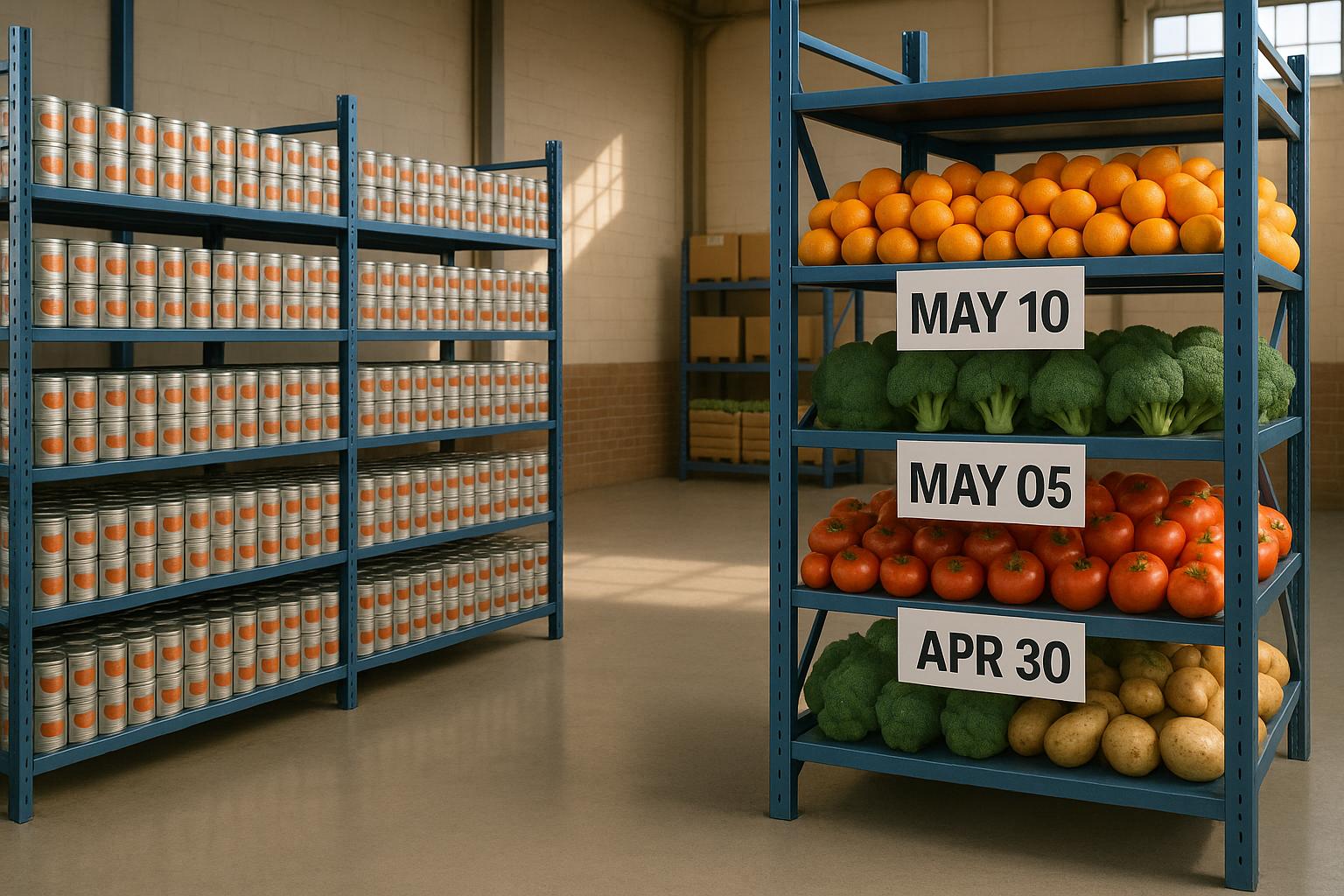
- Location-based: Count by aisle, shelf, bin, or site. Use clear boundaries and include empty bins, staging areas, returns, and overflow stock.
- Item-class: Count by category, brand, or product family. Keep group labels consistent and count every class at least once per year.
Quick Comparison
| Method | Best starting point | Main strength | Main risk |
|---|---|---|---|
| ABC | Reliable cost, usage, and risk data | Focuses staff time on priority stock | Lower-priority items get skipped |
| Location-based | Accurate site and bin records | Gives counters a clear route | Stock movement causes missed or duplicate counts |
| Item-class | Consistent item groups | Matches work to product knowledge | Missing labels leave gaps |
I’d compare total staff time - prep, counting, recounts, and review - not just time spent counting. A hybrid can pair frequent priority counts with location sweeps.
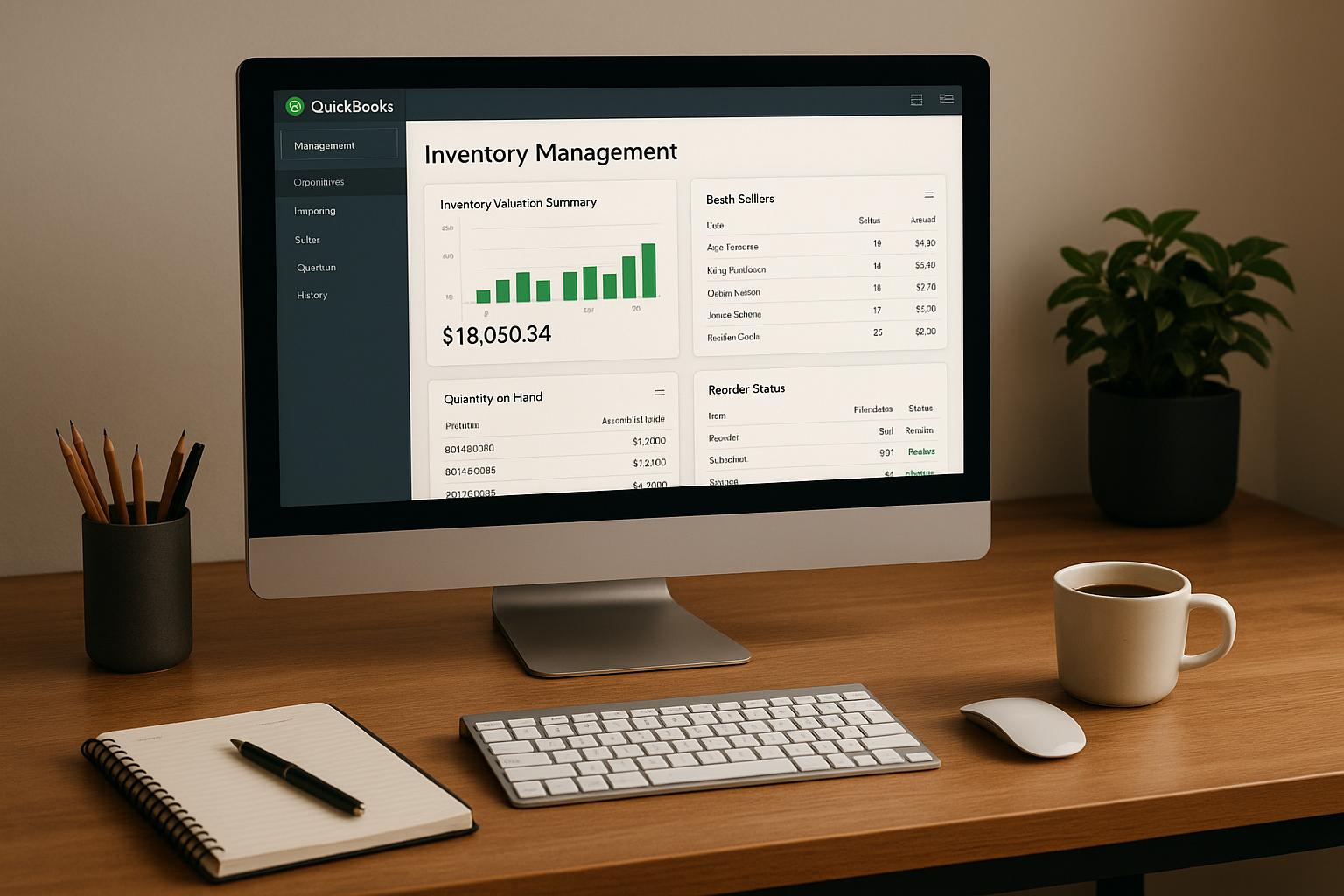
For the workflow described here, confirm QuickBooks Desktop Enterprise with Advanced Inventory, build count lists, and return results through a device or Excel. Rapid Inventory is another option for barcode counting and QuickBooks Desktop sync.
My rule: <u>control stock movement, record zero counts, and get supervisor approval before posting adjustments.</u> Track completion and repeat discrepancies before expanding the schedule.
1. ABC Cycle Counting
Selection Rules and Data
Calculate annual consumption value by multiplying units sold or used over the trailing 12 months by average unit cost. Use QuickBooks Desktop cost, on-hand, sales, usage, and location data.
Move low-cost items into class A if a shortage would stop production or delay key orders. Document every override, and don’t force a fixed percentage split. Once items are ranked, set the count schedule.
Count Frequency
Count A items weekly or monthly, B items quarterly, and C items once or twice a year. Count items with repeated discrepancies weekly until accuracy improves. Then match the counting process to your warehouse or store layout.
## Best-Fit Inventory Management Software Operations
ABC works well for small warehouses, retail stockrooms, and multi-site operations with limited counting time and reliable priority data.
Small warehouses can focus labor on high-risk stock without pausing work. Retail stockrooms can schedule counts around promotions and after high-volume weekends. For multi-site operations, rank the same SKU separately at each location when demand varies by branch. Use that structure to build count lists and control stock movement during counts.
Setup and Accuracy Risks
Review classifications monthly or quarterly to keep rankings current as seasonal demand, new products, and suppliers change. Include the item, expected quantity, location, class, counter, and count date on each count list.
Control receipts, shipments, and transfers so late postings don’t create false variances. Verify units of measure, and count each item-location pair separately - including stock in overflow, staging, returns, and quarantine areas.
Reconcile location totals before approving a QuickBooks Desktop adjustment. If stock appears to be missing, check for misplaced units and unposted transfers first.
sbb-itb-19ed50f
2. Location-Based Cycle Counting
Selection Rules and Data
Count by physical area, not by product. Create a master location register with distinct, visible labels for bins, shelves, cages, and staging areas. Keep zone ownership separate from item-class groupings. Put count sheets in a consistent walking order and include the site, location, item, unit of measure, assigned counter, and status. Unlike ABC counts, this method follows the warehouse layout rather than item value.
Count Frequency
Count high-traffic stockroom zones weekly and slower storage areas quarterly.
Best-Fit Operations
Use this method when the physical layout is a better guide for counting than SKU priority. In small warehouses, simple aisle-by-aisle routes help teams spot misplaced stock. Retail stockrooms can follow department or replenishment-zone routes during quiet periods. For multiple sites, assign counts by site first, then by zone. Keep each facility’s count sheets separate so differences can be traced back to their source.
Setup and Accuracy Risks
Assign each zone to one counter or team, with no overlapping boundaries. Mark every location complete - even when it’s confirmed empty - and scan the location before the item. Before closing the count, check completed locations against the master register. Investigate missing labels, duplicate scans, and unchecked areas.
Stop stock movement in the active zone. If movement must continue, log each move’s SKU, quantity, source location, destination location, and time before the cutoff. Reconcile results the same day when possible. Check nearby zones and unlabeled stock before posting an adjustment.
If product families are easier to manage than physical zones, move to item-class counting.
3. Item-Class Cycle Counting
Selection Rules and Data
Group items by category, brand, season, material, or handling requirement. Count one product group at a time. This method works when product grouping matters more than physical location or item value.
Store each item’s primary class in item fields or custom fields. Then build count lists using the reports your QuickBooks Desktop edition supports. This structure helps determine the staff time needed for each class.
Count Frequency
Count fast-moving or high-risk classes weekly or biweekly, medium-risk classes monthly, and stable classes quarterly or semiannually. Count every class at least once per operating year. Shorten the cycle when variances, stockouts, write-offs, or complaints increase.
Best-Fit Operations
Item-class counting works well when staff own specific product families and know their packaging and storage rules. For multi-site inventory, use shared class definitions to keep classifications consistent, but include only items stocked at the selected site on each count list. Use these assignments to estimate coverage, labor needs, and scheduling pressure.
Setup and Accuracy Risks
Inconsistent labels, blank fields, and overlapping classes can cause staff to skip SKUs or count them twice. Maintain a controlled class dictionary and keep secondary attributes separate.
Check data quality monthly for inactive items, duplicate or outdated labels, and site-specific exceptions. Review classification rules quarterly and whenever product lines, layouts, or handling requirements change. Before scheduling counts, compare the method’s labor needs and coverage tradeoffs.
QuickBooks Enterprise Cycle Count Tutorial: A Step-by-Step Guide to Efficient Inventory Management
Compare Staff Time and Coverage Gaps
Compare total labor, not just counting time. Estimate count minutes per SKU or location, then add prep, recounts, variance research, and approvals. A fast count saves little if it leads to rework.
| Method | Advantage and staff time | Coverage limitation | Safeguards |
|---|---|---|---|
| ABC | Directs labor toward high-priority items. | Outdated priorities can leave B and C items unchecked. | Review classifications on a set schedule and add periodic location sweeps. |
| Location-based | Gives staff a fixed route and area. | Unclear boundaries and stock movement can lead to missed or duplicate counts. | Set clear boundaries, mark completed areas, and control picks, receipts, and transfers. Include staging, overflow, returns, and quarantine. |
| Item-class | Supports ownership and product expertise while reducing handoffs. | Uneven workloads can leave larger groups unfinished. | Balance assignments by expected count time, keep group membership current, and assign an owner and backup. |
Track scheduled vs. completed counts, variance rate, and elapsed time. Review overdue work to spot coverage gaps, and track completion by facility so one strong site doesn't hide missed counts elsewhere.
In QuickBooks Desktop, the method determines the count list; the system records the expected quantity, variance, and approved adjustment. Give each assignment a scope, deadline, counter, and reviewer.
Run Cycle Counts in QuickBooks Desktop

QuickBooks Desktop Cycle Count Workflow
Turn your chosen count method into a QuickBooks Desktop count list and approval workflow.
First, confirm that QuickBooks Desktop Enterprise with Advanced Inventory is installed. Then check Multiple Inventory Sites, site and bin setup, and device compatibility.
Define the Scope and Count List
Build the count list using a site, item, or custom-field filter. Set clear count boundaries and check SKUs, units of measure, bin controls, lot or serial rules, and site assignments. Account for stock stored outside its normal bin, too.
Use a separate line for each item-location combination so each count maps to the right stock location.
Assign Tasks and Record Counts
Open Inventory > Cycle Count, create a new cycle count, select the site, and add items through Find & Select Items. Send the count tasks to a device or Excel.
Record blind counts of actual quantities by item and location, including zeros. Pause stock movements during counting or log any movements that occur.
Return the results through device sync or Import from Excel. Match returned lines to assigned lines, and keep the original export.
Review Differences and Approve Adjustments
Review quantity and value differences. Check for unposted receipts, shipment timing, unit-of-measure errors, duplicate SKUs, incorrect site assignments, shrinkage, and counting errors.
Get supervisor approval before posting adjustments. When staffing allows, assign counting, approval, and posting to different people. Record the reason, employee, and adjustment date using U.S. date format.
Example: October 28, 2026.
Track repeated discrepancies by SKU, site, bin, and cause. Use those findings to correct item records, location assignments, labeling, and receiving, picking, or transfer procedures.
For barcode-based count capture and direct sync, Rapid Inventory supports the same count structures.
Use Rapid Inventory With QuickBooks Desktop
Rapid Inventory supports ABC, location-based, and item-class workflows. It includes two-way QuickBooks Desktop sync, multi-location tracking, mobile barcode scanning, lot and serial tracking, cycle-count workflows, web access, and free onboarding and support.
Conclusion: Match the Method to Your Data and Staff
Choose a method your records, layout, and staff can support. Use this table to find the right fit.
| Your operating conditions | Best-fit method |
|---|---|
| Reliable value, velocity, or criticality data; limited time | ABC |
| Clear bins, aisles, or zones; walking route matters | Location-based |
| Consistent product groups and clear ownership | Item-class |
| Frequent priority checks plus site coverage | Hybrid |
Start with a count scope your team can handle. Use your existing item, site, location, and class records to set that scope, and fix missing assignments first. If you manage inventory across multiple sites, rank priorities separately for each site. Keep the workload within what staff can count, review, and approve.
After a few cycles, check discrepancy frequency, value impact, missed counts by location, and time per item. Expand only when counts, variance reviews, and approvals are consistent.
FAQs
How do I combine ABC and location-based counts without duplicating work?
Store each item’s ABC class in a custom item field in QuickBooks Desktop. Then filter count batches by class and location - for example, A-class items in a specific bin or site.
Limit each task to one site, zone, or item group, and assign it to one person or device to prevent overlap. Rapid Inventory syncs filtered count lists to mobile devices for scanning.
When should I recount a variance before adjusting QuickBooks Desktop?
Before making adjustments in QuickBooks Desktop, recount inventory or investigate any “Pending Review” variances - especially large ones - to confirm the discrepancies are real. Resolve pending documentation, including missed receipts, returns/transfers, or assembly builds, and post all activity through your transaction cutoff.
Then review each discrepancy line, checking quantity versus value, and add reason codes. Before recording adjustments, confirm the item, location, date, account, and reference. Sources:.
How can I keep cycle counts consistent across multiple sites?
Keep one item record per SKU across locations, and use consistent site and bin names. Rotate counts throughout the week to keep location records up to date.
Keep each count focused on one site, zone, or item group. Assign team members or devices to specific tasks. Use two-way sync tools to send count tasks to the floor and return finalized, reconciled data to QuickBooks Desktop.