
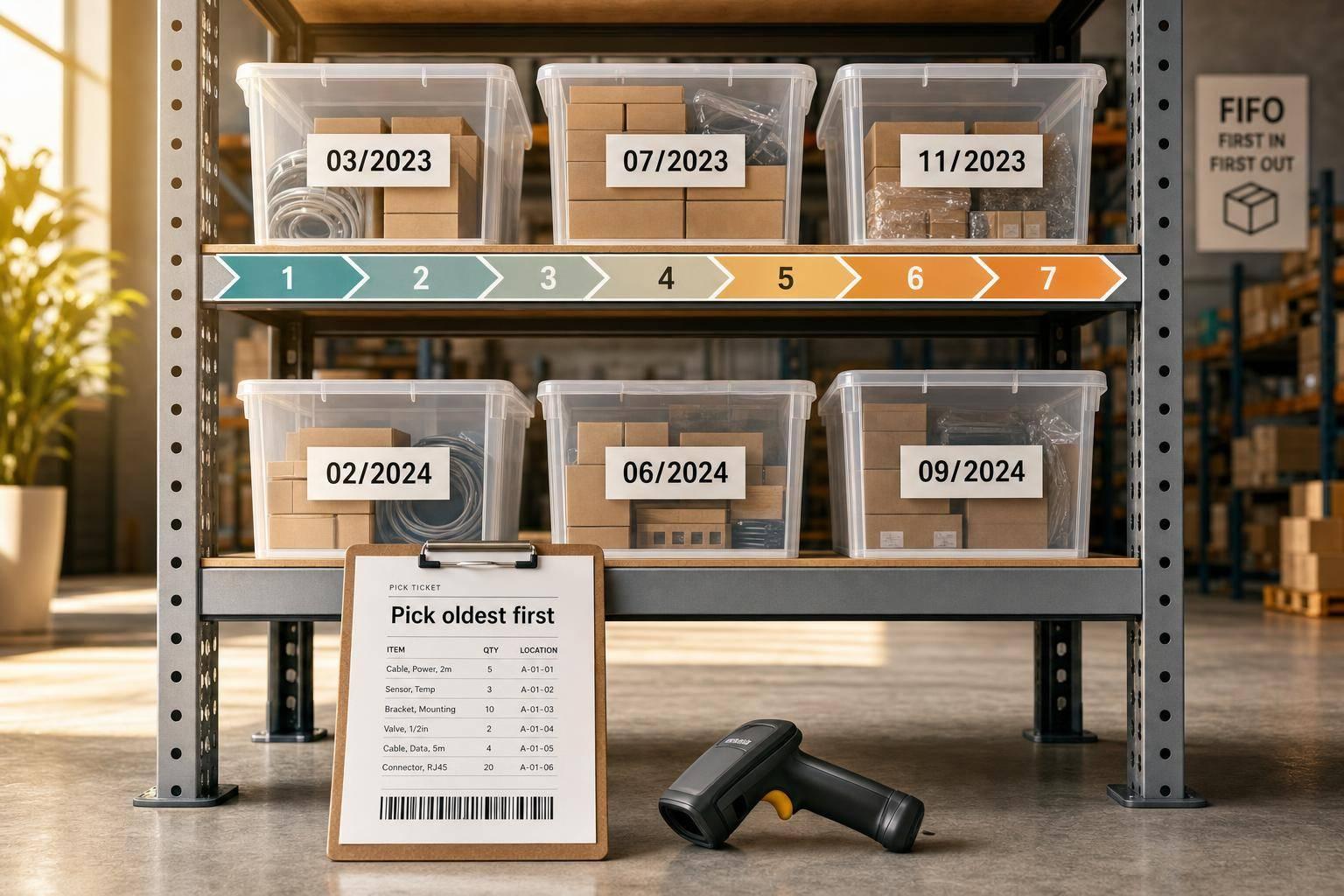
Quick answer: QuickBooks Desktop can track FIFO cost layers, but it does not tell your warehouse team which stock to pull. If you want true FIFO picking, I’d set up both parts: QuickBooks for valuation and a warehouse process that tells staff to pick the oldest dated stock first.
Here’s the article in one simple view:
- Turn on Advanced Inventory and FIFO in QuickBooks Desktop Enterprise.
- Clean up item records so SKUs, units, and costs match.
- Use one date rule per product type, usually receipt date in MM/DD/YYYY format.
- Set bins so older stock is easier to reach than newer stock.
- Build pick tickets that sort by the oldest eligible bin or lot.
- Limit who can change bins, dates, and override rules.
- Test with sample receipts like 06/01/2026, 07/01/2026, and 08/01/2026, then follow the same daily routine.
A few points stand out. First, FIFO picking is a warehouse rule, not just an accounting switch. Second, products with shelf life often need tighter controls, because old stock can turn into write-offs. Third, disciplined cycle counts can make a big difference: the article notes that loose inventory programs often sit around 65%–75% accuracy, while structured cycle counting can reach 95%–99%.
If I had to boil the whole piece down to one line, it would be this: set the date rule, set the bin rule, and make pickers scan the right bin, item, and lot every time.
| Area | What it does |
|---|---|
| QuickBooks Desktop Enterprise | Tracks FIFO valuation and cost layers |
| Warehouse bin layout | Makes oldest stock the first stock people can reach |
| Pick tickets | Directs staff to the oldest eligible stock |
| Barcode scanning | Checks bin, item, and lot before the pick is done |
| User permissions | Stops unwanted changes to FIFO rules |
| Cycle counts and aging review | Helps catch old stock and inventory errors |
That’s the full idea up front. The rest of the article walks through how to set each part in place without making the process hard to follow.
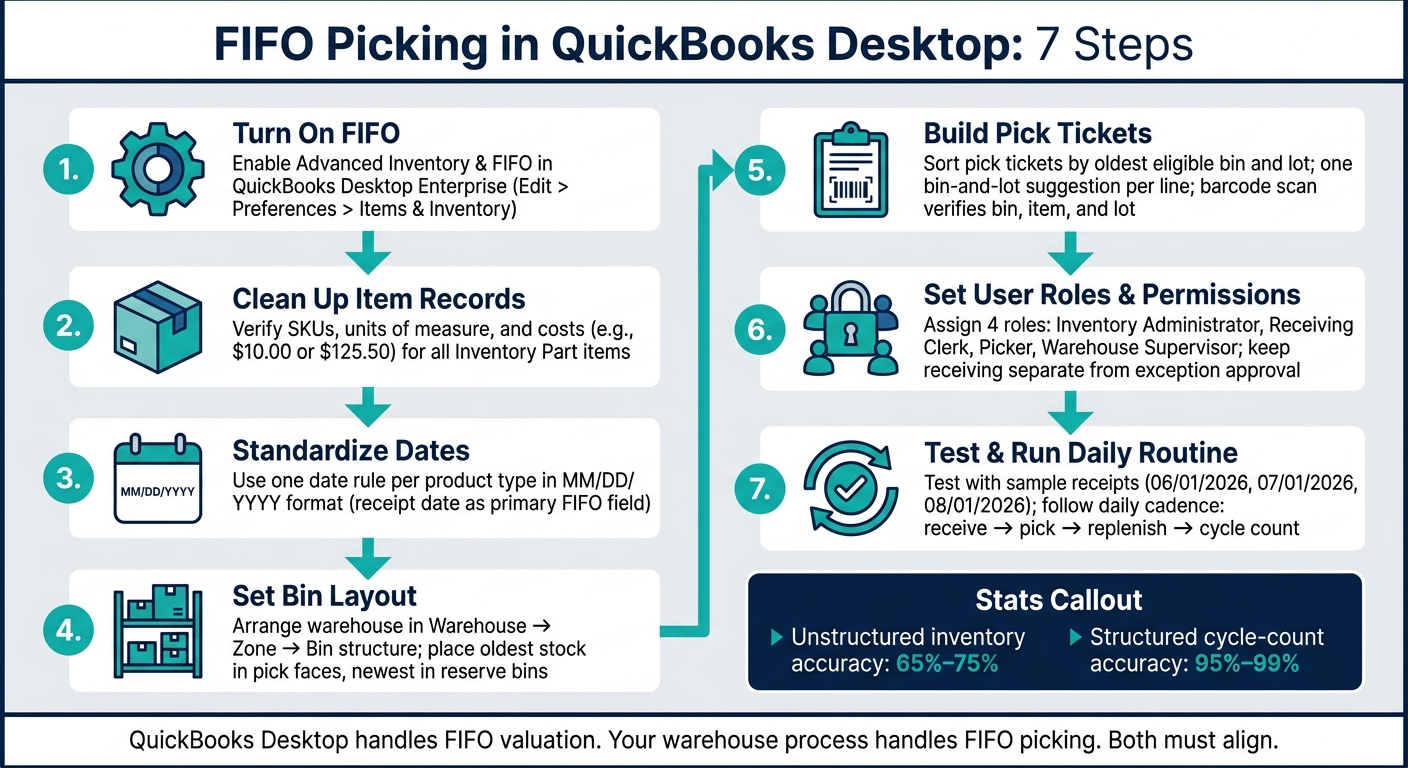
FIFO Picking in QuickBooks Desktop: 7-Step Setup Guide
Steps 1-3: Turn On FIFO, Clean Up Items, and Standardize Dates
Step 1: Turn On Advanced Inventory and FIFO in QuickBooks Desktop
FIFO is part of Advanced Inventory in QuickBooks Desktop Enterprise, so first make sure Advanced Inventory is turned on in your company file.
To turn on FIFO, go to Edit > Preferences > Items & Inventory > Company Preferences > Advanced Inventory Settings > FIFO and choose your start date. That date matters. QuickBooks uses FIFO from that point forward and keeps earlier transactions as historical records.
A clean way to do this is to start at the beginning of a fiscal month or quarter, like 01/01/2026 or 04/01/2026. It makes reconciliation easier and gives you a cleaner test window.
Once FIFO is on, move straight into item cleanup before you build any pick logic.
Step 2: Set Up Inventory Items for FIFO Picking
Before anything else, clean up your item records. If the item list is messy, FIFO gets messy too.
Review your Inventory Part items for:
- Item name/number
- SKU
- Unit of measure
- Cost
Check each of those fields carefully. Costs should be accurate and realistic, such as $10.00 or $125.50, because FIFO reports depend on the cost layers tied to each receipt.
This is also the time to deactivate old items and merge duplicates. If you have two records for the same product, you're asking for trouble later.
For items that need traceability, add lot or serial tracking before pick tickets go live. FIFO tells the team which stock layer to use first. Lot or serial tracking tells them which batch or unit to grab. In QuickBooks Desktop Enterprise, you can also make those entries required on item receipts, invoices, and inventory transfers.
After the item master is cleaned up, lock down the date field that will control oldest-first picking.
Step 3: Use Receipt, Lot, and Expiration Dates the Same Way
Use receipt date as the main FIFO field. Use expiration date only when the product needs FEFO-style rotation. It should not replace receipt date unless that item is handled under FEFO rules.
Stick to one main date field for each product type, and use MM/DD/YYYY on every receipt, label, and pick ticket. That keeps 09/10/2026 from being read as 10/09/2026.
Date consistency sounds small, but it drives the whole process. Each receipt date needs to be entered the same way and entered correctly, because FIFO depends on clean, steady dates across all inbound stock.
Steps 4-5: Set Bin Rules and Pick Ticket Flow
Step 4: Set Up Warehouses, Locations, and Bins for Oldest-First Picking
Once your dates are clean and consistent, the next move is simple: turn FIFO into a physical setup people can follow without guessing.
A solid layout usually follows a warehouse → zone → bin structure. In a small U.S. warehouse, that could look like Main Warehouse → Bulk Storage → A-01-01 (aisle A, bay 1, shelf 1). Rapid Inventory uses those same bin IDs both on screen and on rack labels, which cuts down on mix-ups.
The big choice here is how you separate primary pick faces from reserve bins.
That split matters a lot. Older stock should sit in the pick faces. Newer stock should stay in reserve bins. Then, when a pick face starts running low, replenishment pulls from the oldest reserve lot first. If you use flow racks or front-to-back shelving, this gets even easier: older stock stays up front in the pick face, while newer stock sits behind it in reserve.
Here are the main bin rules to lock down before go-live:
| Rule Name | Description | Impact on FIFO Compliance |
|---|---|---|
| No Lot Mixing in Bins | Each bin holds only one lot or receipt date | Very high |
| Pick Face Only Picks | Pickers pull only from forward pick bins, not reserve | High |
| Oldest-First Replenishment | Replenishment always pulls from the oldest lot and reserve bin first | Very high |
| Receiving Avoids Pick Faces | Inbound stock goes to receiving or reserve bins, not pick faces | High |
Rapid Inventory can back up several of these rules by setting bin types, limiting which roles can change bin assignments, and sorting replenishment suggestions by oldest receipt date. In plain English: the warehouse rules you set here become the logic behind the pick ticket in the next step.
Step 5: Build Pick Tickets in FIFO Order
Once those bin rules are in place, the pick ticket can do the heavy lifting. It can sort stock by the oldest eligible inventory automatically, so the picker doesn't have to stop and decide what to grab.
When QuickBooks Desktop creates a sales order, Rapid Inventory syncs that order into a pick ticket sorted by the oldest eligible bin and lot. The picker should see one bin-and-lot suggestion per line, not a menu of options. That removes hesitation and keeps the process tight.
Barcode scanning checks the bin, item, and lot before the pick is finished. If someone grabs the wrong lot or the wrong bin, the system blocks the pick on the spot.
For lot- or expiration-controlled products, that scan does more than stop mistakes. It keeps picking, valuation, and compliance records lined up with each other.
Steps 6-7: Set Roles, Test the Process, and Run FIFO Each Day
Step 6: Set User Roles and Permissions in Rapid Inventory
Once your bin logic is in place, the next move is simple: limit who can change it.
That matters because FIFO falls apart fast when too many people can edit bins, dates, or stock rules. A clean setup works best when each person has a clear job and only the access they need.
The table below shows four core roles for FIFO picking.
| Role | Key Responsibilities | System Permissions |
|---|---|---|
| Inventory Administrator | Configure FIFO/FEFO rules; manage items, warehouses, and bins; oversee QuickBooks sync | Full access to inventory settings, item master data, bin and site setup, quantity/value adjustments, and user accounts |
| Receiving Clerk | Receive stock against POs; record receipt dates; capture lot and serial details | Create and edit receiving transactions; add lot/serial info; update quantities at receiving |
| Picker | Execute pick tickets; follow system-directed FIFO paths; scan items and bins | View and confirm pick tickets; record picks; scan barcodes; report issues but cannot change settings |
| Warehouse Supervisor | Oversee daily operations; approve exceptions; review counts and variances | View inventory across sites; approve adjustments; authorize FIFO overrides; manage user assignments |
One simple safeguard goes a long way here: keep receiving separate from exception approval. That split helps stop small mistakes from snowballing.
Step 7: Test Sample Orders and Set a Daily Routine
After permissions are set, test the workflow with a sample order before you use it on live orders.
Enter three receipts for one item on 06/01/2026, 07/01/2026, and 08/01/2026. Sync them, then create one sales order that spans more than one inventory layer. The pick should pull from the oldest receipt first. After that, confirm that completed picks update QuickBooks Desktop.
If a later receipt shows up before an earlier one, go back and check your bin rules and receipt date entries from Steps 2 and 3. In most cases, the issue starts there.
Don’t stop with the happy path. Also test:
- a missing-bin ticket
- a moved-bin ticket
Once the test works, stick to the same daily rhythm. Repetition helps keep the process tight and easier to spot-check. A simple cadence works well: receive in the morning, pick at midday, replenish in the afternoon, and cycle count at the end of the day.
For cycle counts, pay extra attention to older receipts, high-turn items, and bins that tend to produce exceptions.
It also helps to review stock by aging bands:
- 0–30 days: monitor
- 31–60 days: check demand
- 61–90 days: review setup
- 90+ days: act on markdowns, returns, or disposal
Use the oldest stock you can access first. If items are sitting too long, move slow movers into clearance.
Structured cycle counting is what keeps FIFO honest over time. Warehouses without a formal cycle-counting program usually run at inventory accuracy rates of 65%–75%, while structured cycle-count programs can hit 95%–99% accuracy.
sbb-itb-19ed50f
QuickBooks Enterprise Advanced Inventory | Full Tutorial on Locations, Lot Numbers, FIFO, Barcodes
Conclusion: Keep FIFO Picking Simple and Consistent
FIFO works when QuickBooks layers, bin layout, and scan-based picking all follow the same oldest-first rule. QuickBooks Desktop sets the inventory layer. Rapid Inventory controls what happens on the warehouse floor. When those two stay in sync, FIFO works without constant cleanup.
Use the checklist below to verify the setup before live orders start. It helps catch setup gaps that can break FIFO before they turn into day-one problems.
Barcode scanning keeps each pick tied to the right bin, item, and lot.
Key Points to Check Before Go-Live
Run this final go-live check with both warehouse and accounting teams.
- Confirm the FIFO start date in QuickBooks Desktop and make sure both accounting and warehouse staff know it. Any inventory received before that date sits outside your FIFO layers.
- Verify item records are clean: correct units of measure, no duplicate SKUs, and the right item type set to Inventory Part.
- Check that every on-hand batch has a valid receipt date or lot date. If stock has no date, your cost layers get distorted. Fix that before go-live.
- Confirm bin labels and layout support oldest-first rotation. Older stock needs to sit in the pick position or in a clearly marked oldest bin.
- Test pick tickets on at least a few sample orders to make sure lines sort in FIFO order and Rapid Inventory sends users through the right bin sequence.
- Limit override permissions to supervisors only, and require a reason code - such as "Quality hold" or "Damaged oldest stock" - whenever a FIFO pick is skipped.
- Review aging weekly to catch stock that has passed your target thresholds (0–30 days, 31–60 days, 61–90+ days) before it turns into a write-off issue.
FIFO holds only when the same rules stay in place every day.
FAQs
Does QuickBooks Desktop handle FIFO picking by itself?
QuickBooks Desktop does not support automated FIFO picking by itself.
QuickBooks Desktop Enterprise with Advanced Inventory does offer FIFO costing for inventory valuation and financial reporting. But that’s not the same thing as warehouse picking. Your team still has to handle picking manually.
If you want automated FIFO or FEFO workflows that tell staff which lots or bins to pick from, you’ll need a specialized tool like Rapid Inventory.
When should I use FIFO instead of FEFO?
Use FIFO for non-perishable goods when the goal is to move older stock first and keep inventory rotation smooth.
Use FEFO when expiration dates matter and you need to sell items with the nearest expiration dates first. This is key for perishable or regulated products where freshness and safety matter most.
What should I do if staff pick the wrong bin or lot?
Use a cycle count to check current inventory for the affected site or items. In Inventory, select Cycle Count, use Find and Select Items to find the mismatch, then update quantities with Batch Actions and Adjust Quantity/Value on Hand.
To help prevent the same issue from happening again, have staff use mobile barcode scanning during picking. That lets them verify the item, bin, and quantity in real time.



