
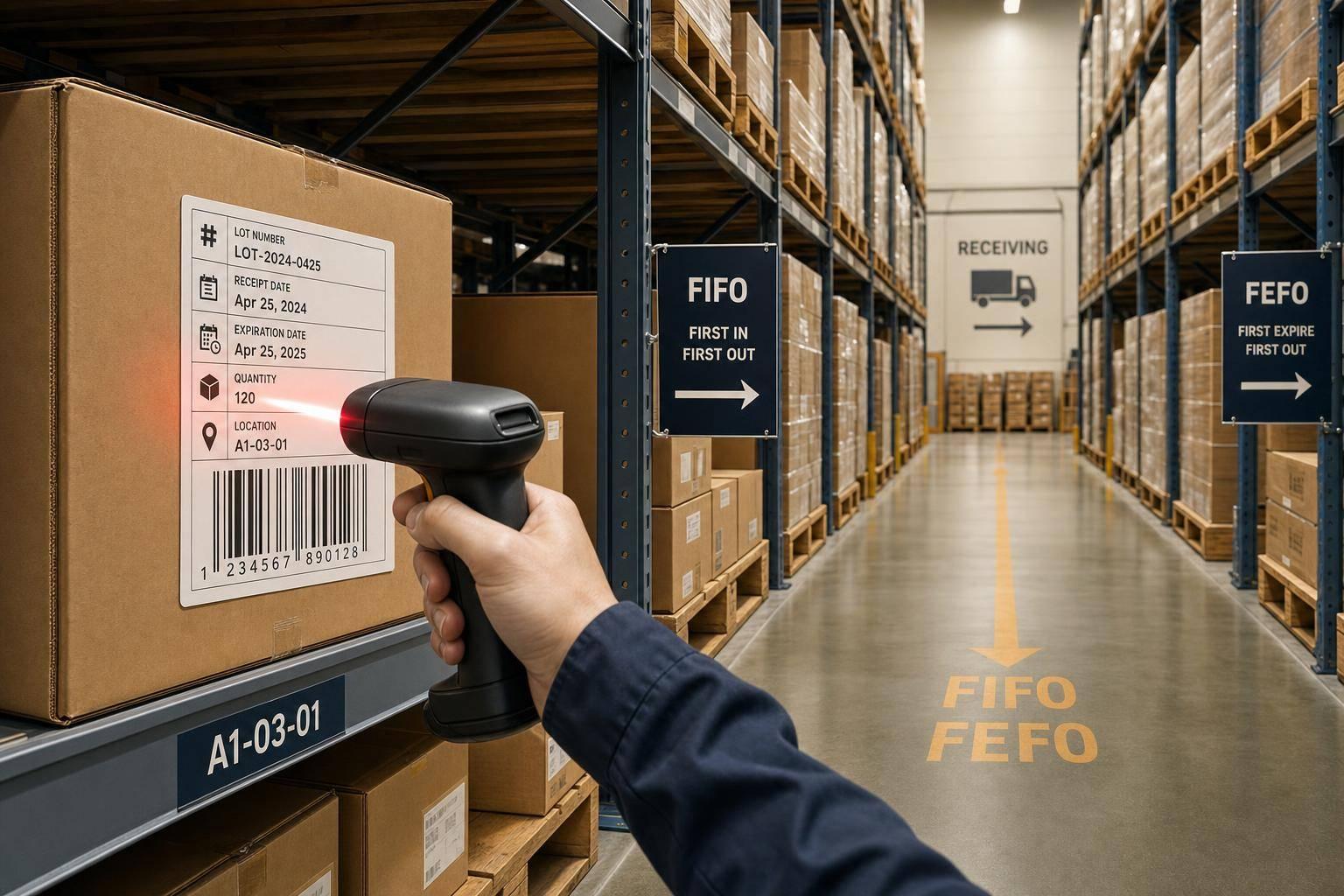
If your team scans the wrong lot, FIFO and FEFO fail at the shelf, not in QuickBooks.
I’d sum it up like this: barcode scanning helps me enforce oldest-in-first-out and earliest-expiring-first-out by checking the item, lot, date, quantity, and location at each warehouse step. When I record that data at receiving, scan moves between bins, and verify picks before shipping, I cut down on wrong-lot shipments, missed older stock, and expiry problems.
Here’s the short version:
- FIFO uses the receipt date
- FEFO uses the expiration date
- Both depend on lot tracking
- Both break when receiving data is missing or wrong
- Scanning should happen at receiving, put-away, moves, picking, shipping, and counts
- The handheld should reject the wrong location, wrong item, or wrong lot
- Data should sync back to QuickBooks Desktop so warehouse records and accounting match
A simple example: if Lot A came in on 08/01/2026 and Lot B came in on 08/15/2026, FIFO should send me to Lot A first. If Lot B expires on 09/10/2026 and Lot A expires on 09/30/2026, FEFO should send me to Lot B first instead. That one difference decides what gets picked.
Quick comparison
| Method | What I pick first | Main data needed | Best use |
|---|---|---|---|
| FIFO | Oldest received lot | Lot number + receipt date | General stock, raw materials |
| FEFO | Earliest expiring lot | Lot number + expiration date | Food, pharma, cosmetics, chemicals |
| Date-based lot control | Lot sorted by a chosen date field | Lot number + date field | Batch traceability with date rules |
One missing scan can throw off the whole flow. So the article’s core point is simple: if I want FIFO or FEFO to work on the floor, I need clean lot/date data at receipt and scan checks all the way through shipment.
FIFO Method (First In First Out) Failure | Solution to First In First Out (FIFO) Problems | FIFO Job
sbb-itb-19ed50f
Set Up Lot Control and Barcode Scanning in QuickBooks Desktop

FIFO and FEFO only work when lot records are set up the right way in QuickBooks Desktop. The key is simple: receipt data needs to create lot records you can actually use. That starts at receiving, where each lot should be linked to a receipt date and an expiration date.
Enable Lot Tracking, Barcode Scanning, and Date-Based Lot Records
Start by turning on Inventory and Purchase Orders. Then enable Advanced Inventory, lot tracking, barcode scanning, and multiple inventory sites with inventory management software for QuickBooks Desktop.
For barcode support, go to the Barcode tab in Advanced Inventory and turn on barcode scanning. After that, run the Barcode Wizard. The wizard lets you map barcodes to one item field and generate barcodes in bulk for items that don't have manufacturer codes.
Use MM/DD/YYYY for every receipt date and expiration date in QuickBooks Desktop, such as 09/30/2026. If one team uses one format and another uses something else, FEFO picks can go off track fast. It also creates a mess between warehouse records and accounting data.
Label Items, Lots, and Warehouse Locations for Scanning
A solid labeling setup uses three barcode types together:
- Item/SKU barcodes identify the product
- Lot labels connect a batch to its lot number and expiration date, with both a scannable code and human-readable text such as "EXP: 09/30/2026"
- Location barcodes mark each shelf, bin, or pallet position so staff can scan where a lot is stored or moved
If manufacturer barcodes don't include lot or expiration data, print internal lot labels at the dock before stock goes into storage. That one step can save a lot of cleanup later. Location scans keep each lot linked to its current shelf or bin, and they also make later shelf moves traceable.
Capture Lot and Expiration Data at Receiving
Receiving is where FIFO and FEFO either start clean or break down. Every lot needs its item, lot number, quantity, receipt date, and expiration date recorded before stock moves into storage.
A practical receiving workflow looks like this:
- Open the PO or receipt.
- Scan the item and lot labels.
- Enter the expiration date and quantity.
- Save the receipt.
Once saved, the receipt creates the receipt-date record that FIFO uses. Expiration dates are what FEFO runs on. When lot and date data are captured at receiving, scans can then guide FIFO and FEFO picks with much less guesswork.
Use Barcode Scans to Enforce FIFO and FEFO Picking
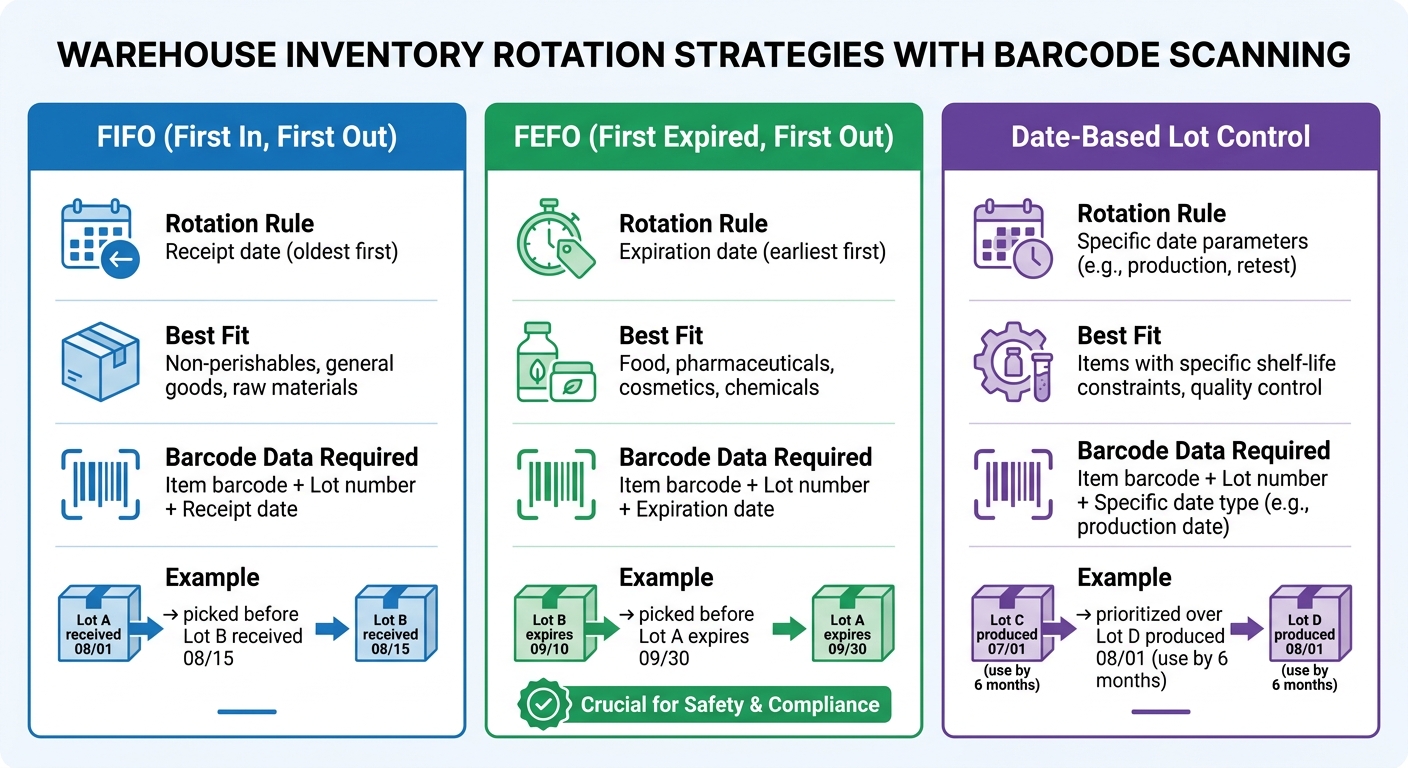
FIFO vs. FEFO vs. Date-Based Lot Control: Barcode Scanning Comparison
Once lot and date data are captured at receiving, barcode scans turn those records into clear pick instructions on the warehouse floor. That matters because even with clean lot records, people can still grab the nearest case if the system doesn't stop them. A mobile scanner fixes that by acting like a gatekeeper: it checks the location, item, and lot before stock leaves the shelf.
FIFO Picking Based on Receipt Date
With FIFO, the system assigns the oldest eligible lot first and shows the picker the exact lot to scan. The pick task includes the warehouse location, item, quantity, and the specific lot number selected by the FIFO rule.
The scan flow is simple: scan the location, then the item, then the lot.
If the picker scans the shelf barcode and it doesn't match the directed bin, the device blocks the pick. After that, they scan the item and then the lot barcode on the case or pallet. If they scan a newer lot instead of the FIFO-selected lot, the device rejects it and prompts them to scan the right one based on the lot record synced from QuickBooks Desktop. If your process allows exceptions, require a supervisor login and a reason code for any override.
FEFO uses that same scan check. The only difference is that the system ranks lots by expiration date instead of receipt date.
FEFO Picking Based on Expiration Date
FEFO works the same way on the floor, but the system sorts lots by expiration date in ascending order instead of receipt date. So if Lot B expires first, the device directs Lot B even if Lot A came in earlier.
If the picker scans Lot A instead, the device rejects the scan and won't let the pick finish until Lot B is scanned. The handheld also shows the expiration date directly, which makes it clear why that lot was chosen.
FIFO vs. FEFO vs. Date-Based Lot Control: A Quick Comparison
Use this table to match the rotation rule to the item.
| Strategy | Rotation Rule | Best Fit | Barcode Data Required |
|---|---|---|---|
| FIFO | Receipt date (oldest first) | Non-perishables, general goods, raw materials | Item barcode, lot number, receipt date |
| FEFO | Expiration date (earliest first) | Food, pharmaceuticals, cosmetics, chemicals | Item barcode, lot number, expiration date |
| Date-based lot tracking | Date field used for traceability | Items that need batch tracking and date-based rotation | Item barcode, lot number, relevant date field |
For items with expiry control, FEFO should be the default rotation rule. FIFO works as the fallback when expiration dates are the same or don't apply. The barcode data needed is almost the same across all three methods. What changes is the date field the system uses to sort and allocate lots before the pick task reaches the handheld device.
Track Shelf Movement and Stock Rotation with Barcode Scans
After receiving, every put-away, re-slot, and rotation scan helps keep FIFO and FEFO usable on the warehouse floor. Once stock is on the shelf, the next problem is simple: location drift.
Scan Put-Away and Shelf Moves to Keep Lot Locations Accurate
When a worker puts stock away, they should scan the item, lot, and destination location barcodes. That scan flow creates a lot-location record with the current quantity. If that step gets skipped, the lot may exist in the system, but its shelf location isn't confirmed.
Re-slotting needs the same level of care. FIFO and FEFO only work if the system shows where each lot sits right now. So when stock moves from a reserve rack to a forward pick face, workers scan the source bin and the destination bin, while confirming the item, lot, and quantity at each step.
That scan tells the system to move the quantity from the old bin to the new one, with a timestamp and user ID tied to the transaction. If no one scans the move, the system still shows units in the old bin even after they've been moved. And once locations drift, pickers can lose the lot even though it's still in the building.
Use Scan Data for Stock Rotation and Near-Expiry Action
Good location data gives managers a clear way to act on near-expiry stock. They can move those lots into forward pick locations, where they are more likely to ship first. Workers carry out those moves by scan, which keeps location records current and keeps FEFO logic matched to what's actually on the shelf.
These are the main scan points that keep lot locations current.
Barcode Scan Points Across the Warehouse
| Process Step | What Gets Scanned | QuickBooks Desktop Impact |
|---|---|---|
| Put-away | Item, lot, destination bin | Assigns the lot to a storage location and keeps inventory data aligned |
| Shelf move / re-slot | From-location, item, lot, quantity, to-location | Updates the lot's location and quantity |
| Shipping | Carton or pallet barcode | Confirms the shipment is complete and updates order status |
| Cycle counting | Location, item, lot | Reconciles physical counts with system quantities and flags adjustments |
Each scan keeps QuickBooks Desktop and warehouse locations in sync.
Connect Barcode Workflows to QuickBooks Desktop with Rapid Inventory
Scanning only pays off when the data lands cleanly in QuickBooks Desktop. After your scan points are set up, the next job is getting that information back into QuickBooks Desktop without typing it all over again. Rapid Inventory handles that sync step, so warehouse activity moves straight into your accounting records.
How Two-Way Sync Keeps Accounting and Warehouse Data Aligned
Rapid Inventory links barcode scans to QuickBooks Desktop with two-way sync. When a picker scans a lot and confirms a pick, the system records the item, quantity, lot number, and location, then posts the matching transaction back to QuickBooks Desktop. That means each transaction carries the scan data needed for traceability inside QuickBooks Desktop.
The sync also works in the other direction. Current items and orders from QuickBooks Desktop flow into Rapid Inventory on their own, so pickers are always working from up-to-date documents instead of stale paperwork or old exports.
That back-and-forth sync is what lets receiving and picking happen right on the handheld.
How Mobile Scanning Supports Receiving, Picking, Moves, and Counts
At receiving, the app pulls in purchase orders from QuickBooks Desktop, scans supplier barcodes, and records lot numbers, expiration dates, and quantities before the receipt is closed. If incoming items don't have labels, it can print internal labels before put-away.
For order fulfillment, pick lists can be sorted by FIFO receipt date or FEFO expiration date. So if a picker scans a bin with a newer lot while an older lot is still sitting somewhere else, the system flags the mismatch. That's a simple way to enforce rotation rules without depending on someone's memory.
For teams working across more than one building or stockroom, multi-location tracking keeps quantities separate by site while still giving planners one view of total on-hand inventory. Cycle counts and inter-location transfers use that same scan-to-confirm flow, and every transaction posts back to QuickBooks Desktop through the sync.
Conclusion: Making FIFO and FEFO Work with Barcode Scanning
Barcode scanning helps FIFO and FEFO work the way they should. It captures lot data at receiving, guides picks, confirms shelf moves, and syncs updates to QuickBooks Desktop. That matters because every missed scan creates a gap between what’s on the shelf and what the system says is there.
Accurate receiving data leads to better picks. Scanned moves cut down on ghost inventory. And two-way sync keeps QuickBooks Desktop in line with what’s happening on the warehouse floor.
For QuickBooks Desktop users, Rapid Inventory ties those scan points into mobile barcode workflows, FIFO/FEFO-sorted pick lists, and two-way sync so warehouse activity stays in step with accounting records.
Start with accurate receiving. Then add scan-verified picking for high-risk items and grow from there. Start small, scan every time, and let FIFO and FEFO follow the data.
FAQs
What happens if a lot is received without an expiration date?
If a lot comes in without an expiration date, it can't be picked by FEFO. So the barcode-guided picking process falls back to FIFO, using the arrival date or dock date to rotate stock.
At receiving, the system still records the lot number and updates inventory in real time. That keeps QuickBooks Desktop inventory counts and lot details in sync.
Can FIFO and FEFO work across multiple warehouse locations?
Yes. FIFO and FEFO can work across multiple warehouse locations.
With Rapid Inventory and QuickBooks Desktop, you can track inventory by warehouse and bin location with real-time visibility into stock and lot data. Pick lists then direct staff to the right location and lot based on your chosen FIFO or FEFO method, which helps keep stock rotation consistent across sites.
How often should lot locations be verified with barcode scans?
Verify lot locations with barcode scans at each key warehouse movement that changes bin contents or affects rotation: receiving and put-away, picking (scan the item barcode first, then the lot barcode), and stock transfers or bin moves.
Also run regular inventory accuracy checks, such as weekly, by comparing on-hand quantities in QuickBooks Desktop with Rapid Inventory for each item and lot.



