
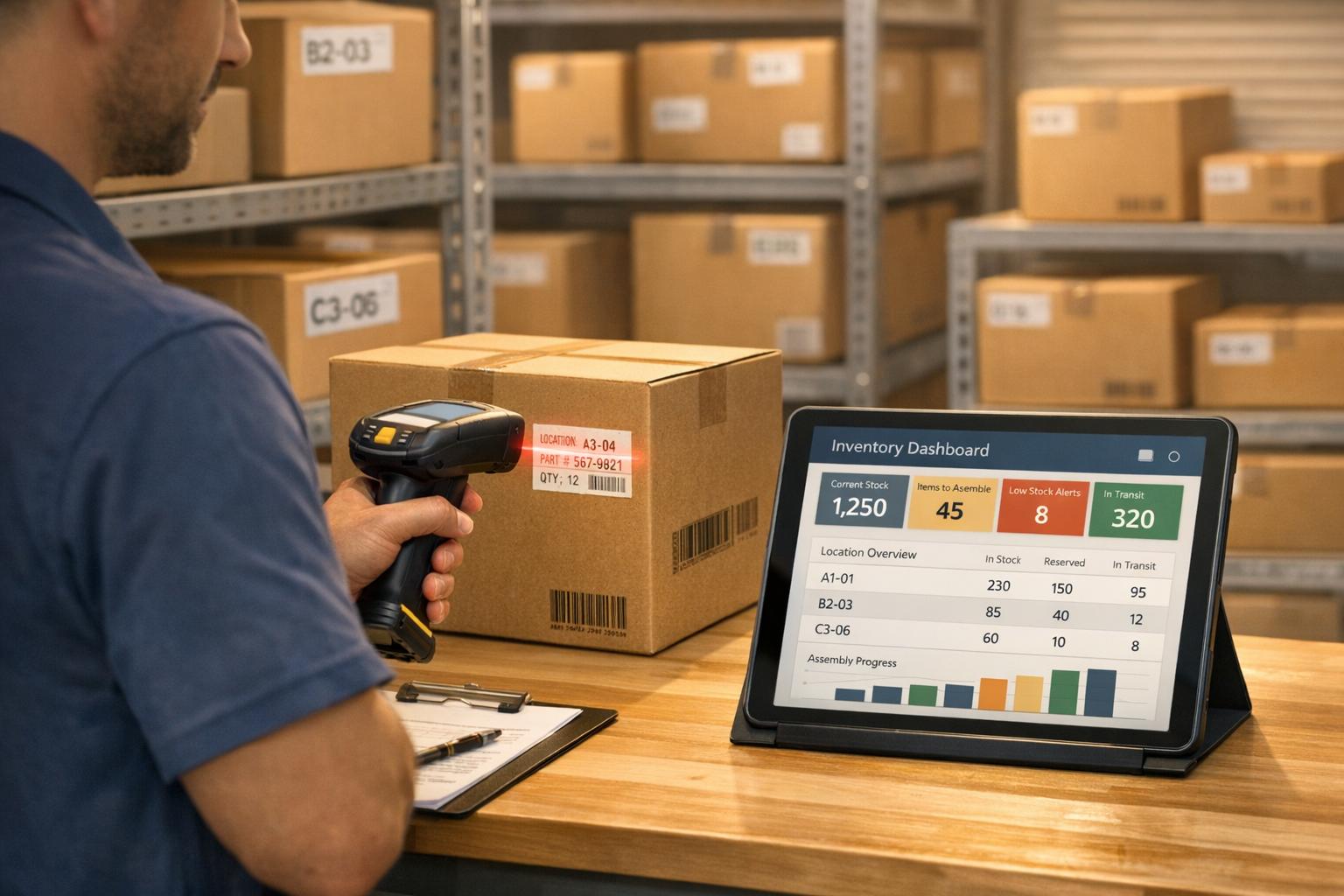
When managing inventory across multiple locations, manual tracking often leads to errors, wasted time, and lost revenue. Barcode scanning solves these issues by improving accuracy, speeding up processes, and providing real-time inventory updates. Here's how it works:
- Accuracy: Reduces manual entry errors from ~1% to nearly zero.
- Speed: Scanning 50 items takes 3 minutes compared to 30 minutes manually.
- Real-Time Updates: Inventory changes sync instantly across locations.
- Cost Savings: Cuts labor costs and prevents overstocking or shortages.
Companies like Carlisle Interconnect Technologies and Easy Mile Fitness have already seen improvements in efficiency, accuracy, and order fulfillment by adopting barcode systems. With tools like QuickBooks and Rapid Inventory, setup is straightforward, and businesses can streamline their assembly processes without overhauling existing systems.
QuickBooks Enterprise Advanced Inventory: Multi-Location, Barcode, FIFO & Serial Tracking Demo
What Are Multi-Location Assemblies?
Understanding multi-location assemblies is key when using mobile barcode scanning to improve inventory management.
These assemblies involve gathering components from various locations - such as different warehouses or bins - to build a finished product. For instance, screws might be stored in Warehouse A, motors in Warehouse B, and packaging materials in yet another location. To assemble the final product, you’ll need to collect these parts from their respective sites and document their origins.
If you’re using QuickBooks Desktop Enterprise with Advanced Inventory, the process becomes more streamlined thanks to a "Site" column in the components list. This feature allows you to specify where each part should come from during the assembly process. The system automatically deducts the correct quantities from those locations and adds the finished product to your designated assembly site. The real challenge isn’t just knowing what inventory you have - it’s knowing where it’s located. Without precise tracking, you could start building a product only to find out halfway through that a necessary component is sitting in a different warehouse. To help with this, QuickBooks provides reports like "Quantity on Hand by Site" and "Pending Builds by Site", giving you a clear view of your stock’s physical location and its role in ongoing production.
Assemblies and Component Tracking Basics
At the heart of every inventory assembly is a Bill of Materials (BOM) - essentially a detailed recipe listing all the components required to create one unit of your product.
Tracking these components across multiple locations adds complexity. It’s not just about knowing how many motors you have; you also need to know which warehouse they’re in, down to the specific bin and shelf. QuickBooks Desktop addresses this by offering site-specific tracking, but its effectiveness depends on accurate data entry.
The "Inventory Site Info" button in QuickBooks allows you to set the quantity on hand (QOH) and establish build points for each location. This ensures you don’t accidentally begin an assembly at one site when the necessary components are stored elsewhere. With these tracking basics in mind, let’s dive into some challenges that come with managing inventory across multiple locations.
Common Problems with Multi-Location Assemblies
Delayed Updates: When someone takes components from Warehouse B for an assembly but doesn’t log it right away, your system might still show those parts as available. By the time you notice the error, delivery deadlines could already be compromised.
Stock Mismanagement: A lack of visibility can cause major headaches. Imagine you have 500 units of a part across all locations - 400 in one warehouse and 100 in another - but you need 300 units at a third site. Without real-time tracking, you might waste time transferring inventory or even ordering more unnecessarily. This not only ties up cash in surplus stock but also risks creating shortages at specific sites.
Allocation Errors: Mistakes multiply when managing inventory manually across locations. For example, processing a shipment of 50 mixed items can take about 30 minutes by hand. With a barcode scanner, the same task takes just 3 minutes. Over the course of many assemblies each week, this difference translates to hours of saved labor - time your team can use to focus on building products instead of searching for parts.
| Challenge | Manual Multi-Location Tracking | Barcode-Enabled System |
|---|---|---|
| Data Entry Error Rate | ~1% | 1 in several million |
| Inventory Accuracy | Prone to phantom inventory | 99% visibility accuracy |
| Processing Speed | 30 mins for 50 items | 3 mins for 50 items |
| Visibility | Delayed | Real-time |
How Barcode Scanning Improves Multi-Location Assemblies
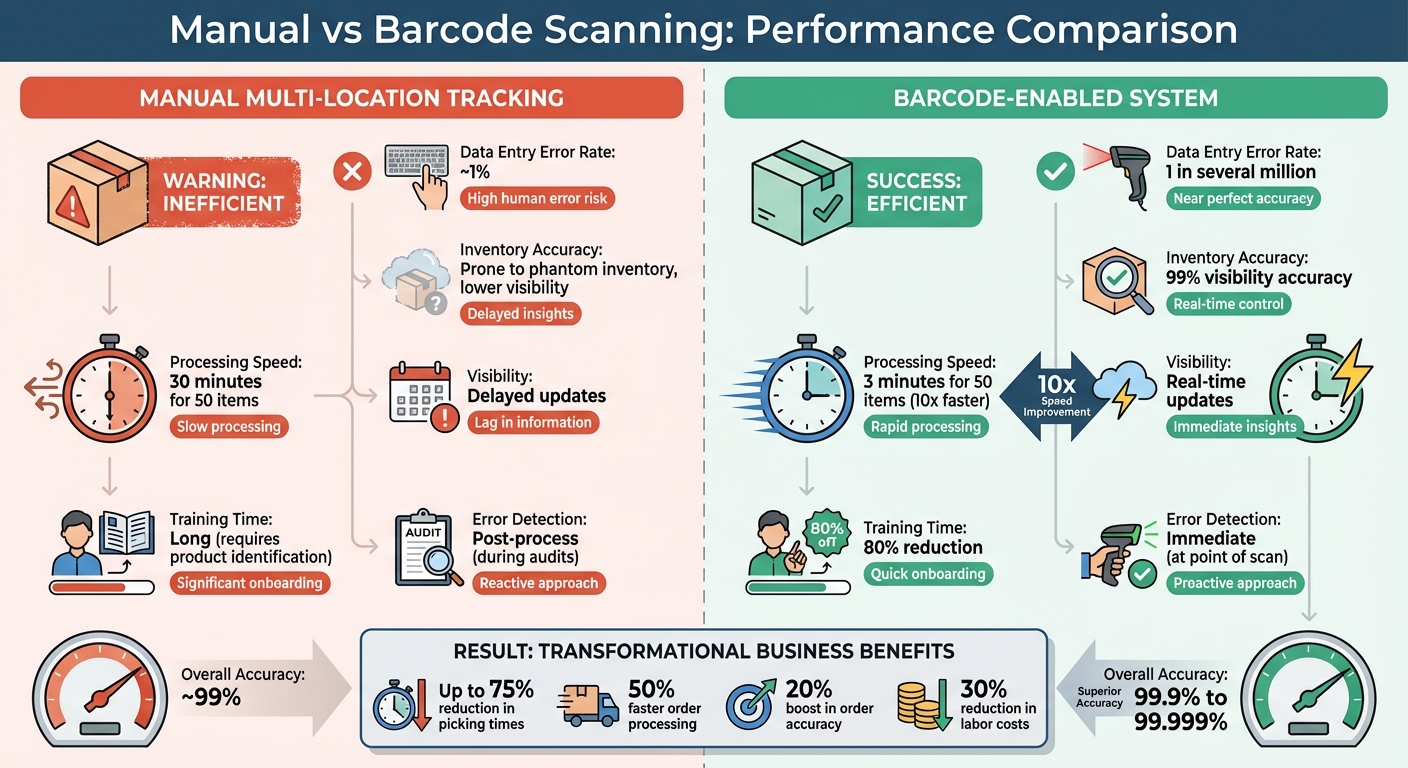
Manual vs Barcode Scanning: Multi-Location Inventory Performance Comparison
This approach tackles the main challenges businesses face with multi-location inventory management.
By using mobile barcode scanning, companies can revolutionize their assembly processes, significantly reducing the inventory errors that often arise from manual data entry. Scanning a component instead of typing its details eliminates the inconsistencies that frequently disrupt multi-location operations.
Here’s how barcode scanning boosts accuracy, real-time updates, and efficiency.
Better Accuracy in Component Tracking
Manual entry errors drop dramatically, going from around 1% to nearly zero. During the assembly process, mobile apps verify each scanned component, ensuring that every part is accounted for. Barcode scanning also allows for detailed bin-level tracking across multiple warehouses. Instead of vague inventory data like "200 units at Site A", you’ll see precise details such as "150 units in Aisle 3, Bin 12" and "50 units in Aisle 7, Bin 5." This level of granularity ensures accurate tracking and alerts workers immediately if the wrong item is selected.
Real-Time Updates Across All Locations
With improved accuracy comes the benefit of instant updates. Every scan updates the central database in real time. For example, when a worker at Warehouse B scans components for an assembly, QuickBooks Desktop reflects those changes immediately - no need to wait for end-of-shift manual entries. This real-time synchronization also creates a complete audit trail, recording user IDs and timestamps for every movement. In October 2025, Easy Mile Fitness, a fitness equipment retailer, transitioned from manual spreadsheets to a mobile barcode system. This change resulted in 60% faster stock counts, real-time visibility across warehouses, quicker order fulfillment, and fewer customer complaints.
Time Savings for Inventory Assemblies
Barcode scanning is a game-changer when it comes to saving time. Scanning 50 mixed items takes just 3 minutes compared to the 30 minutes it would take using manual methods. This tenfold improvement adds up significantly across all shipments, transfers, and assemblies processed weekly. Training employees to use barcode scanners is also far quicker - requiring 80% less time than teaching them to identify hundreds of parts visually. Global manufacturer Grupo Cementos de Chihuahua automated 95% of its warehouse transactions with mobile barcode scanning. This not only reduced on-hand inventory by over 10% but also sped up processing and improved overall visibility.
| Feature | Manual Assembly Tracking | Mobile Barcode Scanning |
|---|---|---|
| Data Entry Speed | Slow (manual typing/writing) | Instant (scan-to-record) |
| Accuracy Rate | ~99% (1% error rate) | 99.9% to 99.999% |
| Training Time | Long (product identification) | Short (80% reduction) |
| Error Detection | Post-process (during audits) | Immediate (at point of scan) |
sbb-itb-19ed50f
Setting Up Barcode Scanning with Rapid Inventory

Taking advantage of the improved accuracy and real-time updates mentioned earlier, setting up barcode scanning with Rapid Inventory is a simple process. To get started with scanning for multi-location assemblies, you'll need to tackle three essential steps: configuring your system, creating barcode labels, and performing your first scanned build. These steps can be completed in just a few days.
Configure Barcode Scanning for Assemblies
Before linking Rapid Inventory to QuickBooks Desktop, you’ll need to enable specific settings in QuickBooks. Go to Edit > Preferences > Items & Inventory > Company Preferences > Advanced Inventory Settings, and activate both "Multiple Inventory Locations" and "Barcodes". Then, use the QuickBooks Barcode Wizard to assign barcodes to a unique identifier, such as "Item Name" or "Part Number".
Once QuickBooks is ready, install the Rapid Inventory web connector to set up an automatic two-way sync. This setup works seamlessly with QuickBooks Desktop Enterprise, Pro, and Premier editions. With QuickBooks configured and the web connector installed, you’re ready to move on to creating barcode labels.
Create Barcode Labels for Components and Locations
Rapid Inventory includes built-in label printing tools. Before printing labels in large quantities, clean up your data in QuickBooks - remove duplicate SKUs and organize component names. Print a test batch to ensure the barcodes are readable by your scanners.
You’ll need labels for individual components, sub-assemblies, and storage locations like bins and shelves. To make scanning faster for your team, standardize where you place the labels, such as in the bottom-right corner of each item. If your components already have UPC or EAN codes, you can map these directly to items in the software instead of generating new barcodes.
How to Scan Assemblies: Step-by-Step
Once your labels are ready, follow these steps to complete a scanned assembly. Start by opening the Rapid Inventory mobile app and selecting your build order. Begin by scanning the barcode for the storage location to confirm you’re working in the correct bin. Then, scan the barcode on each component as you pick items for the assembly. The system will automatically verify quantities and ensure compliance with FIFO (First In, First Out) or FEFO (First Expiration, First Out) rules, depending on receipt or expiration dates.
After completing the scans, sync the build with QuickBooks to instantly update your inventory.
"My team was up and running in a few days. Very straightforward and easy to use." - Jacob, CEO
Rapid Inventory also offers a 7-day onboarding plan that includes a demo, integration setup, and training.
Fixing Common Barcode Scanning Issues
Even with a well-tuned system, barcode scanning errors or synchronization issues can crop up, especially in multi-location setups. Common problems include incorrect unit counts, mismatched SKUs, and mistakes caused by manual data entry. Rapid Inventory tackles these challenges head-on with a verification workflow. This process ensures users scan barcodes to confirm locations, items, and quantities during key operations like receiving, picking, counting, and transferring.
Fix Scan Errors and Location Mismatches
When you activate Bin Location Tracking in QuickBooks Desktop Enterprise for the first time, the system automatically assigns all items to an "unassigned" status. This often triggers "location not found" errors during the initial setup. To fix this, use the Transfer Inventory form (found under Inventory Menu > Transfer Inventory) to move items from "unassigned" to their correct bins. Afterward, run site-specific reports like "Quantity on Hand by Site" or "Items by Bin Location" to pinpoint and address mismatches.
It's also essential to confirm that your scanner supports EAN-13 and Code-128 barcodes with a single carriage return. Keep in mind that serial port scanners are incompatible with QuickBooks barcode features.
Rapid Inventory's bin tracking feature provides a clear view of where items are stored within a warehouse, reducing the chance of mispicks during assembly. To further limit cross-location errors, consider restricting employee user rights so they can only access the specific warehouse locations they manage.
By addressing these issues, you can prevent assembly delays and maintain accurate inventory data.
Resolve QuickBooks Sync Failures
Once you've tackled scan errors and location mismatches, the next step is resolving QuickBooks sync failures to ensure smooth operations.
Sync failures often stem from issues like serial number mismatches or incorrect item quantities picked during scanning. Start by checking that the QuickBooks Web Connector is active and properly set up. This tool handles the two-way data flow between Rapid Inventory and QuickBooks. If a scan triggers an exception, use the "Update sales order" function in the fulfillment worksheet to manually fix the discrepancy and update QuickBooks. Additionally, verify that the barcode field in Rapid Inventory matches the corresponding field in QuickBooks - whether it's Item Name, Part Number, or a custom "Barcode2" field - to avoid "item not found" sync errors.
If a mobile scanner fails to sync a pick, you can manually update the picklist by double-clicking it and adjusting the quantity to mark it as "Picked" or "Partially picked".
For recurring sync issues, reach out to Rapid Inventory's technical support team. They offer "white glove" onboarding (a $600 value) and migration support (a $1,500 value) at no additional cost. Customers on the Unlimited plan ($900 per month) enjoy priority phone and email support, while Pro plan users ($90 per user/month) can access email support.
"Your technical support staff are very helpful. I was very pleased with their assistance." - Frank, Manager
Conclusion
Barcode scanning has transformed the way multi-location assembly management operates. While manual data entry comes with an error rate of about 1%, barcode scanning dramatically reduces this to just one error in several million scans, achieving an impressive 99.9% accuracy rate.
The efficiency gains are undeniable. Scanning 50 mixed items takes only 3 minutes, a process that's ten times faster than manual entry. Companies adopting barcode systems report picking times slashed by up to 75% and order processing speeds increasing by as much as 50%. These improvements translate directly into measurable savings - retailers have experienced a 20% boost in order accuracy and up to a 30% reduction in labor costs.
Beyond speed and accuracy, barcode technology offers real-time visibility across multiple locations. Scanning components during the build process ensures inventory levels update instantly across all warehouses. This level of transparency allows businesses to track parts availability and make smarter decisions about sourcing and storing finished goods.
Rapid Inventory takes these benefits a step further by integrating seamlessly with QuickBooks Desktop. Every assembly build, stock transfer, and component deduction is automatically synced, eliminating the need for manual reconciliation. Its mobile barcode scanning feature ensures precise tracking of locations, items, and quantities during receiving, picking, and moving - giving you confidence that every assembly is accurate. With over 17 years of experience and a customer base exceeding 400 businesses, Rapid Inventory delivers the dependability and support required to handle the complexities of multi-location assembly management.
To ensure success from the start, Rapid Inventory also provides white-glove onboarding and training, enabling your team to begin scanning and syncing with ease from day one.
FAQs
How does barcode scanning enhance inventory accuracy for multi-location assemblies?
Barcode scanning streamlines inventory management by replacing manual data entry with quick, reliable recording of item details. When you scan a component, the system immediately logs its unique identifier, quantity, lot or serial number, and location. This eliminates the mistakes often associated with paper records or spreadsheets, ensuring accurate tracking at every stage.
With mobile barcode scanning, updates are synced in real time across all locations. This means every site has access to the same up-to-date inventory data, minimizing problems like misplaced items or duplicate counts. It also helps avoid overstocking or running out of essential items. For platforms like Rapid Inventory, this method ensures assembly processes run smoothly and accurately, regardless of how many locations are in play.
What are the benefits of using barcode scanning instead of manual inventory tracking?
Using barcode scanning instead of manual tracking brings clear benefits in terms of accuracy, speed, and overall efficiency. With a quick scan, details like item type, quantity, and location are captured instantly, cutting down on errors caused by manual data entry. Plus, it ensures real-time inventory updates, giving managers a clear and accurate view of stock levels across multiple warehouses. This helps avoid discrepancies and keeps operations running smoothly.
Barcode scanning also helps workers get more done in less time. Tasks like picking, packing, and cycle counting become faster and easier, eliminating the need for paper checklists or time-consuming manual steps. This streamlined approach not only speeds up order fulfillment but also boosts employee satisfaction and reduces labor costs.
On top of that, barcode scanning is a practical and scalable option for businesses with multiple locations. It reduces the need for duplicate paperwork, minimizes costly mistakes, and supports advanced inventory methods like FIFO/FEFO picking and lot/serial tracking. For companies aiming to simplify and improve inventory management, barcode scanning is a smart and efficient choice.
How does barcode scanning streamline multi-location inventory assembly?
Barcode scanning makes managing inventory across various locations faster and more precise by streamlining the tracking of both components and finished products. To get started, businesses can assign barcodes to warehouses, bins, and individual inventory items. Employees then use mobile scanners to select locations, log parts used, and complete assemblies - eliminating the need for manual data entry.
Using tools like mobile barcode scanners, companies can efficiently pull components from multiple warehouses, keep inventory records accurate, and minimize mistakes. With proper staff training and workflow testing, businesses can speed up assembly processes while maintaining real-time inventory updates across all locations.



