
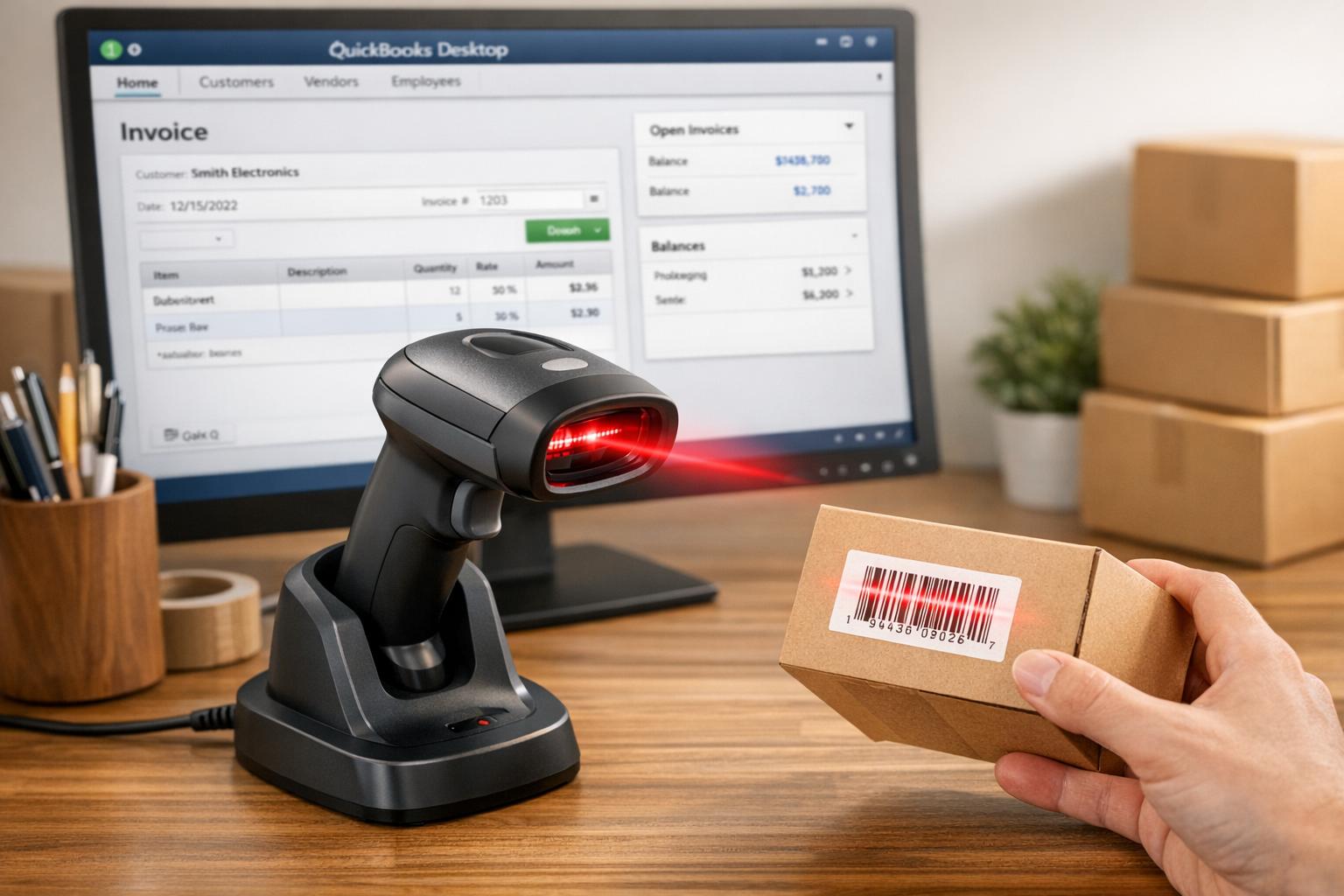
Barcode scanners simplify inventory management in QuickBooks Desktop, reducing errors and saving time. For seamless integration, choose a scanner that supports Code-128 and EAN-13 formats, connects via USB (HID mode), and appends a single carriage return after each scan. Below are the top scanners compatible with QuickBooks Desktop:
- Honeywell 1300G Hyperion: Durable, reliable, and ideal for heavy-duty tasks. Price: ~$192.25.
- Honeywell Granit 1911i: Wireless, industrial-grade, and suitable for harsh environments. Price: $169.00–$539.84.
- Honeywell Voyager 1202G: Wireless with Bluetooth, great for scanning high-density barcodes. Price varies.
- Honeywell Quantum MK3580: High-speed, omnidirectional scanner for busy setups. Price: $240–$250.
- Symcode USB Automatic Scanner: Budget-friendly with multiple connectivity options. Price: $35.99–$65.89.
- ID Tech Econoscan II: Affordable CCD scanner (USB model recommended for compatibility).
Each scanner has unique strengths, from rugged designs to wireless capabilities. Ensure your choice meets QuickBooks Desktop's technical requirements for smooth operation.
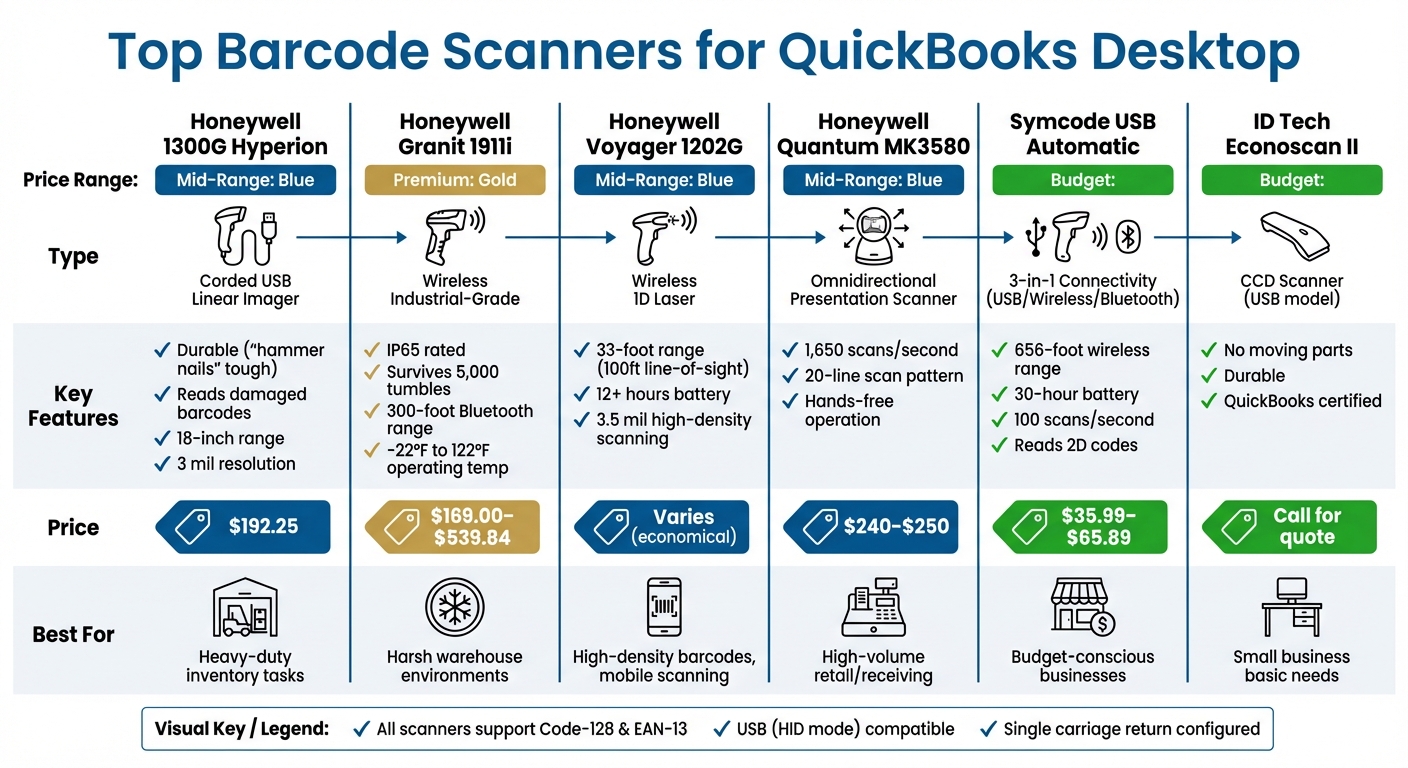
Top 6 Barcode Scanners for QuickBooks Desktop: Features and Pricing Comparison
QuickBooks Enterprise: USB Barcode Scanning Support

Scanner Compatibility Requirements and Features
QuickBooks Desktop works with scanners that meet specific technical criteria.
To function properly, the scanner must connect via USB in keyboard (HID) mode, which allows it to mimic a keyboard. When a barcode is scanned, the data will appear wherever the cursor is active. It’s important to note that serial port scanners are not compatible with the barcode feature in QuickBooks Enterprise.
"Since these scanners connect as another keyboard, they are instantly compatible with popular Point of Sale Software, ERP, and accounting software products, including QuickBooks." - Worth Data
This setup ensures smooth and efficient data entry within QuickBooks Desktop.
Scanners also need to support Code-128 and EAN-13 barcode formats. Additionally, they should be configured to add a single carriage return (essentially pressing Enter) after each scan. This feature automatically moves the cursor to the next line, making transactions faster and more efficient.
To verify that your scanner is set up correctly, open a text editor, scan a barcode, and check if the cursor moves to the next line after the scan.
Here’s a quick summary of the technical requirements:
| Requirement | Specification | Purpose |
|---|---|---|
| Connection Type | USB (HID Mode) | Mimics a keyboard; no additional drivers needed |
| Supported Formats | Code-128, EAN-13 | Common barcode types used in QuickBooks |
| Required Suffix | Single Carriage Return | Simulates an "Enter" keystroke |
| Software Requirement | QuickBooks Desktop Enterprise with Advanced Inventory | Enables barcode tracking features |
| Incompatible Hardware | Serial Port Scanners | Not supported by the barcode feature |
1. Honeywell 1300G Hyperion Linear Imager

The Honeywell 1300G Hyperion is a corded USB scanner specifically designed to work with QuickBooks Desktop. Unlike traditional laser scanners, this linear imager takes a digital snapshot of each barcode, making it more effective at reading damaged or low-quality labels.
This scanner is compatible with the barcode formats used by QuickBooks Desktop, including Code 128 and EAN-13. It can handle barcodes as small as 3 mil and can read standard 13 mil barcodes from distances of up to 18 inches. Setup is straightforward with its USB plug-and-play functionality, which uses keyboard emulation.
Built for heavy-duty inventory tasks, the 1300G boasts a maintenance-free design and is even described as "durable enough to hammer nails". Its combination of reliability and performance makes it a practical choice for QuickBooks Desktop users managing inventory.
The Honeywell 1300G-2USB kit is priced at around $192.25 online or $256.33 at retail. Be sure to choose the USB kit (Part No. 1300G-2USB), as serial port scanners won’t work with QuickBooks Enterprise's barcode feature. Once connected, the scanner allows for fast data entry into QuickBooks Desktop, including estimates, sales orders, invoices, purchase orders, item receipts, bills, and inventory transfers. To ensure compatibility, confirm the scanner appends a single carriage return after each scan.
2. Honeywell Granit 1911i Scanner
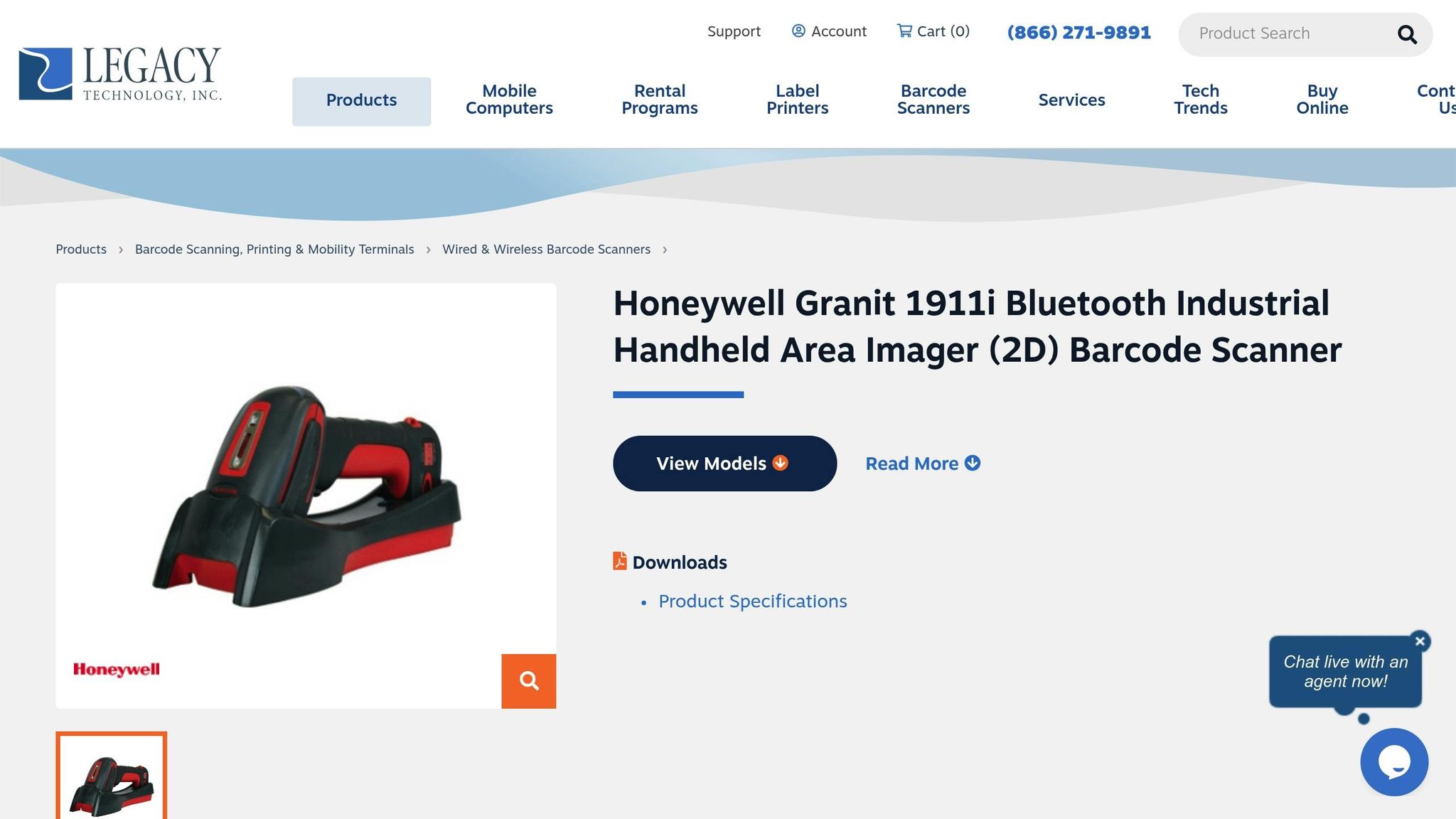
The Honeywell Granit 1911i is a cordless, industrial-grade scanner built to handle the toughest warehouse and manufacturing conditions. This durable device can survive 5,000 tumbles and drops from heights of 6.5 feet onto concrete. With an IP65 rating, it's designed to resist dust and moisture, ensuring reliability in demanding environments.
Equipped with advanced area-imaging technology, the Granit 1911i reads 1D, 2D, and PDF417 barcodes like Code 128, UPC-A, and EAN-13. Its ability to scan barcodes from almost any angle makes inventory tasks more efficient compared to traditional laser scanners.
The scanner features Bluetooth Class 1 connectivity with a range of up to 300 feet and pairs with a USB-equipped base station. It supports keyboard emulation, allowing scanned data to be sent directly into software like QuickBooks. For user feedback, it includes LEDs, a beeper, and tactile alerts.
Designed for extreme conditions, the Granit 1911i operates in temperatures ranging from -22°F to 122°F, making it suitable for cold-storage facilities.
Prices for the Granit 1911i generally fall between $169.00 and $539.84. Its rugged design and wireless capabilities make it a valuable investment for businesses that need reliable tools in challenging environments.
3. Honeywell Voyager 1202G High Density Laser
The Honeywell Voyager 1202G is a wireless 1D laser scanner designed to work seamlessly with QuickBooks Desktop. It’s a reliable tool for reading common 1D barcode formats, including high-density codes with resolutions as small as 3.5 mil. This makes it ideal for scanning small labels that might go undetected by standard scanners.
Using Bluetooth v2.1, the scanner connects wirelessly to its charging base, which then links to your computer via USB. For QuickBooks Desktop users, USB is the preferred connection method, as serial port scanners are incompatible with certain barcode features in QuickBooks. The scanner offers a wireless range of up to 33 feet from the base and can extend to 100 feet when there’s a clear line of sight. These capabilities make it a solid choice for busy environments.
Built for durability, the Voyager 1202G has an IP42 rating and can withstand up to 30 drops from a height of 5 feet. It’s powered by a lithium-ion battery that provides over 12 hours of usage or approximately 45,000 scans per charge. If the scanner gets misplaced, a button on the base triggers beeps and lights, making it easy to locate.
One standout feature is its Automatic Interface Configuration, which detects the USB host interface as soon as it’s connected. This eliminates the need for manual setup, ensuring a smooth integration with QuickBooks Desktop. The scanner uses keyboard emulation, meaning scanned data appears in QuickBooks just as if it were typed in manually.
While pricing varies by retailer, the Voyager 1202G is designed to be an economical choice. It reduces overall costs by efficiently handling poor-quality, damaged, and high-density barcodes without requiring additional specialized tools. The device comes with a 3-year warranty and includes Honeywell’s Remote MasterMind software, which allows for remote device management and usage monitoring.
4. Honeywell Quantum MK3580 Omni-directional Scanner
The Honeywell Quantum MK3580 is a presentation-style scanner designed to handle high-volume scanning with ease. It boasts an impressive 1,650 scans per second using a 20-line omnidirectional scan pattern. This means you can scan items from virtually any angle, making it a great hands-free option for busy retail checkouts or warehouse receiving stations where speed and accuracy are key. This high performance aligns perfectly with QuickBooks Desktop's requirements for fast and precise data entry.
For QuickBooks Desktop, you'll want to go with the MK3580-31A38 USB model, as QuickBooks doesn't support serial port (RS232) scanners for its Enterprise Solutions Barcode feature. The scanner uses keyboard emulation to input barcode data directly into QuickBooks fields, ensuring seamless integration.
The scanner is compatible with all standard 1D barcode formats, such as Code 128 and EAN-13 (which includes UPC-A). For tasks that require more precision, you can switch to single-line mode for targeted scanning. Its compact and versatile design allows you to mount it on countertops, attach it to walls, or even use it as a handheld device, making it adaptable to various workflows.
The USB kit is priced between $240 and $250 and is ready to use right out of the box. To get started, make sure to enable the barcode feature in QuickBooks Desktop. You can do this by navigating to Edit > Preferences > Items and Inventory > Company Preferences > Advanced Inventory Settings, and then selecting the Barcodes tab.
sbb-itb-19ed50f
5. Symcode USB Automatic Barcode Scanner
The Symcode USB Automatic Barcode Scanner is a budget-friendly and dependable option for QuickBooks Desktop users, offering a scan rate of 100 scans per second.
What makes this scanner stand out is its 3-in-1 connectivity - USB, 2.4GHz wireless, and Bluetooth. In wireless mode, it can transmit data up to 656 feet in open spaces or 98 feet in areas with obstacles. Its 2,000mAh battery ensures up to 30 hours of continuous scanning, making it a solid choice for demanding tasks. Pricing starts at $35.99 for the USB Cordless 2D model and goes up to $65.89 for the Bluetooth version with a charging stand.
The scanner is designed to work seamlessly with QuickBooks Desktop, supporting key formats like UPC-A, Code 128, and EAN-13. It also reads 2D formats such as QR codes, PDF-417, and Data Matrix, allowing it to adapt to a variety of inventory management needs.
The QuickBooks Blog has named this device the "Best USB barcode scanner" for inventory management. It earned praise for its sleek design, easy setup, and durable, shockproof construction - capable of withstanding drops from up to 5 feet onto concrete. However, a drawback is that the basic USB-only models lack wireless functionality, which could be a limitation for larger warehouses or more dynamic inventory workflows.
6. ID Tech Econoscan II - RS232 Scanner
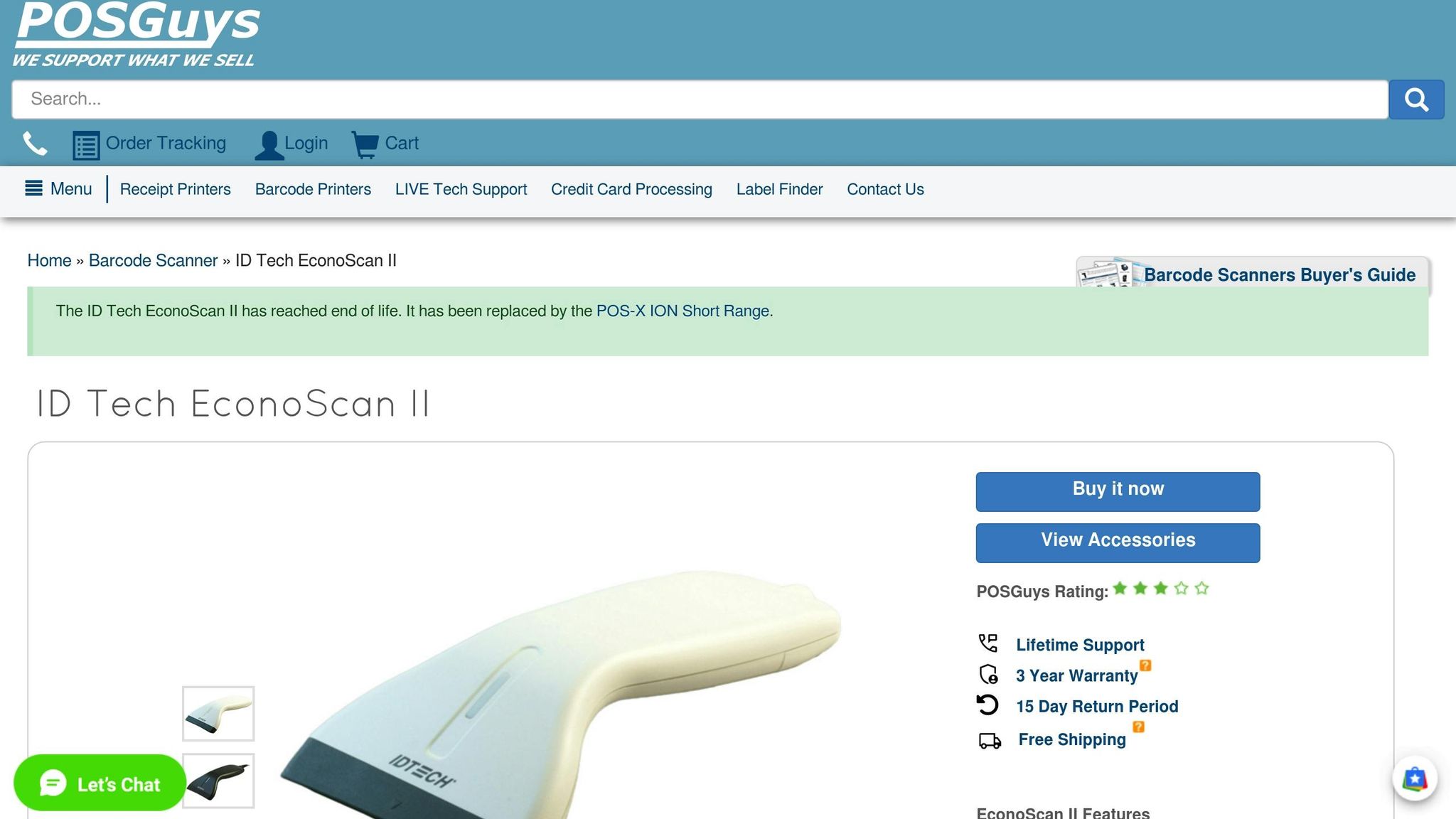
The ID Tech Econoscan II is a budget-friendly CCD scanner designed for small business inventory management. It’s officially recognized as compatible hardware for QuickBooks users, making it a practical choice for those managing inventory through QuickBooks Desktop. This compatibility ensures smoother integration for inventory tasks.
However, there’s an important caveat: while the RS232 version is marketed as QuickBooks-compatible, Intuit’s official documentation excludes serial port scanners from the ES Barcode feature in QuickBooks Desktop Advanced Inventory. If you plan to use this advanced feature, you’ll need the USB version (Model IDBA-4244SR), which offers simple plug-and-play functionality.
The Econoscan II also supports key barcode formats required by QuickBooks, including Code-128, EAN-13, and UPC-A. As a CCD scanner, it uses linear imaging to read 1D barcodes and is generally more durable than laser scanners, thanks to its lack of moving parts. The series offers three wired connectivity options: RS232 (Serial), USB, and PS/2 (Keyboard Wedge). However, it does not support Bluetooth or any wireless connections.
When it comes to pricing, the Econoscan II isn’t readily listed online. Vendors like Barcode Bonanza and Barcode Factory require customers to call for a quote, indicating it may be a legacy model or primarily available for bulk purchases. Before buying, ensure your QuickBooks Desktop version supports the scanner’s interface, as newer features often require USB keyboard emulation.
Finally, configure the scanner to append a single carriage return after each barcode scan for optimal performance.
How to Set Up Barcode Scanning in QuickBooks Desktop

Before diving into the setup, make sure your barcode scanner meets the necessary requirements. It should support EAN-13 and Code-128 formats and append a single carriage return. Stick with USB or Bluetooth scanners in keyboard (HID) mode, as serial port models won't work with QuickBooks Desktop.
Once your scanner is ready, here’s how to configure QuickBooks Desktop for barcode scanning:
- Open QuickBooks and navigate to the Edit menu. Select Preferences.
- In the Preferences window, click Items and Inventory and switch to the Company Preferences tab.
- Click Advanced Inventory Settings, then go to the Barcodes tab.
- Check the box for Enable Barcode to activate the Open Barcode Wizard button.
From here, the Barcode Wizard will guide you through the setup. Choose a unique item field like Item Name or Part Number and select the item types for generating barcodes. Follow the prompts by clicking Next and then Finish.
To test your scanner, open a text editor like Notepad and scan a barcode. If everything is set up correctly, the barcode number should appear followed by a line break. You can also use the Barcode Scanner Tester app to confirm that QuickBooks recognizes your scanner.
Once verified, you can start using barcode scanning in your transactions. Open a transaction like an Invoice, Sales Order, or Purchase Order, and scan a barcode. The item will automatically populate as a new line item in the transaction.
Before making further adjustments, such as importing barcodes or creating custom fields, back up your company file and switch to single-user mode to ensure a smooth process.
Using Inventory Management Software with Barcode Scanners
QuickBooks Desktop offers basic barcode scanning, but pairing it with dedicated inventory management software takes scanning and tracking to another level. For example, Rapid Inventory integrates directly with QuickBooks Desktop through automatic two-way synchronization, streamlining the process of syncing items and orders. This setup builds on QuickBooks' foundational scanning features, giving you more precise control over your inventory.
With mobile scanning, warehouse staff can verify locations, items, quantities, and shipments during receiving, picking, counting, and transferring. This feature helps eliminate errors and ensures near-perfect picking accuracy. Using mobile devices, employees can scan items on the go, and every scan updates QuickBooks in real time.
The software goes beyond scanning with advanced tracking tools. Multi-location tracking makes it easier to manage inventory across warehouses, rows, shelves, or bins. It also supports methods like FIFO and FEFO, as well as lot and serial number tracking. Additionally, pick lists optimize your team's workflow by calculating the most efficient paths through the warehouse, reducing travel time and preventing mistakes.
Real-time inventory reports provide instant insights into stock levels, inventory value, reorder points, and the status of purchase and sales orders. Its web-based design allows you to access inventory data remotely while staying synced with your local QuickBooks Desktop file. The platform is compatible with QuickBooks Desktop Enterprise, Pro, and Premier editions, and onboarding typically takes just 6–7 days.
"My team was up and running in a few days. Very straightforward and easy to use." - Jacob, CEO
Pricing starts at $90 per user per month for the Pro Plan (1–9 users) or $900 per month for the Unlimited Plan (10+ users). The package includes free training, onboarding, and data migration, making it easy to get started.
Conclusion
Barcode scanners streamline inventory tasks in QuickBooks Desktop, reducing the need for manual data entry and minimizing errors. By scanning items instead of typing in numbers and quantities, businesses can achieve greater accuracy in processes like receiving, picking, counting, and transferring. This leads to fewer mistakes, smoother audits, and better overall supply chain management.
When choosing a scanner, consider your specific needs. USB scanners work well for fixed setups, Bluetooth models are ideal for mobile use, and industrial-grade scanners are built for tougher environments. Once you've selected a scanner, make sure it meets QuickBooks' technical requirements.
To avoid setup problems, ensure your scanner supports Code-128 and EAN-13 barcodes and is configured to output a single carriage return after each scan.
For even more advanced inventory capabilities - like multi-location tracking, FIFO/FEFO management, and real-time mobile scanning - consider integrating Rapid Inventory. This tool (https://rapidinventory.com) can help streamline your operations and support growth effectively.
FAQs
What should I look for in a barcode scanner to ensure compatibility with QuickBooks Desktop?
To work effortlessly with QuickBooks Desktop, your barcode scanner needs to operate as a keyboard-emulated input device. This means it should mimic keyboard input, allowing scanned data to be entered directly into QuickBooks. It’s also important that the scanner supports widely used barcode formats like EAN-13 and Code-128, which are essential for identifying items in the system. Another key feature is the ability to append a carriage return (Enter) after each scan, ensuring the data is accurately processed.
When it comes to connectivity, QuickBooks Desktop is compatible with USB or HID-compatible scanners. Serial-port scanners, however, are not supported. If you’re using QuickBooks Enterprise with Advanced Inventory, you can also use certain Bluetooth scanners, including models like the Honeywell Voyager 1602g, Socket Mobile CHK 7CI, and Zebra Symbol CS3070. Most barcode scanners come preconfigured for keyboard emulation, but you can tweak the settings if necessary to better suit your workflow.
By ensuring your scanner meets these specifications, you’ll be able to seamlessly integrate it into QuickBooks for tasks such as managing inventory, processing sales, and handling purchase transactions.
How can I check if my barcode scanner is properly set up for QuickBooks Desktop?
To set up your barcode scanner for use with QuickBooks Desktop, follow these steps:
- Check scanner compatibility: Make sure your scanner supports EAN-13 or Code-128 barcodes and adds a single carriage return (CR) after each scan. Keep in mind that serial-port scanners won’t work with QuickBooks Advanced Inventory.
- Turn on barcode scanning: Open QuickBooks Desktop and navigate to Edit > Preferences > Items and Inventory. Under the Company Preferences tab, activate the barcode feature in Advanced Inventory Settings. Use the Barcode Wizard to assign barcodes to item fields like Item Name or Part Number.
- Run a test scan: Assign a barcode to a sample item, then scan it on a form such as an Invoice or Purchase Order. Confirm that the correct item details populate automatically and that the cursor moves forward as expected.
If the scanner performs correctly and inventory updates as it should during transactions, you’re all set to use it with QuickBooks Desktop.
How do barcode scanners help improve inventory management in QuickBooks Desktop?
Barcode scanners make managing inventory in QuickBooks Desktop faster and more efficient. With a quick scan, you can update inventory in real time, cutting down on manual data entry and reducing the chances of mistakes. Plus, it saves you a lot of time.
These scanners work like keyboard emulators, easily syncing with QuickBooks Desktop to simplify tasks such as adjusting inventory levels or fulfilling sales orders. By automating these repetitive processes, barcode scanners help boost accuracy and streamline your inventory management workflow.



