
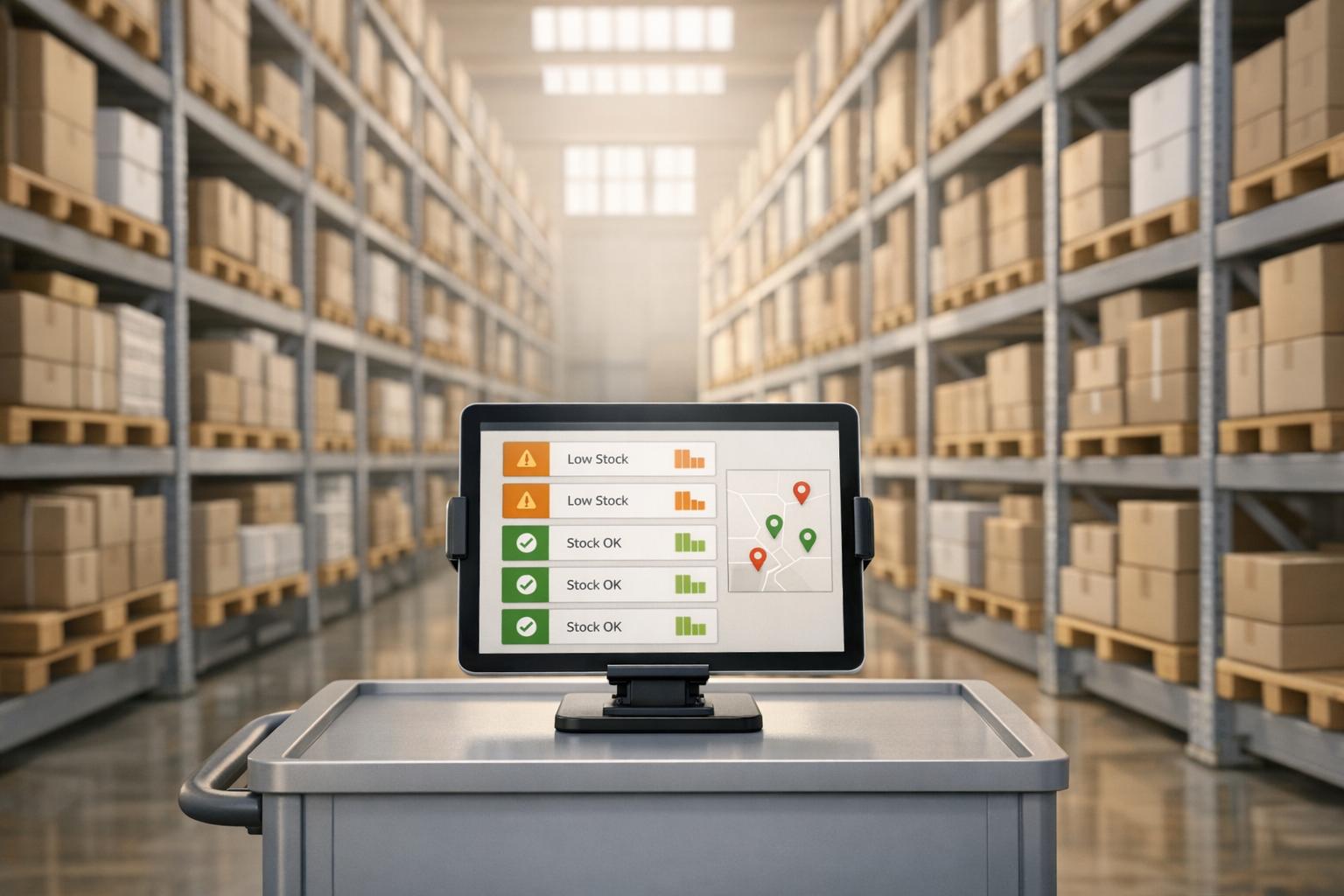
Managing inventory manually can lead to stockouts, errors, and wasted time. QuickBooks' automated inventory alerts solve these issues by notifying you when stock levels hit predefined thresholds. This feature helps businesses avoid disruptions, improve accuracy, save time, and streamline reordering. Here's what you gain:
- Avoid Stockouts: Get notified before inventory runs out to maintain smooth operations.
- Increase Accuracy: Automated tracking reduces errors from manual updates.
- Save Time: Eliminate constant manual checks with automated monitoring.
- Faster Reordering: Quickly generate purchase orders when alerts trigger.
- Better Visibility: View inventory levels across all locations in one place.
Automation ensures your inventory is well-managed, reducing errors and delays. Tools like Rapid Inventory integrate with QuickBooks for advanced tracking and efficiency, helping your business stay on top of stock levels effortlessly.
QuickBooks POS v19: How Inventory Reminders Save Time and Boost Efficiency | Inventory Management
sbb-itb-19ed50f
1. Prevent Stockouts
Running out of stock can disrupt your operations, especially if you don’t have a system in place to warn you in time. By setting a reorder point for each item, you can trigger alerts that mark items as Low stock or Out of stock, saving you from the hassle of constant manual checks. As Intuit puts it, "A reorder point is the threshold when you should reorder more of a stock item. QuickBooks uses reorder points to let you know what's running low and what's out of stock."
These alerts can be configured globally or tailored to specific warehouses using the Inventory Site List under the Lists tab. For even more flexibility, you can integrate with tools like Rapid Inventory, which syncs real-time reorder reports across all your locations.
Once an item is flagged, QuickBooks makes it simple to generate purchase orders directly within the system. When new stock arrives, the inventory updates automatically, creating a seamless process: low stock gets flagged, reordering begins, and inventory adjusts without needing manual intervention.
This streamlined approach not only helps you avoid stockouts but also improves the accuracy of your inventory management.
2. Improve Inventory Accuracy
Relying on manual tracking can often lead to mistakes - like entering incorrect quantities or missing updates altogether. Automated systems, however, step in to flag discrepancies instantly, saving you from the delays and errors that come with monthly inventory counts.
With QuickBooks Desktop Enterprise's Advanced Inventory feature, you can monitor stock at the site level, whether it’s a warehouse, truck, or staging area. This is crucial because looking at global inventory totals alone can be misleading. For example, you might see 500 units available across all locations, but if 480 of those are in one warehouse while another location is nearly out of stock, that overall number doesn’t tell the full story. Site-specific alerts bring these localized shortages to your attention right away.
When adjustments are needed, the "Adjust Quantity/Value On Hand" feature lets you correct both the quantity and total value at once, ensuring there’s no net impact on your adjustment account.
The "Transfer Inventory" tool adds another layer of accuracy by creating a digital record of every stock movement. This is especially helpful if an alert shows a shortage at one site that can be fixed by transferring items from another location.
For businesses managing multiple warehouses, tools like Rapid Inventory enhance this process by syncing with QuickBooks and providing real-time inventory reports. This level of precise tracking not only keeps your stock data accurate but also sets the stage for better monitoring and smarter reordering strategies.
3. Save Time on Monitoring
Keeping tabs on inventory manually can eat up hours that could be better spent on more impactful work. Automated alerts eliminate the need for constant manual checks, freeing up your schedule.
QuickBooks keeps an eye on your stock levels around the clock, based on the reorder points you set. Once those thresholds are reached, the system highlights "Low stock" and "Out of stock" statuses right at the top of your Products & Services page. If you're using QuickBooks Desktop Enterprise, it takes things a step further by flagging low-stock items for each specific location.
When it's time to restock, QuickBooks simplifies the process by letting you bulk-select low-stock items and create a purchase order in just a few clicks.
With Rapid Inventory seamlessly integrating into QuickBooks Desktop, these automated alerts save you time and effort, allowing your team to concentrate on tasks that drive business growth. Plus, these tools make reordering faster and easier than ever.
4. Speed Up Reordering
Streamlining reordering is just as important as saving time on monitoring. When a low-stock alert pops up, acting quickly can make all the difference. The sooner your team places a purchase order, the less likely customers will face delays. QuickBooks simplifies this process by turning alerts into actionable steps.
You can filter your Products & Services list by "Low stock" or "Out of stock". If you're using QuickBooks Desktop Enterprise, you can even set site-specific reorder points to create targeted, batch purchase orders with just a few clicks. Instead of searching for low-stock items one by one, select multiple products at once and use the batch "Reorder" action to generate a single purchase order for a vendor. This cuts down on unnecessary administrative work. Keep in mind, though, that site-specific reorder points don’t automatically sync with your global thresholds, so you’ll need to configure those separately.
This kind of automation adds another layer of efficiency. A low-stock alert at one location prompts a specific response, rather than triggering an order for the entire company. By directly linking shortages to purchase orders, your inventory management becomes more proactive and less reactive.
For QuickBooks Desktop users who want real-time reorder reports and seamless synchronization between warehouse operations and accounting software, Rapid Inventory is a great tool. It eliminates the hassle of manual spreadsheets with automated reorder signals, ensuring a smooth purchasing process.
5. Get Better Visibility Across Inventory
Keeping tabs on your inventory sounds straightforward, but things can get tricky when you're managing stock across multiple warehouses or locations. Automated alerts don't just help with reordering - they also provide a clear, unified view of your inventory, no matter where it's stored.
For instance, QuickBooks Enterprise users can access both an overall inventory summary and detailed, location-specific stock levels. This dual-layered approach makes it easy to see the big picture while pinpointing which locations need restocking. Instead of placing unnecessary orders, you can simply transfer stock between locations. Pairing this capability with tools like mobile barcode scanning can further reduce errors and streamline processes.
Mobile barcode scanning captures every inventory movement as it happens. Whether your team is receiving, picking, or transferring items, these actions are recorded instantly. This real-time tracking helps eliminate "ghost" inventory - those phantom items that appear in your system but don't actually exist in your warehouse. As Rapid Inventory explains:
"Scan barcodes to verify locations, items, quantities, shipments during receiving, picking, counting, moving and transferring"
For QuickBooks Desktop users, the integration with Rapid Inventory provides powerful multi-location inventory tracking. Updates in your warehouse sync directly with your accounting software, ensuring everything stays accurate. With support for FIFO, FEFO, and lot or serial number tracking, you can drill down into not just how much inventory you have, but also the specifics - like which units are available and how old they are.
Fernanda C., Director of Operations, shares her experience:
"Rapid Inventory helps us run our warehouse operations. Easy to use and reliable... we especially love the barcode scanning and mobile picking and we've implemented it for all our warehouse operations"
Manual Monitoring vs. Automated Alerts
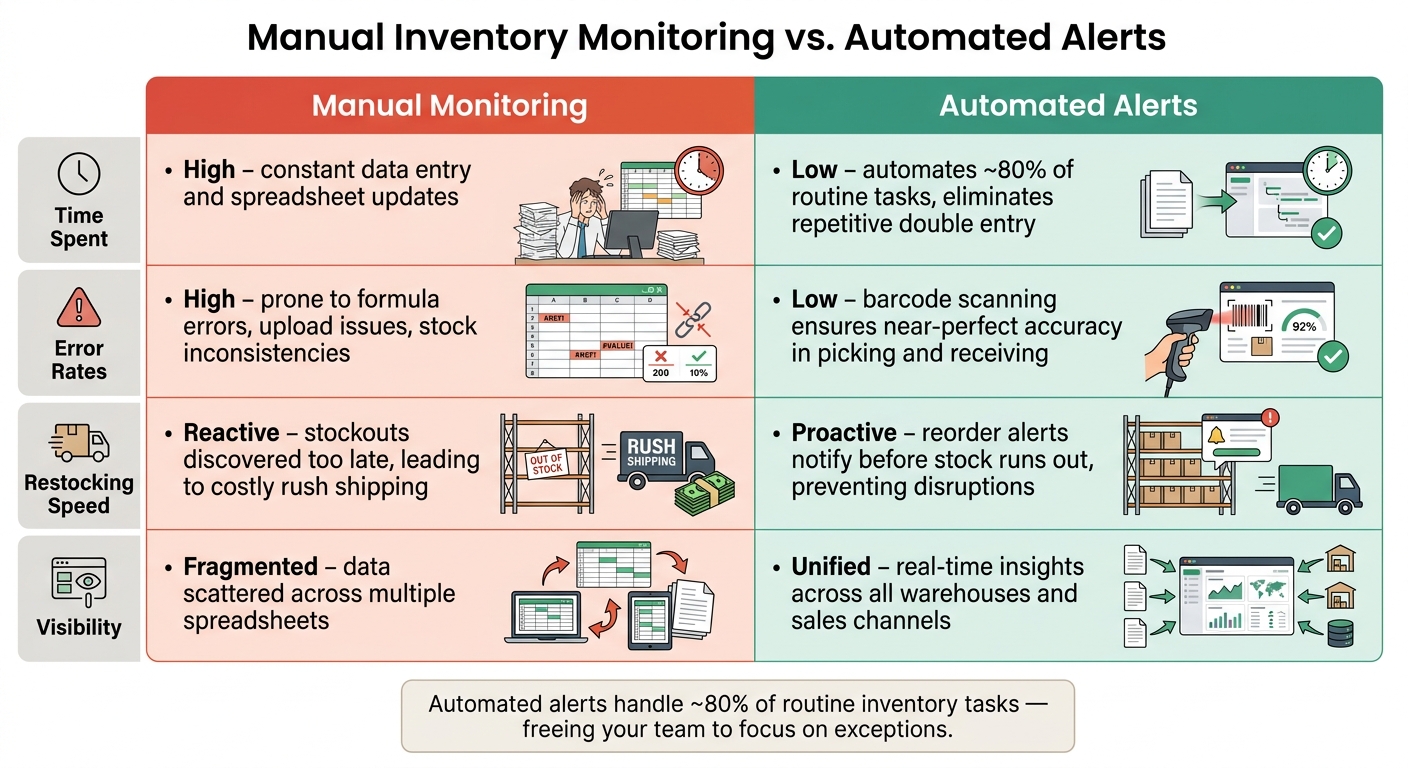
Manual Inventory Monitoring vs. Automated Alerts: Key Differences
Let’s take a closer look at how manual monitoring stacks up against automated alerts. Managing inventory through spreadsheets may seem manageable at first, but it can quickly spiral out of control. A single error - like a misplaced formula or incorrect data entry - can throw off your entire inventory system. And the consequences can be severe. For instance, one fertilizer company reportedly lost over 5,000 orders in just one weekend after a staff member manually uploaded faulty inventory data to Amazon. That’s not just a headache - it’s a serious business setback.
Automated alerts, on the other hand, tackle this fragility head-on by automating about 80% of routine inventory tasks. This means your team can shift their focus to the exceptions that genuinely need human oversight. It’s not about automating everything; it’s about working smarter.
"The point is not to automate every possible decision; it is to automate the routine work and surface the exceptions. Businesses should not have to look at every single order." - Finale Inventory
To break it down further, here’s how manual processes and automated alerts compare across some key areas:
| Dimension | Manual Monitoring | Automated Alerts |
|---|---|---|
| Time Spent | High – requires constant data entry and spreadsheet updates | Low – automates ~80% of routine tasks, eliminating repetitive work like double entry |
| Error Rates | High – prone to mistakes like formula errors, upload issues, and stock inconsistencies | Low – barcode scanning ensures near-perfect accuracy in tasks like picking and receiving |
| Restocking Speed | Reactive – stockouts are often discovered too late, leading to costly rush shipping | Proactive – reorder alerts notify you before stock runs out, preventing disruptions |
| Visibility | Fragmented – data is scattered across multiple spreadsheets | Unified – offers real-time insights across all warehouses and sales channels |
Switching to automated alerts isn’t just a convenience - it’s a way to streamline operations, reduce costly errors, and ensure your inventory runs like a well-oiled machine.
Conclusion
Inventory alerts are a smart addition for any QuickBooks user managing physical stock. The five benefits discussed here highlight a common theme: automated alerts help your team move from reacting to problems to preventing them. They eliminate stockouts, improve accuracy, cut down on manual tracking, speed up reordering, and provide a unified view of inventory across all locations.
Taking these advantages further, Rapid Inventory brings even more functionality to inventory management. With its two-way sync for QuickBooks Desktop and advanced tools - like mobile barcode scanning and multi-location tracking - it ensures real-time updates and reduces errors for users of Enterprise, Pro, and Premier editions.
Experienced users like Nicholas G. can attest to its impact:
"Rapid Inventory with QuickBooks Desktop is exactly what we need to run our company. We've been using it for 6 years and love it."
Rapid Inventory also stands out with its quick setup and competitive pricing. Onboarding takes just 6–7 days, with personalized support included. Pricing starts at $90 per user/month for small teams (1–9 users) and scales to an Unlimited plan at $900/month for larger businesses.
If your QuickBooks inventory process feels reactive, automated alerts can provide the solution. Upgrade your workflow and take control of your inventory with proactive, automated tools.
FAQs
How do I choose reorder points for my items in QuickBooks?
To set reorder points in QuickBooks, you can add them when creating new inventory items or by editing existing ones. Simply navigate to your product list, choose the specific item, and input the threshold in the Reorder point field. If you're using QuickBooks Enterprise with Advanced Inventory, you can even set reorder points for specific locations through the Inventory Site List. For an extra layer of control, Rapid Inventory provides real-time tracking and customizable alerts to help you avoid running out of stock.
Can I get low-stock alerts by warehouse or location?
With QuickBooks Desktop Enterprise's Advanced Inventory features, you can set low-stock thresholds by location. To do this, go to the Inventory Site List and choose Set Reorder Points. This allows you to define minimum stock levels for each warehouse or site.
However, it's worth noting that QuickBooks Desktop doesn't include automated email notifications for low stock. If you're looking for real-time, automated alerts tailored to your inventory needs, Rapid Inventory offers customizable reorder notifications for each site.
What does Rapid Inventory add to QuickBooks inventory alerts?
Rapid Inventory simplifies inventory management in QuickBooks by automating reorder alerts tailored to specific locations. Instead of relying on manual checks, you can set custom reorder points for each site. Once inventory levels hit your defined thresholds, real-time alerts are triggered. This helps you avoid running out of stock in busy areas while also preventing excess inventory in others. Plus, the system keeps your financial and warehouse records aligned automatically - no manual updates needed.



