
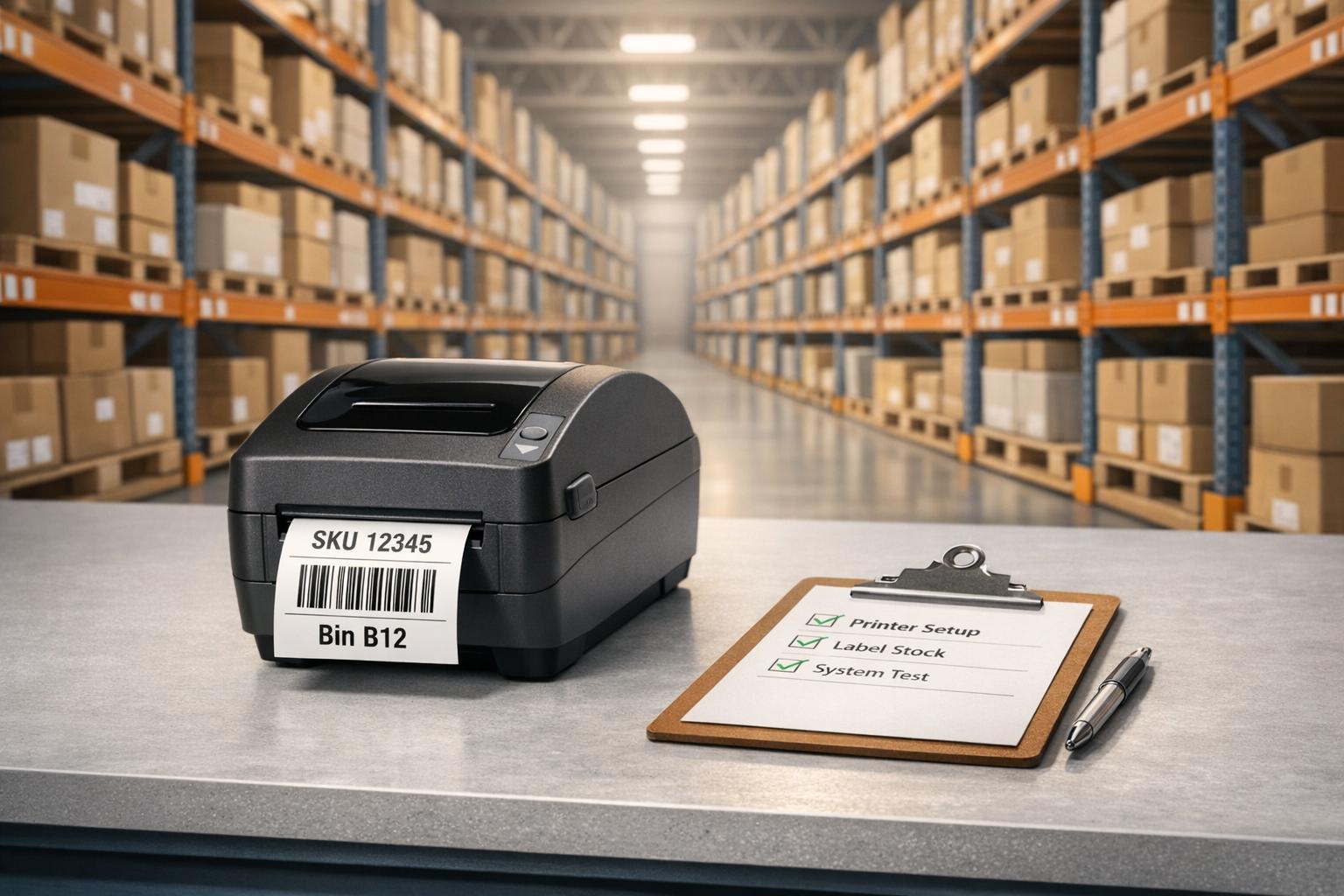
In warehouse operations, labels are critical for inventory management, shipping, and accuracy. A poorly implemented labeling system can lead to misplaced stock, shipping delays, and labor inefficiencies, costing businesses up to $195,000 annually. Here's how to set up a reliable label printing system:
- Understand Label Types: Identify needs for location, SKU, shipping, or specialty labels (e.g., freezer-grade or hazardous material compliant).
- Assess Warehouse Conditions: Consider temperature, dust, and vibration to choose between direct thermal or thermal transfer printers.
- Choose Compatible Hardware: Match printer specs (e.g., resolution, speed, connectivity) with warehouse demands.
- Integrate with WMS: Ensure seamless data flow from your Warehouse Management System to printers for real-time accuracy.
- Standardize Label Design: Use consistent layouts, barcode types, and materials across all locations.
- Train Operators: Provide hands-on training for label application, troubleshooting, and quality checks.
- Maintain Equipment: Regularly clean printheads, stock spare parts, and schedule firmware updates.

7-Step Warehouse Label Printing Setup Checklist
WMS Explained: Configurable document and label printing with automation rules
sbb-itb-19ed50f
Pre-Implementation Warehouse Assessment
Before buying a printer, it's essential to analyze your warehouse's specific needs. Skipping this step can lead to mismatched equipment, wasted money, and labels that don’t perform well in day-to-day operations. A proper assessment ensures your system works seamlessly from the start.
Assess Label Requirements
Start by identifying the types of labels your warehouse uses. These can include:
- Location labels for aisles, racks, shelves, and bins.
- Inventory and SKU labels with details like SKU numbers, lot numbers, and expiration dates.
- Shipping and pallet labels containing tracking numbers, SSCC codes, and destination data to connect physical inventory with digital systems.
You might also need specialty labels:
- Floor labels for high-traffic areas that demand extra durability.
- Magnetic labels for metal surfaces where locations change frequently.
- Retroreflective signs designed for long-range scanning in facilities with high ceilings.
- Labels for hazardous materials that meet GHS or OSHA standards, including appropriate warning symbols.
Pay attention to label size and resolution. For example, standard shipping labels usually need 203 dpi resolution, but small barcodes in densely packed storage areas may require 300–600 dpi for reliable scanning. Also, document how many labels you print daily, weekly, and during peak seasons to plan for the right hardware capacity.
| Label Category | Specific Types | Common Data Fields |
|---|---|---|
| Storage | Rack, Shelf, Bin, Tote | Location ID, Barcode, Level Indicator |
| Product | SKU, Case, Item | SKU, Lot #, Expiration Date, Description |
| Logistics | Pallet ID, Shipping, SSCC | Tracking #, Destination, Weight, SSCC Code |
| Safety | Hazard, GHS, Load Capacity | Warning Symbols, Handling Instructions, Max Weight |
| Specialty | Magnetic, Floor, Retroreflective | Zone ID, Directional Arrows, QR Codes |
Once you've outlined your label needs, consider how your warehouse environment might impact label performance.
Evaluate Environmental Factors
The conditions in your warehouse can significantly affect both the durability of your labels and the reliability of your printers. For example, temperature extremes can cause thermal labels to fade or discolor. Cold storage areas (below 32°F) need freezer-grade adhesives that won’t peel, while outdoor loading docks benefit from UV-resistant labels to prevent fading.
"Warehouse environments include dust, vibration, and temperature changes. Printers used near loading docks should have rugged frames and stable feeding systems." – EpicRise Electronics
Dust and debris are another challenge. They can clog printer sensors, cause paper jams, and wear out printheads. If your warehouse deals with powdered goods, bulk materials, or has open dock doors, look for printers with higher IP ratings or enclosed designs. Facilities exposed to chemicals like solvents or cleaners should consider thermal transfer printers paired with chemical-resistant ribbons.
To assess your environment, walk through your warehouse and note:
- Temperature ranges and humidity levels.
- Dust exposure in different zones.
- Areas where chemicals are handled.
- Locations affected by vibration from forklifts or conveyor systems.
This environmental map will guide your decision between direct thermal printing for short-term, controlled conditions and thermal transfer printing for tougher, long-term applications.
Confirm WMS Compatibility
After defining your label needs and considering environmental factors, ensure your WMS (Warehouse Management System) supports your chosen printer and label requirements. Start by checking that your printer models are compatible with your WMS and that the necessary drivers work with your operating system. Identify how your WMS connects - via API, CSV exports, or direct database links - to simplify setup.
Accurate data mapping is critical. Your WMS stores key information like SKU numbers, lot codes, expiration dates, and location identifiers in specific database fields. These fields must align with your label design software to prevent errors like missing data or incorrect barcodes.
For smoother operation, choose printers that support native printer languages to reduce processing delays. Configure them with static IP addresses or reserved DHCP leases on dedicated VLANs to minimize network congestion.
If you’re using Rapid Inventory, verify that your printers integrate with its automated triggers and real-time data sync features. This ensures labels pull live inventory data, not outdated information.
Finally, test the integration by printing 50–100 labels using live WMS data. Confirm that all fields populate correctly, barcodes scan without issues, and print jobs run smoothly. Catching problems early makes them easier to fix.
Hardware Selection and Setup
Once you’ve nailed down your label needs and factored in environmental challenges, the next step is choosing the right printers and setting them up for long-term, reliable performance. Your warehouse’s specific conditions and workload demands will steer these decisions.
Choose the Right Printer
Start by deciding between direct thermal and thermal transfer printing. Direct thermal printers use heat-sensitive paper, making them a great choice for short-term labels like shipping tags or receipts. However, these labels are prone to fading when exposed to heat or sunlight. On the other hand, thermal transfer printers use ribbons to produce durable labels that stand up to chemicals, UV light, and abrasion. This makes them ideal for inventory tags, asset labels, or labels used in cold storage environments.
If your warehouse operates across multiple locations, throughput becomes a crucial factor. Industrial printers, which can print at speeds of 150–300 mm/sec and handle over 50,000 labels per month, are best suited for high-volume operations. A desktop printer might struggle to keep up with thousands of labels daily. Additionally, consider resolution: 203 dpi is sufficient for standard shipping labels, but for small barcodes or dense QR codes, 300–600 dpi ensures reliable scanning.
Connectivity is another key consideration. For fixed packing stations, wired Ethernet provides the most stable connection. Many industrial printers now support PoE++ (Power over Ethernet Plus), which simplifies setup by combining power and data into a single cable. Look for printers that support native printer languages like ZPL or EPL, as these reduce CPU usage and latency compared to PDF-based drivers.
If you’re managing printers across multiple sites, prioritize models with SNMP support, HTTPS APIs, and remote firmware update capabilities. These features let you monitor printer health, push updates, and troubleshoot issues remotely, eliminating the need for on-site visits.
Once the right printer is selected, it’s time to configure it for optimal performance.
Set Up and Configure Printers
Start by installing the appropriate drivers and firmware on each workstation or print server. Assign each printer a static IP or a reserved DHCP lease to avoid network changes that could disrupt inventory management software integrations. Use stable DNS names (e.g., warehouse1-pack-01.company.local) to ensure printers are always easy to locate.
Next, configure the printer settings to match your label media. Adjust label size, darkness, and speed for the best results. Running a media sensor calibration helps the printer detect label gaps accurately, while tweaking darkness settings can prevent faded or overly saturated prints. Test the setup by sending a few print jobs from your WMS to confirm smooth data flow and error-free printing.
For operations spanning multiple warehouses, setting up a local print server at each site can make a big difference. These servers cache label templates and manage local print queues, reducing reliance on cloud connectivity. A hybrid system like this can cut print times from 4 seconds to just 0.6 seconds. Adding mutual TLS and job acknowledgments can further reduce lost or duplicate labels by 78%. With SNMP monitoring and automatic failover, recovery times for printer failures drop from 45 minutes to just 6 minutes.
Establish Security and Maintenance Protocols
Once your printers are configured, securing and maintaining them is essential for uninterrupted operation. Place networked printers on a dedicated VLAN, restrict access using ACLs, and encrypt print jobs with IPP over HTTPS or vendor-specific TLS. Disable raw print protocols from untrusted networks, and only allow necessary ports like IPP (631), LPR (515), and SNMP (161/162).
For maintenance, clean the printhead, platen roller, and sensors using 99% isopropyl alcohol swabs after every roll or ribbon change - or at least once a week. Store label media and ribbons in a cool, dry place, and let new rolls acclimate for 24 hours before use.
Keep a spare parts inventory to minimize downtime. For high-volume sites, maintain at least one backup printer for every 10 active units. Stock extra printheads, platen rollers, and cutters so you can quickly replace components when needed. Schedule quarterly firmware reviews and always test updates on a dedicated printer before deploying them across your fleet.
Label Design and Standardization
Once printers are set up for peak performance, the next step is creating labels that ensure consistent and accurate operations across all warehouse locations. Poorly designed labels can lead to scanning issues and picking errors, which may cost warehouses as much as $195,000 annually.
Define Label Data and Layout
Start by identifying the essential data fields for each label type. These generally include SKU, description, quantity, and unique IDs, but for traceability, you should also include details like lot or batch numbers, serial numbers, and expiration dates. When designing location labels, stick to a standardized alphanumeric format (e.g., "A01-RA-S02") to ensure clear and consistent storage guidance.
For barcode types, opt for Code 128 for straightforward tracking and QR codes when more detailed data is needed. Shipping pallets should include SSCC codes to integrate seamlessly with your WMS.
Scannability is key in the visual design. Use high-contrast color combinations, such as black on white or black on yellow, and choose large, easily readable fonts. This ensures labels remain legible even when slightly damaged or viewed from afar. You can also use color-coding to differentiate zones, product categories, or item priority (e.g., red for high-priority items). For high racks scanned from ground level, consider using retroreflective materials to improve barcode readability.
Ensure compliance with industry-specific standards. For example:
Create and Test Label Prototypes
Before committing to mass production, create mock-ups and test them in real-world warehouse conditions. Print a few samples and have staff scan them from the angles and distances they’ll encounter during daily operations.
Durability testing is also crucial. For cold storage labels, place prototypes in a freezer for 24 hours to check if the adhesive holds and the print remains legible despite condensation. For outdoor use, test for UV resistance, and in high-traffic areas, evaluate how well the labels withstand abrasion and frequent handling.
Pay attention to barcode quiet zones - the blank space around the barcode. If these areas are obstructed, scanners may fail to read the code. Double-check that the printed data aligns perfectly with your WMS records, as even small mismatches can lead to serious errors. Running a pilot program in one zone or with a small team can help identify workflow gaps and gather feedback before a full-scale rollout. Once the prototype passes all tests, secure documented approval from warehouse managers, IT, and quality control teams.
Document Label Design Standards
To avoid inconsistencies, store finalized label designs in a centralized cloud-based repository. This ensures all locations use the same version and prevents unauthorized changes, often referred to as "template drift."
Standardize every visual element, including fonts, margins, barcode types, and color schemes. Jordan Hayes, Senior Editor at LabelMaker, emphasizes:
"Standardize a single label template for each use case (shipping, inventory, product) and lock font sizes and margins".
Restrict template and printer configuration changes to authorized personnel, such as Label Designers or Supervisors, using role-based access control. Keep an audit trail of all modifications, recording who made the changes, when, and the updated version number.
Finally, specify material requirements for different applications. For permanent rack labels, use durable materials like polyester or polypropylene, which resist tearing and maintain readability over time. Paper labels may suffice for temporary uses, such as carton labeling or short-term shipping, but they won’t hold up in harsher environments. Documenting these material standards ensures every warehouse location orders the right supplies, producing labels that perform consistently. This level of standardization helps maintain accurate WMS data and streamlines warehouse operations.
WMS Integration and Workflow Automation
Once your label designs are standardized, the next step is integrating your label printing system with your warehouse management software (WMS). This connection allows data to flow seamlessly from your WMS to your labels, streamlining operations. A proper setup eliminates manual data input, reduces errors, and ensures labels print automatically at the right points in your workflow.
Map Data Fields and Configure Triggers
Start by identifying the main WMS table for each label type. For instance, location labels might pull from WMSLocation, while product labels could use InventTable. If additional information like lot numbers or expiration dates is needed, join related tables to include this data.
Map these WMS fields directly to placeholders in your label design. For ZPL or EPL printer languages, use variables tied to database fields (e.g., $WMSLocation_1.wMSLocationId for location IDs). This creates a direct connection, ensuring WMS transactions automatically populate the label templates with accurate data.
Set up automated triggers for key workflow stages, such as:
- Receipt/Inbound: For material and LPN labels.
- Pick Release: For picking labels.
- Cartonization: For shipping labels.
- Ship Confirm: For final shipping documents.
If your system supports features like multi-location tracking or lot/serial number management, configure triggers to capture all necessary traceability data for compliance and inventory accuracy.
Choose an integration method that suits your infrastructure. API connections (e.g., REST or gRPC) offer real-time data exchange and job acknowledgments but require significant development effort. CSV exports are easier to implement but lack real-time feedback and may lead to file-handling errors. Direct database links are fast but could introduce security risks and performance issues.
For better performance, use raw ZPL or EPL payloads instead of converting to PDFs. This reduces CPU usage and latency. Cache label templates on local print servers and send only dynamic variables (like SKU or shipping address) via JSON to save bandwidth. A mid-sized ecommerce operator implemented this method in 2025, cutting print times from 4 seconds to just 0.6 seconds.
Test and Validate Data Accuracy
Once triggers are configured, thorough testing is essential. Start with smoke tests - print a small batch of labels to check data accuracy, barcodes, and alignment. Simulate peak loads, such as end-of-shift surges, to assess latency and ensure no jobs are dropped. Perform end-to-end tests to validate the full data cycle and confirm that WMS data matches printed labels.
To avoid duplicates or lost labels, configure the system to assign a unique Job ID to every print job, along with success or failure acknowledgments. This step alone can reduce labeling errors by up to 78%.
Begin with a pilot implementation in a single warehouse zone or with a small team before rolling it out across the facility. Test barcode readability at the angles and distances workers will use daily. Even tiny mismatches between printed data and WMS records can lead to significant inventory issues.
Regular failover drills are also crucial. Simulate network outages or printer failures to confirm that jobs are rerouted to backup devices without data loss. This ensures your labeling operation stays functional during unexpected disruptions.
Document Integration Settings
Just like with hardware and label standards, documenting your WMS integration settings is key to long-term success. Centralize all settings - data mappings, trigger rules, API endpoints, connection strings, and printer IPs - in a version-controlled repository.
Maintain a change log to track updates, noting who made changes, when they occurred, and what was modified. This log is invaluable for troubleshooting unexpected printing issues.
Document your testing processes and results, including outcomes from smoke tests, load tests, and failover drills. These records establish performance baselines and make it easier to spot issues if performance degrades over time.
If custom SQL statements are used to create label fields (like carrier-specific PRO numbers), document the SQL code and the reasoning behind each customization. This ensures future administrators can maintain or update these fields without disrupting workflows.
Lastly, implement template versioning by storing label templates in a version-controlled system. This guarantees the WMS always uses the latest approved layout and prevents unauthorized changes that could compromise accuracy or compliance.
Printer Maintenance and Troubleshooting
Keeping your printers in good shape ensures they deliver the reliable performance you expect. Regular maintenance is key, and one of the most important tasks is cleaning the printheads every time you replace a media or ribbon roll. Use a lint-free cloth or approved cleaning pens with 90%+ isopropyl alcohol to avoid scratches and buildup.
Platen rollers also need attention - clean them with a solvent after every roll change. Dust off media, ribbon, and take-label sensors using compressed air, but make sure to hold the canister upright to prevent moisture. Monthly maintenance should include checking tear-off bars and peel-off mechanisms, while tasks like cleaning the take-label sensor should happen twice a year. Once these routine tasks are done, you can move on to troubleshooting print quality issues.
"Routine preventive maintenance is a crucial part of normal printer operation. By taking good care of your printer, you can minimize potential problems and achieve/maintain the desired print quality standards." - Zebra
If you’re dealing with print quality problems, here’s a quick three-step process to follow:
- First, confirm that the media type matches the sensor settings and check for adhesive buildup on the rollers.
- Second, ping the printer to make sure its IP address hasn’t changed.
- Third, print a test label directly from the printer’s internal menu. If the test label prints fine, the issue likely lies with your integration setup rather than the printer itself.
Issues like faint prints or streaks often mean it’s time to clean the printhead, adjust the darkness settings, or replace worn components.
To reduce downtime, keep essential spare parts on hand. Stock items like printheads, rollers, cutters, sensors, belts, and even a spare printer for every 10 active units. For high-volume operations, having replacement ribbons, cleaning swabs, and mechanical parts like pinch levers readily available at packing stations is a smart move. A well-stocked inventory of spares ensures your label printing system keeps running smoothly with minimal interruptions.
Operator Training and Label Application
Once your label printing hardware is running smoothly and maintained regularly, the next step is to focus on your operators. Even the best-maintained system can falter without skilled operators ensuring labels meet the required standards. Well-trained operators are key to avoiding errors that could disrupt the supply chain.
Begin with hands-on training that walks operators through the entire labeling process. This includes loading media and ribbons, calibrating sensors, and navigating your warehouse management system (WMS) to retrieve SKUs, lot numbers, and expiration dates. Cover common troubleshooting tasks like fixing paper jams or resolving connectivity issues. During onboarding, run a 10-label smoke test to confirm proper alignment and barcode readability. To make things easier, place laminated quick-reference guides near packing stations. These guides should cover tasks like media swaps and basic troubleshooting, so operators don’t have to rely on supervisors for every issue.
Quality checks should be integrated into every step of the process. Operators should inspect label placement angle, pressure, and the cleanliness of surfaces before applying labels - dirt or debris can weaken adhesive performance. Track an "initial success rate" metric to measure how often labels are applied correctly on the first try. This can help pinpoint training gaps or equipment problems. For handling exceptions, create clear workflows for reporting misprints, damaged labels, or data mismatches. This prevents operators from improvising solutions that might compromise data accuracy.
Maintain training records and provide standardized guides to ensure consistency across all warehouse locations. Training should be an ongoing process, with regular refresher courses to address software updates or changes in equipment layout. Encourage a feedback loop where operators can report practical issues, like labels that are difficult to scan or peel, to drive continuous improvements. Occasionally simulate a printer failure to ensure operators can reroute jobs to backup equipment without causing production delays.
| Training Module | Key Learning Objectives |
|---|---|
| WMS Integration | Mapping data, triggering print jobs, and verifying SKU accuracy. |
| Hardware Basics | Loading media, adjusting ribbon tension, and cleaning sensors. |
| Quality Control | Testing barcode scans, checking adhesion, and ensuring proper placement. |
| Troubleshooting | Clearing jams, fixing "printer offline" errors, and adjusting print darkness. |
| Safety/Compliance | Recognizing hazard symbols and adhering to industry labeling regulations. |
Conclusion and Final Checklist
A well-organized multi-location label printing system can bring immense operational benefits. By focusing on hardware standardization, WMS integration, network security, and operator training, you can prevent errors that often result in costly setbacks. For context, typical warehouses report annual inventory errors amounting to about $195,000. A thoughtfully implemented labeling system directly helps mitigate these risks.
It’s crucial to treat your printers as essential infrastructure. Maria Fernanda of Pacific Barcode highlights this perfectly:
"Warehouse labeling is not decoration; it is core infrastructure. When you plan it well, connect it to your WMS, and keep it current, you gain speed, accuracy, and safety".
This means securing printers with RBAC (Role-Based Access Control) and encrypted data transmission, maintaining them as diligently as your WMS, and ensuring your team is equipped to handle basic troubleshooting without always relying on IT.
Once your setup is complete, wrap up with some final checks. Start by running a pilot test in a single zone to confirm scanning accuracy and WMS synchronization. Perform ten smoke tests per station to ensure alignment and barcode readability. Additionally, simulate a printer failure to test your failover procedures - your backup systems should seamlessly reroute jobs without disrupting workflows.
By following these steps, you’ll establish a secure and reliable label printing system that enhances your warehouse operations.
Master Checklist for Label Printing Setup
Here’s a comprehensive checklist to ensure every critical element of your label printing system is production-ready:
| Review Category | Essential Verification Tasks |
|---|---|
| Hardware | Confirm hardware settings align with earlier guidelines; verify spare parts inventory includes printheads and backup printers. |
| Network | Check static IPs or reserved DHCP leases; confirm VLAN segmentation and QoS settings; use wired Ethernet for fixed stations. |
| WMS Integration | Validate data field mapping (e.g., SKU, lot numbers, expiration dates); test real-time print triggers; confirm barcode symbology (GS1/QR); verify two-way synchronization. |
| Security | Enable HTTPS/TLS for print traffic; implement RBAC for design files and printer settings; update firmware to the latest signed version; restrict access using ACLs. |
| Label Design | Confirm prototype testing results; ensure high contrast and adhesive compatibility with surfaces and environmental conditions (e.g., freezer-grade, UV-resistant labels). |
| Operations | Document SOPs for media swaps and troubleshooting; verify operator training on WMS navigation and quality checks; establish workflows for handling exceptions. |
| Maintenance | Schedule weekly printhead cleaning and monthly sensor checks; confirm spare parts inventory; set up SNMP monitoring for predictive maintenance. |
If you’re using Rapid Inventory, double-check that label templates pull live data via its two-way QuickBooks sync and multi-location tracking capabilities. This integration eliminates manual data entry errors and ensures accuracy for lot numbers, serial numbers, and location codes across warehouse sites. Additionally, its mobile barcode scanning features should integrate smoothly into your label verification process, allowing operators to validate labels in real time.
FAQs
How do I choose direct thermal vs. thermal transfer?
When choosing between direct thermal and thermal transfer printing, it boils down to the type of labels you need and their intended use:
- Direct thermal: This method relies on heat-sensitive paper, making it a great choice for short-term labels like shipping labels or receipts. It's an economical option but comes with a downside - labels can fade over time or when exposed to heat or sunlight.
- Thermal transfer: This technique uses a ribbon to create durable, long-lasting labels. It's ideal for labels that need to withstand exposure to chemicals, moisture, or UV light, such as asset tags or product labels.
What’s the best way to connect printers to my WMS?
To integrate printers with your Warehouse Management System (WMS), begin by connecting your label printer to the network using either Ethernet or WiFi. USB printers are generally not suitable for network printing. Once connected, print a configuration label to identify the printer’s IP address. Enter this IP address into your WMS setup. Make sure the printer is compatible with the required printing language, such as ZPL, and aligns with your network setup to ensure smooth operation.
How can I prevent duplicate or lost print jobs?
To prevent duplicate or missing print jobs, begin by canceling any pending tasks in the printer queue through your Windows settings. Restarting the print spooler service can often fix jobs that are stuck. If the problem continues, try clearing the spool folder - this involves stopping the spooler service and deleting its files. Keeping an eye on print queues regularly can help ensure smooth operations and avoid job duplication.



