
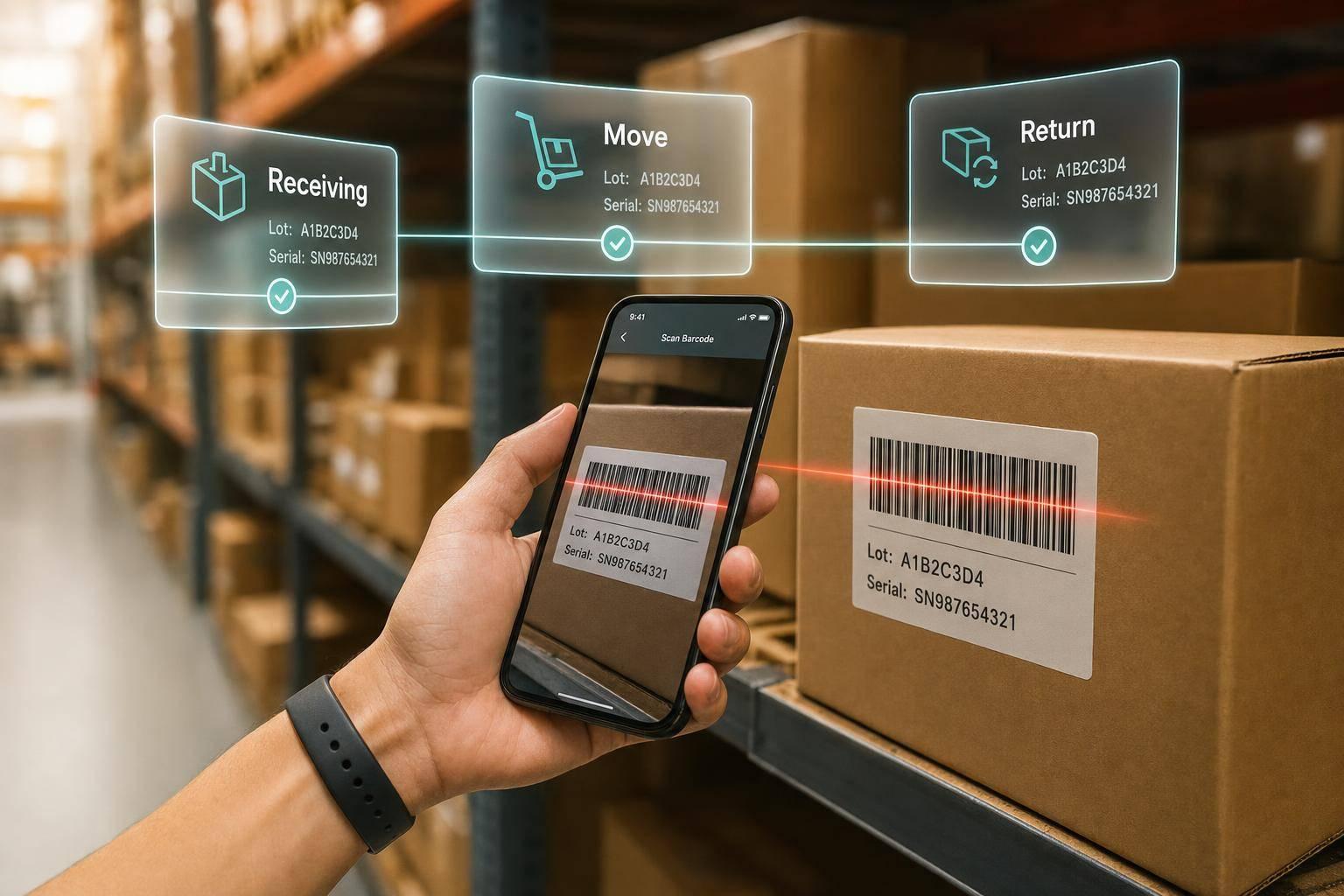
One bad lot or serial entry can throw off receiving, picks, returns, and recall work. I’d fix that with one rule: scan every inventory touchpoint in the same order and sync it back to QuickBooks Desktop.
Here’s the short version:
- I use mobile scanning to cut hand-keyed errors at receiving, put-away, moves, picks, and counts.
- I set up Advanced Inventory, bins, sites, and lot or serial controls before the first scan.
- I keep one scan flow: location, item, lot or serial, quantity.
- I treat lot-tracked items and serial-tracked items differently during picks and counts.
- I use scan history to trace items back to the vendor receipt and forward to the customer shipment.
- I keep returns tied to the original lot or serial record so nothing gets lost.
A simple point matters here: quantity alone is not enough. If I know I have 24 units but I don’t know the right lot, right serial, and right bin, I still have a tracking problem.
For QuickBooks Desktop teams, this article comes down to four jobs:
- Set up item and barcode data the right way
- Scan receipts at the dock
- Scan every move and pick as it happens
- Use that history for counts, audits, recalls, and returns
That’s the whole playbook: fewer data entry mistakes, cleaner trace records, and less guesswork when stock moves in or out.
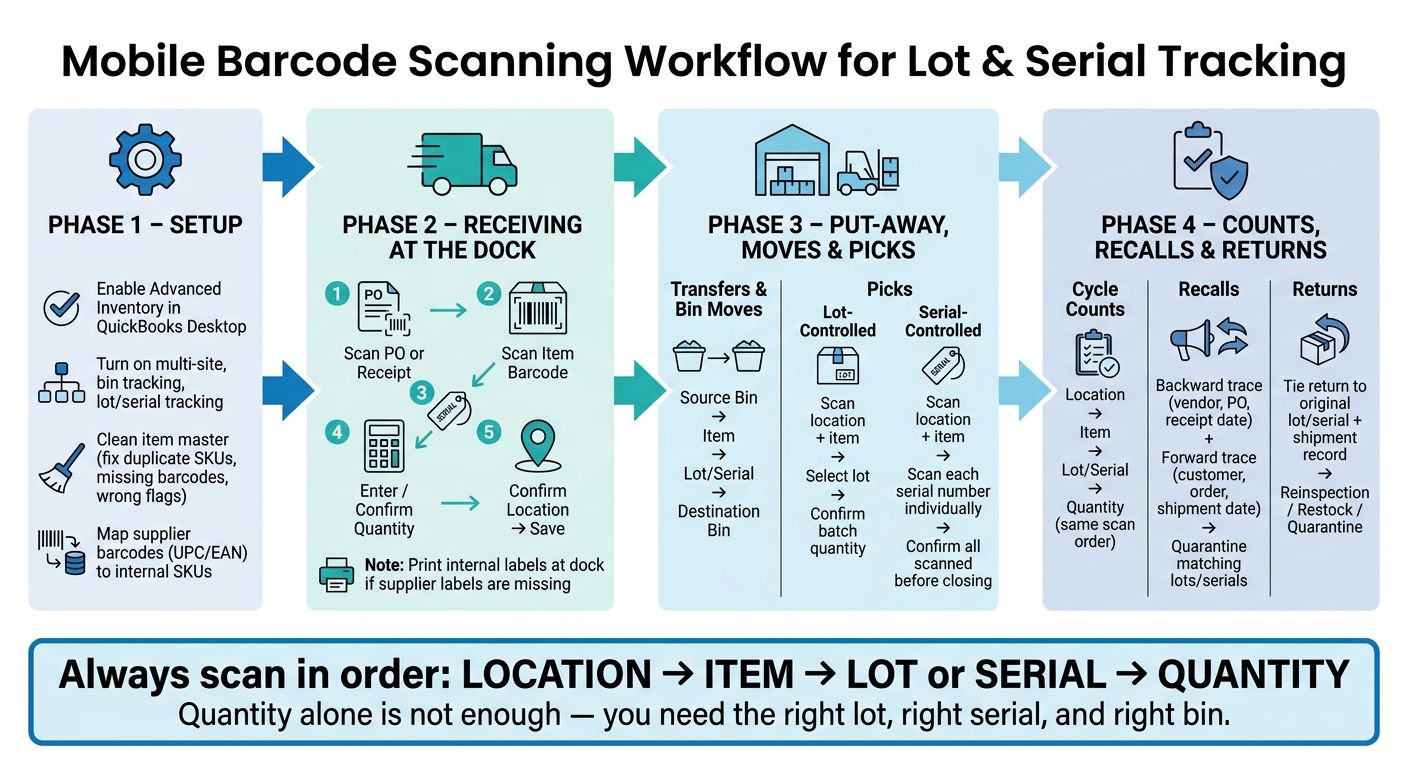
Mobile Barcode Scanning Workflow for Lot & Serial Tracking
QuickBooks Enterprise: Mobile Inventory Barcode Scanning
sbb-itb-19ed50f
Set up receiving and barcode capture at the dock
Set up lot and serial tracking before anyone starts scanning. If you skip that step, receiving data gets messy fast. At the dock, the job is straightforward: every receipt should create a clean traceability record.
Enable barcode and lot or serial settings before scanning goes live
Start by turning on Advanced Inventory or try Rapid Inventory for free. Then enable multiple sites, bin tracking, and lot or serial tracking for the item types you use. Require lot or serial entry on key transactions, including item receipts, inventory transfers, and invoices, so you don't end up with gaps in your traceability records.
Next, clean up the item master. Fix duplicate SKUs, wrong lot or serial flags, missing barcodes, and mismatched units of measure before scanning begins. If item records are off, scans won't match, and traceability records will break.
You also need to decide which barcode types the app should read at receiving: internal SKU, UPC/EAN, or manufacturer part number. If most suppliers put UPC barcodes on cartons, map those codes to your internal item numbers. That way, dock workers can scan what's actually on the box instead of hunting for a code on a packing slip.
Once the item master is in order, the dock process becomes much easier to keep consistent.
Scan the PO or receipt, then capture item and lot or serial details
Use the same receiving sequence every time:
- Scan the PO or receipt
- Scan the item barcode
- Scan the lot or serial number
- Enter or confirm quantity
Before saving, confirm the item, lot or serial, quantity, and location.
For lot-controlled items, scan the lot code printed on the carton or inner packaging. For serialized items, scan each serial number one by one. If supplier labels are missing or can't be scanned, print internal labels right at the dock before the items are put away. Generate those labels from the receiving transaction so the printed lot or serial matches the system record.
The same scan pattern should carry over into put-away, moves, and picks.
Record put-away, moves, and picks with the right scan sequence
Record each location change the moment it happens. If stock is put away, moved to another bin, or sent on a replenishment run, that move needs to be scanned right then - not fixed later.
Why does that matter? Because the same scan sequence keeps both moves and picks easy to trace.
Scan location, item, and lot or serial number for transfers and bin moves
For put-away, scan the destination bin before the pallet is stored.
For bin-to-bin moves or replenishment, follow the same path each time:
- Scan the source bin
- Scan the item
- Scan the lot or serial number
- Scan the destination bin
That flow creates a transfer record instead of a manual adjustment. Small difference on the surface, big difference when you need a clean history.
Verify picks differently for lot-controlled and serial-controlled items
Lot-controlled and serial-controlled items can't be picked the same way.
For lot-controlled items, the picker scans the location and item, selects the lot, and confirms the quantity for that batch. One batch scan can cover multiple units.
For serial-controlled items, the picker scans the location and item, then scans each unit's serial number one by one until the needed quantity is met.
Do not close the pick until every serial number has been scanned and unassigned. That traceability is what keeps counts accurate and recall checks dependable.
Use the same scan rules for cycle counts, audits, recalls, and returns.
Use mobile scans for cycle counts, audits, recalls, and returns
The same scan discipline you use for receiving and picks also supports counts, recalls, and returns. These tasks all rely on the same traceability chain, so the process should stay consistent from one workflow to the next.
Run cycle counts and audits without losing traceability
Cycle counting helps you check inventory in small sections over time, instead of shutting everything down for a full physical count. The scan order should stay the same: location, item, lot or serial, quantity.
With mobile barcode scanning, you can verify location, item, quantity, and lot or serial data in a single pass. That matters because quantity by itself doesn't confirm traceability. If someone only checks the count, you still don't know whether the right lot or serial is sitting in the right place.
For high-value or regulated products, audits should confirm two things:
- The physical stock on hand
- The recorded traceability trail
Inventory history gives auditors a clear view of every lot or serial movement, without forcing them to rebuild the record from paper.
Trace recalled or returned items back to stock and shipment records
When traceability breaks, scan history helps you find both the source and destination of each affected item. And when a recall or quality issue hits, time is tight.
Traceability runs in two directions. Backward traceability shows where the item came from. Forward traceability shows where it went.
Start with the affected lot or serial range. Trace it back to the original receipt, including:
- Vendor
- PO number
- Receipt date
- Any supplier-assigned lot identifiers
Then use those identifiers to find every shipment tied to the affected items, along with the customer, order number, shipment date, and current bin location for any units still in stock. Compare the affected lot numbers to spot common links, then quarantine any matching lots or serials.
Returns should stay tied to the original lot or serial number and shipment record so the item can move through reinspection, restock, or quarantine without losing the traceability trail.
Conclusion: Build a reliable lot and serial workflow with mobile scanning
Build a lot and serial workflow you can trust by scanning at every touchpoint: receiving, put-away, moves, picks, counts, recalls, and returns.
For QuickBooks Desktop users, that setup fits into Rapid Inventory. It supports mobile barcode scanning, lot and serial tracking, multi-location inventory, FIFO/FEFO picking, cycle counting, and two-way sync. In plain terms, you can track inventory from the moment it comes in to the moment it goes out - without gaps, guesswork, or messy paper trails.
The result is complete traceability from receipt to shipment.
FAQs
What setup is required before mobile scanning starts?
First, make sure your inventory management software is set up the right way. In QuickBooks Desktop, that means having an active Advanced Inventory subscription and turning on Inventory, Purchase Orders, lot or serial tracking, and barcode scanning. You’ll also want to use the Barcode Wizard to match barcodes to fields like Part Numbers.
Then check your scanners. They should support EAN-13 and Code-128, add one carriage return after each scan, and be tested in a text editor to make sure scans come through as expected. Your items also need scannable barcode labels and should be set up as Inventory Part or Inventory Assembly.
How do lot and serial picks differ during scanning?
The main difference comes down to detail. Lot tracking follows a group of items under one batch number. Serial tracking follows each unit by its own unique ID.
When it’s time to scan, the system directs the picker to the right lot or the exact serial number tied to the order. That helps cut mistakes and keeps a full audit trail in place.
How does scan history help with recalls and returns?
Scan history creates a digital audit trail that connects receipts, picks, and shipments to specific lot or serial numbers. With user IDs, timestamps, and item identifiers tied to each transaction, you can follow an item’s path from production to delivery.
When a recall happens, this makes it much easier to find and isolate affected batches or units fast. For returns, it helps confirm service and repair records, which supports warranty management and cuts down on fraud.



