
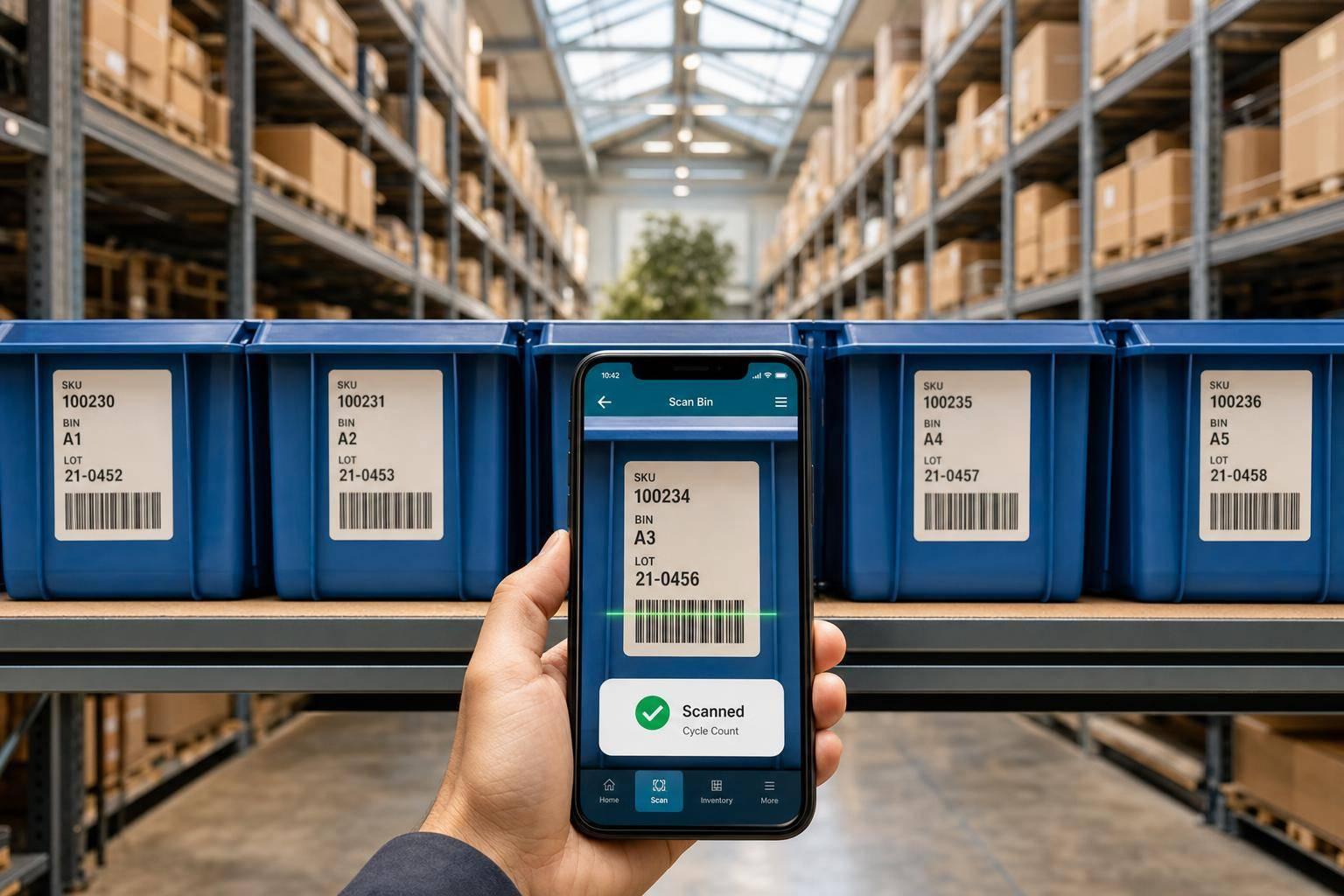
If I want fewer stock mistakes in QuickBooks Desktop, I need 5 things: a mobile app that syncs with QuickBooks, clean item and barcode data, required scans for receiving and picking, location and lot/serial tracking, and cycle counts with report checks.
That’s the whole article in plain English. The main point is simple: manual entry causes lag and errors, while barcode scans from mobile devices update inventory as work happens on the floor. When I set up sites, bins, users, and barcodes the right way, I can cut wrong picks, missed receipts, and stock drift.
Here’s the short version:
- Use the best inventory management software for QuickBooks Desktop so scans sync with QuickBooks Desktop
- Clean item records first so each SKU, barcode, site, and bin points to the right record
- Require scans during receiving and picking to stop typos and item mix-ups
- Track bins, lots, and serial numbers to know where stock is and which unit or batch moved
- Run cycle counts often and review reports right after to catch mismatches fast
A few setup points matter too:
- Advanced Inventory must be turned on
- Multiple Sites and Barcode Scanning must be enabled
- Mobile users need the right warehouse role and access
- Existing stock should be moved to the correct sites before day one
- Barcode formats and SKU names should be cleaned up before rollout
Why does this matter? Because even a small scan miss can throw off counts, reorder timing, and shipments. With a scan-based process, each step - receiving, picking, packing, shipping, and transfers - feeds back into QuickBooks instead of waiting on later data entry.
| Tip | What I’m fixing |
|---|---|
| Mobile app sync | Delays between warehouse work and QuickBooks |
| Clean data | Bad barcodes, missing bins, wrong item records |
| Required scanning | Typos, wrong picks, wrong quantities |
| Location + lot/serial tracking | Lost items, weak traceability |
| Cycle counts + reports | Inventory drift and late problem checks |
So if I had to sum it up in one line: mobile inventory tracking works best when I pair scan rules with clean QuickBooks data and regular count reviews.
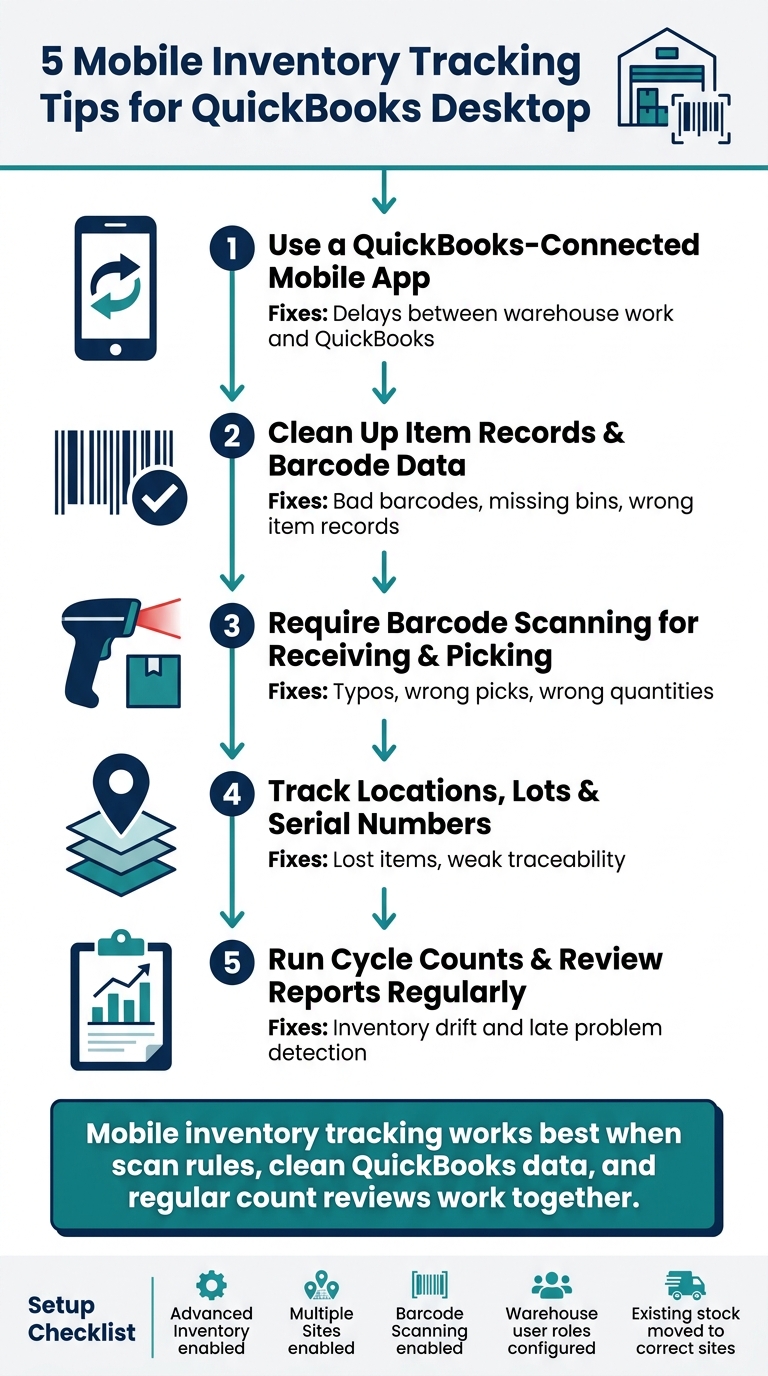
5 Mobile Inventory Tracking Tips for QuickBooks Desktop Users
QuickBooks Enterprise Mobile Barcode Device for Cycle Counts

sbb-itb-19ed50f
What Mobile Inventory Tracking Means in QuickBooks Desktop

In QuickBooks Desktop, mobile tracking links warehouse scans straight to the company file. Put simply, it brings that inventory workflow onto the warehouse floor.
Core mobile tasks: receiving, picking, packing, shipping, and transfers
The daily mobile workflow centers on five main jobs. During receiving, workers scan items as they come in and update Purchase Orders. During picking, warehouse staff get electronic picklists on their mobile devices, scan each item to confirm the Sales Order, and mark it Picked or Partially Picked.
After that, packing and shipping are tracked in the fulfillment worksheet, and inventory updates when the package ships. Inventory transfers - such as moving stock between warehouses, trucks, or staging areas - use the same scan-and-sync flow. QuickBooks can also create an audit trail for each transfer.
That all sounds simple enough. But it only works well when sync, user roles, and location data are set up the right way.
How sync and permissions affect inventory accuracy
Mobile devices connect to the company file with a 6-digit passcode in Advanced Inventory Settings > Site Operations. Warehouse staff must be set up as Vendors with the Warehouse user role, and the View Balance checkbox has to be selected for that role to appear. If a cycle count doesn’t match what’s in QuickBooks, the status changes to Pending Review.
If the file, users, and locations don’t line up, mobile scans don’t save time - they create mistakes.
How item, site, and location data connect to mobile scanning
Each barcode scan ties back to a specific item record in your QuickBooks Item List. The scan identifies the item at once and fills in the fields. QuickBooks uses Sites for larger locations like warehouses, trucks, or job sites, and Bins for rows, shelves, or exact storage spots. For items that need tighter tracking, mobile users can scan or enter a serial or lot number during receiving or picking.
Here’s how those data layers fit together:
| Data Layer | Role in Mobile Scanning | QuickBooks Requirement |
|---|---|---|
| Barcode | Identifies the specific SKU/item | Assigned in the Item List |
| Inventory Site | Identifies the warehouse or physical location | Advanced Inventory enabled |
| Bin Location | Identifies the row, shelf, or bin | Multiple Sites must be active first |
| Serial/Lot Number | Tracks individual units or batches | Configured at the item level |
These fields sit underneath the five tips below. From here, the focus shifts to setup, scan habits, and routine counts.
1. Use a QuickBooks-connected mobile inventory app like Rapid Inventory

Start by choosing a mobile app that connects straight to QuickBooks Desktop. Rapid Inventory is built for QuickBooks Desktop and syncs warehouse activity both ways, so picklists, purchase orders, and status updates stay in sync between the mobile device and the company file.
Barcode scanning checks each item against the picklist and flags mismatches, duplicate serial numbers, and negative-stock issues before those errors reach QuickBooks.
Rapid Inventory also supports bin-level tracking, lot and serial capture, and Sales Order Fulfillment statuses from Sent for picking to Picked. That makes the next steps - clean data, required scans, and regular counts - a lot easier to put into place.
2. Clean up item records and barcode data before going mobile
Once the mobile app is in place, the next step is cleaning the item data behind it. If that data is messy, scanning breaks down fast. You’ll see failures at receiving and picking, which slows the team and creates avoidable friction.
Before rollout, audit item records and fix the basics: barcode gaps, site assignments, and item types.
Map each barcode to one item field only. Then use the Barcode Wizard or a bulk import to fix duplicates and blank entries.
Also check that every stocked item has both a site and a bin assigned before mobile picklists go live. If an item has no site, it won’t show up in picklists. If the bin location is missing, pickers end up hunting through shelves instead of heading straight to the right spot. Clean records help required scanning work the way it should, without false stops.
For every tracked SKU, review:
- Item type
- Site assignment
- Bin location
- Reorder point
This matters more than it may seem. The wrong item type throws off stock status reporting, and missing reorder points stop purchase orders from triggering when they should.
3. Require barcode scanning for receiving and picking
Once the cleanup work in Tip 2 is done, barcode scanning becomes the control that helps keep those records in line. Require barcode scanning at both receiving and picking. Manual entry opens the door to typos, SKU mix-ups, and wrong unit counts.
When picklists are sent to handheld devices, scanning confirms the right item for the right order. Each scan updates QuickBooks right away, which keeps stock counts current across locations. That same discipline also supports lot and serial tracking in the next step.
4. Track locations, lots, and serial numbers on mobile
Once scanning is in place, the next move is simple: track where each item is and which batch it belongs to. Scanning confirms quantity. Location, lot, and serial tracking confirm traceability.
Bin-level tracking guides pickers to the exact shelf or bin. As Magen McLaughlin of Certum Solutions puts it:
"Bin locations can be assigned when receiving inventory and updated as stock is moved. It integrates with barcode scanning for even tighter accuracy."
Lot and serial tracking adds batch-level traceability. Use serial numbers for one-off, high-value items, and lot numbers for batch-tracked products that have expiration dates or recall needs.
With QuickBooks sync, picklist status updates in real time, and lot or serial data is saved during the scan. So your stock view matches what’s happening on the warehouse floor, not what someone typed in later.
Rapid Inventory supports lot and serial tracking across multiple locations with QuickBooks sync. That kind of visibility makes cycle counts faster and more accurate.
5. Run cycle counts and review inventory reports regularly
Once you're tracking locations, lots, and serial numbers, the next step is to use cycle counts to catch drift before it turns into a bigger mess. Even small mistakes add up. One misplaced item or one missed scan can throw off your numbers.
Instead of doing a full wall-to-wall count, split counts into small batches. That keeps reviews easier to handle and less disruptive day to day. If a scan doesn't match the record, the status moves to Pending Review for manager approval before posting to QuickBooks.
Cycle counts work best when you check reports right after each count. Review On Hand Inventory, Reorder, and Activity Logs to confirm stock levels and trace what changed. Together, these reports show current stock, shortages, and the reason behind adjustments.
Rapid Inventory also includes real-time inventory reports and activity logs. On higher-tier plans, you can get custom reporting too. And with two-way sync, counts and adjustments stay aligned across the warehouse and QuickBooks.
Setup Steps Before You Roll Out Mobile Tracking
Before mobile tracking goes live, take care of a few QuickBooks settings first. Start at the company level, then set up items and locations so mobile scans post cleanly.
Enable inventory features and confirm the correct company file
Go to Edit > Preferences > Items & Inventory > Company Preferences and make sure Inventory and purchase orders are enabled. You’ll also need Advanced Inventory, which comes with QuickBooks Enterprise Platinum or higher. Then turn on Multiple Inventory Sites and Barcode Scanning in Advanced Inventory Settings. Link each device through Site Operations in Advanced Inventory Settings with the 6-digit passcode.
Standardize SKUs and barcode formats
Before you start scanning, clean up your item list so each product has just one item record. That means removing site prefixes from item names, like changing WH1 Widget to Widget.
Next, use the Barcode Wizard to assign a barcode to one consistent field. Item Name or Part Number both work. If you already have a barcode list, export your item list to Excel, add barcodes to a custom field like Barcode2, and use the Advanced Import utility to map that field to the official Barcode Number field. Use scanners that read EAN-13 or Code-128 and send one return per scan.
Once item names and barcodes are cleaned up, move on to sites, bins, and user access.
Set up warehouses, sites, bins, and user permissions
Build your location structure in Lists > Inventory Site List. Include every warehouse, truck, or staging area, and add bins if you want shelf-level tracking.
For mobile users, create them as Vendors, set Vendor Type to Warehouse user, and give them View Balance access.
When you turn on Advanced Inventory, QuickBooks puts existing stock into one temporary starting site. Before mobile work starts, use the Transfer Inventory tool to move those quantities to their actual physical locations.
With locations and permissions set, the next step is to check costs and quantities before the first mobile transaction.
Verify U.S. dollar costs, prices, and quantity fields
Before rollout, confirm that all inventory values use U.S. dollars (USD) and that quantity and value totals are correct.
Where Rapid Inventory Fits for QuickBooks Desktop Users
Best fit for QuickBooks Desktop teams that need mobile warehouse workflows
Once the five core habits are in place, Rapid Inventory brings them into one mobile workflow. For QuickBooks Desktop users, it provides a web-based way to handle warehouse tasks on mobile devices.
That includes barcode-based receiving, picking, transfers, counts, and reporting. It’s a good match for manufacturing, wholesale, distribution, and retail teams, especially those working across multiple locations or dealing with lot and serial tracking.
How Rapid Inventory supports the five tips
Here’s how Rapid Inventory lines up with each tip:
| Article Tip | How It Helps |
|---|---|
| Use a QuickBooks-connected mobile app | Two-way QuickBooks Desktop sync |
| Clean up item records and barcode data before going mobile | Clean item and barcode data |
| Require barcode scanning for receiving and picking | Required scanning for receiving and picking |
| Track locations, lots, and serial numbers | Multi-location, lot, and serial tracking |
| Run cycle counts and review reports regularly | Cycle counts and reports |
In plain terms, this gives teams one place for scanning, counting, and reporting instead of piecing those jobs together across separate tools. Rapid Inventory also includes onboarding, training, and support.
Conclusion
Mobile inventory tracking works when the fundamentals are in place. For QuickBooks Desktop teams, the best results come from a mobile workflow built on clean data, required scanning, and regular counts.
Use the five tips in this article, and if your team needs a QuickBooks-connected mobile workflow, Rapid Inventory is a strong fit for QuickBooks Desktop teams that need mobile warehouse workflows. Put those five tips into practice, and mobile tracking becomes a control system, not just another tool.
FAQs
Do I need QuickBooks Advanced Inventory?
You’ll need QuickBooks Desktop Enterprise with Advanced Inventory if you want built-in barcode scanning, lot or serial number tracking, bin tracking, or multi-location inventory management. QuickBooks Desktop Pro and Premier don’t include those features.
If you run warehouse operations and need cycle counting or real-time mobile tracking, Rapid Inventory can connect with QuickBooks Desktop to handle those tasks.
How do I prepare my item and barcode data?
Start by cleaning up your QuickBooks Desktop item list. Remove duplicate items, fix SKU errors, fill in missing product details, and stick to one SKU format. A simple format with letters, numbers, and hyphens works well and keeps things neat.
For bulk barcode entry, add a custom field such as Barcode2, export your item list to Excel, enter the barcodes there, and then use Advanced Import in single-user mode to map that data to the Barcode Number field. If you want QuickBooks to make barcodes for you, use the Barcode Wizard and pull from fields like Part Number.
What should I set up before mobile scanning goes live?
Before mobile scanning goes live, get QuickBooks Desktop set up first. Turn on Advanced Inventory in Preferences, then assign a barcode to each inventory item. Each item needs its own barcode so scans map to the right product.
On the mobile side, install the inventory app and pair the hardware to your company file using the passcode from Site Operations. Also do a quick device check: make sure it has a charge, is connected to Wi‑Fi, and can read the barcode formats you need, such as EAN-13 or Code-128.



