

Managing partial order fulfillment in QuickBooks Desktop can be tricky, but the right tools simplify the process. Whether you're shipping available items immediately or tracking backorders, QuickBooks offers features like the Sales Order Fulfillment Worksheet and Advanced Inventory. Third-party tools like Rapid Inventory also provide additional functionality, such as barcode scanning and real-time updates.
Key Takeaways:
- Rapid Inventory: Integrates with QuickBooks Desktop, offering mobile barcode scanning, real-time inventory tracking, and workflows for partial shipments. Pricing starts at $90/user/month.
- Sales Order Fulfillment Worksheet: Built into QuickBooks Desktop Enterprise, it tracks order statuses like "Partially Picked" and supports barcode scanning via the Warehouse Manager app.
- Advanced Inventory: Adds features like FIFO/FEFO picking, lot tracking, and site-specific reorder points for efficient stock management.
Quick Comparison:
| Tool | Key Features | Pricing | Best For |
|---|---|---|---|
| Rapid Inventory | Mobile barcode scanning, real-time updates, FIFO/FEFO | $90/user/month | Businesses needing advanced workflows |
| Sales Order Fulfillment Worksheet | Order tracking, manual or mobile updates | Included in Enterprise | QuickBooks Enterprise users |
| Advanced Inventory | Bin tracking, lot/serial tracking, multi-location | Platinum/Diamond plans | Complex inventory management |
These tools help streamline partial order fulfillment, reduce errors, and improve efficiency. Choose the one that fits your needs and QuickBooks version.

QuickBooks Partial Order Fulfillment Tools Comparison Chart
1. Rapid Inventory

Integration with QuickBooks Desktop

Rapid Inventory connects with QuickBooks Desktop - covering Enterprise, Pro, and Premier editions - using a web connector for automatic two-way syncing. This integration keeps items, orders, and warehouse actions updated in both systems without the hassle of manual data entry. For instance, if your team picks part of an order in the warehouse, the system instantly updates the sales order status and inventory levels in QuickBooks.
With over 17 years of experience and more than 400 customers, Rapid Inventory typically gets businesses operational in just 6 to 7 days. Jacob, a CEO using the platform, shared:
My team was up and running in a few days. Very straightforward and easy to use.
This streamlined integration lays the groundwork for its advanced tracking tools.
Support for Barcode Scanning and Real-Time Tracking
The system features mobile barcode scanning, which verifies items, quantities, and locations during key processes like receiving, picking, counting, and shipping. It even calculates the best picking routes to cut down on errors and aims for near-perfect picking accuracy. Managers can access real-time inventory reports, providing instant insights into stock levels, quantities tied to purchase and sales orders, order statuses, and inventory value. All of this is accessible through a web-based interface, no matter where you are.
These tools make managing partial shipments a breeze.
Backorder and Partial Shipment Management
With real-time syncing to QuickBooks Desktop, Rapid Inventory ensures accurate tracking of backorders and smooth handling of partial shipments. The platform offers specific workflows for backorder tracking, partial shipping, and partial receiving. When warehouse staff scan and ship available items, the system automatically tracks remaining items as backorders and updates QuickBooks with partial shipment data. Multi-location support helps pinpoint stock across warehouses, simplifying split orders. Additionally, FIFO (First In First Out) and FEFO (First Expiration First Out) picking strategies help manage time-sensitive goods efficiently.
Ease of Use for Warehouse Operations
Rapid Inventory offers straightforward pricing: $90 per user/month for Pro plans (1–9 users) and $900/month for Unlimited plans (10+ users). The platform boasts a 5-star rating, with users praising its smooth onboarding process. Frank, a user, noted:
Your technical support staff are very helpful.
sbb-itb-19ed50f
2. QuickBooks Desktop Enterprise Sales Order Fulfillment Worksheet
Integration with QuickBooks Desktop
The Sales Order Fulfillment Worksheet is built directly into QuickBooks Desktop Enterprise, offering a central hub to manage all sales orders without switching between platforms, or you can try Rapid Inventory for free if you need a dedicated third-party solution. To activate this feature, you’ll need to enable Advanced Inventory under "Items & Inventory" in your company settings. If the option is grayed out, you can refresh your features by selecting "Sync License Data Online" under the Help menu.
This worksheet works seamlessly with the Warehouse Manager app on mobile scanners. Warehouse staff can use these devices to update pick and pack quantities, which then sync with your QuickBooks company file. For instance, when a worker updates a picklist on their scanner, an orange arrow notification will pop up on your dashboard, signaling that the changes are ready to sync. This two-way connection keeps office and warehouse operations in sync, eliminating the need for manual data entry and setting the stage for advanced barcode scanning features.
Support for Barcode Scanning and Real-Time Tracking
The worksheet supports mobile barcode scanners via the Warehouse Manager app, enabling workers to scan items during the picking and packing process. As updates are made, they trigger real-time notifications on the dashboard, providing instant visibility into order statuses. The Express Pick-Pack feature further simplifies the process by allowing staff to complete picking and packing in one step, saving time and reducing potential errors.
For those not using mobile scanners, the worksheet allows manual updates. Simply double-click on a picklist and enter the quantities picked, which will automatically update the order status (e.g., "Partially Picked"). This flexibility ensures that all users, whether using advanced tools or manual methods, can maintain accurate records.
Backorder and Partial Shipment Management
The worksheet offers detailed tracking for split orders, using statuses like "Partially Picked" and "Partially Packed" to give you a clear view of where each order stands. A visual fill indicator provides quick insights: a green circle for fully fillable orders, a half-filled circle for partially fillable ones, and an X for orders that can’t be filled based on current inventory.
You can also test "what-if" scenarios by selecting different sales orders to see how fulfilling one impacts inventory for others. However, there’s a known issue (INV-32839) where creating invoices from partial shipments may default to the full sales order quantity. To avoid this, always use the "Create invoice for selected items" option or manually adjust the "To Invoice" column to match the shipped quantity. As Rea_M from the QuickBooks Community explains:
When you create an invoice for a sales order, you need to enter the partially picked quantity in the To Invoice (Or Invoiced) column to match what you shipped in the Sales Order Fulfillment Worksheet.
This step ensures accurate billing and prevents overcharging customers.
Ease of Use for Warehouse Operations
The worksheet simplifies warehouse management with customizable workflows tailored to your needs. You can choose from four workflows: Pick > Pack > Ship, Pick > Ship, Express Pick-Pack > Ship, or Shipping. The Dashboard tab offers a central view of all sales orders, showing statuses like Open, Picked, Packed, and Shipped. Dedicated Pick and Pack tabs help assign tasks and monitor progress, while filters let you sort orders by site or status. Batch actions, such as "Send for picking" or "Mark as shipped", make it easy to manage multiple partial orders at once.
For better efficiency, update outdated "Partially Picked" or "Partially Packed" records to "Complete" once items have shipped. This removes unnecessary entries and improves performance. The worksheet is available in Enterprise Solutions 18.0 and later, with features like the "Ship Date" column designed specifically for these versions.
3. QuickBooks Desktop Advanced Inventory Features
Integration with QuickBooks Desktop
Advanced Inventory works directly within QuickBooks Desktop Enterprise, creating a unified platform for managing partial order fulfillment without needing to juggle multiple systems. To enable it, navigate to "Sales Order Fulfillment Worksheet" under Site Operations (Edit > Preferences > Items & Inventory > Company Preferences). Once activated, you’ll have access to a dashboard that allows site-specific tracking across warehouses, trucks, or bins, with real-time mobile sync that triggers orange arrow notifications.
For businesses without barcode scanners, manual adjustments are simple. Just double-click on a picklist to update the "quantity picked" or "quantity packed", and the system will automatically update the sales order status to "Partially Picked" or "Partially Packed".
This integration ensures accurate tracking of partial shipments in real time.
Support for Barcode Scanning and Real-Time Tracking
Using mobile barcode scanners with the Warehouse Manager app eliminates manual data entry errors and provides instant updates for partial orders. When items are scanned and quantities are updated, the desktop dashboard reflects these changes immediately, giving office staff a clear view of fulfillment progress. The Express Pick-Pack feature is a standout for smaller teams, allowing them to combine picking and packing into one streamlined mobile action - perfect for handling fast-moving partial shipments. If there’s a mismatch in serial numbers or incorrect item quantities during scanning, the system flags an error and prevents the shipment from proceeding, ensuring accuracy at every step.
Backorder and Partial Shipment Management
Advanced Inventory offers precise tracking down to the row, shelf, and bin level, making it easier to locate items for partial shipments. It supports FIFO costing, serial number tracking, and lot tracking, which are essential for managing inventory batches shipped in smaller quantities. Additionally, site-specific reorder points can be set to trigger alerts when stock levels drop too low, helping to avoid backorders.
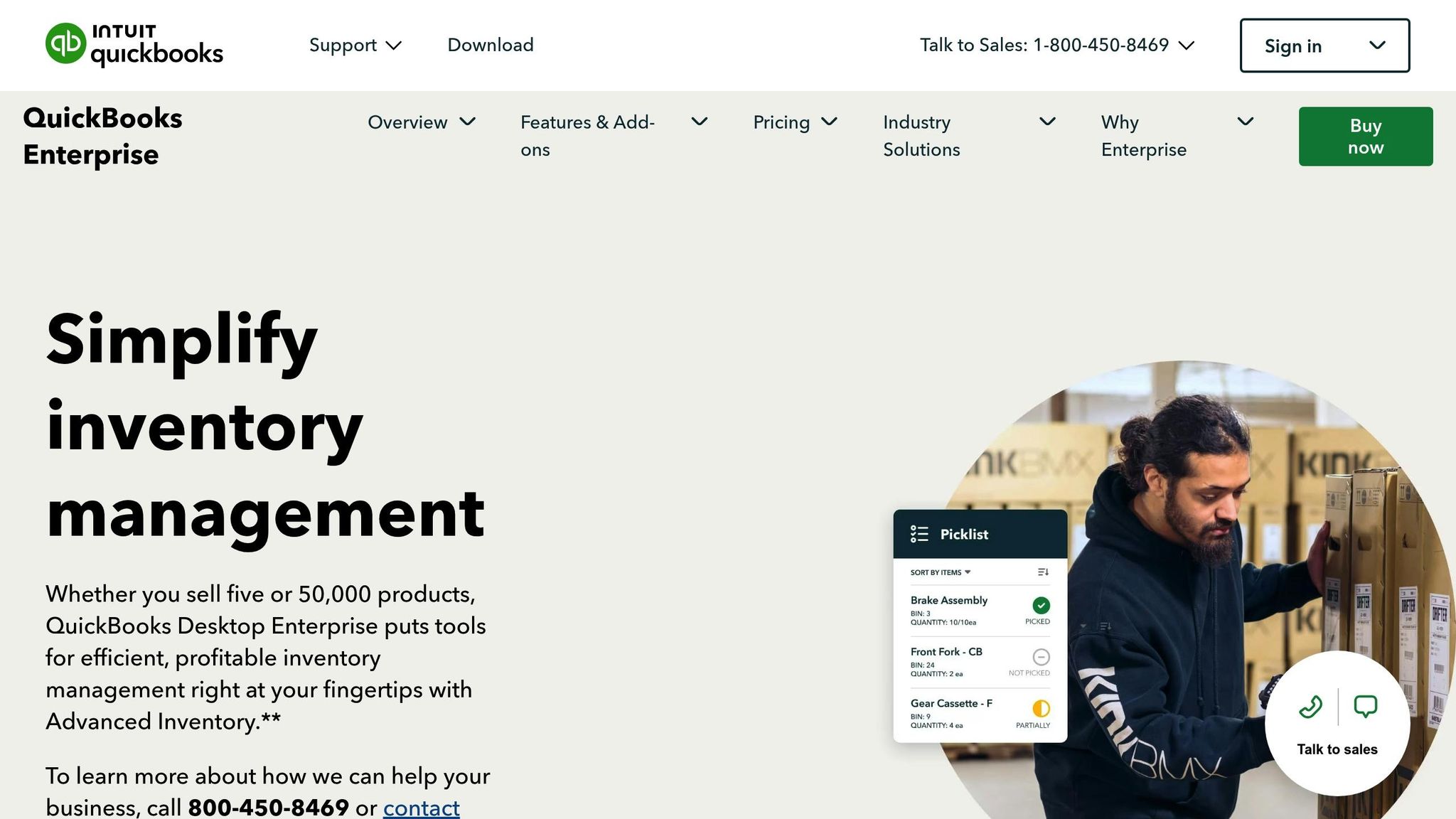
Zack P. from Kink BMX shared how this organization improves efficiency:
Advanced Inventory keeps us organized. We can print [order lists] according to where they are, so our employees in the warehouse don't have to zigzag to fill orders... That's been a big time saver and [helpful] for accuracy as well.
If partial orders linger in "Partially Picked" or "Partially Packed" status for too long after shipping, you can manually mark them as "Complete" to maintain optimal system performance.
These tools make warehouse workflows smoother and more efficient.
Ease of Use for Warehouse Operations
Advanced Inventory simplifies order management with flexible workflows tailored to different needs. Choose from four workflows - Pick > Pack > Ship, Pick > Ship, Express Pick-Pack > Ship, or Ship - all of which display clear order statuses on a centralized dashboard. These features are available exclusively with QuickBooks Desktop Enterprise Platinum and Diamond subscriptions. Note that barcode scanners are sold separately.
This setup ensures warehouse operations remain efficient and easy to manage.
4. QuickBooks Pick/Pack/Ship Workflow Tools
Integration with QuickBooks Desktop
To get started, enable the Sales Order Fulfillment Worksheet (SOFW) in QuickBooks Desktop Enterprise by navigating to Edit > Preferences > Items & Inventory > Company Preferences > Advanced Inventory Settings. Once activated, the worksheet automatically fills the "TO FULFILL QTY" field with the smaller value between the ordered quantity and available stock. You can manually adjust this field if you need to ship only part of an order. Updates from warehouse mobile devices trigger orange arrow notifications, ensuring that changes sync in real time.
This integration makes it easier to track orders and make adjustments quickly.
Support for Barcode Scanning and Real-Time Tracking
The Warehouse Manager App is compatible with Zebra TC21 and TC26 mobile scanners, allowing workers to verify items and send updates directly to QuickBooks Enterprise. As items are scanned, the dashboard updates their status in real time, displaying stages like "Pick in progress", "Picked", or "Partially picked." If a worker can't find the full quantity of an item, they can log the scanned amount and add a note, such as "item not available." This ensures the sales order remains open for the remaining items.
Backorder and Partial Shipment Management
This system also simplifies handling backorders and partial shipments. The worksheet uses color-coded indicators to show stock availability: green for fully available items, red for out-of-stock items, and orange for partial availability. When fulfilling partial shipments, you can adjust the "TO FULFILL QTY" field to create a smaller picklist. A subsequent picklist can then be generated later to complete the remaining balance.
QuickBooks retains completed picklists for 30 days, giving you time to review fulfillment history and resolve any pending partial orders. To avoid clutter, it's a good practice to mark older "Partially Picked" or "Partially Packed" records as "Complete" in the SOFW once they are finalized.
Ease of Use for Warehouse Operations
The workflow offers four adaptable options based on your warehouse setup:
- Pick > Pack > Ship for standard warehouses with separate stations.
- Pick > Ship for smaller operations.
- Express Pick-Pack > Ship for fast-paced fulfillment.
- Ship for items that are pre-packed.
Each workflow provides clear status updates on a centralized dashboard, and you can assign warehouse workers as "Vendors" by setting their "Vendor Type" to "Warehouse user".
These tools are available only with QuickBooks Desktop Enterprise Platinum and Diamond subscriptions. Barcode scanners are sold separately. Additionally, the workflow integrates with QuickBooks Shipping Manager, allowing you to print FedEx, UPS, or USPS labels directly from the SOFW once an order is marked as packed.
QuickBooks Enterprise 2025: Sales Order Fulfillment Worksheet Tutorial | Step-by-Step Pick/Pack/Ship
Conclusion
Handling partial order fulfillment in QuickBooks Desktop becomes much simpler with the right tools in place. For example, Rapid Inventory provides web-based access, integrates seamlessly with QuickBooks through two-way syncing, and supports FIFO/FEFO picking strategies alongside mobile barcode scanning. It’s also designed to streamline partial shipping and receiving workflows.
Meanwhile, QuickBooks Desktop Enterprise's Sales Order Fulfillment Worksheet offers a centralized dashboard to track orders in real-time. You can monitor statuses like "Partially Picked", "Picked", "Partially Packed", and "Shipped" with ease. Added features like bin tracking and lot/serial number management ensure accurate inventory tracking, even for partial orders. Tools like the Pick/Pack/Ship workflow provide flexibility, whether you follow the standard "Pick > Pack > Ship" process or opt for an Express Pick-Pack approach tailored to your warehouse needs.
These tools help address common challenges in partial fulfillment. For instance, mobile barcode scanning reduces errors with instant updates, manual "TO FULFILL QTY" adjustments allow shipping of available items immediately, and real-time tracking clarifies order statuses for better visibility.
Before moving forward, confirm your QuickBooks version and subscription level. The Sales Order Fulfillment Worksheet is available only in QuickBooks Desktop Enterprise 18.0 or later with a Platinum or Diamond subscription. If you require advanced features like FEFO tracking or web-based access, Rapid Inventory might be a better fit with its specialized capabilities and two-way sync. Also, don’t forget to check hardware compatibility if you plan to use mobile scanners and ensure your chosen tools include training and onboarding support to speed up implementation.
Ultimately, take the time to identify the features that align with your business needs - whether that’s multi-location tracking, specific picking strategies, or remote access to inventory. The right tools can help you reduce fulfillment times, improve accuracy, and set clear delivery expectations for your customers.
FAQs
Which QuickBooks Desktop versions support partial fulfillment tools?
QuickBooks Desktop Enterprise 24.0 and QuickBooks Desktop 2024 now include tools for partial fulfillment, offering improved flexibility in managing orders. These updates also bring enhancements to inventory management, helping businesses handle complex inventory requirements more efficiently. This makes them a strong choice for companies looking to streamline their order fulfillment processes.
How do I prevent over-invoicing on partial shipments in QuickBooks?
To prevent over-invoicing when dealing with partial shipments in QuickBooks, rely on the Sales Order Fulfillment Worksheet and the Pick tab. These features allow you to monitor partial shipments closely, ensuring invoices are generated only for items that have been shipped. Any unshipped quantities will remain open, helping you maintain accurate billing and inventory records.
What barcode scanners work with QuickBooks Warehouse Manager?
If you're using QuickBooks Warehouse Manager, you’ll need barcode scanners that work smoothly with its Advanced Inventory feature. Here are some compatible options:
- Honeywell Voyager 1602g: A Bluetooth scanner that's reliable for inventory tasks.
- Socket Mobile CHK 7CI: Another Bluetooth option, known for its portability and ease of use.
- Zebra Symbol CS3070: This compact scanner is great for businesses that need flexibility.
For mobile barcode scanning in QuickBooks Desktop, the Zebra TC22 is a solid choice. These scanners integrate effectively with QuickBooks, making inventory management more efficient.



