
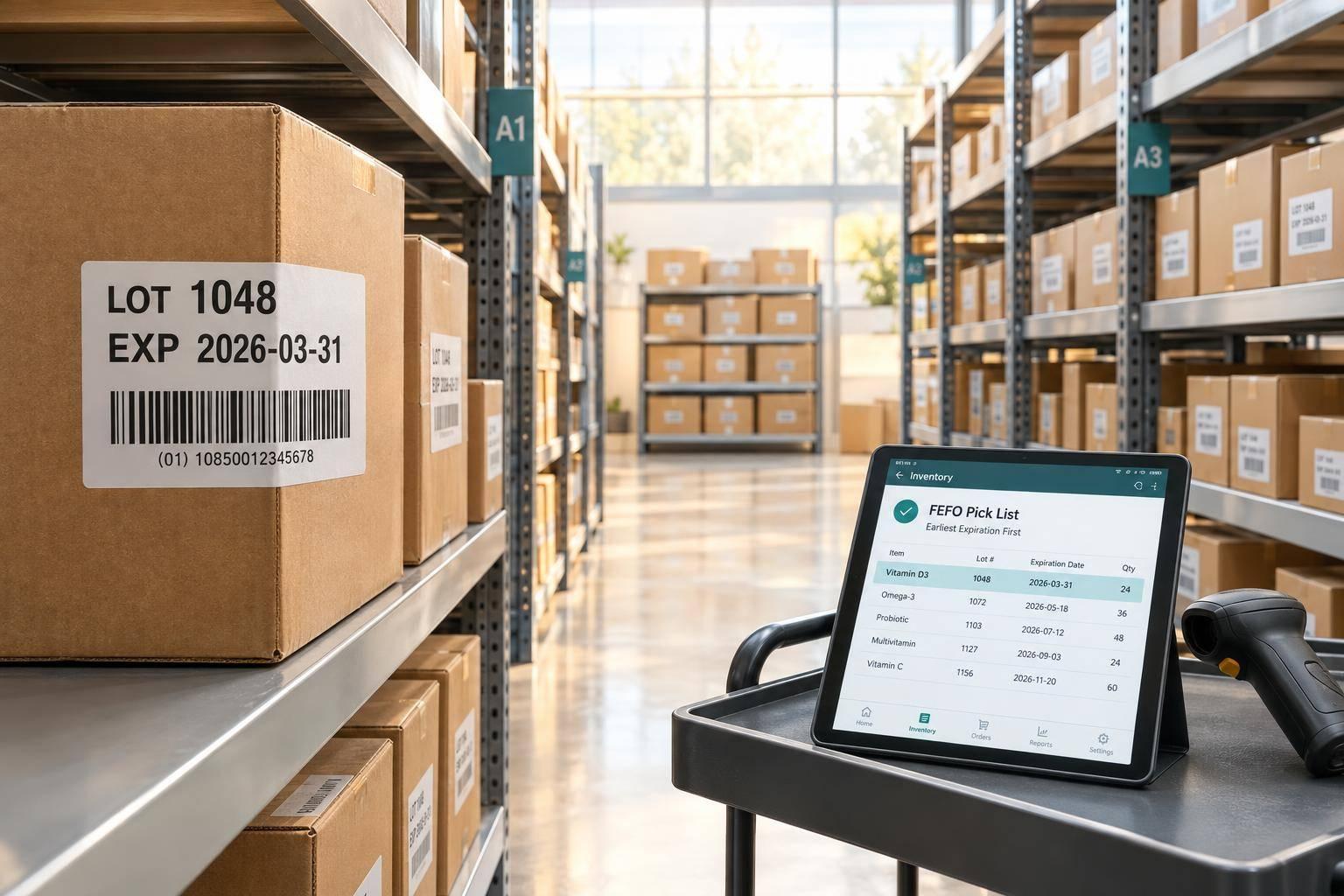
To track lots and expiration dates in QuickBooks Desktop, first confirm that your Enterprise plan includes Advanced Inventory and expiration-date tracking. I recommend testing 1 date-sensitive item through receiving, transfer, and sale before using the setup across your stock.
In this guide, I cover how to:
- Turn on tracking and add verified lot numbers and dates to new and existing stock.
- Keep those records accurate through transfers, sales, returns, and corrections.
- Pick by first expired, first out (FEFO) while checking customer shelf-life rules.
- Use reports to find missing dates, stock errors, and expired goods.
- Test Rapid Inventory sync and assign owners for data and failed transactions.
<u>Expiration tracking does not always block a sale.</u> I’ll show you what to check before shipping - and how to keep lot records aligned when using two systems.

QuickBooks Lot and Expiration Tracking Workflow
How to use expiration dates for inventory in QuickBooks Desktop Enterprise
sbb-itb-19ed50f
Set Up Tracking and Enter Lot Data
Back up the company file, then write rules for letter case, allowed characters, duplicate lot numbers, missing dates, date corrections, and units of measure. Assign responsibility for receiving, approving corrections, and verifying shipments.
Keep supplier lot identifiers exactly as provided, including leading zeros and hyphens. Store internal SKUs separately from supplier lot numbers. Apply these rules before any receipt, adjustment, transfer, or sale.
Turn On Lot and Expiration Tracking
Turn on lot numbers for batch-managed goods and enable expiration dates. Choose which transaction types display these fields. Where your release supports it, require lot numbers on receipts, adjustments, transfers, invoices, or sales receipts.
Test receipt, adjustment, and invoice transactions before using the setup live. Once the fields are active, enter lot and date data on the receiving transaction.
Record Supplier Lots and Dates at Receiving
On each receiving transaction, enter the item, quantity, supplier lot, expiration date in MM/DD/YYYY format, purchase reference, and location. For mixed deliveries, use a separate line for each item-lot-date combination.
Check every line against the physical label and shipment paperwork. Confirm that the entered quantity matches the shipment quantity. Set aside stock with missing or conflicting labels until the supplier resolves the issue. Keep the lot record unchanged through later stock moves and sales.
Add Lots and Dates to Existing Stock
For stock already on hand, count it by item, lot, and location before entering missing dates. Use Inventory > Adjust Quantity/Value on Hand and select the Lot Number adjustment type.
Select the item and lot, enter the verified expiration date, and get approval before posting. Record the reason, source document, approver, and timestamp. Never assign a date to unidentified stock.
Use this control table during testing and corrections. After adjustments, reconcile both on-hand quantities and inventory value against the pre-adjustment records. Investigate any unintended change.
| Transaction type | Purpose | Verification required |
|---|---|---|
| Receipts | Establish the lot and expiration record | Match the purchase order, labels, quantity, expiration date, and location |
| Adjustments | Correct approved lot or expiration records | Verify the lot and date against source documents; check approval, physical count, reason, and before-and-after quantity and value |
| Transfers | Preserve lot and expiration data during stock moves | Confirm source, destination, quantity, and unchanged lot and expiration date |
| Sales | Reduce the selected lot and retain customer traceability | Match the picked lot and expiration date to the transaction; verify quantity, expiration eligibility, and invoice or sales receipt |
Track Lots Through Stock Moves and Sales
Check Lots on Transfers, Sales, and Returns
Once lots are received and corrected, keep the same lot record through every move. Track each lot separately, even when items share a SKU. After posting a movement, check balances at the affected locations. Save the transaction number, lot, date, and responsible employee so you can trace the stock.
In a synced workflow, transfer, sale, and return updates should flow back to QuickBooks Desktop immediately.
| Transaction | Lot/date verification | Quantity effect | Responsible employee |
|---|---|---|---|
| Transfer | Confirm that the lot and date match at the source and destination; check quantity before posting | Decreases source stock and increases destination stock | Warehouse employee |
| Sale | Record the lot physically picked and confirm that it meets the customer's remaining shelf-life requirement | Decreases the selected lot at the shipping location | Picker or shipper |
| Return | Match the lot to the original sale, inspect its condition, and assign saleable, quarantine, or damaged status | Increases only approved stock; may increase quarantine or damaged stock instead | Returns clerk or supervisor |
Keep returns separate from saleable stock until you’ve checked their lot, expiration date, and condition. Record damaged, expired, and quarantined stock separately. Opened, recalled, or temperature-compromised returns must stay out of saleable stock. Return stock to saleable inventory only after approval.
Expiration tracking doesn’t always block a sale. Check your release’s fulfillment rules before shipping.
Pick Eligible Stock by Expiration Date
FEFO selects the lot with the earliest expiration date that still meets shelf-life rules. Before choosing a lot, exclude expired, recalled, damaged, and quarantined goods.
Use reports to spot lot and expiration mismatches before stock ships.
Review Reports and Fix Lot Errors
Review the lot and expiration reports available in your release. Check quantities, locations, expiration dates, days remaining, and committed quantities where available. Compare those results with physical counts to confirm that transfers, sales, and returns keep lot and date records accurate across locations.
If the same item and lot have conflicting dates, hold the questionable units and check supplier evidence. Approve corrections only for affected records. Keep the original value, revised value, reason, employee, date, and approver.
| Issue | Checks | Corrective action |
|---|---|---|
| Missing lot | Source receipt, transaction type, required-field settings | Hold unidentified stock; make an approved correction backed by evidence |
| Blank date | Label, supplier paperwork, receiving record | Enter the verified date; quarantine stock if the date is unconfirmed |
| Quantity mismatch | Count by lot and location; review pending movements | Resolve timing errors before approving a lot-specific adjustment |
| Incorrect shipped lot | Packing record, invoice, customer confirmation, remaining stock | Correct inventory and customer traceability records; notify affected parties when needed |
| Expired stock still available | Open orders, expiration date, quarantine status, location, and fulfillment rules | Move stock to quarantine or disposal, block fulfillment, and record approved disposition |
Correct exceptions before the next transfer or sale posts.
Connect QuickBooks and Rapid Inventory Workflows
When you use synced inventory software, accuracy depends on field mapping and record ownership, not just lot entry. Rapid Inventory offers two-way sync with QuickBooks Desktop to reduce duplicate entry. Confirm that it supports your QuickBooks Desktop release. Then map the lot, date, and location fields that sync, the transaction types that move, and the system that owns each record. Check sync direction and timing, too.
Two-way sync doesn't move every lot or date field. Decide whether expiration dates belong in QuickBooks or Rapid Inventory, and use the Desktop app for edits the sync can't update.
Before rollout, test whether the sync preserves lot traceability for every transaction type.
Test Receipts, Transfers, and Sales
Test one receipt, one transfer, and one sale. Verify that the lot number, expiration date, quantity, location, and sync status match in both systems. For fields that don't sync, check the designated source system.
For the transfer, confirm that quantities leave the source and reach the destination without creating duplicate stock. For the sale, check that the physically picked lot matches the recorded lot.
Reconcile QuickBooks accounting entries with inventory transactions; expiration details may stay in Rapid Inventory. Start with one warehouse and a small item group. Expand only when receipts, transfers, sales, returns, and corrections reconcile consistently.
Use Barcode Scanning, Locations, and FEFO
Set up warehouses and locations, and assign received quantities to lots and expiration dates. Use barcode scans during receiving, put-away, transfers, picking, shipping, and cycle counts.
Rapid Inventory supports multi-location tracking, lot and serial number tracking, mobile scanning, and FIFO or FEFO strategies. Use FEFO for date-sensitive stock and FIFO only when receipt order is the control.
Check labels before relying on scans. Some barcodes identify only the item, so staff may need to scan a lot label or enter the expiration date manually when those fields are missing.
Assign Data Owners and Check Sync Results
Once testing confirms the workflow works, assign owners for corrections and sync failures. Have those owners define item matching, required lot fields, receiving duties, and adjustment permissions for synced records.
Choose one system as the source of truth for each field. QuickBooks can own financial records, while Rapid Inventory owns warehouse locations, lot assignments, expiration dates, scans, picks, and movement details.
Review sync exceptions daily before retrying failed transactions. Never retry a failed transaction until you confirm whether either system already posted it.
Review short-dated and expired stock separately. Check pilot controls weekly, then switch to monthly control checks once exception rates stabilize.
Conclusion: Check Lots From Receipt to Sale
Start with a supported QuickBooks Desktop edition and turn on lot and expiration tracking. Enter existing stock using a physical count and supplier records.
Then test one date-sensitive item through receipt, transfer, sale, and reconciliation. Check it by item, lot, and location. Use lot and expiration reports to spot missing dates, incorrect lot assignments, and stock that’s expired, short-dated, or blocked.
Once the workflow passes testing, assign owners for connected workflows. They should verify source data, review sync errors, and fix them before the next transaction posts.
FAQs
When should I track both lots and expiration dates?
Track lot numbers and expiration dates for perishable, time-sensitive, or batch-based inventory, including food, beverages, pharmaceuticals, and chemicals. These details support batch quality control and FEFO (First Expired, First Out) picking, so items closest to expiration sell first. That helps reduce waste and support regulatory compliance.
In QuickBooks Desktop Enterprise, tracking both details enables the Inventory Expiration Status report, which helps you spot aging stock and manage potential recalls.
How can I trace a recalled lot to customers?
In QuickBooks Desktop, open the Transaction List by Lot Number report to see transactions tied to the recalled lot. Filter by that lot number to find the affected units and the customers who received them.
This lets you target the recalled lot instead of recalling the entire product, reducing waste and helping you meet safety requirements.
How do I handle expiration dates that don’t sync?
If expiration dates aren’t syncing or reports are blank, make sure Expiration Date is enabled in QuickBooks Desktop. Go to Edit > Preferences > Items and Inventory > Company Preferences > Advanced Inventory Settings.
Then check that each lot’s initial transaction includes an expiration date. Use Adjust Quantity/Value on Hand to add any missing dates.
Enable Make serial or lot number mandatory to require serial or lot numbers for every transaction and help prevent future gaps.



