
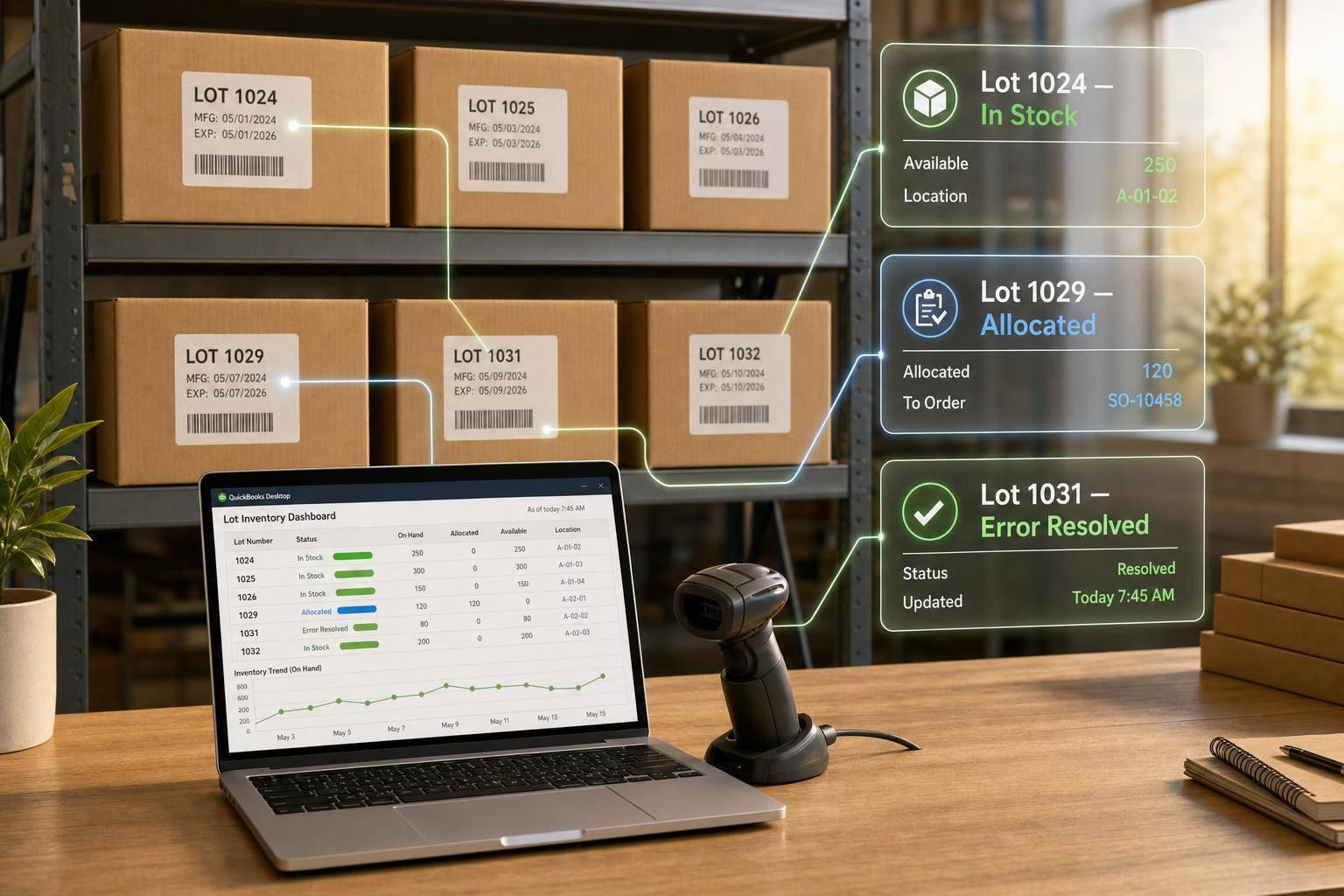
If you need batch traceability in QuickBooks Desktop, the answer is simple: use QuickBooks Desktop Enterprise with Advanced Inventory, turn on lot tracking, and record the lot number on every receipt, sale, transfer, build, and adjustment.
That’s what keeps lot balances updated at the moment each transaction is saved. And that’s what helps you trace stock during recalls, count by lot, check expiration dates, and fix mismatches before they spread.
Here’s the short version:
- Lot tracking is for batches, not single units
- QuickBooks Desktop Enterprise + Advanced Inventory is required
- Pro and Premier do not support built-in lot tracking
- Each transaction must include the right lot number
- Transfers and adjustments must be done by lot, not just by item
- Lot reports show what came in, what went out, and what is left
- Expiration reports help teams review lots due in the next 30 or 90 days
- Inventory management software with barcode tools can cut data-entry mistakes and show live lot balances across sites
A simple example: if you receive 100 units of one SKU split into 2 lots - 40 in LOT-A and 60 in LOT-B - you need 2 separate lines on the receipt. If you combine them into one line, your item total may still show 100, but your lot history will be wrong.
Here’s the main difference at a glance:
| Method | Tracks | Best fit |
|---|---|---|
| Quantity only | Total units on hand | Basic retail stock |
| Lot tracking | Groups of units in one batch | Food, supplements, manufacturing |
| Serial tracking | One ID per unit | Electronics, medical items |
My takeaway: lot tracking works only when the process is strict. If even one team skips the lot field, the total stock count can still look right while the batch record is wrong. That’s the kind of gap that causes trouble in recalls, audits, and cycle counts.
Below, I’ll walk through the setup, daily steps, reports, and the main fixes for lot errors in plain English.
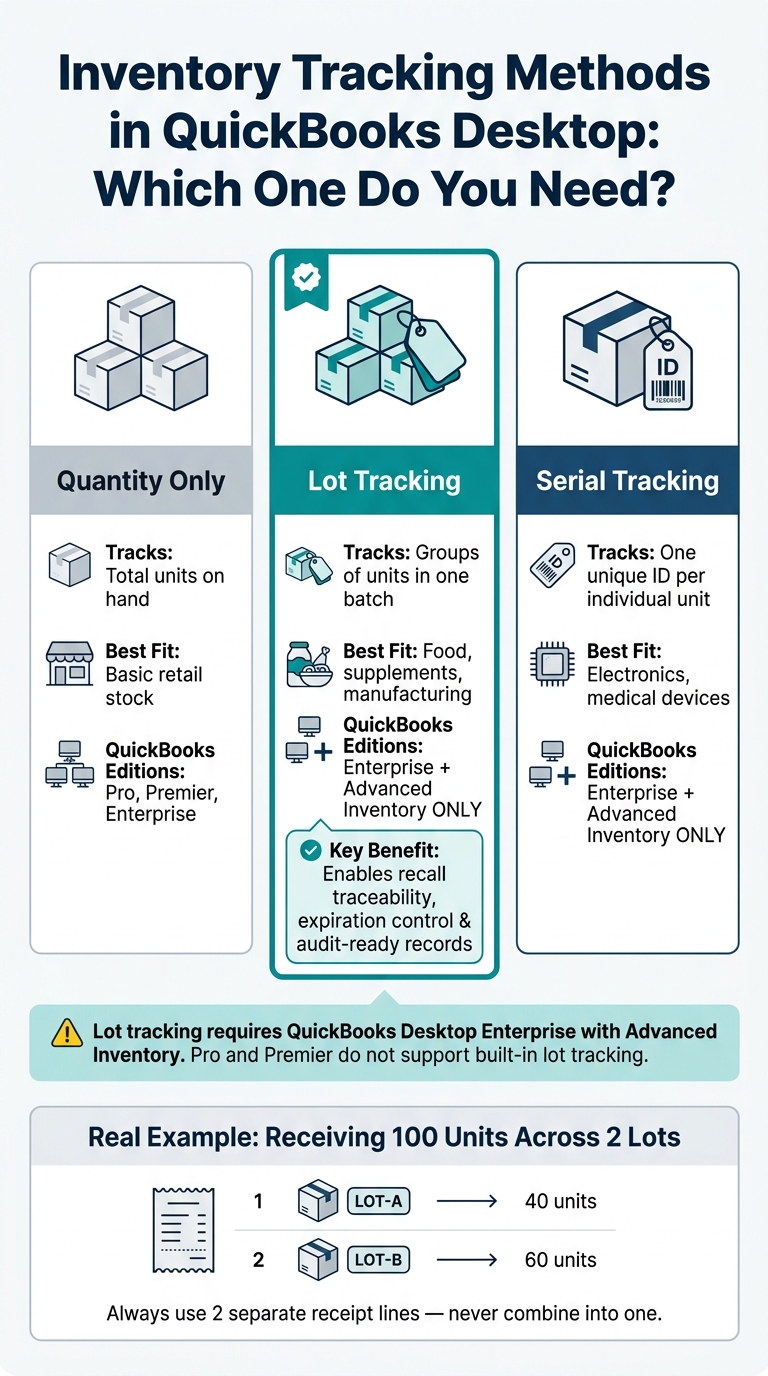
Lot Tracking vs. Quantity vs. Serial Tracking in QuickBooks Desktop
Requirements and Setup for Lot Tracking
QuickBooks Desktop Enterprise and Advanced Inventory requirements

Once you define lot tracking, the next move is turning on the right QuickBooks Desktop features. QuickBooks Desktop Enterprise with Advanced Inventory is required for built-in lot tracking. Pro and Premier don’t support it, so checking your edition before you build any workflow is the first thing to do.
If you track lot-based stock in more than one location, turn on Multiple Inventory Sites.
How to turn on lot number tracking in company preferences
In QuickBooks, go to Edit > Preferences > Items & Inventory > Company Preferences. Then open Advanced Inventory Settings and turn on Lot Number Tracking. Before you open that window, make sure Inventory and purchase orders are enabled is checked.
Next, choose which forms should show lot fields. Common picks include:
- Item Receipts
- Bills
- Sales Orders
- Invoices
- Inventory Adjustments
It’s smart to require lot entry on both receiving and shipping forms. If you skip that step, traceability can fall apart fast.
Set up lot-tracked items and locations correctly
After you turn on preferences, set up the items and sites that will hold lot data. Use Inventory Part for lot-tracked raw materials and finished goods. Use Inventory Assembly when lot-controlled components are combined into a finished product.
For inventory sites, keep them at the warehouse or branch level, such as WH-DAL, WH-CHI, or PLANT-01. Don’t use shelf- or rack-level sites. Rapid Inventory adds barcode scanning and real-time lot visibility for teams that need tighter control across locations. That setup helps with faster receiving, picking, and day-to-day lot visibility.
sbb-itb-19ed50f
How to Add and Transfer Lot Numbers in QuickBooks Desktop Enterprise
Daily Lot Tracking Workflows in Real Time
Once lot tracking is turned on, day-to-day accuracy comes down to one thing: recording the right lot on each transaction.
If that step gets skipped, your item totals may still look fine while your lot records drift out of sync. And that’s where traceability starts to fall apart.
Receive inventory and assign lot numbers at receipt
You can receive lot-tracked items through an Item Receipt or straight through a Bill. Add the lot number before you save the transaction so QuickBooks records the quantity, site, and lot together in the same entry.
If a shipment includes the same SKU across more than one lot, split the receipt into separate lot lines. For example, if a warehouse gets 100 units split between LOT-A (40 units) and LOT-B (60 units), the item receipt needs two lines - one for each lot.
One blended line may seem easier in the moment, but it breaks traceability. That’s a serious problem in food, cosmetics, or pharmaceutical settings, where knowing exactly which lot went where is the whole ballgame.
Sell, transfer, and adjust inventory by lot number
Once items are received, the next checkpoint is fulfillment.
On Invoices and Sales Receipts, pick the lot based on FIFO or FEFO, then make sure the lot on the transaction matches what the team actually picked. QuickBooks reduces the selected lot at that site, not just the total quantity for the item.
For transfers, use the Inventory Transfer transaction to move a specific lot between sites. Enter the item, lot number, quantity, and the source and destination sites. QuickBooks reduces on-hand at the source and increases it at the destination, which keeps the audit trail intact for each location change. Post transfers as soon as the physical move happens. If you wait, quantity mismatches tend to show up fast.
Lot-based adjustments fix differences caused by cycle counts, damage, or internal use. Adjust each lot on its own instead of changing only the item total. Say your system shows LOT-X: 50 and LOT-Y: 50, but a count shows LOT-X: 48 and LOT-Y: 52. In that case, enter two separate adjustments. A net-zero item change may look neat, but both lot balances would still be wrong. Use a clear adjustment account such as "Inventory Shrinkage" or "Internal Consumption", and include the reason in the notes.
Use Rapid Inventory for barcode scanning and live lot balances
For higher-volume teams, barcode scanning helps keep the same process moving on the warehouse floor without slowing people down.
Rapid Inventory adds barcode scanning, mobile receiving and picking, and two-way sync, so lot updates post to QuickBooks in real time across locations.
Reports, Traceability, and Operational Control
Lot reports that show quantity on hand and transaction history
After you receive, transfer, or adjust lots, run reports to make sure the data still looks clean.
Use the Inventory Stock Status by Lot Number report to check lot balances after each transaction. It shows on-hand quantity, committed quantity, and site-level balances. If you filter to a single lot number, you can follow every receipt, sale, transfer, and adjustment linked to that lot. That history is the big difference between lot tracking and plain quantity tracking.
The Inventory Stock Status by Lot Number report is available only in QuickBooks Enterprise Platinum, Diamond, and Accountant subscriptions.
If your team works across more than one location, Rapid Inventory adds warehouse-level inventory reports and activity logs for lot movement tracking.
Those same reports also make recalls and expiration checks much easier.
How lot tracking supports recalls, expiration control, and audits
When a recall happens, filter the lot number and pull every outbound transaction tied to it. That gives you a tight, targeted list instead of a broad recall that removes product that was never part of the issue.
For perishable inventory, QuickBooks also includes an Inventory Expiration Status report for lot or serial items with expiration dates. You can filter it to show only expired items, only items that have not expired yet, or a custom date range. A simple way to use it is as a weekly check for lots expiring in the next 30 or 90 days. Then act on what you find with a markdown, promotion, donation, or disposal before spoilage sets in.
From an audit angle, lot tracking lets managers rebuild inventory history without leaning on memory or old spreadsheets. In regulated industries, auditors and inspectors more often expect lot and expiration details on advance ship notices (ASNs) and Certificates of Analysis that can be pulled on demand. Clean lot records help answer three plain questions:
- When did it arrive?
- Where did it move?
- What is still left?
If a report looks off, trace the problem back to the last lot transaction.
Best Practices, Common Problems, and Conclusion
Best practices for clean lot data across teams and locations
Once reports show where the gaps are, day-to-day habits are what keep lot data clean across teams and locations.
The biggest source of lot-data mistakes is inconsistent lot numbering. Set a standard lot number format before go-live, then use that same format across every site and every shift. If you work with regulated products, line that format up with GS1 or traceability lot code rules, and record expiration dates when needed for FIFO/FEFO compliance. When one warehouse uses one format and another team uses something else, reports get harder to trust and recall response takes longer.
Clean lot data also depends on control. Use role-based permissions so only authorized staff can edit or override lot fields. For cycle counts, use ABC classification and count high-value or fast-moving lot items more often. And when staff count inventory, they should record lot numbers before looking at system quantities. That small step helps cut bias.
Fix missing lot fields, quantity mismatches, and historical errors
Start with the basics: check item setup, site settings, and any workflow where lot fields are required on forms.
Quantity mismatches between physical counts and lot reports usually happen for a few plain reasons. Stock gets moved between locations without a documented transfer. Or someone adjusts quantity but picks the wrong lot, or skips the lot field altogether.
Here’s the practical fix:
- Run the stock status by lot number report for the item in question.
- Compare that report to your physical count sheet line by line.
- Post a lot-specific inventory adjustment to close the gap.
That said, don’t rush straight to the adjustment. Find the root cause first. If you don’t, the same mismatch can show up again in the next count.
When the error is already in the system, fix the lot record itself instead of covering it up with item-only changes. Historical lot transaction edits carry the most risk. If you have no other choice, document the correction clearly, add the reason in the memo field, and alert your accounting team so they can review the period impact.
Conclusion: Key steps to make real-time lot tracking work
Real-time lot tracking works when every receipt, transfer, sale, and adjustment is posted with the correct lot number right away. That kind of consistency, paired with regular lot reporting and fixing issues at the source, keeps traceability in place, speeds up recall response, and keeps audit records clean.
If your operation runs across more than one warehouse, or your team depends on fast, accurate receiving and picking, Rapid Inventory extends QuickBooks Desktop with mobile barcode scanning, two-way sync, and real-time lot visibility across locations.
FAQs
Can I add lot tracking after items already exist?
Yes. You can add lot tracking to existing inventory items if they’re set up as Inventory Part or Inventory Assembly. Those are the only item types that support tracking.
To assign lot numbers to stock you already have, use the Adjust Quantity/Value on Hand tool. You can also import the data from Excel or CSV files.
After you turn on advanced inventory settings, you can require lot numbers for future transactions.
What happens if a user saves a transaction without the correct lot number?
Saving a transaction with the wrong lot number can throw off inventory, leave gaps in your records, and create headaches during recalls or audits.
A safer approach is to require lot numbers on receipts, transfers, and invoices instead of depending on manual typing every time. If a mistake slips through, use exception reports, reconcile the data with QuickBooks Desktop, and then use Adjust Quantity/Value on Hand before syncing again.
How should I handle a recall for one specific lot?
Use your tracking system for forward and backward traceability. Check the Transaction List by Lot Number report to find which customers received items from the affected lot.
With real-time records, you can pinpoint the exact units involved instead of recalling the full product line. That means you can contact only the affected customers, cut waste and losses, and support safety compliance.



