
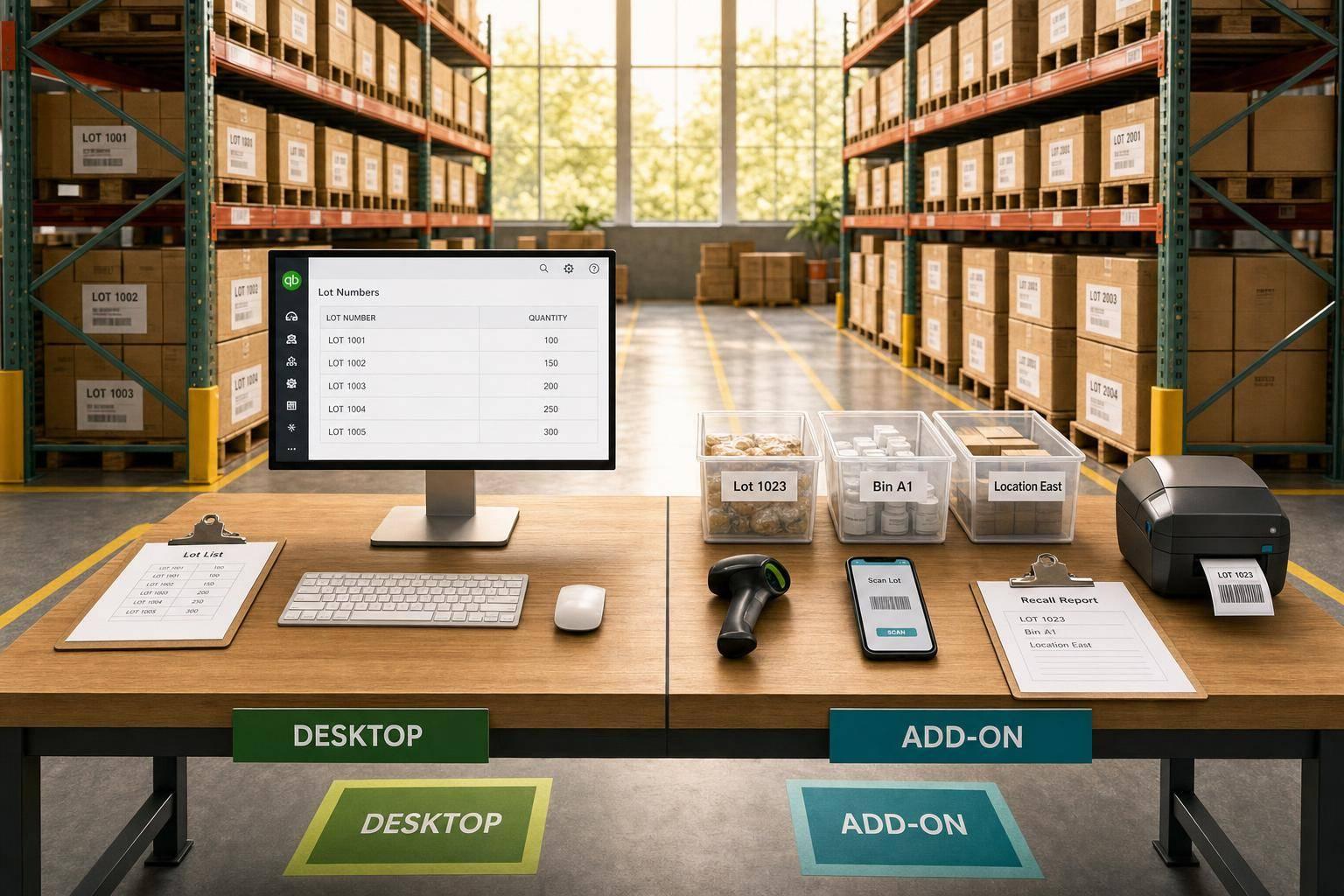
If you need lot tracking in QuickBooks Desktop, the short answer is this: native QuickBooks Desktop works for basic, single-location use, while an inventory management add-on makes more sense when your team needs mobile scanning, bin-level work, and faster recall lookup.
I’d break it down like this:
- QuickBooks Desktop native lot tracking is only in Enterprise with Advanced Inventory
- QuickBooks Pro and Premier do not include native lot tracking
- Native Desktop can handle lot numbers, expiration dates, sites, bins, and desktop barcode scanning
- Add-ons go further with mobile scanning, FIFO/FEFO picking, cycle counts, partial receiving, partial shipping, and browser-based visibility
- The biggest tradeoff is simple: lighter setup vs. more warehouse control
If you’re still using paper for receiving, transfers, or picking, that’s usually the point where native Desktop starts to feel limited.
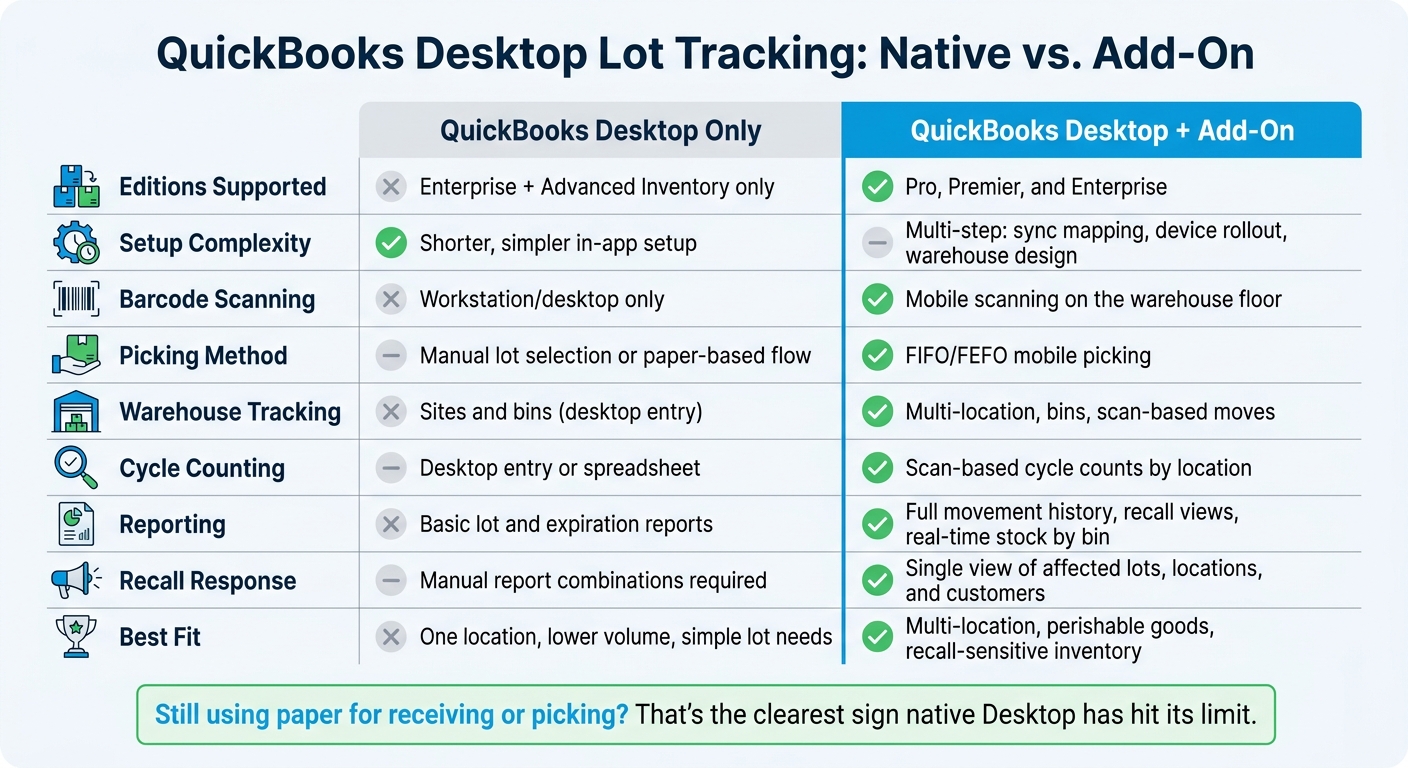
QuickBooks Desktop Lot Tracking: Native vs Add-On Comparison
QuickBooks Enterprise: How to Setup and Use Lot Numbers for Advanced Inventory Tracking Like a Pro!
sbb-itb-19ed50f
Quick Comparison
| Area | QuickBooks Desktop only | QuickBooks Desktop + add-on |
|---|---|---|
| Editions supported | Enterprise + Advanced Inventory only | Pro, Premier, and Enterprise |
| Setup | Shorter and simpler | More steps, device rollout, sync mapping |
| Barcode use | Workstation-based | Mobile scanning on the floor |
| Warehouse tracking | Sites and bins | Multi-location, bins, scan-based moves |
| Picking method | Manual lot selection or paper flow | FIFO/FEFO mobile picking |
| Counting | Desktop entry or spreadsheet | Scan-based cycle counts |
| Reporting | Basic lot and expiration reports | Lot movement, location, customer, and recall views |
| Best fit | One location, lower volume | Multi-location, perishable, recall-focused stock |
Bottom line: if you only need to record lot numbers and run basic reports, native Desktop may be enough. If you need your warehouse team to scan and work away from a desk, an add-on fills that gap fast.
QuickBooks Desktop lot tracking: what the native option includes
Edition requirements, setup steps, and daily use
Native lot tracking in QuickBooks Desktop is only available in Enterprise with Advanced Inventory turned on. If your team uses Pro or Premier, this built-in feature set isn’t available.
Getting it set up takes a few careful steps. First, make sure Inventory and purchase orders is enabled under Edit → Preferences → Items & Inventory → Company Preferences. After that, go to Advanced Inventory Settings → Serial/Lot Number & Expiration Dates and select Activate Lot or Serial Numbers → Lot Numbers. The setup itself is doable, but it has to be done carefully. Every required field and form setting needs to be in place before your team starts using it day to day. You’ll also need to decide which forms show lot fields and which inventory-moving forms require lot entry.
Day-to-day use comes down to one thing: consistent data entry. Staff need to enter lot numbers at receiving, transfer, and shipping every time. If someone skips that field, the missing data will show up later in reporting.
Native barcode, warehouse, and report capabilities
At a basic level, QuickBooks Desktop covers standard lot control tasks. Advanced Inventory includes barcode scanning, multiple sites, and bin tracking. Sites stand for physical locations like a warehouse, storefront, or delivery truck. Bins let you track stock down to a row, shelf, or bin inside each site. When inventory moves between sites, QuickBooks uses a dedicated Transfer Inventory workflow, which gives you a cleaner audit trail than manual adjustments.
Its main lot reports include:
- stock by lot
- lots in stock
- lots in stock by site
- lot inventory
- expiration status
The expiration status report shows each lot’s expiration date and the number of days left. That helps teams make FEFO (First-Expiration-First-Out) choices and stay ready for recalls.
These tools handle core warehouse work, but they still tie your team to a desktop workstation.
Native limitations that affect growing operations
The limits start to show once operations get busier. Scanning works on a desktop, not on a mobile device out on the warehouse floor. The native setup also doesn’t include built-in mobile picking, directed put-away, or scan-based cycle counting.
That slows down receiving and picking, and it also makes missed or wrong lot entries more likely. The result is pretty straightforward: slower receiving, slower picking, and weaker visibility across locations.
The built-in reports handle basic reporting, but filtering and cross-location analysis are still limited.
That’s where add-ons come in and extend what QuickBooks Desktop can do.
Add-on lot tracking for QuickBooks Desktop: where it goes further
How QuickBooks Desktop add-ons extend lot tracking
As lot-controlled inventory spreads across more locations, a warehouse add-on often becomes the faster way to handle receiving, picking, and transfers. QuickBooks Desktop is strong on the accounting side, but its workflows are still tied to a workstation. An add-on pushes lot control out to the warehouse floor, where the work is actually happening.
Here’s the basic idea: QuickBooks and the add-on sync both ways. Items and orders flow into the warehouse system, and completed warehouse activity syncs back to QuickBooks. That means accounting stays in QuickBooks, while warehouse teams can scan lot numbers, locations, and quantities right on the floor. It’s a much different setup from native QuickBooks Desktop, especially once volume starts to grow.
Rapid Inventory as a QuickBooks Desktop add-on example
Rapid Inventory is a warehouse management add-on for QuickBooks Desktop users. It works with Enterprise, Pro, and Premier editions, along with hosted setups like Rightworks, Swizznet, and Visory.
Its workflow includes:
- Mobile barcode scanning
- FIFO/FEFO picking
- Multi-location and bin tracking
- Cycle counting
- Backorder tracking
- Partial receiving
- Partial shipping
- Label printing
Managers can also review real-time inventory and sales order status in a browser instead of being limited to a workstation running QuickBooks. That makes the contrast with native QuickBooks Desktop much easier to see in the side-by-side comparison below.
Desktop vs add-on: side-by-side comparison across setup, barcodes, warehouses, and reporting
Setup effort and training requirements
The first difference is simple: how much of the warehouse process each option actually manages.
QuickBooks Desktop keeps lot tracking inside QuickBooks itself. That makes setup lighter, but it also means the system covers a smaller slice of day-to-day warehouse work. A Desktop add-on asks for more upfront work. You have to map items and locations, define warehouse workflows, set user roles, and roll out mobile devices and scanners. So yes, native Desktop is faster to launch. An add-on takes a multi-step rollout.
| Factor | QuickBooks Desktop only | Desktop + add-on |
|---|---|---|
| Typical time to go live | Shorter; faster to launch | Longer; multi-step rollout |
| Configuration scope | In-app setup and item configuration | Sync mapping, warehouse design, device rollout |
| Who needs training | Office and accounting staff | Office staff plus warehouse team |
| Hardware required | Desktop PC or workstation | Mobile devices and barcode scanners |
| Good fit for | Single location, simple lot needs | Multi-location, perishable, recall-sensitive inventory |
If you have a bigger warehouse crew working across more than one location, the extra structure from an add-on often becomes hard to ignore.
Barcode workflows and warehouse execution
QuickBooks Desktop supports barcode scanning at a workstation. An add-on pushes that work out onto the warehouse floor with mobile scanning for receiving, picking, transfers, and cycle counts. With Rapid Inventory, staff can use mobile devices to scan items, locations, and lot labels during each of those steps.
That changes the day in a very practical way. Instead of writing things down and keying them in later, workers scan as they move. And when barcodes connect to the item, the storage location, and the lot record, manual entry mistakes and mispicks tend to drop.
| Workflow | QuickBooks Desktop only | Desktop + add-on |
|---|---|---|
| Receiving | Manual entry at workstation | Mobile scan confirms item, lot, and location |
| Picking | Paper list or manual lot selection | Mobile pick list with FIFO/FEFO logic |
| Transfers | Manual adjustment in QuickBooks | Scan-based transfer between bins or warehouses |
| Cycle counts | Desktop entry or spreadsheet | Location-based scanning |
| Lot/location barcode | Item-level only | Items, bins, and lot labels scannable |
That gap in scanning flows straight into inventory accuracy and recall response time.
Reporting depth, recall readiness, and inventory visibility
QuickBooks Desktop can show lot history, but users often have to piece together receipt, transfer, and shipment details from multiple reports. An add-on gives real-time lot visibility by warehouse, bin, expiration date, and movement history in one report set.
In a recall, that difference matters fast. Instead of stitching reports together by hand, you can see where a lot is, which customers received it, and how it moved from receiving through shipment.
| Reporting need | QuickBooks Desktop only | Desktop + add-on |
|---|---|---|
| Lot transaction history | Available through standard reports | Full movement history: receipt → transfer → shipment |
| Real-time stock by location | Limited; site-level in Enterprise | By warehouse, bin, and lot in real time |
| Expiration date visibility | Limited or manual | Tracked per lot; supports FEFO picking decisions |
| Recall response | Manual report combinations required | Single view of affected lots, locations, and customers |
| Replenishment decisions | Based on companywide inventory totals | Based on available stock by warehouse |
This matters most when lot traceability has to stay fast where the work happens: at receiving, on the shelf, and at the pick stage. In practice, those tradeoffs usually decide which option makes more sense.
Conclusion: Which option fits your QuickBooks Desktop operation
The choice comes down to one thing: how much of your warehouse work happens outside QuickBooks Desktop. Once you compare setup, barcode use, warehouse tracking, and reporting, the gap gets bigger as the operation gets bigger.
If you run from one location, have a small team, and mainly need to record lot numbers during receiving and shipping, native QuickBooks Desktop is probably enough. Setup is lighter. Training takes less time. And you’re not spending money on tools you may never touch. In that setup, Desktop works as a basic traceability tool, not a warehouse system your floor team lives in.
That changes when you’re dealing with multi-location inventory or lot control on the warehouse floor. If that’s part of your day-to-day work, a Desktop add-on fills gaps that QuickBooks wasn’t built to handle on its own. Rapid Inventory includes free onboarding, training, and support, which can cut down implementation time.
The clearest signal is still manual warehouse work. If your team is using paper for receiving and picking, it’s usually a sign that native Desktop has hit its limit. An add-on brings in mobile barcode scanning and real-time sync, which helps close those gaps across setup, barcode workflows, warehouse tracking, and reporting.
Native Desktop fits simple, single-location lot control. An add-on fits teams that need faster scanning, tighter warehouse control, and clearer reporting.
FAQs
Do I need Enterprise to track lots in QuickBooks Desktop?
Yes. Native lot tracking in QuickBooks Desktop requires Enterprise with an active Advanced Inventory subscription. In most cases, that means the Platinum or Diamond tiers.
Pro and Premier don't include native lot tracking.
If you need that feature on those editions, Rapid Inventory adds lot and serial number tracking for all QuickBooks Desktop versions, including Pro and Premier.
When is an add-on worth it for lot tracking?
An add-on makes sense when QuickBooks Desktop’s basic lot tracking no longer covers what you need. If your business depends on full traceability and tight compliance rules, that extra layer can be a big deal - especially in fields like food, pharmaceuticals, or medical devices.
It also helps when you need more day-to-day control over inventory, such as expiration alerts, detailed recall reporting, multiple warehouses, mobile barcode scanning, or FEFO picking. For companies handling perishable stock, those tools can help cut waste and keep products moving in the right order.
Can warehouse staff scan lots without a desktop?
Yes. When Rapid Inventory is connected to QuickBooks Desktop, warehouse staff can use mobile devices to scan item barcodes, lot numbers, and serial numbers right on the warehouse floor.
That means teams can scan during:
- receiving
- picking
- counting
- transfers
The scanned data then syncs with QuickBooks Desktop, so staff don’t have to go back and enter the same information again from a desktop.



