
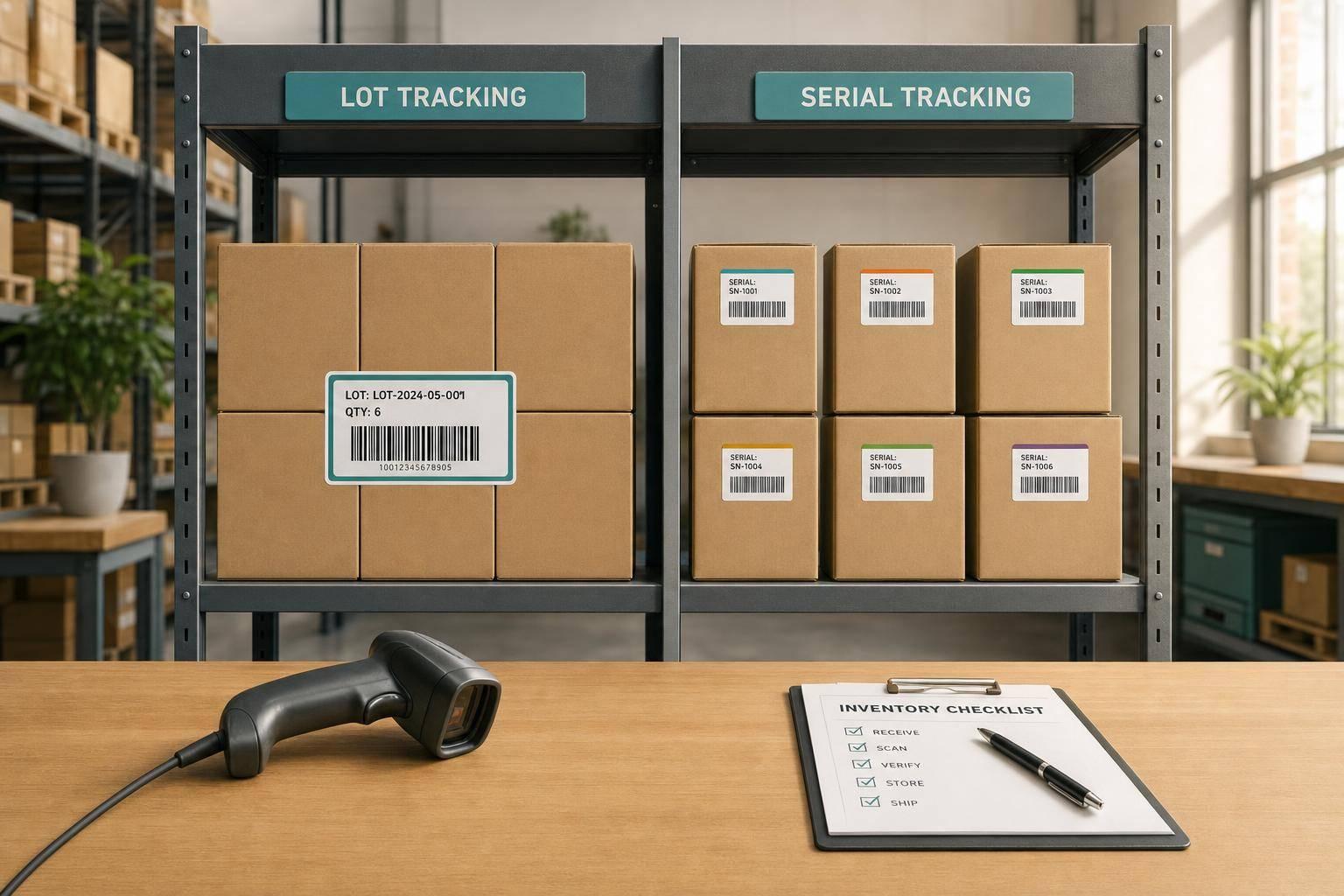
If you need to trace a batch, use lot numbers. If you need to trace one exact unit, use serial numbers. That’s the whole choice in QuickBooks Desktop Enterprise with Advanced Inventory.
I’d sum it up like this:
- Lot tracking fits batch goods like food, supplements, cosmetics, and chemicals
- Serial tracking fits unit-by-unit items like electronics, tools, equipment, and medical devices
- Lot numbers make recalls broader because one batch can include many units
- Serial numbers make recalls narrower because each unit has its own ID
- Lot tracking means less typing at receiving, transfers, adjustments, and invoicing
- Serial tracking means more work because staff must record one ID per unit
- Both methods affect receipts, transfers, adjustments, sales, and reports
- In both cases, one missed entry can break trace history
A simple way to think about it:
- Choose lot numbers for batch control, expiration handling, and FEFO picking
- Choose serial numbers for warranty history, service records, returns, and unit accountability
- If you need both batch trace and unit trace, QuickBooks may need help from inventory management software
About 100 units can share one lot number, but those same 100 units would need 100 serial numbers. That one difference changes data entry time, recall scope, and the level of detail you can report on.
Track serial and lot numbers to enhance inventory management | QuickBooks Enterprise
sbb-itb-19ed50f
Quick Comparison
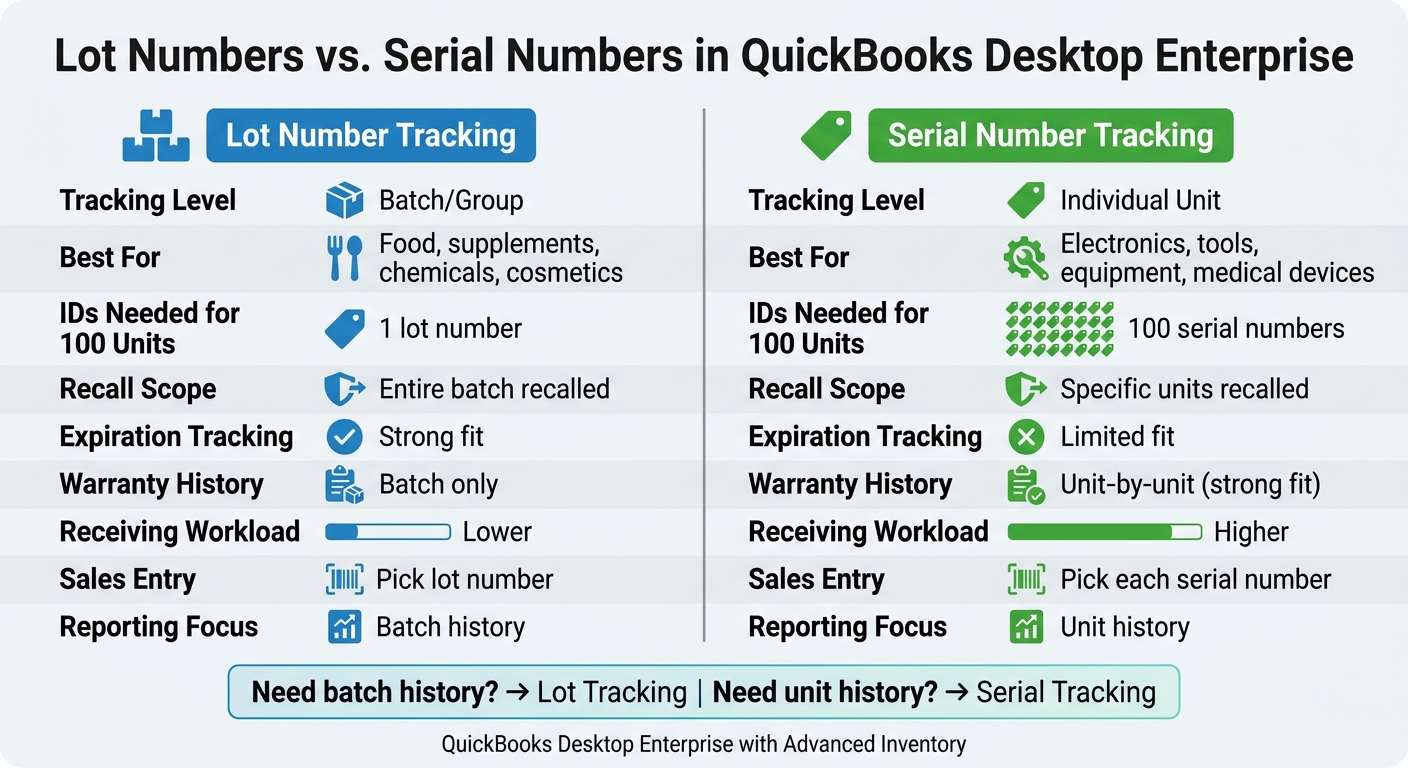
Lot Numbers vs Serial Numbers in QuickBooks: Side-by-Side Comparison
| Criteria | Lot Numbers | Serial Numbers |
|---|---|---|
| Tracking level | Batch | Single unit |
| Best for | Food, supplements, chemicals, cosmetics | Electronics, tools, equipment, medical devices |
| IDs needed for 100 units | 1 lot or a few lots | 100 serials |
| Recall scope | Whole batch | Exact units |
| Expiration tracking | Strong fit | Limited fit |
| Warranty history | Batch only | Unit-by-unit |
| Receiving work | Lower | Higher |
| Sales entry | Pick lot | Pick each serial |
| Reporting focus | Batch history | Unit history |
If I were choosing, I’d use the reporting need as the tie-breaker: batch history means lot tracking; unit history means serial tracking.
Lot number tracking: when it fits, what it traces, and where it adds work
When lot tracking fits best
Lot tracking works best for batch-based products where individual unit identity doesn't matter. Think food, supplements, cosmetics, chemicals, and other items made in production runs.
The big upside is simple: you don't need to log every single unit one by one. If one lot covers hundreds of units, that single lot can carry the batch through the system.
Once you choose the batch, QuickBooks can trace it through receiving, transfers, and sales.
What lot tracking traces and reports
With lot tracking turned on in QuickBooks Desktop Enterprise with Advanced Inventory, every item receipt, transfer, and invoice is tied to a specific lot number. That gives you three fast ways to see what's happening: what's on hand, where it is, and which customers got it.
| Traceability View | What You Can See |
|---|---|
| On-hand by lot | Current quantity per lot number, per item |
| Location by lot | Which warehouse or site holds each batch |
| Customers who received the lot | Which invoices and customers received items from a specific lot |
Because lot numbers are saved on sales transactions, you can pull a customer list for any batch that's affected.
The main QuickBooks reports that support this include inventory stock status by lot number and transaction history filtered by lot. Those reports help with two common jobs: spotting inventory that's nearing expiration and building recall lists.
Where lot tracking adds steps to your process
Lot tracking adds work in four parts of the workflow: receiving, transfers, adjustments, and invoicing. At each point, staff need to enter which lot is involved and how many units belong to it.
Here's where that shows up in day-to-day work:
- At receiving, a shipment with mixed expiration dates can't just go in as one line. It needs to be split into separate lot entries.
- During transfers, adjustments, and sales, staff have to pick the right lot instead of moving or selling the item as a general quantity.
That said, one lot entry can still cover hundreds of units. So the extra effort usually comes from choosing the correct lot at receiving, transfer, adjustment, and sale - not from entering each item one at a time.
Serial tracking follows the same pattern, but it does this at the unit level.
Serial number tracking: when it fits, what it traces, and where it adds work
When serial tracking fits better than lot tracking
Lot tracking groups items by batch. Serial tracking does the opposite: it gives each unit its own identity.
That makes serial tracking the better fit when you need to trace one specific item for warranty claims, repairs, returns, or recalls. If someone asks about one exact unit, serial tracking gives you a direct answer.
This setup is common for electronics, equipment, tools, and medical devices. With serial tracking, you can pinpoint the exact unit. With lot tracking, you can only trace the batch it came from.
What serial tracking lets you trace and report on
Serial tracking links one unit to its full chain of custody, from receiving to transfer, adjustment, and sale.
So if a customer calls with a serial number, you can answer practical questions fast: Which customer received serial number X? When did it ship? Has it ever been returned or serviced?
Here’s what that looks like in practice:
| Category | Serial Tracking |
|---|---|
| Granularity | Individual unit |
| Typical products | Electronics, equipment, tools, regulated devices |
| Warranty support | Strong - each unit has its own history |
| Key QuickBooks reports | Item history, transaction detail, customer-specific traceability |
| Workload per item | Higher - each unit must be recorded separately |
The main point isn’t just counting inventory. It’s being able to pull up one serial number and see that unit’s full history inside QuickBooks Desktop Enterprise.
Where serial tracking adds steps to your process
Serial tracking adds extra work anywhere an item moves. If you receive 50 units, you don’t just enter a quantity of 50. You log 50 separate identifiers. The same goes for transfers between locations, inventory adjustments, and shipping.
That extra discipline helps cut shipping and transfer mistakes. During transfers, it keeps the chain of custody clear between warehouses. During adjustments, it leaves a cleaner audit trail when items are damaged or written off.
There’s a clear tradeoff. Staff have to scan or enter each serial number the same way every time, and one missed entry can leave a gap in the traceability record. That’s why serial tracking tends to fit accountability-heavy items better, while moving more slowly for high-volume receiving.
Lot vs serial numbers in QuickBooks: side-by-side comparison
Traceability, reporting, and recall scope compared
Once you look at both methods side by side, the choice comes down to a simple tradeoff: deeper traceability vs. less process work.
The biggest difference is scope. Lot tracking follows a batch. Serial tracking follows a single unit. That one distinction changes how recalls work, what you can report on, and how much work your team has to do day to day.
With lot tracking, a recall usually applies to every unit in the batch. With serial tracking, you can narrow the recall to specific units by serial number or even by date range.
| Feature | Lot Number Tracking | Serial Number Tracking |
|---|---|---|
| Identification level | Batch or group | Individual unit |
| Relationship | One-to-many (one lot, many units) | One-to-one (one serial, one unit) |
| Recall scope | Entire lot recalled; all buyers identified by batch | Specific units recalled by serial number or date range |
Workload and process impact compared
Serial tracking gives you more detail, but it also adds more work at almost every step. And in high-volume operations, that extra work adds up fast.
| Workflow step | Lot tracking | Serial tracking |
|---|---|---|
| Receiving | One lot per batch | One serial per unit |
| Transfers | Move by lot | Move each serial |
| Adjustments | Adjust by lot | Adjust each unit |
| Sales/invoicing | Record the lot | Record each serial on the transaction |
| Scanning needs | Helpful | Critical |
| Training burden | Lower | Higher |
Lot tracking tends to be easier on receiving and sales teams. Serial tracking leaves less room for error. Miss one scan, and you can end up with a hole in the traceability record that's tough to fix later.
A simple rule for choosing the right method
If your top concern is batch-level compliance, lot tracking usually makes more sense. If you care most about unit-level warranty tracking or asset accountability, serial tracking is usually the better pick.
That tradeoff shapes what daily work looks like in QuickBooks.
Some businesses need both. In that case, they may track lots in QuickBooks for regulatory needs while using an integrated platform like Rapid Inventory to manage serial workflows and sync the data back to QuickBooks. For companies that need both batch and unit-level workflows, Rapid Inventory helps keep that data organized and synced with QuickBooks.
Putting the choice into practice and key takeaways
How your choice affects QuickBooks workflows
QuickBooks Desktop Enterprise supports both lot and serial tracking, and that decision changes the day-to-day flow of inventory work. It affects receiving, transfers, adjustments, sales, and reporting. Once you pick lot or serial tracking, that choice shows up in every inventory transaction.
| Workflow step | Lot number tracking | Serial number tracking |
|---|---|---|
| Receive | Assign one lot number to the incoming batch | Scan or enter one serial number per unit |
| Adjust | Adjust quantity by lot | Add or remove specific units by ID |
| Transfer | Move batch quantity between sites | Move individual units; each serial tracked separately |
| Sell / Invoice | Select the lot on the sales line, usually by FIFO or expiration date | Select the serial number being shipped |
| Report | Batch history | Unit history |
A simple rule helps here: require lot or serial numbers on receipts, transfers, adjustments, and sales. If your team skips that step even once, traceability can fall apart fast.
When Rapid Inventory is relevant for QuickBooks Desktop users
If your team is tired of typing all of this by hand, a scan-based process can make life a lot easier. QuickBooks Desktop can work with that kind of setup.
Rapid Inventory cuts manual entry in lot and serial workflows with mobile barcode scanning, FIFO/FEFO picking, two-way QuickBooks sync, and real-time multi-location visibility. That matters most when staff are moving fast, handling high item volume, or working across more than one site.
Conclusion: the key differences that matter most
Use lot numbers when you need batch control, expiration tracking, and less data entry. Use serial numbers when unit-level history matters, like for warranty claims, service records, or asset tracking.
The best choice comes down to three things:
- The reports you need
- Your compliance risk
- How consistently your team can follow the process
If you need to trace one exact item, serial tracking fits better. If you need to manage groups of product without logging each unit one by one, lot tracking is usually the better call.
FAQs
Can QuickBooks track both lots and serials?
No. QuickBooks Desktop can't track both lot and serial numbers for the same item.
With Advanced Inventory, you pick either lot tracking or serial tracking for each inventory item. You can use different tracking methods for different items, but a single item can't use both at the same time.
How hard is it to switch tracking methods later?
Switching tracking methods after inventory is already being recorded can get messy fast. It needs careful handling so you don't end up with stock errors, missing quantities, or items sitting in the wrong place.
In QuickBooks Desktop, existing inventory often needs to be moved over or assigned to default locations. When you turn on bin tracking, some items may still end up unassigned. Rapid Inventory can help with onboarding, training, and support so your data stays accurate during the change.
Which reports matter most for recalls and audits?
The reports that matter most are the ones that give you clear traceability and close watch over expiration dates.
That usually comes down to three core reports:
- detailed recall reports for affected batches, production orders, purchase orders, vendors, and customers
- the Inventory Expiration Status report for items nearing shelf life
- the Serial/Lot Numbers in Inventory report to spot discrepancies and support audit trails
When data capture runs automatically, these reports help keep records accurate and up to date for compliance.



