
QuickBooks Desktop struggles with real-time inventory reporting due to its financial-first design. Here's why it happens and how you can address it:
- Delayed Updates: Inventory changes only reflect after transactions are saved, not when stock physically moves.
- Data Corruption: Large files and damaged data lead to mismatched inventory figures and errors.
- Limited Features: Basic versions lack advanced tools like multi-location tracking or barcode support.
- Performance Issues: Big transaction histories slow down reporting, especially with over 1,000 SKUs or multi-channel operations.
- Filter Errors: Misconfigured report filters can distort inventory data.
Key Fixes:
- Use Verify Data and Rebuild Data tools to repair files.
- Reduce report load by narrowing date ranges or condensing data.
- Address negative inventory by re-dating purchase transactions before sales.
- Upgrade to QuickBooks Enterprise or integrate tools like Rapid Inventory for advanced tracking.
Bottom Line: QuickBooks Desktop works well for financials but struggles with complex inventory needs. If your business manages high SKU volumes or multi-location stock, consider additional tools to ensure accurate, real-time reporting.
How Real-Time Inventory Reporting Works in QuickBooks Desktop

What "Real-Time" Actually Means in QuickBooks Desktop
In QuickBooks Desktop, "real-time" doesn't mean instant updates. Inventory quantities and values are only refreshed when a transaction - like a Bill, Item Receipt, or Credit Card charge - is saved. If inventory moves physically but no transaction has been recorded, QuickBooks won't reflect that change immediately.
There's also a key difference between what you see on the screen and what shows up in reports. For instance, the on-screen item list might show different quantities compared to formal inventory reports. To get the most accurate numbers, rely on the Inventory Valuation Detail report rather than the Products and Services list.
When reports are run, QuickBooks recalculates inventory data all over again.
How QuickBooks Builds Inventory Reports
Every time you generate an inventory report, QuickBooks pulls data from your entire transaction history and item configurations. The cost field on purchase transactions directly feeds into calculations for inventory asset values and Cost of Goods Sold (COGS) when items are sold.
For smaller data sets, this process is quick. However, larger transaction histories or longer date ranges can slow things down. Another critical point: Purchase Orders are treated as informational only. They don't affect inventory counts until they're converted into a Bill or Item Receipt.
This recalculation process is why performance can lag when dealing with extensive data or complex transactions.
Native QuickBooks Real-Time Inventory Limitations
Because QuickBooks Desktop was originally designed as a financial tool, its inventory management features come with certain constraints. These limitations make it harder to achieve accurate, real-time inventory tracking.
"QuickBooks was designed as a financial tool first and an inventory tool second. It's excellent at tracking the value of what you own, but it's often sluggish at tracking the location and status of those items in real-time." - LilyPad Applications
Here's a comparison of how QuickBooks Desktop Basic/Pro stacks up against QuickBooks Enterprise's Advanced Inventory module:
| Feature | QuickBooks Desktop Basic/Pro | QuickBooks Enterprise (Advanced Inventory) |
|---|---|---|
| Multi-Location Tracking | Requires manual workarounds or "classes" | Built-in multi-warehouse and bin-level tracking |
| Barcode Support | Not supported natively | Fully supported for scanning and updates |
| Inventory Logic | Focused on financials; lacks detailed bin or shelf tracking | Includes automated reorder points and multi-location cost tracking |
| Real-Time Sync | Depends on saved transactions and may lag | Improved performance, though high volumes can still cause delays |
QuickBooks Desktop also faces risks of data corruption, especially as file size and transaction volume grow. Corruption can lead to mismatched item list quantities and report totals, making it difficult to trust your inventory numbers.
QuickBooks Desktop: Inventory Issues (Part 1 of 2) Troubleshooting
Why Real-Time Inventory Reports Fail in QuickBooks
Understanding the reasons behind inventory report failures in QuickBooks Desktop is crucial to addressing them. Most issues stem from a few common causes, each with its own symptoms and challenges. Let’s break them down.
Data File Damage or Corruption
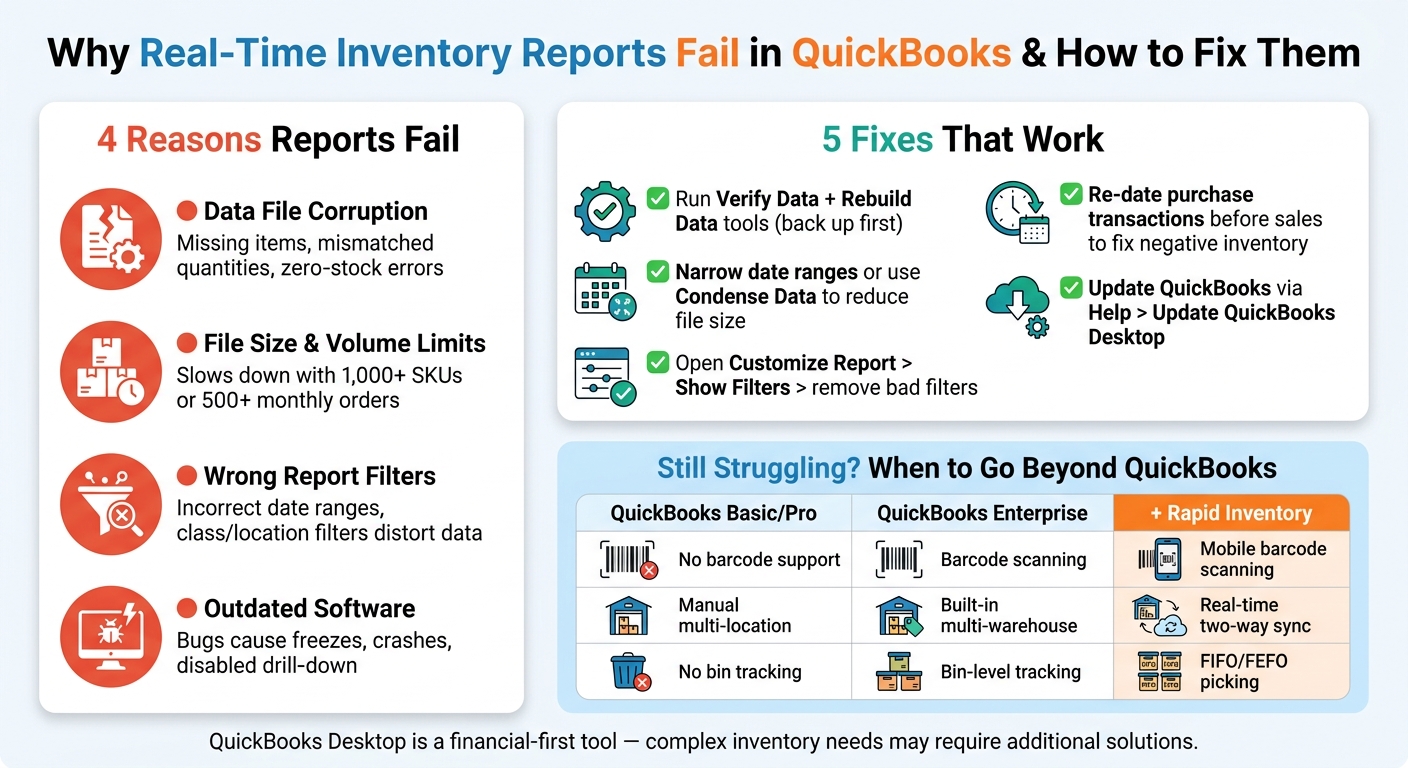
When your company file is damaged, inventory reports are often the first to show signs of trouble. You might notice active items disappearing from reports, mismatched item quantities, or incorrect and empty drill-down details.
"Missing names, transactions, and item numbers may indicate a data integrity problem in your QuickBooks Desktop (QBDDT) company file." - Rasa-LilaM, QuickBooks Team
In severe cases, stock levels might incorrectly show as zero, even when physical inventory is available. These aren't just visual glitches - they point to deeper issues within the data structure.
On top of corruption, increasing file sizes can add to the problem.
File Size and Data Volume Limits
QuickBooks Desktop is primarily designed for financial reporting, not for handling large-scale operational workflows. As transaction histories grow, generating reports can slow down significantly. This is especially noticeable when dealing with over 1,000 SKUs, 500+ monthly orders, or managing multi-channel operations.
"QuickBooks was built to reconcile your books after transactions close, not to orchestrate real-time order and inventory flow across multiple channels." - Yash Bodane, Senior Product & Content Manager, Webgility
Take the example of Rider Shack, a retailer juggling 13,000 SKUs across a Magento store and QuickBooks Point of Sale. They faced major delays, spending 10–15 hours weekly on manual inventory syncing. This led to frequent stockouts and canceled orders.
Wrong Report Filters and Customizations
Even when reports run smoothly, misconfigured filters can lead to inaccurate data. Problems like incorrect date ranges, item filters, class filters, or location filters can all distort your inventory reports in QuickBooks Desktop.
For instance, recording a sale before its corresponding purchase forces QuickBooks to assign a $0.00 cost. This skews both COGS and inventory values until the error is corrected.
Beyond filters, outdated or corrupted program files can also impact report accuracy.
Outdated QuickBooks or Damaged Program Files
Running an outdated version of QuickBooks can introduce bugs that freeze the software, crash processes, or disable drill-down functionality. Damaged program files - caused by incomplete updates, interrupted installations, or system crashes - can create similar issues, even if your data is intact.
How to Fix Real-Time Inventory Reporting Issues in QuickBooks
QuickBooks Desktop vs Enterprise: Real-Time Inventory Feature Comparison
Once you've pinpointed the problem, tackling the solution becomes much easier.
How to Repair Data Damage
When it comes to data integrity issues in QuickBooks, the Verify Data and Rebuild Data tools are your go-to solutions. Just remember to back up your company file before using them.
-
Start with Rebuild Data
Navigate to File > Utilities > Rebuild Data and follow the instructions. QuickBooks will prompt you to save a backup before proceeding. -
Verify After Rebuilding
After rebuilding, run File > Utilities > Verify Data to check for lingering issues. If problems persist, you may need to run the rebuild again or use the QuickBooks File Doctor for more in-depth repairs. -
Address Negative Inventory
Use the Inventory Valuation Detail (IVD) report to locate items with negative quantities. Adjust the transaction dates so that the bill or item receipt predates the first invoice for that item.
"Negative Inventory is caused by entering sales transactions before entering the corresponding purchase transactions, i.e., you sell inventory items that you do not have in stock." - Intuit
If items still appear missing after these steps, try the Re-sort List function. This resets the display order of items and clears minor glitches. These steps can help restore data accuracy and get your file ready for smoother performance.
How to Reduce Report Load for Better Performance
Large file sizes often slow down report generation. To speed things up, narrow the date range of your reports instead of pulling data from all historical transactions. You can also filter by specific item categories or locations.
Another option is QuickBooks' Condense Data feature, which archives older transactions to reduce file size. This can significantly improve performance, especially if you're managing thousands of SKUs or years of transaction history.
How to Fix Report Filters and Customizations
Misconfigured filters can lead to inaccurate reports. To address this:
- Open the report and select Customize Report.
- Click Show Filters to view active filters, and remove any unnecessary ones by clicking the X.
If discrepancies persist, set the date range to All Dates to ensure every transaction is included. Also, double-check your Unit of Measure (U/M) settings. For example, if a U/M is set to 25, an invoice for 5 packs will correctly display as 125 units in a valuation report. While this may look like an error, it’s actually accurate.
| Common Reporting Issue | Fix |
|---|---|
| Missing transactions | Set the date range to "All Dates" and refresh |
| Incorrect quantity on hand | Clear active filters via "Show Filters" |
| U/M discrepancies | Check base units vs. multi-pack settings in the Item List |
| Negative inventory totals | Use the Inventory Valuation Detail to re-date bills before invoices |
How to Improve Multiuser and Hosting Performance
Switch to single-user mode before running repair utilities like Verify or Rebuild. Running these tools in multiuser mode can cause file access conflicts and incomplete repairs.
For large reports, schedule them during off-peak hours when fewer users are active. If reports remain slow in a hosted environment, review your network setup and confirm that the hosting server has adequate resources.
How to Update and Repair QuickBooks Desktop
Outdated software can often lead to reporting problems. To update QuickBooks Desktop, go to Help > Update QuickBooks Desktop and install any available updates. If that doesn’t solve the issue, open the QuickBooks Tool Hub, go to Program Problems, and run the Quick Fix my Program tool. For more severe issues, use the QuickBooks Install Diagnostic Tool within the Tool Hub to repair the software without affecting your company data.
sbb-itb-19ed50f
How to Prevent Real-Time Reporting Failures Going Forward
It's always better to stop problems before they start, especially when it comes to managing QuickBooks inventory reports. By addressing the common causes of real-time reporting issues, these proactive steps can help ensure your reports stay accurate and reliable over time.
Keep Your Company File in Good Shape
Regular maintenance of your company file is essential. Use tools like Verify Data, Rebuild Data, and periodically run Re-sort List to catch small errors early - before they spiral into bigger problems. For more complex issues, keep QuickBooks File Doctor ready. These steps are critical to avoiding the recurring issues discussed earlier.
"Missing names, transactions, and item numbers may indicate a data integrity problem in your QuickBooks Desktop company file." - Rasa-LilaM, QuickBooks Team
To prevent file bloat, archive older transactions using Condense Data. And always, always back up your company file before running utilities or making large inventory updates. This simple habit can save you from a lot of headaches later.
Set Clear Data Entry Standards
Good habits with data entry can make all the difference. For example, always record purchase transactions before sales. If you're out of stock, use Sales Orders or mark invoices as Pending until inventory arrives. These practices help prevent the transaction sequencing errors we touched on earlier.
"To keep accurate inventory records, including COGS, it is important to prevent inventory quantities from falling into a negative status." - Intuit
Use Consistent Report Templates
Maintaining consistency in your reporting is another key to avoiding errors. Make the Inventory Valuation Detail report your default template, and periodically review the filters to catch any potential discrepancies. A standardized approach to reporting not only saves time but also minimizes issues that could arise from inconsistent practices.
When QuickBooks Desktop Needs Extra Help for Inventory Reporting
As inventory operations grow more complex, QuickBooks Desktop often hits a point where additional tools are necessary. While QuickBooks excels at financial reconciliation, it isn’t designed to handle the intricacies of warehouse management. This gap becomes more evident as inventory demands increase, calling for a solution that enhances real-time inventory management.
Where QuickBooks Falls Short
QuickBooks’ focus on accounting means it lacks advanced features like barcode scanning, serial number tracking, and multi-location inventory management in its standard editions. These features are either missing or only available in the costly Enterprise version. For businesses managing over 500 SKUs, multiple warehouses, or processing 500+ orders monthly, manual processes can quickly become overwhelming.
Here’s a breakdown of where QuickBooks struggles as inventory needs scale:
| Limitation | Real-World Impact |
|---|---|
| No outbound stock sync | Stock levels don’t update across locations in real time |
| Manual reordering process | Low-stock alerts exist, but restocking requires manual action |
| No bin or shelf-level tracking | Difficult to locate specific inventory within a warehouse |
| Basic reporting structure | Limited ability to analyze margins by location, lot, or SKU |
To address these challenges, integrating a tool like Rapid Inventory can significantly improve inventory reporting and operations.
How Rapid Inventory Improves Real-Time Reporting

Rapid Inventory is designed to complement QuickBooks Desktop by filling its operational gaps. Rather than replacing QuickBooks, it enhances its capabilities with features tailored for warehouse management.
With two-way syncing, Rapid Inventory seamlessly transfers items, purchase orders, invoices, and stock adjustments between systems. It introduces multi-location tracking, mobile barcode scanning, lot and serial number tracking, and FIFO/FEFO picking strategies, all accessible via a web browser from anywhere.
This integration ensures QuickBooks data reflects real-time inventory conditions. Stock reports show what’s actually on the shelf, eliminating delays caused by manual updates.
Best Practices for Using Rapid Inventory with QuickBooks
To maximize efficiency, it’s crucial to let each system handle what it does best. Use Rapid Inventory for operational tasks like receiving, picking, packing, cycle counting, and fulfillment. Save QuickBooks for financial reporting and managing the general ledger.
Before syncing the systems, clean up SKU data to avoid identifier mismatches. Once the systems are linked, rely on the automatic two-way sync instead of manual exports. Additionally, ensure your warehouse team is trained on the new workflow. Falling back on manual processes can quickly recreate the same data silos you’re trying to eliminate.
Conclusion: Getting Real-Time Inventory Reporting Right
QuickBooks Desktop's reporting challenges, as we've discussed, often stem from issues like data corruption, large file sizes, filter errors, multiuser conflicts, and outdated software. These problems highlight the system's limitations when it comes to real-time inventory reporting.
The good news? Many of these issues can be resolved. Running utilities and adjusting filters can fix immediate errors, while monthly audits, consistent SKU naming, proper transaction sequencing, and routine maintenance can help prevent future problems. However, as your business grows, these fixes may only serve as temporary solutions.
For businesses managing hundreds of SKUs, multiple warehouses, or high order volumes, QuickBooks' native reporting features may no longer meet your needs. When that happens, integrating a solution like Rapid Inventory becomes essential. It addresses the operational demands QuickBooks wasn't designed to handle, all while keeping your financial data centralized.
The key to success is using the right tools for the right tasks, maintaining clean and organized data, and recognizing when it's time to expand beyond a single platform.
FAQs
How can I tell if my QuickBooks company file is corrupt or just slow?
To determine whether your QuickBooks company file is corrupted or just running slowly, you can use the Verify Data tool. Here's how: navigate to File > Utilities > Verify Data.
If the tool detects data integrity issues, your file is damaged and will require rebuilding. However, if no problems are identified, the slowness is likely caused by factors like file size or a lack of routine maintenance. Keep in mind, files larger than 500 MB for Pro or Premier versions, or 1 GB for Enterprise, often experience performance issues.
What’s the fastest way to fix negative inventory without breaking my reports?
The easiest way to address negative inventory in QuickBooks Desktop - without messing up your reports - is by using the Verify and Rebuild Data utility. Here’s how:
- Head to the File menu and select Utilities.
- Click Verify Data to scan for any file issues.
If QuickBooks detects problems, back up your company file first. Then, run Rebuild Data to correct those errors. This process ensures your inventory reports stay accurate and dependable.
When should I add Rapid Inventory instead of trying more QuickBooks fixes?
When manual efforts fail to keep up with recurring inventory challenges, it’s time to consider Rapid Inventory. Here’s when you know it’s the right move:
- You're managing multiple sales channels.
- Your inventory includes over 1,000 SKUs.
- You’re processing 500+ orders per month.
- Manual reconciliation is eating up 10+ hours a week.
Other red flags? Frequent overselling, the need for real-time tracking across multiple locations, or constant data errors requiring complex database fixes. If any of these sound familiar, an integrated system like Rapid Inventory offers a more dependable and efficient solution.



