
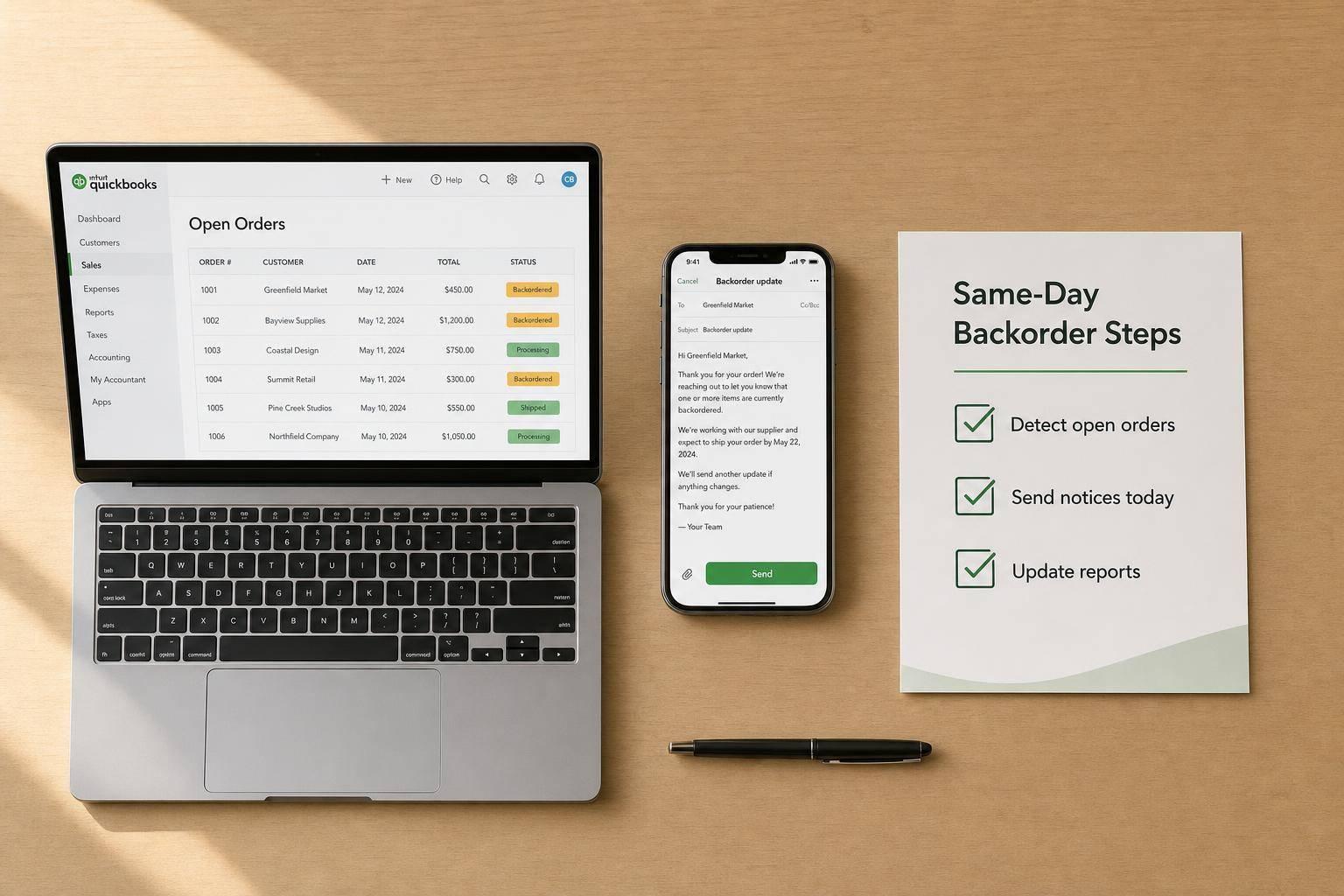
If customers hear about a backorder late, trust drops fast. In the data cited here, 98% of shoppers feel better when they’re told right away, while 22% say they get no delay notice at all.
If I were setting this up in QuickBooks Desktop, I’d keep it simple:
- Use QuickBooks Desktop inventory management as the main record
- Send the first backorder update the same day or within 24 hours
- Tell the customer exactly what is delayed, when it may ship, and what choices they have
- Track follow-ups on one shared open-order list
- Keep notes, dates, and status wording the same across the team
The core idea is easy: one order record, one message style, one follow-up schedule. That helps me avoid mixed answers from sales, support, purchasing, and the warehouse.
A good backorder update should include:
- Item name and SKU
- Ordered, shipped, and backordered quantity
- Original promise date, if one was given
- New ship window in U.S. format, like 08/10/2026–08/15/2026
- Next update date
- Customer options: wait, split ship, substitute, or cancel
I’d also make sure no one uses vague wording like “soon” or “ASAP.” Instead, I’d tie every message to what QuickBooks shows on the sales order, invoice, and purchase order.
Here’s the short version of what this article covers:
- setting a backorder notice policy before issues start
- finding open and partial sales orders in QuickBooks Desktop
- building a shared backorder worklist from reports
- sending the first notice and follow-ups until shipment
- using templates and internal notes so every update stays the same
In short, this article is about turning backorder communication into a repeatable process instead of a last-minute scramble.
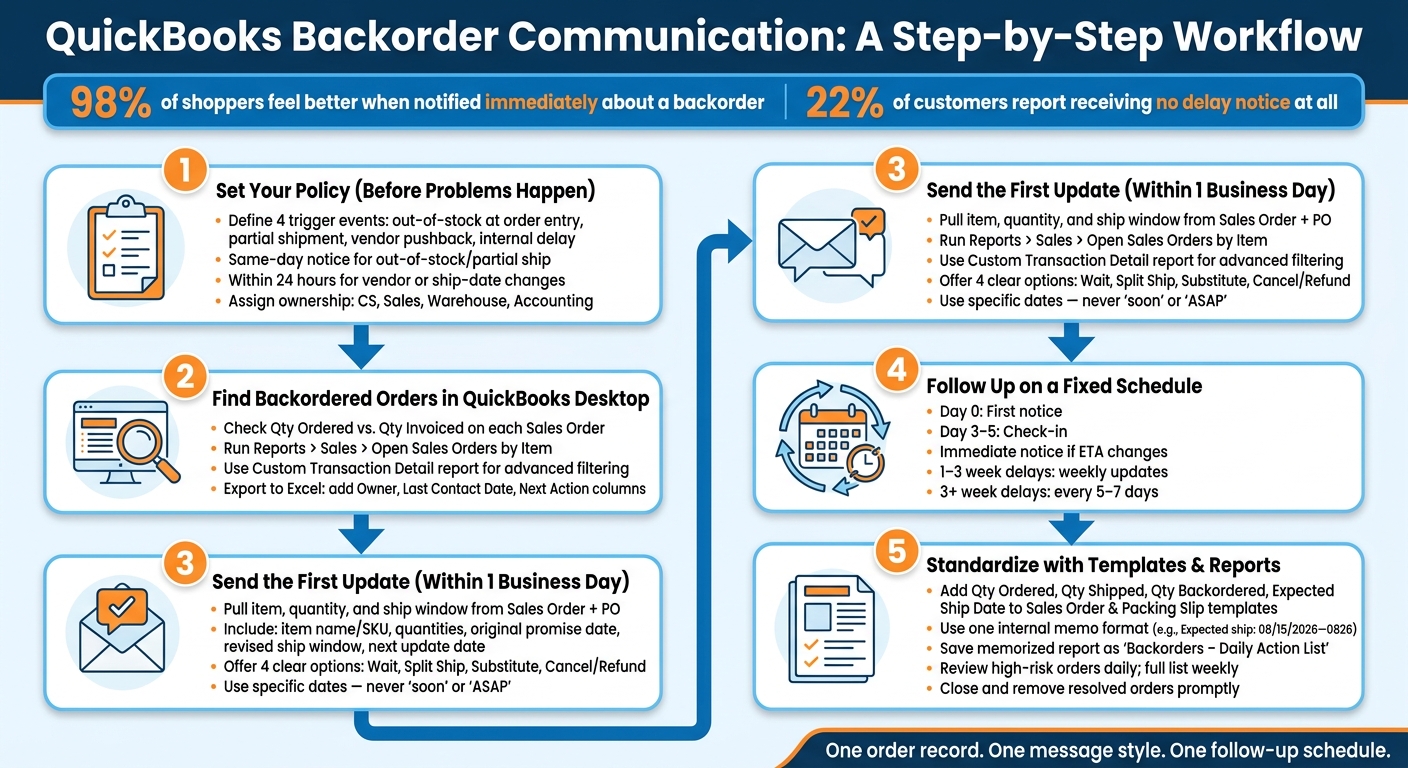
QuickBooks Backorder Communication Process: From Detection to Resolution
QuickBooks - Back Orders 2017
sbb-itb-19ed50f
2. Set a backorder communication policy before problems happen
A backorder policy needs to settle three things upfront: when to notify customers, what each message should say, and who sends it.
Define when to notify and how fast to respond
Four situations should always trigger a customer notice:
- An item is out of stock when the order is entered
- Only part of the order can ship
- A vendor pushes back a purchase order delivery date
- An internal delay changes the ship date
For out-of-stock or partial-ship orders, send the notice the same business day. For vendor delays or ship-date changes, send it within 24 hours. If the issue comes up after hours, send the notice on the next business day.
Standardize what every status message includes
Start by confirming the sales order. Then make sure every update includes the same core fields.
| Field | Example |
|---|---|
| Customer name and sales order number | Jane Doe, SO-14527 |
| Item name and SKU | ACME-123 Widget |
| Ordered, shipped, and backordered quantity | 10 ordered, 6 shipped, 4 backordered |
| Original promised date (if given) | August 5, 2026 |
| Revised ship window | August 15–18, 2026 |
| Next update date | August 14, 2026 |
If you leave out the revised ship window or the next update date, customers will usually call or email to ask what’s going on. That creates extra work for your team. Use U.S. date formatting and give a specific shipping window, not vague wording like “shipping soon.”
Assign ownership so no order goes without a follow-up
Each step should belong to a clear role. Customer service sends standard notices. Sales handles key accounts. The warehouse confirms stock readiness. Accounting takes care of credits or refunds.
Write this down in a simple SOP and share it with every team member who touches an order.
With ownership set, the next step is finding every backordered order in QuickBooks Desktop.
3. Find backordered orders in QuickBooks Desktop

Check open sales orders and partial fulfillment status
Start with a single Sales Order in QuickBooks Desktop. Look at Qty Ordered and Qty Invoiced for each line item. If Qty Ordered is higher than Qty Invoiced, the difference is the backordered quantity.
Then compare that sales order with the related invoice or shipment. This shows what has already gone out and what is still open. Those are the orders your team needs to update customers about.
Once you know the backordered amount for each order, move that into a report so the whole team can work from the same list.
Use reports to build a shared backorder list for the team
QuickBooks Desktop can pull open backorders into one place. A solid place to start is Reports > Sales > Open Sales Orders by Item. Set the date range to include all active orders, then click Customize Report and look at the Backordered column. For a clean worklist, keep only Item, Qty, Invoiced, Backordered, and Amount.
If you need more control, build a Custom Transaction Detail report by going to Reports > Custom Reports > Transaction Detail. On the Display tab, add the Backordered, Qty, Item, and Customer columns. On the Filters tab, set Transaction Type = Sales Order and Posting Status = Non-posting so only open orders show up.
Next, export the report to Excel with Excel > Create New Worksheet. Add columns for Owner, Last Contact Date, and Next Action, then save the file to a shared folder. That gives customer service, sales, and the warehouse one current list instead of three half-matching ones.
Assign the list based on who owns the next step.
| View / Report | What It Shows | Best Used For |
|---|---|---|
| Sales Order Screen | Per-order line detail | Preparing order-specific customer updates |
| Open Sales Orders by Item | Open and backordered quantities by item across all customers | Coordinating purchasing; spotting high-demand items |
| Open Sales Orders by Customer / Backlog Report | Customer-level order backlog | Prioritizing outreach to high-impact accounts |
| Custom Transaction Detail | Transaction-level lines filtered by backorder status | Building specialized worklists by rep, item, or status |
Use that shared list to send the first update.
Add visibility with Rapid Inventory
Rapid Inventory adds backorder tracking, partial shipment visibility, and two-way sync for teams that need a current shared list. That makes it easier to keep the customer list up to date before outreach starts.
With the open list in hand, send the first customer update.
4. Send the first update and follow up until the order ships
Write the first backorder message with clear options
Once the shared backorder list is set up, reach out to the customer before the order turns into a support problem. Send that first message within 1 business day of spotting the backorder. Pull the item, quantity, and expected ship window from the Sales Order and the related purchase order in QuickBooks Desktop so every detail comes from checked records.
Your order for 12 units of Item ABC includes 8 backordered units. The remaining units are expected to ship August 15–20, 2026.
Give the customer a clear path forward. That way, they’re not left guessing what happens next.
| Option | What It Means | When to Offer It |
|---|---|---|
| Wait for restock | Hold the full order until all items are available | Delay is short and the item is not time-sensitive |
| Split shipment | Ship available items now; send the rest when stock arrives | Part of the order is ready and extra freight is acceptable |
| Substitute item | Replace the backordered item with a comparable in-stock SKU | A comparable in-stock SKU exists |
| Refund or cancel | Cancel the backordered line and issue a refund | Delay exceeds your policy limit or no restock date is reliable |
Set a follow-up schedule from delay to shipment
After the first notice goes out, stick to a fixed rhythm so the order never goes quiet. Use this cadence: Day 0 notice, Day 3–5 check-in, immediate notice for ETA changes, receipt notice when stock arrives, and final shipment confirmation with tracking.
For moderate delays of 1–3 weeks, send weekly updates. If the delay goes past 3 weeks, send updates every 5–7 days. Use QuickBooks Desktop's Open Sales Orders by Item report each week to see which orders need follow-up, so the process stays systematic instead of reactive.
Avoid wording that causes confusion or sets false expectations
Every update should match what the system can confirm. Don’t guess. Don’t overpromise. Use confirmed dates and documented status only.
| Avoid | Use Instead |
|---|---|
| It should arrive soon. | Our purchase order shows delivery on August 12, 2026. |
| We don't expect any further delays. | We'll update you if the supplier date changes. |
| We guarantee shipment by August 10. | Based on current supplier information, we expect to ship between August 10 and August 13, 2026. |
| I'll check on it and get back to you. | Your order [SO-12345] shows 8 units backordered. Our next update is scheduled for August 8, 2026. |
When the vendor delivery date isn’t locked in, use a date range instead of a single date. Also add the next checkpoint in plain language, like We'll update you by August 8 with the latest ETA, so the customer knows when to expect news. Then make sure every promised follow-up date is met.
5. Use templates and reports to keep communication consistent
Add backorder details to forms and internal notes
Once your follow-up timing is set, lock the process in with templates and internal notes. The goal is simple: every backorder update should live on the same QuickBooks record.
Add these fields to your Sales Order and Packing Slip templates:
- Qty Ordered
- Qty Shipped
- Qty Backordered
- Expected Ship Date
Then add an internal memo in one shared format, such as Expected ship: 08/15/2026–08/22/2026. That way, customer service and the warehouse are looking at the same status instead of piecing it together from scattered notes.
Keep follow-up dates and status notes internal-only. One memo format across the team makes the process cleaner and cuts down on mixed messages.
Rapid Inventory can sync expected receipt dates and warehouse details into the data behind these forms.
Review reports on a schedule and close out resolved orders
With the template set up, use a memorized Open Sales Orders by Item report as your daily backorder list. Save it as Backorders – Daily Action List so it opens in one click each morning.
Review high-risk orders every day. Review the full list once a week. That rhythm helps your team stay on top of urgent issues without losing sight of the full queue.
When an order is complete, close it, clear the next update date, and remove resolved lines from the active list.
Key points to carry into your process
These three controls work best together: one template, one memo format, and one memorized report. If you keep those pieces aligned, each backorder update stays current and easy to track.
FAQs
How do I spot backorders in QuickBooks Desktop fast?
Hover over the quantity field in a transaction to check current stock and on-order amounts at a glance. If you want to keep tabs on demand that hasn’t shipped yet, use the Open Sales Orders by Item report.
When an item is out of stock, use Sales Orders to log the request and track it as a backorder. That way, you can keep the order on file without hitting accounts receivable too early.
If you need deeper backorder tracking, Rapid Inventory syncs with QuickBooks Desktop for real-time visibility.
What should I do if the vendor gives no firm ship date?
First, figure out whether it’s a backorder with a known restock date or a stockout with no confirmed arrival date. Then document the issue clearly and tell the customer what’s going on.
Use your Incoming Stock Report to catch supply gaps early and review other vendor options. Rapid Inventory can help by giving you real-time inventory visibility.
How often should I update customers on a backorder?
Update customers each time their order status changes, especially when there’s a new estimated arrival date. If an item comes back in stock and is ready to ship, send that notice right away.
Rapid Inventory helps make this easier with real-time dashboards and automated backorder tracking, so managers can stay on top of every update without chasing details by hand.



