
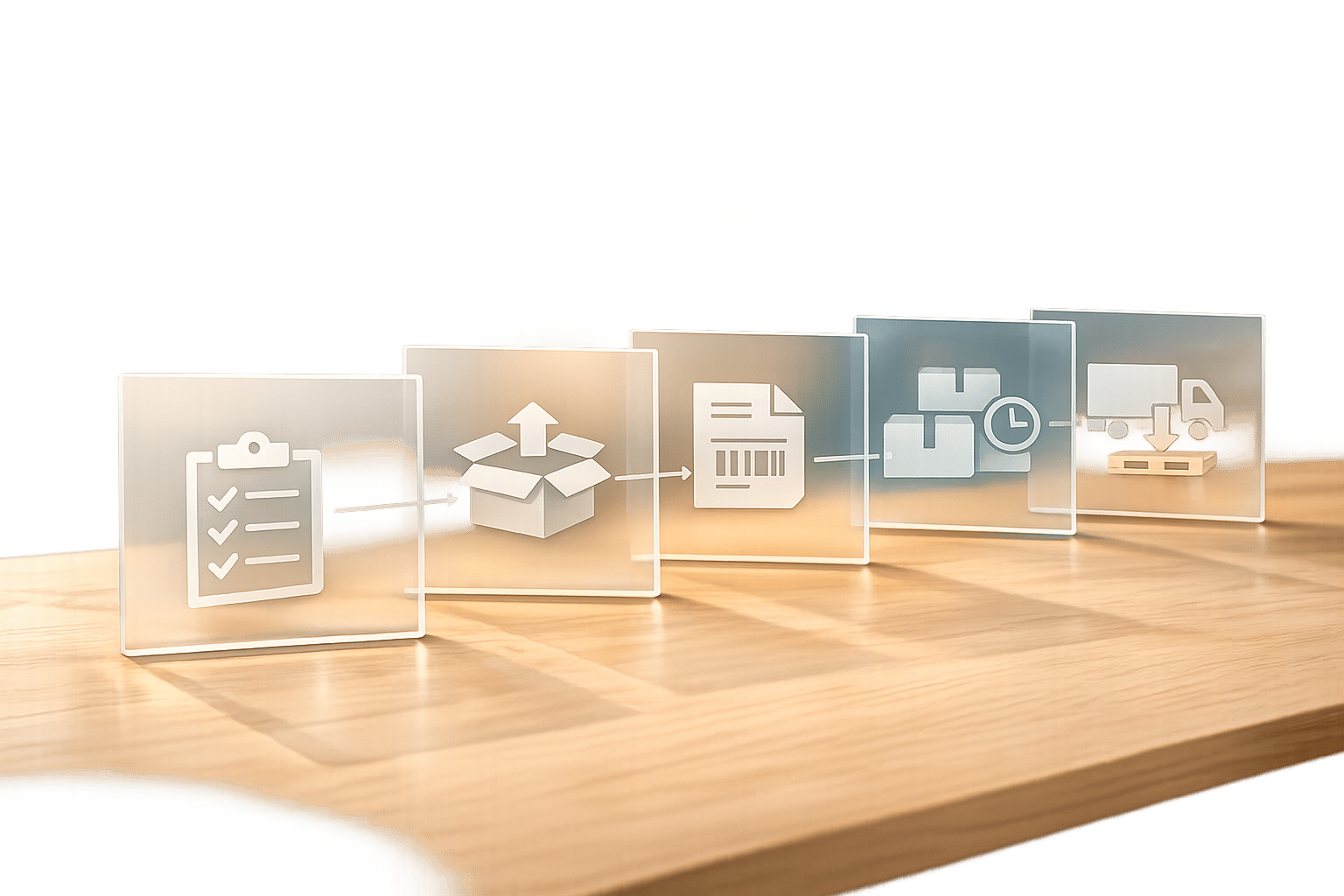
Partial shipments happen when only part of an order is shipped due to unavailable items, with the rest sent later. This process, while common, can lead to accounting errors like premature revenue recognition and inventory mismanagement if not handled properly. A structured workflow ensures accurate financial records, smooth operations, and better customer satisfaction.
Key Steps for Managing Partial Shipments:
- Identify Backordered Items: Use QuickBooks reports to track unfulfilled orders and compare inventory levels.
- Invoice Partial Shipments: Create invoices only for shipped items, keeping sales orders open for remaining goods.
- Update Backorder Quantities: Adjust sales orders and inventory records to reflect shipped and pending items.
- Generate Packing Slips: Include clear backorder details to inform customers about what has shipped.
- Track and Allocate Inventory: Link vendor shipments to purchase orders and allocate stock to pending orders.
By leveraging tools like QuickBooks Desktop's Sales Order Fulfillment Worksheet or integrating solutions like Rapid Inventory, businesses can streamline these processes, saving time and reducing errors.

5-Step Workflow for Managing Partial Shipments and Backorders in QuickBooks
How to backorder in QuickBooks Accounting Software.
sbb-itb-19ed50f
Checklist 1: Identify and Confirm Backordered Items
Use this checklist to efficiently identify and confirm backordered items, ensuring smoother shipment processes and better order management.
Run the Open Sales Orders by Item Report
Start by running the Open Sales Orders by Item report in QuickBooks Desktop. This report helps you pinpoint unfulfilled orders and highlights items not yet linked to invoices. To access it, navigate to the Reports menu, select Sales, and choose Open Sales Orders by Item.
Once the report is open, click Customize Report and head to the Display tab. Check the Backordered column and add other useful columns like Ordered, Invoiced, Item, and Item Description. This will give you a full view of each order's status. If you want to focus solely on backordered items, limit the columns displayed to just the Backordered column.
Important: Sales orders won’t appear in financial reports until they are invoiced.
Compare Inventory Levels with Sales Orders
After spotting backordered items, verify your stock levels by running the Inventory Stock Status by Item report. Go to Reports, select Inventory, and choose Inventory Stock Status by Item. This report shows key details like quantities on hand, quantities tied to sales orders, and quantities on purchase orders. It’s a quick way to check if you have enough inventory to fulfill outstanding orders.
Mark Backordered Items for Easier Management
Once you’ve reviewed orders and inventory, update your Sales Orders to focus on pending items. QuickBooks Desktop automatically updates backordered quantities once invoices are linked to sales orders. For items still open after invoicing, remove fulfilled line items from the original Sales Order. This keeps only the backordered items visible.
If you need to inform customers about their backordered items, create a revised Sales Order and share it with them. You can also filter the Open Sales Orders report by Paid Status to find partially invoiced orders that might need follow-up.
Checklist 2: Prepare Partial Shipments
Once you've identified backordered items, the next step is to create invoices that reflect only the items you're actually shipping. This approach ensures customers are billed correctly and your inventory records stay accurate.
Create an Invoice for Partial Shipment
To invoice only the items being shipped, follow these steps to ensure accurate billing and inventory tracking:
- Open the Sales Order and click the Create Invoice button.
- When prompted, choose Create invoice for selected items instead of invoicing the entire order. This keeps the Sales Order open for any unshipped items.
- In the invoice window, locate the Invoiced (or To Invoice) column. Enter the quantity of items that are being shipped. For example, if the order is for 2,000 units but only 1,500 are available, enter 1,500 in this column.
"When you create an invoice for a sales order, you need to enter the partially picked quantity in the To Invoice (Or Invoiced) column to match what you shipped... so your Fulfillment Worksheet's back order information gets updated." - Rea_M, Moderator, QuickBooks Community
Important for Enterprise users: Due to a technical limitation (INV-32839), you need to manually verify that the To Invoice column matches your packing slip before saving.
| Invoice Option | Use Case | Impact on Backorders |
|---|---|---|
| Full shipment invoicing | When all ordered goods are shipped. | Closes the Sales Order; no backorders. |
| Partial shipment invoicing | When only part of the order is shipped. | Keeps the Sales Order open; tracks backorders. |
Update Backorder Quantities
After invoicing the shipped portion, update the backorder quantities to reflect the remaining items.
Once you save the invoice, QuickBooks Desktop automatically adjusts the original Sales Order. The Backordered column will show the remaining balance. For instance, if 1,500 units were shipped from a 2,000-unit order, the backordered quantity will now display 500.
To ensure everything updated correctly, reopen the Sales Order and verify the backordered quantity. This step helps prevent billing mistakes.
If you're using QuickBooks Enterprise with Advanced Inventory enabled, you can manage partial shipments more effectively through the Sales Order Fulfillment Worksheet. To enable this feature, go to Edit > Preferences > Items & Inventory > Company Preferences > Advanced Inventory Settings. The worksheet provides real-time updates with statuses like "Partially Picked" or "Partially Packed", so you always know the status of each order.
Checklist 3: Generate Packing Slips for Partial Shipments
Once backorder quantities are updated, the next step is to create a packing slip. This document confirms which items are included in the shipment and serves as a key part of your audit trail. For partial shipments, an accurate packing slip is essential - it avoids confusion and ensures customers know which items have shipped and which are still pending.
Generate and Print Packing Slip
To create a packing slip that reflects a partial shipment, make sure your template includes backorder details. Start by navigating to the Formatting tab on a Sales Order, then select Manage Templates and click Additional Customization. From there, check the boxes for the Backorder column under both the Screen and Print headers.
The template will automatically pull data from the invoice. QuickBooks uses the invoiced quantities to display any remaining backorders. This ensures the packing slip clearly shows what’s in the shipment and what’s still outstanding.
"As long as the shipped and invoiced amounts are correct on the sales order, the packing slip for the partial shipment will be correct." - SOS Inventory
Before printing, double-check the Shipped and Back Ordered columns for accuracy. Keep in mind that some versions of QuickBooks Enterprise may display the original order quantities instead of the remaining balance for subsequent backorder shipments. To keep your customers informed, you can also use the Message field at the bottom of the packing slip to provide an estimated timeline for backordered items.
Once the packing slip is finalized, pair it with the invoice for documentation.
Link Packing Slip with Invoice
Save the packing slip as a PDF and attach it to the corresponding invoice or sales order. This creates a clear and organized audit trail.
"I would recommend you actually attach a PDF of each Packing slip to the invoice as you go so there's no ambiguity." - McBride Bookkeeping
For large orders involving multiple shipments, consider using the Service Date field on individual line items. This allows you to specify when each part of the order was shipped, providing both you and your customer with a clear delivery timeline.
Checklist 4: Receive and Allocate Backordered Inventory
When partial shipments arrive from your vendor, how you record them in QuickBooks Desktop plays a crucial role in accurately fulfilling backorders. The key is to link each incoming delivery to its original Purchase Order (PO), ensuring the system tracks both received and outstanding quantities.
Record Partial Vendor Shipments
Start by clicking Receive Inventory on the Home screen. If the shipment includes an invoice, select Receive Inventory with Bill. If no invoice is included, choose Receive Inventory without a bill to create an Item Receipt instead. This action updates your stock levels immediately, enabling you to fulfill backorders even before the bill arrives.
When the Open POs Exist window pops up, click Yes and select the relevant Purchase Order. Be sure to adjust the QTY column to reflect only the quantity delivered. QuickBooks defaults to the full PO amount, but entering the partial quantity ensures the Purchase Order remains open for the remaining balance.
"Make sure to edit the QTY column and enter the actual quantity received. After that, when you open the P.O, it will now show the actual quantity received in the RCV'D column." - MirriamM, Moderator, QuickBooks
Once saved, QuickBooks updates both the Quantity on Hand and the RCV'D column. Keeping these records precise ensures a complete audit trail and prepares the system for accurate allocation and sales order updates. With your stock levels now updated, you can move on to allocating inventory to pending backorders.
Allocate Inventory to Backorders
After recording the shipment, match the updated inventory levels to pending customer orders. Use the Open Sales Orders by Item report to decide how to allocate the newly received stock. Your prioritization method - whether based on first-in-first-out, customer priority, or order date - will guide this process.
The updated Quantity on Hand allows you to generate invoices for partial shipments. Follow the same invoicing process outlined in Checklist 2, ensuring each customer receives their portion of backordered items as inventory becomes available.
Update Sales Orders for Remaining Shipments
Once allocation is complete, double-check that all records are up to date. Verify that each Sales Order reflects the current status of shipped and backordered quantities. After allocating inventory and invoicing, ensure the Shipped and Back Ordered columns accurately show the latest information, and confirm that the Purchase Order remains open for any outstanding items.
"Once you're ready to receive the remaining set of units, follow the same steps... making sure to enter the exact remaining quantity." - JonpriL, Moderator, QuickBooks
To maintain visibility, regularly review the Open Purchase Order List report. This report helps you track pending vendor shipments and unfulfilled backorders. By staying on top of these details, you can ensure a smooth workflow from order receipt to fulfillment, reducing the risk of missed customer orders.
Checklist 5: Track and Report Backorders
Once shipments are prepared and inventory is allocated, the work isn’t over. Keeping a close eye on tracking and reporting is essential to fully manage the backorder process. This includes monitoring backorders even after partial shipments to address any remaining fulfillment gaps.
Review Open Sales Orders Report
The Open Sales Orders by Item report is a key tool for staying on top of unfulfilled quantities. Items remain marked as "backordered" until they’re invoiced, ensuring that only completed orders show up in your financial reports. You can make this report even more useful by clicking Customize Report to add or filter columns to suit your needs.
If you’re using QuickBooks Enterprise, the Sales Order Fulfillment Worksheet offers real-time monitoring of order statuses. Its sorting feature allows you to focus on the oldest backorders first, based on ship dates.
"The Sales Order Fulfillment Worksheet gives you a single place to gain insight and access to all aspects of the process." - Intuit
Use Custom Fields for Better Visibility
Custom fields are a great way to track backorder details that standard QuickBooks fields might miss. By customizing the Transaction Detail report, you can include columns like "Backordered" and "QTY." Filter the results to display only Sales Orders with non-posting entries.
"In the Search Columns field, search for 'Backordered' and 'QTY.' Then, select them by putting a checkmark." - LieraMarie_A, QuickBooks Team
Save your customized report for quick access later. It’s also a good habit to regularly review orders marked as "Partially Picked" or "Partially Packed." Once these orders are fully shipped, update their status to "Complete" to avoid duplicate entries.
For businesses handling large volumes of backorders, consider pairing these custom reports with automated tracking tools for added efficiency.
Use Tools Like Rapid Inventory

Automation can make managing backorders far more efficient, especially for high-volume operations. Rapid Inventory is a helpful tool for QuickBooks Desktop users, offering automated backorder tracking. Its two-way sync with QuickBooks ensures that updates - like partial shipments, inventory receipts, or sales order changes - are automatically reflected, eliminating the need for manual data entry.
Some standout features include real-time inventory reports across multiple warehouses, mobile barcode scanning to speed up receiving and allocation, and FIFO/FEFO picking strategies to ensure backorders are filled in the right order. Plus, with free training, onboarding, and support, you can get these workflows up and running quickly, keeping your backorder tracking accurate as your business grows.
Conclusion
Why an Organized Workflow Matters
Having an organized workflow simplifies managing partial shipments and backorders. As outlined earlier, a structured system provides a clear, centralized view of every order's status - whether it's Open, Picked, Packed, or Shipped. This visibility ensures nothing slips through the cracks, helping customers get their orders without unnecessary delays.
It also improves accuracy by cutting down on duplicate entries. By consistently updating order statuses and marking shipments as completed, your inventory records stay aligned with actual warehouse activity. This reduces errors, keeps customers informed, and minimizes confusion around backorders. Plus, fewer mistakes mean fewer support calls.
The best part? Organized workflows save time. Whether you stick to the standard Pick > Pack > Ship process or opt for an Express Pick-Pack approach, tailoring your fulfillment process to fit your business needs speeds up the time from order to delivery. Faster fulfillment leads to happier customers and steadier cash flow.
How QuickBooks Desktop Users Can Get Started

To make the most of these benefits, start by enabling Advanced Inventory Settings and the Sales Order Fulfillment Worksheet in QuickBooks Desktop. Go to Edit > Preferences > Items & Inventory > Company Preferences to activate these features. This unlocks tools that let you track partial shipments in real time.
For businesses handling high order volumes, consider integrating Rapid Inventory with QuickBooks. Rapid Inventory offers real-time tracking and a two-way sync with QuickBooks, eliminating manual data entry and ensuring smooth fulfillment processes. With free training, onboarding, and support, you can quickly adopt these workflows and scale as your business grows.
FAQs
How do partial shipments affect revenue recognition in QuickBooks?
Partial shipments in QuickBooks don't directly affect how revenue is recognized since revenue is typically recorded when an invoice is created, not when items are shipped. However, handling partial shipments properly is crucial for accurate billing and inventory tracking. This ensures that financial records stay consistent and inventory management remains reliable.
What’s the cleanest way to keep the Sales Order open while invoicing only what shipped?
The best approach is to use the Sales Order Fulfillment Worksheet in QuickBooks Enterprise. This feature allows you to monitor the progress of each order - whether it's being picked, packed, or shipped - without closing the order too early. When you ship only part of an order, you can create an invoice for just the shipped items while leaving the rest on the open sales order for later. This method helps maintain precise tracking and keeps customer records up to date.
How can I prioritize which customers get newly received backordered inventory first?
To manage backordered inventory effectively, it's important to have a clear plan for prioritizing customers. Start by looking at key factors such as order date, customer priority status, or order value. Typically, earlier orders, high-value customers, or repeat buyers are given priority. Using tools like QuickBooks Desktop’s Sales Orders can simplify tracking and organizing these priorities, helping you meet customer expectations while staying aligned with your business objectives.



