

QuickBooks Desktop tracks backorders with Sales Orders, partial invoices, and open-order reports. If you ship 3 out of 10 items today, QuickBooks can invoice those 3 and leave the other 7 open on the same Sales Order until stock comes in.
Here’s the short version:
- I use Sales Orders to hold the ordered quantity
- I create a partial invoice for only the items that shipped
- QuickBooks keeps the remaining quantity open
- I check Open Sales Orders by Item and by Customer to see what is still due
- If the rest of the order will never ship, I close the line manually
A few points matter most:
- Sales Orders are available in Pro, Premier, and Enterprise
- Inventory Part and Inventory Assembly items track quantity
- Non-inventory items do not track backorders this way
- In Enterprise, the Sales Order Fulfillment Worksheet shows whether an order is Yes, Partial, or No based on stock on hand
- The Ship Date and Expected Ship Date fields help me sort older open orders first
This process works best when I keep one rule in mind: invoice only what shipped. That keeps reports clean, open quantities correct, and customer orders tied to one record instead of scattered across extra invoices.
If I want a fast read on the whole workflow, it comes down to this: create the Sales Order, ship part if needed, invoice that part, leave the rest open, then use reports to finish the order when inventory arrives.
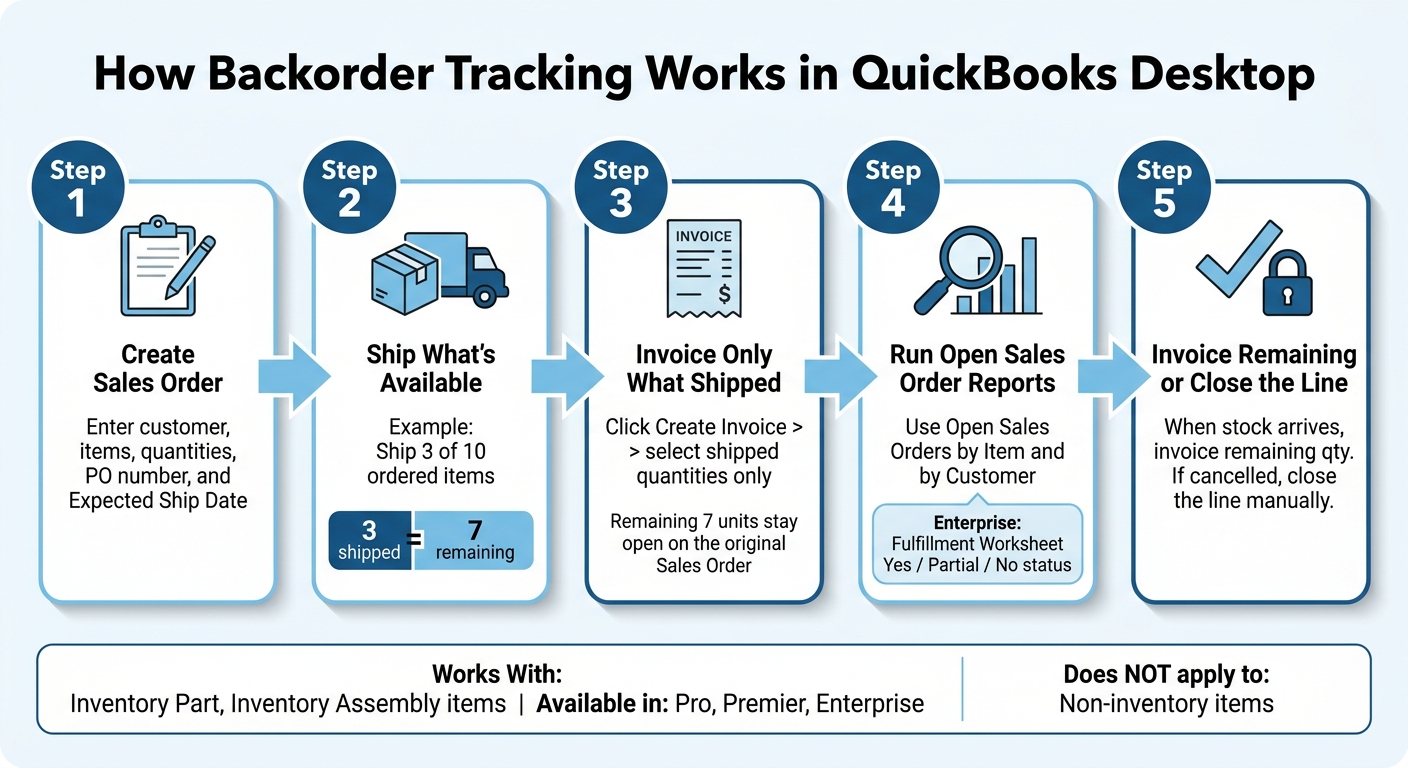
How Backorder Tracking Works in QuickBooks Desktop
QuickBooks - Back Orders 2017
Set up Sales Orders for backorder tracking
Turn on Sales Orders and set up your items and forms the right way so open quantities stay in plain sight. That matters because when you invoice only part of an order, QuickBooks can leave the rest open instead of making it disappear.
Enable Sales Orders and confirm item setup
First, turn on the feature in Edit > Preferences > Items & Inventory, then open the Company Preferences tab and select Sales Orders.
After that, check your item types. In QuickBooks, only Inventory Part and Inventory Assembly items track quantity. That means only tracked inventory items can keep open quantities on a sales order. Non-inventory items can't be used for backorder tracking.
Enter the order details when you create the Sales Order
Good order entry up front saves a lot of cleanup later. When you create the Sales Order, fill in the customer, order date, ship-to address, item, quantity, unit price, customer PO number, and Expected Ship Date.
The Ship Date column matters a lot here. It helps your team decide what should ship first. In QuickBooks Desktop Enterprise 18.0 and later, you can sort by Ship Date to see which backorders have been waiting the longest.
Customize forms to make backorders visible
Add the Expected Ship Date and PO Number fields to your Sales Order and Packing Slip templates so your team can spot priority orders fast.
If you're using QuickBooks Desktop Enterprise Platinum or Diamond, the Sales Order Fulfillment Worksheet includes a Fulfillable Status column. It marks orders as Yes, Partial, or No based on what you have in stock.
With that setup done, complete each order carefully so partial invoices leave the remaining units open.
Use partial invoicing to keep remaining quantities on backorder
Partial invoicing lets you bill only what shipped and keep the rest open on backorder.
Create an invoice from the sales order for shipped quantities only
Open the Sales Order and click Create Invoice. Then choose Create invoice for selected items and enter only the quantities shipping today.
Before you save, make sure the invoice matches the packing slip. That simple check helps you avoid billing for items that haven’t gone out yet. Any quantity you don’t bill stays open on the Sales Order.
Review the open quantity after a partial shipment
After you save the invoice, check that the remaining balance is still open. Go to the Fulfillment Worksheet in Customers > Sales Order Fulfillment Worksheet and confirm the leftover quantity still shows as open until it’s invoiced.
If the order was updated, click Refresh before you review the worksheet. Otherwise, you may be looking at old data.
Update or close lines that will not be fulfilled
Sometimes the customer cancels the rest of the order. When that happens, close the Sales Order line so your open-order reports stay accurate.
After you make that change, refresh the Fulfillment Worksheet so it reflects the latest status.
Next, use reports to monitor every open backorder in one place.
sbb-itb-19ed50f
Track open backorders with QuickBooks Desktop reports

After partial invoicing, reports give you a fast way to see every open quantity without clicking into each sales order one by one.
Run Open Sales Orders by Item and by Customer
Use Open Sales Orders by Item to see what's still owed. Use Open Sales Orders by Customer to see which customers are still waiting. The Sales Order Fulfillment Worksheet helps here too, because it shows which orders are still open and which ones have already moved through fulfillment.
If you want to narrow things down fast, filter by Fulfillable Status to find open backorders.
That makes it much easier to spot older backorders and decide what should ship next.
Customize reports to show backordered quantities
Set the date range and site filters to find aging backorders and check whether stock is sitting at another location. If you need views you can export and tweak, use the standard Open Sales Orders reports to compare quantities ordered against quantities already invoiced or shipped.
It's a simple way to answer two everyday questions: What still needs to go out? And where might the stock be?
Optional workflow controls for clearer tracking
Use the Action column to handle multiple open orders at once and push them into the next fulfillment stage. For day-to-day work, the worksheet helps with shipping priority. For manager review, Open Sales Orders reports show total outstanding quantities.
Once you've got a clear picture of what's still open, the next step is to check incoming inventory and send the remaining quantities.
Fulfill remaining backorders when inventory arrives
Check open sales orders before shipping new receipts
After you spot open backorders, run Open Sales Orders by Item and work the oldest ones first. That keeps earlier customer orders from getting skipped while newer stock comes in.
If you track inventory across more than one location, use the Inventory Site filter to make sure the items are sitting in the right warehouse before you release them for fulfillment.
Invoice the remaining quantity and close the order
Once the items are picked and packed, invoice the remaining open quantity from the original Sales Order. That way, the shipment and billing stay tied to the same order instead of getting split across extra paperwork.
When the last item ships, the order closes. If a line won't be filled, close it manually so it doesn't keep showing up in your reports.
Conclusion: The simplest way to manage backorders in QuickBooks Desktop
Backorder tracking in QuickBooks Desktop stays accurate when you keep Sales Orders current, invoice only shipped items, and close unfilled lines right away.
For high-volume or multi-location workflows, Rapid Inventory adds mobile barcode scanning, real-time inventory visibility, and backorder tracking with two-way sync to QuickBooks Desktop.
FAQs
Can I track backorders without Sales Orders?
No. In QuickBooks Desktop, Sales Orders are required to track backorders.
QuickBooks does not track backorders on Sales Receipts. If an item is out of stock on a Sales Receipt, remove it from the receipt and create a separate Sales Order for that item to track the backorder.
What happens if I invoice items that haven’t shipped?
In supported QuickBooks Desktop editions, invoicing items that haven’t shipped starts the backorder process.
Here’s how it works: if you create an invoice from a Sales Order and bill only the quantity you have in stock, QuickBooks automatically marks the rest as backordered.
The Sales Order then shows three quantities side by side:
- Ordered
- Invoiced
- Backordered
When the remaining items come in, you can go back to the original Sales Order, create a new invoice, and clear the backorder.
How do I handle canceled backordered items?
If a customer cancels a backorder after part of the order has already shipped, close the original Sales Order. That stops any more items from being fulfilled on that order.
You may also need to update your inventory records so your item list shows the correct quantity on hand. Rapid Inventory can help keep counts accurate with two-way sync with QuickBooks Desktop.



