
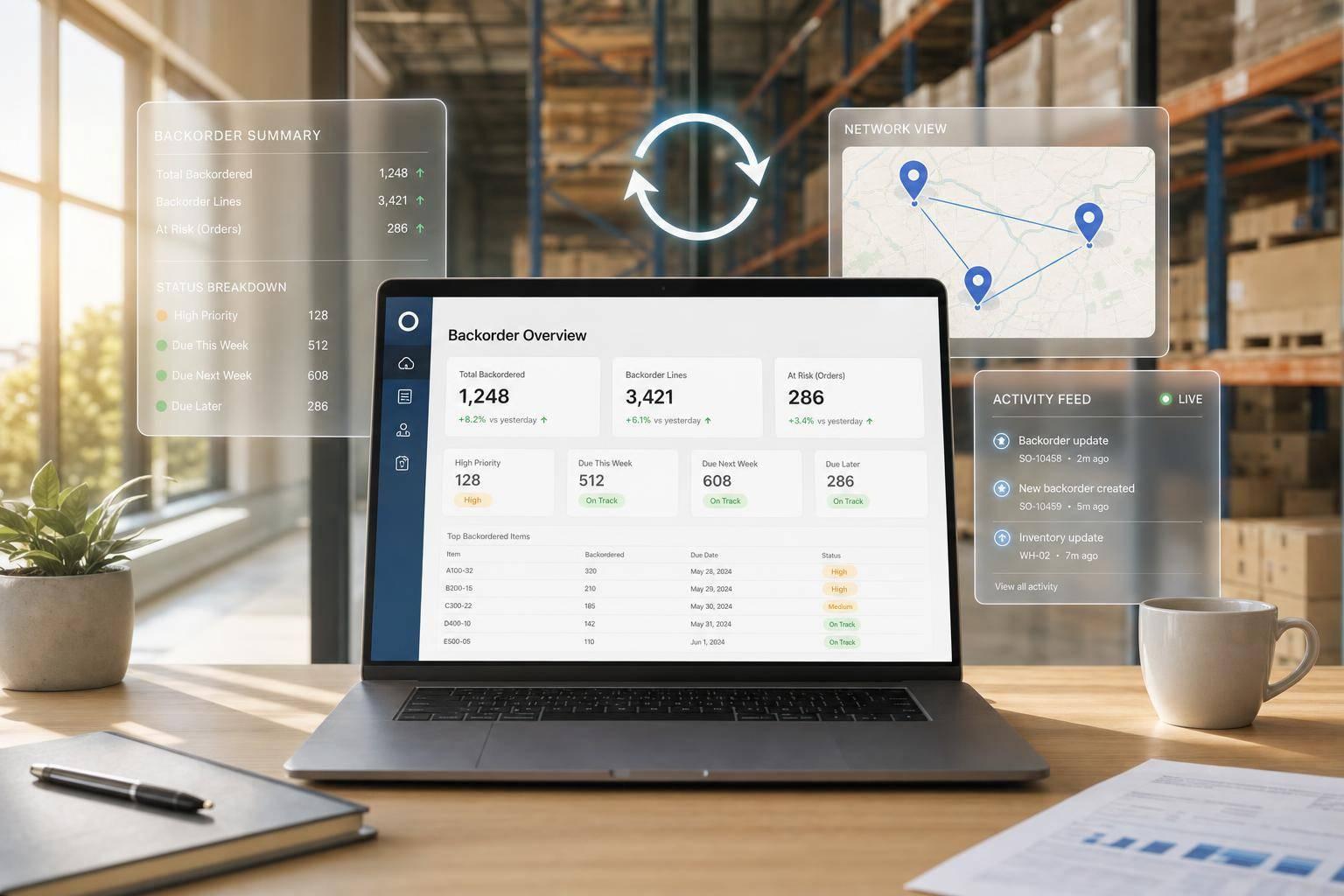
If you use QuickBooks Desktop, the short answer is this: built-in reports work for basic item views, but most growing teams need a separate inventory tool to see backorders by SKU, customer, and location in real time.
When I look at this topic, three things stand out right away:
- QuickBooks Desktop tracks backorders through sales orders
- Its main built-in report is item-first, not customer-first
- Tools like Rapid Inventory add two-way sync, partial shipment tracking, barcode scanning, and multi-location views
That matters because backorders affect more than stock. They affect sales, cash flow, and ship dates. The article also points to a clear dollar example: one company kept $6.25 million in revenue by accepting 25,000 units on backorder at $250 per unit instead of marking items out of stock.
If I had to sum up the buying criteria in one line, it would be this: pick the tool that shows current backordered units, current stock, and current order status without extra spreadsheet work.
QuickBooks - Back Orders 2017
sbb-itb-19ed50f
Quick Comparison
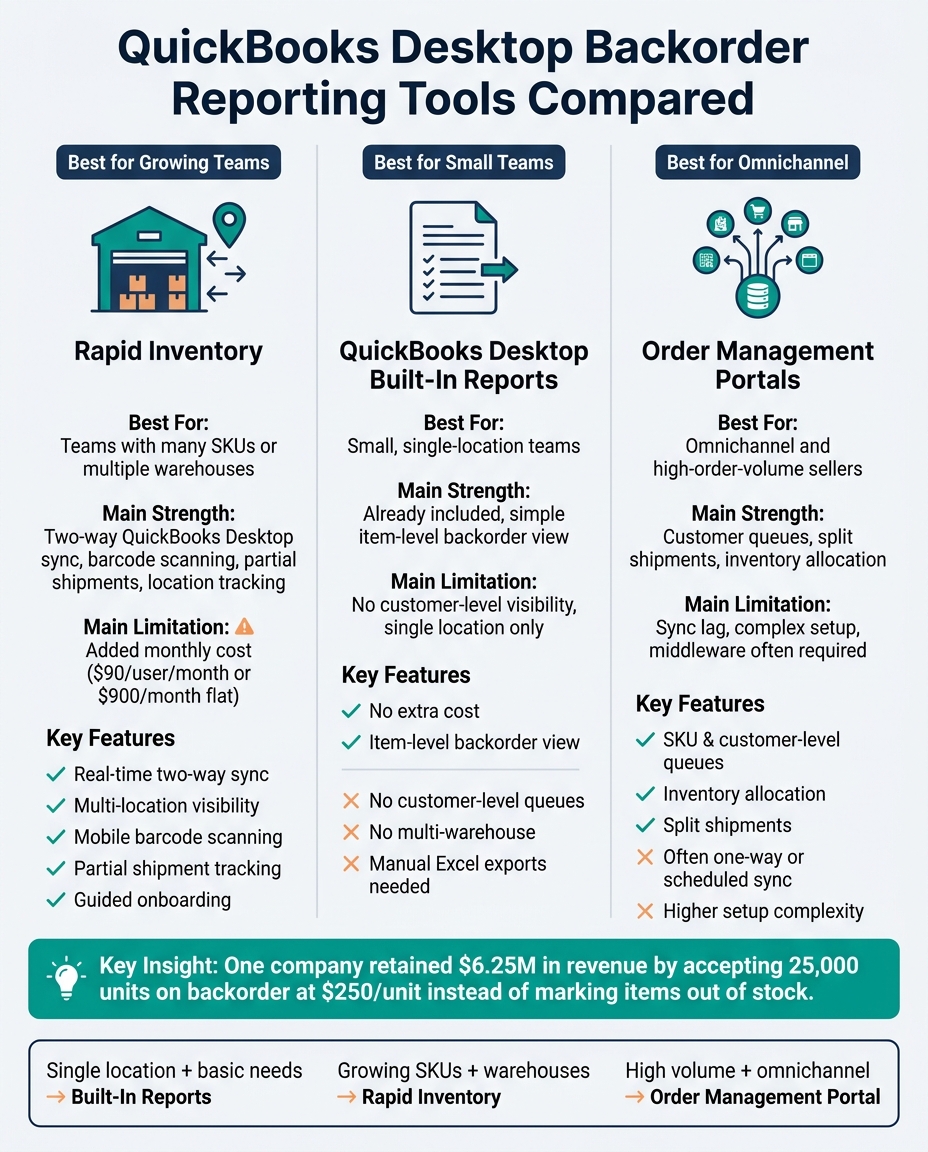
QuickBooks Desktop Backorder Reporting Tools Compared
| Tool/Option | Best For | Main Strength | Main Limitation |
|---|---|---|---|
| Rapid Inventory | Teams with many SKUs or more than one warehouse | Two-way QuickBooks Desktop sync, barcode scanning, partial shipments, location tracking | Added monthly cost |
| QuickBooks Desktop built-in reports | Small, single-location teams | Already included, simple item-level backorder view | Weak customer-level visibility and limited warehouse depth |
| Order management portals | Omnichannel and high-order-volume sellers | Customer queues, split shipments, inventory allocation | Sync may lag and setup may take more work |
What I’d focus on first
Before I compare any tool, I’d check for:
- Two-way sync for sales orders, purchase orders, and inventory updates
- Current available stock so sales staff do not promise items that are not there
- Partial shipment support so remaining balances stay correct
- Filters by SKU, customer, date, and order number
- Multi-warehouse visibility if stock sits in more than one place
The article’s main point is simple: QuickBooks Desktop can cover the basics, but once order volume and warehouse complexity grow, a inventory management software for QuickBooks Desktop gives you a much clearer backorder picture.
How We Evaluated Each Backorder Reporting Tool
To keep this roundup useful for U.S. businesses, we looked at how each tool holds up in day-to-day work. The goal was simple: focus on what helps QuickBooks Desktop users see backorders clearly and act on them fast.
Key Criteria: Sync, Visibility, Reporting, and Workflow Support
The first thing we checked was sync depth. One-way posting just doesn't cut it. If data only moves in one direction, teams end up fixing records by hand, and that gets old fast. A solid two-way sync keeps sales orders, partial shipments, and inventory updates current in both systems without manual re-entry. That's the line between a tool that keeps QuickBooks current and one that creates more cleanup work.
We also looked closely at backorder status accuracy. More specifically, can the tool show current available-to-promise quantities? If it can't, sales teams commit stock that isn't there, warehouses scramble, and ship dates slip.
From there, we reviewed report filtering and partial shipment tracking. Raw data is one thing. Usable data is another. Filters for SKU, customer, order number, or date help teams find what needs attention instead of digging through long reports. Partial shipment support matters too, especially for distributors that ship what's available now and backorder the rest. The tool has to track remaining balances correctly, or the whole process starts to wobble.
Last, we assessed implementation and workflow support tied to the backorder jobs QuickBooks Desktop users deal with every day: current order status, correct remaining balances, and fast warehouse action. A slow rollout means a slower payoff. So we checked for guided setup, data migration help, free training, mobile barcode scanning, multi-warehouse visibility, and audit trails for transfers. Those features shape how well each tool handles live backorder reporting in the next section.
The table below shows the core capabilities we used to compare each tool.
| Evaluation Criteria | Key Capabilities to Verify |
|---|---|
| Sync | Two-way sync of POs, SOs, and COGS; automatic bill creation in QuickBooks |
| Visibility | Units backordered by SKU, expected ship/receipt dates, inventory value |
| Reporting | Filtering by customer/item, custom field support, export to Excel |
| Warehouse Workflow | Mobile barcode scanning, partial shipping/receiving, pick list optimization |
| Scalability | Support for 30,000+ SKUs and multi-warehouse transfers |
Top Tools for Real-Time Backorder Reporting
With the criteria set, here’s how the main options compare for QuickBooks Desktop users who need day-to-day, real-time backorder visibility.
Rapid Inventory for QuickBooks Desktop

Rapid Inventory syncs sales orders, purchase orders, and inventory counts with QuickBooks Desktop in real time. That matters when a warehouse team partially ships an order. The remaining backordered quantity updates automatically, so the numbers stay current instead of drifting out of date.
It also supports multi-location tracking, mobile barcode scanning, and backorder reports that show outstanding items by SKU or customer. On top of that, it includes guided onboarding, free training, and support.
Rapid Inventory works with QuickBooks Desktop Enterprise, Pro, and Premier. It also works in hosted setups like Rightworks, Swizznet, and Visory.
Pricing: Pro: $90 per user/month for 1-9 users. Unlimited: $900/month for 10+ users.
| Feature | What Rapid Inventory Delivers |
|---|---|
| Backorder Tracking | Dedicated real-time reports for outstanding orders |
| Sync | Automatic two-way sync with QuickBooks Desktop |
| Fulfillment | Partial shipping/receiving, mobile barcode scanning |
| Multi-Location | Full warehouse and location visibility |
| Onboarding | Guided setup, free training and support |
If all you need is item-level visibility, QuickBooks Desktop’s built-in reports are the lighter choice.
QuickBooks Desktop Built-In Sales Order and Reorder Reports
For teams that can work with item-level reporting, QuickBooks Desktop already includes a basic backorder view. Open Sales Orders by Item shows backorders at the item level, but it doesn’t show customer-level queues. That’s why many users end up exporting the report to Excel and filtering it by hand.
The main gap is customer-level visibility. QuickBooks Desktop Pro and Premier also support only one location, so bin-level tracking and barcode scanning usually mean moving up to Enterprise with Advanced Inventory. This option fits small, single-location teams best. Larger operations usually need more detailed reporting.
Order Management Portals That Connect to QuickBooks Desktop
If you need customer-level routing across channels, order management portals can do more than the built-in QuickBooks reports. These tools focus on the customer-facing and fulfillment side of backorder handling. They add SKU- and customer-level queues, inventory allocation, split shipments, and customer notifications.
For businesses running omnichannel retail or dealing with high order volume across several sales channels, that can cut down on manual coordination between sales, fulfillment, and finance teams.
The downside is sync lag. Many portals update on a schedule, so QuickBooks may fall behind what’s happening in the warehouse. Setup can also take more work, often with middleware or custom API work to connect cleanly with QuickBooks Desktop.
| Factor | Order Management Portals |
|---|---|
| Backorder Queues | SKU- and customer-level views |
| Inventory Allocation | Assigns incoming stock to open orders |
| Split Shipments | Supported natively |
| Sync with QuickBooks | Often one-way or scheduled |
| Best Fit | Omnichannel or high-order-volume businesses |
How to Turn Backorder Reports Into Action
Once you have live backorder data, put it to work. Use it to reset reorder points, tighten promised ship dates, and make smarter transfer calls. The goal is simple: use the report to find out why the same shortages keep happening in QuickBooks Desktop and fix that root cause.
Start with reorder points. If the same SKU keeps appearing on your backorder report week after week, that’s a clear sign your safety stock no longer fits current demand. Sales moved, but your inventory settings didn’t. Raise reorder points so they line up with the current sales pace.
Next, look at promised ship dates. Keep supplier ETAs in one shared place and update them often. When the sales team can see a confirmed arrival date, they can give customers a clear timeline instead of saying they’ll “check and get back to you.”
If you run more than one location, review warehouse-specific shortages before ordering more stock. A stockout in one warehouse doesn’t always mean you need a new purchase order. You may already have units sitting in another location. In that case, an internal transfer can solve the problem faster than waiting on a vendor. That’s where the report becomes more than a status check. It turns into a plan.
Metrics to Track in a Real-Time Backorder Report
Use these metrics to turn each report into a replenishment plan.
| Metric | What It Tells You | Action to Take |
|---|---|---|
| Units Backordered | Total quantity committed but not yet shipped | Trigger a purchase order or production request immediately |
| Dollar Value of Delayed Orders | Dollar impact of open backorders on cash flow | Prioritize replenishment for the highest-value orders first |
| Orders Affected | Number of unique customer orders with backordered items | Identify which customers need proactive outreach |
| Average Backorder Duration | Days between order placement and fulfillment | Adjust promised ship dates and renegotiate vendor lead times |
| Top Backordered SKUs | Items with the highest shortage frequency | Increase safety stock or evaluate alternative suppliers |
| Warehouse-Specific Shortages | Shortages broken down by physical location | Initiate stock transfers before placing new vendor orders |
Start with dollar value. That tells you which delays are doing the most damage to cash flow and revenue. In one documented case, a solar equipment company kept $6.25 million in revenue by accepting 25,000 units on backorder at $250 per unit instead of marking those items out of stock.
"Tracking backorder trends helps identify which products, regions, or channels consistently outpace supply. That data can guide expansion planning, production increases, or distribution investments." - QuickBooks
Conclusion: Picking the Right Backorder Reporting Setup for QuickBooks Desktop
The right setup comes down to how many SKUs, locations, and backorders your team handles each day. QuickBooks Desktop works well for simple inventory in a single warehouse. But once SKU counts climb and inventory is spread across more than one location, backorder reporting starts to lose strength in real time.
That’s why many growing businesses keep QuickBooks as the accounting system and add a separate inventory layer for day-to-day operations. In plain English, they use QuickBooks for accounting and payroll, then plug in a dedicated inventory tool for the warehouse side of the business. The payoff is clear: live backorder visibility, barcode-based workflows, and tracking at the warehouse level, while QuickBooks stays the source of record for accounting.
When you compare options, focus on a few things:
- Sync direction
- Warehouse depth
- Barcode support
- Workflow fit
For QuickBooks Desktop teams that need live backorder reporting, Rapid Inventory fits that workflow well. It offers two-way sync, multi-location visibility, and mobile barcode scanning built for QuickBooks Desktop users. The goal is simple: keep QuickBooks accurate and keep the warehouse up to date.
FAQs
How do I know when built-in reports are no longer enough?
Built-in reports stop being enough when your team has to jump between several systems just to answer basic inventory questions. The same goes for manual data entry and reconciliation - those tasks eat up time fast.
This tends to show up once operations spread across multiple locations, add more complex assembly, or need real-time updates to help prevent overselling. Rapid Inventory helps simplify these workflows with specialized reporting for QuickBooks Desktop.
What should a real-time backorder report show?
A real-time backorder report should make pending customer orders easy to spot. That way, your team can prioritize restocking and set the right expectations with customers instead of scrambling at the last minute.
At a minimum, the report should show:
- Item names
- Customer details
- Sales order numbers
- Quantities ordered
- Quantities invoiced
- Remaining backorder quantities
- The total value of backordered items
- Aging data that shows how long each order has gone unfulfilled
If this information is all in one place, it becomes much easier to see what needs attention now and which orders have been sitting too long.
How can backorder reports improve cash flow?
Backorder reports help cash flow in a simple way: they let you hold onto demand that might slip away when items go out of stock. Instead of losing the sale on the spot, you keep the order in line for later fulfillment. That protects future revenue and helps keep customer relationships on solid ground.
They also give you real-time visibility into pending orders and current stock levels, which makes purchasing decisions a lot smarter. You can buy with more confidence, avoid tying up money in excess inventory, and ship orders fast once stock comes back in. The result is fewer cancellations, fewer refunds, less wasted capital, and more accurate financial records.



