
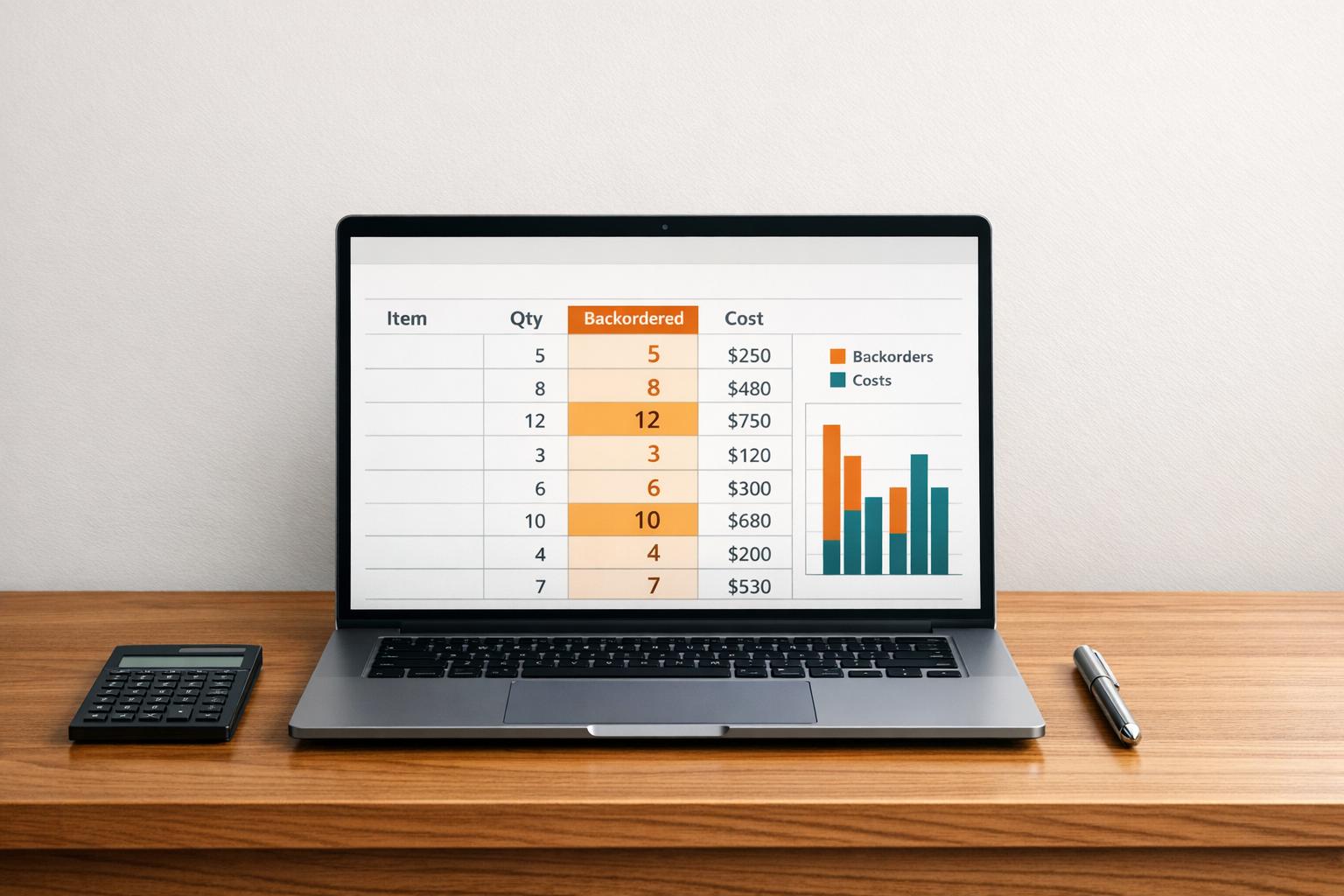
Managing backorders can be tricky, but QuickBooks Desktop offers tools to help you track and manage these costs effectively. Backorder costs arise when you can't fulfill customer orders immediately, leading to expenses like expedited shipping and customer service time. Here's how QuickBooks Desktop helps:
- Use Sales Orders: Record backorders as Sales Orders to keep your financial data accurate.
- Track Quantities: QuickBooks updates backorder quantities automatically when partial shipments are made.
- Reports: Leverage reports like "Open Sales Orders by Item" to monitor unfulfilled orders and analyze financial impact.
- Customization: Adjust templates to display backorder details on invoices and packing slips.
For advanced needs, tools like Rapid Inventory integrate with QuickBooks to provide real-time tracking, mobile barcode scanning, and multi-location insights.
QuickBooks Desktop simplifies backorder tracking, ensuring your records are accurate and your business stays on top of inventory challenges.
QuickBooks - Back Orders 2017
sbb-itb-19ed50f
Setting Up Backorder Tracking in QuickBooks Desktop

QuickBooks Desktop Backorder Tracking Setup Process
Creating Sales Orders for Backorders
To track backorders in QuickBooks Desktop, you’ll first need to confirm that your edition supports this feature or consider inventory management software for QuickBooks Desktop to streamline the process. Sales orders are only available in QuickBooks Desktop Premier and Enterprise editions. Additionally, backorder tracking columns are specific to the Premier Wholesale & Manufacturing, Premier Retail, or Enterprise editions. If you’re using the standard "Plain Premier" edition, these features won’t be accessible.
Start by enabling sales orders in QuickBooks. Head to Edit > Preferences > Sales & Customers > Company Preferences, and check the Enable Sales Order box. Keep in mind that sales orders are non-posting, meaning they won’t affect financial reports or inventory until they’re converted into invoices. This allows you to document customer commitments without prematurely altering your books.
Next, customize your sales order template to include backorder details. Open an existing sales order, navigate to the Formatting tab, and select Manage Templates. From there, click Additional Customization, go to the Columns tab, and check the Backordered box for both "Screen" and "Print" views. This ensures backorder details are clearly visible.
When fulfilling part of an order, click Create Invoice from the sales order and select "Create invoice for all of the sales order(s)." Enter only the quantity being shipped in the Invoiced column. The Backorder column will automatically update with the remaining quantity, keeping your records accurate for both shipped and pending items. This process simplifies backorder tracking from initial order to invoicing.
Configuring Items and Inventory Settings
Once sales orders are set up, make sure your inventory settings align with backorder tracking. Confirm your QuickBooks edition supports these features. If the title bar displays "Plain Premier", you’ll need to switch to Wholesale & Manufacturing or Retail editions. To do this, go to File > Toggle to Another Edition. Without the correct edition, backorder columns will either be grayed out or unavailable.
For e-commerce transactions using Sales Receipts, if an item is out of stock, remove it from the Sales Receipt and create a separate Sales Order for that item instead. This avoids double-counting inventory while keeping the backordered item tracked as an open commitment.
If a customer cancels a backordered item, mark the Sales Order as "Closed" or delete the specific line item. To maintain accurate inventory records, adjust your inventory by navigating to Inventory > Adjust Quantity/Value on Hand. These steps ensure your inventory and backorder records stay up to date.
Recording and Managing Backorder Quantities
Keeping track of backorders accurately is essential for managing costs and maintaining precise financial records in QuickBooks Desktop.
Using the Backorder Column in Sales Orders and Invoices
QuickBooks Desktop simplifies backorder tracking by automatically calculating backorders. It does this by subtracting the invoiced quantity from the original Sales Order, updating the Backorder column as you input shipment quantities. To fulfill an order, open the Sales Order, click "Create Invoice," and enter the quantity shipped.
As explained by Trish_T from the QuickBooks Team:
"QuickBooks Desktop enables you to do this seamlessly... Enter the Quantity of items you're shipping in the Invoiced column. The Backorder column will automatically update." – Trish_T, QuickBooks Team
This automated feature ensures your records stay up to date during the fulfillment process. However, if a line item is entirely backordered (with no items shipped), it won’t appear on the invoice by default, as QuickBooks only shows partially shipped items.
Once your backorder quantities are updated, double-check that these details are correctly reflected on any customer-facing documents.
Documenting Backorders in Packing Slips and Customer Invoices
Accurate documentation of backorders on packing slips and invoices is crucial for maintaining inventory accuracy and avoiding misunderstandings. To ensure backorder quantities are displayed correctly, customize your Packing Slip template. In the Additional Customization section under the Columns tab, enable the Backordered option for both Screen and Print views. Without this adjustment, the original order quantity might show instead of the remaining balance.
You can also use the Customer Message field at the bottom of invoices or packing slips to share estimated shipping dates for backordered items. If you need documentation that only shows unfulfilled items, consider creating a custom report from the Sales Order data instead of manually editing individual orders. This approach saves time and reduces errors.
Generating Reports to Analyze Backorder Costs
If you're using QuickBooks Desktop, you have access to several reporting tools that can help you understand how backorders affect your finances. Since non-posting sales orders don’t directly impact financial reports, specialized reports are necessary for a complete analysis.
Using the Open Sales Order by Item Report
The Open Sales Orders by Item report is your go-to tool for tracking current backorders. You can find it by navigating to Reports > Sales > Open Sales Orders by Item. This report lists items customers have ordered but haven’t been invoiced yet.
To focus specifically on backorder costs, customize the report. Go to the Display tab and include only the Backordered, Ordered, and Item columns.
As FateCandylaneT from the QuickBooks Team explains:
"Sales orders help you record sales that you plan to fulfill in the future. Since this transaction is a non-posting entry, this will not be included in your financial reports."
Keep in mind, this report only shows open orders. If you want to analyze backorders that were closed without fulfillment - potentially representing lost revenue - you’ll need to use a different method. Filtering and exporting additional data can provide a clearer picture of the financial impact.
Filtering and Exporting Data for Financial Analysis
To take your analysis further, you can customize a Custom Transaction Detail report. This approach allows you to assess the financial impact of backorders, including those that were never fulfilled. Here’s how:
- Go to Reports > Custom Reports > Transaction Detail.
- In the Filters tab, set Transaction Type to "Sales Order" and Posting Status to "Non-posting."
- Add the Backordered and QTY columns for detailed insights.
Once the report is ready, export it to Excel by clicking the Excel button. In Excel, you can calculate totals, apply formulas, and determine the dollar value of unfulfilled inventory.
LieraMarie_A from the QuickBooks Team advises:
"I'd suggest memorizing this report so you can access it in the future. You can also export the report to Excel."
Memorizing the report ensures it's readily available, and exporting it makes it easier to share or analyze digitally. If you want to focus on delays caused by specific suppliers, use the Preferred Vendor filter in the Custom Transaction Detail report. After exporting, you can refresh the data directly in Excel using the QuickBooks tab - just make sure QuickBooks Desktop is open the first time to set up permissions.
| Report Type | Primary Use | Key Setup |
|---|---|---|
| Open Sales Orders by Item | Track active backorders | Reports > Sales > Open Sales Orders by Item; customize columns for "Backordered" |
| Custom Transaction Detail | Analyze unfulfilled backorders (lost revenue) | Reports > Custom Reports > Transaction Detail; filter for non-posting sales orders |
Improving Backorder Management with Rapid Inventory
Key Features for Backorder Tracking
QuickBooks Desktop, while powerful, lacks the tools needed for advanced warehouse operations. That’s where Rapid Inventory steps in. Designed to complement QuickBooks Desktop (Enterprise, Pro, and Premier), it uses a two-way sync to automatically update items and orders. This eliminates the need for tedious spreadsheets, as stated by Rapid Inventory: items and orders are seamlessly synced, simplifying the tracking process.
One standout feature is its real-time reporting. You can monitor "Quantity on Purchase Orders" and "Sales Order Status" instantly, giving you a clear view of backordered items and the timeline for new stock arrivals. For businesses juggling multiple warehouses, the multi-location tracking feature can pinpoint if backordered items are available elsewhere, potentially reducing delays. Additionally, workflows for partial shipping and receiving allow you to ship what’s in stock while keeping track of remaining backordered items automatically.
Mobile barcode scanning is another game-changer. By verifying items and quantities during receiving and picking, it minimizes inventory errors that can lead to unexpected backorders. Fernanda C, a Director of Operations, highlights this feature:
"Rapid Inventory helps us run our warehouse operations. Easy to use and reliable. Using it since 2015, we especially love the barcode scanning and mobile picking."
These tools not only streamline daily operations but also contribute to more accurate financial records.
Benefits of Using Rapid Inventory for QuickBooks Desktop Users
Rapid Inventory bridges the gap between warehouse management and financial data, solving a common challenge for QuickBooks Desktop users. One major benefit is how it aligns your physical inventory with your financial records. Automatic synchronization ensures that backorder quantities in QuickBooks reflect the reality on the warehouse floor, which is crucial for understanding the true cost of unfulfilled orders. By integrating real-time inventory data, the platform improves transparency and accuracy in backorder cost management.
Another key advantage is its accessibility. With web-based access, you can check backorder statuses from anywhere, keeping you informed even when you’re offsite. Plus, Rapid Inventory includes free training, onboarding, and support (valued at $2,100 with the Pro plan), making the implementation process smooth and hassle-free. Nicholas G, a long-time user, shares his experience:
"Rapid Inventory with QuickBooks Desktop is exactly what we need to run our company... Simple and straightforward, very easy to learn and easy to work with. Onboarding was very smooth."
With over 400 customers and more than 17 years in the industry, Rapid Inventory has built a solid reputation for helping businesses effectively manage backorders.
Conclusion: Managing Backorder Costs in QuickBooks Desktop
Keeping track of backorder costs in QuickBooks Desktop ensures more precise financial records and supports business growth. By using Sales Orders to record backorders, you can avoid inflating your balance sheet due to cancellations and prevent issues like negative inventory, which can skew Cost of Goods Sold (COGS) and cash-basis reports.
Reviewing unfulfilled or closed backorders can also highlight lost revenue caused by stock shortages. For example, one e-commerce business selling solar panels saw a 33% boost in revenue by managing backorders effectively. During a viral demand surge, they accepted 25,000 units on backorder, increasing total sales from 50,000 to 75,000 units and generating an extra $6.25 million in revenue.
The guide’s key steps - such as creating Sales Orders, customizing templates to include a Backorder column, and running reports like "Open Sales Order by Item" - are essential for managing backorders. These strategies help reduce excess inventory, keep sales strong, and lower storage costs. Additionally, processing payments only after shipping minimizes the risk of reimbursement issues from canceled orders. This thorough approach lays the groundwork for improving backorder management.
For businesses with complex needs, like multiple warehouses, Rapid Inventory can simplify tracking through real-time reporting and mobile barcode scanning, ensuring accurate financial data. Whether you rely solely on QuickBooks Desktop or pair it with Rapid Inventory, maintaining accurate records is crucial to reflecting your inventory status and meeting customer demand effectively.
FAQs
How do I estimate the true dollar cost of a backorder in QuickBooks Desktop?
To figure out backorder costs in QuickBooks Desktop, start by checking inventory reports such as the Inventory Valuation Summary. This report shows unit costs, which you can multiply by the backordered quantities to determine the total value. Tools like Rapid Inventory make this process easier by offering real-time cost data and detailed valuation reports, helping you keep better track of backorder expenses.
Why don’t my backorders show up on financial reports until I invoice them?
In QuickBooks Desktop, backorders are managed through sales transactions such as invoices or sales orders. These backordered items remain excluded from recognized revenue and cost of goods sold until they are invoiced. This approach ensures that revenue and expenses are only recorded once the sale is finalized, keeping financial reports aligned with completed transactions.
What’s the best way to track backorders across multiple warehouse locations?
To keep track of backorders across various warehouse locations, QuickBooks Desktop’s Advanced Inventory features can be a huge help. Start by setting up each warehouse as an inventory site. Then, assign the quantities you have on hand and monitor stock levels for each site individually.
If you need to move stock between locations, the Transfer Inventory feature makes it easy to synchronize your inventory. For more advanced backorder management, you might consider tools like Rapid Inventory. These tools offer extras like multi-location tracking, barcode scanning, and real-time updates, giving you better visibility and making your operations more efficient.



